> ## Documentation Index
> Fetch the complete documentation index at: https://docs.fire.rest/llms.txt
> Use this file to discover all available pages before exploring further.
# Batch
> Generate and inject dozens of orders at once with configurable distributions, concurrency, and send modes.
Use the **Batch** tab when you need to populate a FIRE environment with multiple orders in a single run — for load testing, regression checks, or seeding demo data.
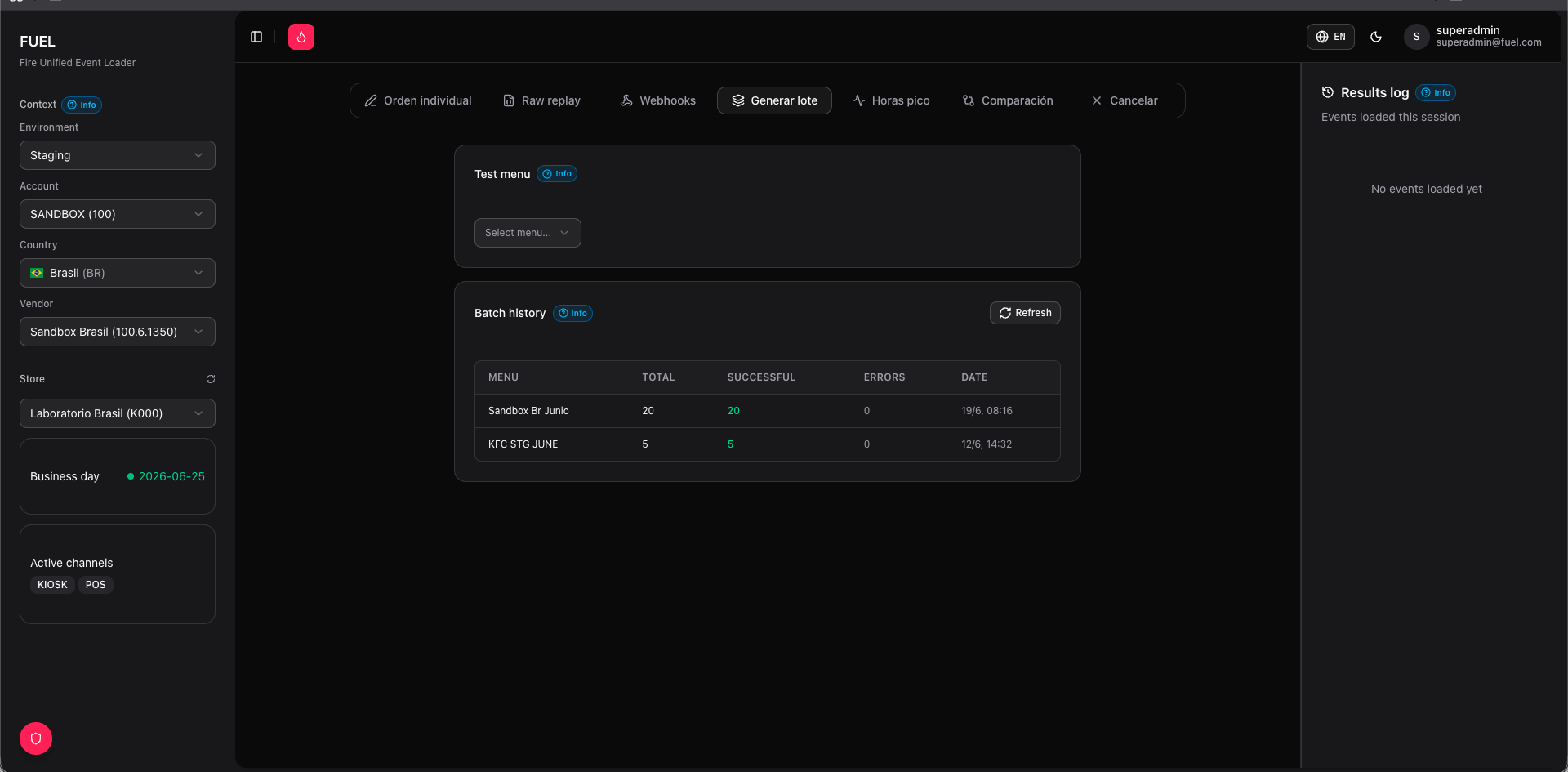 ## Select a test menu
Every batch starts by choosing a **Test Menu** — the catalog that defines which products, channels, and payment processors are available for the generated orders. The same menus used in [Single order](/en/fuel/single-order) appear here.
You must have an operating context selected (environment → account → country → vendor → store) before a test menu can be loaded.
## Configure the batch
**Quantity** — number of orders to generate (1–200).
**Min / Max products per order** — each order gets a random product count within this range.
Three sliders that must add up to 100 %:
* **Approved %** — orders with a successful payment result
* **Pending %** — orders awaiting payment confirmation
* **Rejected %** — orders with a failed payment
FUEL assigns statuses proportionally across the batch.
Number of requests sent in parallel when using **All at once** or **In batches of N** mode. Higher values stress-test the platform; lower values are safer for shared environments.
* **By-channel** — each order's fulfillment type matches the selected channel's default (`pickup` for POS/KIOSK, `delivery` for AGGREGATOR/APP)
* **Random** — FUEL randomizes between `pickup` and `delivery` across orders
Multi-select picker — choose one or more of `POS`, `KIOSK`, `APP`, `AGGREGATOR`. Use **All** or **None** shortcuts. Orders are distributed evenly across selected channels.
Multi-select of the processors defined in the test menu. Processors are rotated across orders in the batch.
## Generate the preview
Click **Generate** to create the order JSONs. FUEL builds each payload locally — nothing is sent to FIRE yet.
The preview table shows one row per order with its assigned Order ID, channel, delivery type, and transaction status indicator (green = approved, yellow = pending, red = rejected).
Click any row to open the raw JSON editor for that order. You can tweak fields before sending, or click the trash icon to remove an order from the batch.
## Send the batch
Choose a send mode and click **Send batch**:
Fires all orders simultaneously up to the configured concurrency limit. Fastest option — best for peak-load tests.
Sends orders sequentially with no parallelism. Useful for ordered debugging or environments that throttle concurrent requests.
Divides the queue into groups of N and sends each group in parallel before starting the next. Set the batch size in the input that appears when you select this mode.
While orders are in flight, the **injection log panel** on the right streams live results: each row shows the order ID, HTTP status, and FIRE's response body as requests complete. Click **Stop** at any time to abort remaining orders — in-flight requests finish naturally.
## Done banner
When the run completes (or is stopped), a banner displays:
* **X successful** — orders FIRE accepted (2xx response)
* **Y errors** — orders that received a non-2xx or network error
Click **New batch** to reset the form and start a fresh run.
## Batch history
Below the form, the **History** table lists every batch run for the current store. Columns include test menu, total orders, successful, errors, and timestamp. Expanding a row shows the per-order log from that run.
History is scoped to the currently selected store. Switching to a different store clears the visible history but does not delete records.
## Select a test menu
Every batch starts by choosing a **Test Menu** — the catalog that defines which products, channels, and payment processors are available for the generated orders. The same menus used in [Single order](/en/fuel/single-order) appear here.
You must have an operating context selected (environment → account → country → vendor → store) before a test menu can be loaded.
## Configure the batch
**Quantity** — number of orders to generate (1–200).
**Min / Max products per order** — each order gets a random product count within this range.
Three sliders that must add up to 100 %:
* **Approved %** — orders with a successful payment result
* **Pending %** — orders awaiting payment confirmation
* **Rejected %** — orders with a failed payment
FUEL assigns statuses proportionally across the batch.
Number of requests sent in parallel when using **All at once** or **In batches of N** mode. Higher values stress-test the platform; lower values are safer for shared environments.
* **By-channel** — each order's fulfillment type matches the selected channel's default (`pickup` for POS/KIOSK, `delivery` for AGGREGATOR/APP)
* **Random** — FUEL randomizes between `pickup` and `delivery` across orders
Multi-select picker — choose one or more of `POS`, `KIOSK`, `APP`, `AGGREGATOR`. Use **All** or **None** shortcuts. Orders are distributed evenly across selected channels.
Multi-select of the processors defined in the test menu. Processors are rotated across orders in the batch.
## Generate the preview
Click **Generate** to create the order JSONs. FUEL builds each payload locally — nothing is sent to FIRE yet.
The preview table shows one row per order with its assigned Order ID, channel, delivery type, and transaction status indicator (green = approved, yellow = pending, red = rejected).
Click any row to open the raw JSON editor for that order. You can tweak fields before sending, or click the trash icon to remove an order from the batch.
## Send the batch
Choose a send mode and click **Send batch**:
Fires all orders simultaneously up to the configured concurrency limit. Fastest option — best for peak-load tests.
Sends orders sequentially with no parallelism. Useful for ordered debugging or environments that throttle concurrent requests.
Divides the queue into groups of N and sends each group in parallel before starting the next. Set the batch size in the input that appears when you select this mode.
While orders are in flight, the **injection log panel** on the right streams live results: each row shows the order ID, HTTP status, and FIRE's response body as requests complete. Click **Stop** at any time to abort remaining orders — in-flight requests finish naturally.
## Done banner
When the run completes (or is stopped), a banner displays:
* **X successful** — orders FIRE accepted (2xx response)
* **Y errors** — orders that received a non-2xx or network error
Click **New batch** to reset the form and start a fresh run.
## Batch history
Below the form, the **History** table lists every batch run for the current store. Columns include test menu, total orders, successful, errors, and timestamp. Expanding a row shows the per-order log from that run.
History is scoped to the currently selected store. Switching to a different store clears the visible history but does not delete records.