> ## Documentation Index
> Fetch the complete documentation index at: https://docs.fire.rest/llms.txt
> Use this file to discover all available pages before exploring further.
# Cancel order
> Cancel an existing order in FIRE directly from FUEL without needing access to the FIRE backoffice.
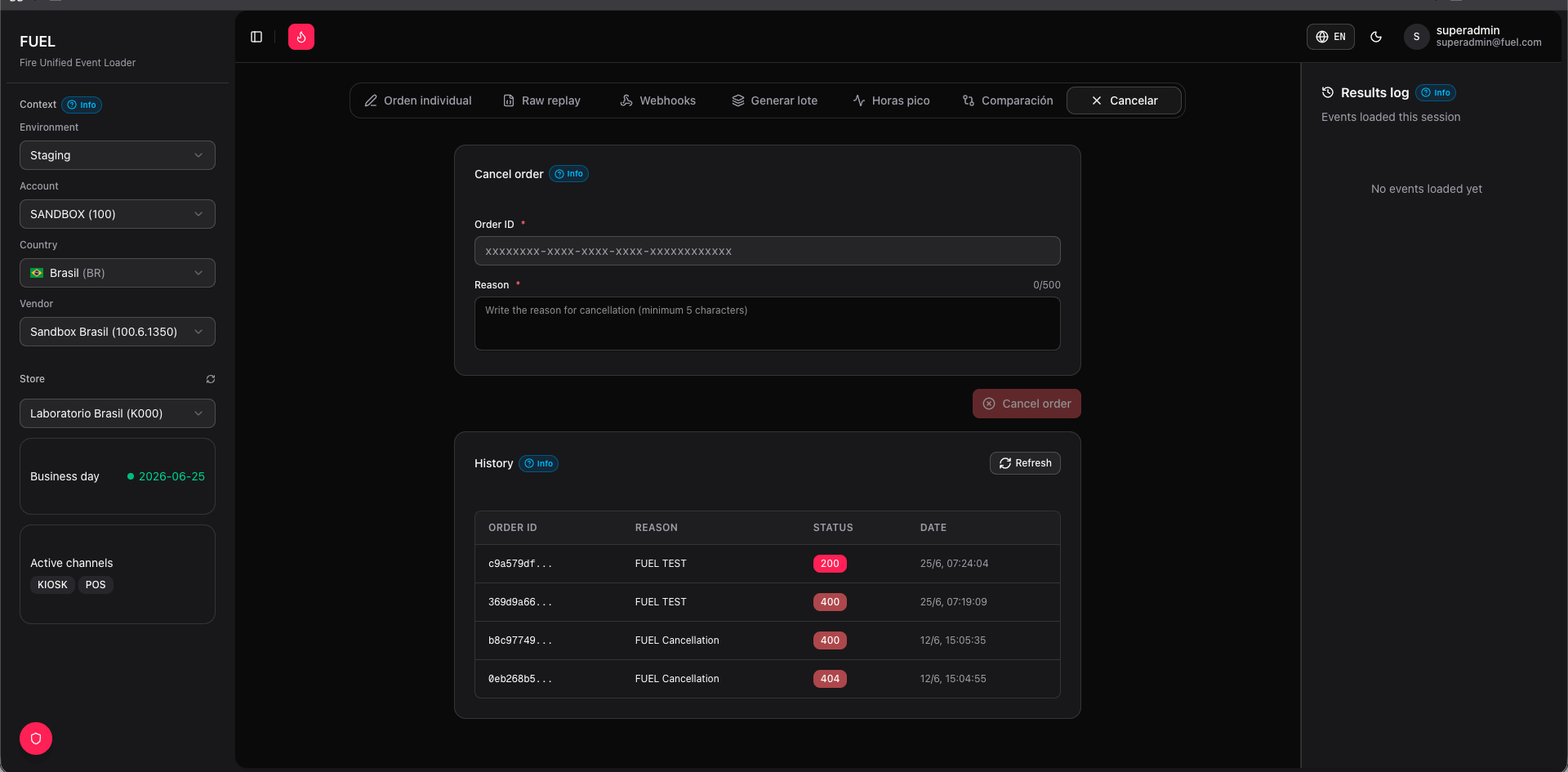
Use the **Cancel order** tab to send a cancellation request to FIRE for an order that is already in the system. This is useful when you need to clean up test orders, simulate cancellation flows, or verify that FIRE correctly transitions an order to a cancelled state.
 Cancellation is irreversible. Once an order is cancelled in FIRE, it cannot be restored. The operation only succeeds for orders currently in a cancellable state — typically `received` or `processing`. Orders that are already `completed`, `cancelled`, or `dispatched` will return an error.
## Before you start
Make sure your operating context is set in the sidebar: environment, account, country, vendor, and store must all be selected. Cancellation requests are sent to the FIRE environment you have active.
## How to cancel an order
Click **Cancel order** in the top navigation. The tab shows a single search field and a cancel action area.
Type either the **External Order ID** (the ID your system assigned when the order was created) or the **Order Code** (the short alphanumeric code visible in FIRE's order list) into the search field.
If you injected the order from **Single order** or **Batch**, the External Order ID is shown in the response card and in the results log on the right panel.
Click **Search** to look up the order in FIRE before cancelling. FUEL will display the order's current status, channel, and creation time so you can confirm you have the right order. This step is optional — you can proceed to cancel without searching first.
Click **Cancel order**. A confirmation dialog appears asking you to confirm the action. Review the order identifier shown in the dialog, then click **Confirm** to proceed.
After the request completes, FUEL displays the raw response from FIRE:
* **Success** — FIRE returns the updated order object with status `cancelled`. The response card is highlighted in green.
* **Error** — FIRE returns an error code and message. Common causes are an order not found, an invalid identifier, or the order being in a non-cancellable state.
## Response reference
FIRE accepted the cancellation. The response body contains the full order object with `"status": "cancelled"` and a `cancelledAt` timestamp.
FIRE rejected the cancellation. Check the `message` field in the response body. Common messages include `Order not found`, `Order already cancelled`, and `Order cannot be cancelled in current state`.
## Notes
FUEL calls FIRE's cancellation endpoint at `POST /v1/orders/:id/cancel`. The `:id` used is FIRE's internal order ID, resolved from the External Order ID or Order Code you provided. If the lookup fails, FUEL will show a "not found" error before attempting the cancel.
If you need to cancel many orders at once, consider using a script against FIRE's API directly — the **Cancel order** tab is designed for individual, targeted cancellations during testing and debugging.
Cancellation is irreversible. Once an order is cancelled in FIRE, it cannot be restored. The operation only succeeds for orders currently in a cancellable state — typically `received` or `processing`. Orders that are already `completed`, `cancelled`, or `dispatched` will return an error.
## Before you start
Make sure your operating context is set in the sidebar: environment, account, country, vendor, and store must all be selected. Cancellation requests are sent to the FIRE environment you have active.
## How to cancel an order
Click **Cancel order** in the top navigation. The tab shows a single search field and a cancel action area.
Type either the **External Order ID** (the ID your system assigned when the order was created) or the **Order Code** (the short alphanumeric code visible in FIRE's order list) into the search field.
If you injected the order from **Single order** or **Batch**, the External Order ID is shown in the response card and in the results log on the right panel.
Click **Search** to look up the order in FIRE before cancelling. FUEL will display the order's current status, channel, and creation time so you can confirm you have the right order. This step is optional — you can proceed to cancel without searching first.
Click **Cancel order**. A confirmation dialog appears asking you to confirm the action. Review the order identifier shown in the dialog, then click **Confirm** to proceed.
After the request completes, FUEL displays the raw response from FIRE:
* **Success** — FIRE returns the updated order object with status `cancelled`. The response card is highlighted in green.
* **Error** — FIRE returns an error code and message. Common causes are an order not found, an invalid identifier, or the order being in a non-cancellable state.
## Response reference
FIRE accepted the cancellation. The response body contains the full order object with `"status": "cancelled"` and a `cancelledAt` timestamp.
FIRE rejected the cancellation. Check the `message` field in the response body. Common messages include `Order not found`, `Order already cancelled`, and `Order cannot be cancelled in current state`.
## Notes
FUEL calls FIRE's cancellation endpoint at `POST /v1/orders/:id/cancel`. The `:id` used is FIRE's internal order ID, resolved from the External Order ID or Order Code you provided. If the lookup fails, FUEL will show a "not found" error before attempting the cancel.
If you need to cancel many orders at once, consider using a script against FIRE's API directly — the **Cancel order** tab is designed for individual, targeted cancellations during testing and debugging.