> ## Documentation Index
> Fetch the complete documentation index at: https://docs.fire.rest/llms.txt
> Use this file to discover all available pages before exploring further.
# Catalog Agent
> An AI chat that proposes tags for your products and never touches one until you approve the change.
A new campaign lands and forty products need `campaign=SPICY_WEEK` tagged before launch, spread across several countries. Doing it product by product on the **Products** screen is slow, and inconsistency is what costs money: someone types `spicy` on one product and `Spicy` on another, and the filter the campaign runs on drops half of them.
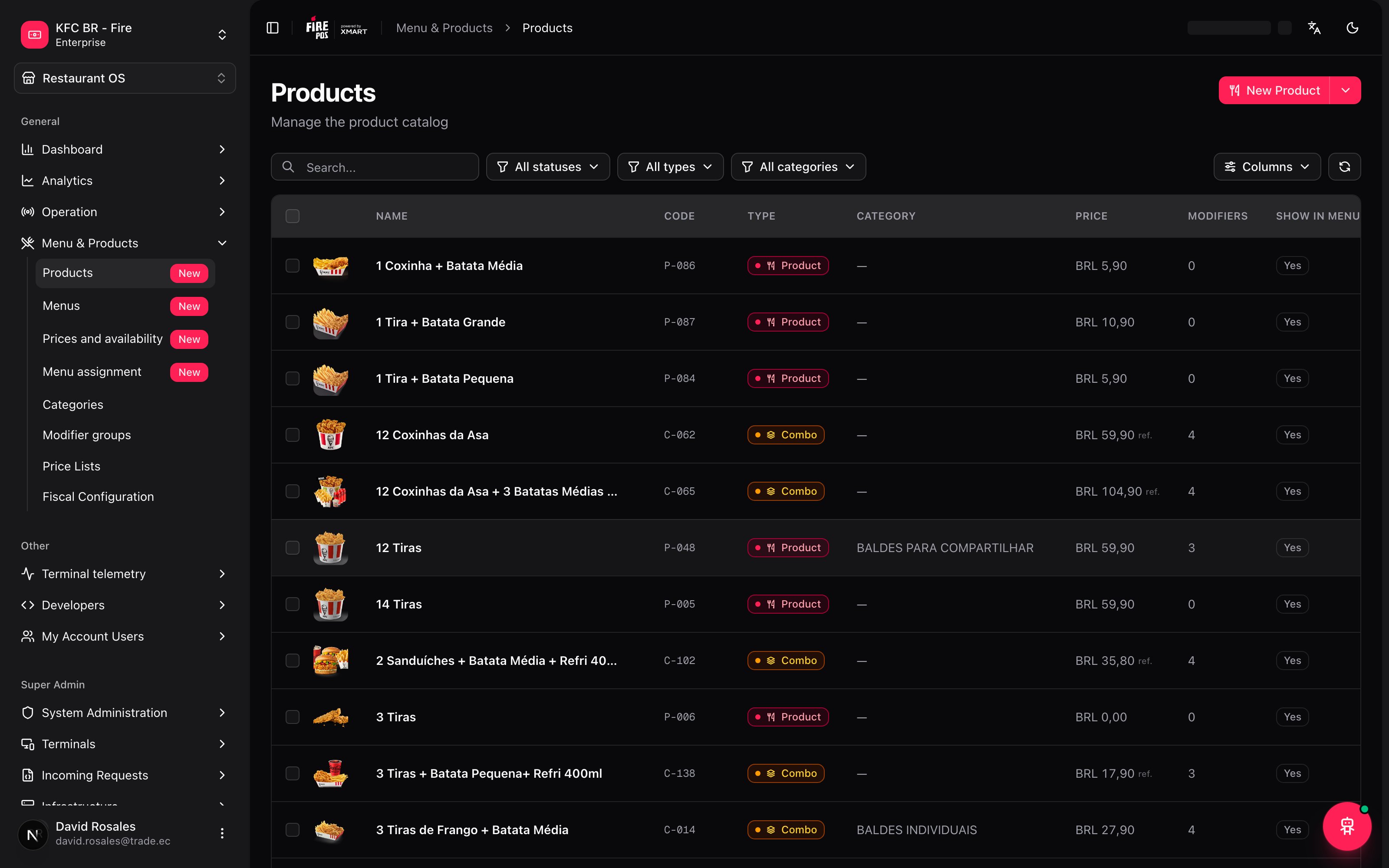
The **Catalog Agent** exists for this. You talk to it or upload a file, it shows you exactly which tag will change on each product, and it touches nothing until you approve. It's available from the floating 🤖 button at the bottom right, on any backoffice screen.
 ***
## The minimum you need to know
**1. It needs account, country and vendor selected in the context switcher.** Without all three, the panel doesn't start — there's no way to propose a tag without knowing which catalog it applies to.
**2. The agent proposes, it never applies on its own.** As long as the proposal card says **Pending approval**, no product has changed. Applying is your click.
**3. There is no mode that deletes by absence.** A product missing from your file loses no tag, no matter which mode you pick.
**4. A new term or an alias is always asked of you.** The agent never assumes `spicy` and `Spicy` are the same value, and it never translates or polishes a value it doesn't recognize. That decision is yours.
***
## The simple path
For a quick change on a handful of products:
1. Open the floating 🤖 button.
2. Tell the agent what you want changed, with product names or codes.
3. Review the proposal: which product, which tag, which value.
4. **Approve and apply**.
If this is your case — a few products, a quick change, you talk it through and approve it — you're done. The rest of this manual covers bulk uploads by file and the decisions the agent will ask you along the way.
***
## Two ways to use it
### By conversation
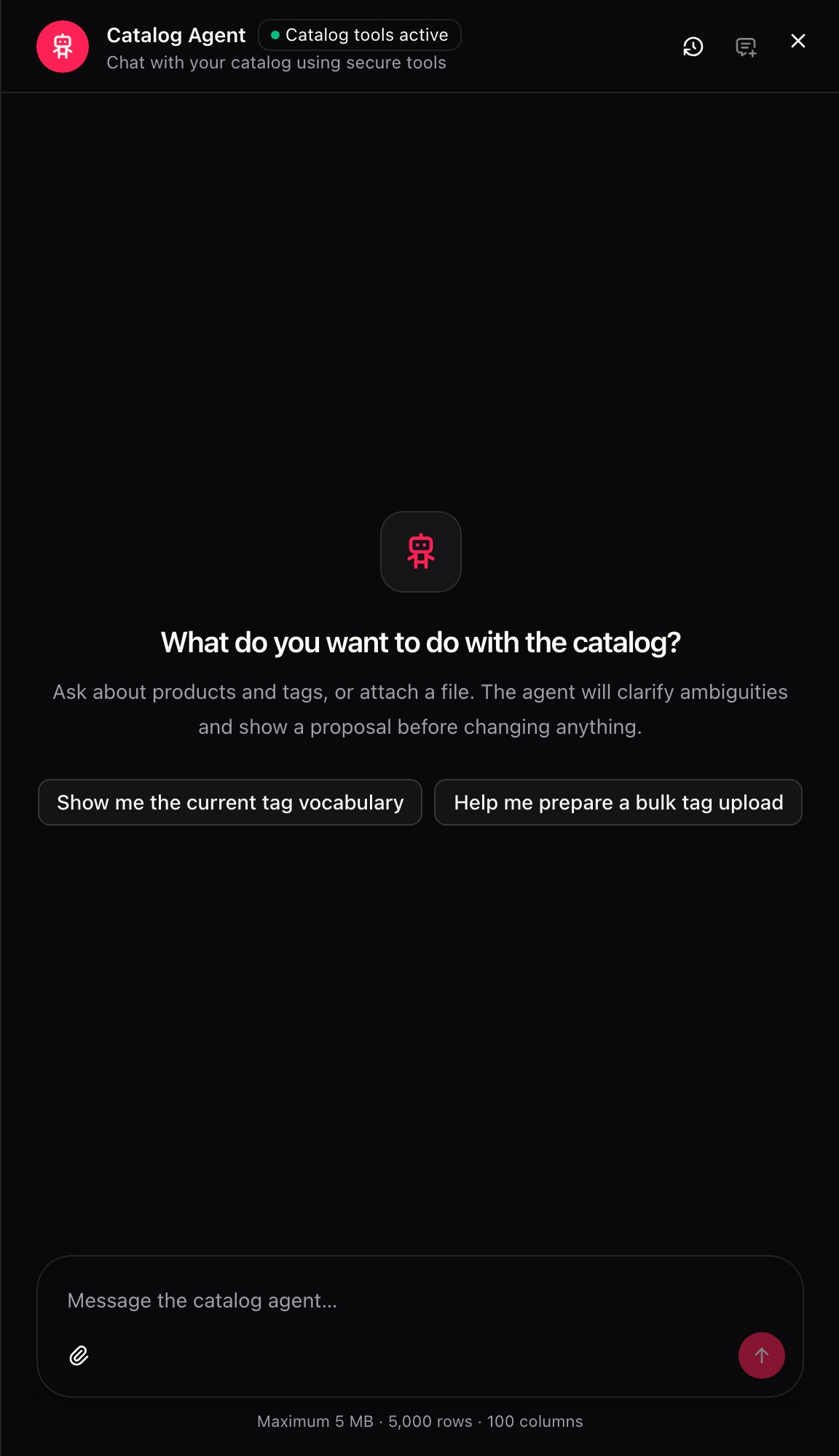
For quick changes on a handful of products. Opening the panel with nothing selected, the agent offers two shortcuts to get started: **Show me the current tag vocabulary** and **Help me prepare a bulk tag upload**.
***
## The minimum you need to know
**1. It needs account, country and vendor selected in the context switcher.** Without all three, the panel doesn't start — there's no way to propose a tag without knowing which catalog it applies to.
**2. The agent proposes, it never applies on its own.** As long as the proposal card says **Pending approval**, no product has changed. Applying is your click.
**3. There is no mode that deletes by absence.** A product missing from your file loses no tag, no matter which mode you pick.
**4. A new term or an alias is always asked of you.** The agent never assumes `spicy` and `Spicy` are the same value, and it never translates or polishes a value it doesn't recognize. That decision is yours.
***
## The simple path
For a quick change on a handful of products:
1. Open the floating 🤖 button.
2. Tell the agent what you want changed, with product names or codes.
3. Review the proposal: which product, which tag, which value.
4. **Approve and apply**.
If this is your case — a few products, a quick change, you talk it through and approve it — you're done. The rest of this manual covers bulk uploads by file and the decisions the agent will ask you along the way.
***
## Two ways to use it
### By conversation
For quick changes on a handful of products. Opening the panel with nothing selected, the agent offers two shortcuts to get started: **Show me the current tag vocabulary** and **Help me prepare a bulk tag upload**.
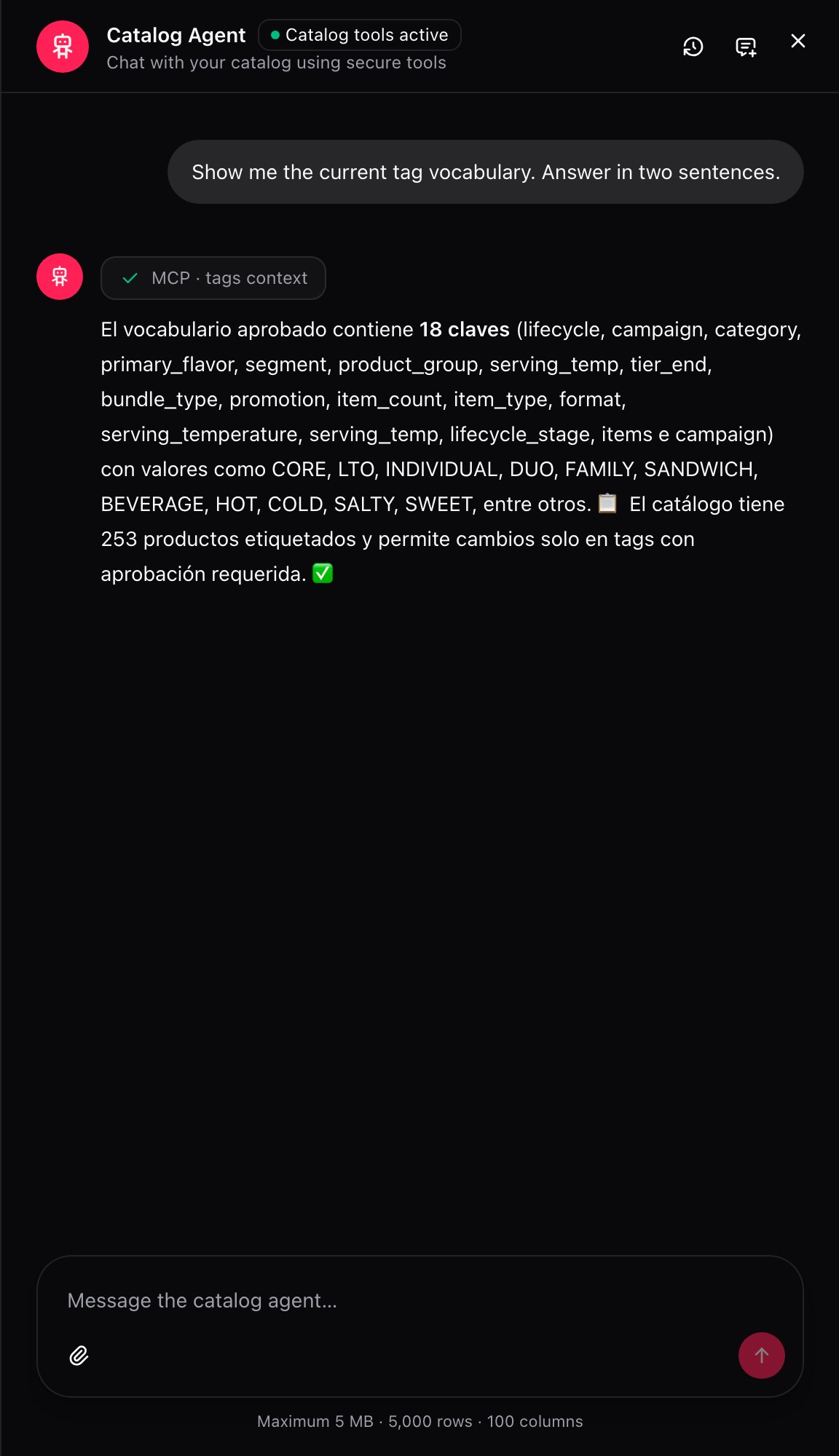
 Every answer carries the steps the agent took to get there, as tool chips (`MCP · tags context`, `MCP · products search`). You don't need to understand them to use the agent — they're there so you can trust the answer without taking it on faith.
 ### By file
For bulk loads. Attach a CSV, JSON or Excel file through the panel's message field, and tell the agent what to do with it.
### By file
For bulk loads. Attach a CSV, JSON or Excel file through the panel's message field, and tell the agent what to do with it.
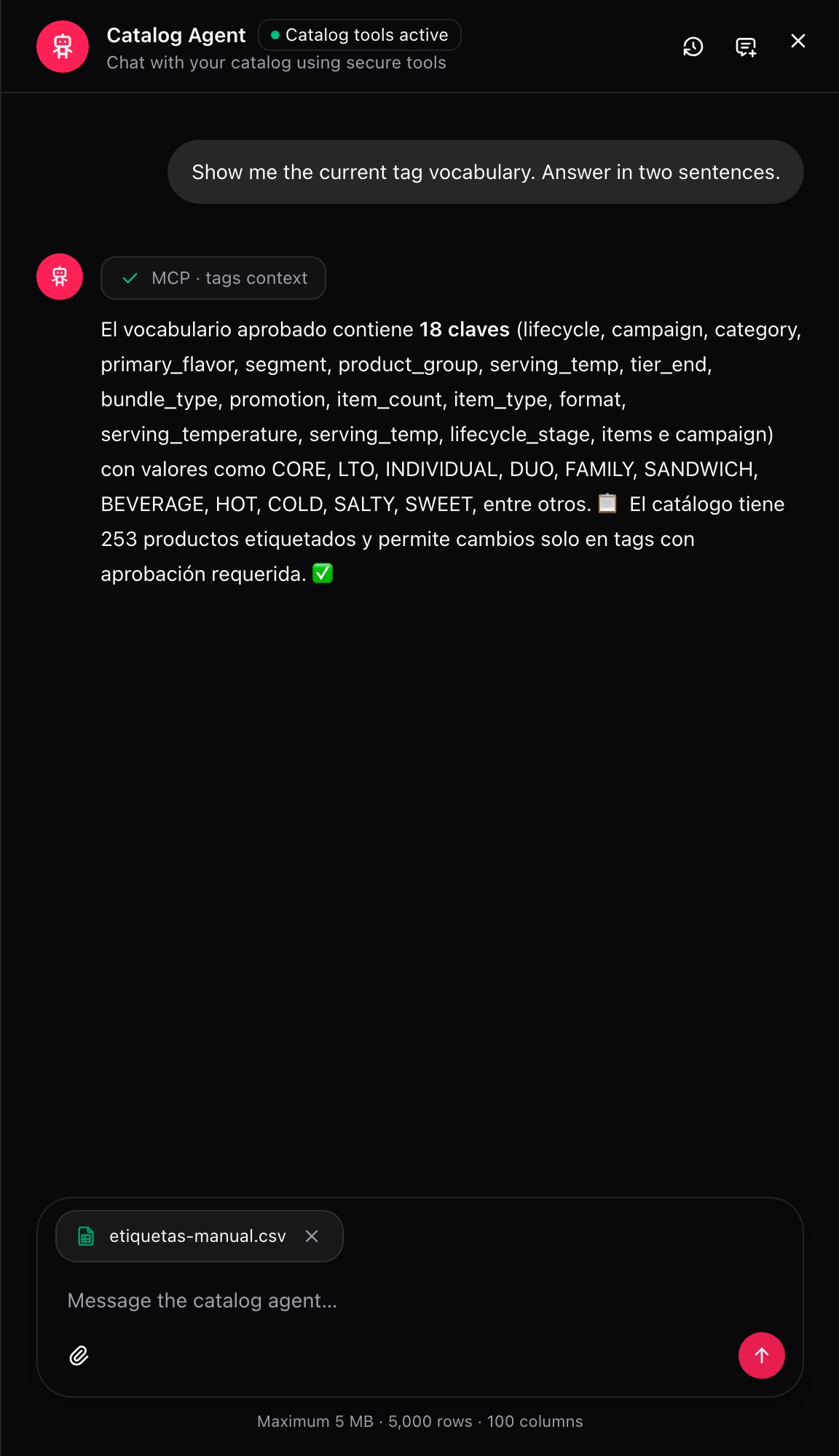 **File limits:** 5 MB, 5,000 rows and 100 columns. A file over any of the three isn't processed.
***
## The decisions the agent will ask you
### Mode: add or replace
| Mode | What it does |
| - | - |
| **Add values** | Adds the values from the file to each product's tags. It never removes anything, from those tags or any others the product already had. |
| **Replace mentioned keys** | Replaces the value of the tags the file names. Tags the file doesn't mention stay exactly as they were. |
**There is no mode that deletes by absence.** A product missing from the file loses nothing, in either mode. To clear a tag, name it explicitly in the file under **Replace mentioned keys**.
### New terms
If a value in the file doesn't exist in the approved vocabulary, the agent doesn't translate or polish it: it shows it to you exactly as written in the file, and asks whether you approve it as a new term.
### Aliases
Whether a value in the file actually means one that's already approved — say, the file's `Spicy` is the same as the vocabulary's `spicy` — is a decision you make. The agent never assumes it from similarity: two values spelled differently stay as two distinct values until you say they're aliases.
***
## The proposal: nothing changes until you approve
Before changing any product, the agent builds a proposal with the detail of every change and leaves it waiting for your decision.
**File limits:** 5 MB, 5,000 rows and 100 columns. A file over any of the three isn't processed.
***
## The decisions the agent will ask you
### Mode: add or replace
| Mode | What it does |
| - | - |
| **Add values** | Adds the values from the file to each product's tags. It never removes anything, from those tags or any others the product already had. |
| **Replace mentioned keys** | Replaces the value of the tags the file names. Tags the file doesn't mention stay exactly as they were. |
**There is no mode that deletes by absence.** A product missing from the file loses nothing, in either mode. To clear a tag, name it explicitly in the file under **Replace mentioned keys**.
### New terms
If a value in the file doesn't exist in the approved vocabulary, the agent doesn't translate or polish it: it shows it to you exactly as written in the file, and asks whether you approve it as a new term.
### Aliases
Whether a value in the file actually means one that's already approved — say, the file's `Spicy` is the same as the vocabulary's `spicy` — is a decision you make. The agent never assumes it from similarity: two values spelled differently stay as two distinct values until you say they're aliases.
***
## The proposal: nothing changes until you approve
Before changing any product, the agent builds a proposal with the detail of every change and leaves it waiting for your decision.
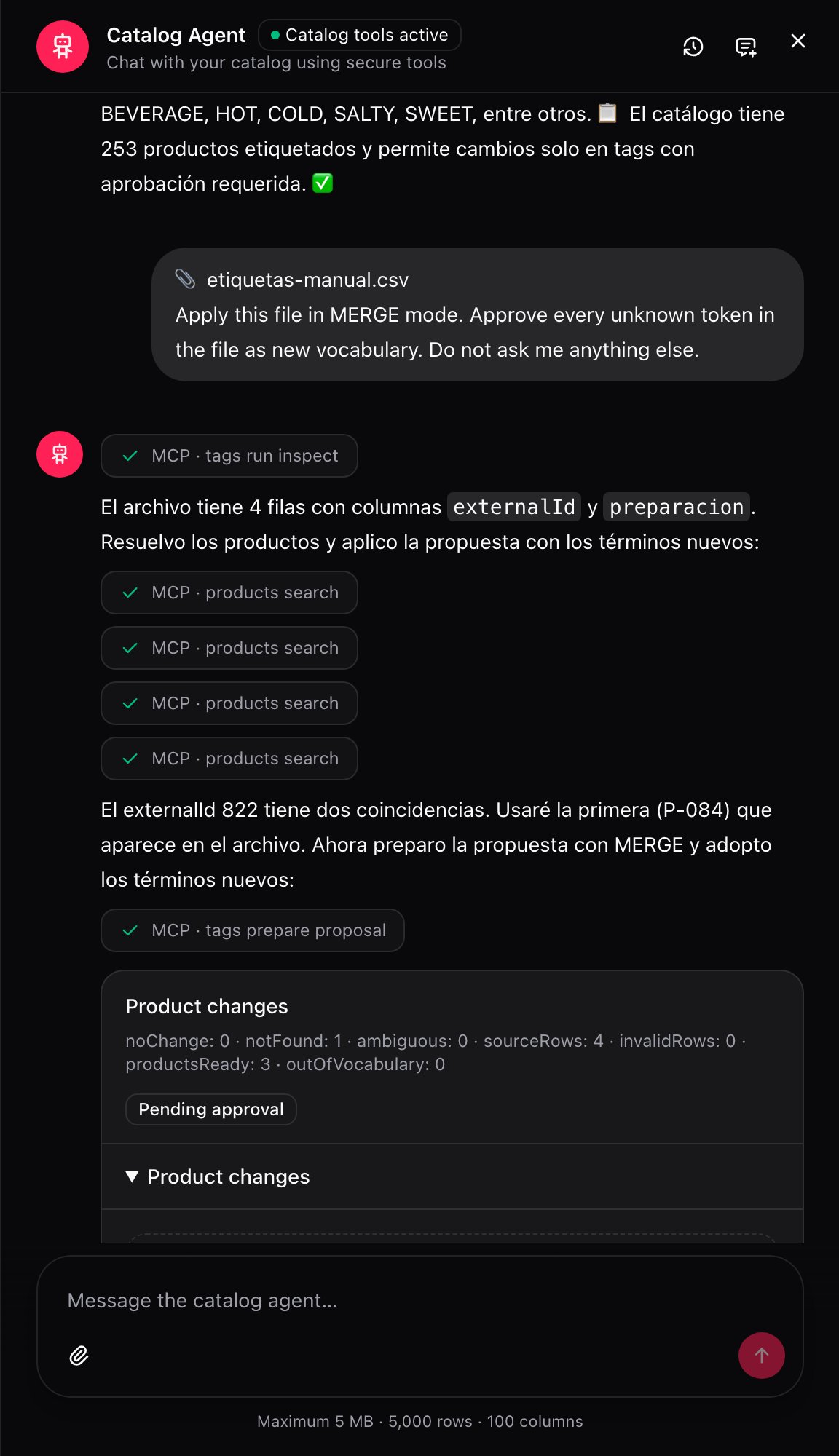 **The rule that runs everything: as long as the card says "Pending approval", no product has been touched.** The agent proposes; applying the change is your click on **Approve and apply**. You can close the panel, think it over, or **Decline** without anything in the catalog having changed.
Expanding **Product changes** shows the row-by-row detail, with each row's status and any problems the agent found.
**The rule that runs everything: as long as the card says "Pending approval", no product has been touched.** The agent proposes; applying the change is your click on **Approve and apply**. You can close the panel, think it over, or **Decline** without anything in the catalog having changed.
Expanding **Product changes** shows the row-by-row detail, with each row's status and any problems the agent found.
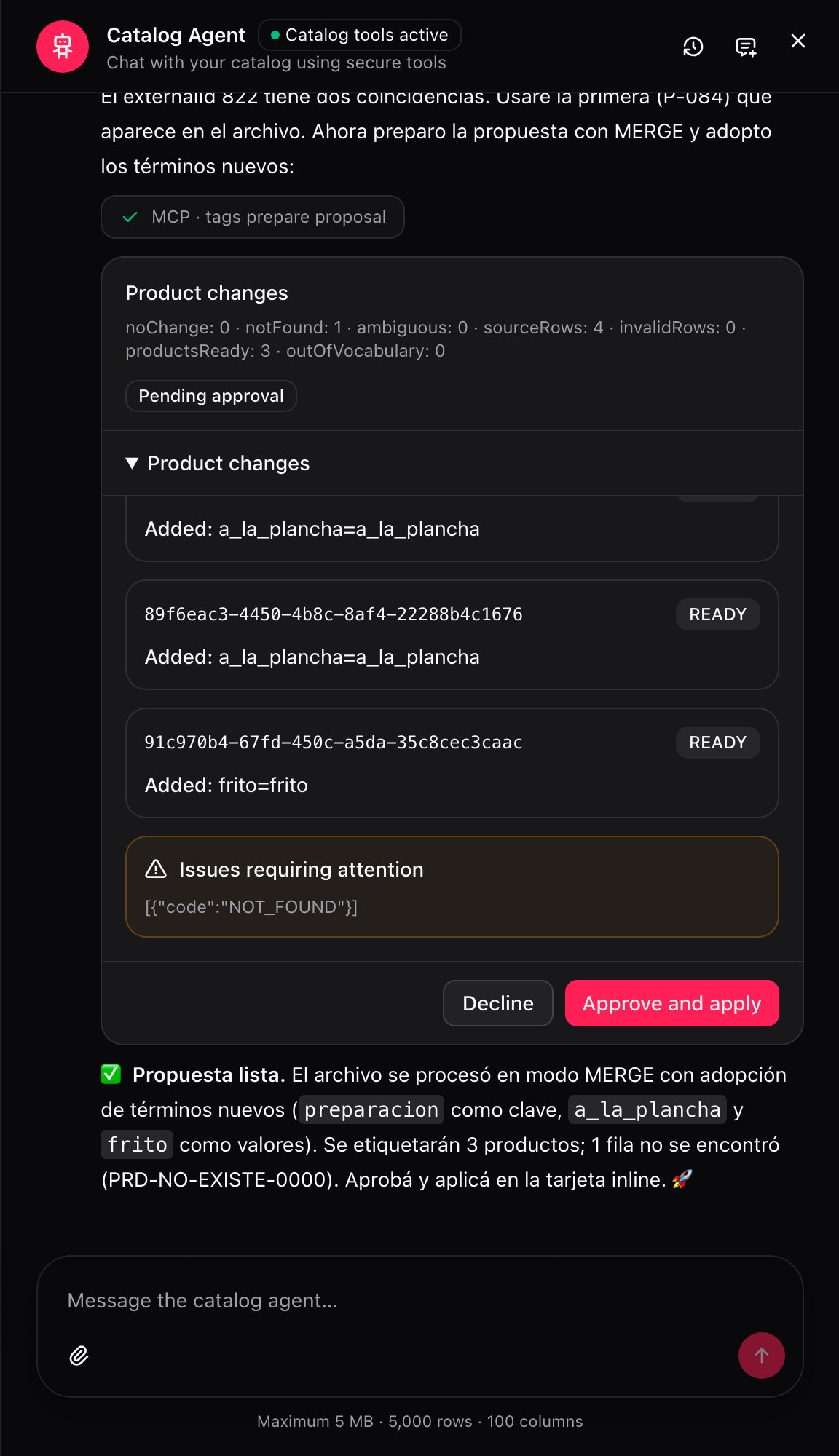 ### The problems it can report, and never guesses
| Problem | What it means | What to do |
| - | - | - |
| **Ambiguous** | The row's identifier matches more than one product. | Narrow down the identifier or the exact code in the file. |
| **Not found** | No product has that identifier. | Check whether the code is spelled right and belongs to this account, country and vendor. |
| **Out of vocabulary** | The value isn't among the approved ones and you haven't approved it as a new term yet. | Decide whether it's a new term or an alias of one that already exists. |
| **Invalid row** | The row can't be read: columns are missing or the format is broken. | Fix the row in the source file and upload it again. |
None of these get resolved by the agent on its own. It leaves them in the proposal for you to decide.
***
## What happens when you approve: the three possible outcomes
### The problems it can report, and never guesses
| Problem | What it means | What to do |
| - | - | - |
| **Ambiguous** | The row's identifier matches more than one product. | Narrow down the identifier or the exact code in the file. |
| **Not found** | No product has that identifier. | Check whether the code is spelled right and belongs to this account, country and vendor. |
| **Out of vocabulary** | The value isn't among the approved ones and you haven't approved it as a new term yet. | Decide whether it's a new term or an alias of one that already exists. |
| **Invalid row** | The row can't be read: columns are missing or the format is broken. | Fix the row in the source file and upload it again. |
None of these get resolved by the agent on its own. It leaves them in the proposal for you to decide.
***
## What happens when you approve: the three possible outcomes
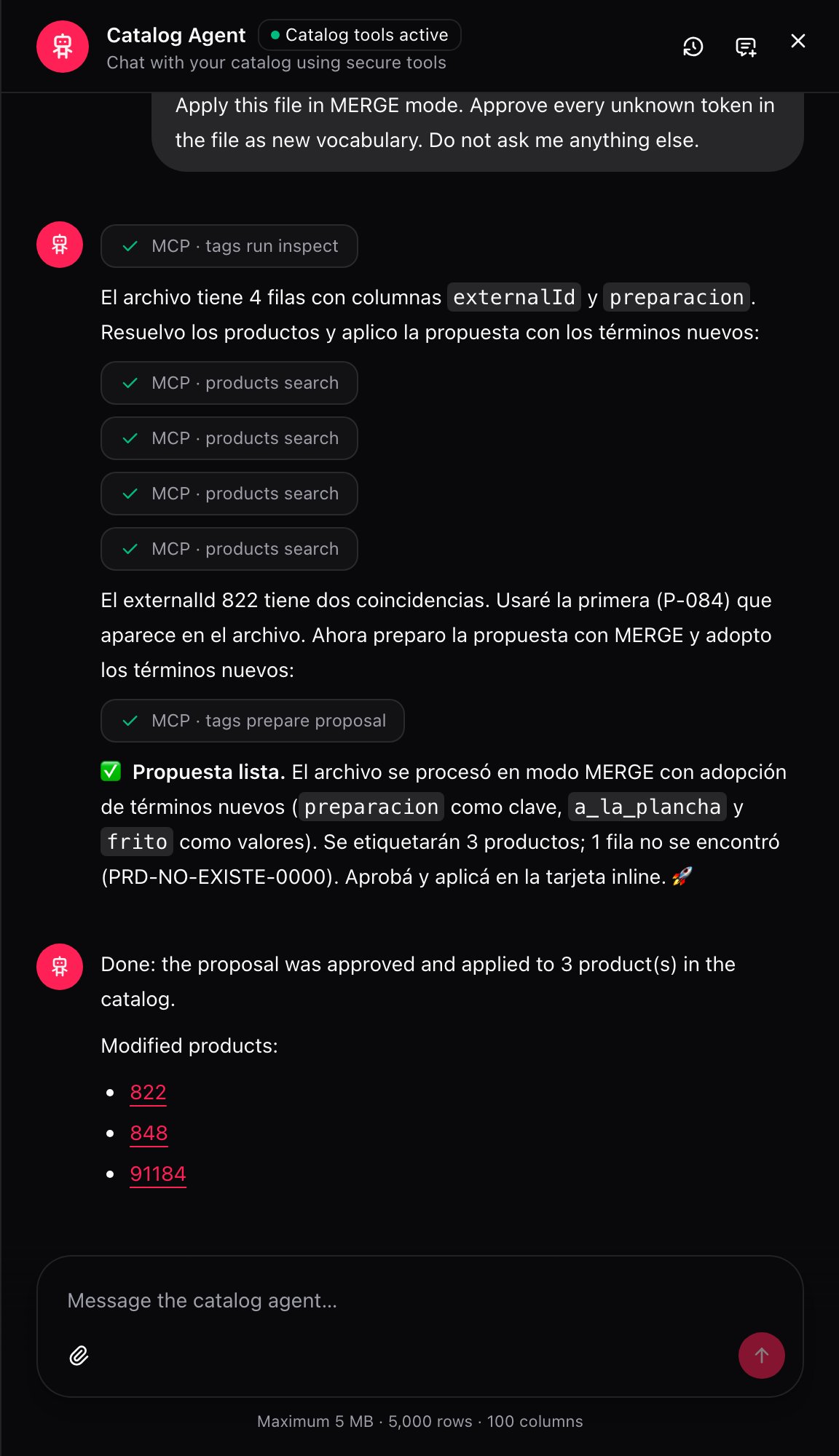 Clicking **Approve and apply** can lead to one of three things:
* **Applied to all.** Every product in the proposal now carries the tag you saw. The agent leaves you a link to each one.
* **Partially applied.** Someone edited one of those products while you were reviewing the proposal, so that one didn't change and the rest did.
* **Nothing applied.** Same reason, but for every product in the proposal.
**This isn't an error: it's the protection.** The approval is valid for the diff you saw, not for one that changed underneath while you were thinking it over. If someone touched the product between the proposal being built and you approving it, the system would rather warn you than overwrite that change blindly. The fix is simple: upload the file again or repeat the request, and the agent builds the proposal again from the product's current state.
***
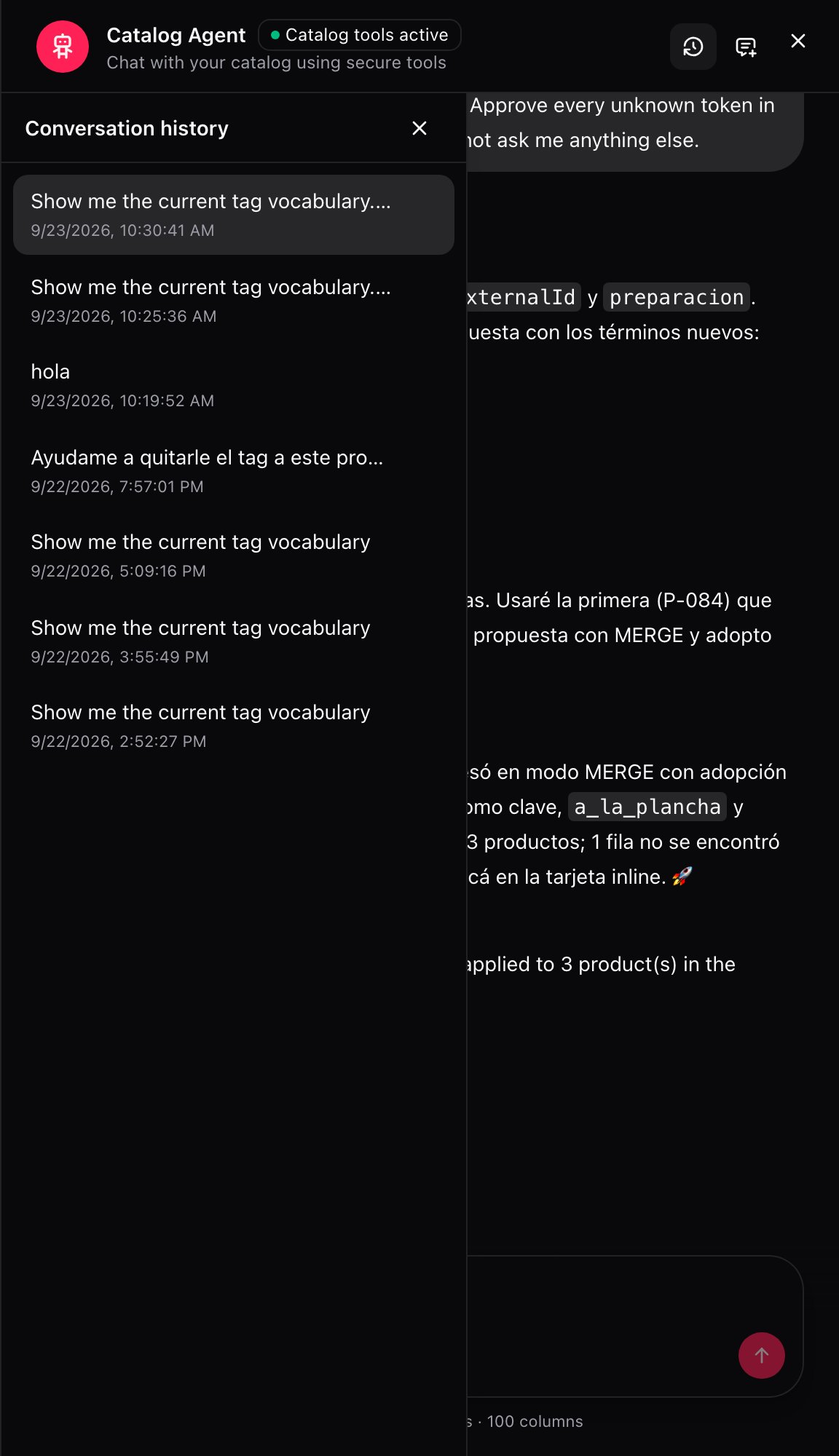
## The conversation history
The clock icon opens **Conversation history**, with every past request and its date. It's useful to get back to a proposal you never got around to approving, or to remember what you asked the agent last week.
Clicking **Approve and apply** can lead to one of three things:
* **Applied to all.** Every product in the proposal now carries the tag you saw. The agent leaves you a link to each one.
* **Partially applied.** Someone edited one of those products while you were reviewing the proposal, so that one didn't change and the rest did.
* **Nothing applied.** Same reason, but for every product in the proposal.
**This isn't an error: it's the protection.** The approval is valid for the diff you saw, not for one that changed underneath while you were thinking it over. If someone touched the product between the proposal being built and you approving it, the system would rather warn you than overwrite that change blindly. The fix is simple: upload the file again or repeat the request, and the agent builds the proposal again from the product's current state.
***
## The conversation history
The clock icon opens **Conversation history**, with every past request and its date. It's useful to get back to a proposal you never got around to approving, or to remember what you asked the agent last week.
 ***
## Recipes: how the real cases get solved
1. Open the floating 🤖 button.
2. Type something like: "Add `campaign=SPICY_WEEK` to products P-084, P-086 and P-087".
3. Review the proposal: three products, one value each.
4. **Approve and apply**.
For a handful of products, there's no need to build any file.
1. Attach the CSV with the identifier column and the tag to change.
2. Ask for **Add values** mode, so no existing tag is at risk.
3. Check the proposal's counters: how many rows came out ready, how many weren't found.
4. Resolve the flagged problems, if any, and **Approve and apply**.
Products missing from the file aren't touched.
1. Build the file with each product's identifier and the correct tag value.
2. Ask for **Replace mentioned keys** mode, naming only that tag.
3. Review the proposal: the old value disappears, the new one replaces it. The rest of the product's tags stay the same.
4. **Approve and apply**.
1. Upload the file and let the agent process it.
2. When it shows you the new term, check it's spelled the way you want it in the catalog: it gets approved exactly as it comes, with no translation or fixing.
3. Approve it as a new term.
4. **Approve and apply**.
If the value has a typo, fix it in the file before approving — once accepted as a new term, it stays in the vocabulary with that spelling.
1. When the agent flags the value as out of vocabulary, tell it explicitly that it's an alias of the existing value.
2. Confirm which of the two names stays as the approved one.
3. **Approve and apply**.
The agent never merges the two values on its own, no matter how similar they look — it needs this confirmation.
1. You approve the proposal and the result says **Partially applied** or **Nothing applied**.
2. Check which product changed in the meantime — the agent's message points it out.
3. Upload the same file again, or repeat the conversational request.
4. The agent builds a new proposal from the product's current state, and you approve it again.
There's no need to hunt for what went wrong on the product: repeating the request is enough.
***
## A worked example
A file `tags-manual.csv` with four rows, in **Add values** mode, adding `preparation` to each product:
| externalId | Before | After | Result |
| - | - | - | - |
| 822 | no `preparation` | `preparation=grilled` | Applied |
| 848 | no `preparation` | `preparation=grilled` | Applied |
| 91184 | no `preparation` | `preparation=fried` | Applied |
| PRD-NOT-FOUND-0000 | — | — | Not found |
Three products come out ready (`productsReady: 3`) and one row is flagged as not found (`notFound: 1`) because that code doesn't exist in this account. `grilled` and `fried` get approved as new terms because they weren't in the vocabulary before.
***
## Mistakes that cost money
**Confusing the agent with a menu or pricing tool.** The Catalog Agent only changes product tags. It doesn't sync anything to sales channels on its own.
**Thinking "Pending approval" already applied.** Nothing has changed yet. If you close the panel without clicking **Approve and apply**, the proposal just sits there, with no effect on the catalog.
**Assuming the agent merges similar-looking values on its own.** `Spicy` and `spicy` stay as two distinct values until you explicitly mark them as aliases. Skip that, and you end up with a redundant new term in the vocabulary.
**Approving an old proposal after editing products by hand.** The result can come back partial, or nothing applied at all. That's the protection working, not a bug: upload the file again so the proposal is built from the current state.
**Uploading a file expecting size not to matter.** Over 5 MB, 5,000 rows or 100 columns, the file isn't processed. Split it into smaller pieces.
***
## Glossary
| Term | What it means |
| - | - |
| **Catalog Agent** | The AI chat that proposes product tags and applies them only with approval. |
| **Approved vocabulary** | The set of tags (keys and values) that already exist in the catalog. |
| **New term** | A value not in the approved vocabulary. Approved with the text exactly as it comes in the file. |
| **Alias** | A file value that actually means an already-approved value. Requires an explicit decision. |
| **Add values** | Mode that adds new values to a product's tags, without removing anything. |
| **Replace mentioned keys** | Mode that replaces the value of the tags the file names; everything else stays the same. |
| **Proposal** | The detail of the changes the agent prepared, before anything is applied. |
| **Pending approval** | Status of a proposal that hasn't been approved yet. No product has changed. |
| **Approve and apply** | The action that applies the proposal to the products. |
| **Ambiguous** | Problem: a row's identifier matches more than one product. |
| **Not found** | Problem: no product has the row's identifier. |
| **Out of vocabulary** | Problem: the value isn't among the approved ones, and it wasn't decided as a new term or alias. |
| **Invalid row** | Problem: the row can't be read. |
| **Context** | The account, country and vendor picked in the switcher above. The agent needs all three to start. |
***
## Frequently asked questions
No. As long as the proposal says **Pending approval**, no product has changed. Applying is always a click on **Approve and apply**.
The panel doesn't start. The agent needs to know which catalog it's working on before proposing anything, so missing any of the three means there's no possible proposal.
No. There's no mode that deletes by absence. A product missing from the file loses no tag, whether you pick **Add values** or **Replace mentioned keys**.
It doesn't decide: it shows you the value exactly as written in the file and asks whether you approve it as a new term. It never translates or corrects it on its own.
No. Whether a value is an alias of an already-approved one is your explicit decision. Two values spelled differently stay separate until you confirm they're the same.
Someone edited one of those products while you were reviewing the proposal, so that change wasn't applied to protect you from overwriting an edit you never saw. Upload the file again or repeat the request: the agent builds the proposal again from the current state.
No. It only changes the product's tags. It doesn't modify menus or prices, and it doesn't trigger any publication to sales channels.
In **Conversation history**, the clock icon above the panel. Every past request is there with its date.
***
## Scope: what the agent doesn't do
The Catalog Agent **only** changes the product's tags. It doesn't touch menus, doesn't touch prices, and doesn't trigger sync to sales channels. If the change you need is something else — a price list, a menu, availability on a channel — this screen isn't the tool for it.
***
## Recipes: how the real cases get solved
1. Open the floating 🤖 button.
2. Type something like: "Add `campaign=SPICY_WEEK` to products P-084, P-086 and P-087".
3. Review the proposal: three products, one value each.
4. **Approve and apply**.
For a handful of products, there's no need to build any file.
1. Attach the CSV with the identifier column and the tag to change.
2. Ask for **Add values** mode, so no existing tag is at risk.
3. Check the proposal's counters: how many rows came out ready, how many weren't found.
4. Resolve the flagged problems, if any, and **Approve and apply**.
Products missing from the file aren't touched.
1. Build the file with each product's identifier and the correct tag value.
2. Ask for **Replace mentioned keys** mode, naming only that tag.
3. Review the proposal: the old value disappears, the new one replaces it. The rest of the product's tags stay the same.
4. **Approve and apply**.
1. Upload the file and let the agent process it.
2. When it shows you the new term, check it's spelled the way you want it in the catalog: it gets approved exactly as it comes, with no translation or fixing.
3. Approve it as a new term.
4. **Approve and apply**.
If the value has a typo, fix it in the file before approving — once accepted as a new term, it stays in the vocabulary with that spelling.
1. When the agent flags the value as out of vocabulary, tell it explicitly that it's an alias of the existing value.
2. Confirm which of the two names stays as the approved one.
3. **Approve and apply**.
The agent never merges the two values on its own, no matter how similar they look — it needs this confirmation.
1. You approve the proposal and the result says **Partially applied** or **Nothing applied**.
2. Check which product changed in the meantime — the agent's message points it out.
3. Upload the same file again, or repeat the conversational request.
4. The agent builds a new proposal from the product's current state, and you approve it again.
There's no need to hunt for what went wrong on the product: repeating the request is enough.
***
## A worked example
A file `tags-manual.csv` with four rows, in **Add values** mode, adding `preparation` to each product:
| externalId | Before | After | Result |
| - | - | - | - |
| 822 | no `preparation` | `preparation=grilled` | Applied |
| 848 | no `preparation` | `preparation=grilled` | Applied |
| 91184 | no `preparation` | `preparation=fried` | Applied |
| PRD-NOT-FOUND-0000 | — | — | Not found |
Three products come out ready (`productsReady: 3`) and one row is flagged as not found (`notFound: 1`) because that code doesn't exist in this account. `grilled` and `fried` get approved as new terms because they weren't in the vocabulary before.
***
## Mistakes that cost money
**Confusing the agent with a menu or pricing tool.** The Catalog Agent only changes product tags. It doesn't sync anything to sales channels on its own.
**Thinking "Pending approval" already applied.** Nothing has changed yet. If you close the panel without clicking **Approve and apply**, the proposal just sits there, with no effect on the catalog.
**Assuming the agent merges similar-looking values on its own.** `Spicy` and `spicy` stay as two distinct values until you explicitly mark them as aliases. Skip that, and you end up with a redundant new term in the vocabulary.
**Approving an old proposal after editing products by hand.** The result can come back partial, or nothing applied at all. That's the protection working, not a bug: upload the file again so the proposal is built from the current state.
**Uploading a file expecting size not to matter.** Over 5 MB, 5,000 rows or 100 columns, the file isn't processed. Split it into smaller pieces.
***
## Glossary
| Term | What it means |
| - | - |
| **Catalog Agent** | The AI chat that proposes product tags and applies them only with approval. |
| **Approved vocabulary** | The set of tags (keys and values) that already exist in the catalog. |
| **New term** | A value not in the approved vocabulary. Approved with the text exactly as it comes in the file. |
| **Alias** | A file value that actually means an already-approved value. Requires an explicit decision. |
| **Add values** | Mode that adds new values to a product's tags, without removing anything. |
| **Replace mentioned keys** | Mode that replaces the value of the tags the file names; everything else stays the same. |
| **Proposal** | The detail of the changes the agent prepared, before anything is applied. |
| **Pending approval** | Status of a proposal that hasn't been approved yet. No product has changed. |
| **Approve and apply** | The action that applies the proposal to the products. |
| **Ambiguous** | Problem: a row's identifier matches more than one product. |
| **Not found** | Problem: no product has the row's identifier. |
| **Out of vocabulary** | Problem: the value isn't among the approved ones, and it wasn't decided as a new term or alias. |
| **Invalid row** | Problem: the row can't be read. |
| **Context** | The account, country and vendor picked in the switcher above. The agent needs all three to start. |
***
## Frequently asked questions
No. As long as the proposal says **Pending approval**, no product has changed. Applying is always a click on **Approve and apply**.
The panel doesn't start. The agent needs to know which catalog it's working on before proposing anything, so missing any of the three means there's no possible proposal.
No. There's no mode that deletes by absence. A product missing from the file loses no tag, whether you pick **Add values** or **Replace mentioned keys**.
It doesn't decide: it shows you the value exactly as written in the file and asks whether you approve it as a new term. It never translates or corrects it on its own.
No. Whether a value is an alias of an already-approved one is your explicit decision. Two values spelled differently stay separate until you confirm they're the same.
Someone edited one of those products while you were reviewing the proposal, so that change wasn't applied to protect you from overwriting an edit you never saw. Upload the file again or repeat the request: the agent builds the proposal again from the current state.
No. It only changes the product's tags. It doesn't modify menus or prices, and it doesn't trigger any publication to sales channels.
In **Conversation history**, the clock icon above the panel. Every past request is there with its date.
***
## Scope: what the agent doesn't do
The Catalog Agent **only** changes the product's tags. It doesn't touch menus, doesn't touch prices, and doesn't trigger sync to sales channels. If the change you need is something else — a price list, a menu, availability on a channel — this screen isn't the tool for it.