> ## Documentation Index
> Fetch the complete documentation index at: https://docs.fire.rest/llms.txt
> Use this file to discover all available pages before exploring further.
# Categories
> Organize the catalog into the blocks customers browse the menu with, and decide which ones show, when, and on which channel.
A category is the block customers browse the menu with: *Combos*, *Drinks*, *Desserts*. It's the first thing they see and the order they see it in, so it isn't an administrative label: it's how your menu is navigated.
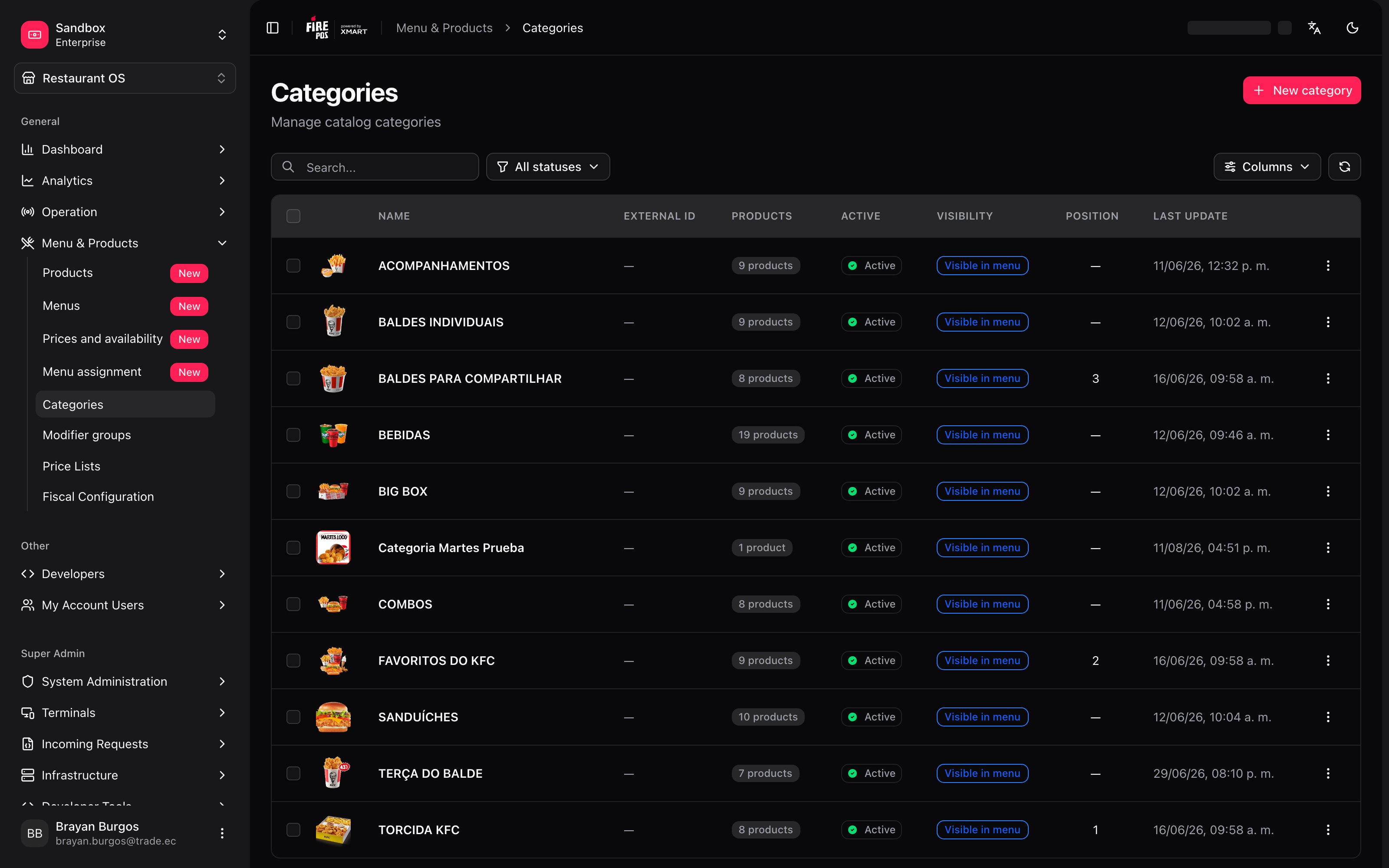
This is where those blocks get defined once, for the whole catalog. Go to **Restaurant OS → Menu and Products → Categories**.
 ***
## The minimum you need to know
**1. A category lives in the catalog, not in a menu.** It's created once and every menu inherits it. What you change here reaches everywhere.
**2. A product can be in several categories.** That relationship is built from the product record, not from here.
**3. If you mark it channel-exclusive, it disappears from the Golden Menu** — and its products inherit that exclusivity.
***
## The simple path
Creating a category is three fields: **New category**, give it a name, save.
With that it exists, it shows up in the Golden Menu, and you can start assigning products to it from each product's record.
If your menu is *Starters, Mains, Drinks, Desserts* and it looks the same everywhere, this is all you need. The rest of the manual is for when a category has to appear only at certain hours or only on one channel.
***
## What the list tells you
| Column | What to look at |
| --------------- | ------------------------------------------------- |
| **Name** | The category name. |
| **Parent** | Which category it hangs off, if any. |
| **Position** | The order it's shown in. Empty = automatic order. |
| **Featured** | Whether it's marked as featured. |
| **Visibility** | **Visible in menu** or **Hidden**. |
| **Products** | How many products it has assigned. |
| **Active** | Active or inactive. |
| **External ID** | Its identifier in the external system (X-MART). |
***
## A category's two texts
When you create one you'll see there are two descriptions, and they are not the same thing:
| Field | Who reads it |
| --------------------------- | -------------------------------------------------------------------- |
| **Operational description** | Nobody outside. It's for your team: *"weekdays only, cold kitchen"*. |
| **Marketing description** | The customer. It gets published in menus. |
***
## The minimum you need to know
**1. A category lives in the catalog, not in a menu.** It's created once and every menu inherits it. What you change here reaches everywhere.
**2. A product can be in several categories.** That relationship is built from the product record, not from here.
**3. If you mark it channel-exclusive, it disappears from the Golden Menu** — and its products inherit that exclusivity.
***
## The simple path
Creating a category is three fields: **New category**, give it a name, save.
With that it exists, it shows up in the Golden Menu, and you can start assigning products to it from each product's record.
If your menu is *Starters, Mains, Drinks, Desserts* and it looks the same everywhere, this is all you need. The rest of the manual is for when a category has to appear only at certain hours or only on one channel.
***
## What the list tells you
| Column | What to look at |
| --------------- | ------------------------------------------------- |
| **Name** | The category name. |
| **Parent** | Which category it hangs off, if any. |
| **Position** | The order it's shown in. Empty = automatic order. |
| **Featured** | Whether it's marked as featured. |
| **Visibility** | **Visible in menu** or **Hidden**. |
| **Products** | How many products it has assigned. |
| **Active** | Active or inactive. |
| **External ID** | Its identifier in the external system (X-MART). |
***
## A category's two texts
When you create one you'll see there are two descriptions, and they are not the same thing:
| Field | Who reads it |
| --------------------------- | -------------------------------------------------------------------- |
| **Operational description** | Nobody outside. It's for your team: *"weekdays only, cold kitchen"*. |
| **Marketing description** | The customer. It gets published in menus. |
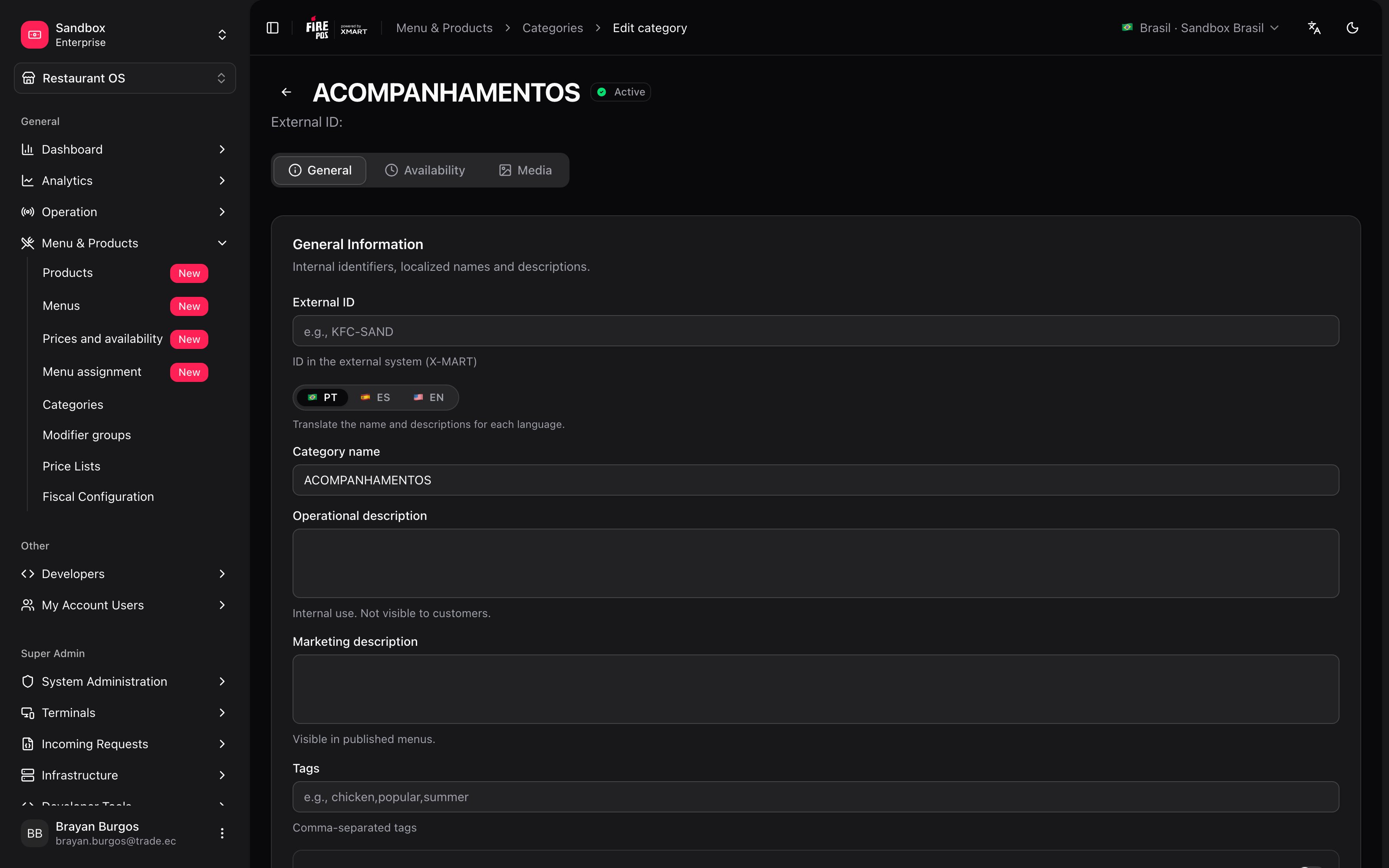 Names and descriptions are filled in **for all three languages** (Spanish, English and Portuguese) from the same screen.
**Don't put internal notes in the marketing description.** That text travels to the published menu and the customer reads it. The split between the two descriptions exists precisely so that doesn't happen.
***
## Where it appears, and in what order
Three controls that get confused with each other:
* **Display in menu** — when off, the category **does not appear in the customer menu**. The products it holds still exist.
* **Featured** — the mark for the menu's featured blocks, the ones at the top or in a carousel.
* **Position** — the global order. Leave it empty and the order is managed automatically.
**Position is the order in the catalog, not in one particular menu.** Inside a custom menu you can reorder categories by dragging, and that order wins for that menu. What you set here is the starting point everyone inherits.
***
## Channel-exclusive category
This is the switch with the most consequences, and it's worth understanding before touching it.
Names and descriptions are filled in **for all three languages** (Spanish, English and Portuguese) from the same screen.
**Don't put internal notes in the marketing description.** That text travels to the published menu and the customer reads it. The split between the two descriptions exists precisely so that doesn't happen.
***
## Where it appears, and in what order
Three controls that get confused with each other:
* **Display in menu** — when off, the category **does not appear in the customer menu**. The products it holds still exist.
* **Featured** — the mark for the menu's featured blocks, the ones at the top or in a carousel.
* **Position** — the global order. Leave it empty and the order is managed automatically.
**Position is the order in the catalog, not in one particular menu.** Inside a custom menu you can reorder categories by dragging, and that order wins for that menu. What you set here is the starting point everyone inherits.
***
## Channel-exclusive category
This is the switch with the most consequences, and it's worth understanding before touching it.
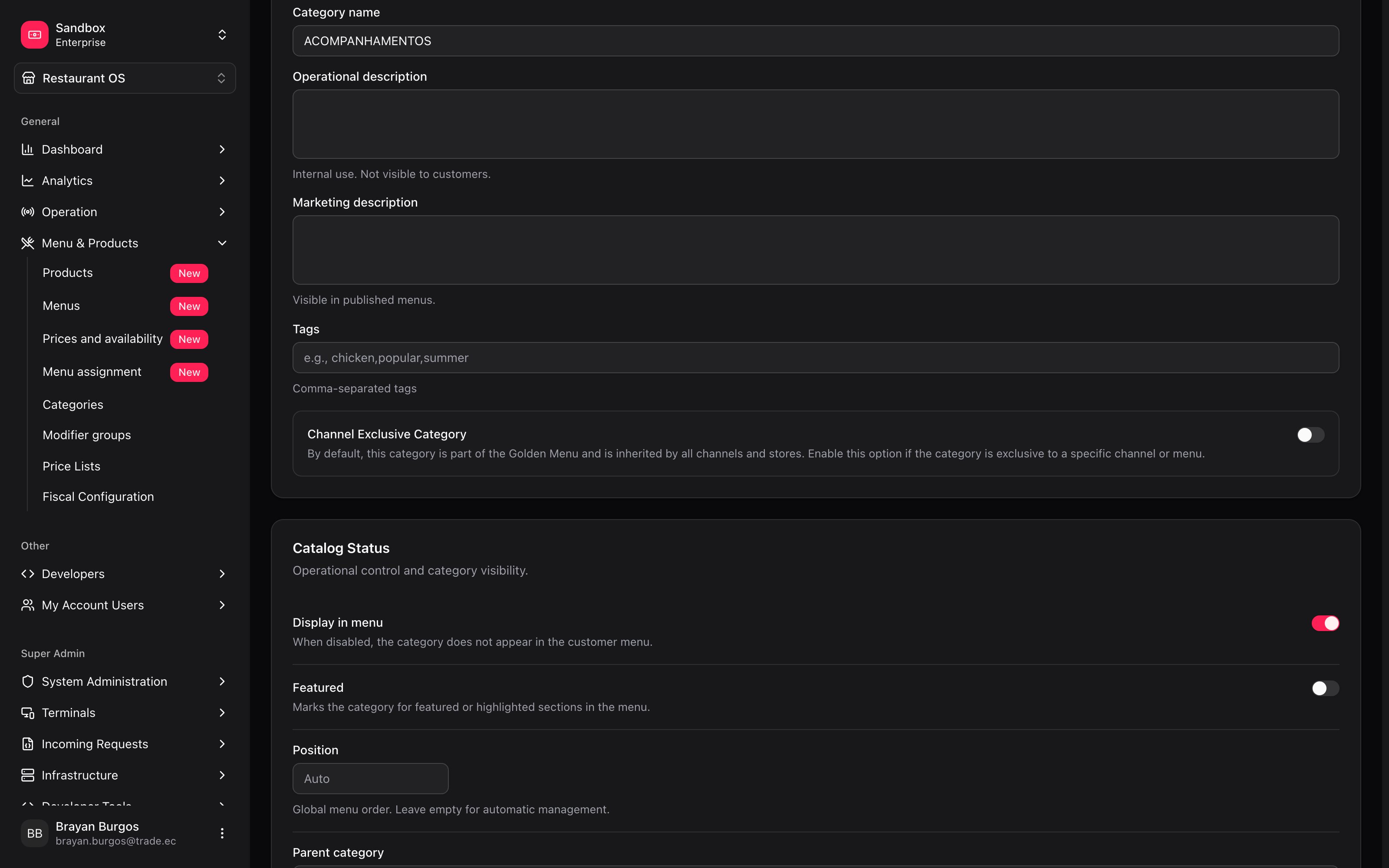 By default a category **is part of the Golden Menu** and every channel and every store inherits it. Turning exclusivity on inverts that: the category **stops appearing in the Golden Menu** and only exists in the menus where somebody adds it by hand.
It's for what the name says: a category that only makes sense on an aggregator, or a promotion that only runs in the app.
**The products of an exclusive category inherit the exclusivity.** It isn't only the category that disappears from the Golden Menu: it takes its products with it. If you mark a category exclusive when it already had products selling, those products stop being in the base menu.
***
## When it's available
The **Availability** tab defines the days and hours the category is offered. It's where *"breakfast only until 11"* gets solved without building a separate menu.
By default a category **is part of the Golden Menu** and every channel and every store inherits it. Turning exclusivity on inverts that: the category **stops appearing in the Golden Menu** and only exists in the menus where somebody adds it by hand.
It's for what the name says: a category that only makes sense on an aggregator, or a promotion that only runs in the app.
**The products of an exclusive category inherit the exclusivity.** It isn't only the category that disappears from the Golden Menu: it takes its products with it. If you mark a category exclusive when it already had products selling, those products stop being in the base menu.
***
## When it's available
The **Availability** tab defines the days and hours the category is offered. It's where *"breakfast only until 11"* gets solved without building a separate menu.
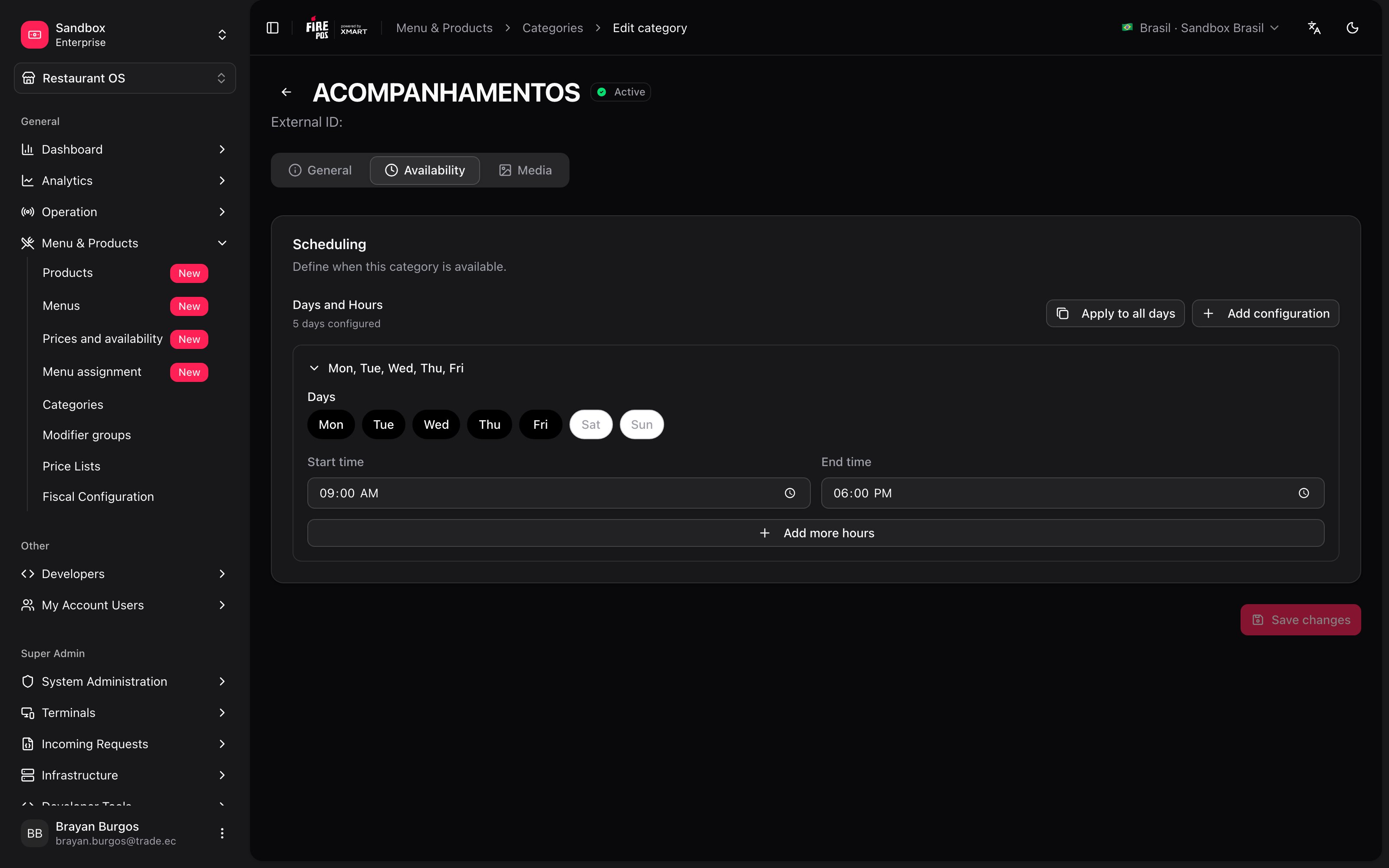 A category with its own schedule is marked with the **Schedule** badge, and in the menu editor the day lens hides it when the day and time you pick don't cover it.
***
## Images
The **Media** tab accepts **WebP, JPEG or PNG, up to 5 MB**. One of the images is marked as primary.
**The Availability and Media tabs are locked until you save.** The screen says so: *"Save the category first to access this section"*. That's because until then there is no category to hang a schedule or a photo on.
***
## Recipes: how the real cases get solved
1. **New category**, name it *Breakfast*.
2. Save: until then the schedule tab is locked.
3. **Availability** tab: the days and the time range, until 11:00.
4. Assign the products from each product's record.
The category gets the **Schedule** badge and stops being offered on its own past that hour. No separate breakfast menu needed.
1. Create the category and turn on **Channel Exclusive**.
2. Assign it the promotion's products.
3. Go to [Menus](/en/manuals/backoffice/menus), open that aggregator's custom menu and add it with **Add category**.
Because it's exclusive, it doesn't clutter the Golden Menu and doesn't appear on the other channels.
Turn off **Display in menu**. The category stops appearing in the customer menu but still exists, with its products and its relationships intact.
That's the right move for something seasonal that will come back. Deleting is permanent and cannot be undone.
If the order has to be the same everywhere, use **Position** here.
If it only changes on one channel, don't touch this: open that custom menu in [Menus](/en/manuals/backoffice/menus) and reorder the categories by dragging. That way the other channels never find out.
***
## Mistakes that cost money
**Marking a category exclusive when it was already selling.** It and all its products leave the Golden Menu immediately. If that's the menu your stores use, you just stopped selling those products.
**Writing internal notes in the marketing description.** That text gets published and the customer reads it. The operational description is there for internal things.
**Deleting instead of hiding.** **Delete** is permanent: *"This action cannot be undone"*. If the category might come back, turn off **Display in menu**.
***
## Glossary
| Term | What it means |
| --------------------- | ------------------------------------------------------------------------------------------------------------------- |
| **Category** | The block the menu is grouped and browsed by. It lives in the catalog. |
| **Parent** | The category another one hangs off. |
| **Position** | The global order in the catalog. Empty = automatic. |
| **Featured** | Mark for the menu's featured blocks. |
| **Display in menu** | Whether it shows in the customer menu or not. |
| **Channel Exclusive** | The category leaves the Golden Menu and only exists where you add it by hand. Its products inherit the exclusivity. |
| **Schedule** | The category's own hours: the days and times it's offered. |
| **External ID** | Its identifier in the external system (X-MART). |
***
## Frequently asked questions
From the product record, on its **Categories** tab — not from here. A product can be in several categories at once. See [Products](/en/manuals/backoffice/products).
You have to save first. Until then the category doesn't exist yet and there's nothing to hang a schedule or a photo on: *"Save the category first to access this section"*.
That menu has its own order. **Position** is the catalog's starting point; inside a custom menu, the order somebody left by dragging wins for that menu.
Turning off **Display in menu** hides the block, but a product that is also in another visible category keeps appearing there. A product can belong to several.
***
## What's coming
* **Assigning products from the category**: today the relationship is always built from the product record.
A category with its own schedule is marked with the **Schedule** badge, and in the menu editor the day lens hides it when the day and time you pick don't cover it.
***
## Images
The **Media** tab accepts **WebP, JPEG or PNG, up to 5 MB**. One of the images is marked as primary.
**The Availability and Media tabs are locked until you save.** The screen says so: *"Save the category first to access this section"*. That's because until then there is no category to hang a schedule or a photo on.
***
## Recipes: how the real cases get solved
1. **New category**, name it *Breakfast*.
2. Save: until then the schedule tab is locked.
3. **Availability** tab: the days and the time range, until 11:00.
4. Assign the products from each product's record.
The category gets the **Schedule** badge and stops being offered on its own past that hour. No separate breakfast menu needed.
1. Create the category and turn on **Channel Exclusive**.
2. Assign it the promotion's products.
3. Go to [Menus](/en/manuals/backoffice/menus), open that aggregator's custom menu and add it with **Add category**.
Because it's exclusive, it doesn't clutter the Golden Menu and doesn't appear on the other channels.
Turn off **Display in menu**. The category stops appearing in the customer menu but still exists, with its products and its relationships intact.
That's the right move for something seasonal that will come back. Deleting is permanent and cannot be undone.
If the order has to be the same everywhere, use **Position** here.
If it only changes on one channel, don't touch this: open that custom menu in [Menus](/en/manuals/backoffice/menus) and reorder the categories by dragging. That way the other channels never find out.
***
## Mistakes that cost money
**Marking a category exclusive when it was already selling.** It and all its products leave the Golden Menu immediately. If that's the menu your stores use, you just stopped selling those products.
**Writing internal notes in the marketing description.** That text gets published and the customer reads it. The operational description is there for internal things.
**Deleting instead of hiding.** **Delete** is permanent: *"This action cannot be undone"*. If the category might come back, turn off **Display in menu**.
***
## Glossary
| Term | What it means |
| --------------------- | ------------------------------------------------------------------------------------------------------------------- |
| **Category** | The block the menu is grouped and browsed by. It lives in the catalog. |
| **Parent** | The category another one hangs off. |
| **Position** | The global order in the catalog. Empty = automatic. |
| **Featured** | Mark for the menu's featured blocks. |
| **Display in menu** | Whether it shows in the customer menu or not. |
| **Channel Exclusive** | The category leaves the Golden Menu and only exists where you add it by hand. Its products inherit the exclusivity. |
| **Schedule** | The category's own hours: the days and times it's offered. |
| **External ID** | Its identifier in the external system (X-MART). |
***
## Frequently asked questions
From the product record, on its **Categories** tab — not from here. A product can be in several categories at once. See [Products](/en/manuals/backoffice/products).
You have to save first. Until then the category doesn't exist yet and there's nothing to hang a schedule or a photo on: *"Save the category first to access this section"*.
That menu has its own order. **Position** is the catalog's starting point; inside a custom menu, the order somebody left by dragging wins for that menu.
Turning off **Display in menu** hides the block, but a product that is also in another visible category keeps appearing there. A product can belong to several.
***
## What's coming
* **Assigning products from the category**: today the relationship is always built from the product record.