> ## Documentation Index
> Fetch the complete documentation index at: https://docs.fire.rest/llms.txt
> Use this file to discover all available pages before exploring further.
# Fiscal Configuration
> Set up fiscal categories, fiscal groups, and tax matrices to ensure every order is invoiced with the correct tax codes.
Fiscal configuration controls how the system classifies products for tax purposes and how each point-of-sale issues fiscal documents. Navigate to **Restaurant OS → Menu & Products → Fiscal Configuration** in the backoffice.
The page has four tabs: **Fiscal groups**, **Fiscal categories**, **Product categories**, and **Settings**.
***
## Fiscal Categories
A fiscal category identifies a product for tax purposes. Every product must belong to exactly one fiscal category.
### Viewing the list
Click the **Fiscal categories** tab to see all categories for the selected account.
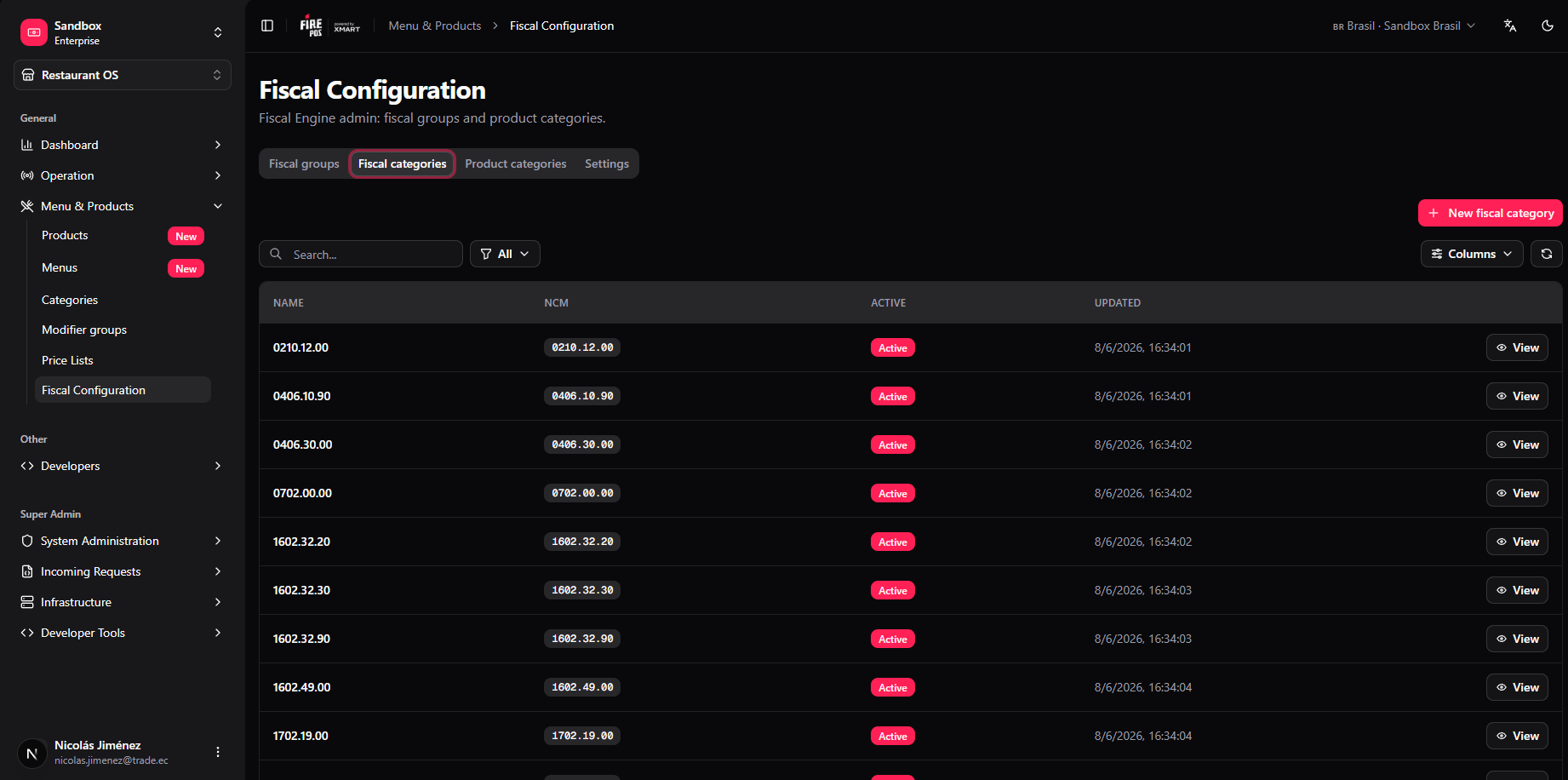 Each row shows:
* **Name** — internal label used in the backoffice and in the tax matrix.
* **NCM** — the 8-digit *Nomenclatura Comum do Mercosul* code required on fiscal documents.
* **Active** — whether the category is available for product assignment.
* **Updated** — date and time of the last change.
Use the search bar to filter by name or NCM. The **All** filter lets you show only active or only inactive categories.
### Creating a fiscal category
1. Click **+ New fiscal category** (top right).
2. The creation dialog opens.
Each row shows:
* **Name** — internal label used in the backoffice and in the tax matrix.
* **NCM** — the 8-digit *Nomenclatura Comum do Mercosul* code required on fiscal documents.
* **Active** — whether the category is available for product assignment.
* **Updated** — date and time of the last change.
Use the search bar to filter by name or NCM. The **All** filter lets you show only active or only inactive categories.
### Creating a fiscal category
1. Click **+ New fiscal category** (top right).
2. The creation dialog opens.
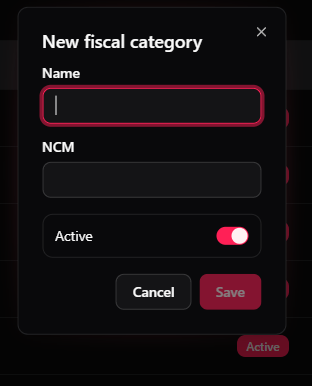 3. Fill in the fields:
* **Name** — any label that clearly identifies the product type (e.g. `Processed meat 0210.12`).
* **NCM** — the 8-digit classification code. Enter digits only; dots are added automatically for display.
* **Active** — leave the toggle on so the category can be assigned immediately.
4. Click **Save**.
The category appears in the list instantly and is available for product assignment and for inclusion in fiscal group tax matrices.
The system pre-populates a default tax configuration for every new category. You will fill in the actual rates when you add the category to a fiscal group's tax matrix.
### Editing a fiscal category
Click **View** on any row to open the detail panel, then switch to the **Edit** tab. Modify **Name**, **NCM**, or the **Active** toggle and click **Save**.
Changing the NCM of a category affects all products assigned to it and all tax matrix entries that reference it. Verify the new code before saving.
### Deactivating a fiscal category
Open the edit tab and toggle **Active** off. The category disappears from assignment selectors but existing assignments are preserved.
***
## Fiscal Groups
A fiscal group defines how one or more stores invoice orders. It holds the tax regime, the UF (Brazilian state), the list of linked stores, and the tax matrix that maps each fiscal category to the applicable tax codes and rates.
### Viewing the list
Click the **Fiscal groups** tab.
3. Fill in the fields:
* **Name** — any label that clearly identifies the product type (e.g. `Processed meat 0210.12`).
* **NCM** — the 8-digit classification code. Enter digits only; dots are added automatically for display.
* **Active** — leave the toggle on so the category can be assigned immediately.
4. Click **Save**.
The category appears in the list instantly and is available for product assignment and for inclusion in fiscal group tax matrices.
The system pre-populates a default tax configuration for every new category. You will fill in the actual rates when you add the category to a fiscal group's tax matrix.
### Editing a fiscal category
Click **View** on any row to open the detail panel, then switch to the **Edit** tab. Modify **Name**, **NCM**, or the **Active** toggle and click **Save**.
Changing the NCM of a category affects all products assigned to it and all tax matrix entries that reference it. Verify the new code before saving.
### Deactivating a fiscal category
Open the edit tab and toggle **Active** off. The category disappears from assignment selectors but existing assignments are preserved.
***
## Fiscal Groups
A fiscal group defines how one or more stores invoice orders. It holds the tax regime, the UF (Brazilian state), the list of linked stores, and the tax matrix that maps each fiscal category to the applicable tax codes and rates.
### Viewing the list
Click the **Fiscal groups** tab.
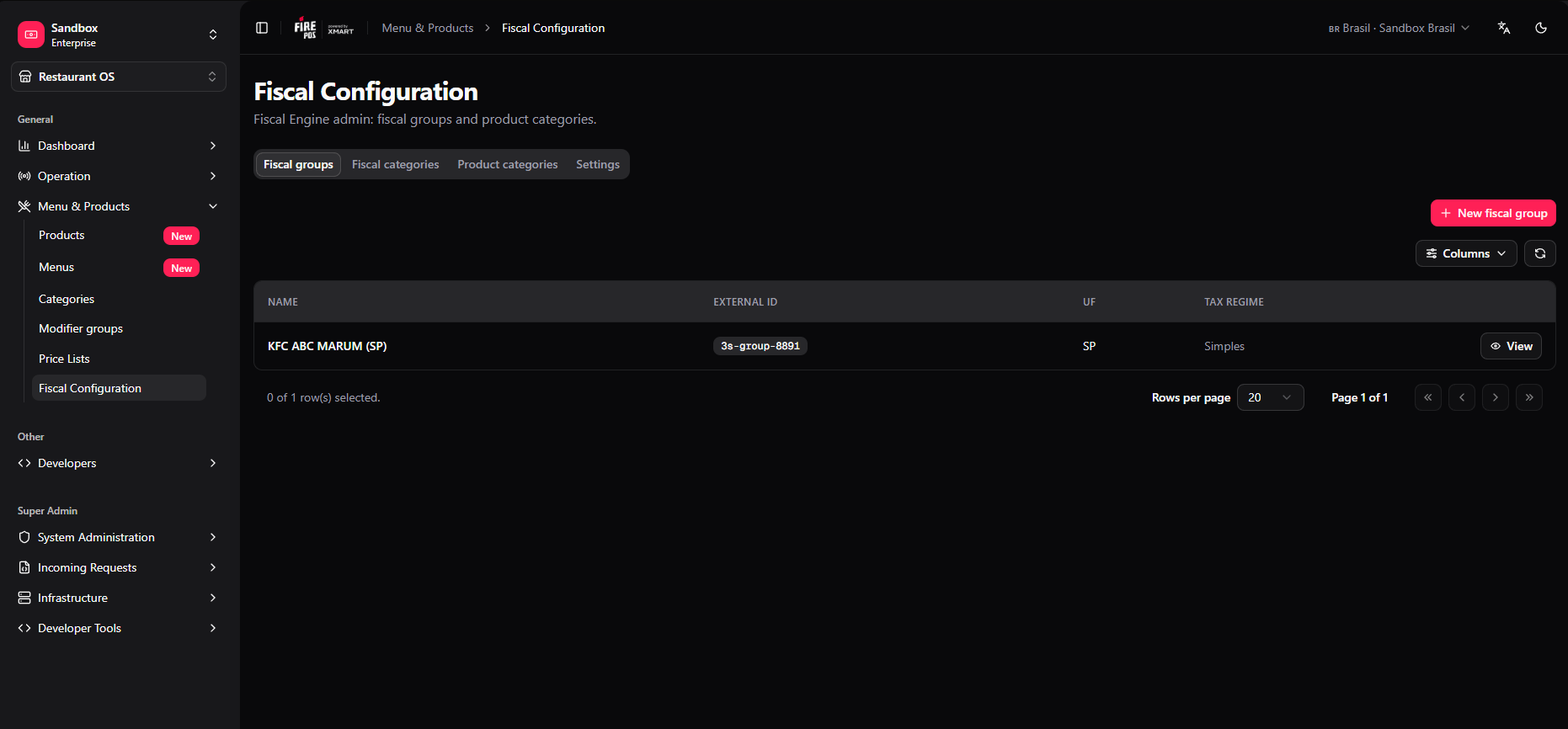 Each row shows **Name**, **External ID**, **UF**, and **Tax regime**. Click **View** to open a group's detail panel.
### Viewing a group's details
Each row shows **Name**, **External ID**, **UF**, and **Tax regime**. Click **View** to open a group's detail panel.
### Viewing a group's details
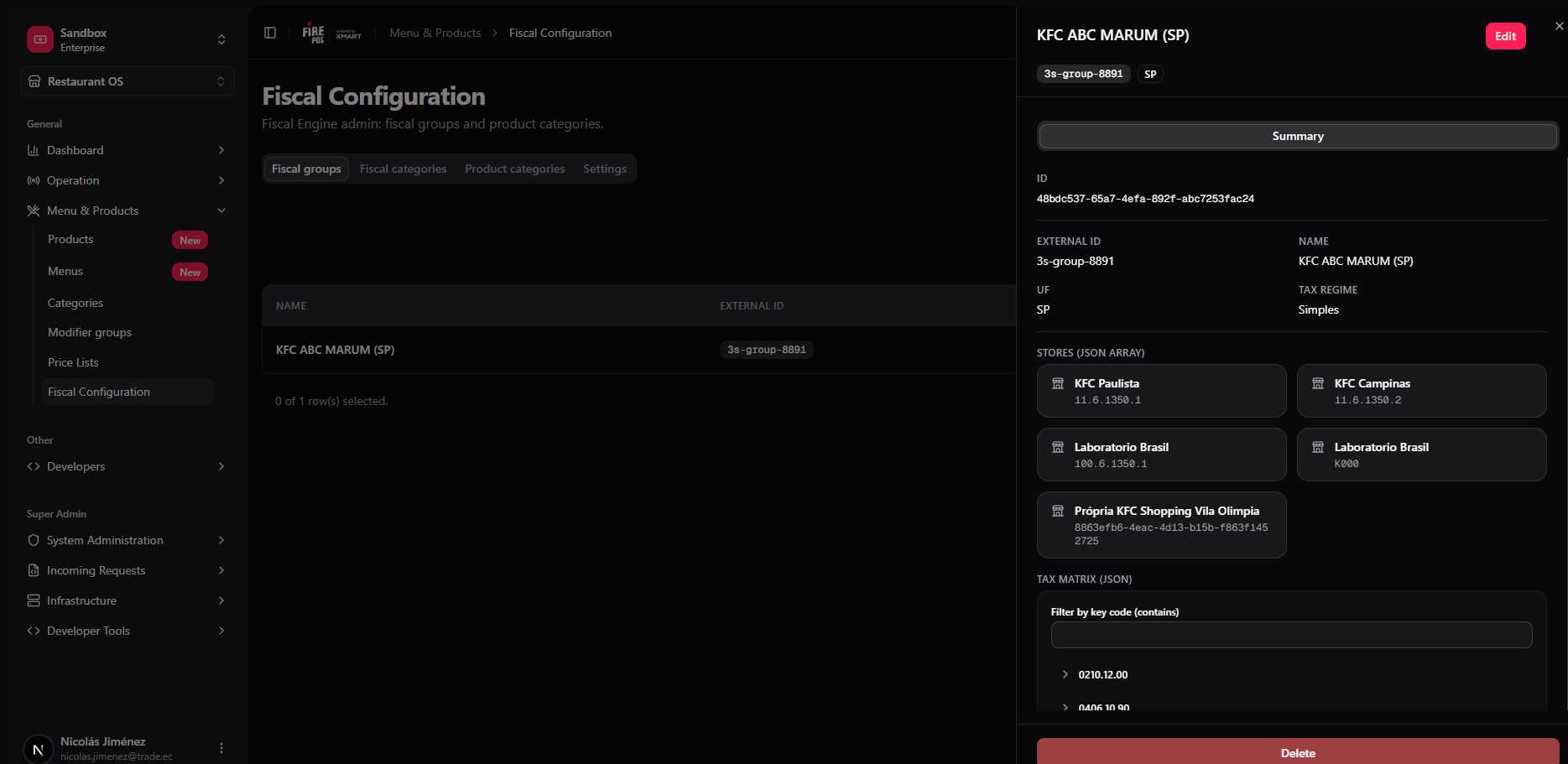 The detail panel shows a **Summary** with:
* **ID** — internal UUID.
* **External ID** — the identifier used by the fiscal engine.
* **Name**, **UF**, **Tax regime** — the group's basic configuration.
* **Stores** — the stores linked to this group, shown as cards with their ID and name.
* **Tax matrix** — the list of fiscal categories and their tax configurations. Click any category row to expand it and see the individual rates.
Click **Edit** (top right) to modify the group, or **Delete** (bottom) to remove it.
### Creating a fiscal group
1. Click **+ New fiscal group** (top right of the list).
2. The creation form opens.
The detail panel shows a **Summary** with:
* **ID** — internal UUID.
* **External ID** — the identifier used by the fiscal engine.
* **Name**, **UF**, **Tax regime** — the group's basic configuration.
* **Stores** — the stores linked to this group, shown as cards with their ID and name.
* **Tax matrix** — the list of fiscal categories and their tax configurations. Click any category row to expand it and see the individual rates.
Click **Edit** (top right) to modify the group, or **Delete** (bottom) to remove it.
### Creating a fiscal group
1. Click **+ New fiscal group** (top right of the list).
2. The creation form opens.
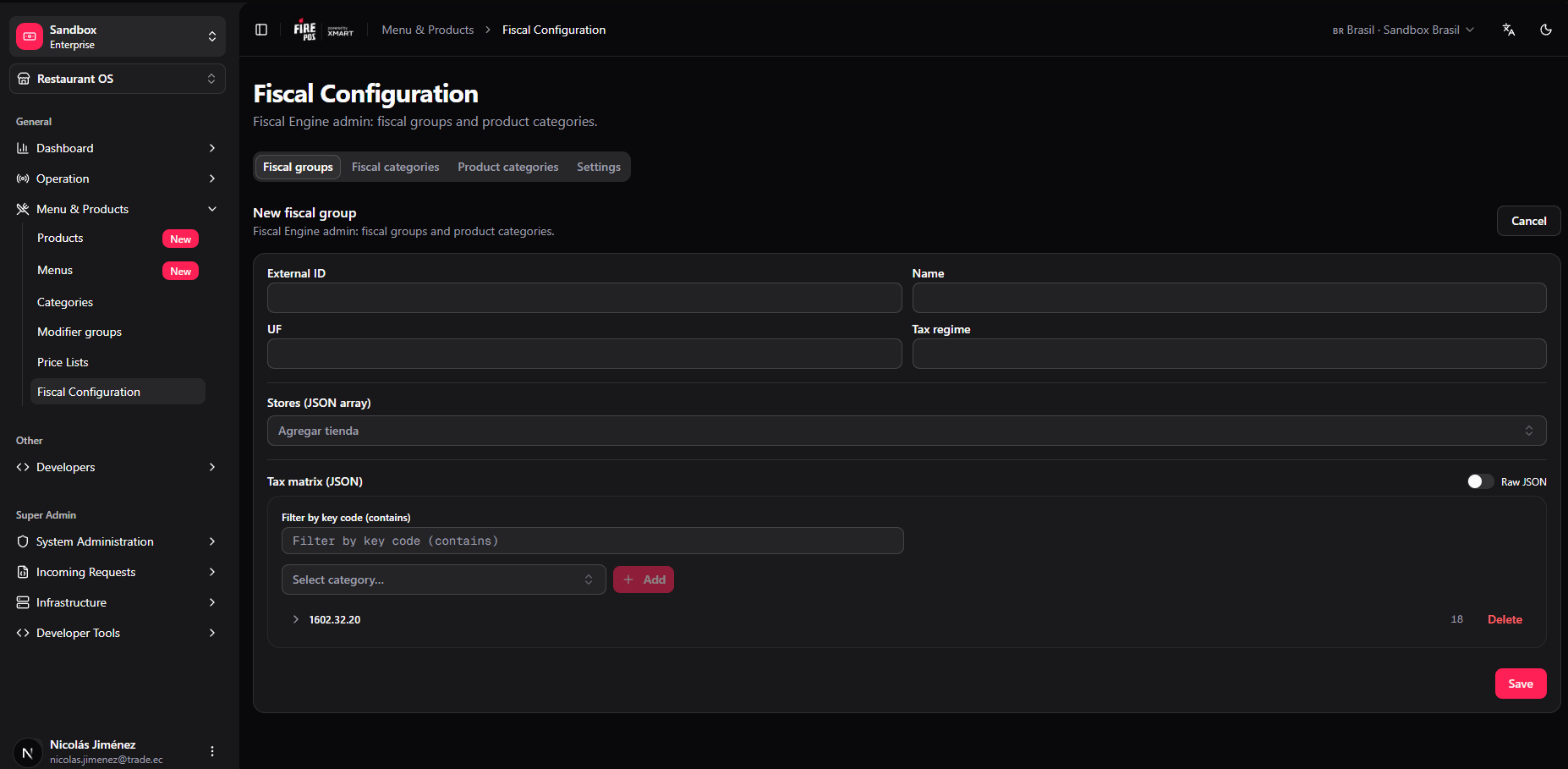 3. Fill in the header fields:
* **External ID** — the identifier the fiscal engine uses to match this group. Set it once; it cannot be changed after creation.
* **Name** — a readable label (e.g. `KFC ABC MARUM (SP)`).
* **UF** — the two-letter Brazilian state code where documents will be issued (e.g. `SP`).
* **Tax regime** — the applicable tax regime (e.g. `Simples`, `Lucro Presumido`).
4. In the **Stores** section, use the **Add store** dropdown to search and select every store that must use this group. Each added store shows its ID (`vendor.store_number`) and name. Click **×** to remove one.
5. Build the **Tax matrix** (see [below](#tax-matrix)).
6. Click **Save**.
### Editing a fiscal group
Click **View** on a group then **Edit**, or navigate directly. The edit form is identical to the creation form except **External ID** is locked.
3. Fill in the header fields:
* **External ID** — the identifier the fiscal engine uses to match this group. Set it once; it cannot be changed after creation.
* **Name** — a readable label (e.g. `KFC ABC MARUM (SP)`).
* **UF** — the two-letter Brazilian state code where documents will be issued (e.g. `SP`).
* **Tax regime** — the applicable tax regime (e.g. `Simples`, `Lucro Presumido`).
4. In the **Stores** section, use the **Add store** dropdown to search and select every store that must use this group. Each added store shows its ID (`vendor.store_number`) and name. Click **×** to remove one.
5. Build the **Tax matrix** (see [below](#tax-matrix)).
6. Click **Save**.
### Editing a fiscal group
Click **View** on a group then **Edit**, or navigate directly. The edit form is identical to the creation form except **External ID** is locked.
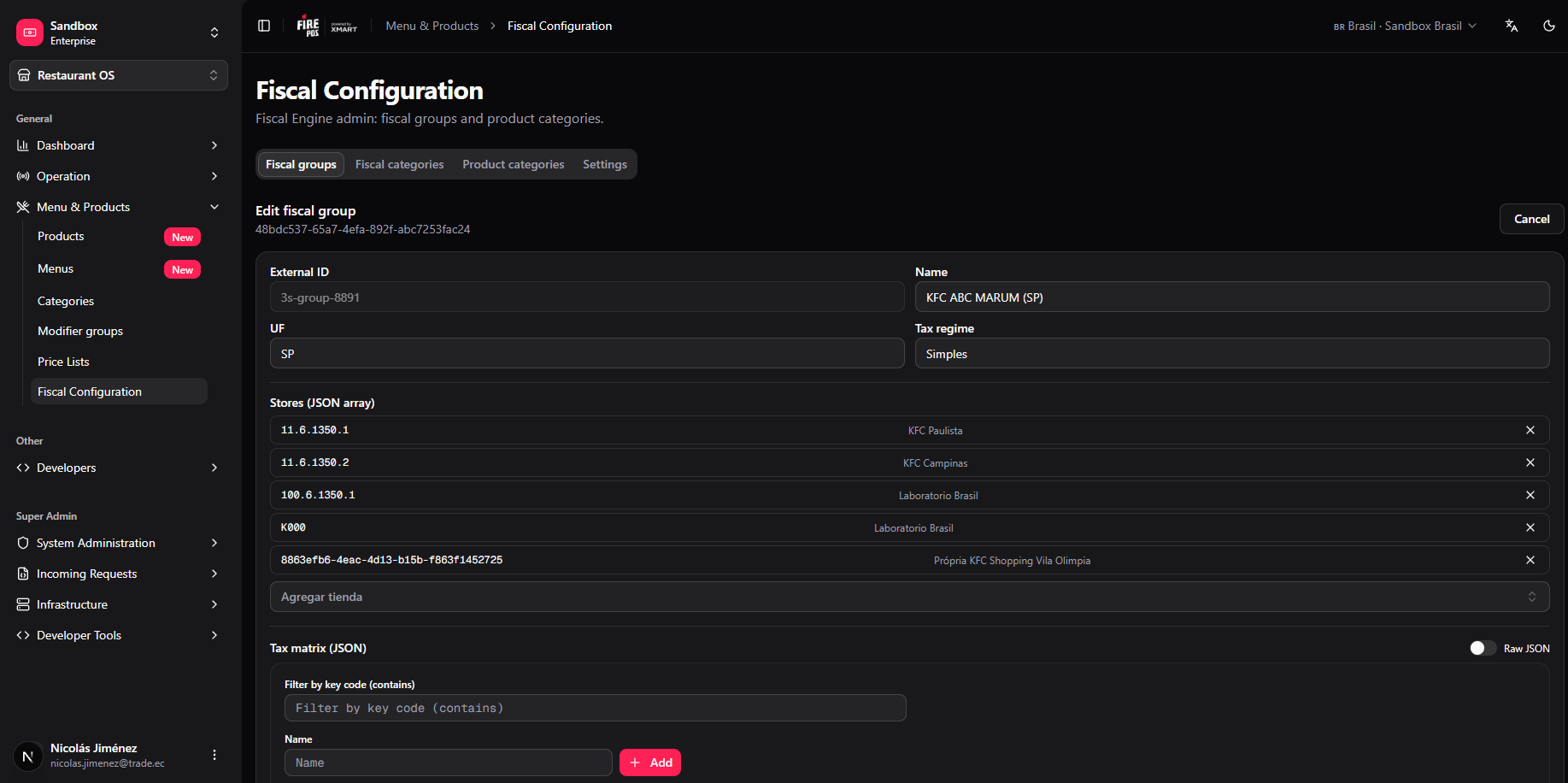 Modify any field, add or remove stores, update the tax matrix, then click **Save**.
### Deleting a fiscal group
Open the group detail panel and click **Delete** at the bottom. Confirm the action. Stores previously linked to the group are left with no fiscal configuration; fiscal document issuance will fail until they are assigned to another group.
***
## Tax Matrix
The tax matrix is the core of a fiscal group. It maps each fiscal category to the tax codes and rates that apply to orders issued by the group's stores.
### Adding a category to the matrix
1. In the group form (create or edit), scroll to **Tax matrix (JSON)**.
2. Use the **Select category…** dropdown to find the fiscal category.
3. Click **+ Add**.
The row is created with **NCM** pre-filled from the category and all rates set to `0`. Expand the row and fill in the fields according to the applicable legislation.
### Matrix fields
| Field | Description |
| ----------------------- | --------------------------------------------------------------------------------- |
| `NCM` | Product classification code (digits only). Auto-filled from the category. |
| `CFOP` | *Código Fiscal de Operações e Prestações* — operation type code. |
| `CSOSN` | *Código de Situação da Operação no Simples Nacional*, or `CST` for other regimes. |
| `cBenef` | Benefit code for tax incentives. Leave blank when not applicable. |
| `CST_PIS` | PIS tax situation code. |
| `PIS_rate` | PIS rate (%). |
| `CST_COFINS` | COFINS tax situation code. |
| `COFINS_rate` | COFINS rate (%). |
| `CST_ICMS` | ICMS tax situation code. |
| `ICMS_rate` | ICMS rate (%). |
| `FCP_rate` | Fundo de Combate à Pobreza rate (%). Leave null when not applicable. |
| `ICMS_reduction` | ICMS reduction base (%). Leave null when not applicable. |
| `CBS_rate` | CBS rate — tax reform field. |
| `IBS_UF_rate` | IBS state rate — tax reform. |
| `IBS_Municipio_rate` | IBS municipal rate — tax reform. |
| `CST_CBS_IBS` | Combined CST for CBS/IBS under the tax reform. |
| `classe_trib_cbs_ibs` | Tax class for CBS/IBS. |
| `CBS_IBS_reduction_pct` | CBS/IBS reduction percentage (%). |
### Filtering the matrix
Use the **Filter by key code (contains)** field to search for a specific category inside a large matrix.
### Removing a category from the matrix
Click **Delete** on the category row. The entry is removed from this group only; the fiscal category itself is not affected.
If a product's fiscal category has no entry in the active group's tax matrix, fiscal document issuance will fail for orders from that group's stores. Always add an entry for every category assigned to products sold in the group.
***
## Common workflows
### Adding a new product type in a new state
1. Check whether a fiscal category with the correct NCM already exists. If not, create one in the **Fiscal categories** tab.
2. Check whether a fiscal group for the target UF and tax regime already exists. If not, create one and link the relevant stores.
3. Add the fiscal category to the group's tax matrix and fill in the correct rates.
4. Assign the fiscal category to the products in **Catalog → Products**.
### Moving a store to a different fiscal group
1. Open the **current** fiscal group and click **×** next to the store in the Stores list. Save.
2. Open the **new** fiscal group and add the store. Save.
3. The store will use the new group's tax matrix on its next fiscal document.
### Correcting a wrong NCM
1. Open the fiscal category and update the **NCM** field. Save.
2. Open every fiscal group that includes this category, expand its matrix entry, and verify the `NCM` field. Update if needed. Save each group.
Modify any field, add or remove stores, update the tax matrix, then click **Save**.
### Deleting a fiscal group
Open the group detail panel and click **Delete** at the bottom. Confirm the action. Stores previously linked to the group are left with no fiscal configuration; fiscal document issuance will fail until they are assigned to another group.
***
## Tax Matrix
The tax matrix is the core of a fiscal group. It maps each fiscal category to the tax codes and rates that apply to orders issued by the group's stores.
### Adding a category to the matrix
1. In the group form (create or edit), scroll to **Tax matrix (JSON)**.
2. Use the **Select category…** dropdown to find the fiscal category.
3. Click **+ Add**.
The row is created with **NCM** pre-filled from the category and all rates set to `0`. Expand the row and fill in the fields according to the applicable legislation.
### Matrix fields
| Field | Description |
| ----------------------- | --------------------------------------------------------------------------------- |
| `NCM` | Product classification code (digits only). Auto-filled from the category. |
| `CFOP` | *Código Fiscal de Operações e Prestações* — operation type code. |
| `CSOSN` | *Código de Situação da Operação no Simples Nacional*, or `CST` for other regimes. |
| `cBenef` | Benefit code for tax incentives. Leave blank when not applicable. |
| `CST_PIS` | PIS tax situation code. |
| `PIS_rate` | PIS rate (%). |
| `CST_COFINS` | COFINS tax situation code. |
| `COFINS_rate` | COFINS rate (%). |
| `CST_ICMS` | ICMS tax situation code. |
| `ICMS_rate` | ICMS rate (%). |
| `FCP_rate` | Fundo de Combate à Pobreza rate (%). Leave null when not applicable. |
| `ICMS_reduction` | ICMS reduction base (%). Leave null when not applicable. |
| `CBS_rate` | CBS rate — tax reform field. |
| `IBS_UF_rate` | IBS state rate — tax reform. |
| `IBS_Municipio_rate` | IBS municipal rate — tax reform. |
| `CST_CBS_IBS` | Combined CST for CBS/IBS under the tax reform. |
| `classe_trib_cbs_ibs` | Tax class for CBS/IBS. |
| `CBS_IBS_reduction_pct` | CBS/IBS reduction percentage (%). |
### Filtering the matrix
Use the **Filter by key code (contains)** field to search for a specific category inside a large matrix.
### Removing a category from the matrix
Click **Delete** on the category row. The entry is removed from this group only; the fiscal category itself is not affected.
If a product's fiscal category has no entry in the active group's tax matrix, fiscal document issuance will fail for orders from that group's stores. Always add an entry for every category assigned to products sold in the group.
***
## Common workflows
### Adding a new product type in a new state
1. Check whether a fiscal category with the correct NCM already exists. If not, create one in the **Fiscal categories** tab.
2. Check whether a fiscal group for the target UF and tax regime already exists. If not, create one and link the relevant stores.
3. Add the fiscal category to the group's tax matrix and fill in the correct rates.
4. Assign the fiscal category to the products in **Catalog → Products**.
### Moving a store to a different fiscal group
1. Open the **current** fiscal group and click **×** next to the store in the Stores list. Save.
2. Open the **new** fiscal group and add the store. Save.
3. The store will use the new group's tax matrix on its next fiscal document.
### Correcting a wrong NCM
1. Open the fiscal category and update the **NCM** field. Save.
2. Open every fiscal group that includes this category, expand its matrix entry, and verify the `NCM` field. Update if needed. Save each group.