> ## Documentation Index
> Fetch the complete documentation index at: https://docs.fire.rest/llms.txt
> Use this file to discover all available pages before exploring further.
# Menus
> Build the menu for every channel out of a single one, without maintaining five versions of the same product in parallel.
A menu answers one question: *what do we sell?* What changes is **where**. The dine-in menu is not the delivery menu, the airport store is not the downtown one, and at two in the morning you don't sell what you sell at noon. Keeping five menus in parallel, product by product, is where the mistakes creep in — the ones someone finds later on a ticket.
This screen exists so you can have many different menus **without maintaining them five times**. Go to **Restaurant OS → Menu and Products → Menus**.
 ***
## The minimum you need to know
**1. You already have a menu, even if you never created one.** It's the **Golden**, and it holds your whole catalog. It is created on its own when you add products, and it cannot be deleted.
**2. A custom menu inherits from the Golden and only stores the differences.** It is not a copy: if you add a product to the catalog tomorrow, the custom menu has it too. The only thing it stores is where it departs.
**3. The fulfillment type is chosen when you create the menu and can never be changed.** It is the one field on this screen with no way back.
***
## The simple path
You don't need to create any menu to start selling.
You load your products into the catalog and the **Golden** builds itself out of all of them. That is your menu, and it serves every channel until a reason appears for it not to.
The Golden carries the **Golden** label, has no fulfillment assigned — it serves all of them — and cannot be deleted: it is the entire catalog, the floor everything else hangs from.
If you sell the same thing everywhere, this is all you need. The rest of the manual is for when the second menu shows up.
***
## Golden and custom: two ways to have a menu
| | Golden | Custom |
| ----------------- | ------------------------------------------------ | ------------------------------------------------------- |
| How it is born | On its own, when you add products to the catalog | You create it |
| What it holds | The whole catalog | What it inherits from its parent, plus your differences |
| Fulfillment | None: it serves all of them | Exactly one, and it is final |
| Can be deleted | No | Yes |
| **Overrides** tab | Does not have one | Yes: it's where your changes live |
**Why "inherits" and not "copies".** A copy freezes on the day you make it: three months later it is missing the twenty products that entered the catalog since, and nobody notices until a customer asks. A custom menu doesn't have that problem because it doesn't store products, it stores **differences**. Whatever you didn't change still comes from the parent, always current.
It is the same logic as [linked price lists](/en/manuals/backoffice/price-lists), applied to structure instead of price.
***
## Creating a custom menu
**Create Custom Menu**, top right. Four fields, and only one of them is hard.
***
## The minimum you need to know
**1. You already have a menu, even if you never created one.** It's the **Golden**, and it holds your whole catalog. It is created on its own when you add products, and it cannot be deleted.
**2. A custom menu inherits from the Golden and only stores the differences.** It is not a copy: if you add a product to the catalog tomorrow, the custom menu has it too. The only thing it stores is where it departs.
**3. The fulfillment type is chosen when you create the menu and can never be changed.** It is the one field on this screen with no way back.
***
## The simple path
You don't need to create any menu to start selling.
You load your products into the catalog and the **Golden** builds itself out of all of them. That is your menu, and it serves every channel until a reason appears for it not to.
The Golden carries the **Golden** label, has no fulfillment assigned — it serves all of them — and cannot be deleted: it is the entire catalog, the floor everything else hangs from.
If you sell the same thing everywhere, this is all you need. The rest of the manual is for when the second menu shows up.
***
## Golden and custom: two ways to have a menu
| | Golden | Custom |
| ----------------- | ------------------------------------------------ | ------------------------------------------------------- |
| How it is born | On its own, when you add products to the catalog | You create it |
| What it holds | The whole catalog | What it inherits from its parent, plus your differences |
| Fulfillment | None: it serves all of them | Exactly one, and it is final |
| Can be deleted | No | Yes |
| **Overrides** tab | Does not have one | Yes: it's where your changes live |
**Why "inherits" and not "copies".** A copy freezes on the day you make it: three months later it is missing the twenty products that entered the catalog since, and nobody notices until a customer asks. A custom menu doesn't have that problem because it doesn't store products, it stores **differences**. Whatever you didn't change still comes from the parent, always current.
It is the same logic as [linked price lists](/en/manuals/backoffice/price-lists), applied to structure instead of price.
***
## Creating a custom menu
**Create Custom Menu**, top right. Four fields, and only one of them is hard.
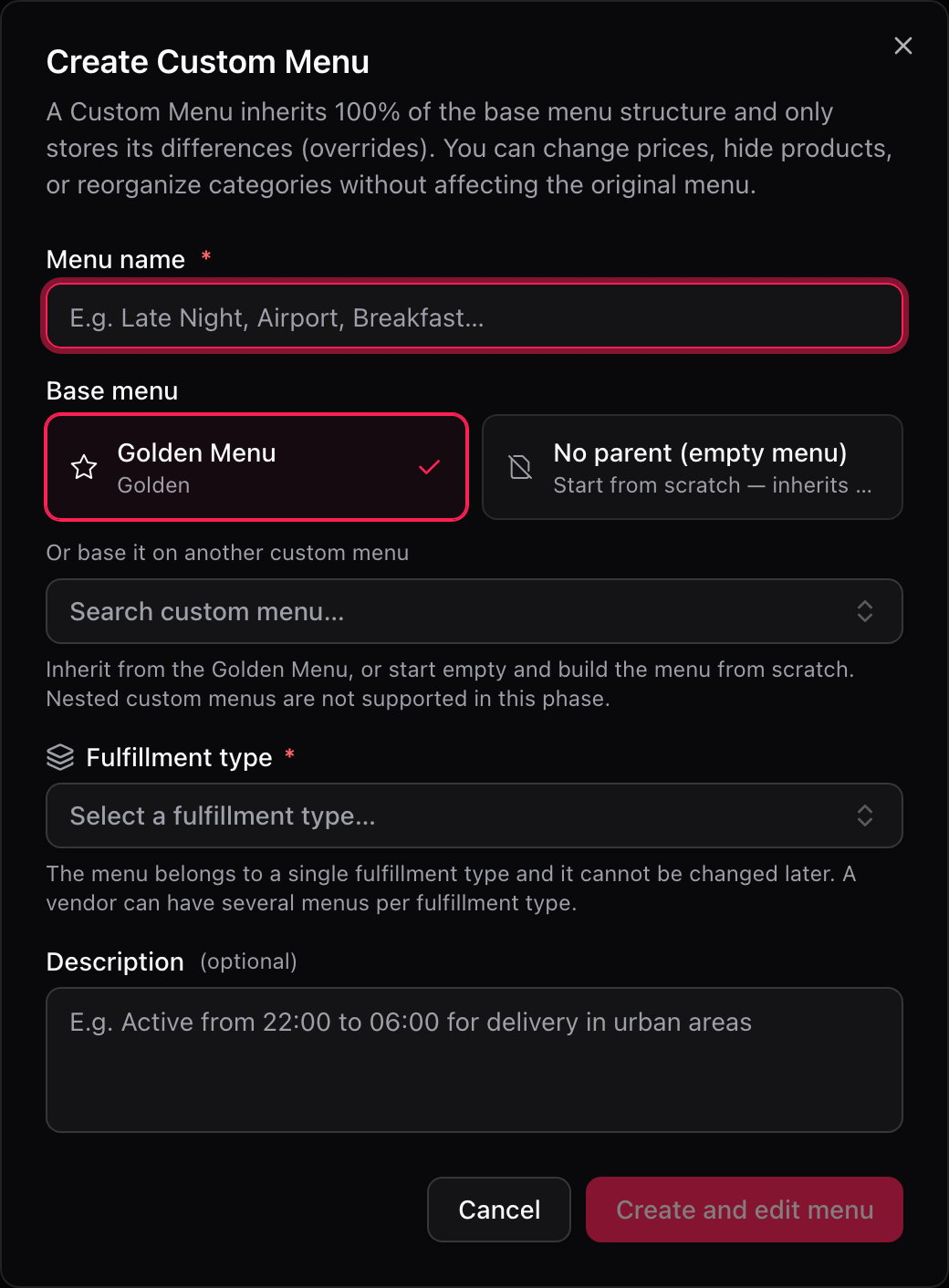 | Field | What to put in it |
| --------------------------------- | ------------------------------------------------------------------------------------- |
| **Menu name** *(required)* | The name you'll search for six months from now: *Late Night*, *Airport*, *Breakfast*. |
| **Base menu** | Who it inherits from. See below. |
| **Description** *(optional)* | What it's for. *"Active from 22:00 to 06:00 for delivery in urban areas"*. |
| **Fulfillment type** *(required)* | Delivery, pickup, dine-in… **It cannot be changed later.** |
### The field that matters: Base menu
Who it inherits from decides how much work you'll have from here on.
| Option | What it means | When to use it |
| --------------------------- | ------------------------------------------------------------------------ | --------------------------------------------------------------------------------------------- |
| **Golden Menu** *(default)* | Starts with the whole catalog; you only store what you remove or change. | Almost always. |
| **No parent (empty menu)** | An empty menu. You add categories and products by hand. | A new brand that shares nothing with the current catalog. |
| **Another custom menu** | Inherits from a custom menu you already built. | When you already have a delivery menu and need a variant of *that*, not of the whole catalog. |
**Inheritance goes three levels deep**: Golden → custom → custom. There is no fourth. The selector only offers menus that can still be parents; if a menu isn't in the list, it's because hanging something off it would cross the limit.
Confirming with **Create and edit menu** creates the menu and drops you straight into the editor.
***
## The fulfillment type is chosen once
**The fulfillment type cannot be changed after the menu is created.** If you created the late-night menu as *pickup* when it was meant for *delivery*, there is no way to fix it: you have to create another menu and build it again.
The dialog says so before you confirm: *"The menu belongs to a single fulfillment type and it cannot be changed later"*. That's the line worth reading twice.
One vendor can have **several menus for the same fulfillment type** — three delivery menus, say, one per time slot or per zone. What it cannot have is one menu serving two fulfillment types at once. The only one that serves them all is the Golden, which has no fulfillment assigned.
***
## What the list tells you
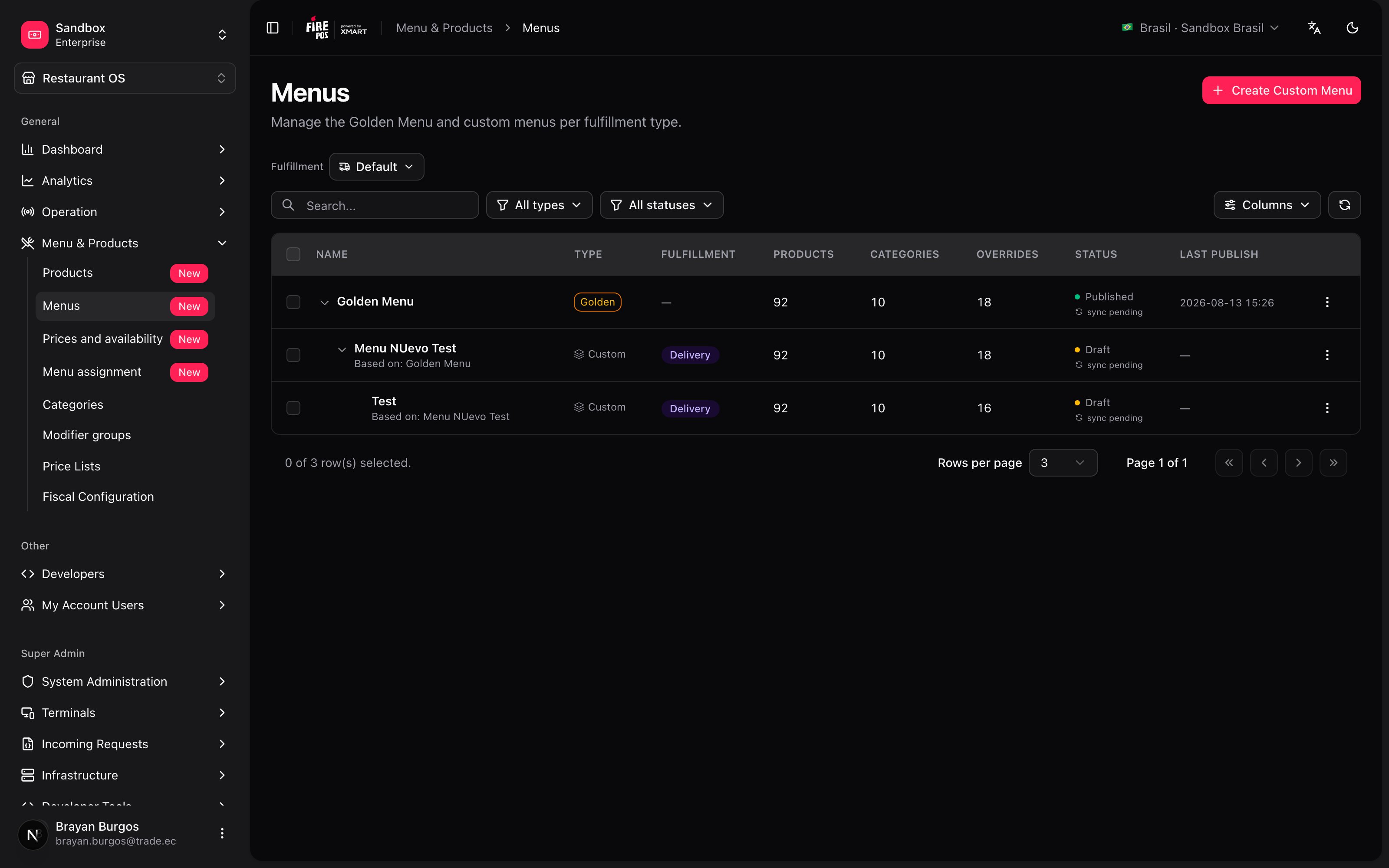
The list is a **tree**: custom menus hang off their parent and fold and unfold. That way you see at a glance who inherits from whom.
| Column | What to look at |
| ----------------------------- | --------------------------------------------------------------------------------- |
| **Name** | The name, the description, and who it inherits from (*Based on*). |
| **Type** | **Golden** or **Custom**. |
| **Fulfillment** | Which fulfillment type it serves. **—** on the Golden: it serves all of them. |
| **Products** · **Categories** | How many it has, inherited ones included. |
| **Overrides** | How many differences you stored against the parent. **—** if you changed nothing. |
| **Status** | **Published** · **Partial** · **Draft** · **Archived**, with a colored dot. |
| **Last publish** | When it last reached a channel. |
Two notices can appear under the status: **sync pending** (it was sent and the channel hasn't confirmed) and **sync failed** (the channel rejected it). Both are resolved on the [Menu assignment](/en/manuals/backoffice/menu-assignments) screen, not here.
At the top you have search by name and three filters: type, status and fulfillment.
**If you're looking for the assignments list here, it's gone.** It used to live in a tab on this screen and moved to [Menu assignment](/en/manuals/backoffice/menu-assignments), which is a screen of its own and does considerably more.
***
## Building the menu: the Structure tab
The editor has three tabs — **Structure**, **Overrides** and **History** — and Structure is where the work happens.
| Field | What to put in it |
| --------------------------------- | ------------------------------------------------------------------------------------- |
| **Menu name** *(required)* | The name you'll search for six months from now: *Late Night*, *Airport*, *Breakfast*. |
| **Base menu** | Who it inherits from. See below. |
| **Description** *(optional)* | What it's for. *"Active from 22:00 to 06:00 for delivery in urban areas"*. |
| **Fulfillment type** *(required)* | Delivery, pickup, dine-in… **It cannot be changed later.** |
### The field that matters: Base menu
Who it inherits from decides how much work you'll have from here on.
| Option | What it means | When to use it |
| --------------------------- | ------------------------------------------------------------------------ | --------------------------------------------------------------------------------------------- |
| **Golden Menu** *(default)* | Starts with the whole catalog; you only store what you remove or change. | Almost always. |
| **No parent (empty menu)** | An empty menu. You add categories and products by hand. | A new brand that shares nothing with the current catalog. |
| **Another custom menu** | Inherits from a custom menu you already built. | When you already have a delivery menu and need a variant of *that*, not of the whole catalog. |
**Inheritance goes three levels deep**: Golden → custom → custom. There is no fourth. The selector only offers menus that can still be parents; if a menu isn't in the list, it's because hanging something off it would cross the limit.
Confirming with **Create and edit menu** creates the menu and drops you straight into the editor.
***
## The fulfillment type is chosen once
**The fulfillment type cannot be changed after the menu is created.** If you created the late-night menu as *pickup* when it was meant for *delivery*, there is no way to fix it: you have to create another menu and build it again.
The dialog says so before you confirm: *"The menu belongs to a single fulfillment type and it cannot be changed later"*. That's the line worth reading twice.
One vendor can have **several menus for the same fulfillment type** — three delivery menus, say, one per time slot or per zone. What it cannot have is one menu serving two fulfillment types at once. The only one that serves them all is the Golden, which has no fulfillment assigned.
***
## What the list tells you
The list is a **tree**: custom menus hang off their parent and fold and unfold. That way you see at a glance who inherits from whom.
| Column | What to look at |
| ----------------------------- | --------------------------------------------------------------------------------- |
| **Name** | The name, the description, and who it inherits from (*Based on*). |
| **Type** | **Golden** or **Custom**. |
| **Fulfillment** | Which fulfillment type it serves. **—** on the Golden: it serves all of them. |
| **Products** · **Categories** | How many it has, inherited ones included. |
| **Overrides** | How many differences you stored against the parent. **—** if you changed nothing. |
| **Status** | **Published** · **Partial** · **Draft** · **Archived**, with a colored dot. |
| **Last publish** | When it last reached a channel. |
Two notices can appear under the status: **sync pending** (it was sent and the channel hasn't confirmed) and **sync failed** (the channel rejected it). Both are resolved on the [Menu assignment](/en/manuals/backoffice/menu-assignments) screen, not here.
At the top you have search by name and three filters: type, status and fulfillment.
**If you're looking for the assignments list here, it's gone.** It used to live in a tab on this screen and moved to [Menu assignment](/en/manuals/backoffice/menu-assignments), which is a screen of its own and does considerably more.
***
## Building the menu: the Structure tab
The editor has three tabs — **Structure**, **Overrides** and **History** — and Structure is where the work happens.
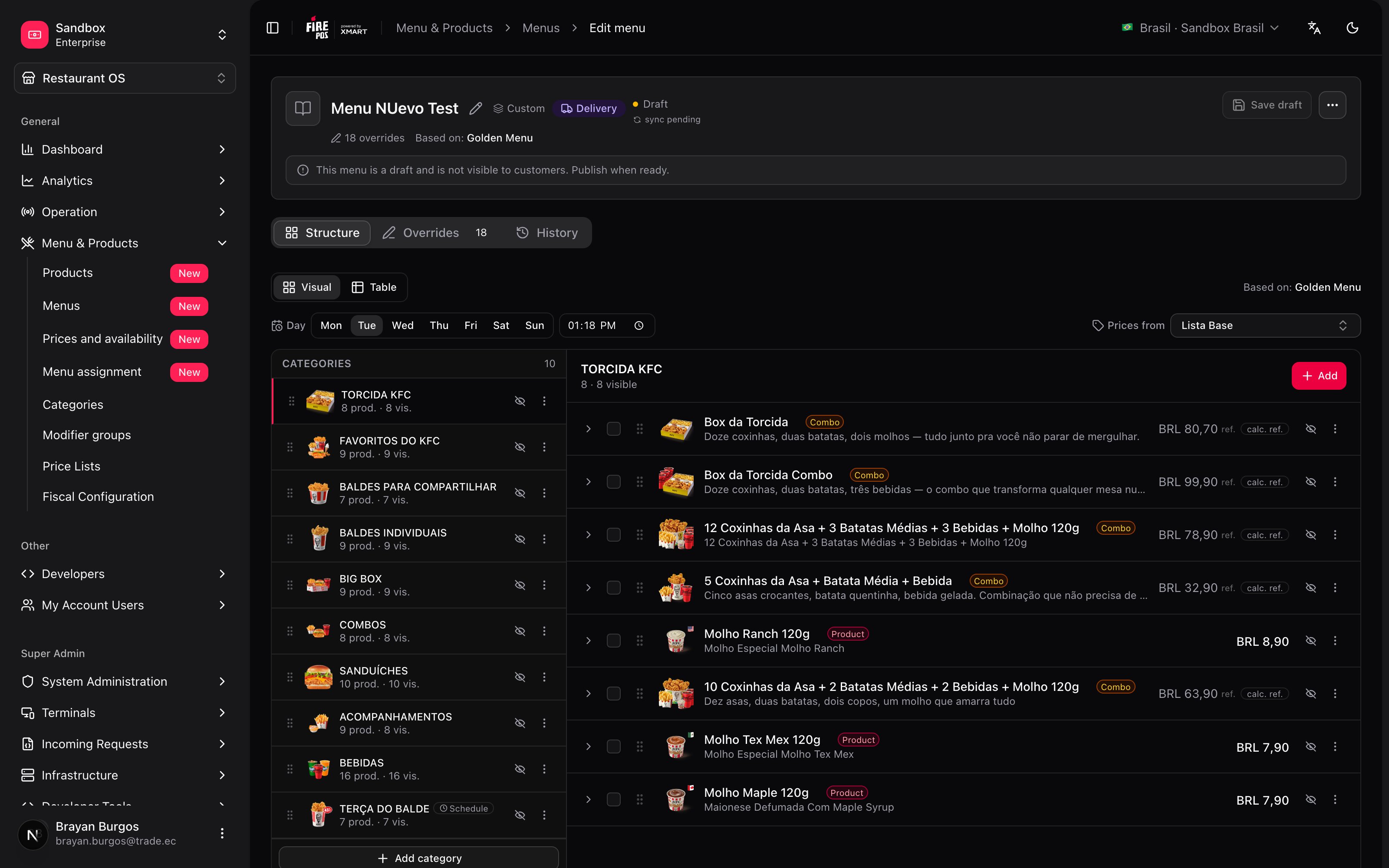 * **Add category** and **Add** *(inside each category)* open a catalog search — they offer what already exists in [Products](/en/manuals/backoffice/products) and [Categories](/en/manuals/backoffice/categories). What you add goes into this menu and touches nobody else.
* **You reorder by dragging.** Categories among themselves, and products inside each category. The order you leave is the order the customer sees.
* Two views of the same menu: **Visual**, to arrange things and see how they look, and **Table**, to review many products in a row with their prices and their badges.
***
## Saving is all you have to do
This is the part that surprises everyone: **there is no publish button in the editor**.
The menu keeps its structure current **just by saving**. What used to be publish, sync and preview buttons inside the editor moved entirely to the assignments screen, because publishing is not a property of the menu: it's a decision about which store and which channel uses it.
While you have unsaved changes you'll see the amber **Unsaved changes** chip. **Save draft** turns it into **Draft saved**.
**If you leave the editor with unsaved changes, they are lost and nothing asks you anything.** Unlike Price lists, this screen has no guard to stop you on the way out: the **Unsaved changes** chip is the only warning there is.
Save before switching tabs, menus or screens.
***
## Removing is not the same as hiding
Two actions that look alike and do different things. The difference shows up when you want to undo.
| | **Remove from menu** | **Hide** |
| ----------------- | -------------------------------------------------- | ---------------------------------------------------------- |
| What it does | Takes the product out of the menu entirely | Leaves it in the menu, but not shown |
| Where it goes | The **Removed** tab of the add dialog | The **Hidden** tab |
| How it comes back | **Restore** | **Show** |
| When to use it | The product doesn't belong on this menu, full stop | It's off sale for a while, but it's still part of the menu |
The interface says it itself: *"Removed products are taken out of this menu entirely. To keep a product but not show it, use Hide instead."*
**None of this is for "we ran out mid-service".** Removing or hiding a product here is a menu decision, permanent until somebody undoes it by hand. If what happened is that the fries ran out at two in the afternoon, that belongs in [Out of stock](/en/manuals/backoffice/out-of-stock), which comes back on its own at closing and doesn't rely on anyone remembering.
***
## What you can change for this menu only
A custom menu can depart from its parent in several things at once. Every field you change is marked with a blue **Override** chip, and all the differences together show up on the **Overrides** tab.
* **Add category** and **Add** *(inside each category)* open a catalog search — they offer what already exists in [Products](/en/manuals/backoffice/products) and [Categories](/en/manuals/backoffice/categories). What you add goes into this menu and touches nobody else.
* **You reorder by dragging.** Categories among themselves, and products inside each category. The order you leave is the order the customer sees.
* Two views of the same menu: **Visual**, to arrange things and see how they look, and **Table**, to review many products in a row with their prices and their badges.
***
## Saving is all you have to do
This is the part that surprises everyone: **there is no publish button in the editor**.
The menu keeps its structure current **just by saving**. What used to be publish, sync and preview buttons inside the editor moved entirely to the assignments screen, because publishing is not a property of the menu: it's a decision about which store and which channel uses it.
While you have unsaved changes you'll see the amber **Unsaved changes** chip. **Save draft** turns it into **Draft saved**.
**If you leave the editor with unsaved changes, they are lost and nothing asks you anything.** Unlike Price lists, this screen has no guard to stop you on the way out: the **Unsaved changes** chip is the only warning there is.
Save before switching tabs, menus or screens.
***
## Removing is not the same as hiding
Two actions that look alike and do different things. The difference shows up when you want to undo.
| | **Remove from menu** | **Hide** |
| ----------------- | -------------------------------------------------- | ---------------------------------------------------------- |
| What it does | Takes the product out of the menu entirely | Leaves it in the menu, but not shown |
| Where it goes | The **Removed** tab of the add dialog | The **Hidden** tab |
| How it comes back | **Restore** | **Show** |
| When to use it | The product doesn't belong on this menu, full stop | It's off sale for a while, but it's still part of the menu |
The interface says it itself: *"Removed products are taken out of this menu entirely. To keep a product but not show it, use Hide instead."*
**None of this is for "we ran out mid-service".** Removing or hiding a product here is a menu decision, permanent until somebody undoes it by hand. If what happened is that the fries ran out at two in the afternoon, that belongs in [Out of stock](/en/manuals/backoffice/out-of-stock), which comes back on its own at closing and doesn't rely on anyone remembering.
***
## What you can change for this menu only
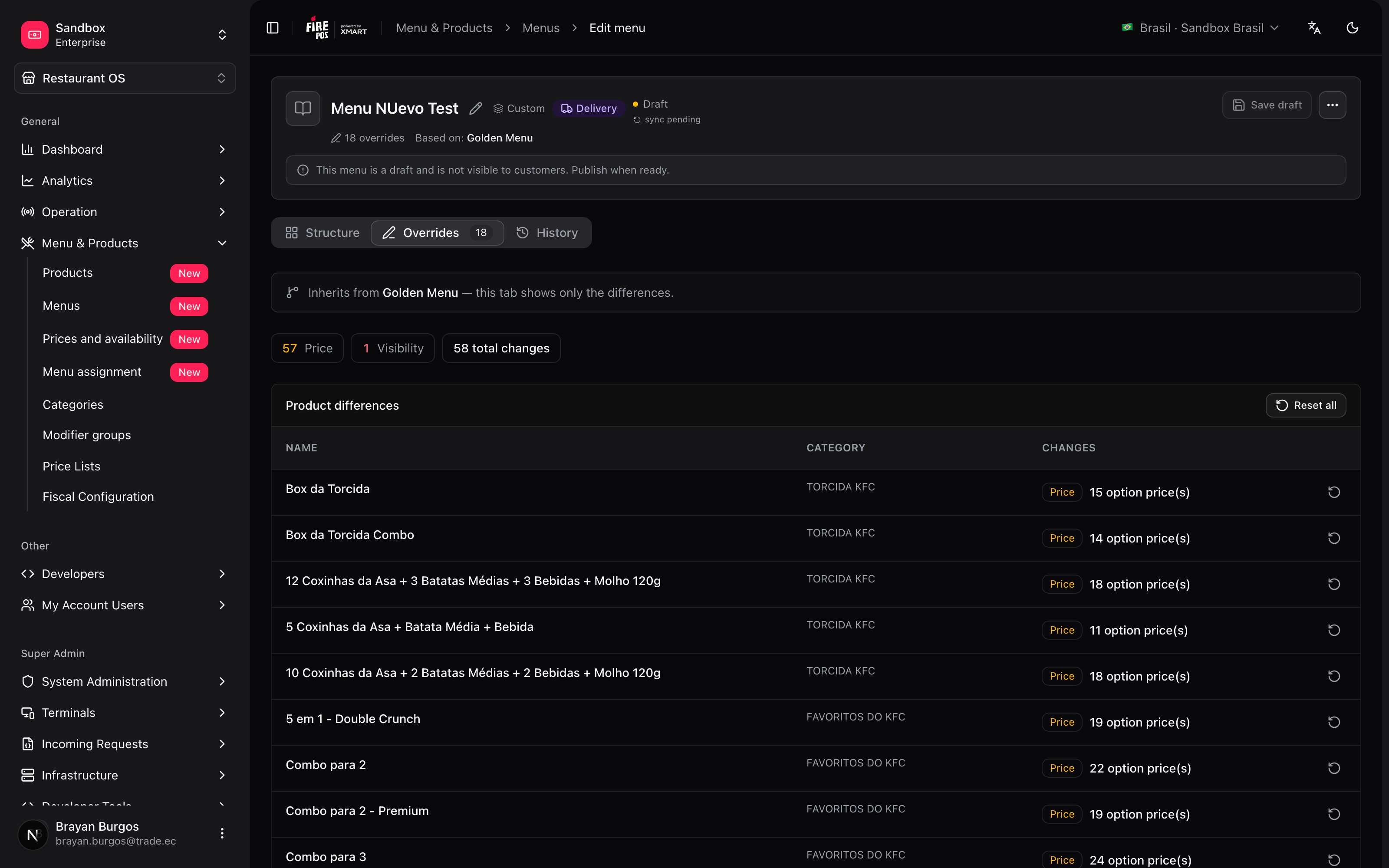
A custom menu can depart from its parent in several things at once. Every field you change is marked with a blue **Override** chip, and all the differences together show up on the **Overrides** tab.
 | What you can change | On |
| ------------------------------ | ------------------------------------------------------------------------------------- |
| **Name** · **Description** | Product and category |
| **Image** | Product and category — *"Only applies to this menu. The base image stays untouched."* |
| **Visibility** *(Hide / Show)* | Product and category |
| **Availability** | Product |
| **Modifiers** | Product: group name, min and max, which options are offered |
| **Price by service type** | Product |
The **Overrides** tab opens with *"Inherits from \ — this tab shows only the differences"* and splits into three blocks: product differences, removed products and category overrides. Each has **Reset**, and **Reset all** sits at the top: they return that field — or all of them — to the parent's value.
**The Price chip you'll see there is not a menu change.** It is the difference between what the product costs on the price list you are viewing the menu through and its catalog price, plus the count of modifier option prices fixed on that list. It shows up alongside the rest so you can see every difference in one place, but it is corrected on the [price list](/en/manuals/backoffice/price-lists), not on the menu.
**The Overrides tab only appears on custom menus.** The Golden inherits from nobody, so it has no differences to show.
**Upselling** and **cross-selling** suggestions can be seen from the product row, but they are read-only: today they are always inherited from the product and cannot be changed per menu.
***
## The two lenses: prices and day
Two selectors above the editor that change **what you see**, not what the menu is.
### Prices from — the price lens
It shows the prices from whichever list you pick, and lets you edit them right there without leaving the menu. Useful for reviewing the menu through the channel's eyes: *"this is how the delivery menu looks with the delivery list"*.
| What you can change | On |
| ------------------------------ | ------------------------------------------------------------------------------------- |
| **Name** · **Description** | Product and category |
| **Image** | Product and category — *"Only applies to this menu. The base image stays untouched."* |
| **Visibility** *(Hide / Show)* | Product and category |
| **Availability** | Product |
| **Modifiers** | Product: group name, min and max, which options are offered |
| **Price by service type** | Product |
The **Overrides** tab opens with *"Inherits from \ — this tab shows only the differences"* and splits into three blocks: product differences, removed products and category overrides. Each has **Reset**, and **Reset all** sits at the top: they return that field — or all of them — to the parent's value.
**The Price chip you'll see there is not a menu change.** It is the difference between what the product costs on the price list you are viewing the menu through and its catalog price, plus the count of modifier option prices fixed on that list. It shows up alongside the rest so you can see every difference in one place, but it is corrected on the [price list](/en/manuals/backoffice/price-lists), not on the menu.
**The Overrides tab only appears on custom menus.** The Golden inherits from nobody, so it has no differences to show.
**Upselling** and **cross-selling** suggestions can be seen from the product row, but they are read-only: today they are always inherited from the product and cannot be changed per menu.
***
## The two lenses: prices and day
Two selectors above the editor that change **what you see**, not what the menu is.
### Prices from — the price lens
It shows the prices from whichever list you pick, and lets you edit them right there without leaving the menu. Useful for reviewing the menu through the channel's eyes: *"this is how the delivery menu looks with the delivery list"*.
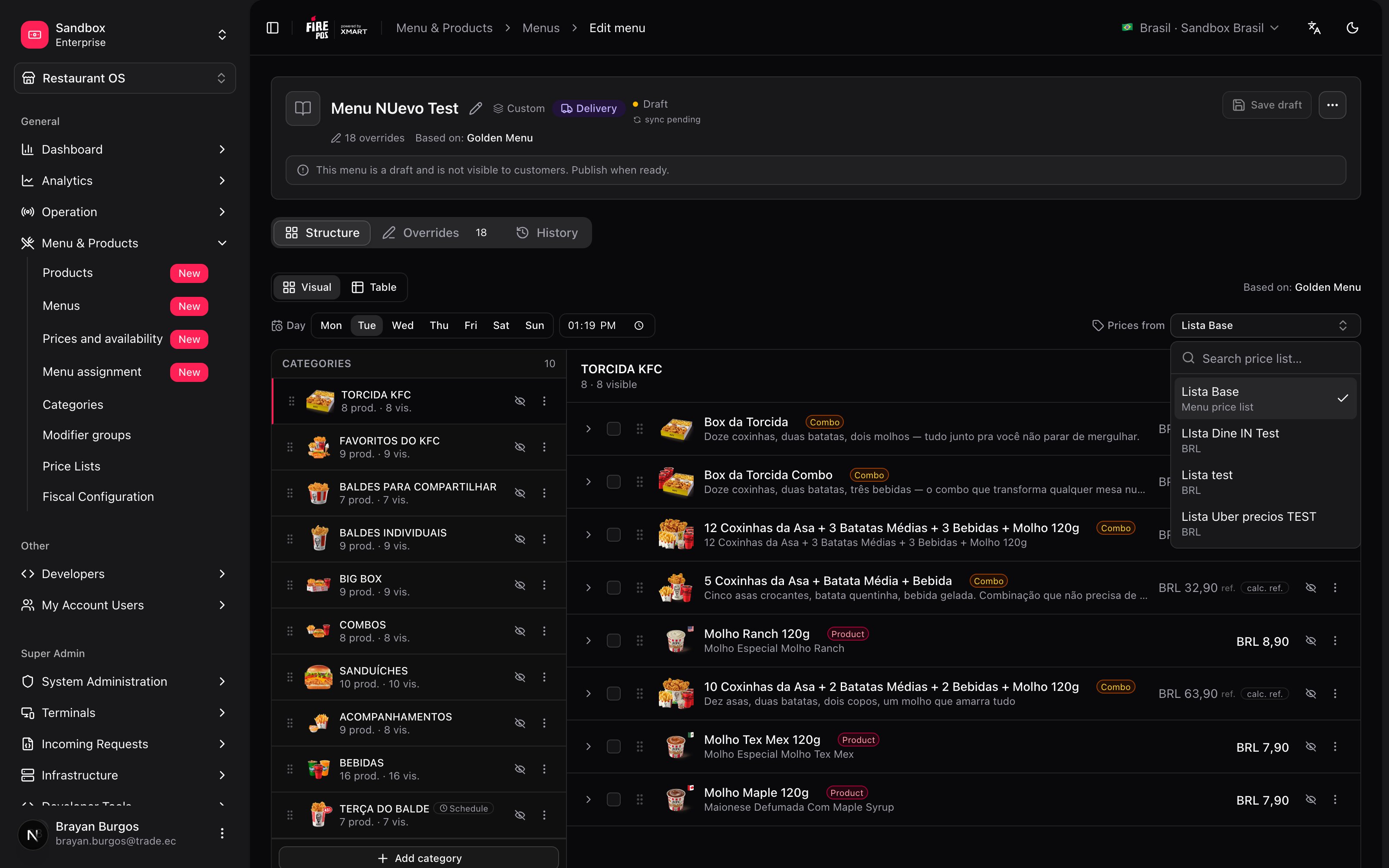 If the list you picked is linked to another one, each cell shows its badge — **Formula** or **Fixed** — with the count of each at the top.
**Switching lenses with unsaved prices discards them.** The *Unsaved prices* warning appears and the only way out is **Discard and switch**. Save before changing lists.
**What the lens does not do: it does not change the menu's list.** Looking at another list's prices reassigns nothing. Which list each store uses is decided in [Menu assignment](/en/manuals/backoffice/menu-assignments).
### Day — the day lens
**Day** and **Time** filter the view to show you how the menu looks on that day at that hour. Categories with their own schedule that doesn't cover that moment disappear, and the count of how many are *hidden by schedule* appears at the top.
It is **only a filter**: it doesn't edit schedules and doesn't change the menu. Schedules are set on categories and products, not here.
***
## Price does not live in the menu
**A menu says what is sold and in what order. Never how much it costs.** Price lives in the [price lists](/en/manuals/backoffice/price-lists), and the one that applies comes from the list assigned to that store and that channel.
That's why two stores can use exactly the same menu and charge differently: same menu, different list. And it's why raising a price requires touching no menu at all.
***
## A menu doesn't sell until it's assigned
You finished building the menu, you saved, and nothing happened. That's correct: **saving does not publish**.
A menu only goes on sale when somebody says which store, which channel and which fulfillment type it's used for, and presses **Sync**. That happens in [Menu assignment](/en/manuals/backoffice/menu-assignments), which is also where the **sync pending** and **sync failed** notices you see in the list get resolved.
***
## Recipes: how the real cases get solved
After 22:00 the kitchen runs on half a brigade and can't sustain the whole menu.
1. **Create Custom Menu**. Name: *Late Night*.
2. **Base menu**: **Golden Menu** — it starts with everything and you remove what doesn't fit.
3. **Fulfillment type**: whichever applies. Check it twice: it can't be changed later.
4. In **Structure**, use **Remove from menu** on everything the kitchen can't make at night.
5. **Save draft**.
6. Go to **Menu assignment** and assign it to the stores that open late.
The products that stayed keep inheriting from the Golden: if one of their product records changes tomorrow, the late-night menu finds out on its own.
Two different things, solved on two different screens.
1. **The menu**: create a custom menu inheriting from the Golden and remove what doesn't sell at an airport.
2. **The prices**: create a [price list](/en/manuals/backoffice/price-lists) linked to the base one, with `=P*1.15`.
3. In **Menu assignment**, give the airport store **that menu and that list**.
You don't need to touch prices inside the menu. They are independent axes on purpose: the same menu can live alongside five different lists.
The schnitzels arrive cold and they decided to stop selling them for delivery.
1. Open the **delivery custom menu** (not the Golden: dine-in stays as it is).
2. Find the product and use **Remove from menu**.
3. **Save draft**.
4. In **Menu assignment**, sync the rows using that menu.
In the Golden the product is untouched, so the dining room keeps selling it. If you change your mind later, it's in the **Removed** tab of the add dialog, with **Restore**.
1. **Create Custom Menu** with **Base menu → No parent (empty menu)**.
2. Add categories with **Add category** and products with **Add**.
3. Arrange the order by dragging.
4. **Save draft** and assign it on the other screen.
This menu inherits from nobody: whatever enters the catalog tomorrow will **not** show up here on its own. That's the flip side of starting empty, and the reason to pick this option only when there really is nothing to share.
An aggregator usually wants fewer products and its own photos.
1. Create a custom menu inheriting from the **Golden**, with the right fulfillment type.
2. Remove the products that don't belong on that channel.
3. Where a different photo or a more commercial name is needed, edit them: they get the **Override** chip and **do not touch the original product record**.
4. Prices go separately: a list linked to the base one that offsets the commission.
5. Assign menu and list to that channel's rows, and sync.
Everything you didn't change keeps inheriting. The day you upload a new photo to the catalog, this menu picks it up on its own — except on the products where you set one of your own.
***
## Mistakes that cost money
**Picking the wrong fulfillment type when creating the menu.** It cannot be corrected. You have to create another menu and build the whole thing again.
**Leaving the editor with unsaved changes.** Nothing asks you anything on the way out: the work is lost silently. The **Unsaved changes** chip is the only warning.
**Using Remove from menu for a product that ran out today.** Removing it is a menu decision and it stays that way until someone restores it by hand. For the temporary case there's [Out of stock](/en/manuals/backoffice/out-of-stock), which comes back on its own.
**Believing that saving the menu publishes it.** Saving keeps the structure current; the channel learns nothing until somebody syncs in [Menu assignment](/en/manuals/backoffice/menu-assignments).
**Starting with No parent (empty menu) out of habit.** A menu without a parent inherits nothing: new catalog products will never appear on their own, and six months later the menu is incomplete with nothing to warn you.
***
## Glossary
| Term | What it means |
| --------------- | ----------------------------------------------------------------------------------------------------------- |
| **Golden** | The catalog's menu. It is created on its own, holds everything, and is not deleted. |
| **Custom** | A menu that inherits from another one and stores only the differences. |
| **Base menu** | Who a custom menu inherits from. Chosen at creation. |
| **Fulfillment** | The fulfillment type the menu serves. Chosen once, and final. |
| **Override** | A field that is worth something different on this menu than on the parent. Marked with a blue chip. |
| **Reset** | Returning an override to the parent's value. |
| **Removed** | A product taken out of the menu entirely. Brought back with **Restore**. |
| **Hidden** | A product still on the menu but not shown. Brought back with **Show**. |
| **Lens** | A selector that changes what you see — another list's prices, a day and a time — without changing the menu. |
| **Snapshot** | The picture of the menu's structure. It regenerates on its own every time you save. |
***
## Frequently asked questions
Saving does not publish. The channel receives the menu only when somebody syncs the corresponding row in [Menu assignment](/en/manuals/backoffice/menu-assignments).
You can't. The field is final from the moment the menu is created. The way out is to create another menu with the right fulfillment type and build it again.
Check who that menu inherits from. If it was born with **No parent (empty menu)**, it inherits from nobody and new products have to be added by hand with **Add**. If it inherits from the Golden, it should appear on its own; if it isn't there, check whether somebody removed it with **Remove from menu** — it will be in the **Removed** tab, with **Restore**.
Yes. A vendor can have several menus for the same fulfillment type: one per time slot, per zone or per brand. What doesn't exist is a menu serving two fulfillment types at once — that's what the Golden is for, since it has none assigned.
Because it is the catalog. It's where the products you load land, and the starting point the other menus inherit from. Deleting it would leave the custom menus inheriting from nothing.
***
## What's coming
* **The History tab**, empty today. The banner already hints at the scope: publish, override, structure and assignment events, with the full audit planned for a second stage.
* **Duplicating a menu** and **viewing its JSON** — the actions are in the editor menu, still disabled.
* **Menu schedules** from this screen: today the day lens only filters, and schedules are set on categories and products.
* **Per-menu suggestions**: today upselling and cross-selling are always inherited from the product and can't be changed for one menu in particular.
If the list you picked is linked to another one, each cell shows its badge — **Formula** or **Fixed** — with the count of each at the top.
**Switching lenses with unsaved prices discards them.** The *Unsaved prices* warning appears and the only way out is **Discard and switch**. Save before changing lists.
**What the lens does not do: it does not change the menu's list.** Looking at another list's prices reassigns nothing. Which list each store uses is decided in [Menu assignment](/en/manuals/backoffice/menu-assignments).
### Day — the day lens
**Day** and **Time** filter the view to show you how the menu looks on that day at that hour. Categories with their own schedule that doesn't cover that moment disappear, and the count of how many are *hidden by schedule* appears at the top.
It is **only a filter**: it doesn't edit schedules and doesn't change the menu. Schedules are set on categories and products, not here.
***
## Price does not live in the menu
**A menu says what is sold and in what order. Never how much it costs.** Price lives in the [price lists](/en/manuals/backoffice/price-lists), and the one that applies comes from the list assigned to that store and that channel.
That's why two stores can use exactly the same menu and charge differently: same menu, different list. And it's why raising a price requires touching no menu at all.
***
## A menu doesn't sell until it's assigned
You finished building the menu, you saved, and nothing happened. That's correct: **saving does not publish**.
A menu only goes on sale when somebody says which store, which channel and which fulfillment type it's used for, and presses **Sync**. That happens in [Menu assignment](/en/manuals/backoffice/menu-assignments), which is also where the **sync pending** and **sync failed** notices you see in the list get resolved.
***
## Recipes: how the real cases get solved
After 22:00 the kitchen runs on half a brigade and can't sustain the whole menu.
1. **Create Custom Menu**. Name: *Late Night*.
2. **Base menu**: **Golden Menu** — it starts with everything and you remove what doesn't fit.
3. **Fulfillment type**: whichever applies. Check it twice: it can't be changed later.
4. In **Structure**, use **Remove from menu** on everything the kitchen can't make at night.
5. **Save draft**.
6. Go to **Menu assignment** and assign it to the stores that open late.
The products that stayed keep inheriting from the Golden: if one of their product records changes tomorrow, the late-night menu finds out on its own.
Two different things, solved on two different screens.
1. **The menu**: create a custom menu inheriting from the Golden and remove what doesn't sell at an airport.
2. **The prices**: create a [price list](/en/manuals/backoffice/price-lists) linked to the base one, with `=P*1.15`.
3. In **Menu assignment**, give the airport store **that menu and that list**.
You don't need to touch prices inside the menu. They are independent axes on purpose: the same menu can live alongside five different lists.
The schnitzels arrive cold and they decided to stop selling them for delivery.
1. Open the **delivery custom menu** (not the Golden: dine-in stays as it is).
2. Find the product and use **Remove from menu**.
3. **Save draft**.
4. In **Menu assignment**, sync the rows using that menu.
In the Golden the product is untouched, so the dining room keeps selling it. If you change your mind later, it's in the **Removed** tab of the add dialog, with **Restore**.
1. **Create Custom Menu** with **Base menu → No parent (empty menu)**.
2. Add categories with **Add category** and products with **Add**.
3. Arrange the order by dragging.
4. **Save draft** and assign it on the other screen.
This menu inherits from nobody: whatever enters the catalog tomorrow will **not** show up here on its own. That's the flip side of starting empty, and the reason to pick this option only when there really is nothing to share.
An aggregator usually wants fewer products and its own photos.
1. Create a custom menu inheriting from the **Golden**, with the right fulfillment type.
2. Remove the products that don't belong on that channel.
3. Where a different photo or a more commercial name is needed, edit them: they get the **Override** chip and **do not touch the original product record**.
4. Prices go separately: a list linked to the base one that offsets the commission.
5. Assign menu and list to that channel's rows, and sync.
Everything you didn't change keeps inheriting. The day you upload a new photo to the catalog, this menu picks it up on its own — except on the products where you set one of your own.
***
## Mistakes that cost money
**Picking the wrong fulfillment type when creating the menu.** It cannot be corrected. You have to create another menu and build the whole thing again.
**Leaving the editor with unsaved changes.** Nothing asks you anything on the way out: the work is lost silently. The **Unsaved changes** chip is the only warning.
**Using Remove from menu for a product that ran out today.** Removing it is a menu decision and it stays that way until someone restores it by hand. For the temporary case there's [Out of stock](/en/manuals/backoffice/out-of-stock), which comes back on its own.
**Believing that saving the menu publishes it.** Saving keeps the structure current; the channel learns nothing until somebody syncs in [Menu assignment](/en/manuals/backoffice/menu-assignments).
**Starting with No parent (empty menu) out of habit.** A menu without a parent inherits nothing: new catalog products will never appear on their own, and six months later the menu is incomplete with nothing to warn you.
***
## Glossary
| Term | What it means |
| --------------- | ----------------------------------------------------------------------------------------------------------- |
| **Golden** | The catalog's menu. It is created on its own, holds everything, and is not deleted. |
| **Custom** | A menu that inherits from another one and stores only the differences. |
| **Base menu** | Who a custom menu inherits from. Chosen at creation. |
| **Fulfillment** | The fulfillment type the menu serves. Chosen once, and final. |
| **Override** | A field that is worth something different on this menu than on the parent. Marked with a blue chip. |
| **Reset** | Returning an override to the parent's value. |
| **Removed** | A product taken out of the menu entirely. Brought back with **Restore**. |
| **Hidden** | A product still on the menu but not shown. Brought back with **Show**. |
| **Lens** | A selector that changes what you see — another list's prices, a day and a time — without changing the menu. |
| **Snapshot** | The picture of the menu's structure. It regenerates on its own every time you save. |
***
## Frequently asked questions
Saving does not publish. The channel receives the menu only when somebody syncs the corresponding row in [Menu assignment](/en/manuals/backoffice/menu-assignments).
You can't. The field is final from the moment the menu is created. The way out is to create another menu with the right fulfillment type and build it again.
Check who that menu inherits from. If it was born with **No parent (empty menu)**, it inherits from nobody and new products have to be added by hand with **Add**. If it inherits from the Golden, it should appear on its own; if it isn't there, check whether somebody removed it with **Remove from menu** — it will be in the **Removed** tab, with **Restore**.
Yes. A vendor can have several menus for the same fulfillment type: one per time slot, per zone or per brand. What doesn't exist is a menu serving two fulfillment types at once — that's what the Golden is for, since it has none assigned.
Because it is the catalog. It's where the products you load land, and the starting point the other menus inherit from. Deleting it would leave the custom menus inheriting from nothing.
***
## What's coming
* **The History tab**, empty today. The banner already hints at the scope: publish, override, structure and assignment events, with the full audit planned for a second stage.
* **Duplicating a menu** and **viewing its JSON** — the actions are in the editor menu, still disabled.
* **Menu schedules** from this screen: today the day lens only filters, and schedules are set on categories and products.
* **Per-menu suggestions**: today upselling and cross-selling are always inherited from the product and can't be changed for one menu in particular.