> ## Documentation Index
> Fetch the complete documentation index at: https://docs.fire.rest/llms.txt
> Use this file to discover all available pages before exploring further.
# Modifier Groups
> Define the questions customers answer when ordering — size, sauce, extras — once, and reuse them across every product.
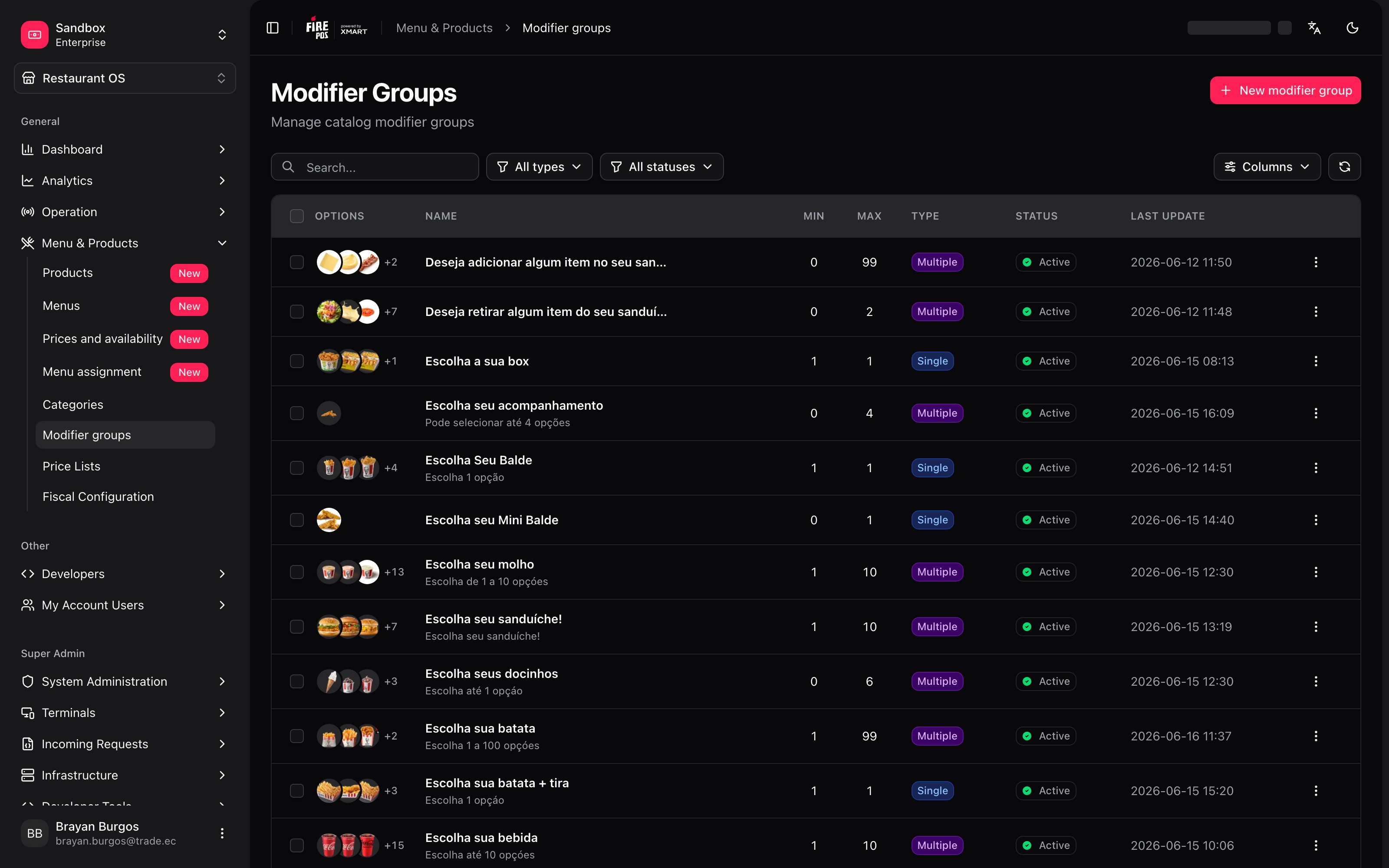
A modifier group is a **question you ask the customer when they order**: *which sauce?*, *what size?*, *anything to add?*. The group defines the question, the possible answers, and how many they can pick.
It's defined once and reused: the same *Sauces* group serves all ten burgers on the menu, and the day you add a new sauce it shows up on all ten. Go to **Restaurant OS → Menu and Products → Modifier groups**.
 ***
## The minimum you need to know
**1. Options are catalog products.** To offer *extra cheese* there has to be an *extra cheese* product. You don't write loose options.
**2. An option's price comes from the product**, it isn't typed here. This screen shows it read-only.
**3. You only set two numbers: the minimum and the maximum.** Whether the group is required, and whether it takes one option or several, **is not chosen** — the screen derives it from those two numbers.
***
## The simple path
1. **New modifier group**, give it a name — *Sauces*, *Size*, *Extras*.
2. Set the **minimum** and the **maximum** number of options the customer can pick.
3. Save, and on the **Options** tab find the products that will be the options.
4. Go to each product that uses this group and add it from its **Modifier Groups** tab.
A group does nothing on its own. It starts working when a product uses it.
***
## The selection rules
***
## The minimum you need to know
**1. Options are catalog products.** To offer *extra cheese* there has to be an *extra cheese* product. You don't write loose options.
**2. An option's price comes from the product**, it isn't typed here. This screen shows it read-only.
**3. You only set two numbers: the minimum and the maximum.** Whether the group is required, and whether it takes one option or several, **is not chosen** — the screen derives it from those two numbers.
***
## The simple path
1. **New modifier group**, give it a name — *Sauces*, *Size*, *Extras*.
2. Set the **minimum** and the **maximum** number of options the customer can pick.
3. Save, and on the **Options** tab find the products that will be the options.
4. Go to each product that uses this group and add it from its **Modifier Groups** tab.
A group does nothing on its own. It starts working when a product uses it.
***
## The selection rules
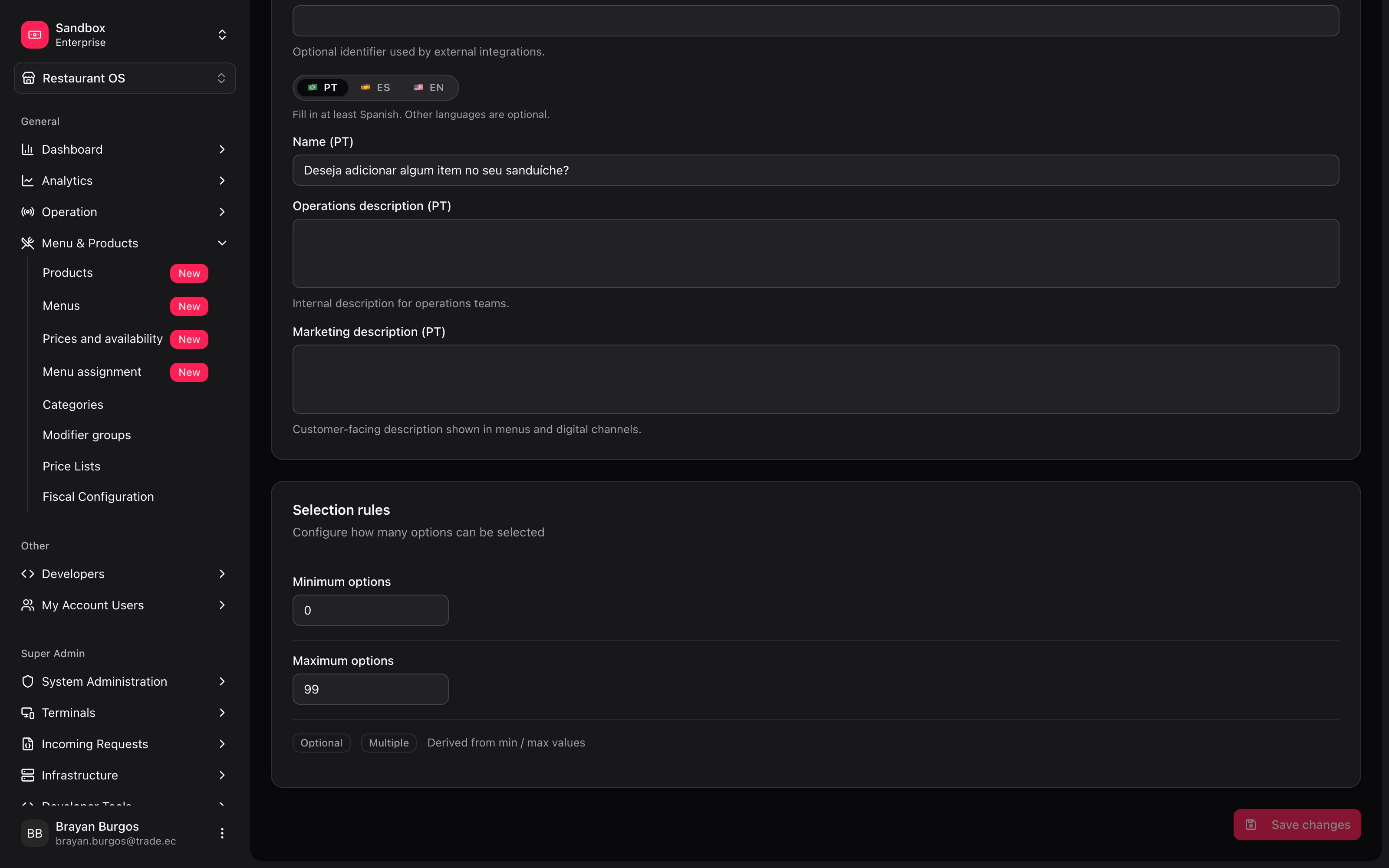 The card has **only two fields**: **Minimum options** and **Maximum options**. Nothing else.
Below them two badges appear — **Required** or **Optional**, and **Single** or **Multiple** — with the line *"Derived from min / max values"*. They are not fields: they are the result of the two numbers you set.
**Why it's derived instead of chosen.** A group marked "optional" with a minimum of 1 would be a contradiction, and somebody would discover it when a customer couldn't finish their order. By deriving it from the numbers, that contradiction cannot exist.
Examples that cover almost everything:
| What you want | Min | Max | You get |
| ------------------------------- | --- | --- | ------------------- |
| Pick the size, no way around it | 1 | 1 | Required · Single |
| Sauce, optional | 0 | 1 | Optional · Single |
| Up to three optional extras | 0 | 3 | Optional · Multiple |
| Pick two sides from a combo | 2 | 2 | Required · Multiple |
***
## Options are products
Here's the surprising part: an option is not a loose piece of text. **Behind every option there is a catalog product**, and the **Options** tab offers two ways to get there.
The card has **only two fields**: **Minimum options** and **Maximum options**. Nothing else.
Below them two badges appear — **Required** or **Optional**, and **Single** or **Multiple** — with the line *"Derived from min / max values"*. They are not fields: they are the result of the two numbers you set.
**Why it's derived instead of chosen.** A group marked "optional" with a minimum of 1 would be a contradiction, and somebody would discover it when a customer couldn't finish their order. By deriving it from the numbers, that contradiction cannot exist.
Examples that cover almost everything:
| What you want | Min | Max | You get |
| ------------------------------- | --- | --- | ------------------- |
| Pick the size, no way around it | 1 | 1 | Required · Single |
| Sauce, optional | 0 | 1 | Optional · Single |
| Up to three optional extras | 0 | 3 | Optional · Multiple |
| Pick two sides from a combo | 2 | 2 | Required · Multiple |
***
## Options are products
Here's the surprising part: an option is not a loose piece of text. **Behind every option there is a catalog product**, and the **Options** tab offers two ways to get there.
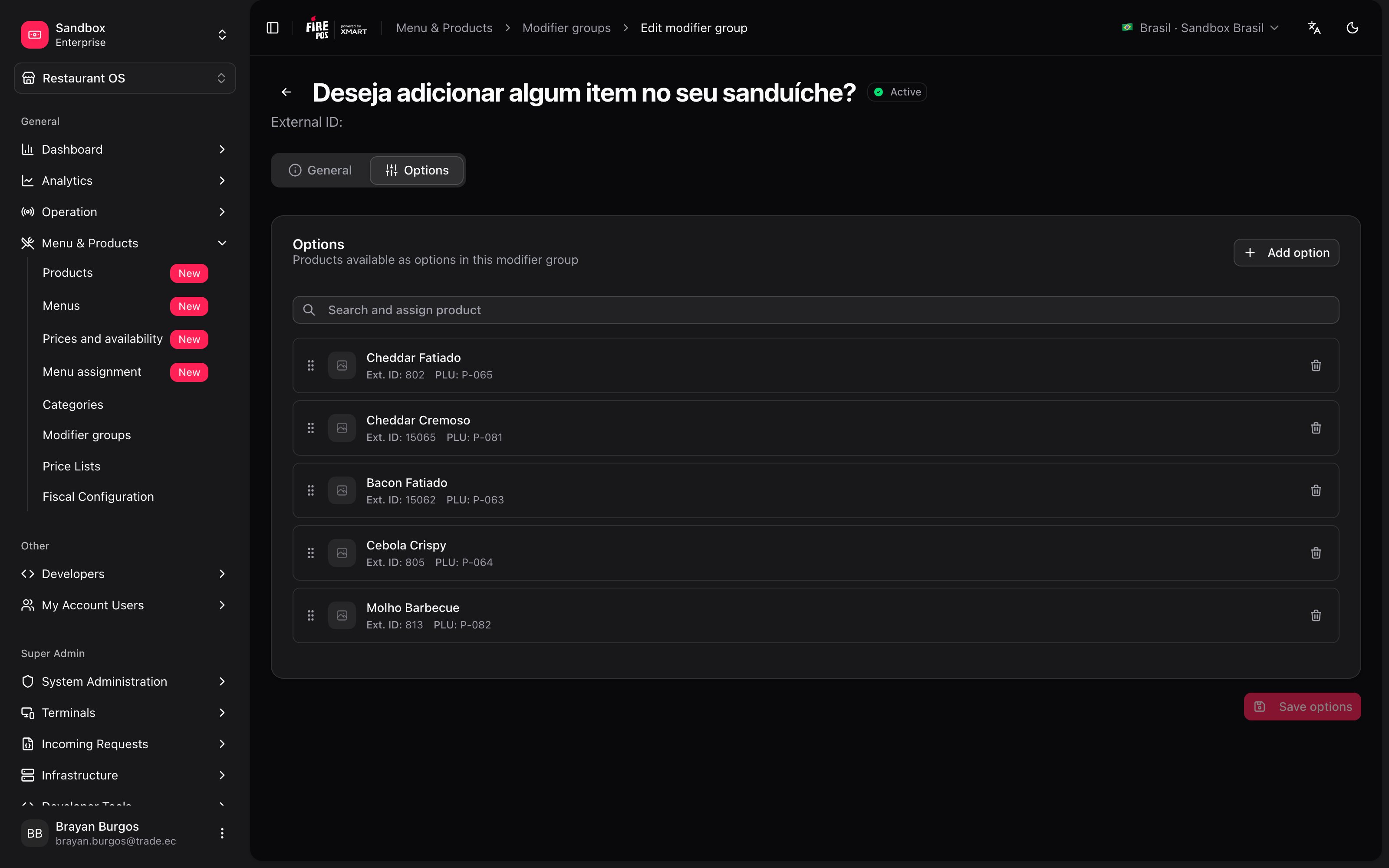 | Path | When |
| ----------------------------- | ------------------------------------------------------------------------------------------------------------------------------------------------------------------------ |
| **Search and assign product** | The product already exists. You find it by name and it's assigned. |
| **Add option** | It doesn't exist yet. The form asks for a name, **PLU**, **External ID**, **Recipe ID**, descriptions and price — that's a product record, and that's what gets created. |
There's a practical reason: an option has a price, taxes, a PLU code, a kitchen recipe and a name in three languages. All of that already lives in a product, and duplicating it would mean maintaining it twice.
**That's why the Modifier product type exists.** In [Products](/en/manuals/backoffice/products) you can create a **Modifier** product — *extra cheese*, *double patty* — that exists to be an option, not to be sold on its own. Just turn off its **Show in menu**: the product doesn't appear on the menu but stays available inside combos and modifiers.
Options **are reordered by dragging**, and that's the order the customer sees them in.
Options **are not saved on their own**: when you're done you confirm with **Save options**.
### What gets defined per option
| Path | When |
| ----------------------------- | ------------------------------------------------------------------------------------------------------------------------------------------------------------------------ |
| **Search and assign product** | The product already exists. You find it by name and it's assigned. |
| **Add option** | It doesn't exist yet. The form asks for a name, **PLU**, **External ID**, **Recipe ID**, descriptions and price — that's a product record, and that's what gets created. |
There's a practical reason: an option has a price, taxes, a PLU code, a kitchen recipe and a name in three languages. All of that already lives in a product, and duplicating it would mean maintaining it twice.
**That's why the Modifier product type exists.** In [Products](/en/manuals/backoffice/products) you can create a **Modifier** product — *extra cheese*, *double patty* — that exists to be an option, not to be sold on its own. Just turn off its **Show in menu**: the product doesn't appear on the menu but stays available inside combos and modifiers.
Options **are reordered by dragging**, and that's the order the customer sees them in.
Options **are not saved on their own**: when you're done you confirm with **Save options**.
### What gets defined per option
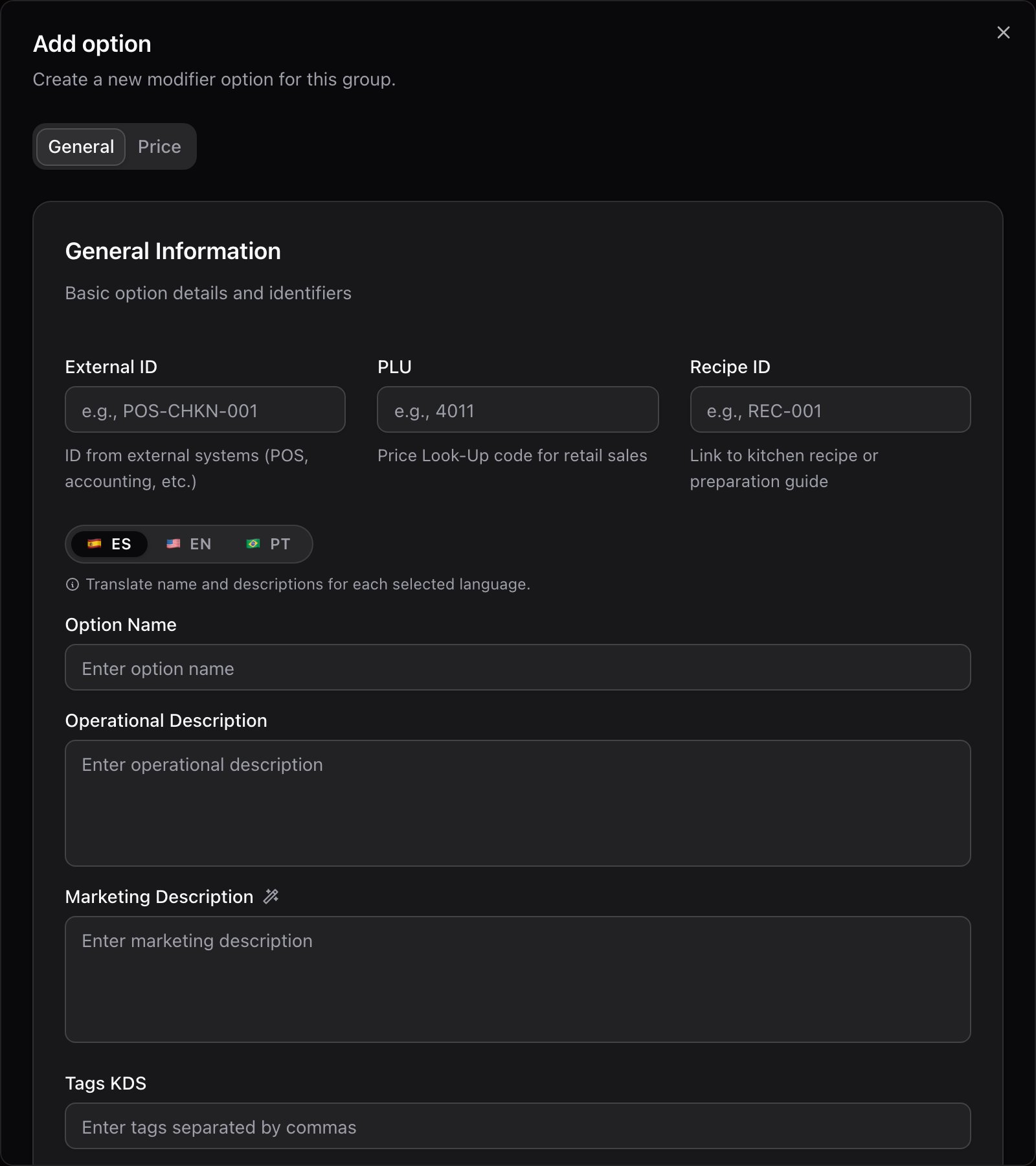 | Control | What it does |
| ----------------------------------------- | ----------------------------------------------------- |
| **Default option** | Comes pre-selected when the customer opens the group. |
| **Availability** | When off, the option **is left out of every menu**. |
| **External ID** · **PLU** · **Recipe ID** | The identifiers for POS, retail and the kitchen. |
| **Tags KDS** | Labels for the kitchen display. |
The dialog's **Price** tab is **read-only**: it shows the net, the gross and the suggested price *of the product you picked*. The screen says so: *"Values from the selected product (read from product detail)"*.
**To change what an option costs, you go to the product or to the price list.** It isn't edited here. If extra cheese has to cost something different, the price is corrected on the *extra cheese* product or on the matching [price list](/en/manuals/backoffice/price-lists).
***
## The same group, different on one product
A group is defined once, but **a product can depart from it** without breaking the others. That's done from the product record, not here.
From a product's **Modifier Groups** tab you can change, for that product only:
* the **title** the group is shown with,
* the **minimum** and the **maximum**,
* the **price of each option**.
Whatever you leave at the group's value keeps being inherited. Whatever you change is marked **Custom for this product**.
It's the same pattern as the rest of the catalog: define it once at the top and adjust it below only where needed. The *Extras* group can cost more inside the premium burger without that touching the others.
***
## Recipes: how the real cases get solved
1. Create the sauce products in [Products](/en/manuals/backoffice/products), type **Modifier**, with **Show in menu** off and price 0.
2. **New modifier group**, name it *Sauces*.
3. Minimum **0**, maximum **1**. The group ends up **Optional · Single** on its own.
4. **Options** tab: add the sauces and order them by dragging.
5. On each product that carries them, **Modifier Groups** tab → **Add group**.
1. Create the *Small*, *Medium*, *Large* products as **Modifier**, each with its price.
2. Group *Size*, minimum **1**, maximum **1**. It ends up **Required · Single**.
3. Mark *Medium* as **Default option** so it comes pre-selected.
With a minimum of 1 the customer can't move on without choosing, which is exactly what you want when the price depends on the size.
Don't duplicate the group. Go to the premium product's record, **Modifier Groups** tab, open the group and edit **that option's price for this product**.
It gets marked **Custom for this product** and the other products keep the catalog price.
If it's just for today, don't touch this: use [Out of stock](/en/manuals/backoffice/out-of-stock), which brings it back on its own at closing.
If it's permanent, turn off **Availability** on that option: it's left out of every menu that uses the group.
***
## Mistakes that cost money
**Setting a minimum of 1 on a group you meant to be optional.** The group becomes required and the customer can't finish the order without answering. There is no "optional" switch to contradict it: look at the badges under the numbers before saving.
**Creating options as sellable products.** If a **Modifier** product is left with **Show in menu** on, *extra cheese* appears on the menu as if it were a dish. Turn it off: it keeps working as an option.
**Looking for the option's price on this screen.** It's read-only here. It's corrected on the product or on the price list, and from there it reaches every group that uses that option.
**Turning off an option's Availability for something temporary.** It leaves every menu and stays that way until somebody undoes it by hand.
***
## Glossary
| Term | What it means |
| --------------------------- | -------------------------------------------------------------------------------- |
| **Modifier group** | The question the customer is asked when ordering, with its possible answers. |
| **Option** | One possible answer. Always a catalog product. |
| **Min / Max** | The only two numbers you configure: how many options can be picked. |
| **Single / Multiple** | Whether the customer picks one or several. Derived from the maximum; not chosen. |
| **Required / Optional** | Derived from the minimum: 1 or more makes it required. Not chosen either. |
| **Default option** | The option that comes pre-selected. |
| **Modifier** | The product type that exists to be an option, not to be sold on its own. |
| **Custom for this product** | The mark on a group that has its own title, limits or prices on that product. |
***
## Frequently asked questions
**Search and assign product** only shows the ones that already exist. If it isn't there you have two ways out: create it in [Products](/en/manuals/backoffice/products) — usually as type **Modifier** — and search again, or use **Add option** and enter its details from here.
On the product behind that option, or on the [price list](/en/manuals/backoffice/price-lists) that destination uses. If it only has to change inside one particular product, that's done from that product's **Modifier Groups** tab.
A group doesn't reach the menu on its own. It has to be assigned to the product (the record's **Modifier Groups** tab) and that product has to be in a menu that has been synced in [Menu assignment](/en/manuals/backoffice/menu-assignments).
That's expected, and the screen warns you beforehand: *"A modifier cannot have modifier groups"*. A modifier is an answer, not a question, so it can't have groups hanging off it.
***
## What's coming
* **Nested groups**: today an option cannot open another group of questions in turn.
| Control | What it does |
| ----------------------------------------- | ----------------------------------------------------- |
| **Default option** | Comes pre-selected when the customer opens the group. |
| **Availability** | When off, the option **is left out of every menu**. |
| **External ID** · **PLU** · **Recipe ID** | The identifiers for POS, retail and the kitchen. |
| **Tags KDS** | Labels for the kitchen display. |
The dialog's **Price** tab is **read-only**: it shows the net, the gross and the suggested price *of the product you picked*. The screen says so: *"Values from the selected product (read from product detail)"*.
**To change what an option costs, you go to the product or to the price list.** It isn't edited here. If extra cheese has to cost something different, the price is corrected on the *extra cheese* product or on the matching [price list](/en/manuals/backoffice/price-lists).
***
## The same group, different on one product
A group is defined once, but **a product can depart from it** without breaking the others. That's done from the product record, not here.
From a product's **Modifier Groups** tab you can change, for that product only:
* the **title** the group is shown with,
* the **minimum** and the **maximum**,
* the **price of each option**.
Whatever you leave at the group's value keeps being inherited. Whatever you change is marked **Custom for this product**.
It's the same pattern as the rest of the catalog: define it once at the top and adjust it below only where needed. The *Extras* group can cost more inside the premium burger without that touching the others.
***
## Recipes: how the real cases get solved
1. Create the sauce products in [Products](/en/manuals/backoffice/products), type **Modifier**, with **Show in menu** off and price 0.
2. **New modifier group**, name it *Sauces*.
3. Minimum **0**, maximum **1**. The group ends up **Optional · Single** on its own.
4. **Options** tab: add the sauces and order them by dragging.
5. On each product that carries them, **Modifier Groups** tab → **Add group**.
1. Create the *Small*, *Medium*, *Large* products as **Modifier**, each with its price.
2. Group *Size*, minimum **1**, maximum **1**. It ends up **Required · Single**.
3. Mark *Medium* as **Default option** so it comes pre-selected.
With a minimum of 1 the customer can't move on without choosing, which is exactly what you want when the price depends on the size.
Don't duplicate the group. Go to the premium product's record, **Modifier Groups** tab, open the group and edit **that option's price for this product**.
It gets marked **Custom for this product** and the other products keep the catalog price.
If it's just for today, don't touch this: use [Out of stock](/en/manuals/backoffice/out-of-stock), which brings it back on its own at closing.
If it's permanent, turn off **Availability** on that option: it's left out of every menu that uses the group.
***
## Mistakes that cost money
**Setting a minimum of 1 on a group you meant to be optional.** The group becomes required and the customer can't finish the order without answering. There is no "optional" switch to contradict it: look at the badges under the numbers before saving.
**Creating options as sellable products.** If a **Modifier** product is left with **Show in menu** on, *extra cheese* appears on the menu as if it were a dish. Turn it off: it keeps working as an option.
**Looking for the option's price on this screen.** It's read-only here. It's corrected on the product or on the price list, and from there it reaches every group that uses that option.
**Turning off an option's Availability for something temporary.** It leaves every menu and stays that way until somebody undoes it by hand.
***
## Glossary
| Term | What it means |
| --------------------------- | -------------------------------------------------------------------------------- |
| **Modifier group** | The question the customer is asked when ordering, with its possible answers. |
| **Option** | One possible answer. Always a catalog product. |
| **Min / Max** | The only two numbers you configure: how many options can be picked. |
| **Single / Multiple** | Whether the customer picks one or several. Derived from the maximum; not chosen. |
| **Required / Optional** | Derived from the minimum: 1 or more makes it required. Not chosen either. |
| **Default option** | The option that comes pre-selected. |
| **Modifier** | The product type that exists to be an option, not to be sold on its own. |
| **Custom for this product** | The mark on a group that has its own title, limits or prices on that product. |
***
## Frequently asked questions
**Search and assign product** only shows the ones that already exist. If it isn't there you have two ways out: create it in [Products](/en/manuals/backoffice/products) — usually as type **Modifier** — and search again, or use **Add option** and enter its details from here.
On the product behind that option, or on the [price list](/en/manuals/backoffice/price-lists) that destination uses. If it only has to change inside one particular product, that's done from that product's **Modifier Groups** tab.
A group doesn't reach the menu on its own. It has to be assigned to the product (the record's **Modifier Groups** tab) and that product has to be in a menu that has been synced in [Menu assignment](/en/manuals/backoffice/menu-assignments).
That's expected, and the screen warns you beforehand: *"A modifier cannot have modifier groups"*. A modifier is an answer, not a question, so it can't have groups hanging off it.
***
## What's coming
* **Nested groups**: today an option cannot open another group of questions in turn.