> ## Documentation Index
> Fetch the complete documentation index at: https://docs.fire.rest/llms.txt
> Use this file to discover all available pages before exploring further.
# Catalog
> Build the BOH catalog: unit groups and units, inventory items, interchangeable item tags, and classification categories.
The catalog describes **what** you track in inventory: the units you measure in, the items themselves, and the groupings that make them easier to manage. Everything else in BOH (recipes, receipts, counts, reports) references the catalog.
**Where you work:** the **Catalog** section of the BOH menu — **Unit groups**, **Units**, **Items**, **Item tags**, **Classification categories/values**, and **Waste reasons** (covered in [Waste and internal consumption](/en/manuals/boh/waste-consumption#waste-reasons)). The account's currency is configured under **Account & access → Account settings**.
## Account currency
Each BOH account has a **default currency** used in procurement costs, supplier item prices, and reports. Set it in **Account & access → Account settings** (`/boh/admin/me`).
BOH uses the ISO 4217 currency catalog (USD, ARS, COP, BRL, CLP, PEN…). The currency you choose is stored on the account and applied automatically to all financial fields — you do not need to specify it per document.
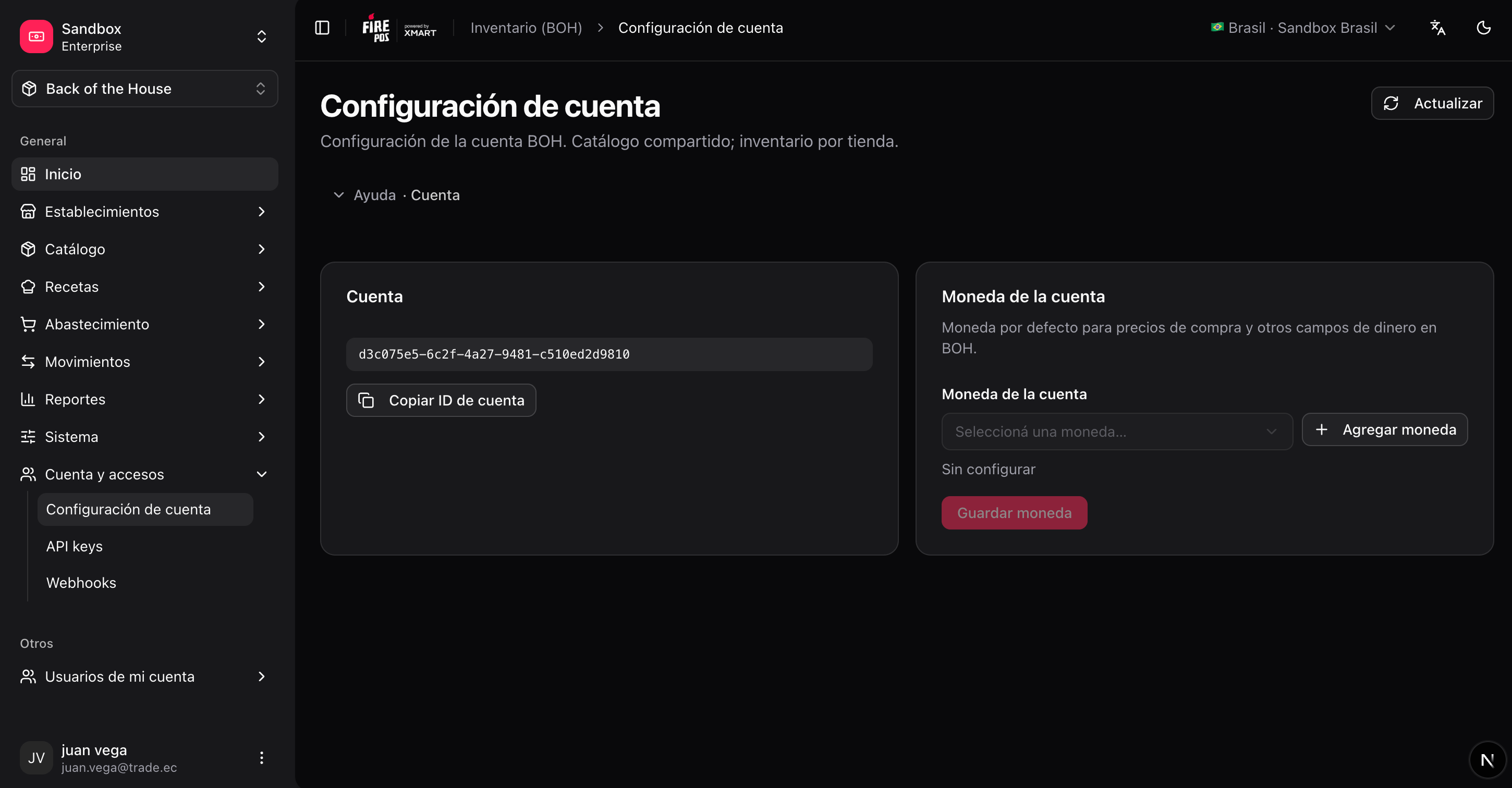 Change the account currency before entering any cost data. Existing cost figures are not converted when the currency changes.
## Units and unit groups
Units are organized in **unit groups** by what they measure:
| Group | Example units |
| ---------- | ---------------- |
| **Mass** | g, kg, lb |
| **Volume** | ml, L, gal |
| **Count** | unit, dozen, box |
Each unit has a conversion factor to the base unit of its group (e.g. 1 kg = 1000 g). BOH always stores quantities in the base unit internally, so you can record a receipt in kilograms and a recipe in grams without inconsistencies.
Change the account currency before entering any cost data. Existing cost figures are not converted when the currency changes.
## Units and unit groups
Units are organized in **unit groups** by what they measure:
| Group | Example units |
| ---------- | ---------------- |
| **Mass** | g, kg, lb |
| **Volume** | ml, L, gal |
| **Count** | unit, dozen, box |
Each unit has a conversion factor to the base unit of its group (e.g. 1 kg = 1000 g). BOH always stores quantities in the base unit internally, so you can record a receipt in kilograms and a recipe in grams without inconsistencies.
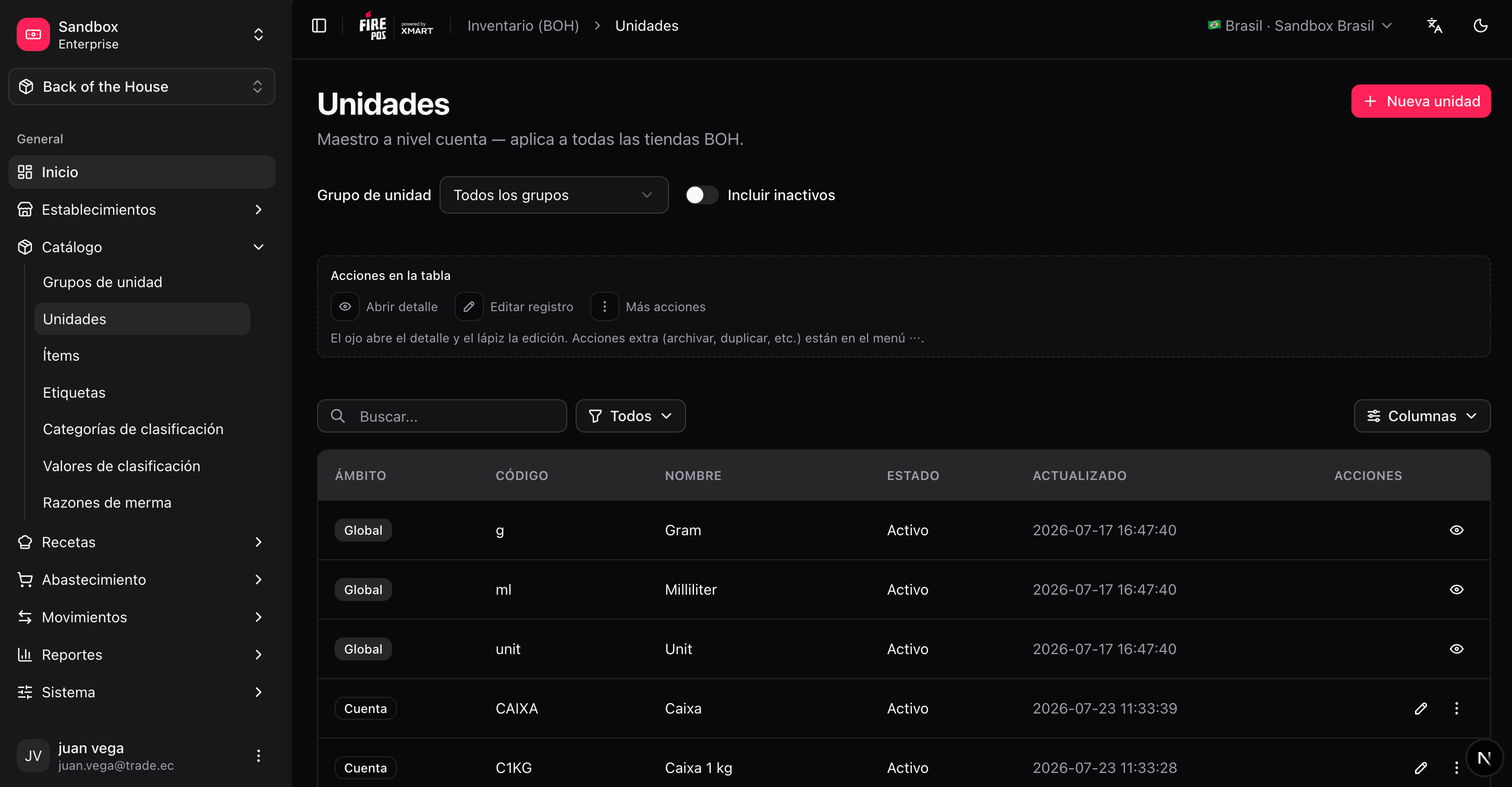 Conversions only work **within** a group. You cannot convert liters to kilograms — if you need both views of the same item, choose the unit the kitchen actually measures in.
To add a unit: **Catalog → Units → Create** (`/boh/admin/units/new`), pick the group, the name, and the factor to the group's base unit. Unit groups themselves are listed under **Catalog → Unit groups** (`/boh/admin/unit-groups`).
## Items
An **item** is a physical supply you track: an ingredient, a packaging material, a cleaning product. Key fields:
| Field | What it is for |
| ---------------------- | -------------------------------------------------------------------------------------- |
| **Name / code** | How the item appears in documents and reports. |
| **Type** | The kind of supply (ingredient, packaging, etc.), used for filtering. |
| **Base unit** | The unit stock is stored in (e.g. grams). Choose it once; all documents convert to it. |
| **Inventory tracking** | Whether BOH keeps a stock balance for the item. |
| **Procurement** | Whether the item can appear in purchase orders. |
Conversions only work **within** a group. You cannot convert liters to kilograms — if you need both views of the same item, choose the unit the kitchen actually measures in.
To add a unit: **Catalog → Units → Create** (`/boh/admin/units/new`), pick the group, the name, and the factor to the group's base unit. Unit groups themselves are listed under **Catalog → Unit groups** (`/boh/admin/unit-groups`).
## Items
An **item** is a physical supply you track: an ingredient, a packaging material, a cleaning product. Key fields:
| Field | What it is for |
| ---------------------- | -------------------------------------------------------------------------------------- |
| **Name / code** | How the item appears in documents and reports. |
| **Type** | The kind of supply (ingredient, packaging, etc.), used for filtering. |
| **Base unit** | The unit stock is stored in (e.g. grams). Choose it once; all documents convert to it. |
| **Inventory tracking** | Whether BOH keeps a stock balance for the item. |
| **Procurement** | Whether the item can appear in purchase orders. |
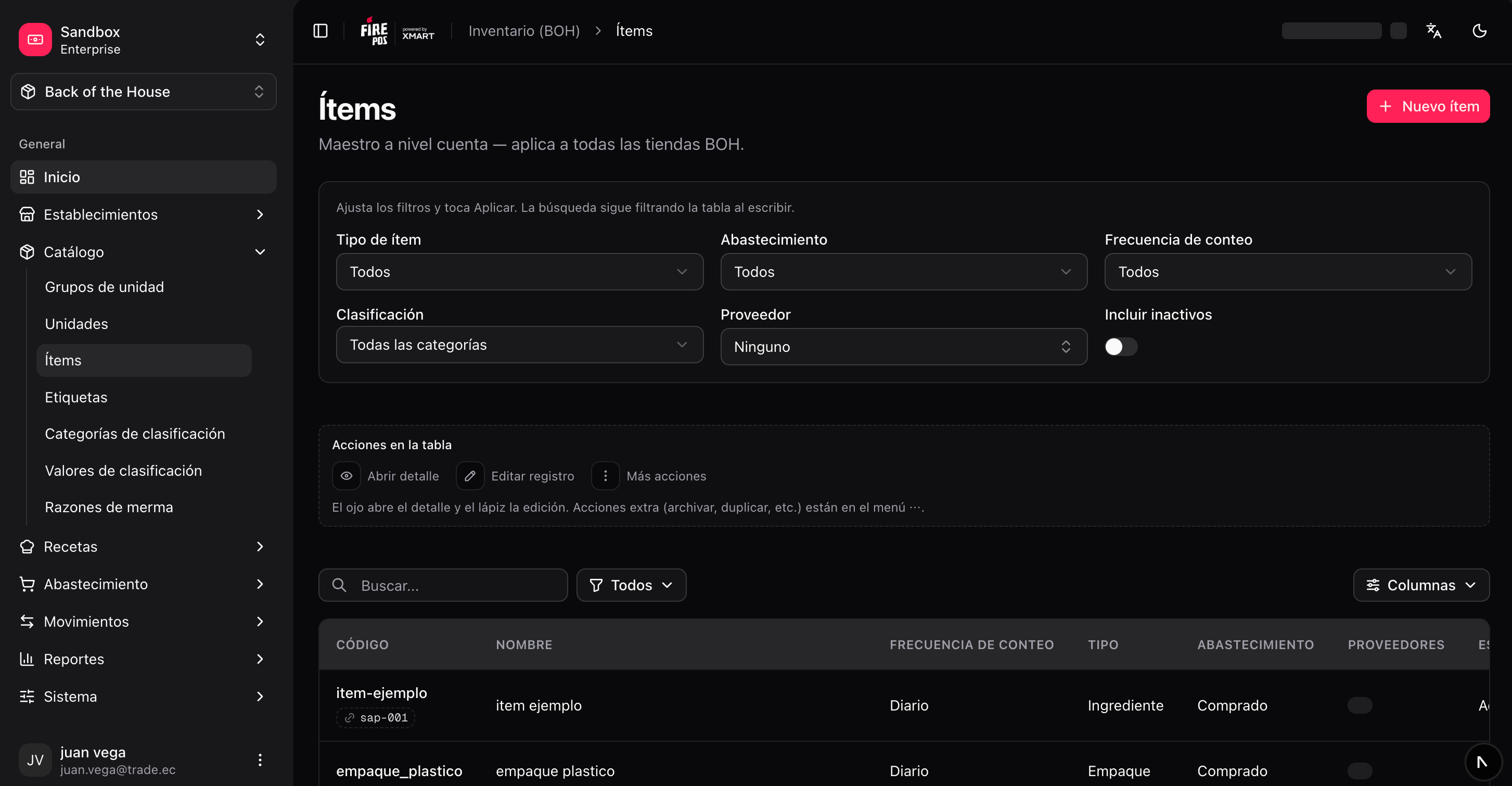 ### Create an item
**Catalog → Items → Create** (`/boh/admin/items/new`).
Pick the smallest unit you will realistically measure in (grams rather than kilograms, milliliters rather than liters). Reports can always display larger units.
### Create an item
**Catalog → Items → Create** (`/boh/admin/items/new`).
Pick the smallest unit you will realistically measure in (grams rather than kilograms, milliliters rather than liters). Reports can always display larger units.
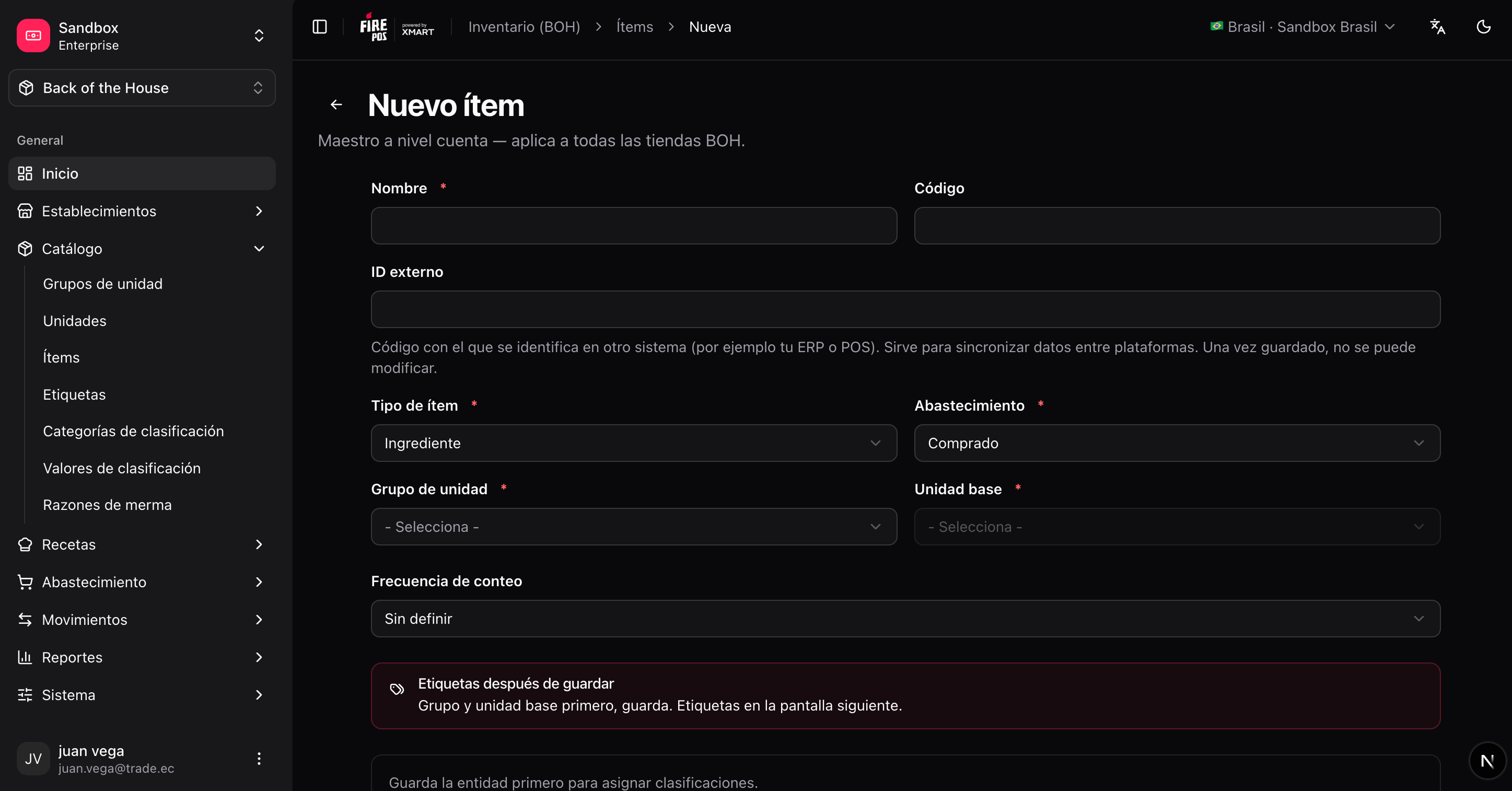 After saving, from the item detail you can manage its [supplier links](/en/manuals/boh/stores-suppliers#item-supplier-links) and its tags.
## Item tags — interchangeable items
An **item tag** groups items that are interchangeable in recipes: for example, a `TOMATO` tag containing every tomato brand you buy. Recipes can then consume "any `TOMATO`" instead of a specific brand.
When stock is consumed through a tag, BOH picks which member item (and which lot) to use according to the tag's **selection strategy**:
| Strategy | How it picks |
| ----------------- | ---------------------------------------- |
| **FIFO** | Oldest received stock first. |
| **FEFO** | Closest expiry first. |
| **Priority** | The order you define on the tag members. |
| **Highest stock** | The member with the most stock on hand. |
After saving, from the item detail you can manage its [supplier links](/en/manuals/boh/stores-suppliers#item-supplier-links) and its tags.
## Item tags — interchangeable items
An **item tag** groups items that are interchangeable in recipes: for example, a `TOMATO` tag containing every tomato brand you buy. Recipes can then consume "any `TOMATO`" instead of a specific brand.
When stock is consumed through a tag, BOH picks which member item (and which lot) to use according to the tag's **selection strategy**:
| Strategy | How it picks |
| ----------------- | ---------------------------------------- |
| **FIFO** | Oldest received stock first. |
| **FEFO** | Closest expiry first. |
| **Priority** | The order you define on the tag members. |
| **Highest stock** | The member with the most stock on hand. |
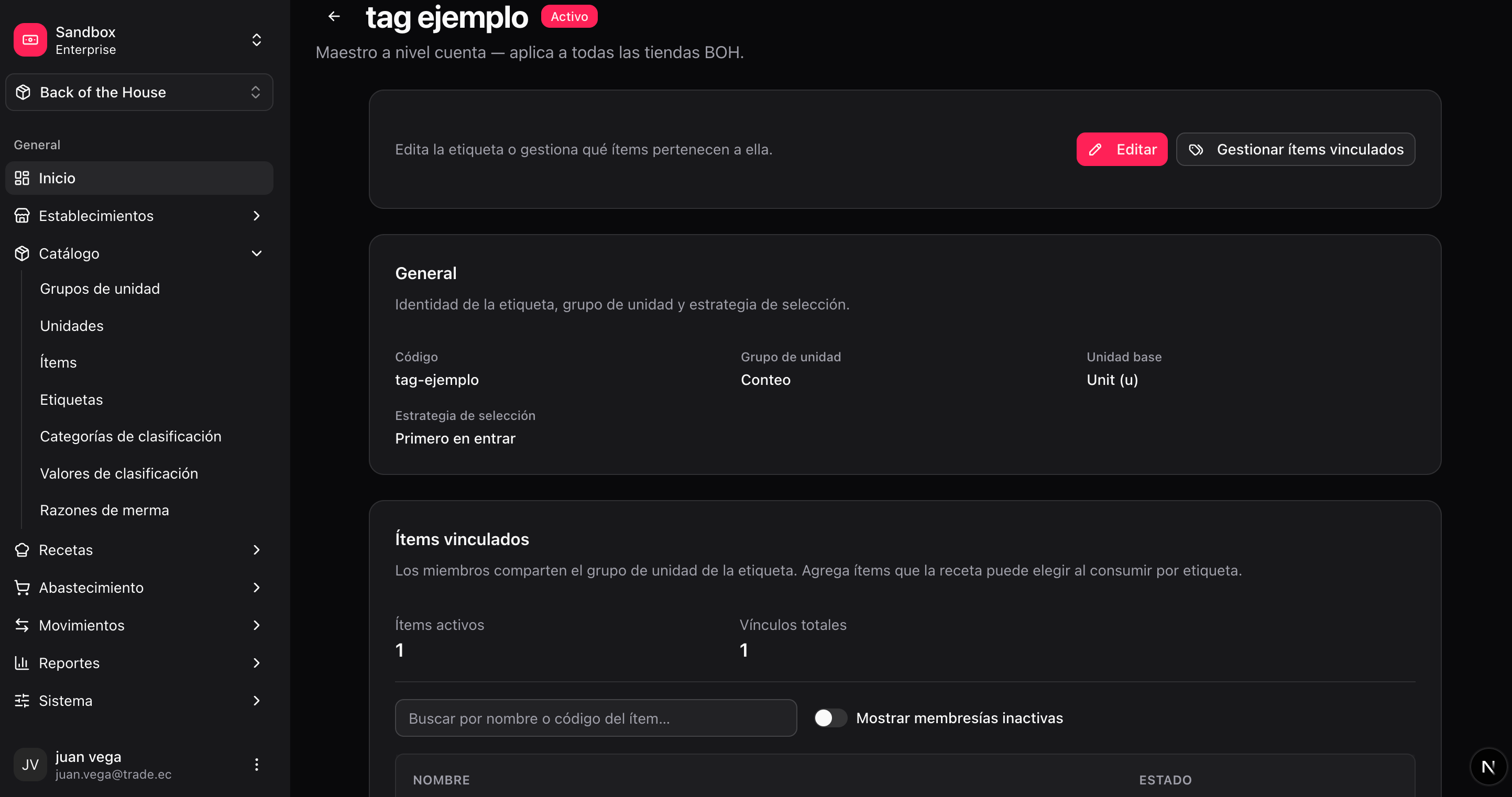 To manage tags: **Catalog → Item tags** (`/boh/admin/item-tags`). Create the tag, then add member items from **Memberships**.
Use tags whenever more than one purchasable product plays the same role in your recipes. It keeps recipes stable while you switch brands or suppliers.
## Classifications
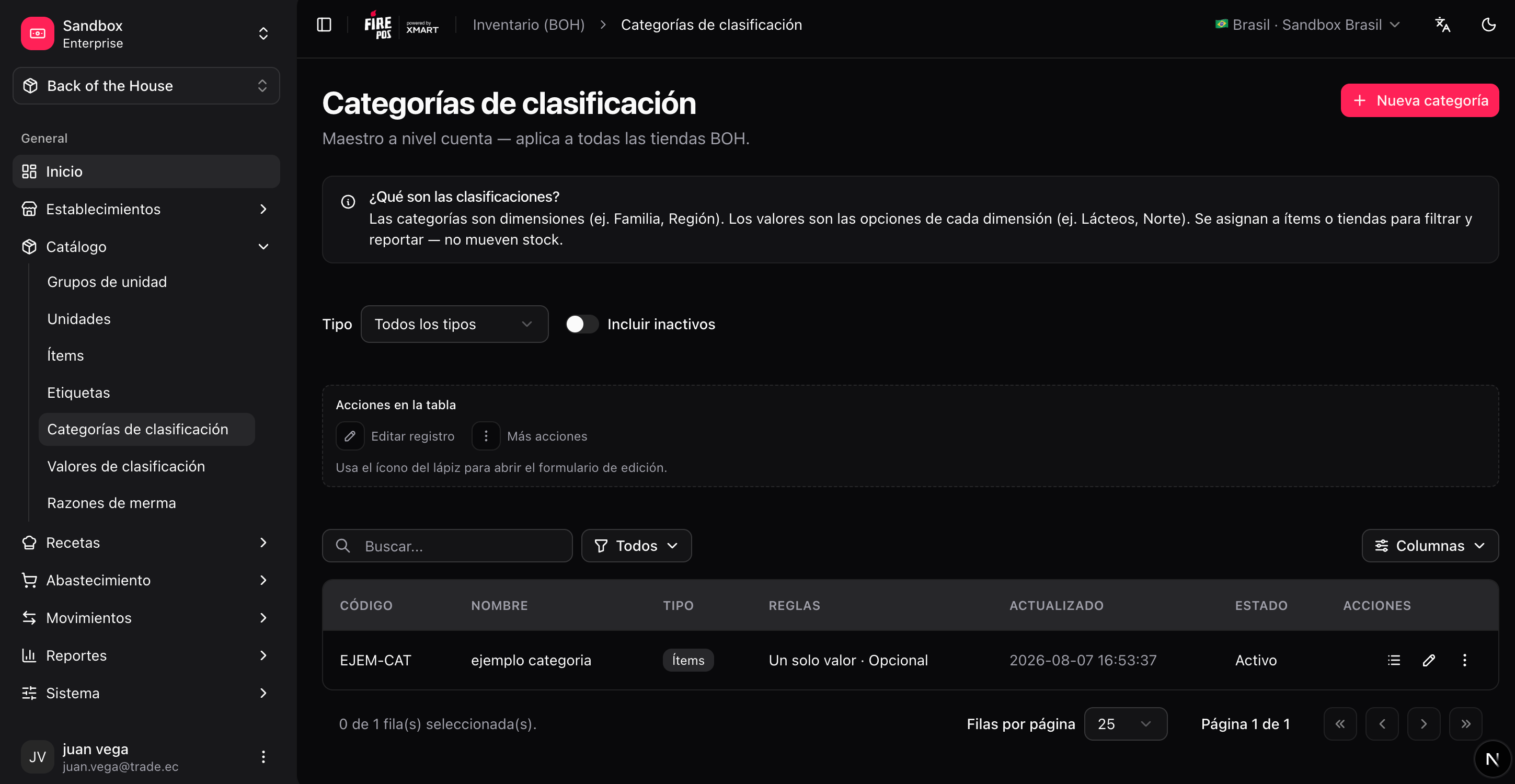
Classifications are **your own labels** for organizing the catalog: a set of **categories** (e.g. "Storage area", "Product family") each with its **values** (e.g. "Freezer", "Dry storage"). You assign values to items and later filter lists and reports by them.
Manage them in **Catalog → Classifications** — **Categories** (`/boh/admin/classifications/categories`) and **Values** (`/boh/admin/classifications/values`).
To manage tags: **Catalog → Item tags** (`/boh/admin/item-tags`). Create the tag, then add member items from **Memberships**.
Use tags whenever more than one purchasable product plays the same role in your recipes. It keeps recipes stable while you switch brands or suppliers.
## Classifications
Classifications are **your own labels** for organizing the catalog: a set of **categories** (e.g. "Storage area", "Product family") each with its **values** (e.g. "Freezer", "Dry storage"). You assign values to items and later filter lists and reports by them.
Manage them in **Catalog → Classifications** — **Categories** (`/boh/admin/classifications/categories`) and **Values** (`/boh/admin/classifications/values`).
 Next: [Recipes](/en/manuals/boh/recipes).