> ## Documentation Index
> Fetch the complete documentation index at: https://docs.fire.rest/llms.txt
> Use this file to discover all available pages before exploring further.
# Stores and suppliers
> Create BOH stores linked to Restaurant OS and manage the suppliers you buy from, including item-supplier links with price and purchase unit.
Stores and suppliers are the foundation of BOH: every movement happens **in a store**, and every purchase comes **from a supplier**.
**Where you work:** the **Establishments** section of the BOH menu — **Stores** (`/boh/admin/stores`), **Suppliers** (`/boh/admin/suppliers`), and **Inventory areas** (`/boh/admin/operations/inventory-areas`, covered in [Stock counts](/en/manuals/boh/stock-counts#inventory-areas)).
## Stores
A BOH store represents the inventory of a physical location. It is always **linked to a Restaurant OS store**, which is how sales orders find the right inventory to consume.
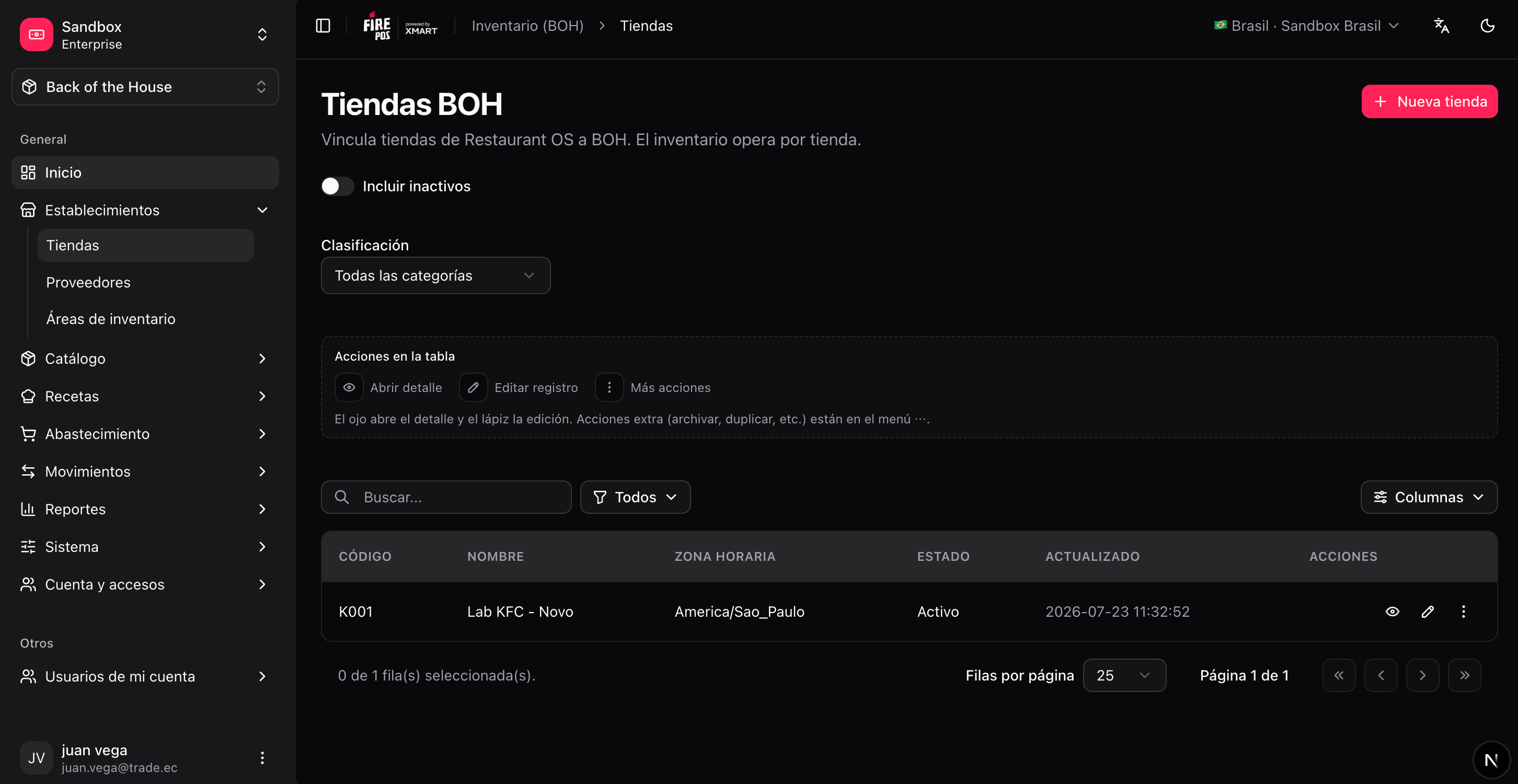 ### Create a store
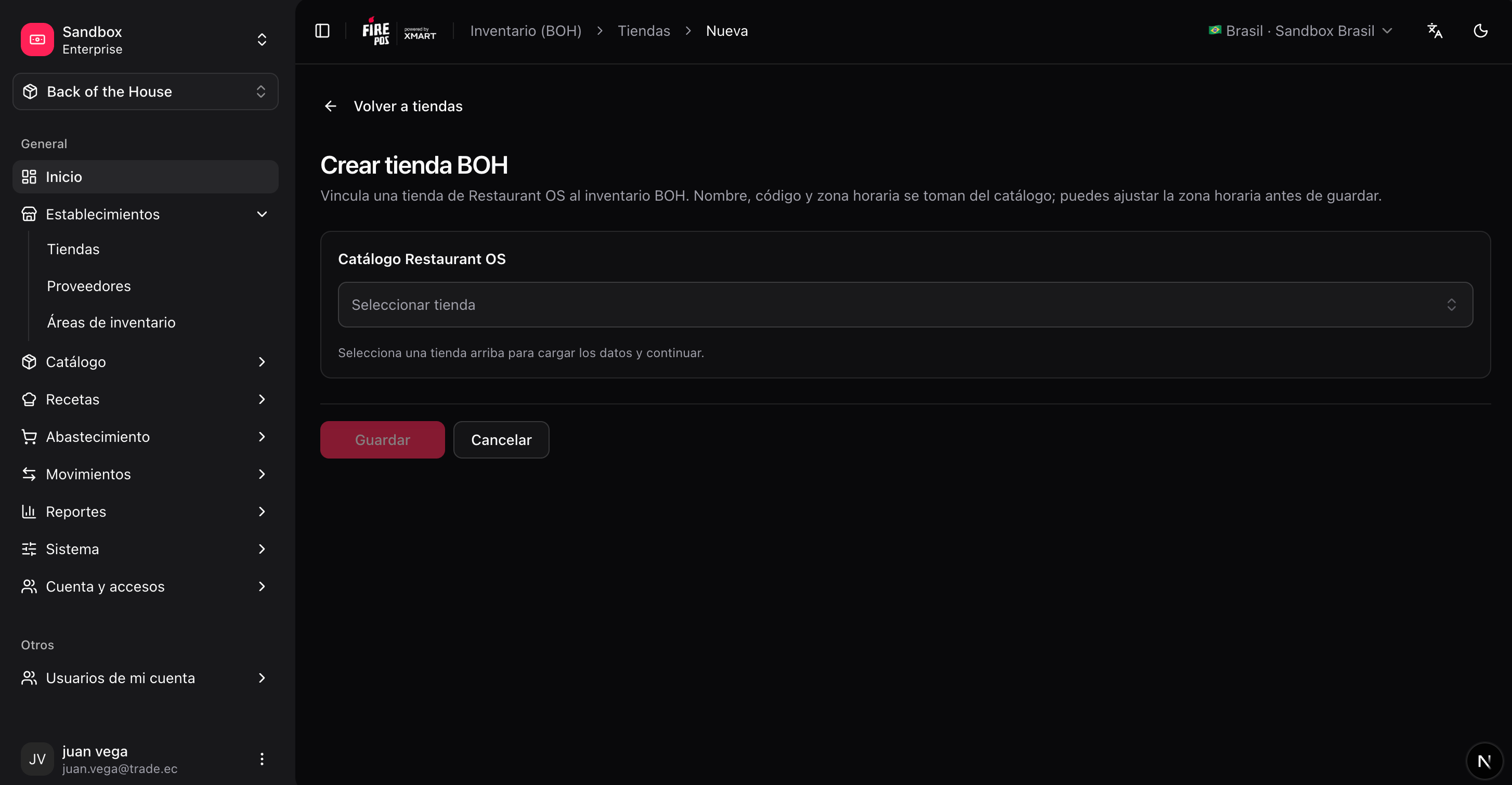
**BOH → Stores → Create** (`/boh/admin/stores/new`).
Choose the store from the account catalog. The link cannot point two BOH stores to the same Restaurant OS store.
The timezone determines when daily reports and closes cut over. It usually comes from the linked store.
### Create a store
**BOH → Stores → Create** (`/boh/admin/stores/new`).
Choose the store from the account catalog. The link cannot point two BOH stores to the same Restaurant OS store.
The timezone determines when daily reports and closes cut over. It usually comes from the linked store.
 From the store detail (`/boh/admin/stores/{id}/view`) you can also review the **inventory areas** defined for physical counts — see [Stock counts](/en/manuals/boh/stock-counts).
Archiving a store hides it from day-to-day screens but keeps its history. You cannot record new movements in an archived store.
**ERP integration — `tax_id` field:** If you create purchase orders through the BOH API from an ERP system, you can set a `tax_id` on each store (RUC, CNPJ, CUIT, NIT, RFC, or any fiscal code up to 64 characters). This lets the ERP reference a store by its fiscal identifier when creating orders — no internal UUID needed. Set it via `POST /identity/stores` or `PATCH /identity/stores/{id}`. Note: the field is not unique, so if several stores share the same `tax_id` you will need to use `store_id` or `external_store_id` instead for order creation.
## Suppliers
A supplier is any vendor you buy supplies from. The record keeps contact information and the tax ID used in purchasing documents.
From the store detail (`/boh/admin/stores/{id}/view`) you can also review the **inventory areas** defined for physical counts — see [Stock counts](/en/manuals/boh/stock-counts).
Archiving a store hides it from day-to-day screens but keeps its history. You cannot record new movements in an archived store.
**ERP integration — `tax_id` field:** If you create purchase orders through the BOH API from an ERP system, you can set a `tax_id` on each store (RUC, CNPJ, CUIT, NIT, RFC, or any fiscal code up to 64 characters). This lets the ERP reference a store by its fiscal identifier when creating orders — no internal UUID needed. Set it via `POST /identity/stores` or `PATCH /identity/stores/{id}`. Note: the field is not unique, so if several stores share the same `tax_id` you will need to use `store_id` or `external_store_id` instead for order creation.
## Suppliers
A supplier is any vendor you buy supplies from. The record keeps contact information and the tax ID used in purchasing documents.
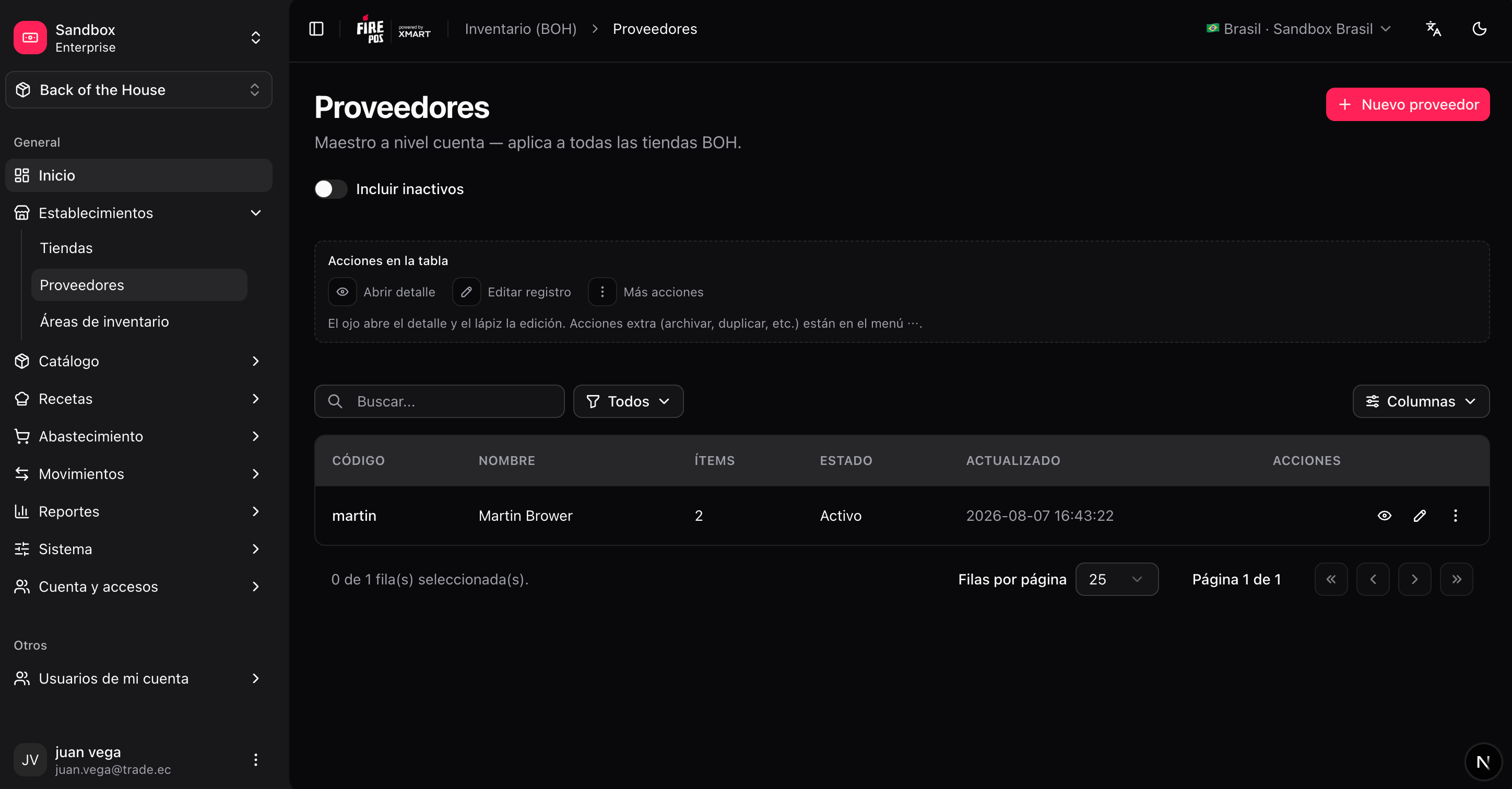 ### Create a supplier
**BOH → Suppliers → Create** (`/boh/admin/suppliers/new`).
Name, contact details, and tax ID.
## Item-supplier links
The most useful part of a supplier record is the list of **items you buy from them**, with the purchasing conditions for each one:
| Field | What it is for |
| ----------------- | ----------------------------------------------------------------------------------- |
| **Item** | The catalog item this supplier sells you. |
| **Purchase unit** | The unit you buy in (e.g. a 25 kg bag), which may differ from the item's base unit. |
| **Price** | Agreed cost per purchase unit. Used as the default in purchase orders. |
| **Supplier SKU** | The supplier's own code for the product, useful for matching invoices. |
You can manage links from either side:
* From the supplier: **Suppliers → (supplier) → Items** (`/boh/admin/suppliers/{id}/items`).
* From the item: **Items → (item) → Suppliers** (`/boh/admin/items/{id}/suppliers`).
### Create a supplier
**BOH → Suppliers → Create** (`/boh/admin/suppliers/new`).
Name, contact details, and tax ID.
## Item-supplier links
The most useful part of a supplier record is the list of **items you buy from them**, with the purchasing conditions for each one:
| Field | What it is for |
| ----------------- | ----------------------------------------------------------------------------------- |
| **Item** | The catalog item this supplier sells you. |
| **Purchase unit** | The unit you buy in (e.g. a 25 kg bag), which may differ from the item's base unit. |
| **Price** | Agreed cost per purchase unit. Used as the default in purchase orders. |
| **Supplier SKU** | The supplier's own code for the product, useful for matching invoices. |
You can manage links from either side:
* From the supplier: **Suppliers → (supplier) → Items** (`/boh/admin/suppliers/{id}/items`).
* From the item: **Items → (item) → Suppliers** (`/boh/admin/items/{id}/suppliers`).
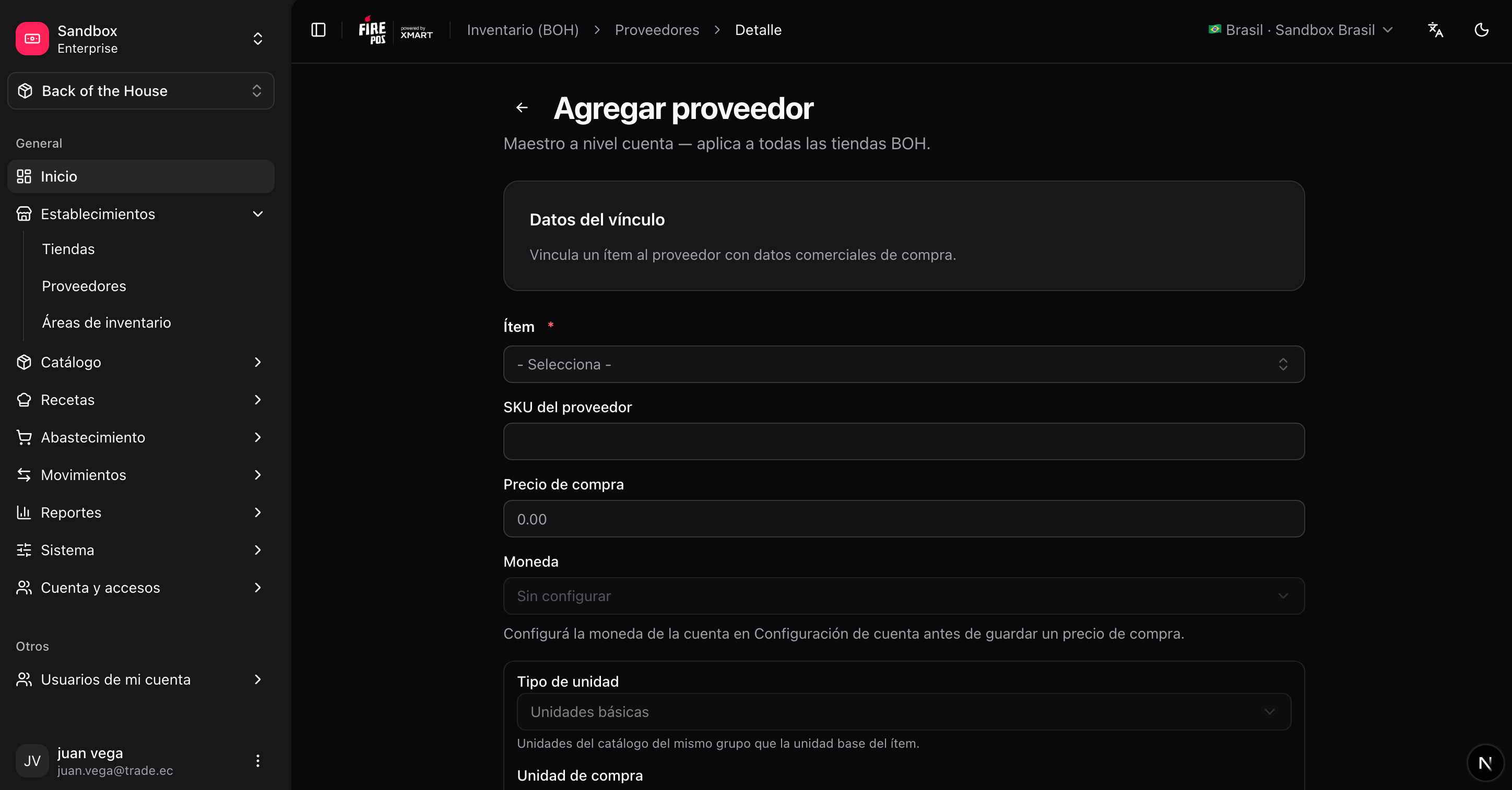 Set up item-supplier links before using [Procurement](/en/manuals/boh/procurement): purchase orders can suggest prices and units from the link, and the receiving flow validates against it.
Next: [Catalog](/en/manuals/boh/catalog).
Set up item-supplier links before using [Procurement](/en/manuals/boh/procurement): purchase orders can suggest prices and units from the link, and the receiving flow validates against it.
Next: [Catalog](/en/manuals/boh/catalog).