> ## Documentation Index
> Fetch the complete documentation index at: https://docs.fire.rest/llms.txt
> Use this file to discover all available pages before exploring further.
# Android installation
> Run Fire Agent on the same Android tablet as KDS so kitchen tickets reach a LAN thermal printer.
Chrome on HTTPS cannot send ESC/POS bytes to a printer by itself. If the tablet has no local bridge, the cook bumps the ticket and **nothing prints** — the guest waits at the counter with no slip.
This page is for the person who sets up **Fire Agent Android** (`Agent 1.0.1`, package `com.firepos.fireagent`) on the KDS tablet. Windows PCs still use [Windows installation](/en/manuals/fire-agent/installation).
**The minimum you need to know**
* Two independent chains: **KDS ↔ agent** (DNS + WSS + token) and **agent ↔ printer** (LAN TCP, usually port 9100).
* The printer **name** you save in the app is the name you pick in fire-kds. They must match exactly.
* On HTTPS kitchens, `kds-agent.fire.rest` must resolve to **`127.0.0.1` on that tablet**. If DNS sends it to the internet, print never starts.
## The simple path
Install **`Agente-1.0.1.apk`** on the tablet. Open the app and set **Language** to English if you follow this page’s labels.
On **Home**, tap **Start agent**. The badge must read **LIVE**. Allow notifications if Android asks (needed for the foreground service).
Open **Printers**. Enter **Name in KDS**, **IP address**, and **TCP port** (usually `9100`). Tap **Save printer**, then **Test print**.
In fire-kds, open **Printer for this screen** and pick that exact name. Enable store **Print on bump** so a bump actually sends paper. See [Peripherals, printing and validation](/en/manuals/kds/peripherals-printing).
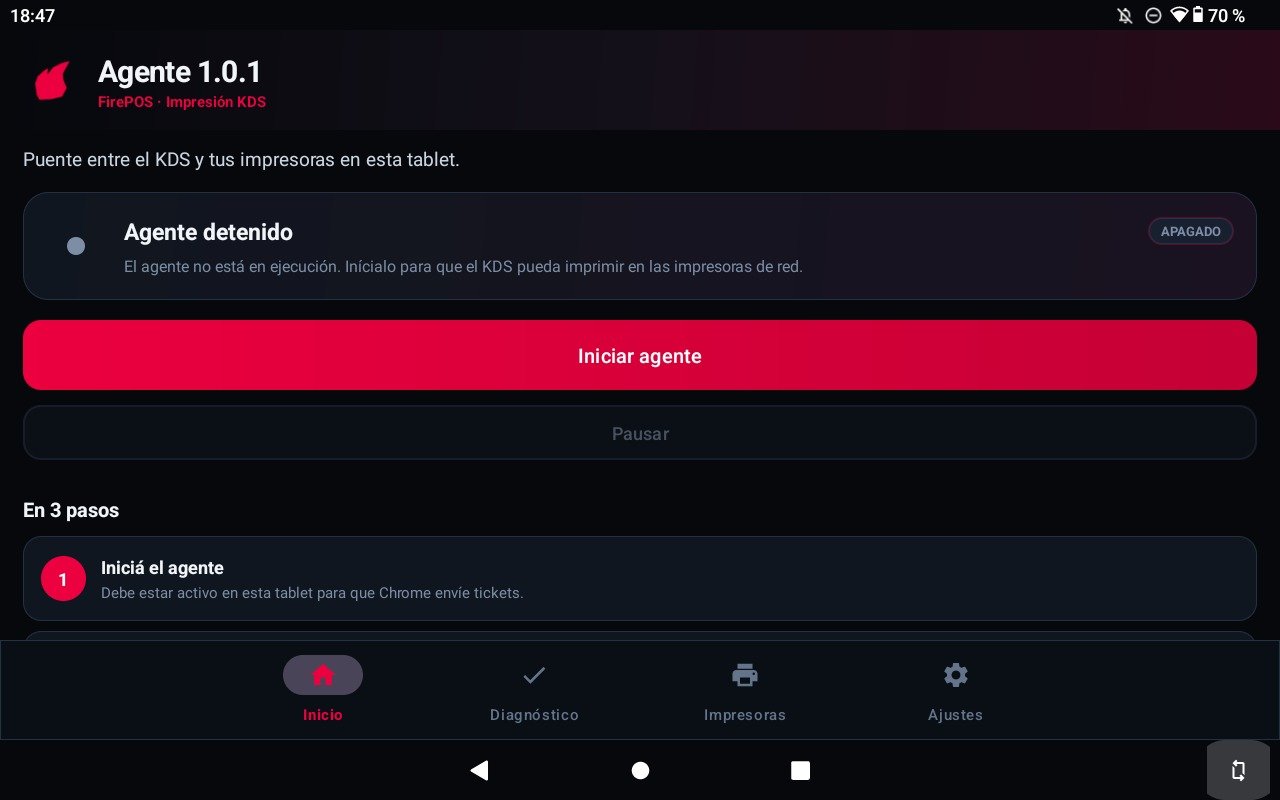
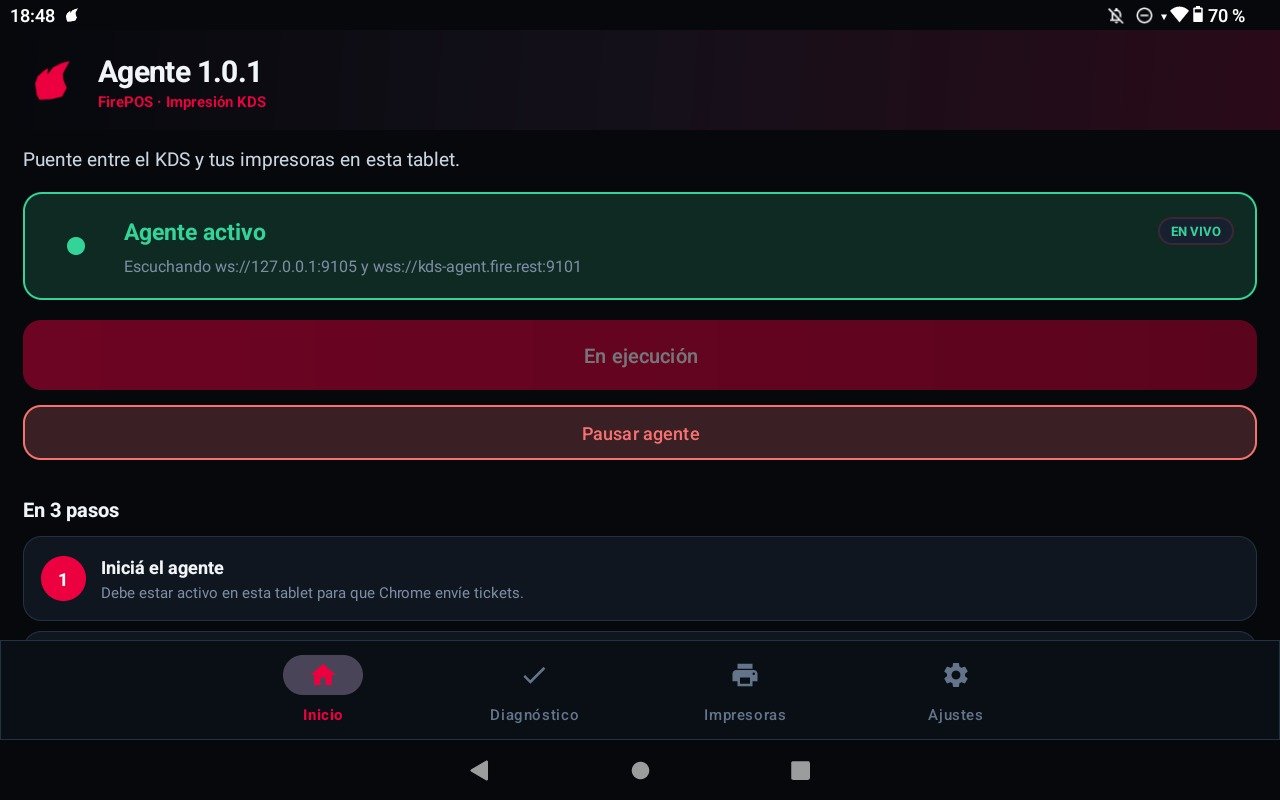 If **Test print** already comes out of the kitchen printer and KDS shows the agent online, you can stop here.
## Home, Diagnostics, Printers, Settings
| Tab | What you do |
| --------------- | ----------------------------------------------------------------------------------------------------------- |
| **Home** | **Start agent** / **Pause agent**. Status shows `ws://127.0.0.1:9100` and `wss://kds-agent.fire.rest:9101`. |
| **Diagnostics** | **Help center**. Check **KDS** (agent, DNS, WSS, token) and **Printers** (TCP to each saved IP) separately. |
| **Printers** | Add, **Test print**, delete, optional **Find printers on network**. |
| **Settings** | Language (ES / EN / PT). **Auth token** and **WebSocket port** are for support only. |
If **Test print** already comes out of the kitchen printer and KDS shows the agent online, you can stop here.
## Home, Diagnostics, Printers, Settings
| Tab | What you do |
| --------------- | ----------------------------------------------------------------------------------------------------------- |
| **Home** | **Start agent** / **Pause agent**. Status shows `ws://127.0.0.1:9100` and `wss://kds-agent.fire.rest:9101`. |
| **Diagnostics** | **Help center**. Check **KDS** (agent, DNS, WSS, token) and **Printers** (TCP to each saved IP) separately. |
| **Printers** | Add, **Test print**, delete, optional **Find printers on network**. |
| **Settings** | Language (ES / EN / PT). **Auth token** and **WebSocket port** are for support only. |
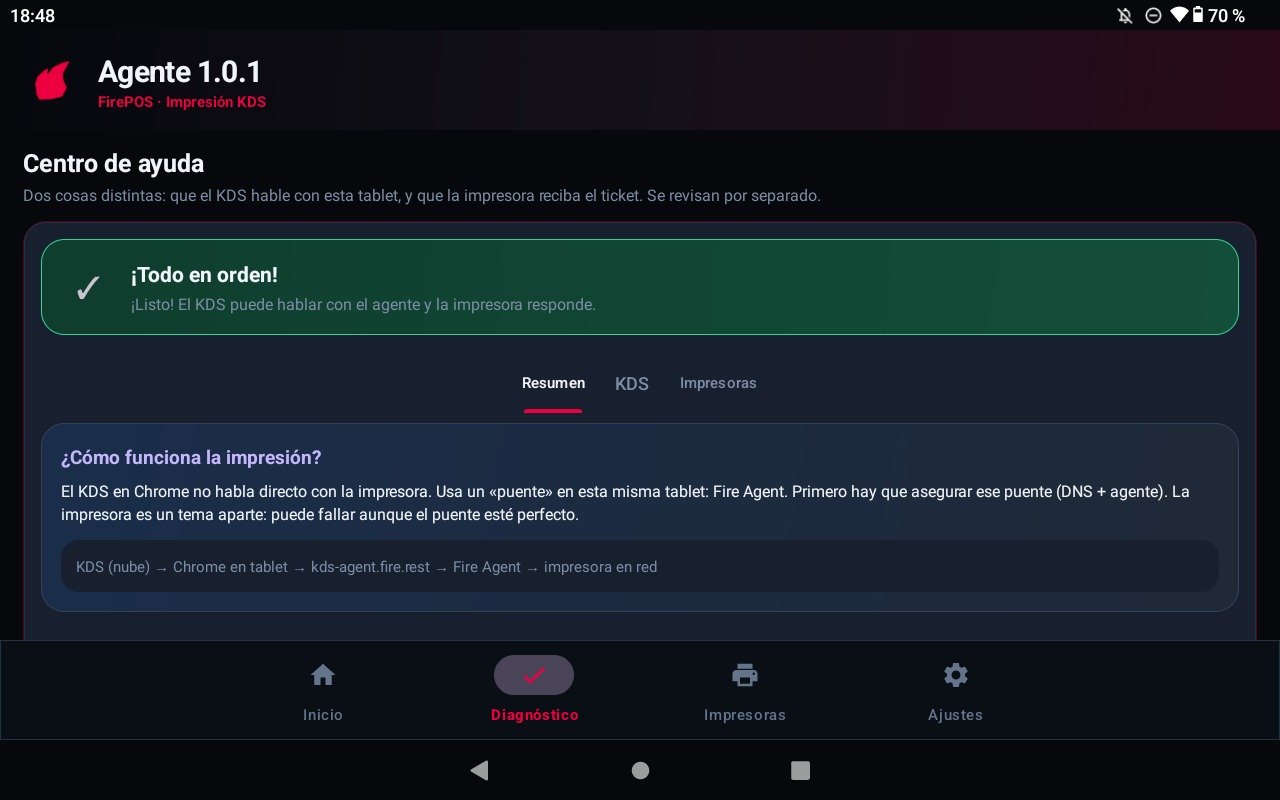
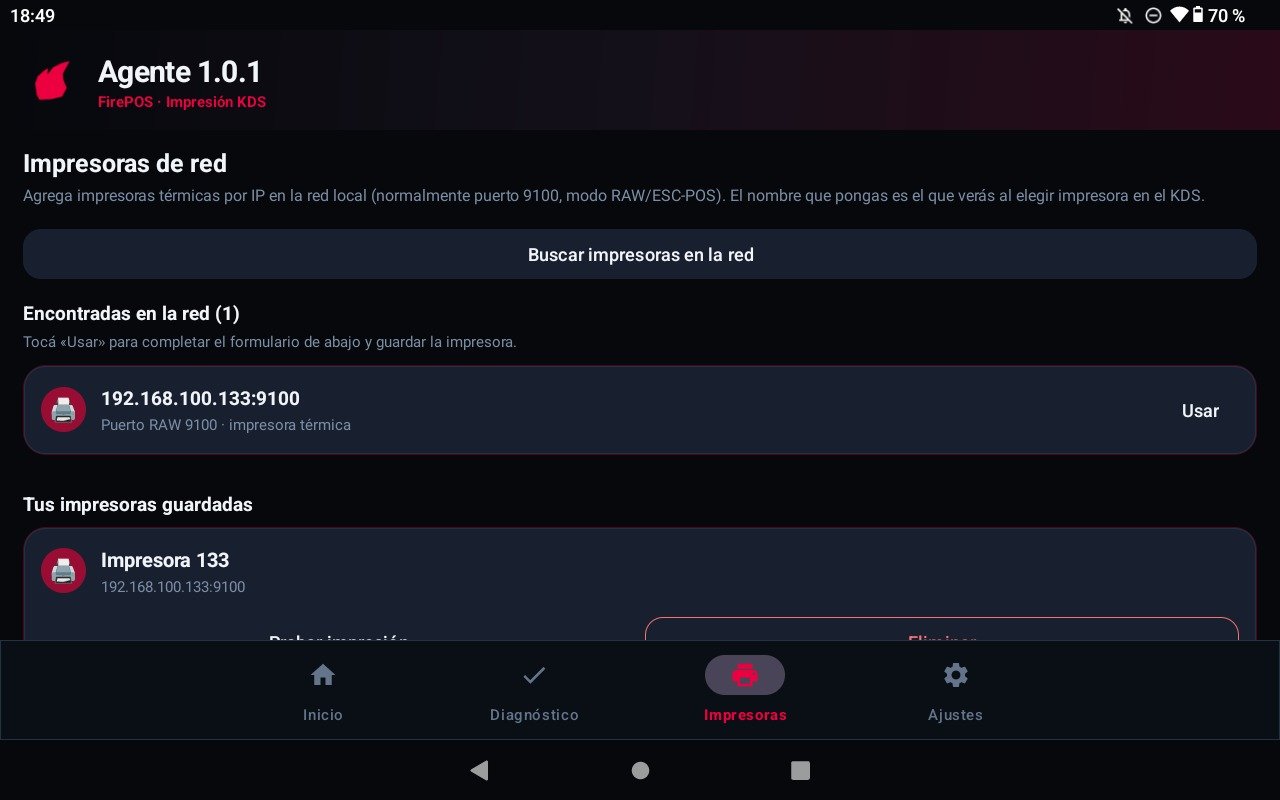
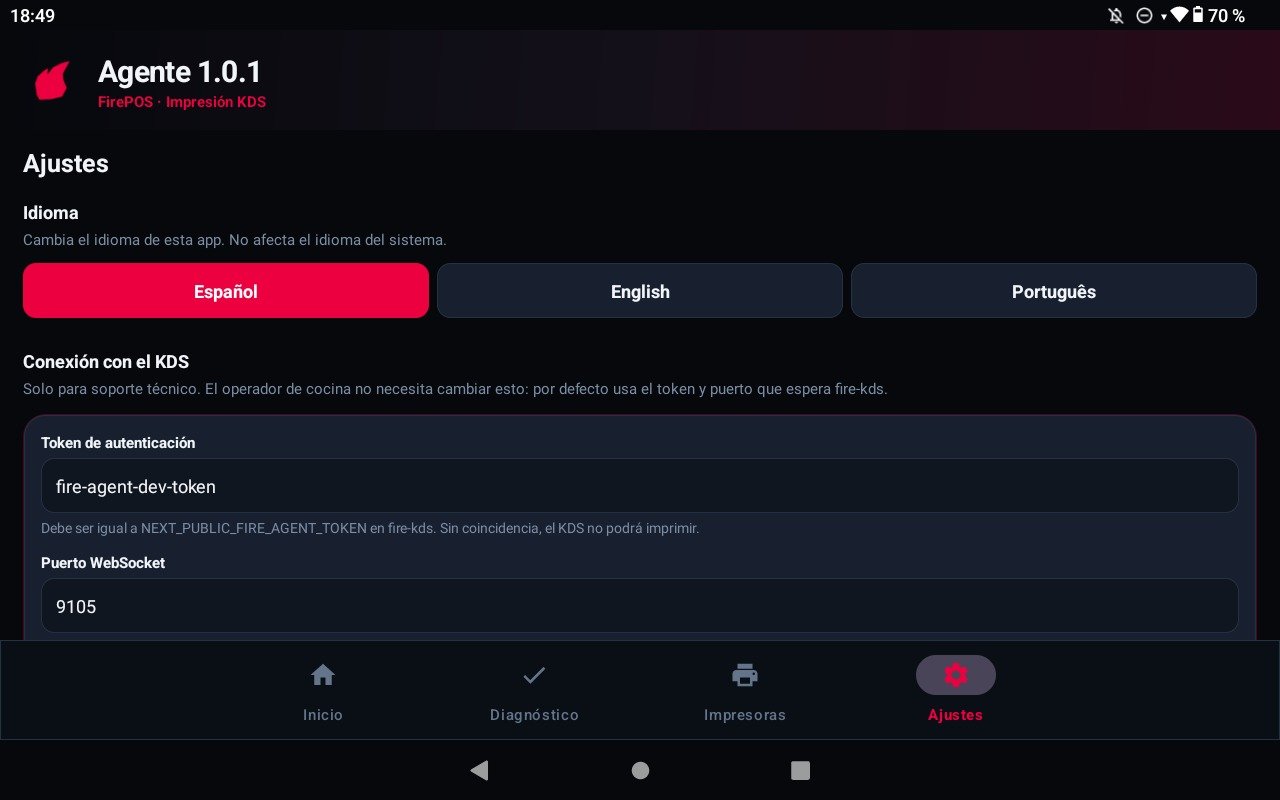 The agent listens only on **`127.0.0.1`**. fire-kds on Android tries `wss://kds-agent.fire.rest:9101` first, then the Windows URL if that connect fails. See [Agent web tools](/en/manuals/fire-agent/web-tools).
## Recipes
1. Start the agent until **LIVE**.
2. Save one printer named `Kitchen` at the printer’s LAN IP, port `9100`.
3. **Test print**.
4. In fire-kds pick `Kitchen` and enable **Print on bump**.
1. Stay on **Diagnostics → KDS**.
2. If **DNS** fails, IT must point `kds-agent.fire.rest` to `127.0.0.1` on this tablet.
3. If the token step fails, match **Auth token** to `NEXT_PUBLIC_FIRE_AGENT_TOKEN` in fire-kds.
4. Do not change the printer — Part 2 is already healthy.
1. Confirm the printer is on the **same Wi‑Fi / VLAN**.
2. Recheck IP and port `9100` (some devices use 9102).
3. Run **Test print** from the **Printers** tab.
4. KDS can connect and still print nothing if TCP to the printer fails.
1. Open **Settings → Advanced: KDS connection**.
2. Paste the new **Auth token**.
3. **Save settings** (the agent restarts if it was **LIVE**).
4. Update the same token in the fire-kds deploy for that tablet.
## Worked example
| Check | Healthy | Broken |
| ------------ | ----------------------------------- | ---------------------------------------------------- |
| Home badge | **LIVE** | **OFF** — bump never reaches the agent |
| Printer name | `Kitchen` in the app and in KDS | `kitchen` vs `Kitchen` — KDS reports unknown printer |
| DNS | `kds-agent.fire.rest` → `127.0.0.1` | Public IP — HTTPS KDS cannot open WSS |
| Test print | Paper comes out | Part 2 red — VLAN / IP / port |
## Errors that cost money
**Public DNS for `kds-agent.fire.rest`.** The browser must talk to the agent on this tablet. If the name leaves the device, fiscal and comanda slips never print and the bump still looks successful.
**Token mismatch.** **Auth token** must equal fire-kds `NEXT_PUBLIC_FIRE_AGENT_TOKEN`. Otherwise KDS shows the agent offline or `Unauthorized`.
**Name in the agent ≠ name in KDS.** The store rule can be correct and still print nothing. Use the same string, including spaces and accents.
**Printer on another network.** The agent sends **TCP RAW** to the IP you typed. A guest Wi‑Fi or a blocked VLAN looks like a dead printer.
## Glossary
| Term | Meaning |
| --------------- | ----------------------------------------------------------------- |
| **LIVE** | Foreground service is up. KDS can open the local WebSocket. |
| **WSS 9101** | TLS socket for HTTPS fire-kds (`wss://kds-agent.fire.rest:9101`). |
| **WS 9100** | Plain socket for HTTP / local dev. |
| **Name in KDS** | Label you pick in **Printer for this screen**. |
| **TCP 9100** | RAW/ESC-POS port on the thermal printer (not the agent). |
## FAQ
No. Windows uses the [Windows installer](/en/manuals/fire-agent/installation). This APK is only for the Android KDS device.
No. You install the app, start it, and register printers. Pairing codes are for [kitchen devices in fire-kds](/en/manuals/kds/device-pairing), not for this agent.
**9100** is plain WS. **9101** is WSS with the shipped certificate so HTTPS KDS can connect. The printer’s own port is usually also 9100 — that is a different hop.
Yes by default, after the app was opened at least once after install (Android 12+). If **Home** shows **OFF**, tap **Start agent**.
## What this page does not do
* It does not choose **Comanda** vs **Fiscal** — that is store **Print on bump**.
* It does not replace Fire credentials for fiscal *data*. The agent only moves bytes to paper.
* It does not expose a public print API. Traffic stays on `127.0.0.1`.
The agent listens only on **`127.0.0.1`**. fire-kds on Android tries `wss://kds-agent.fire.rest:9101` first, then the Windows URL if that connect fails. See [Agent web tools](/en/manuals/fire-agent/web-tools).
## Recipes
1. Start the agent until **LIVE**.
2. Save one printer named `Kitchen` at the printer’s LAN IP, port `9100`.
3. **Test print**.
4. In fire-kds pick `Kitchen` and enable **Print on bump**.
1. Stay on **Diagnostics → KDS**.
2. If **DNS** fails, IT must point `kds-agent.fire.rest` to `127.0.0.1` on this tablet.
3. If the token step fails, match **Auth token** to `NEXT_PUBLIC_FIRE_AGENT_TOKEN` in fire-kds.
4. Do not change the printer — Part 2 is already healthy.
1. Confirm the printer is on the **same Wi‑Fi / VLAN**.
2. Recheck IP and port `9100` (some devices use 9102).
3. Run **Test print** from the **Printers** tab.
4. KDS can connect and still print nothing if TCP to the printer fails.
1. Open **Settings → Advanced: KDS connection**.
2. Paste the new **Auth token**.
3. **Save settings** (the agent restarts if it was **LIVE**).
4. Update the same token in the fire-kds deploy for that tablet.
## Worked example
| Check | Healthy | Broken |
| ------------ | ----------------------------------- | ---------------------------------------------------- |
| Home badge | **LIVE** | **OFF** — bump never reaches the agent |
| Printer name | `Kitchen` in the app and in KDS | `kitchen` vs `Kitchen` — KDS reports unknown printer |
| DNS | `kds-agent.fire.rest` → `127.0.0.1` | Public IP — HTTPS KDS cannot open WSS |
| Test print | Paper comes out | Part 2 red — VLAN / IP / port |
## Errors that cost money
**Public DNS for `kds-agent.fire.rest`.** The browser must talk to the agent on this tablet. If the name leaves the device, fiscal and comanda slips never print and the bump still looks successful.
**Token mismatch.** **Auth token** must equal fire-kds `NEXT_PUBLIC_FIRE_AGENT_TOKEN`. Otherwise KDS shows the agent offline or `Unauthorized`.
**Name in the agent ≠ name in KDS.** The store rule can be correct and still print nothing. Use the same string, including spaces and accents.
**Printer on another network.** The agent sends **TCP RAW** to the IP you typed. A guest Wi‑Fi or a blocked VLAN looks like a dead printer.
## Glossary
| Term | Meaning |
| --------------- | ----------------------------------------------------------------- |
| **LIVE** | Foreground service is up. KDS can open the local WebSocket. |
| **WSS 9101** | TLS socket for HTTPS fire-kds (`wss://kds-agent.fire.rest:9101`). |
| **WS 9100** | Plain socket for HTTP / local dev. |
| **Name in KDS** | Label you pick in **Printer for this screen**. |
| **TCP 9100** | RAW/ESC-POS port on the thermal printer (not the agent). |
## FAQ
No. Windows uses the [Windows installer](/en/manuals/fire-agent/installation). This APK is only for the Android KDS device.
No. You install the app, start it, and register printers. Pairing codes are for [kitchen devices in fire-kds](/en/manuals/kds/device-pairing), not for this agent.
**9100** is plain WS. **9101** is WSS with the shipped certificate so HTTPS KDS can connect. The printer’s own port is usually also 9100 — that is a different hop.
Yes by default, after the app was opened at least once after install (Android 12+). If **Home** shows **OFF**, tap **Start agent**.
## What this page does not do
* It does not choose **Comanda** vs **Fiscal** — that is store **Print on bump**.
* It does not replace Fire credentials for fiscal *data*. The agent only moves bytes to paper.
* It does not expose a public print API. Traffic stays on `127.0.0.1`.