> ## Documentation Index
> Fetch the complete documentation index at: https://docs.fire.rest/llms.txt
> Use this file to discover all available pages before exploring further.
# Windows installation
> Install and uninstall Fire Agent on Windows 10/11 so the POS can print to local thermal printers.
Fire Agent is a local agent that lets any browser (FIRE POS, XMART, etc.) print to thermal POS printers over WebSocket. Once installed, it runs in the background and starts automatically with Windows.
Install it once per Windows device that has a printer attached.
## Prerequisites
| Requirement | Detail |
| ---------------- | ------------------------------------------------------------------------ |
| Operating system | Windows 10 or Windows 11, **64-bit** |
| Permissions | An account with **Administrator** rights (only during install/uninstall) |
| PowerShell | 5.1 or later (included with Windows 10/11) — only to verify the agent |
| Node.js | **Not** required. The agent ships as a standalone `.exe` |
| Printer | The thermal printer driver must already be installed in Windows |
The agent only listens on `127.0.0.1` (localhost), so it **needs no open ports and no Windows Firewall rule**.
## Files you need
Depending on the task, you need one of these files:
| File | Purpose |
| ------------------------ | ------------------------------------------------------------------------------------------------ |
| `fireAgentSetup.exe` | **Graphical installer.** Installs the agent through a wizard. |
| `fireAgentUninstall.exe` | **Standalone uninstaller.** Removes the agent even if you no longer have the original installer. |
Windows installer for local thermal printing.
## Step-by-step installation
1. Locate `fireAgentSetup.exe`.
2. **Right-click** it and choose **Run as administrator**.
3. If the **User Account Control (UAC)** prompt appears, click **Yes**.
If Windows SmartScreen shows "Windows protected your PC", click **More info → Run anyway**.
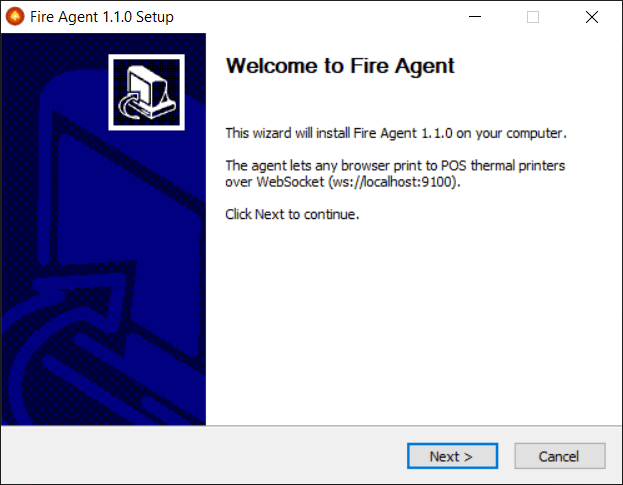
The wizard shows the **Fire Agent 1.1.0** welcome message. Click **Next**.
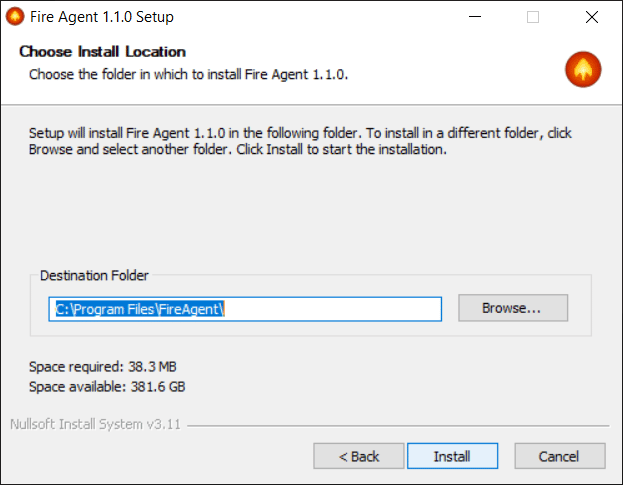
 Confirm the installation folder (`C:\Program Files\FireAgent` by default). Keeping the default path is recommended. Click **Install**.
 The wizard performs, with no user input:
1. Stops any previous instance of the agent.
2. Copies `fire-agent.exe` to the installation folder.
3. Stores the `FIRE_AGENT_TOKEN` as a **system environment variable**.
4. Registers **auto-start** with Windows for all users.
5. Registers the app in **Add or Remove Programs**.
6. Creates the uninstaller inside the installation folder.
The wizard performs, with no user input:
1. Stops any previous instance of the agent.
2. Copies `fire-agent.exe` to the installation folder.
3. Stores the `FIRE_AGENT_TOKEN` as a **system environment variable**.
4. Registers **auto-start** with Windows for all users.
5. Registers the app in **Add or Remove Programs**.
6. Creates the uninstaller inside the installation folder.
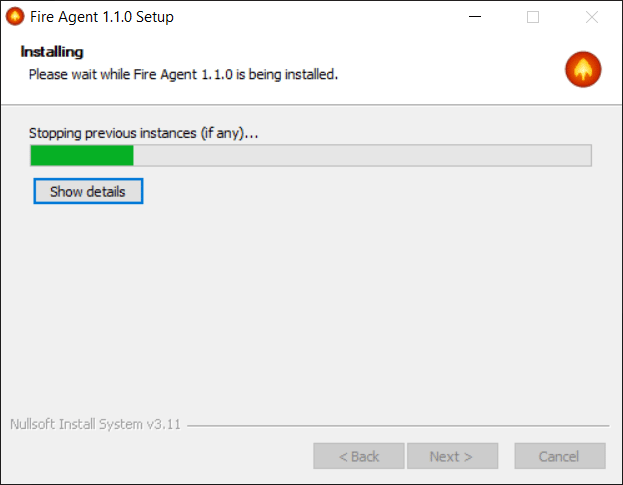 Wait for the progress bar to finish and click **Next**.
The last screen confirms the installation and the **configured token**. To start the agent right away, leave **Start Fire Agent now** ticked and click **Finish**.
Wait for the progress bar to finish and click **Next**.
The last screen confirms the installation and the **configured token**. To start the agent right away, leave **Start Fire Agent now** ticked and click **Finish**.
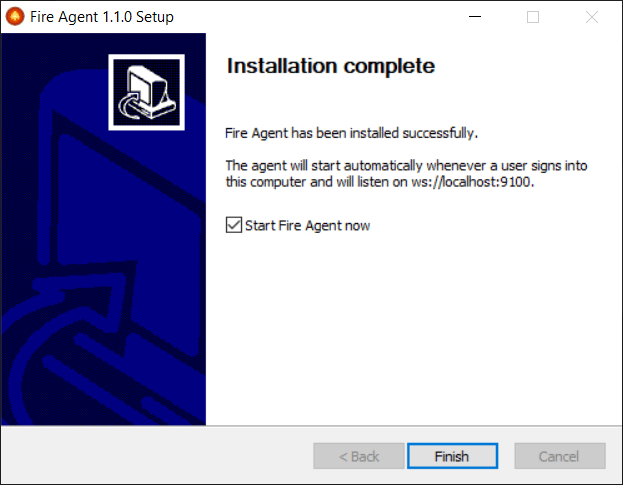 On its first launch the agent generates a **self-signed SSL certificate** in `%APPDATA%\FireAgent\ssl\` (pure JavaScript, no PowerShell) and trusts it in the current user's store with `certutil.exe`. This lets HTTPS pages connect to `wss://localhost:9101` without certificate warnings, with no admin prompt and in a GPO-friendly way.
Fire Agent is installed and starts automatically whenever a user signs in to Windows. It appears as an icon in the system tray (next to the clock).
## Verify that the agent is running
Open this address in a browser or use PowerShell:
```powershell theme={null}
Invoke-RestMethod http://localhost:9100/health
```
Expected response:
```json theme={null}
{ "status": "ok", "version": "1.1.0", "uptime": 12, "platform": "win32" }
```
To list the detected printers:
```powershell theme={null}
Invoke-RestMethod http://localhost:9100/printers
```
You can also click the Fire Agent tray icon to open the information panel. For print tests, see [Agent web tools](/en/manuals/fire-agent/web-tools).
### Ports used
| Port | Address | Protocol | Use |
| ------ | ------------------------ | ----------- | --------------------------------------------- |
| `9100` | `127.0.0.1` (local only) | HTTP / WS | Plain WebSocket and REST endpoints |
| `9101` | `127.0.0.1` (local only) | HTTPS / WSS | Encrypted WebSocket (self-signed certificate) |
## Uninstall
There are three methods. All remove the agent completely (files, configuration, certificate, auto-start and registry).
### Method 1 — Add or Remove Programs (recommended)
1. Open **Settings** (`Windows` + `I`).
2. Go to **Apps → Installed apps**.
3. Find **Fire Agent**, open the menu (⋯) → **Uninstall** and confirm.
4. If the UAC prompt appears, click **Yes** and follow the wizard.
### Method 2 — Standalone uninstaller (`fireAgentUninstall.exe`)
Useful when the original installer is no longer available.
1. **Right-click → Run as administrator**.
2. Confirm in the dialog and follow the wizard (**Next → Uninstall → Finish**).
### Method 3 — Silent uninstall (scripts or mass deployments)
From PowerShell or CMD as administrator:
```powershell theme={null}
.\fireAgentUninstall.exe /S
```
The `/S` flag runs the uninstall with no windows and no confirmation.
Any of the three methods stops `fire-agent.exe`, removes the auto-start entry, the `FIRE_AGENT_TOKEN` variable and the SSL certificate, deletes the files in `C:\Program Files\FireAgent\` and `%APPDATA%\FireAgent\`, and removes the Add or Remove Programs entry.
## Troubleshooting
| Symptom | Likely cause | Fix |
| ------------------------------------------------------ | --------------------------------------------------------------------- | ------------------------------------------------------------------------------------------------------------------------------------------------------------------------------ |
| `http://localhost:9100/health` does not respond | The agent is not running | Start `fire-agent.exe` from `C:\Program Files\FireAgent\` or restart the PC |
| The antivirus quarantined the `.exe` | False positive with packaged Node executables | Restore the file or add an exclusion for `C:\Program Files\FireAgent` and `%APPDATA%\FireAgent`, then reinstall |
| `401 Unauthorized` on the WebSocket connection | Wrong token | Check `FIRE_AGENT_TOKEN` in the system environment variables |
| The printer is missing from the list | The driver is not installed in Windows | Install the printer driver from Windows settings |
| An HTTPS page cannot connect to `wss://localhost:9101` | `certutil` was blocked and the browser does not trust the certificate | Import `%APPDATA%\FireAgent\ssl\cert.cer` into **Trusted Root Certification Authorities** (`certmgr.msc`), or open `https://localhost:9101/health` once and accept the warning |
| Firefox shows a certificate warning | Firefox uses its own certificate store | Enable `security.enterprise_roots.enabled` in `about:config`, or import the `.cer` under **Firefox → Settings → Privacy & Security → Certificates** |
## Appendix: what the installer changes on the system
Reference for system administrators.
### Files
| Path | Contents |
| ------------------------------------------- | ------------------------------------------ |
| `C:\Program Files\FireAgent\fire-agent.exe` | Agent executable |
| `C:\Program Files\FireAgent\uninstall.exe` | Uninstaller created by the installer |
| `%APPDATA%\FireAgent\config.json` | Persistent configuration |
| `%APPDATA%\FireAgent\ssl\` | Self-signed SSL certificate (key + `.cer`) |
### Windows registry
| Key | Purpose |
| ---------------------------------------------- | ---------------------------- |
| `HKLM\...\CurrentVersion\Run\FireAgent` | Auto-start for all users |
| `HKLM\SYSTEM\...\Environment\FIRE_AGENT_TOKEN` | System environment variable |
| `HKLM\...\CurrentVersion\Uninstall\FireAgent` | Add or Remove Programs entry |
### Supported environment variables (advanced)
| Variable | Default | Description |
| ----------------------- | ---------------------- | ------------------------------------------------------- |
| `FIRE_AGENT_TOKEN` | `fire-agent-dev-token` | Token shared with the POS. **Change it in production.** |
| `FIRE_AGENT_PORT` | `9100` | HTTP / WS port |
| `FIRE_AGENT_SSL_PORT` | `9101` | HTTPS / WSS port |
| `FIRE_AGENT_UPDATE_URL` | *(empty — disabled)* | URL checked at startup for newer versions |
On its first launch the agent generates a **self-signed SSL certificate** in `%APPDATA%\FireAgent\ssl\` (pure JavaScript, no PowerShell) and trusts it in the current user's store with `certutil.exe`. This lets HTTPS pages connect to `wss://localhost:9101` without certificate warnings, with no admin prompt and in a GPO-friendly way.
Fire Agent is installed and starts automatically whenever a user signs in to Windows. It appears as an icon in the system tray (next to the clock).
## Verify that the agent is running
Open this address in a browser or use PowerShell:
```powershell theme={null}
Invoke-RestMethod http://localhost:9100/health
```
Expected response:
```json theme={null}
{ "status": "ok", "version": "1.1.0", "uptime": 12, "platform": "win32" }
```
To list the detected printers:
```powershell theme={null}
Invoke-RestMethod http://localhost:9100/printers
```
You can also click the Fire Agent tray icon to open the information panel. For print tests, see [Agent web tools](/en/manuals/fire-agent/web-tools).
### Ports used
| Port | Address | Protocol | Use |
| ------ | ------------------------ | ----------- | --------------------------------------------- |
| `9100` | `127.0.0.1` (local only) | HTTP / WS | Plain WebSocket and REST endpoints |
| `9101` | `127.0.0.1` (local only) | HTTPS / WSS | Encrypted WebSocket (self-signed certificate) |
## Uninstall
There are three methods. All remove the agent completely (files, configuration, certificate, auto-start and registry).
### Method 1 — Add or Remove Programs (recommended)
1. Open **Settings** (`Windows` + `I`).
2. Go to **Apps → Installed apps**.
3. Find **Fire Agent**, open the menu (⋯) → **Uninstall** and confirm.
4. If the UAC prompt appears, click **Yes** and follow the wizard.
### Method 2 — Standalone uninstaller (`fireAgentUninstall.exe`)
Useful when the original installer is no longer available.
1. **Right-click → Run as administrator**.
2. Confirm in the dialog and follow the wizard (**Next → Uninstall → Finish**).
### Method 3 — Silent uninstall (scripts or mass deployments)
From PowerShell or CMD as administrator:
```powershell theme={null}
.\fireAgentUninstall.exe /S
```
The `/S` flag runs the uninstall with no windows and no confirmation.
Any of the three methods stops `fire-agent.exe`, removes the auto-start entry, the `FIRE_AGENT_TOKEN` variable and the SSL certificate, deletes the files in `C:\Program Files\FireAgent\` and `%APPDATA%\FireAgent\`, and removes the Add or Remove Programs entry.
## Troubleshooting
| Symptom | Likely cause | Fix |
| ------------------------------------------------------ | --------------------------------------------------------------------- | ------------------------------------------------------------------------------------------------------------------------------------------------------------------------------ |
| `http://localhost:9100/health` does not respond | The agent is not running | Start `fire-agent.exe` from `C:\Program Files\FireAgent\` or restart the PC |
| The antivirus quarantined the `.exe` | False positive with packaged Node executables | Restore the file or add an exclusion for `C:\Program Files\FireAgent` and `%APPDATA%\FireAgent`, then reinstall |
| `401 Unauthorized` on the WebSocket connection | Wrong token | Check `FIRE_AGENT_TOKEN` in the system environment variables |
| The printer is missing from the list | The driver is not installed in Windows | Install the printer driver from Windows settings |
| An HTTPS page cannot connect to `wss://localhost:9101` | `certutil` was blocked and the browser does not trust the certificate | Import `%APPDATA%\FireAgent\ssl\cert.cer` into **Trusted Root Certification Authorities** (`certmgr.msc`), or open `https://localhost:9101/health` once and accept the warning |
| Firefox shows a certificate warning | Firefox uses its own certificate store | Enable `security.enterprise_roots.enabled` in `about:config`, or import the `.cer` under **Firefox → Settings → Privacy & Security → Certificates** |
## Appendix: what the installer changes on the system
Reference for system administrators.
### Files
| Path | Contents |
| ------------------------------------------- | ------------------------------------------ |
| `C:\Program Files\FireAgent\fire-agent.exe` | Agent executable |
| `C:\Program Files\FireAgent\uninstall.exe` | Uninstaller created by the installer |
| `%APPDATA%\FireAgent\config.json` | Persistent configuration |
| `%APPDATA%\FireAgent\ssl\` | Self-signed SSL certificate (key + `.cer`) |
### Windows registry
| Key | Purpose |
| ---------------------------------------------- | ---------------------------- |
| `HKLM\...\CurrentVersion\Run\FireAgent` | Auto-start for all users |
| `HKLM\SYSTEM\...\Environment\FIRE_AGENT_TOKEN` | System environment variable |
| `HKLM\...\CurrentVersion\Uninstall\FireAgent` | Add or Remove Programs entry |
### Supported environment variables (advanced)
| Variable | Default | Description |
| ----------------------- | ---------------------- | ------------------------------------------------------- |
| `FIRE_AGENT_TOKEN` | `fire-agent-dev-token` | Token shared with the POS. **Change it in production.** |
| `FIRE_AGENT_PORT` | `9100` | HTTP / WS port |
| `FIRE_AGENT_SSL_PORT` | `9101` | HTTPS / WSS port |
| `FIRE_AGENT_UPDATE_URL` | *(empty — disabled)* | URL checked at startup for newer versions |