> ## Documentation Index
> Fetch the complete documentation index at: https://docs.fire.rest/llms.txt
> Use this file to discover all available pages before exploring further.
# Pair a kitchen device
> Enroll kitchen TVs and tablets on Fire KDS with a 6-digit code — no email invite required.
Kitchen screens (TVs / tablets running **fire-kds**) can join a store with a short **pairing code**. The device becomes a kitchen terminal for that store and opens the dashboard ready to launch screens.
This flow is for **kitchen devices only**. Human operators who need email access keep using the normal login. POS terminals and kiosks use their own pairing flows.
## What you need
| Requirement | Detail |
| ------------------------- | -------------------------------------------------------------- |
| KDS store already created | The store must exist under **KDS → All Stores**. |
| Access in the backoffice | Permission to open the store menu and generate a pairing code. |
| Device with a browser | Open fire-kds on the TV or tablet (full screen recommended). |
## Pair a device
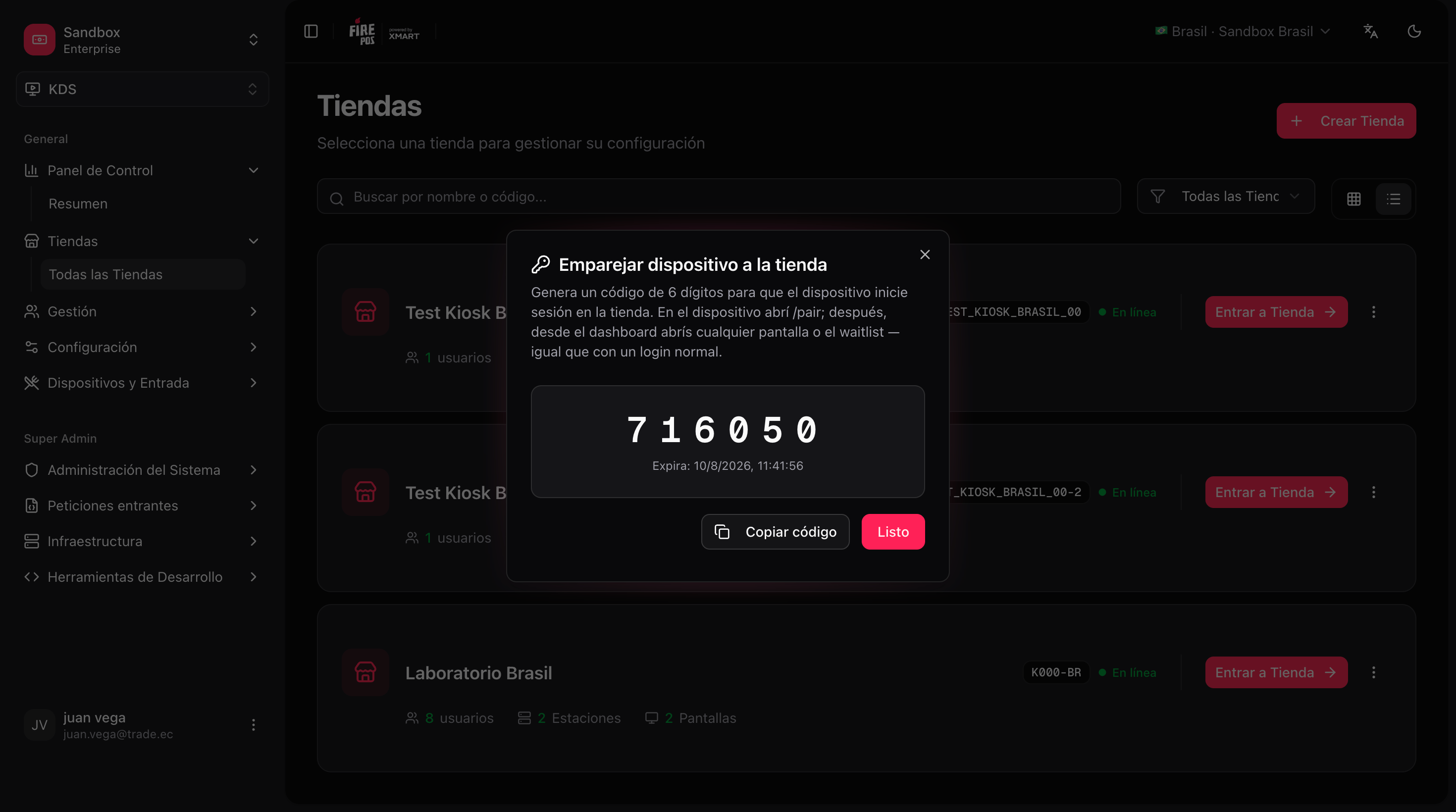
Go to **KDS → All Stores**, open the store’s **⋮** menu, and choose **Pair device**. A **6-digit code** appears (it expires after a short time — generate a new one if needed).
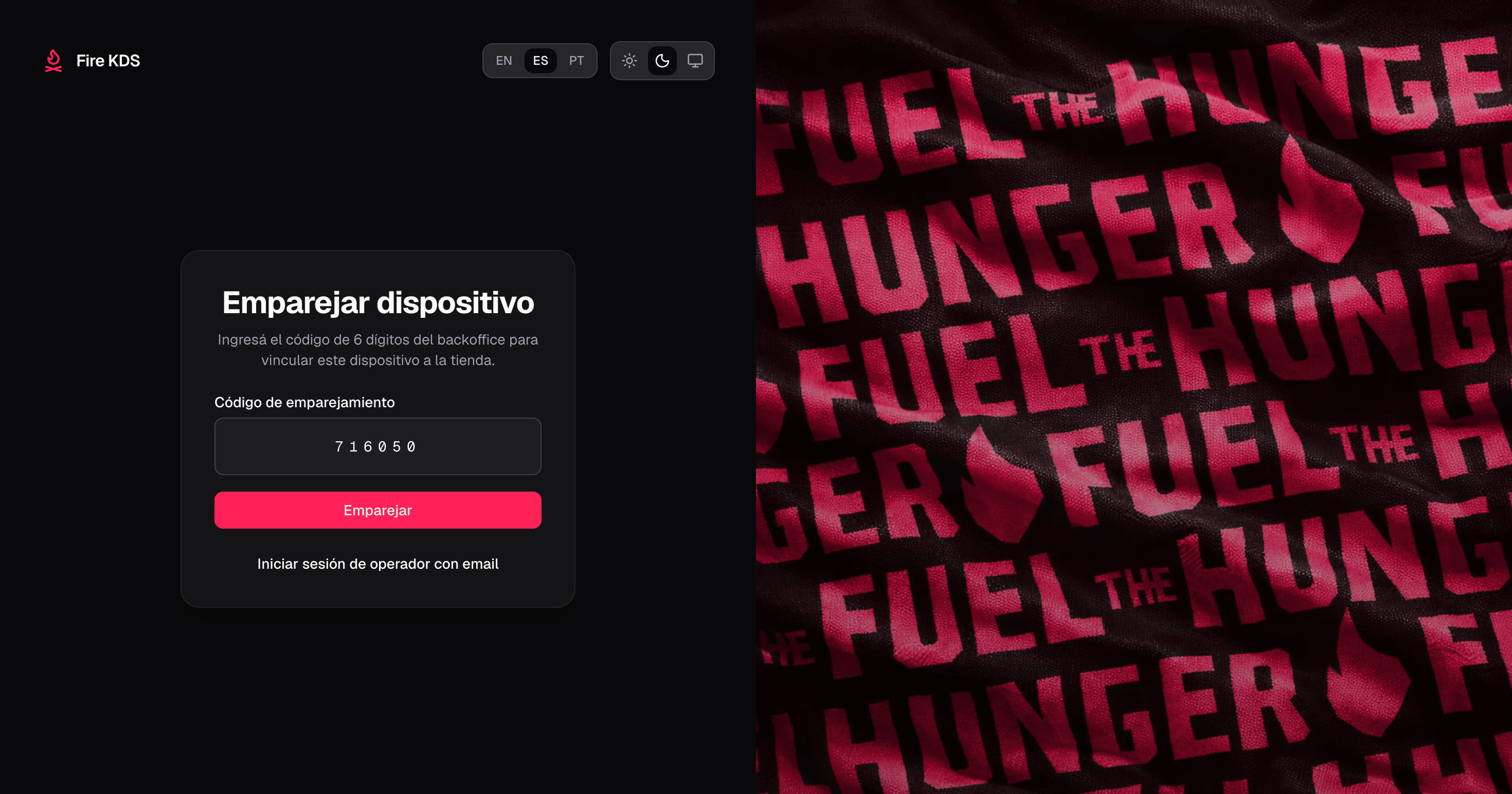
 On the TV or tablet, open fire-kds. Unauthenticated devices land on **`/pair`**. Enter the 6-digit code and confirm.
 After a successful pair, the device navigates to the store **dashboard**. From there you can open the configured KDS screens, the order display, or the operator board.
On `/pair` you can switch to **Operator sign in with email** if a person needs the full admin session. From `/login`, use **Pair a kitchen device** to go back to the code flow.
## Manage paired devices
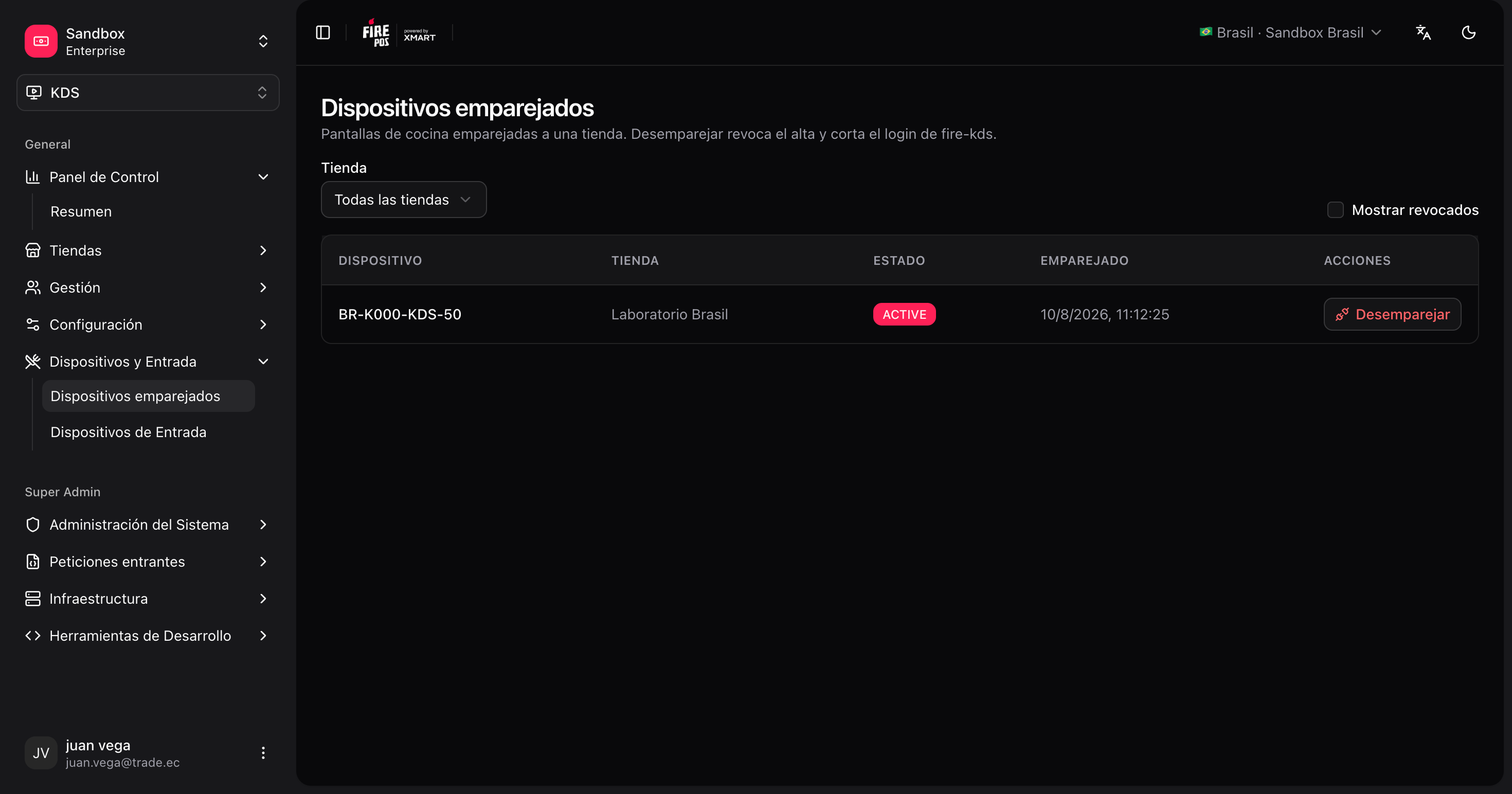
Open **KDS → Paired devices** (`/kds/admin/paired-terminals`) to see every kitchen terminal linked to your account: store, terminal name, and status.
From that list you can **unpair** a device. After unpair, the TV loses its kitchen session and returns to `/pair` the next time it loads.
After a successful pair, the device navigates to the store **dashboard**. From there you can open the configured KDS screens, the order display, or the operator board.
On `/pair` you can switch to **Operator sign in with email** if a person needs the full admin session. From `/login`, use **Pair a kitchen device** to go back to the code flow.
## Manage paired devices
Open **KDS → Paired devices** (`/kds/admin/paired-terminals`) to see every kitchen terminal linked to your account: store, terminal name, and status.
From that list you can **unpair** a device. After unpair, the TV loses its kitchen session and returns to `/pair` the next time it loads.
 ## Sign out from the device
Signing out from a **paired kitchen session** revokes the terminal enrollment. The TV goes back to the pairing screen and must be paired again.
Signing out from an **email/password** operator session does **not** revoke the kitchen device.
## After pairing
1. Open each kitchen screen from the dashboard (or the bookmarked `/kds/{screenId}` URL).
2. Open the [order display](/en/manuals/kds/waitlist) on the pickup TV if you use one.
3. Optionally open the [operator board](/en/manuals/kds/operator-board) for supervisors.
Your kitchen device is paired to the store and ready to run Fire KDS screens.
## Sign out from the device
Signing out from a **paired kitchen session** revokes the terminal enrollment. The TV goes back to the pairing screen and must be paired again.
Signing out from an **email/password** operator session does **not** revoke the kitchen device.
## After pairing
1. Open each kitchen screen from the dashboard (or the bookmarked `/kds/{screenId}` URL).
2. Open the [order display](/en/manuals/kds/waitlist) on the pickup TV if you use one.
3. Optionally open the [operator board](/en/manuals/kds/operator-board) for supervisors.
Your kitchen device is paired to the store and ready to run Fire KDS screens.