> ## Documentation Index
> Fetch the complete documentation index at: https://docs.fire.rest/llms.txt
> Use this file to discover all available pages before exploring further.
# Operator board
> Supervisor view to monitor every store order in real time, inspect detail, and override cancel / ready / dispatch when needed.
The **operator board** is a full-screen supervisor view for a store. It lists every order with live timers, filters, and a detail page where you can cancel an order, mark it ready for pickup, or complete dispatch — even when the kitchen path needs a manual override.
**Where you open it:** from the store dashboard in fire-kds, or directly at `/operator/{storeId}`. Leave it running in its own tab.
## Order list
The list shows active and recent orders with:
* Channel, order status, KDS status, and fulfillment badges
* A **live elapsed timer** (green → amber → red as the order ages)
* Order code / external ID and customer name when available
* Clocks and timestamps in the **store timezone** (not the browser’s)
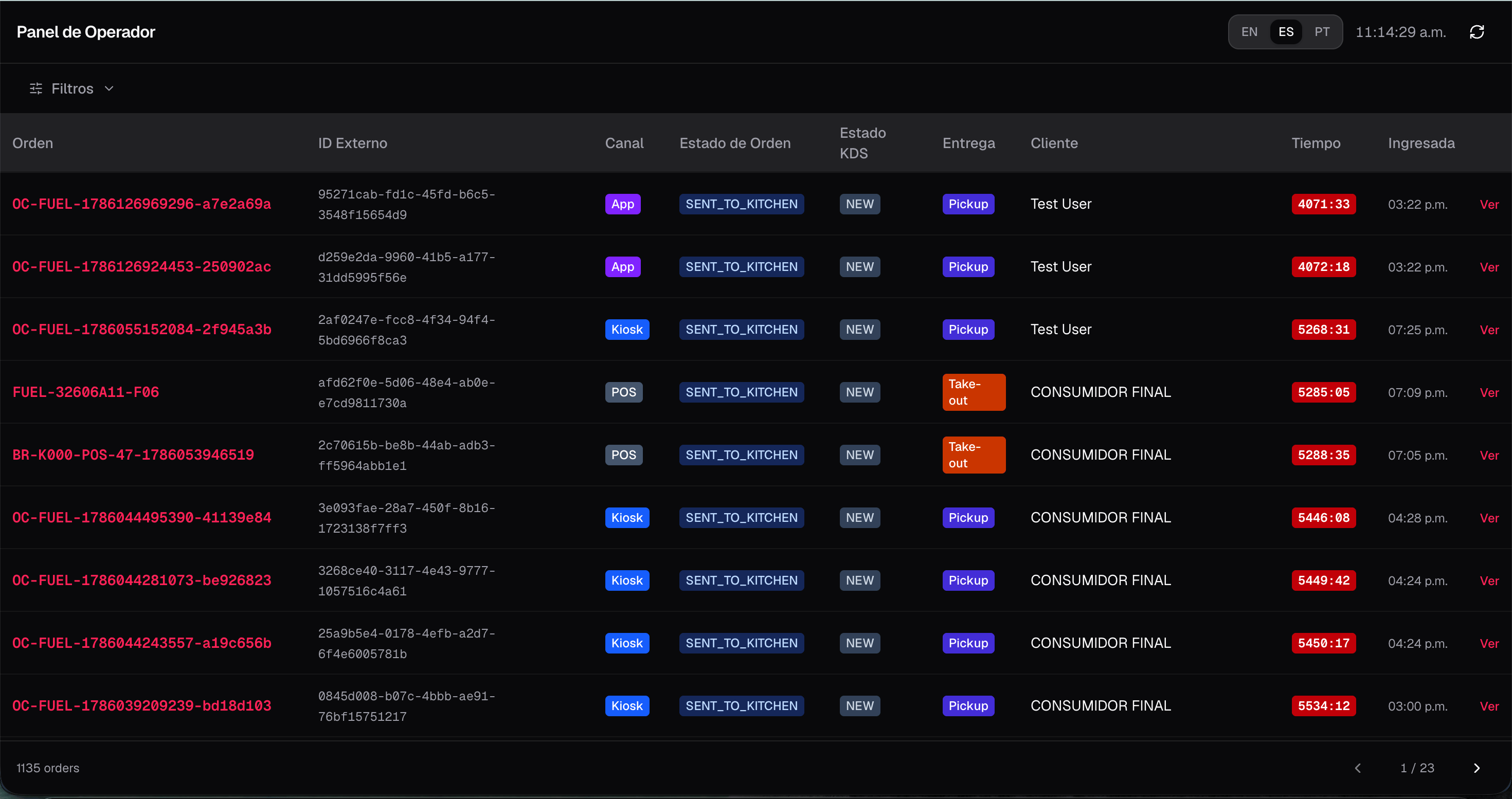 Use the header **language switcher** (EN / ES / PT) the same way as on KDS screens.
## Filters
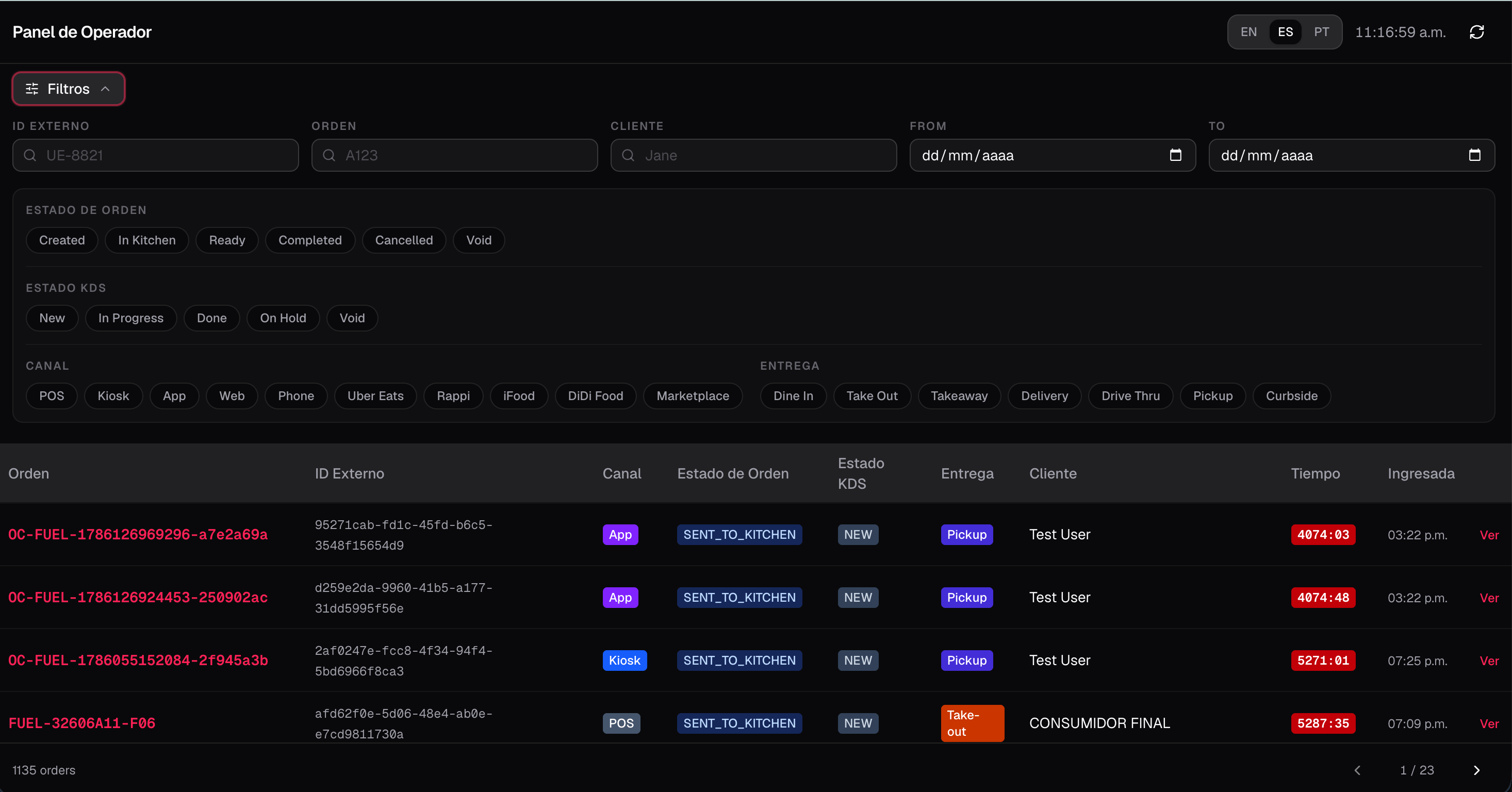
Open the filter panel to narrow the list:
* Text: external ID, order code, customer name
* Date range (business day)
* Chips: order status, KDS status, channel, fulfillment type
Active filters appear as removable chips. Clearing filters resets pagination to page 1.
Use the header **language switcher** (EN / ES / PT) the same way as on KDS screens.
## Filters
Open the filter panel to narrow the list:
* Text: external ID, order code, customer name
* Date range (business day)
* Chips: order status, KDS status, channel, fulfillment type
Active filters appear as removable chips. Clearing filters resets pagination to page 1.
 ## Order detail
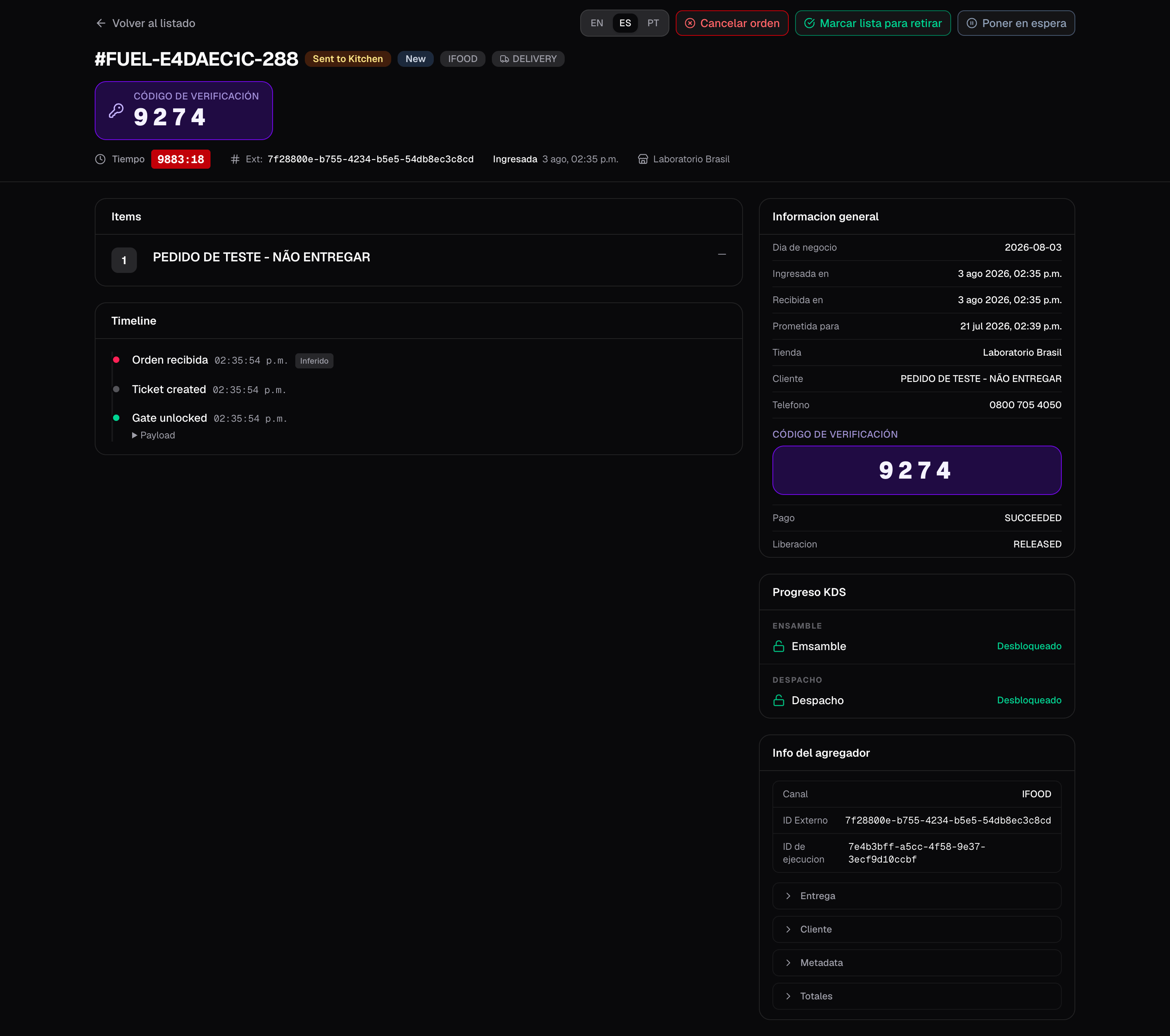
Tap **View** (or the row) to open `/operator/{storeId}/orders/{orderId}`. The detail layout includes:
* Header with status badges and prominent **collect / verification code** when the aggregator provides one
* General info (channel, fulfillment, timestamps in store timezone)
* Order lines / items
* KDS progress across stations
* Timeline of kitchen and status events
* Aggregator payload extras when present
## Order detail
Tap **View** (or the row) to open `/operator/{storeId}/orders/{orderId}`. The detail layout includes:
* Header with status badges and prominent **collect / verification code** when the aggregator provides one
* General info (channel, fulfillment, timestamps in store timezone)
* Order lines / items
* KDS progress across stations
* Timeline of kitchen and status events
* Aggregator payload extras when present
 ## Supervisor actions
From the detail page you can run operational overrides (each asks for confirmation):
| Action | When it applies | What it does |
| -------------------- | --------------------------------------------- | ---------------------------------------------------------------- |
| **Cancel** | Order not already completed / cancelled | Cancels through Fire with a reason from the cancellation catalog |
| **Ready for pickup** | Order is still in kitchen (`SENT_TO_KITCHEN`) | Advances the order to ready and syncs KDS tickets / gates |
| **Dispatch** | Order is already ready | Completes the order and closes the kitchen cycle |
| **Hold / Unhold** | As needed | Same global hold used on kitchen screens |
## Supervisor actions
From the detail page you can run operational overrides (each asks for confirmation):
| Action | When it applies | What it does |
| -------------------- | --------------------------------------------- | ---------------------------------------------------------------- |
| **Cancel** | Order not already completed / cancelled | Cancels through Fire with a reason from the cancellation catalog |
| **Ready for pickup** | Order is still in kitchen (`SENT_TO_KITCHEN`) | Advances the order to ready and syncs KDS tickets / gates |
| **Dispatch** | Order is already ready | Completes the order and closes the kitchen cycle |
| **Hold / Unhold** | As needed | Same global hold used on kitchen screens |
 Ready and dispatch from the operator board **fast-forward** the kitchen state (lines done, gates unlocked, ticket closed as needed). Use them when the floor needs a supervisor override — not as a substitute for normal bumps on every order.
## How it differs from the kitchen screen
| | Kitchen screen | Operator board |
| ---------------- | -------------------------------- | ------------------------------------------------------ |
| Audience | Cooks / expo | Supervisors |
| Scope | Stations assigned to that screen | Whole store |
| Main job | Bump / hold / strike lines | Monitor + override |
| Customer display | No | No (use the [order display](/en/manuals/kds/waitlist)) |
You can monitor the store’s orders live and apply cancel, ready, or dispatch overrides when service needs them.
Ready and dispatch from the operator board **fast-forward** the kitchen state (lines done, gates unlocked, ticket closed as needed). Use them when the floor needs a supervisor override — not as a substitute for normal bumps on every order.
## How it differs from the kitchen screen
| | Kitchen screen | Operator board |
| ---------------- | -------------------------------- | ------------------------------------------------------ |
| Audience | Cooks / expo | Supervisors |
| Scope | Stations assigned to that screen | Whole store |
| Main job | Bump / hold / strike lines | Monitor + override |
| Customer display | No | No (use the [order display](/en/manuals/kds/waitlist)) |
You can monitor the store’s orders live and apply cancel, ready, or dispatch overrides when service needs them.