> ## Documentation Index
> Fetch the complete documentation index at: https://docs.fire.rest/llms.txt
> Use this file to discover all available pages before exploring further.
# Peripherals, printing and validation
> Configure KDS keyboards and input devices, ready-pickup printing and order cancellation, then validate the store with the KDS Map before going live.
This page covers the remaining configuration — keyboards, printing, and cancellation — and how to validate the store before opening the kitchen.
## Keyboards and input devices
Physical keys (bump, change page, recall) let operators work without touching the screen.
```text theme={null}
Screen
└── Input device (type KDS_KEYBOARD, linked to the screen)
└── Keyboard layout (key → action mapping)
```
### Actions available in the backoffice
When you create or edit a layout, each key can trigger actions such as:
| Action | Typical use |
| --------------------------------- | --------------------------------------------------------------------- |
| `BUMP_COLUMN_1` … `BUMP_COLUMN_8` | Complete column N on the screen. |
| `NEXT_PAGE` / `PREV_PAGE` | Paginate tickets. |
| `REFRESH` | Refresh the queue. |
| `HOLD_TICKET` / `RECALL_TICKET` | Hold / recover a ticket. |
| `PRINT_PENDING_FISCAL_INVOICES` | Trigger pending fiscal printing (depends on the country integration). |
### Configure a keyboard
**KDS → Input devices → Create** (`/kds/admin/devices/new`). Type: KDS keyboard. Link it to the correct **screen**.
**KDS → Keyboard layouts → Create** (`/kds/admin/keyboard-layouts/new`). Choose the store and device, then map keys to actions.
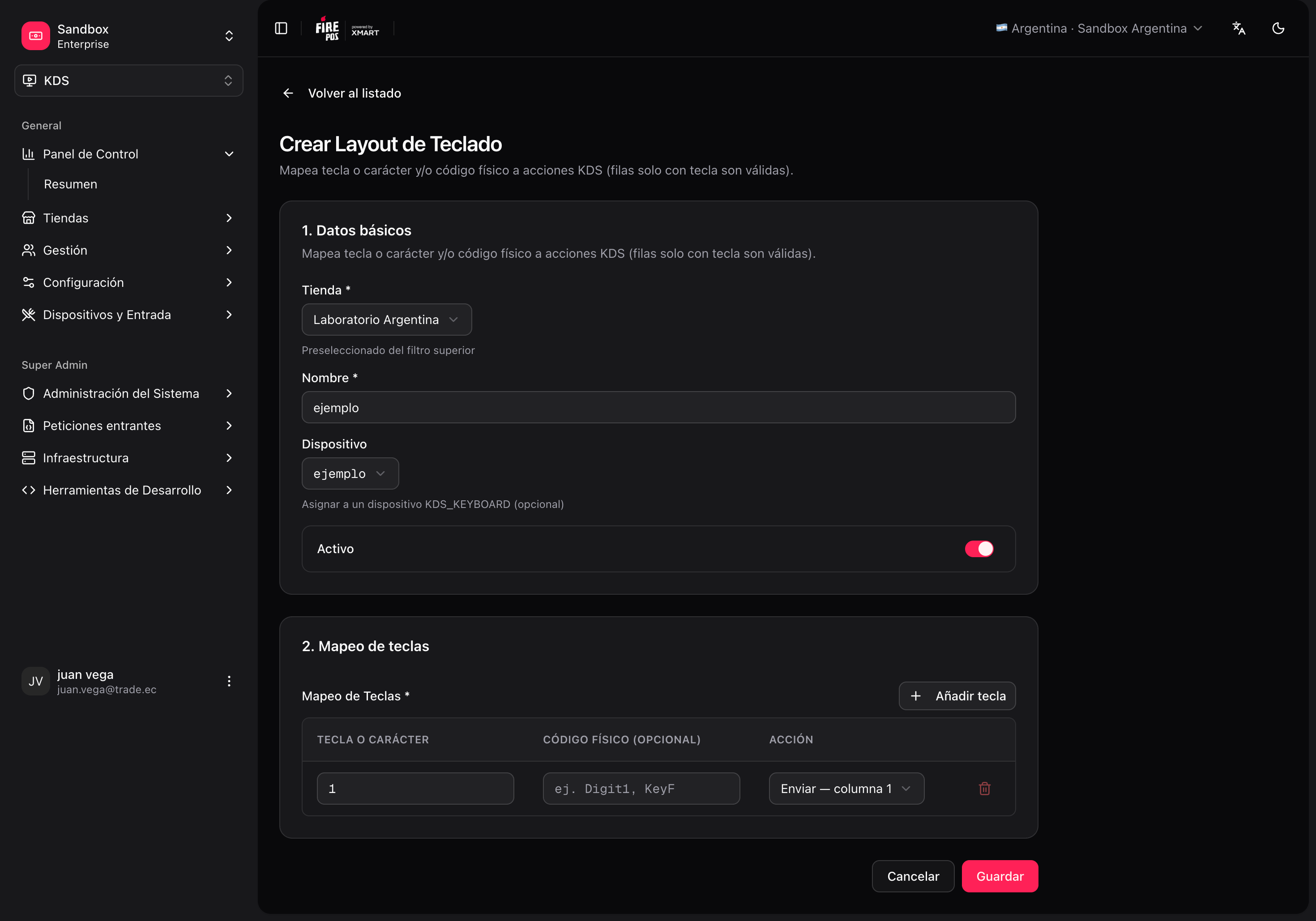 You can also create or duplicate a layout from **Store → KDS Map** (`/kds/admin/stores/{storeId}/kds-map`). If a template includes a keyboard, applying it can create the device `{deviceIdentifier}-kbd` and layout automatically.
## Printing and cancellation
There are **three distinct concepts**. They are not all configured in the same place.
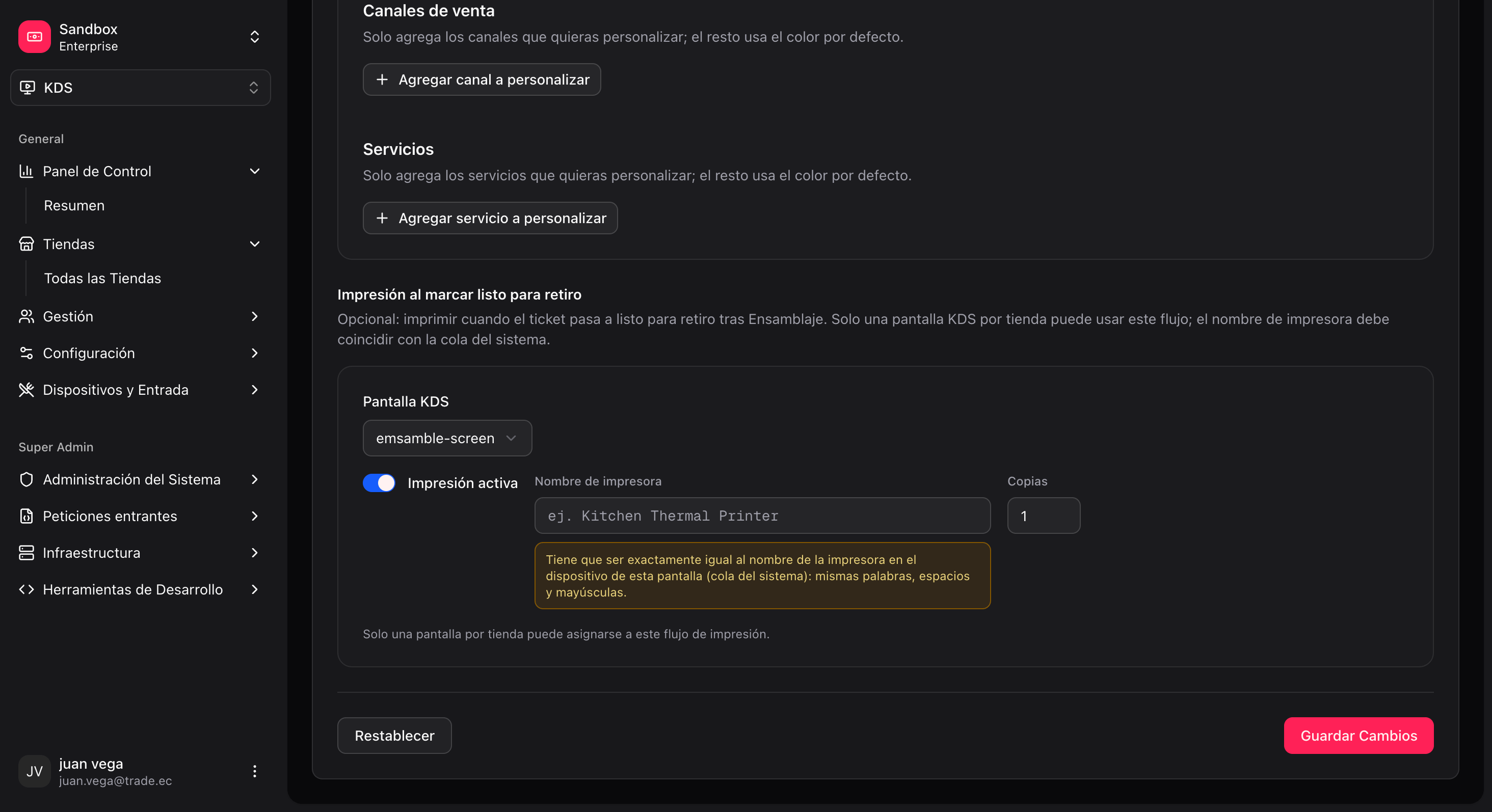
### 1. Ready-for-pickup printing (backoffice)
**What it does:** prints a thermal ticket (fiscal and/or delivery) when the operator **bumps in the ASSEMBLY station** and the order becomes **ready for pickup**. In an assembly-only kitchen, this bump is the one that closes the kitchen and moves the order display.
The operator chooses **bump first** (async, default — bump finishes first, printing runs after with feedback in the snackbar) or **print before bump** (sync) in the fire-kds app. See [Screen actions — Ready pickup printing](/en/manuals/kds/screen-actions#ready-pickup-printing).
**Where to configure it in the backoffice:**
* **Store → Settings** → *Ready-for-pickup printing*, or
* **Store → KDS Map** → ready-pickup printing card, or
* Inside a **template** / initial wizard (per screen).
| Field | Description |
| ------------ | ----------------------------------------------------------------------- |
| Screen | Which KDS screen triggers the printing. |
| Enabled | Turns it on/off for that screen. |
| Printer name | The **exact** name of the operating system's print queue on the device. |
| Copies | Number of copies. |
The backoffice allows **only one screen per store** for this flow, to avoid duplicate prints of the same "ready for pickup" event. Enabling a second screen shows an error or blocks the selection.
**What it needs to work:**
1. KDS screen created and active in the backoffice.
2. Ready-pickup printing enabled on **that single screen**.
3. **Printer name** identical to the printer name in the device OS where fire-kds runs (including case, spaces, and accents).
4. Printer installed and reachable from the KDS device.
You can also create or duplicate a layout from **Store → KDS Map** (`/kds/admin/stores/{storeId}/kds-map`). If a template includes a keyboard, applying it can create the device `{deviceIdentifier}-kbd` and layout automatically.
## Printing and cancellation
There are **three distinct concepts**. They are not all configured in the same place.
### 1. Ready-for-pickup printing (backoffice)
**What it does:** prints a thermal ticket (fiscal and/or delivery) when the operator **bumps in the ASSEMBLY station** and the order becomes **ready for pickup**. In an assembly-only kitchen, this bump is the one that closes the kitchen and moves the order display.
The operator chooses **bump first** (async, default — bump finishes first, printing runs after with feedback in the snackbar) or **print before bump** (sync) in the fire-kds app. See [Screen actions — Ready pickup printing](/en/manuals/kds/screen-actions#ready-pickup-printing).
**Where to configure it in the backoffice:**
* **Store → Settings** → *Ready-for-pickup printing*, or
* **Store → KDS Map** → ready-pickup printing card, or
* Inside a **template** / initial wizard (per screen).
| Field | Description |
| ------------ | ----------------------------------------------------------------------- |
| Screen | Which KDS screen triggers the printing. |
| Enabled | Turns it on/off for that screen. |
| Printer name | The **exact** name of the operating system's print queue on the device. |
| Copies | Number of copies. |
The backoffice allows **only one screen per store** for this flow, to avoid duplicate prints of the same "ready for pickup" event. Enabling a second screen shows an error or blocks the selection.
**What it needs to work:**
1. KDS screen created and active in the backoffice.
2. Ready-pickup printing enabled on **that single screen**.
3. **Printer name** identical to the printer name in the device OS where fire-kds runs (including case, spaces, and accents).
4. Printer installed and reachable from the KDS device.
 ### 2. Order cancellation (in the fire-kds app)
**What it does:** lets the operator cancel an order from the KDS (icon on the ticket → confirmation).
**Where it is configured:** in the **fire-kds app**, top menu → **"Order cancellation…"** (a modal on the device). It is **not** in the backoffice today.
| Level | Setting | Effect |
| ------ | ----------------- | ---------------------------------- |
| Store | Master switch | If off, no screen can cancel. |
| Screen | Per-screen opt-in | Each screen is enabled separately. |
**Several screens can have cancellation enabled** at once (there is no "only one" limit like ready-pickup printing). It also requires the order to have an external XMART ID for the cancellation adapter, and an operator with a valid store role.
### 3. Fiscal printing from the keyboard
The **`PRINT_PENDING_FISCAL_INVOICES`** action is assigned in the **keyboard layout**, not in the ready-pickup printing section. It does not compete with the "one screen" rule (they are different flows) and depends on the country/store fiscal integration in fire-kds.
## Validate the configuration: KDS Map
After configuring (by template or manually), open:
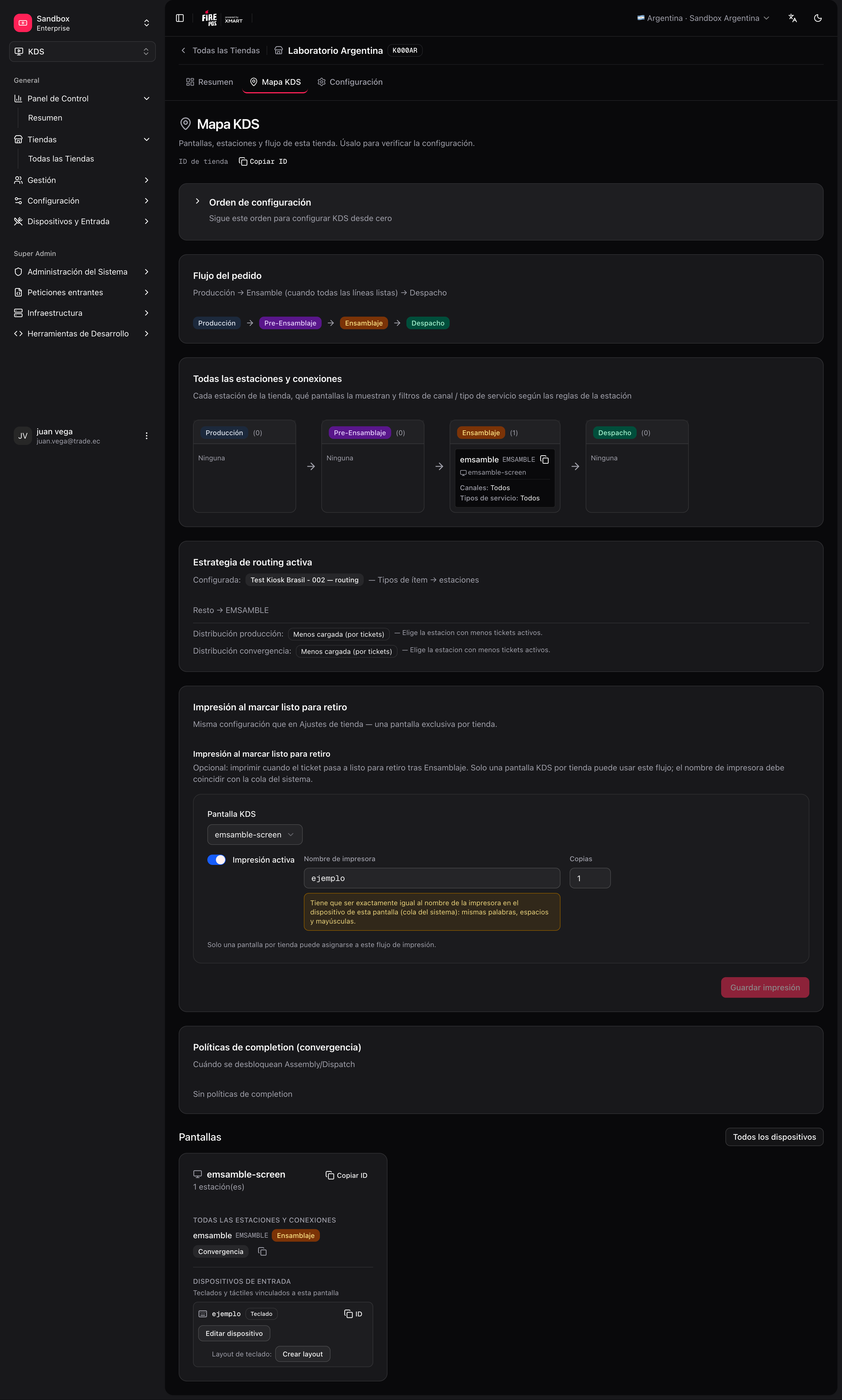
**KDS → All Stores → \[your store] → KDS Map** (`/kds/admin/stores/{storeId}/kds-map`).
The map shows:
* Screens and linked stations.
* Stations with no screen (alerts).
* Input devices and keyboard layouts.
* Ready-for-pickup printing card.
* Overall config health.
### 2. Order cancellation (in the fire-kds app)
**What it does:** lets the operator cancel an order from the KDS (icon on the ticket → confirmation).
**Where it is configured:** in the **fire-kds app**, top menu → **"Order cancellation…"** (a modal on the device). It is **not** in the backoffice today.
| Level | Setting | Effect |
| ------ | ----------------- | ---------------------------------- |
| Store | Master switch | If off, no screen can cancel. |
| Screen | Per-screen opt-in | Each screen is enabled separately. |
**Several screens can have cancellation enabled** at once (there is no "only one" limit like ready-pickup printing). It also requires the order to have an external XMART ID for the cancellation adapter, and an operator with a valid store role.
### 3. Fiscal printing from the keyboard
The **`PRINT_PENDING_FISCAL_INVOICES`** action is assigned in the **keyboard layout**, not in the ready-pickup printing section. It does not compete with the "one screen" rule (they are different flows) and depends on the country/store fiscal integration in fire-kds.
## Validate the configuration: KDS Map
After configuring (by template or manually), open:
**KDS → All Stores → \[your store] → KDS Map** (`/kds/admin/stores/{storeId}/kds-map`).
The map shows:
* Screens and linked stations.
* Stations with no screen (alerts).
* Input devices and keyboard layouts.
* Ready-for-pickup printing card.
* Overall config health.
 ## Go-live checklist
* [ ] KDS store created and active.
* [ ] Stations with unique **codes** and coherent stages.
* [ ] Screens with the **device identifier** agreed with the hardware.
* [ ] Each screen has assigned stations (correct sort order).
* [ ] **One** active routing strategy.
* [ ] **Simple kitchen (prod):** `ASSEMBLY` station + **Production required = No** + one screen; test order display and bump-first printing.
* [ ] **Simple kitchen (alternative):** one `KITCHEN` station + fallback; **Production required = Yes**; no mappings.
* [ ] **Multi-line kitchen:** mappings only to **production** stations; ASSEMBLY/DISPATCH via convergence, not in mappings.
* [ ] (Optional) Keyboard: device + layout per screen that uses it.
* [ ] (Optional) Ready-pickup printing: **one** screen, printer name verified in the OS.
* [ ] (Optional) Cancellation: enabled in fire-kds for the store + screens that need it.
* [ ] KDS Map with no critical alerts.
* [ ] Test with a real or seeded order: items reach the expected screen/station.
## Reference routes (backoffice)
| Section | Base URL |
| ------------------- | ------------------------------------------- |
| KDS home | `/kds/admin` |
| Stores | `/kds/admin/stores` |
| Store initial setup | `/kds/admin/stores/initial-setup/{storeId}` |
| Templates | `/kds/admin/setup-templates` |
| Stations | `/kds/admin/stations` |
| Screens | `/kds/admin/screens` |
| Routing | `/kds/admin/routing` |
| Devices | `/kds/admin/devices` |
| Keyboard layouts | `/kds/admin/keyboard-layouts` |
| Store KDS Map | `/kds/admin/stores/{storeId}/kds-map` |
| Store settings | `/kds/admin/stores/{storeId}/settings` |
With the KDS Map clean and the checklist done, the store is ready to open fire-kds in the kitchen.
## Go-live checklist
* [ ] KDS store created and active.
* [ ] Stations with unique **codes** and coherent stages.
* [ ] Screens with the **device identifier** agreed with the hardware.
* [ ] Each screen has assigned stations (correct sort order).
* [ ] **One** active routing strategy.
* [ ] **Simple kitchen (prod):** `ASSEMBLY` station + **Production required = No** + one screen; test order display and bump-first printing.
* [ ] **Simple kitchen (alternative):** one `KITCHEN` station + fallback; **Production required = Yes**; no mappings.
* [ ] **Multi-line kitchen:** mappings only to **production** stations; ASSEMBLY/DISPATCH via convergence, not in mappings.
* [ ] (Optional) Keyboard: device + layout per screen that uses it.
* [ ] (Optional) Ready-pickup printing: **one** screen, printer name verified in the OS.
* [ ] (Optional) Cancellation: enabled in fire-kds for the store + screens that need it.
* [ ] KDS Map with no critical alerts.
* [ ] Test with a real or seeded order: items reach the expected screen/station.
## Reference routes (backoffice)
| Section | Base URL |
| ------------------- | ------------------------------------------- |
| KDS home | `/kds/admin` |
| Stores | `/kds/admin/stores` |
| Store initial setup | `/kds/admin/stores/initial-setup/{storeId}` |
| Templates | `/kds/admin/setup-templates` |
| Stations | `/kds/admin/stations` |
| Screens | `/kds/admin/screens` |
| Routing | `/kds/admin/routing` |
| Devices | `/kds/admin/devices` |
| Keyboard layouts | `/kds/admin/keyboard-layouts` |
| Store KDS Map | `/kds/admin/stores/{storeId}/kds-map` |
| Store settings | `/kds/admin/stores/{storeId}/settings` |
With the KDS Map clean and the checklist done, the store is ready to open fire-kds in the kitchen.