> ## Documentation Index
> Fetch the complete documentation index at: https://docs.fire.rest/llms.txt
> Use this file to discover all available pages before exploring further.
# Screens
> Create KDS screens, set the device identifier, and assign which stations each screen shows.
A **screen** is a KDS device (monitor + fire-kds app). Each screen has a **Device ID** that is unique within the store.
## Important fields
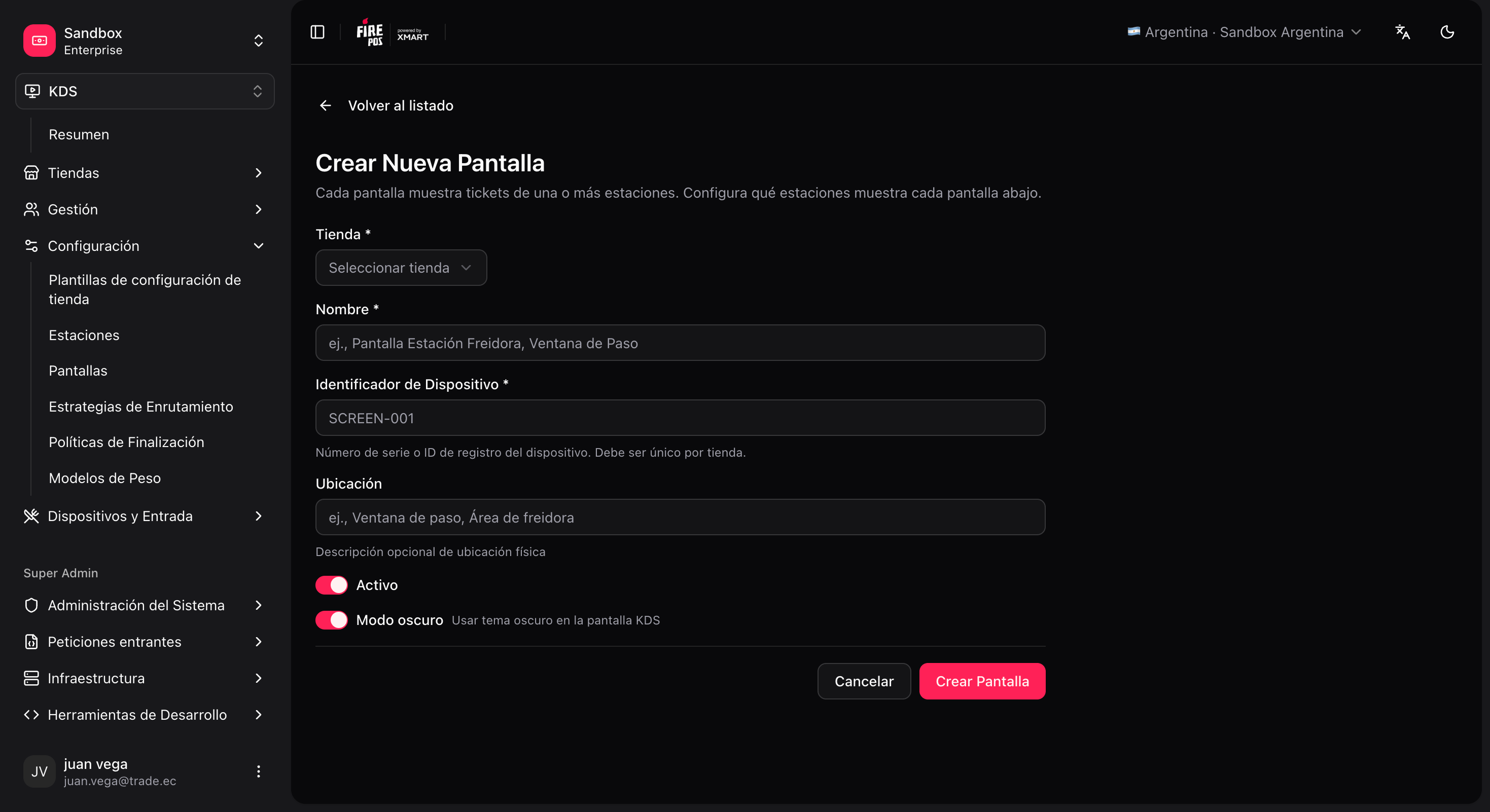
| Field | What it is for |
| --------------------- | -------------------------------------------------------------------------------------------------------------------- |
| **Store** | The store. |
| **Name** | Admin name (e.g. "Grill screen"). |
| **Device identifier** | The ID the fire-kds app uses to register. **It cannot be changed** after creation. It must match the device exactly. |
| **Location** | Optional physical location (operational reference). |
| **Active** | If disabled, it should not be used in production. |
| **Dark mode** | Default light/dark theme in fire-kds. |
The **device identifier** cannot be changed after the screen is created. Agree on it with the hardware team before saving.
 ## Create a screen
**KDS → Screens → Create** (`/kds/admin/screens/new`).
For example, device identifier `KDS-GRILL-01`.
The system redirects to **Assign stations**.
* Add the stations this screen should show (e.g. `GRILL` and `FRY`).
* Set the **sort order** (column order in the UI).
## Create a screen
**KDS → Screens → Create** (`/kds/admin/screens/new`).
For example, device identifier `KDS-GRILL-01`.
The system redirects to **Assign stations**.
* Add the stations this screen should show (e.g. `GRILL` and `FRY`).
* Set the **sort order** (column order in the UI).
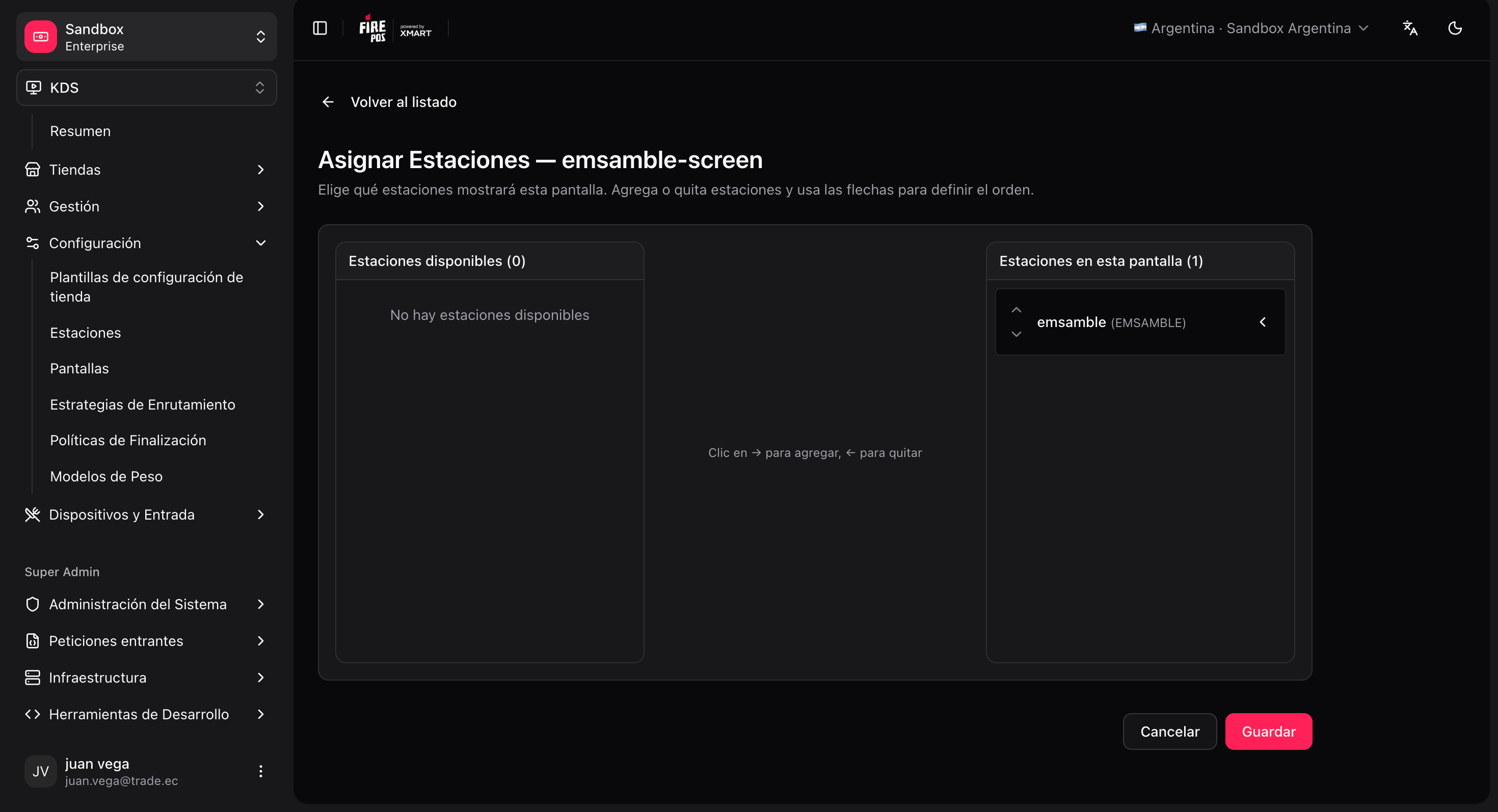 Key relationship: a screen can show **several stations**, and a station can appear on **several screens** (e.g. assembly visible on both the expo and the dispatch monitor).
Next: [Routing](/en/manuals/kds/routing).
Key relationship: a screen can show **several stations**, and a station can appear on **several screens** (e.g. assembly visible on both the expo and the dispatch monitor).
Next: [Routing](/en/manuals/kds/routing).