> ## Documentation Index
> Fetch the complete documentation index at: https://docs.fire.rest/llms.txt
> Use this file to discover all available pages before exploring further.
# Order display
> The customer-facing waitlist screen that shows which orders are being prepared and which are ready for pickup.
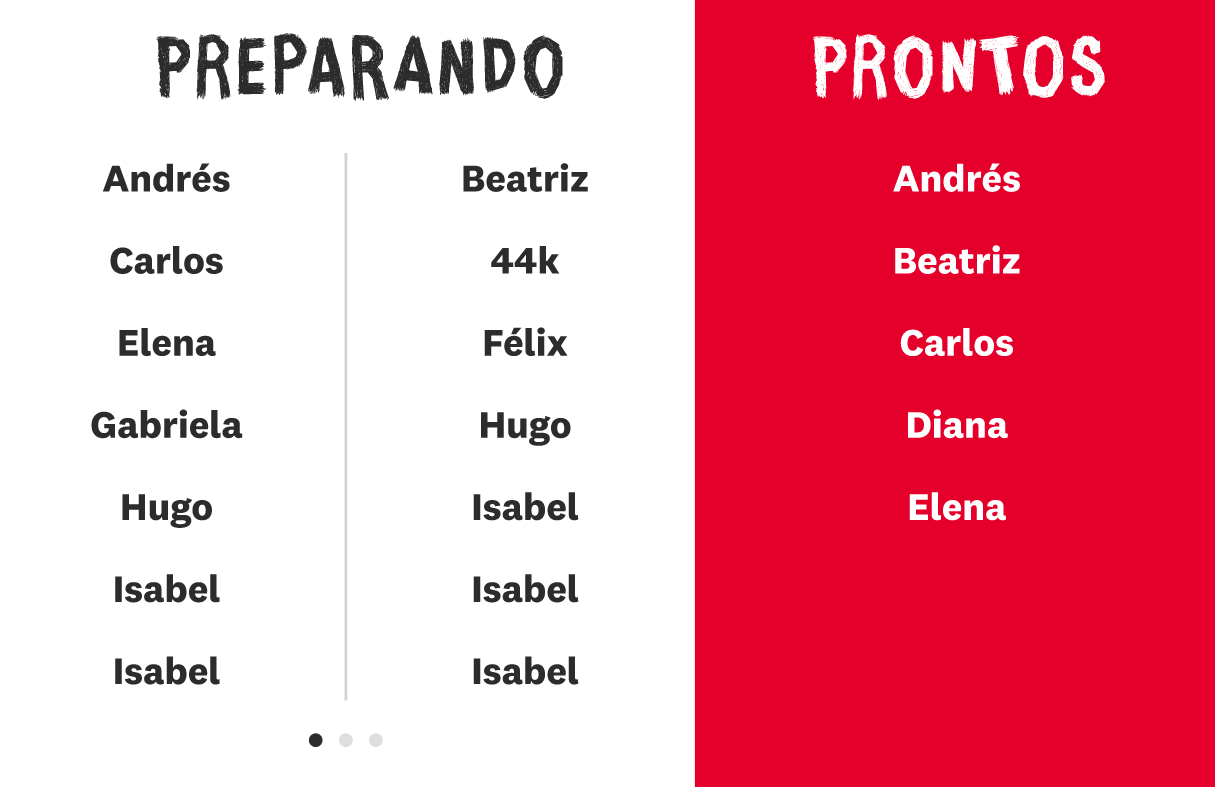
The order display (also called the *waitlist* or *turnero*) is a customer-facing screen that shows order numbers in two states: **being prepared** and **ready for pickup**. It is meant to run on a TV or tablet in the pickup area so customers can see when their order is ready.
Unlike the KDS screen, the order display has no operator controls — it only shows information. It updates in real time as the kitchen works through orders.
## What the screen shows
The display is split into two areas:
* **Being prepared:** orders that the kitchen has received and is still working on, shown oldest first.
* **Ready for pickup:** orders that are finished and waiting to be collected. Each order stays in this area for a short window after it is marked ready.
The store name or campaign title appears at the top as a banner.
 ## When an order is ready
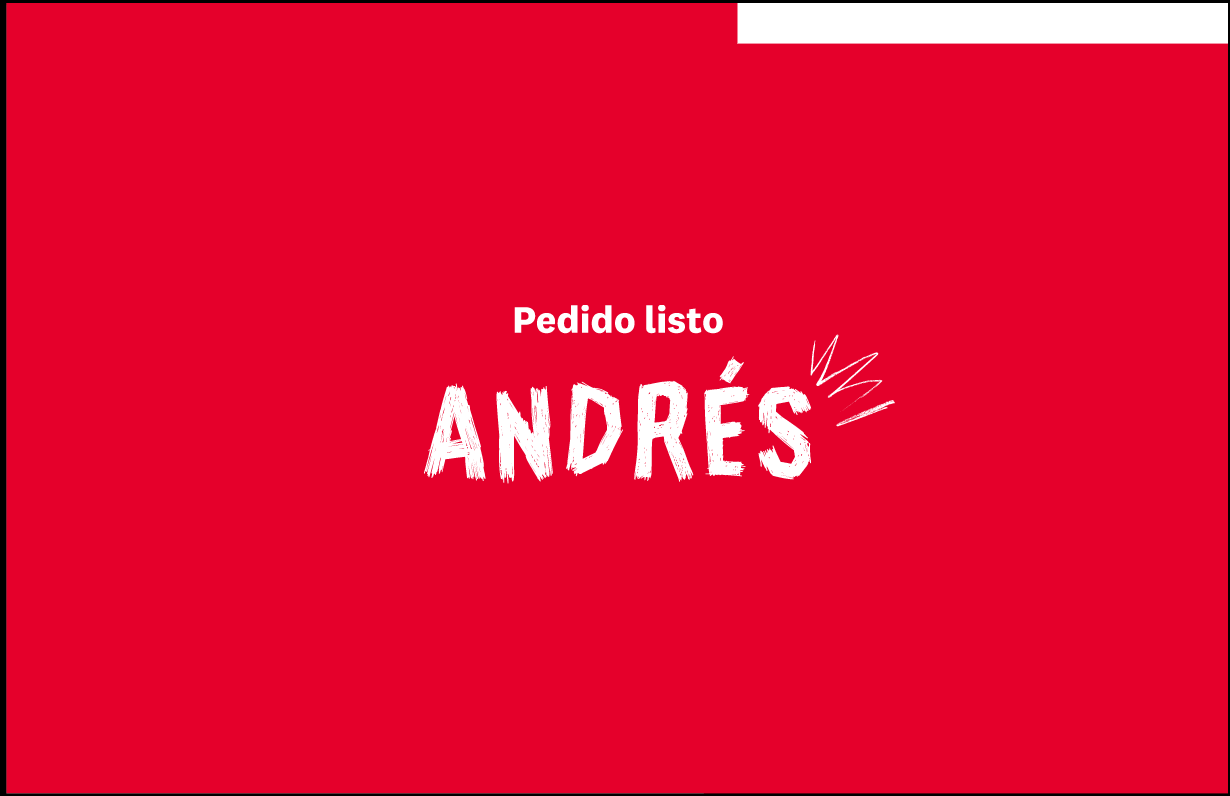
When an order moves to ready, the screen highlights it so the customer notices: the order code is shown large in a **highlight overlay** for a moment before settling into the ready list.
## When an order is ready
When an order moves to ready, the screen highlights it so the customer notices: the order code is shown large in a **highlight overlay** for a moment before settling into the ready list.
 ## Which code is shown
Each order shows a short, public label so customers can match it to their receipt or buzzer:
1. A **buzzer or pager name** if the order has one.
2. Otherwise, the **public order code**.
3. As a fallback, the last characters of the order code.
This is the same label that appears in the KDS ticket header.
## Pagination and rotation
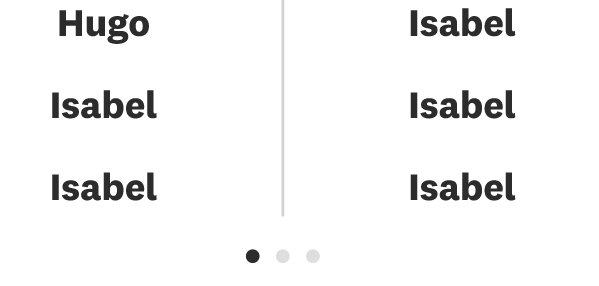
When there are more orders than fit, the lists rotate through pages automatically every few seconds. **Pagination dots** below the lists show how many pages there are and which one is visible. No interaction is needed — the screen cycles on its own.
## Which code is shown
Each order shows a short, public label so customers can match it to their receipt or buzzer:
1. A **buzzer or pager name** if the order has one.
2. Otherwise, the **public order code**.
3. As a fallback, the last characters of the order code.
This is the same label that appears in the KDS ticket header.
## Pagination and rotation
When there are more orders than fit, the lists rotate through pages automatically every few seconds. **Pagination dots** below the lists show how many pages there are and which one is visible. No interaction is needed — the screen cycles on its own.
 ## Which orders appear
By default the display includes every preparing and ready order. Your administrator can **hide specific fulfillment types** from the turnero (for example exclude `DELIVERY` so only dine-in and takeout codes appear for walk-up customers). Filters apply on the server to both the preparing and ready lists.
## How to open it
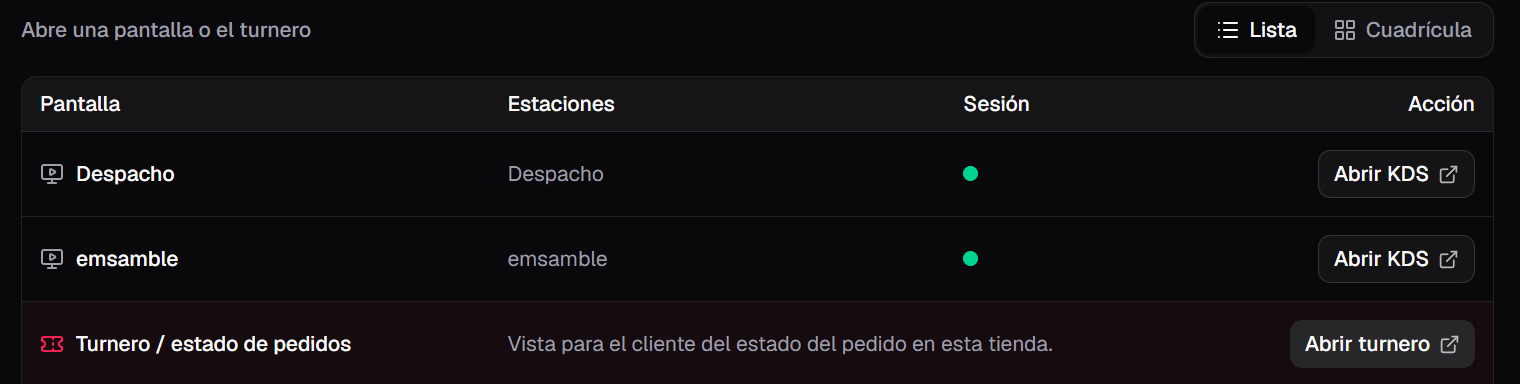
The order display opens in its own browser tab from the store dashboard, separate from the KDS operator screens. Open it on the device in the pickup area and leave it running full screen. Kitchen devices can also be [paired](/en/manuals/kds/device-pairing) first so the dashboard opens on the right store.
## Which orders appear
By default the display includes every preparing and ready order. Your administrator can **hide specific fulfillment types** from the turnero (for example exclude `DELIVERY` so only dine-in and takeout codes appear for walk-up customers). Filters apply on the server to both the preparing and ready lists.
## How to open it
The order display opens in its own browser tab from the store dashboard, separate from the KDS operator screens. Open it on the device in the pickup area and leave it running full screen. Kitchen devices can also be [paired](/en/manuals/kds/device-pairing) first so the dashboard opens on the right store.
 The order display is now showing live order status to your customers.