> ## Documentation Index
> Fetch the complete documentation index at: https://docs.fire.rest/llms.txt
> Use this file to discover all available pages before exploring further.
# Method availability
> How to turn payment methods on or off by brand, store, and device in PayBridge (account).
**Coming soon.** PayBridge is not available yet. This guide previews how it will work; the screens it describes may not be enabled in your backoffice yet.
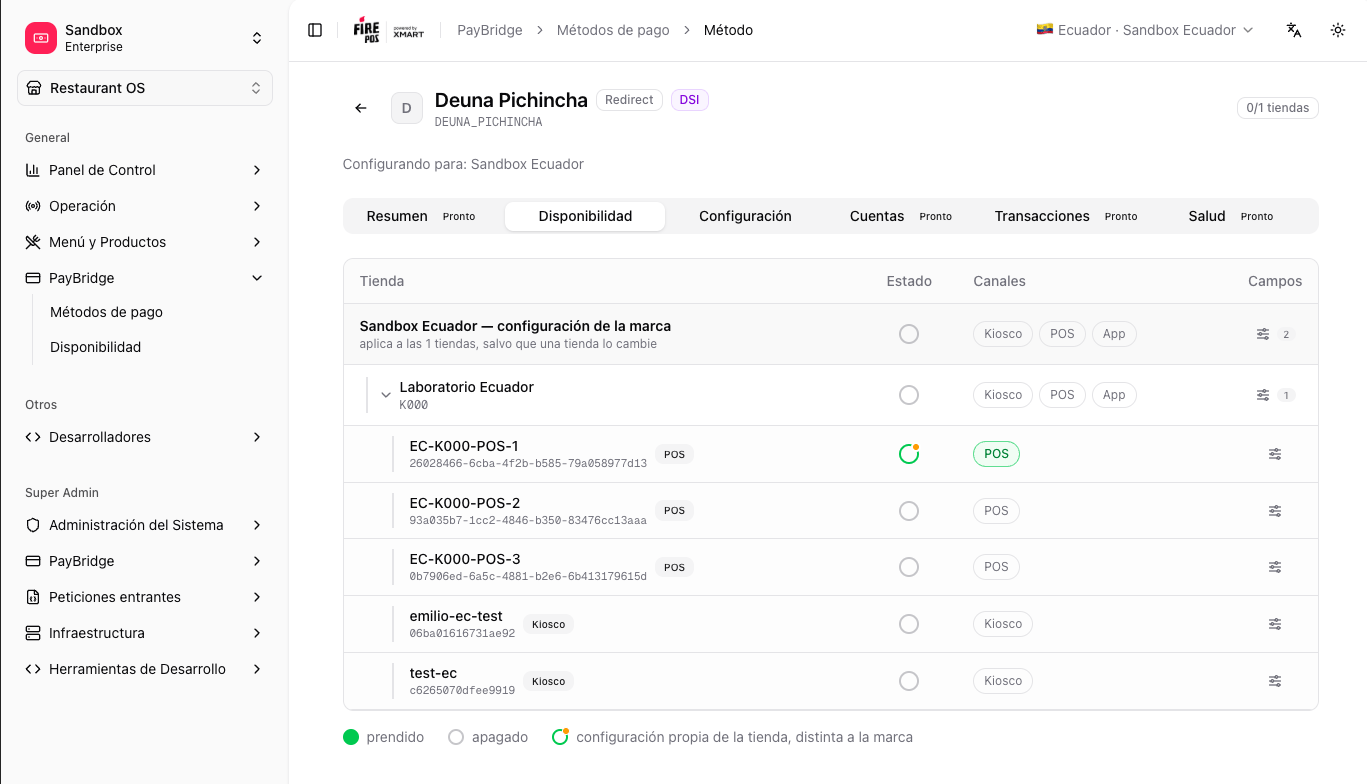
**Availability** decides where each payment method is turned on and in which channels. PayBridge resolves this through a hierarchy of levels: what you set on the **brand** applies to all its stores, unless a store —or a device— has its own configuration.
Inheritance hierarchy: **Brand → Store → Device**. The most specific level wins; if a level defines nothing, it inherits from the one above.
## Prerequisites
* Backoffice access at **[app.fire.rest](https://app.fire.rest)**, with permissions on the account.
* The country, account, and brand selected in the context switcher (top right).
* At least one active payment method in the catalog for that country.
The method catalog and the channels PayBridge covers are defined by a Fire administrator. If a method or channel you need does not appear on this screen, ask an administrator to enable it for your country.
## 1. Open the availability matrix
In the sidebar, under the General section, open **PayBridge → Availability**. You'll see a **stores × methods** matrix for the context's brand.
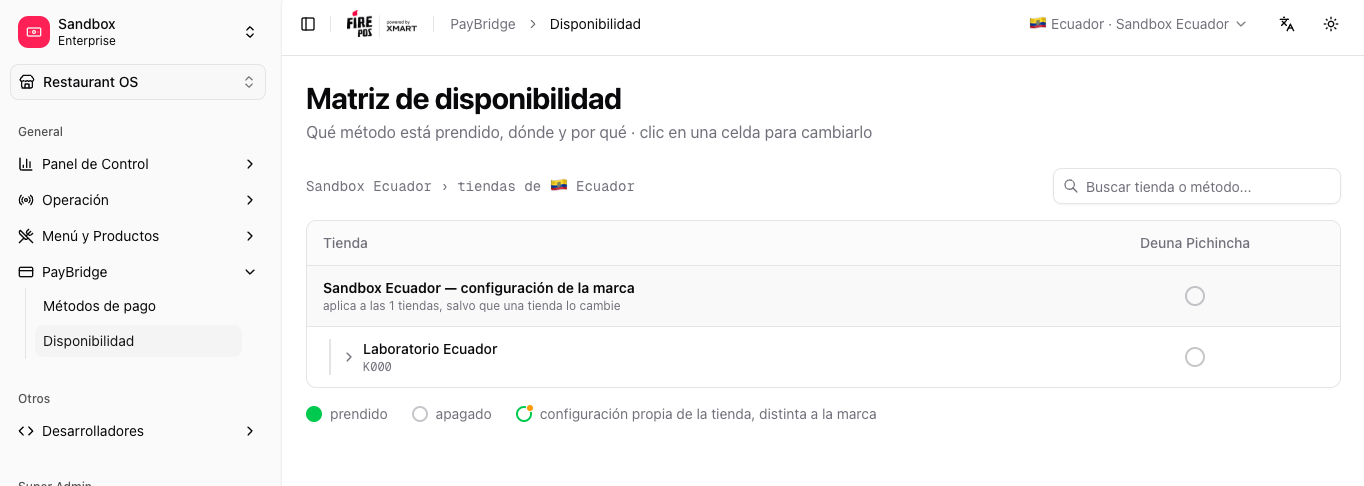 The top row is **the brand settings**: what you set there applies to all stores by default.
Above the matrix you get two helpers: the **Brand** selector — it only shows up when the account has more than one, and it doesn't change the global context — and a search box to filter by **store or method**.
## 2. Turn a method on or off
Click a method's cell to open its options. You can:
* **Turn on / off** the method in that store.
* **Turn on / off** for the whole brand (from the brand row).
* **Follow the brand again** to remove a store's override and inherit again.
The top row is **the brand settings**: what you set there applies to all stores by default.
Above the matrix you get two helpers: the **Brand** selector — it only shows up when the account has more than one, and it doesn't change the global context — and a search box to filter by **store or method**.
## 2. Turn a method on or off
Click a method's cell to open its options. You can:
* **Turn on / off** the method in that store.
* **Turn on / off** for the whole brand (from the brand row).
* **Follow the brand again** to remove a store's override and inherit again.
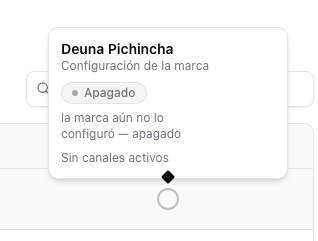 ### How to read the states
* **Filled green** — on.
* **Gray** — off.
* **Amber dot** — the store has its own configuration, different from the brand's.
### How to read the states
* **Filled green** — on.
* **Gray** — off.
* **Amber dot** — the store has its own configuration, different from the brand's.
 ## 3. Choose the channels
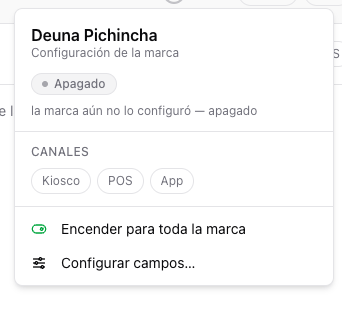
Inside the cell you can choose which **channels** the method operates in (POS, Kiosk, Web, App, depending on the considered channels). Active channels are shown as chips.
## 3. Choose the channels
Inside the cell you can choose which **channels** the method operates in (POS, Kiosk, Web, App, depending on the considered channels). Active channels are shown as chips.
 ## 4. Drill down to the device level
Each store can be **expanded** with the chevron to see its devices: POS terminals and kiosks. By default each device inherits its store's configuration; you can give it its own configuration or turn the method off for it specifically.
## 4. Drill down to the device level
Each store can be **expanded** with the chevron to see its devices: POS terminals and kiosks. By default each device inherits its store's configuration; you can give it its own configuration or turn the method off for it specifically.
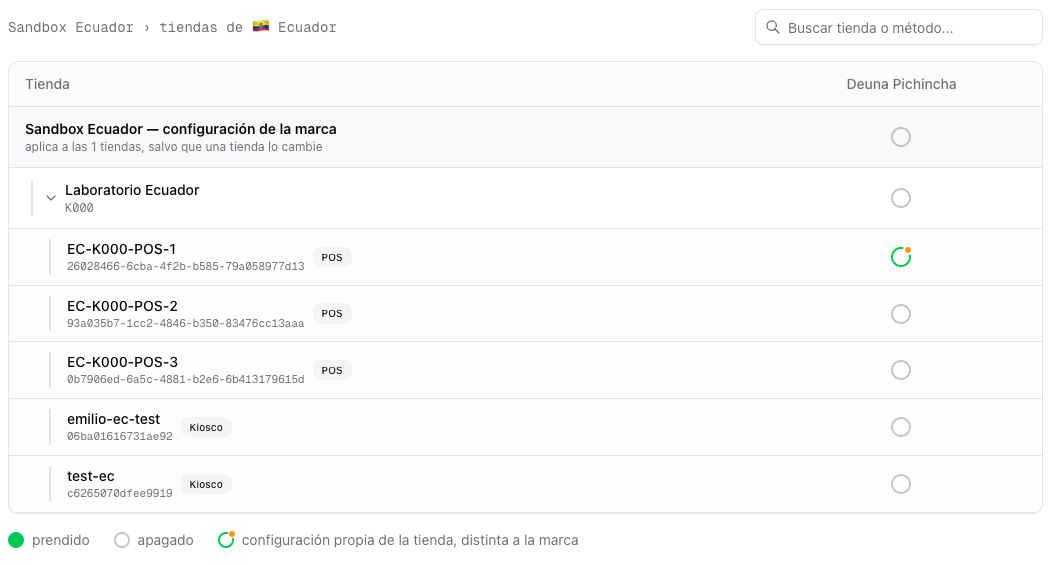 A device's channel is implicit from its type: a POS terminal serves the POS channel and a kiosk the Kiosk channel.
## Per-method view
You can also manage a specific method's availability from its detail: open **PayBridge → Payment methods**, enter a method, and use the **Availability** tab. It's the same brand → store → device logic, focused on that method.
A device's channel is implicit from its type: a POS terminal serves the POS channel and a kiosk the Kiosk channel.
## Per-method view
You can also manage a specific method's availability from its detail: open **PayBridge → Payment methods**, enter a method, and use the **Availability** tab. It's the same brand → store → device logic, focused on that method.
 ## Related
The credentials and settings of each method per brand, store, or device.
The methods PayBridge covers in each country.
## Related
The credentials and settings of each method per brand, store, or device.
The methods PayBridge covers in each country.