> ## Documentation Index
> Fetch the complete documentation index at: https://docs.fire.rest/llms.txt
> Use this file to discover all available pages before exploring further.
# Customer and billing details
> Enter the customer's document when they ask for an invoice, and what happens when the store requires the details above a certain amount.
If you don't identify the customer, the sale goes out to **final consumer**. When the customer asks for an invoice in their name —or the law requires one above a certain amount— you have to enter their document before finishing. A mistyped document ends up on the invoice, and fixing it later costs a credit note.
**The minimum you need to know**
* With no details, the sale goes out to **Final consumer**.
* The POS checks the document length by country and type, and in Brazil it also checks the check digits.
* If the store has a **Final-consumer limit**, above that amount the POS requires the customer's details.
## Prerequisites
* An order with products. See [Sell and charge](/en/manuals/pos/sell-and-charge).
## 1. Open Identify customer
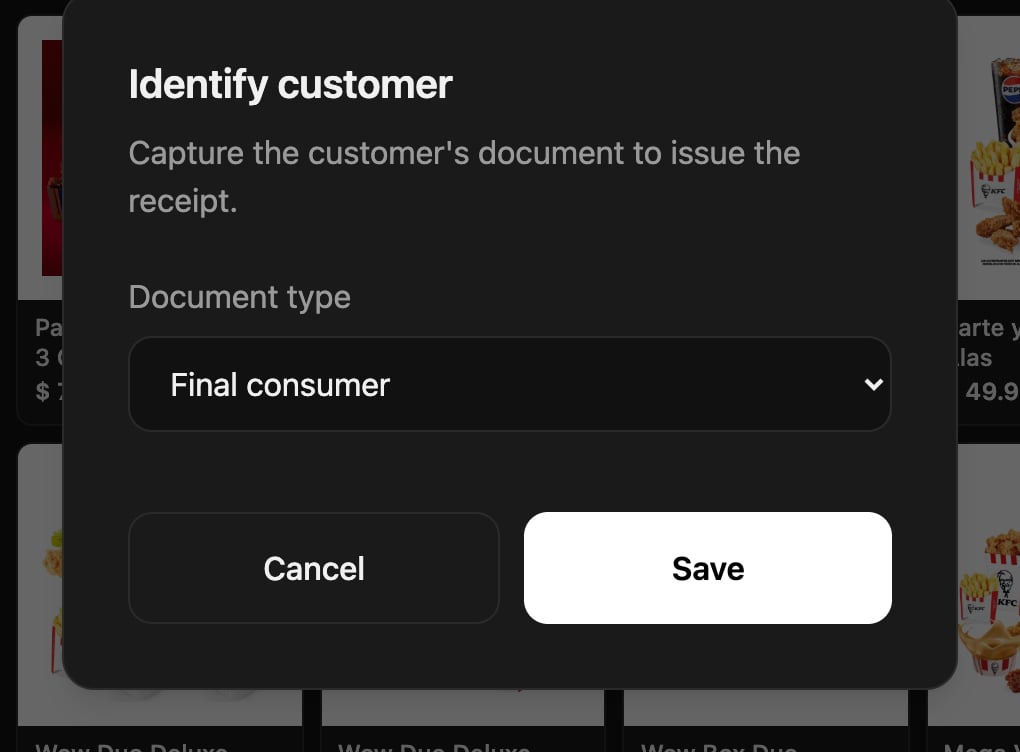
On the order, tap **Identify customer**. On the charge screen, the same button is called **Billing details**. The window starts on **Final consumer**.
 ## 2. Choose the type and enter the number
In **Document type**, choose the one the customer shows you. In Colombia: **National ID (CC)**, **Foreigner ID (CE)**, **NIT**, **Passport** or **Final consumer**.
Type the **Document number** with the window's keypad or with the physical keyboard.
## 2. Choose the type and enter the number
In **Document type**, choose the one the customer shows you. In Colombia: **National ID (CC)**, **Foreigner ID (CE)**, **NIT**, **Passport** or **Final consumer**.
Type the **Document number** with the window's keypad or with the physical keyboard.
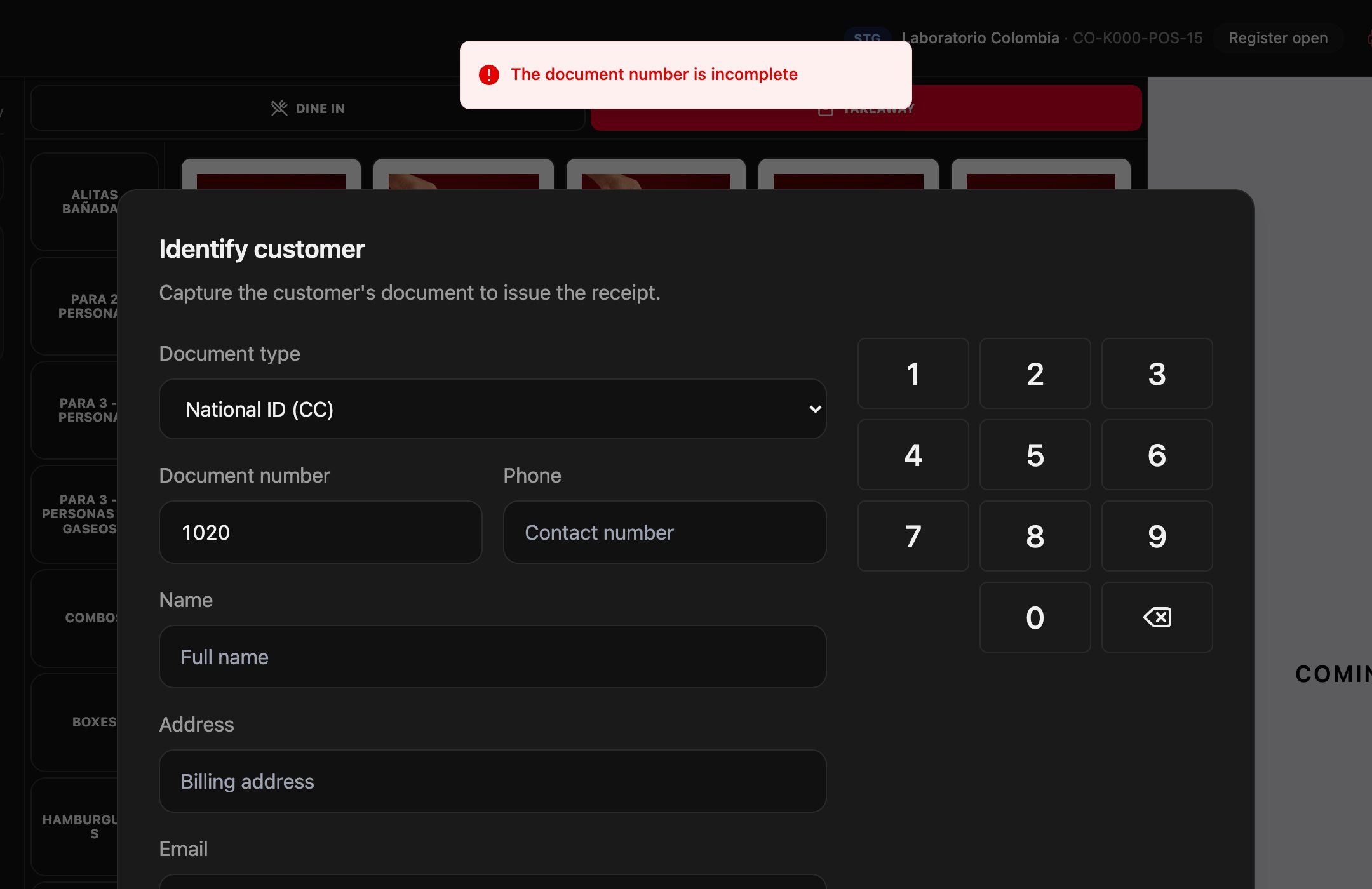
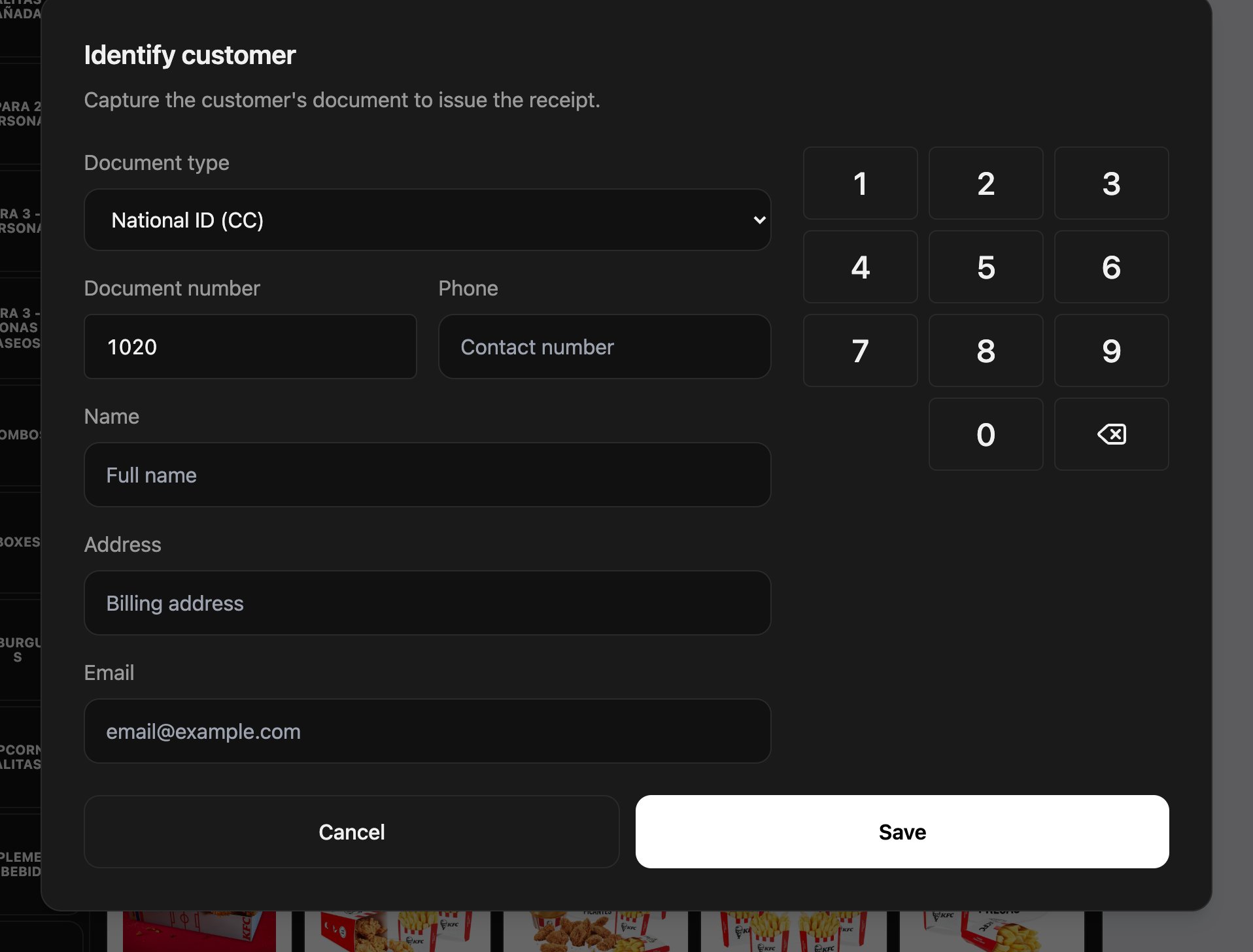 If the number doesn't have the right length, the POS warns you when you save and doesn't save it.
 ## 3. Fill in the details
With a document, in Colombia the **Phone** and **Address** are also required, in addition to the **Name** and **Email**. The buttons on the right fill in the email domain, such as **@gmail.com**.
## 3. Fill in the details
With a document, in Colombia the **Phone** and **Address** are also required, in addition to the **Name** and **Email**. The buttons on the right fill in the email domain, such as **@gmail.com**.
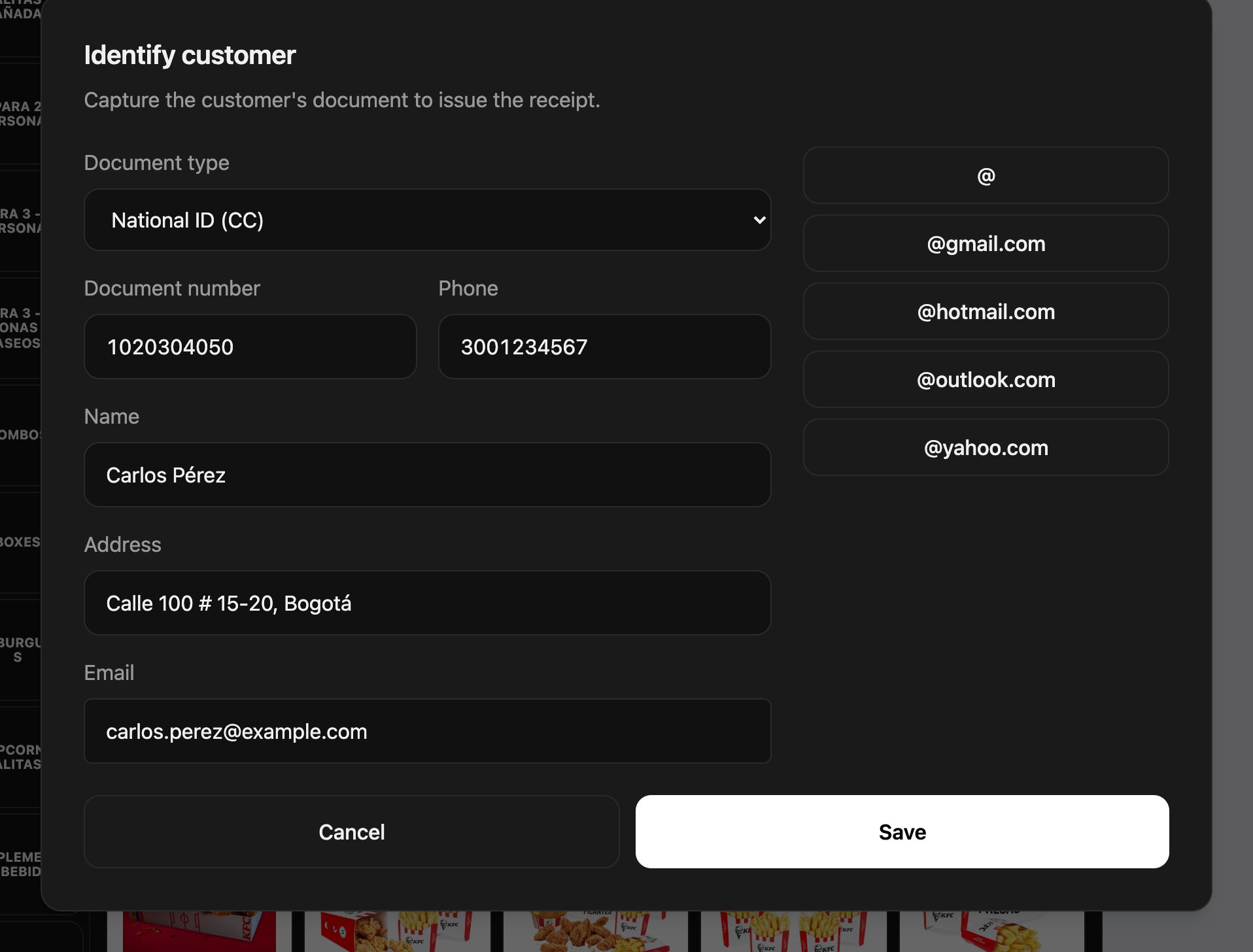 Tap **Save**. The order shows the customer's name and document.
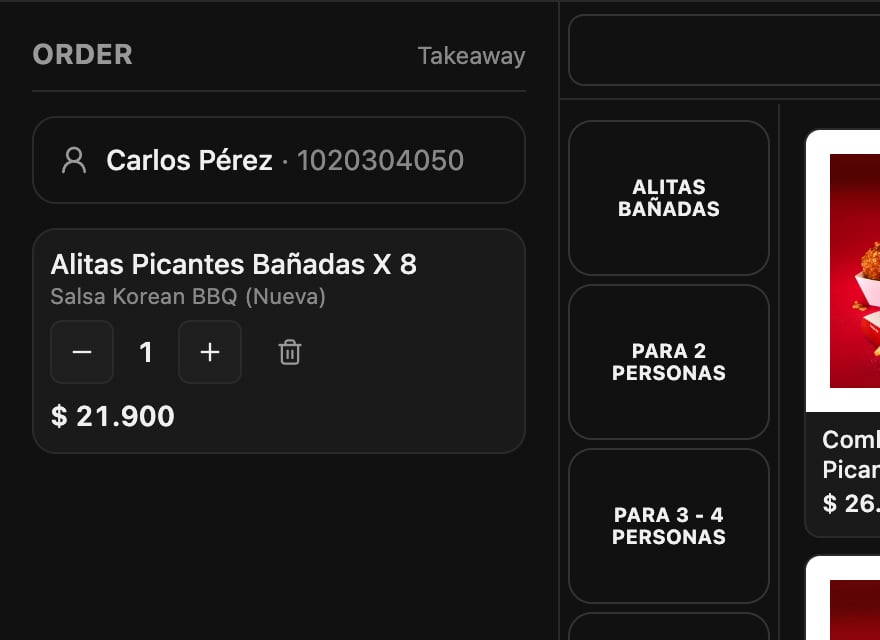 If the order already shows the customer's name, you're done: the invoice goes out in their name when you finish the sale.
***
## Document length by country
| Country | Type | Length |
| - | - | - |
| Colombia | National ID (CC), Foreigner ID (CE), NIT | 6 to 10 digits |
| Ecuador | National ID | 10 digits |
| Ecuador | RUC | 13 digits |
| Brazil | CPF | 11 digits, with check digits |
| Brazil | CNPJ | 14 digits, with check digits |
In Chile, Argentina and Venezuela the POS accepts up to 20 characters.
## Final-consumer limit
If the store has the **Final-consumer limit** turned on, sales above that amount can't be closed as final consumer: the charge screen shows **Invoice required** and you have to enter the customer's details to finish. The limit is set in the backoffice: see [Store configuration](/en/manuals/pos/store-config). In Ecuador it comes turned on at USD 50.
## Change or remove the customer
Tap the customer's name on the order to edit their details. **Remove current customer** sets the sale back to final consumer.
## Mistakes that cost money
**Typing the document without reading it back.** The POS checks the length, not that the document belongs to the customer: one wrong digit ends up on the invoice. Read the number back to the customer before you save.
**Entering the details after finishing.** Once the sale is finished, the invoice has already gone out to final consumer. Identify the customer before you tap **Finish sale**.
## Frequently asked questions
The number has fewer digits than that document type requires. Check the type and the number.
With a document, the invoice needs those details. Ask the customer for them, or go back to **Final consumer** if they don't want an invoice in their name.
The sale is above the store's final-consumer limit. Enter the customer's details so you can finish.
If the order already shows the customer's name, you're done: the invoice goes out in their name when you finish the sale.
***
## Document length by country
| Country | Type | Length |
| - | - | - |
| Colombia | National ID (CC), Foreigner ID (CE), NIT | 6 to 10 digits |
| Ecuador | National ID | 10 digits |
| Ecuador | RUC | 13 digits |
| Brazil | CPF | 11 digits, with check digits |
| Brazil | CNPJ | 14 digits, with check digits |
In Chile, Argentina and Venezuela the POS accepts up to 20 characters.
## Final-consumer limit
If the store has the **Final-consumer limit** turned on, sales above that amount can't be closed as final consumer: the charge screen shows **Invoice required** and you have to enter the customer's details to finish. The limit is set in the backoffice: see [Store configuration](/en/manuals/pos/store-config). In Ecuador it comes turned on at USD 50.
## Change or remove the customer
Tap the customer's name on the order to edit their details. **Remove current customer** sets the sale back to final consumer.
## Mistakes that cost money
**Typing the document without reading it back.** The POS checks the length, not that the document belongs to the customer: one wrong digit ends up on the invoice. Read the number back to the customer before you save.
**Entering the details after finishing.** Once the sale is finished, the invoice has already gone out to final consumer. Identify the customer before you tap **Finish sale**.
## Frequently asked questions
The number has fewer digits than that document type requires. Check the type and the number.
With a document, the invoice needs those details. Ask the customer for them, or go back to **Final consumer** if they don't want an invoice in their name.
The sale is above the store's final-consumer limit. Enter the customer's details so you can finish.