> ## Documentation Index
> Fetch the complete documentation index at: https://docs.fire.rest/llms.txt
> Use this file to discover all available pages before exploring further.
# Charging kiosk cash orders
> End-to-end flow when a customer builds an order on the kiosk with cash payment and the cashier charges it in FIRE POS V2.
When a customer chooses **cash payment** on the kiosk, the order is created and remains awaiting payment. The customer goes to the counter and the cashier charges it from **FIRE POS V2** without rebuilding the order.
This flow connects two channels:
1. **Kiosk** — the customer builds the order and confirms they will pay in cash.
2. **POS** — the cashier locates the pending order, receives the money and closes the sale.
## Prerequisites
* Kiosk linked and operational. See [Kiosk linking](/en/manuals/kiosk/linking).
* **Cash** payment method enabled on the kiosk.
* **FIRE POS V2** terminal linked with an open register and a cashier on shift. See [POS linking](/en/manuals/pos/linking) and [Cashiers](/en/manuals/pos/cashiers).
The **Kiosk** button in the POS is only available with the register open. If it is disabled, verify that the cashier started their shift and recorded the initial fund if required.
## Flow overview
| Step | Where | What happens |
| ---- | ----- | ---------------------------------------------------- |
| 1 | Kiosk | Customer confirms the order and selects cash payment |
| 2 | POS | Cashier opens the kiosk orders module |
| 3 | POS | Selects the pending order from the list |
| 4 | POS | Enters the amount received and confirms payment |
***
## 1. Customer confirms the order on the kiosk
On the kiosk payment screen, the customer reviews the total and answers whether they want tax invoice data.
Then, under the payment method section, they select **Cash**. The kiosk shows instructions to go to the counter and pay for the order.
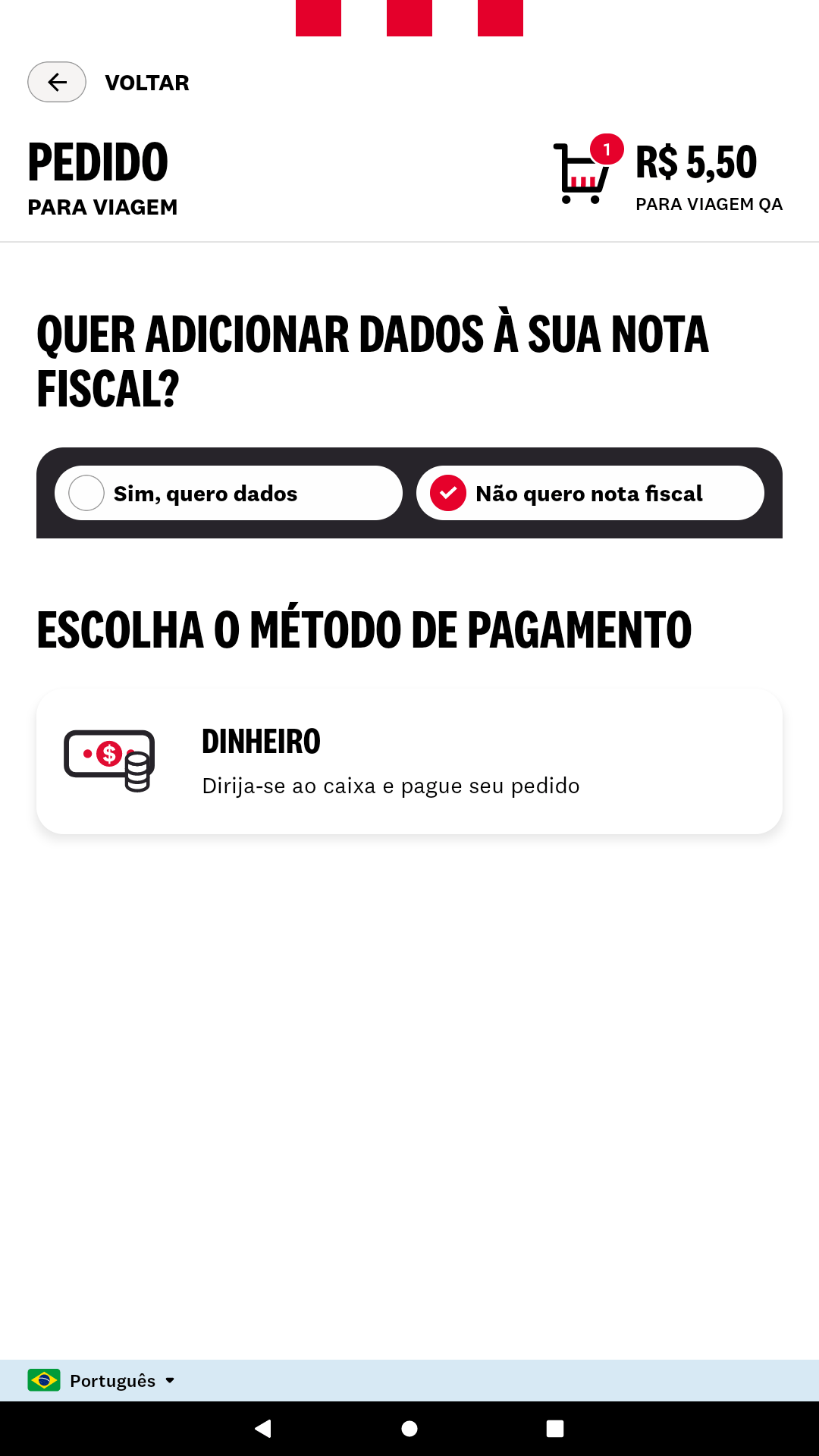 On confirmation, the kiosk creates the order with payment pending. The customer should go to the counter with the order code or wait for the cashier to find it in the list.
***
## 2. Open kiosk orders in the POS
In **FIRE POS V2**, the cashier taps the **Kiosk** icon in the action sidebar (next to Customer, Empty cart and Clear).
On confirmation, the kiosk creates the order with payment pending. The customer should go to the counter with the order code or wait for the cashier to find it in the list.
***
## 2. Open kiosk orders in the POS
In **FIRE POS V2**, the cashier taps the **Kiosk** icon in the action sidebar (next to Customer, Empty cart and Clear).
 The **Charge kiosk order** modal opens.
***
## 3. Select the pending order
The modal lists kiosk orders awaiting payment for the day. Each card shows:
* **Order code** (for example, `BR-K000-16-1783064589`)
* **Service type** (takeaway, dine in, etc.)
* **Time** of creation
* **Customer** (or final consumer)
* **Total** to charge
Use **Search by code** if there are several orders, or tap **Refresh** to reload the list.
The **Charge kiosk order** modal opens.
***
## 3. Select the pending order
The modal lists kiosk orders awaiting payment for the day. Each card shows:
* **Order code** (for example, `BR-K000-16-1783064589`)
* **Service type** (takeaway, dine in, etc.)
* **Time** of creation
* **Customer** (or final consumer)
* **Total** to charge
Use **Search by code** if there are several orders, or tap **Refresh** to reload the list.
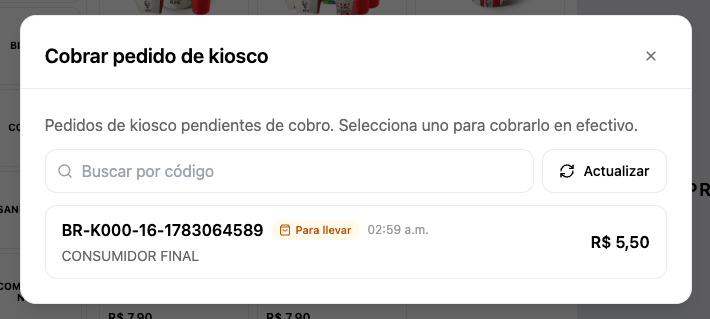 Tap the order the customer wants to pay to continue.
***
## 4. Confirm the cash payment
On the **Confirm payment** screen, review the order detail and total.
1. In the **Received** field, enter the amount the customer hands over using the numeric keypad.
2. The POS automatically calculates **Change**.
3. When the received amount is greater than or equal to the total, tap **Charge cash**.
Tap the order the customer wants to pay to continue.
***
## 4. Confirm the cash payment
On the **Confirm payment** screen, review the order detail and total.
1. In the **Received** field, enter the amount the customer hands over using the numeric keypad.
2. The POS automatically calculates **Change**.
3. When the received amount is greater than or equal to the total, tap **Charge cash**.
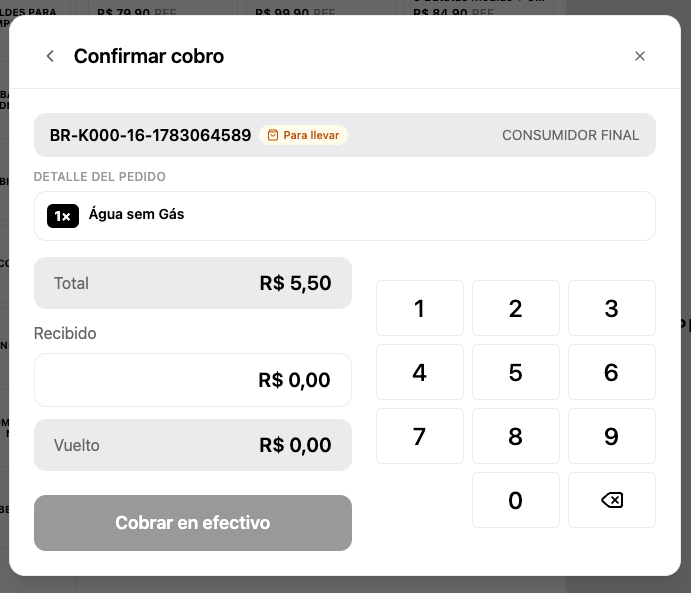 Payment is recorded. The POS prints the fiscal receipt, opens the cash drawer and shows the sale confirmation, same as a direct POS sale.
***
## What happens after payment
* The order moves from **awaiting payment** to **paid** in the system.
* The origin channel remains **Kiosk** for audit purposes, but the cashier who charged it is recorded as the operator.
* The order disappears from the pending list in the kiosk modal.
* The sale is recorded in the active shift cash reconciliation.
## Common issues
Verify that the customer completed the payment step on the kiosk (selected cash and confirmed). Tap **Refresh** in the modal. Orders are searched within the last 24 hours of the store operating day.
The register must be open. The cashier must have started their shift with their PIN and, if required, recorded the initial fund.
The **Received** amount must be greater than or equal to the order total. Enter the value with the numeric keypad before tapping **Charge cash**.
Another terminal may have charged it first, or the order no longer meets payment conditions. Refresh the list and confirm the code with the customer.
Payment is recorded. The POS prints the fiscal receipt, opens the cash drawer and shows the sale confirmation, same as a direct POS sale.
***
## What happens after payment
* The order moves from **awaiting payment** to **paid** in the system.
* The origin channel remains **Kiosk** for audit purposes, but the cashier who charged it is recorded as the operator.
* The order disappears from the pending list in the kiosk modal.
* The sale is recorded in the active shift cash reconciliation.
## Common issues
Verify that the customer completed the payment step on the kiosk (selected cash and confirmed). Tap **Refresh** in the modal. Orders are searched within the last 24 hours of the store operating day.
The register must be open. The cashier must have started their shift with their PIN and, if required, recorded the initial fund.
The **Received** amount must be greater than or equal to the order total. Enter the value with the numeric keypad before tapping **Charge cash**.
Another terminal may have charged it first, or the order no longer meets payment conditions. Refresh the list and confirm the code with the customer.