> ## Documentation Index
> Fetch the complete documentation index at: https://docs.fire.rest/llms.txt
> Use this file to discover all available pages before exploring further.
# Open the register
> Declare how much cash the drawer starts with so the shift close balances.
The money in the drawer at the start of the shift —the fund for giving change— isn't a sale. If it isn't declared, it looks like an overage at close; if it's declared wrong, a shortage shows up that doesn't exist. That's why the POS won't let anyone sell until the cashier declares the initial fund.
**The minimum you need to know**
* Each shift opens its own register with an **initial fund**. It can be \$ 0.
* The fund is counted at close: the expected amount is initial fund + cash sales − withdrawals.
* A cashier can only have **one open register** at a time.
## Prerequisites
* You've started the shift. See [Start a shift](/en/manuals/pos/start-shift).
## 1. Count the fund
After you start the shift, if the register is closed, the POS shows **Register closed** with the **Initial fund** field.
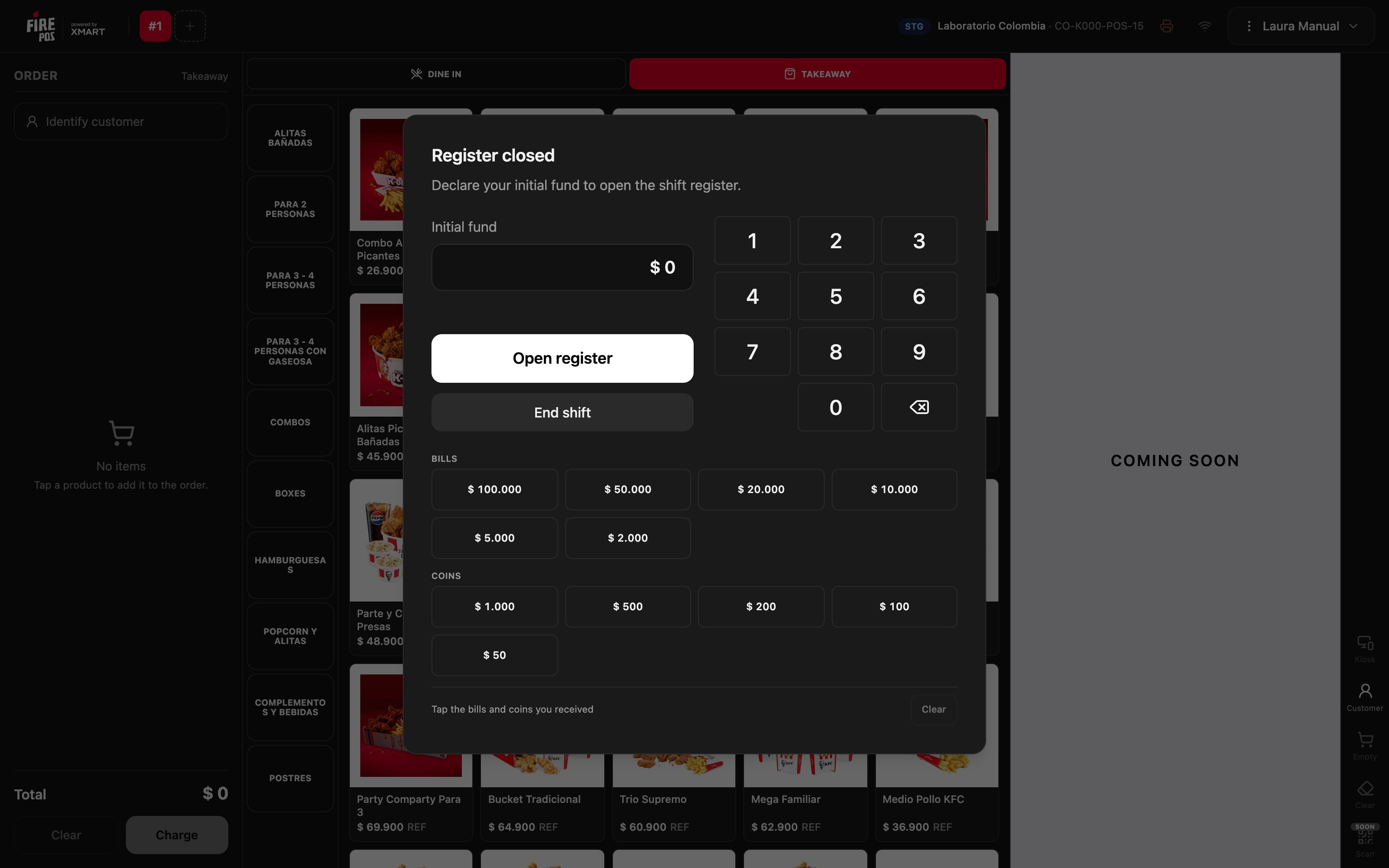 Declare what's in the drawer in one of two ways:
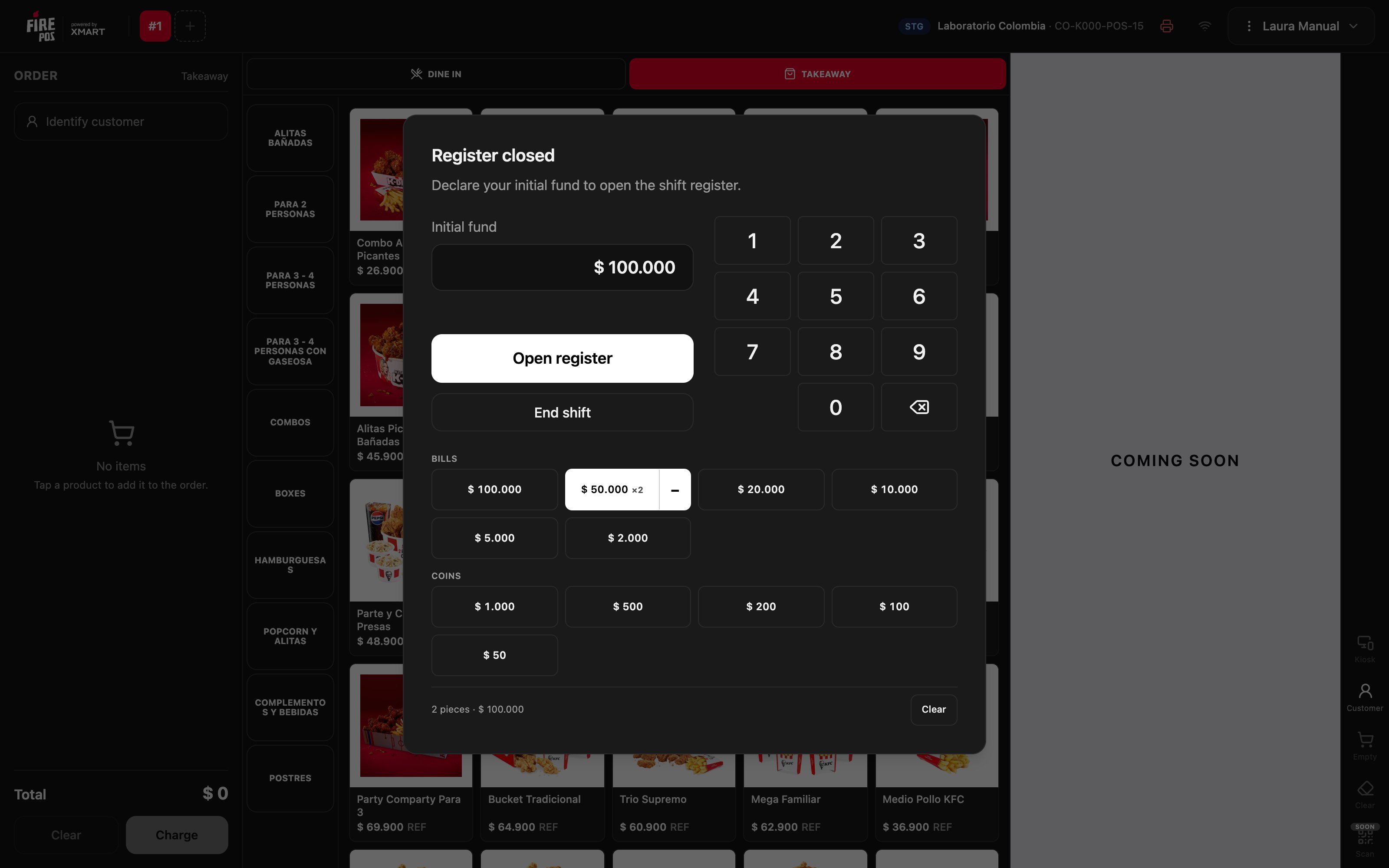
* **With the bills and coins pad**: tap each bill or coin you count. The total adds up on its own, and below it you see how many pieces you counted.
* **With the keypad**: type the total.
Declare what's in the drawer in one of two ways:
* **With the bills and coins pad**: tap each bill or coin you count. The total adds up on its own, and below it you see how many pieces you counted.
* **With the keypad**: type the total.
 ## 2. Open the register
Tap **Open register**. The window closes, **Register open** appears at the top, and the POS is ready to sell.
## 2. Open the register
Tap **Open register**. The window closes, **Register open** appears at the top, and the POS is ready to sell.
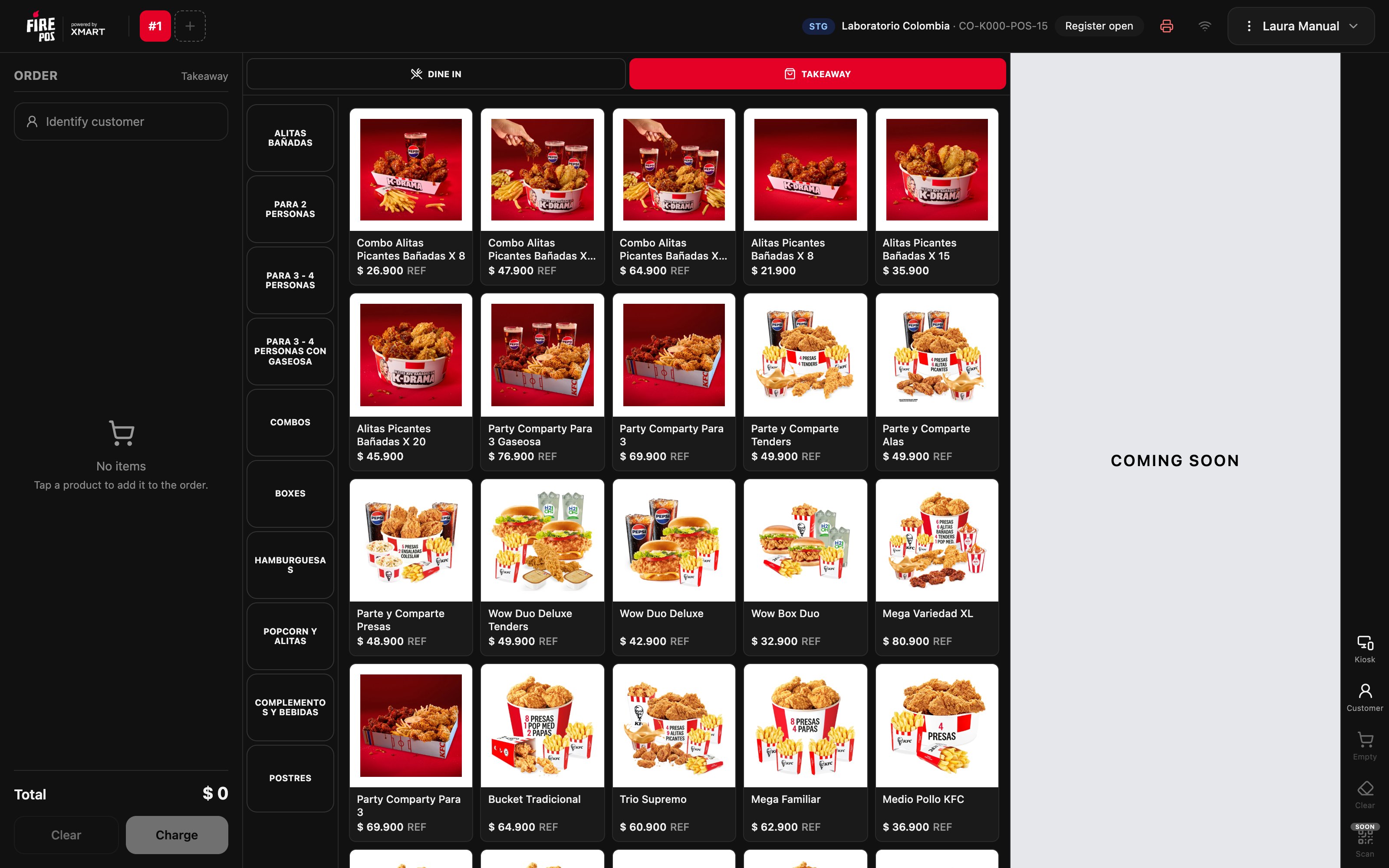 If you see **Register open** at the top and the product menu, you're done. To sell, see [Sell and charge](/en/manuals/pos/sell-and-charge).
***
## Mistakes that cost money
**Declaring a fund you didn't count.** If you declare $100,000 and there's$ 90,000, the close will show a \$ 10,000 shortage under your name. Count the drawer before you open.
**Mixing your fund with another shift's.** If the drawer has money from the previous shift, that money belongs to that shift's close. Start with the fund agreed for your shift.
## Frequently asked questions
Tap the **−** next to the bill to remove one, or **Clear** to start over.
Yes. If the drawer starts empty, open with \$ 0.
A register of yours was left open on another terminal. Ask the manager to close it from [Terminal administration](/en/manuals/pos/terminal-admin) with **Close register manually**.
If you see **Register open** at the top and the product menu, you're done. To sell, see [Sell and charge](/en/manuals/pos/sell-and-charge).
***
## Mistakes that cost money
**Declaring a fund you didn't count.** If you declare $100,000 and there's$ 90,000, the close will show a \$ 10,000 shortage under your name. Count the drawer before you open.
**Mixing your fund with another shift's.** If the drawer has money from the previous shift, that money belongs to that shift's close. Start with the fund agreed for your shift.
## Frequently asked questions
Tap the **−** next to the bill to remove one, or **Clear** to start over.
Yes. If the drawer starts empty, open with \$ 0.
A register of yours was left open on another terminal. Ask the manager to close it from [Terminal administration](/en/manuals/pos/terminal-admin) with **Close register manually**.