> ## Documentation Index
> Fetch the complete documentation index at: https://docs.fire.rest/llms.txt
> Use this file to discover all available pages before exploring further.
# Close register
> How to declare cash and close the register at the end of a shift in FIRE POS V2.
Register close is a **blind** process: the cashier counts physical cash and declares the total **without seeing** what the system expects. Depending on the difference, the POS closes immediately or asks for a manager authorization code generated in the Fire backoffice.
Use this guide at the end of a shift, before another cashier uses the terminal, or at end of day.
## Prerequisites
* An open register on the terminal with at least one sale or movement recorded.
* The closing cashier must own the active shift.
* If there is a **shortage**, a manager with backoffice access to generate an authorization code.
Closing the register also **ends the cashier shift** and returns to the login screen. The next operator must sign in with their PIN.
## Flow overview
| Declared result | What happens |
| ---------------------------------------------- | ------------------------------------------------- |
| **Balanced** (no difference) | POS closes register and shift immediately |
| **Overage** (you declared more than expected) | Closes immediately; overage is recorded for audit |
| **Shortage** (you declared less than expected) | Shows the difference and asks for a manager code |
***
## 1. Open the session menu
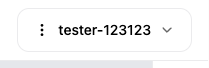
In the terminal header, tap the **cashier name** (next to the **⋮** icon and dropdown arrow). The settings panel and register actions open.
 If the register was left open from a previous day, the POS shows a **forced close** warning when you try to close. You cannot cancel — you must declare and close before operating again.
***
## 2. Select Close register
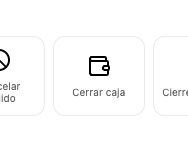
In the **Cash** section of the menu, tap **Close register**.
If the register was left open from a previous day, the POS shows a **forced close** warning when you try to close. You cannot cancel — you must declare and close before operating again.
***
## 2. Select Close register
In the **Cash** section of the menu, tap **Close register**.
 ***
## 3. Declare counted cash
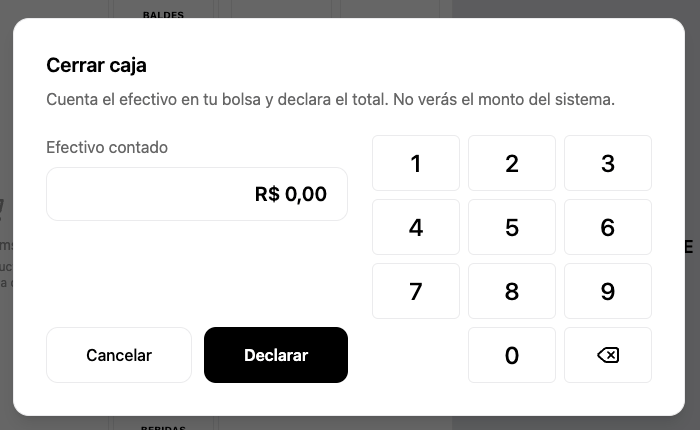
On the **Close register** screen, count all cash in your bag (initial fund + cash sales − withdrawals, if any).
1. Use the numeric keypad to enter **Counted cash**.
2. Tap **Declare**.
***
## 3. Declare counted cash
On the **Close register** screen, count all cash in your bag (initial fund + cash sales − withdrawals, if any).
1. Use the numeric keypad to enter **Counted cash**.
2. Tap **Declare**.
 You will not see the system expected amount until after you declare. Count physical cash carefully before confirming.
***
## 4. If cash balances or there is overage
If there is no difference, or you declared **more** cash than expected (overage), the POS closes the register and shift automatically. You will see **Register closed** and return to the login screen.
Overage is recorded as a positive balance for the company. The cashier does not need to enter a reason or code in this scenario.
***
## 5. If there is a shortage — generate the code in the backoffice
If you declared **less** cash than expected, the POS shows **Difference detected** with the declared amount and the difference in red. The cashier must ask the manager for an authorization code.
The manager generates the code from the Fire backoffice:
### 5.1 Select the Fire POS channel
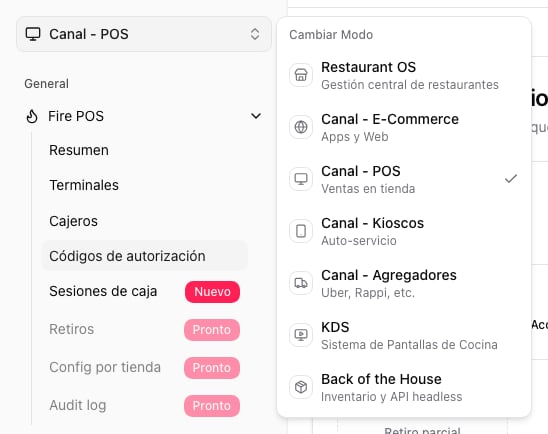
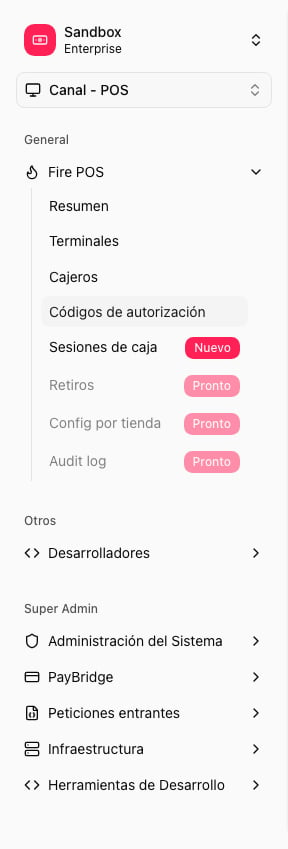
In the top-left corner of the backoffice, open the channel selector and choose **Canal - POS** (POS channel).
You will not see the system expected amount until after you declare. Count physical cash carefully before confirming.
***
## 4. If cash balances or there is overage
If there is no difference, or you declared **more** cash than expected (overage), the POS closes the register and shift automatically. You will see **Register closed** and return to the login screen.
Overage is recorded as a positive balance for the company. The cashier does not need to enter a reason or code in this scenario.
***
## 5. If there is a shortage — generate the code in the backoffice
If you declared **less** cash than expected, the POS shows **Difference detected** with the declared amount and the difference in red. The cashier must ask the manager for an authorization code.
The manager generates the code from the Fire backoffice:
### 5.1 Select the Fire POS channel
In the top-left corner of the backoffice, open the channel selector and choose **Canal - POS** (POS channel).
 ### 5.2 Open Authorization codes
In the side menu, open **Fire POS → Authorization codes**.
### 5.2 Open Authorization codes
In the side menu, open **Fire POS → Authorization codes**.
 ### 5.3 Generate the close-with-shortage code
In the **Generate code** form:
1. **Purpose**: select **Close with shortage**.
2. **Discrepancy reason**: choose the matching reason.
3. **Reason**: write a short description (for example, *"Closing difference"*).
4. **Duration**: choose how long the code is valid (3 or 30 minutes).
5. Click **Generate code**.
### 5.3 Generate the close-with-shortage code
In the **Generate code** form:
1. **Purpose**: select **Close with shortage**.
2. **Discrepancy reason**: choose the matching reason.
3. **Reason**: write a short description (for example, *"Closing difference"*).
4. **Duration**: choose how long the code is valid (3 or 30 minutes).
5. Click **Generate code**.
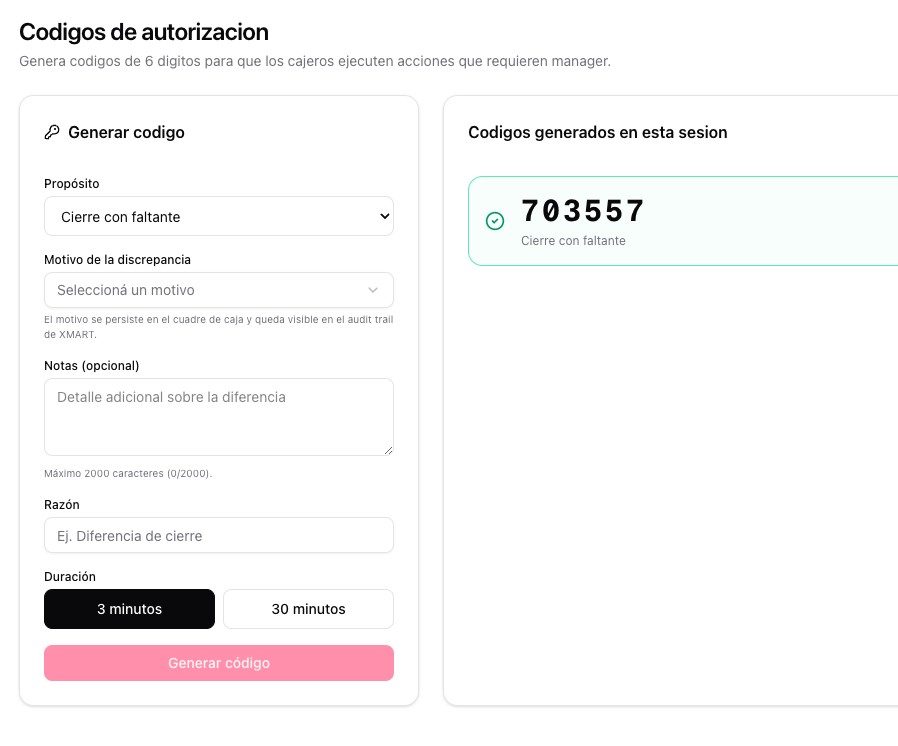 The backoffice displays a 6-digit code. The manager dictates it to the cashier.
### 5.4 The cashier enters the code in the POS
Back on the terminal, the cashier enters the 6-digit code on the **Difference detected** screen and taps **Close register**.
With a valid code, the register and shift close. The shortage is recorded in audit for the manager.
***
## What happens after closing
* The register moves to **closed** status and no sales can be recorded until it is opened again.
* The cashier shift ends; the POS redirects to login.
* The reconciliation syncs to the backoffice. If sync fails due to connectivity, the POS retries on the next close.
* The close appears in backoffice reports.
## Troubleshooting
The register must be open. If you already closed or never opened the register this shift, the option is not available.
Verify the code has not expired, was not already used, and the purpose is **Close with shortage**. The manager can generate a new one from the backoffice.
The register was left open from a previous day. You must close it to reconcile that day before opening a new register or continuing to operate.
The local close is valid. The POS shows a warning and retries sync on the next close. Check internet connectivity.
The backoffice displays a 6-digit code. The manager dictates it to the cashier.
### 5.4 The cashier enters the code in the POS
Back on the terminal, the cashier enters the 6-digit code on the **Difference detected** screen and taps **Close register**.
With a valid code, the register and shift close. The shortage is recorded in audit for the manager.
***
## What happens after closing
* The register moves to **closed** status and no sales can be recorded until it is opened again.
* The cashier shift ends; the POS redirects to login.
* The reconciliation syncs to the backoffice. If sync fails due to connectivity, the POS retries on the next close.
* The close appears in backoffice reports.
## Troubleshooting
The register must be open. If you already closed or never opened the register this shift, the option is not available.
Verify the code has not expired, was not already used, and the purpose is **Close with shortage**. The manager can generate a new one from the backoffice.
The register was left open from a previous day. You must close it to reconcile that day before opening a new register or continuing to operate.
The local close is valid. The POS shows a warning and retries sync on the next close. Check internet connectivity.