> ## Documentation Index
> Fetch the complete documentation index at: https://docs.fire.rest/llms.txt
> Use this file to discover all available pages before exploring further.
# Split the bill
> Share a bill among several people in even parts, by amount or by what each person had, and charge it part by part.
When a table pays separately, working out the bill by hand is where money gets lost: one part charged twice, another that nobody paid. **Split the bill** divides the remaining balance among the people and guides you through charging part by part, until the bill is covered.
**The minimum you need to know**
* There are three ways: **Even split**, **By amount** and **By item**.
* **By item** is only available before the first charge.
* **Remove split** keeps the charges already made: it only removes the part guide.
## Prerequisites
* The order on the charge screen. See [Sell and charge](/en/manuals/pos/sell-and-charge).
## 1. Open the split
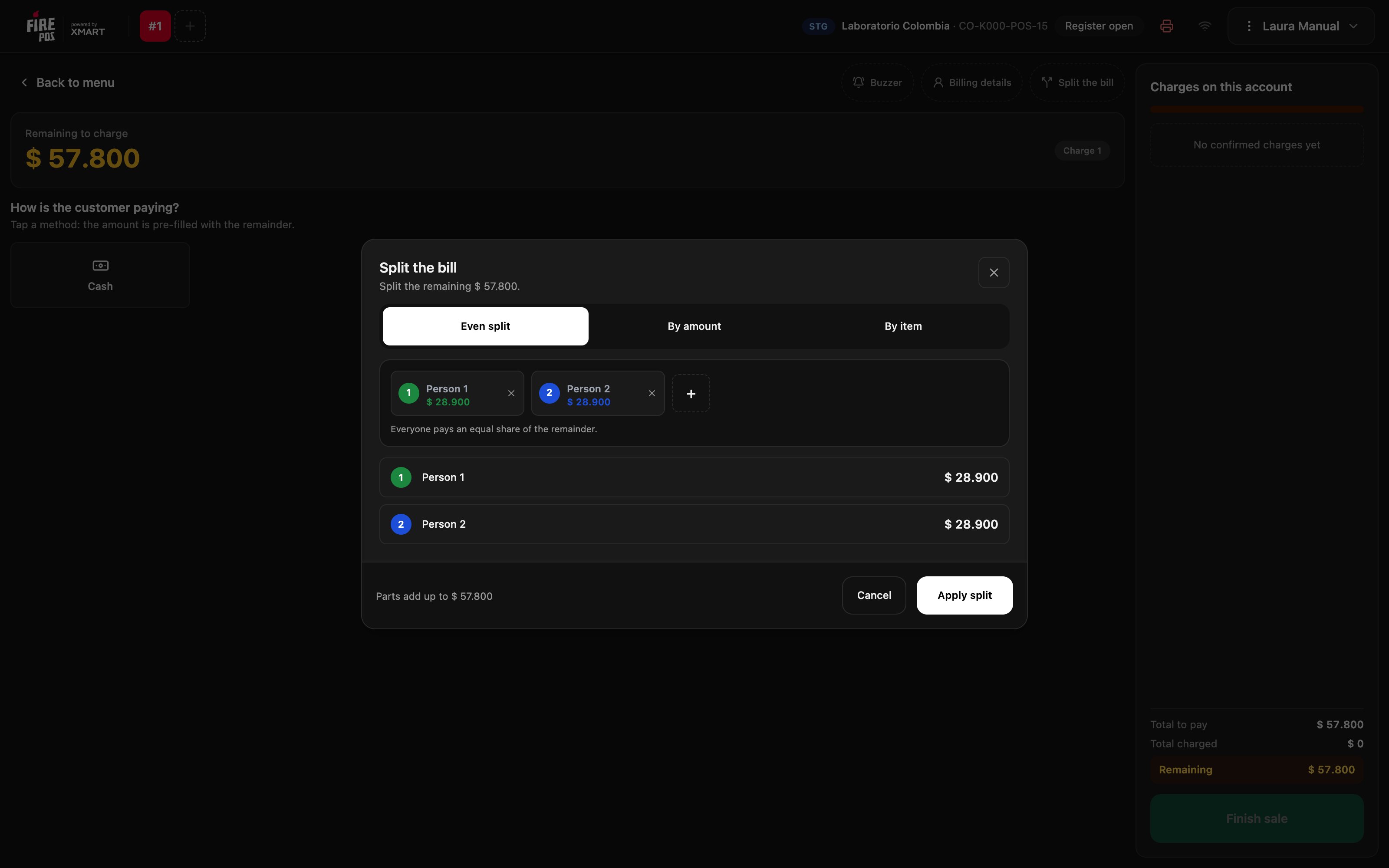
On the charge screen, tap **Split the bill**. The window divides the remaining balance between two people; with **+** you add more, and with each person's **×** you remove them.
## 2. Choose how to split
* **Even split**: each person pays the same share of the remaining balance.
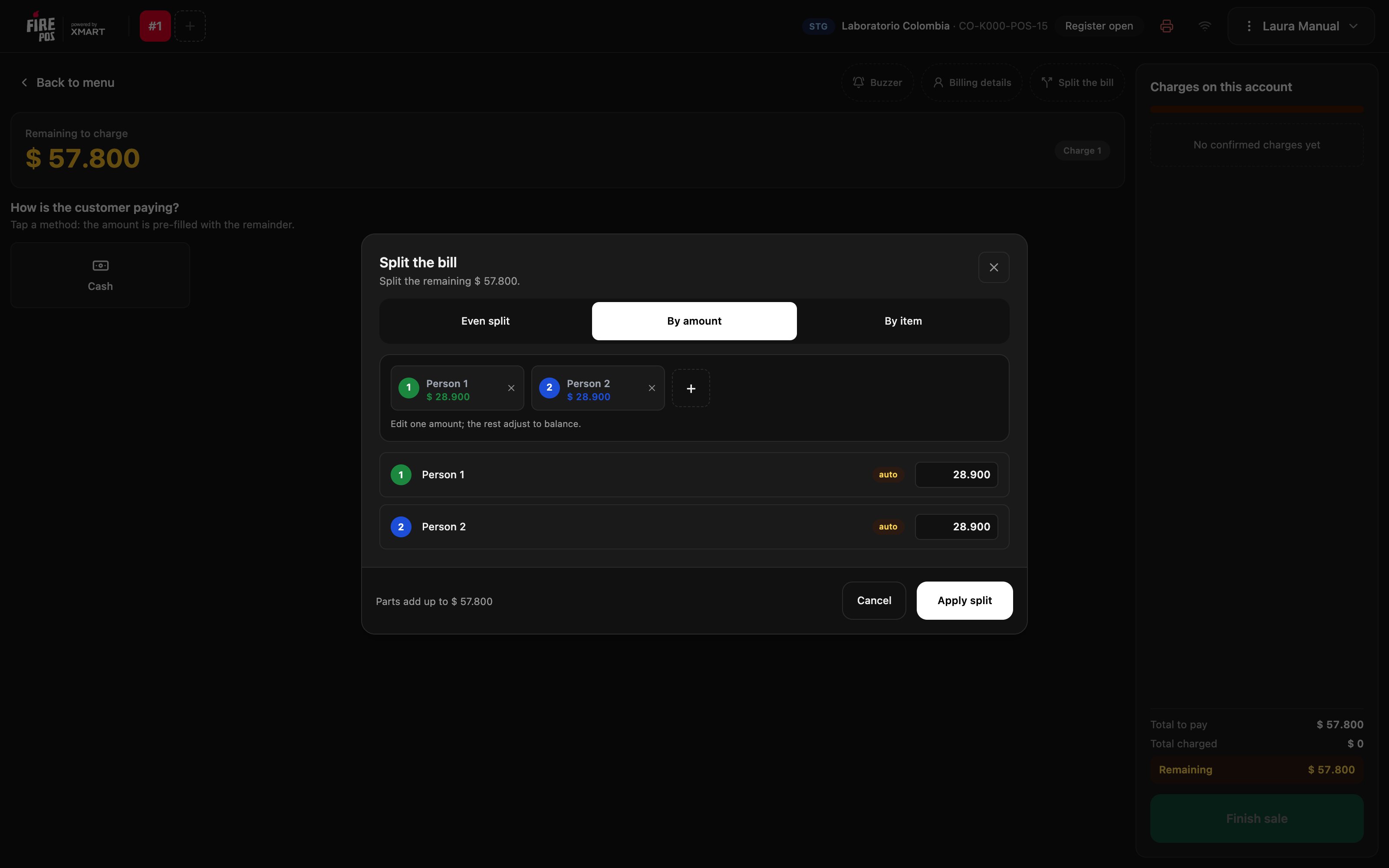
 * **By amount**: edit what one person pays and the others adjust so the total adds up.
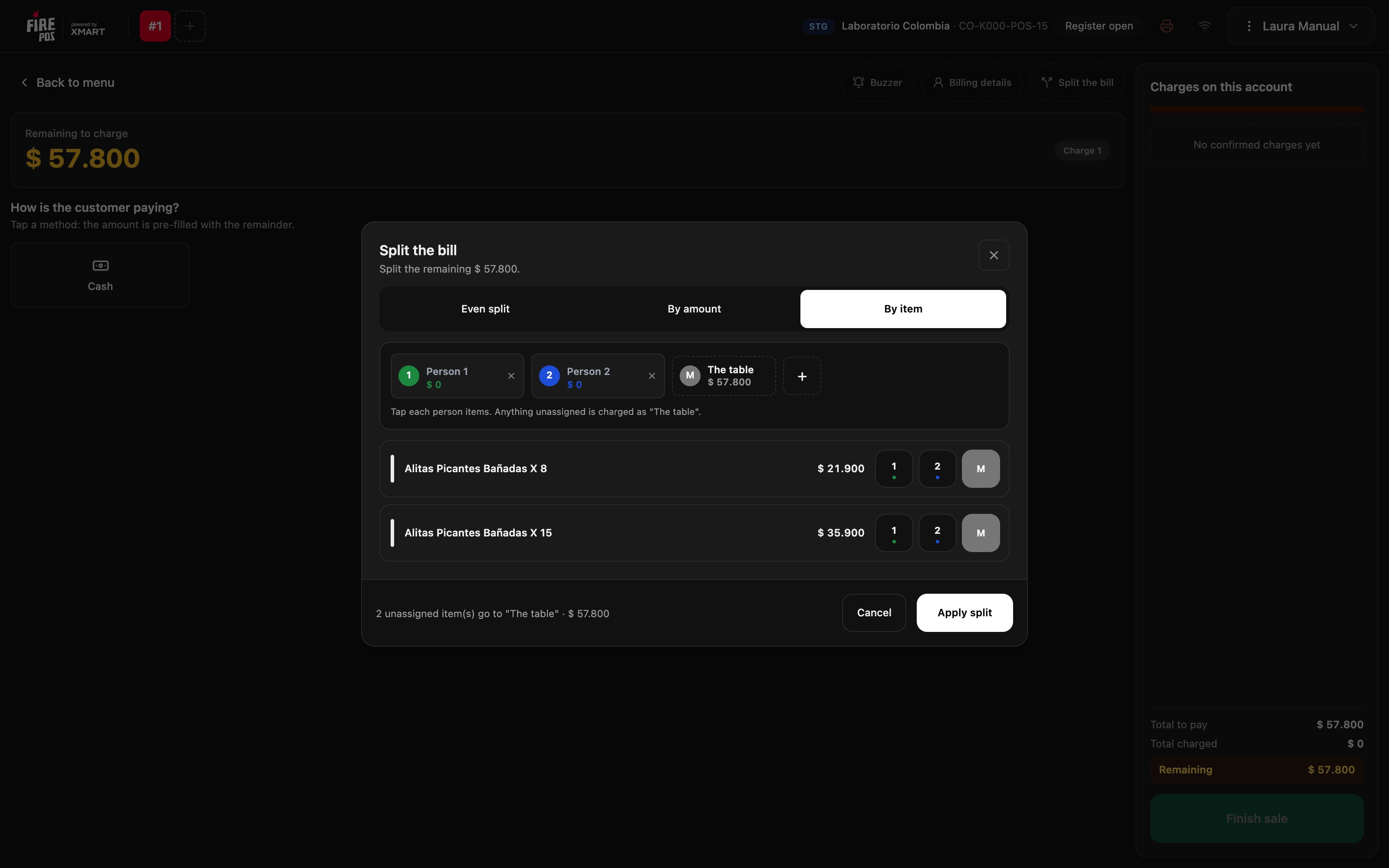
 * **By item**: on each product, tap the number of the person who had it. Anything you don't assign is charged as **The table**.
 At the bottom, the window confirms that the parts add up to the total. Tap **Apply split**.
## 3. Charge each part
The charge screen shows **Bill split** with each part and who you are charging. The amount already comes with that person's share: charge as usual.
At the bottom, the window confirms that the parts add up to the total. Tap **Apply split**.
## 3. Charge each part
The charge screen shows **Bill split** with each part and who you are charging. The amount already comes with that person's share: charge as usual.
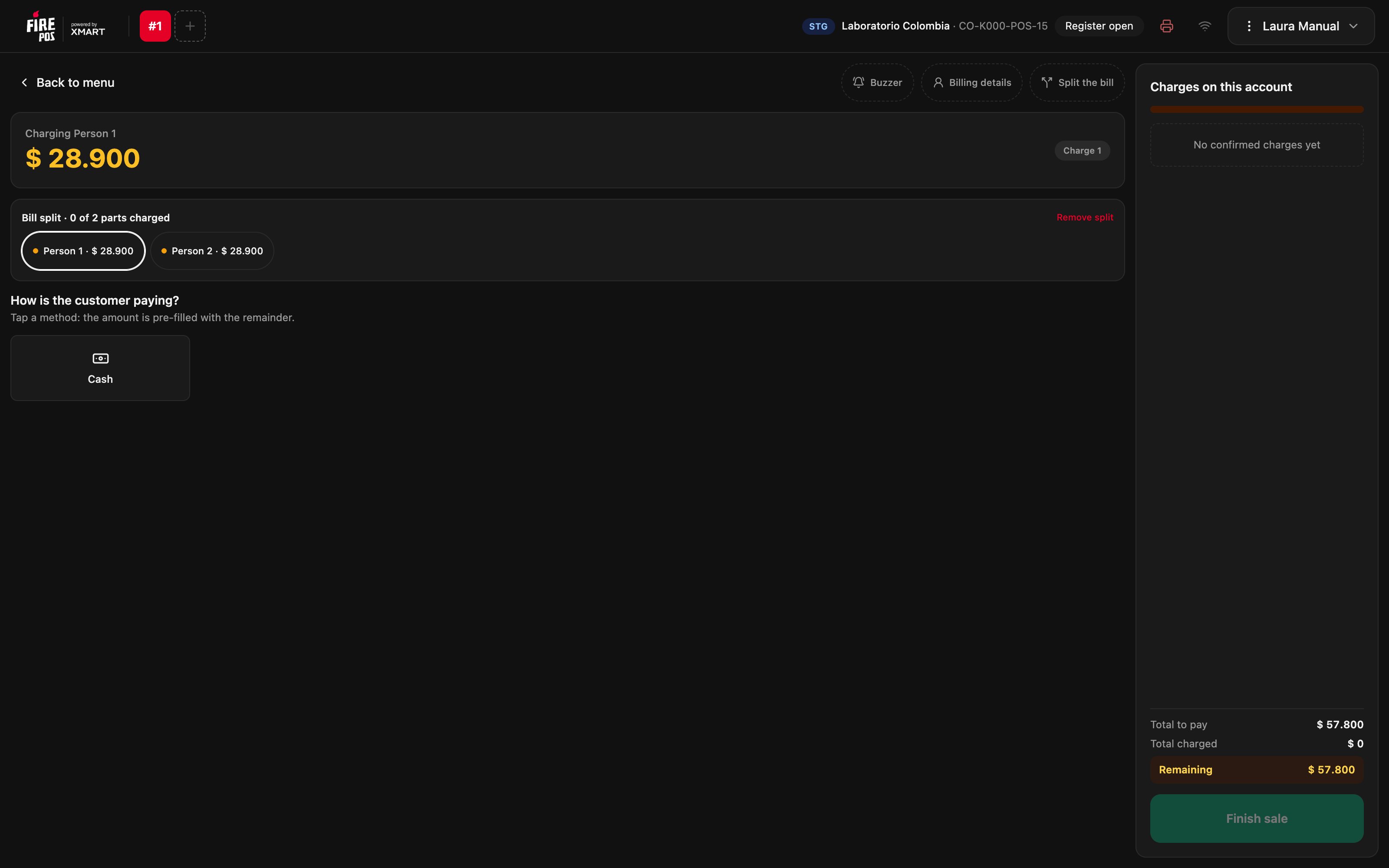 When you charge a part, it is marked and the POS moves on to the next one.
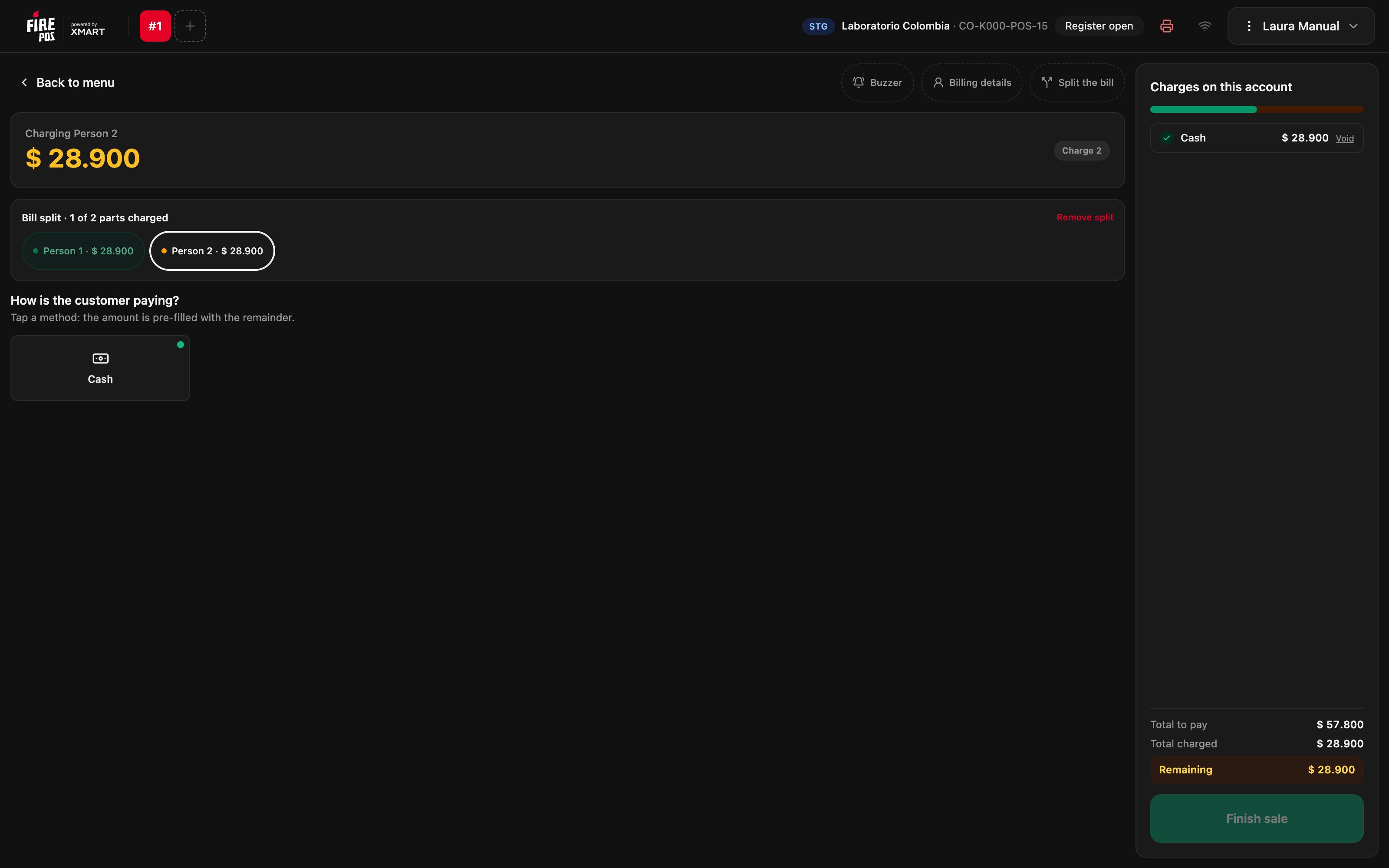 With all the parts charged, **Account covered** appears: tap **Finish sale**.
If all the parts are charged and you finished the sale, you're done.
***
## Remove the split
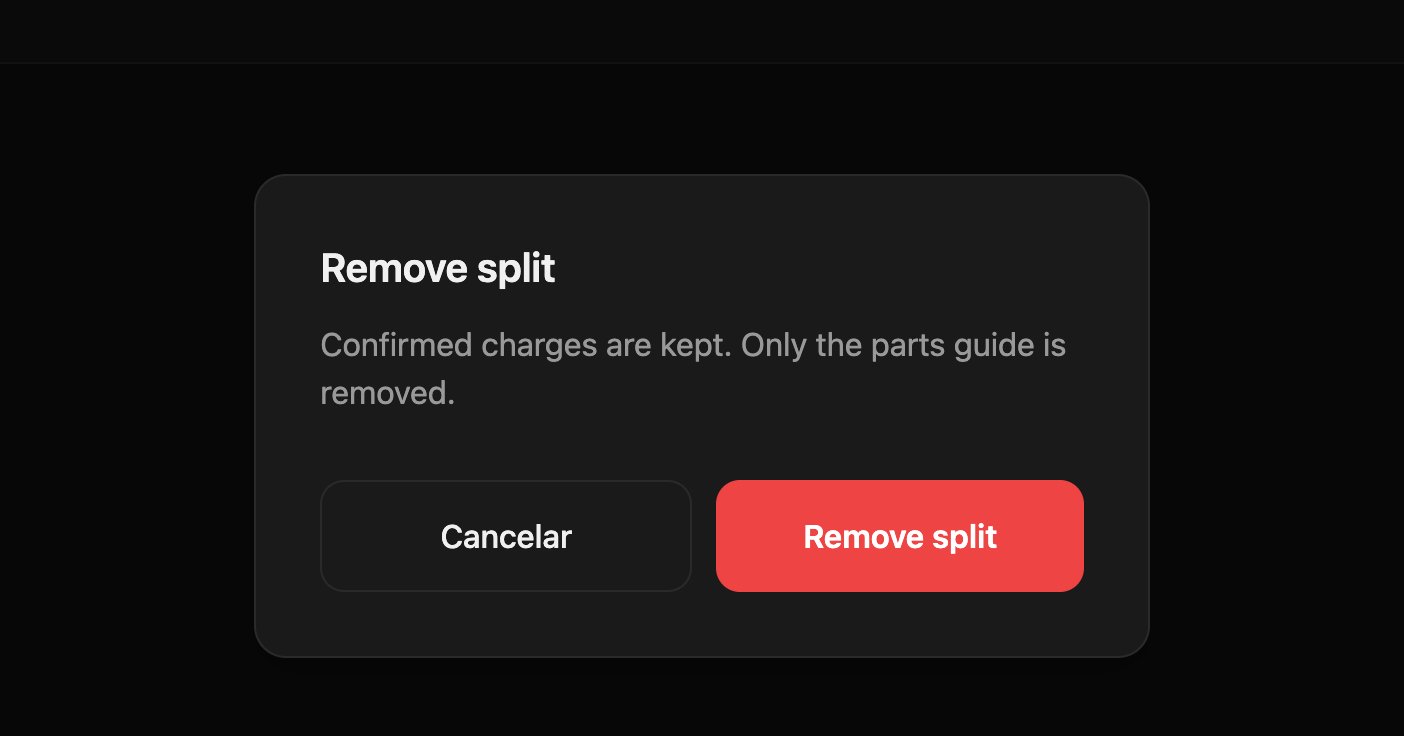
If the table changes its mind, tap **Remove split** and confirm. The charges already made are kept; what's left to charge becomes a single remaining balance again.
With all the parts charged, **Account covered** appears: tap **Finish sale**.
If all the parts are charged and you finished the sale, you're done.
***
## Remove the split
If the table changes its mind, tap **Remove split** and confirm. The charges already made are kept; what's left to charge becomes a single remaining balance again.
 ## Recipes
1. Tap **Split the bill**.
2. With **+**, add people until you have four.
3. Leave **Even split** selected and tap **Apply split**.
4. Charge each part.
1. Before charging anything, tap **Split the bill** and choose **By item**.
2. On each product, tap the number of the person who ordered it.
3. Tap **Apply split** and charge each part.
1. Choose **By amount**.
2. Enter that person's amount: the others adjust on their own.
3. Tap **Apply split**.
## Mistakes that cost money
**Charging by hand without applying the split.** Without the part guide, it's easy to charge one person twice or leave another one uncharged. Apply the split and charge part by part.
## Frequently asked questions
It's only available before the first charge. If you already charged something, use **Even split** or **By amount** for the remaining balance.
Whatever you didn't assign to any person when splitting by item. It's charged as one more part.
No. The confirmed charges are kept; only the part guide is removed.
## Recipes
1. Tap **Split the bill**.
2. With **+**, add people until you have four.
3. Leave **Even split** selected and tap **Apply split**.
4. Charge each part.
1. Before charging anything, tap **Split the bill** and choose **By item**.
2. On each product, tap the number of the person who ordered it.
3. Tap **Apply split** and charge each part.
1. Choose **By amount**.
2. Enter that person's amount: the others adjust on their own.
3. Tap **Apply split**.
## Mistakes that cost money
**Charging by hand without applying the split.** Without the part guide, it's easy to charge one person twice or leave another one uncharged. Apply the split and charge part by part.
## Frequently asked questions
It's only available before the first charge. If you already charged something, use **Even split** or **By amount** for the remaining balance.
Whatever you didn't assign to any person when splitting by item. It's charged as one more part.
No. The confirmed charges are kept; only the part guide is removed.