> ## Documentation Index
> Fetch the complete documentation index at: https://docs.fire.rest/llms.txt
> Use this file to discover all available pages before exploring further.
# Start a shift
> How a cashier signs in to the POS with their name and PIN, and what happens if they enter the wrong PIN.
Everything that happens on the POS —every sale, every payment, every close— is recorded under the name of the cashier who started the shift. That's why the POS won't let anyone sell until someone signs in with their name and PIN, and why each person has to sign in with their own.
**The minimum you need to know**
* The POS shows only its own store's cashiers. Cashiers are created in the backoffice: see [Cashiers](/en/manuals/pos/cashiers).
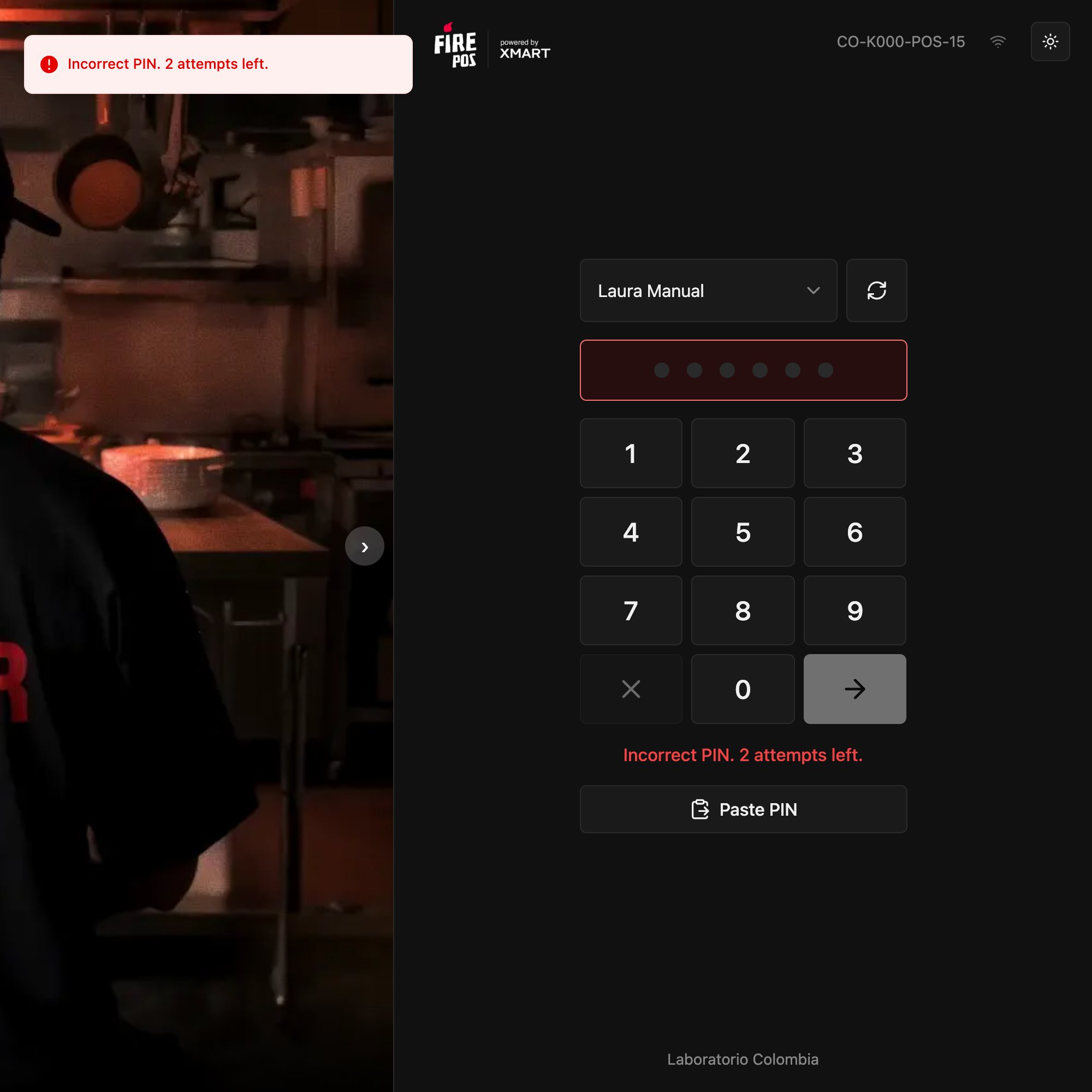
* The PIN has 6 digits. After **3 failed attempts** the cashier is locked for **5 minutes**.
* If the POS closes while the shift is open, it signs you straight back in when you reopen it, without asking for the PIN again.
## Prerequisites
* A POS linked to the store. See [Linking](/en/manuals/pos/linking).
* An active cashier from that store, with their PIN.
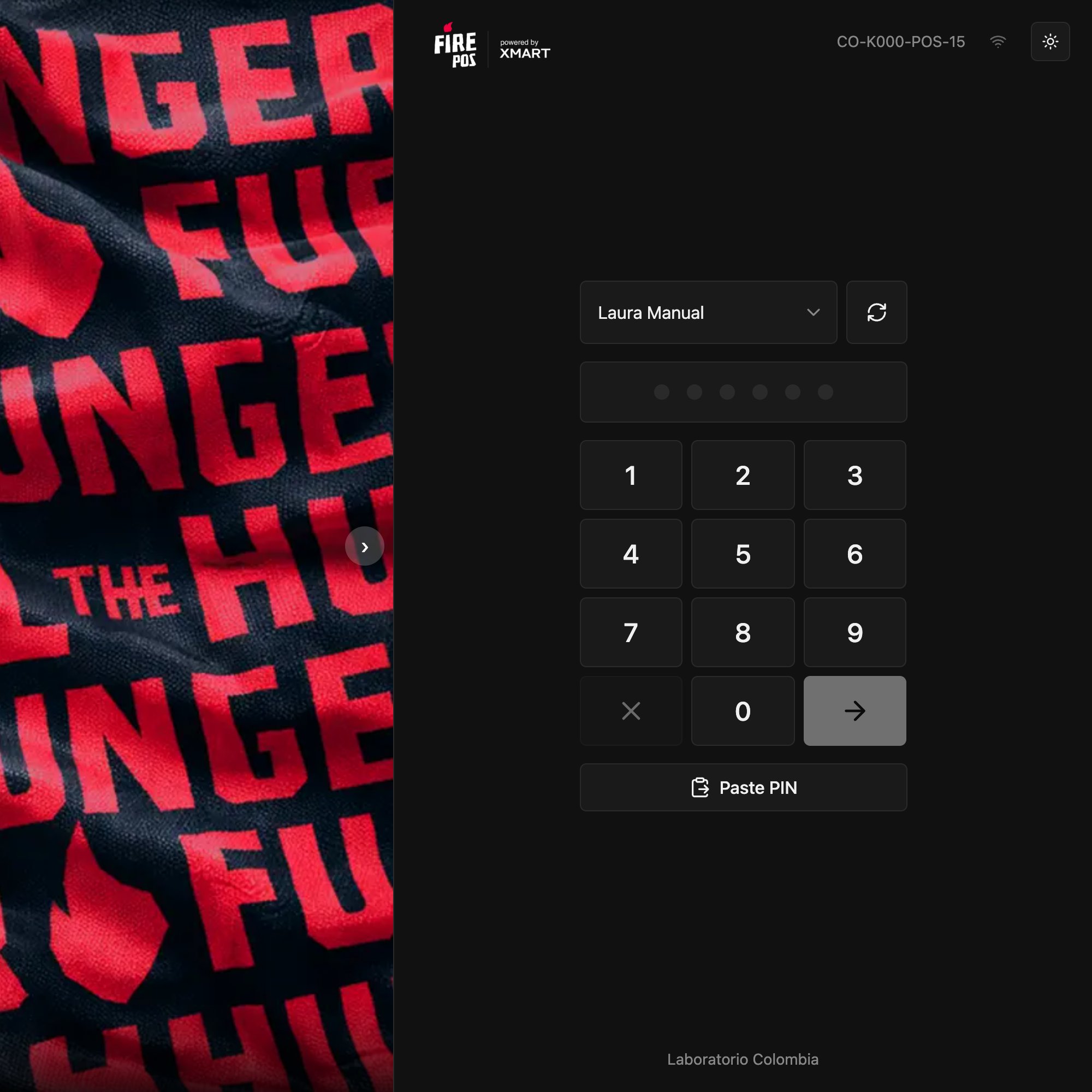
## 1. Choose your name
In **Select a cashier**, choose your name. If it doesn't appear, tap the reload icon next to the list: the POS requests the store's cashiers again.
 ## 2. Enter your PIN
Type the 6 digits with the on-screen keypad, with the physical keyboard, or with **Paste PIN**. On the sixth digit the POS signs you in on its own.
If the PIN is wrong, the POS tells you how many attempts you have left.
## 2. Enter your PIN
Type the 6 digits with the on-screen keypad, with the physical keyboard, or with **Paste PIN**. On the sixth digit the POS signs you in on its own.
If the PIN is wrong, the POS tells you how many attempts you have left.
 ## 3. Start working
With the correct PIN, the shift starts. Your name appears in the top right.
* If your register isn't open yet, the POS asks you for the initial fund: see [Open the register](/en/manuals/pos/open-register).
* If it was already open, you go straight back to the sales screen.
If you see your name in the top right and the sales screen, you're done.
***
## Lockout after a wrong PIN
On the third wrong PIN in a row, the cashier is locked for 5 minutes and the POS says so. They can wait, or the manager can unlock them in the backoffice from **Fire POS → Cashiers → Unlock**.
## Leave without opening the register
In the **Register closed** window, **End shift** ends the shift without opening the register and returns to the sign-in screen. Use it when you signed in with the wrong cashier.
## Mistakes that cost money
**Signing in with someone else's PIN.** Everything you do is recorded under their name: the sales, the payments and, at the end, the register's shortage or overage. Each person signs in with their own cashier.
**Leaving the POS with the shift open when you go.** Since the POS reopens without asking for a PIN, whoever uses it next sells under your name. When you finish, close your register: see [Close the register](/en/manuals/pos/register-close).
## Frequently asked questions
Tap the reload icon next to the list. If it still doesn't appear, ask the manager to check in **Fire POS → Cashiers** that you're active and assigned to this store.
You entered the wrong PIN 3 times. Wait 5 minutes or ask the manager to unlock you.
The manager resets it in **Fire POS → Cashiers → Reset PIN** and gives you the new one.
That cashier is registered in another store. The manager has to create a cashier for you in this one.
## 3. Start working
With the correct PIN, the shift starts. Your name appears in the top right.
* If your register isn't open yet, the POS asks you for the initial fund: see [Open the register](/en/manuals/pos/open-register).
* If it was already open, you go straight back to the sales screen.
If you see your name in the top right and the sales screen, you're done.
***
## Lockout after a wrong PIN
On the third wrong PIN in a row, the cashier is locked for 5 minutes and the POS says so. They can wait, or the manager can unlock them in the backoffice from **Fire POS → Cashiers → Unlock**.
## Leave without opening the register
In the **Register closed** window, **End shift** ends the shift without opening the register and returns to the sign-in screen. Use it when you signed in with the wrong cashier.
## Mistakes that cost money
**Signing in with someone else's PIN.** Everything you do is recorded under their name: the sales, the payments and, at the end, the register's shortage or overage. Each person signs in with their own cashier.
**Leaving the POS with the shift open when you go.** Since the POS reopens without asking for a PIN, whoever uses it next sells under your name. When you finish, close your register: see [Close the register](/en/manuals/pos/register-close).
## Frequently asked questions
Tap the reload icon next to the list. If it still doesn't appear, ask the manager to check in **Fire POS → Cashiers** that you're active and assigned to this store.
You entered the wrong PIN 3 times. Wait 5 minutes or ask the manager to unlock you.
The manager resets it in **Fire POS → Cashiers → Reset PIN** and gives you the new one.
That cashier is registered in another store. The manager has to create a cashier for you in this one.