> ## Documentation Index
> Fetch the complete documentation index at: https://docs.fire.rest/llms.txt
> Use this file to discover all available pages before exploring further.
# Store configuration
> Adjust how the POS runs in each store: service types, parallel orders, buzzer and when to require the customer's details.
Not every store runs the same way: one has a drive-thru and another doesn't, one hands out buzzers and another doesn't, and in some countries the law requires the customer's details above a certain amount. This screen adjusts the POS for each store without touching the terminals: the changes reach them on their own.
**The minimum you need to know**
* The configuration is **per store**: it applies to every terminal of the store selected in the header.
* Each option has a **default value for the store's country**. Whatever you change is marked as **Custom**.
* Changes reach the POS without restarting it, as soon as you tap **Save**.
## Prerequisites
* Access to the Fire backoffice at **[app.fire.rest](https://app.fire.rest)**, with permissions on the store.
* **Channel - POS** and the store selected in the header.
## 1. Open Store config
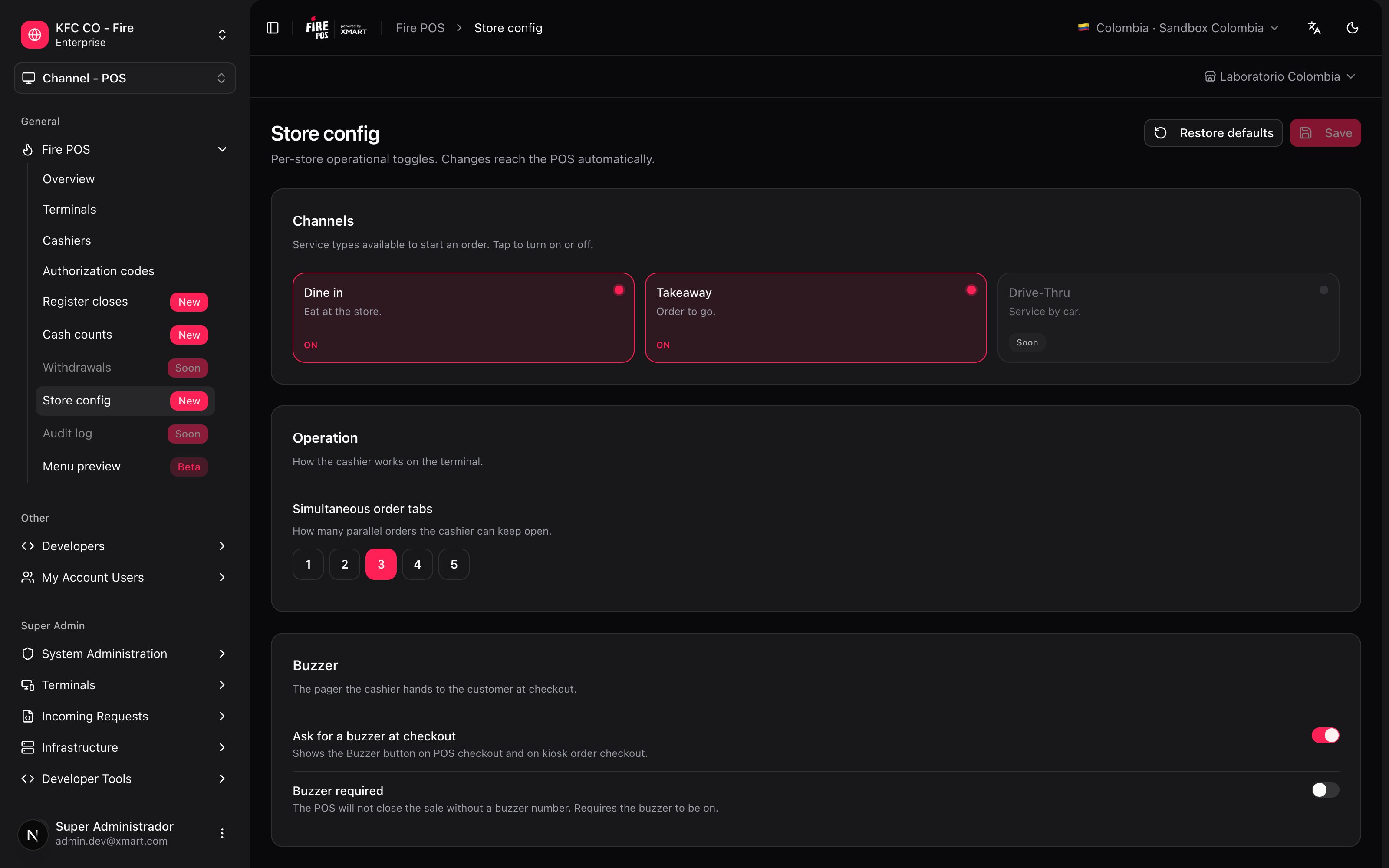
In the side menu, open **Fire POS → Store config**. The options are grouped in cards.
 ## 2. Change what you need
### Channels
The service types the cashier can start an order with: **Dine in** and **Takeaway**. Tap a card to turn it on or off. **Drive-Thru** can't be turned on yet.
### Operation
**Simultaneous order tabs**: how many orders the cashier can have open at the same time, from 1 to 5. It lets you take a new order while another one waits for payment. The default value is 3.
### Buzzer
* **Ask for a buzzer at checkout**: shows the **Buzzer** button in the POS checkout and in the kiosk orders checkout, to record the number of the pager handed to the customer.
* **Buzzer required**: the POS doesn't let you close the sale without a buzzer number. It needs **Ask for a buzzer at checkout** to be on.
### Diagnostics
**Order-flow logging** sends the backend a log of what the POS does on each order, so support can investigate a problem. Leave it as it is unless support asks you to change it.
### Billing
* **Final-consumer limit**: above the amount, the POS doesn't let you close the sale as final consumer and requires the customer's document.
* **Limit amount**: write it the way the business says it (`50` is USD 50; in Colombia, `200000` is COP 200,000). The exact amount is still billed as final consumer: the limit applies from the first cent above it.
## 2. Change what you need
### Channels
The service types the cashier can start an order with: **Dine in** and **Takeaway**. Tap a card to turn it on or off. **Drive-Thru** can't be turned on yet.
### Operation
**Simultaneous order tabs**: how many orders the cashier can have open at the same time, from 1 to 5. It lets you take a new order while another one waits for payment. The default value is 3.
### Buzzer
* **Ask for a buzzer at checkout**: shows the **Buzzer** button in the POS checkout and in the kiosk orders checkout, to record the number of the pager handed to the customer.
* **Buzzer required**: the POS doesn't let you close the sale without a buzzer number. It needs **Ask for a buzzer at checkout** to be on.
### Diagnostics
**Order-flow logging** sends the backend a log of what the POS does on each order, so support can investigate a problem. Leave it as it is unless support asks you to change it.
### Billing
* **Final-consumer limit**: above the amount, the POS doesn't let you close the sale as final consumer and requires the customer's document.
* **Limit amount**: write it the way the business says it (`50` is USD 50; in Colombia, `200000` is COP 200,000). The exact amount is still billed as final consumer: the limit applies from the first cent above it.
 In Ecuador the limit is on by default at USD 50. In the other countries it's off.
## 3. Save
While there are unsaved changes, **Unsaved** shows at the top, and each option that differs from the country value is marked as **Custom**.
In Ecuador the limit is on by default at USD 50. In the other countries it's off.
## 3. Save
While there are unsaved changes, **Unsaved** shows at the top, and each option that differs from the country value is marked as **Custom**.
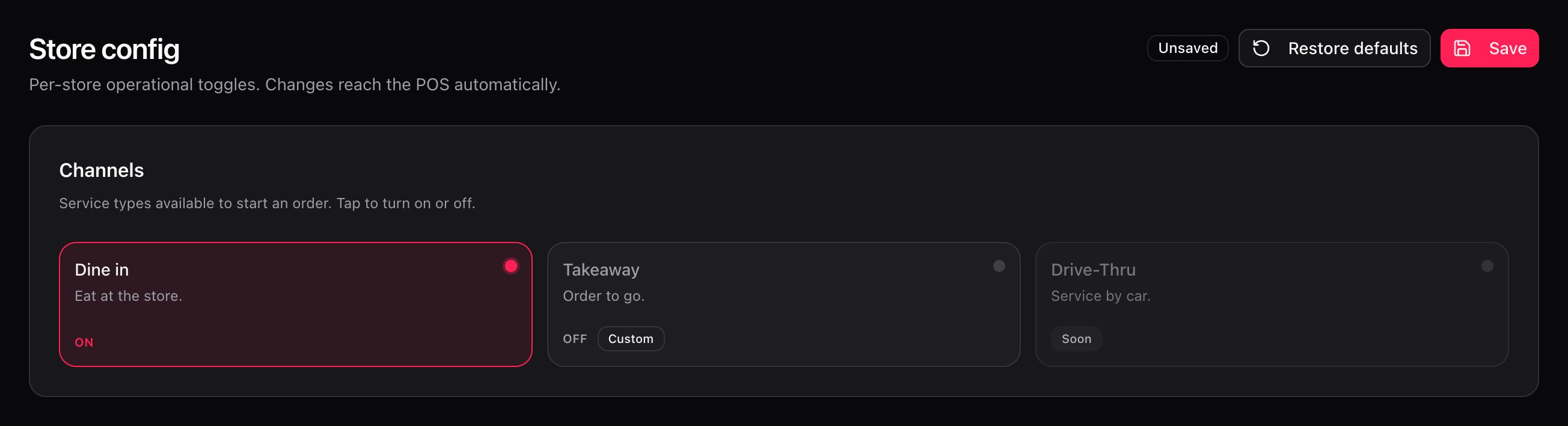 Tap **Save**. The store's terminals pick up the new configuration without restarting.
If you already saved and the POS shows the change, you're done.
***
## Go back to the country defaults
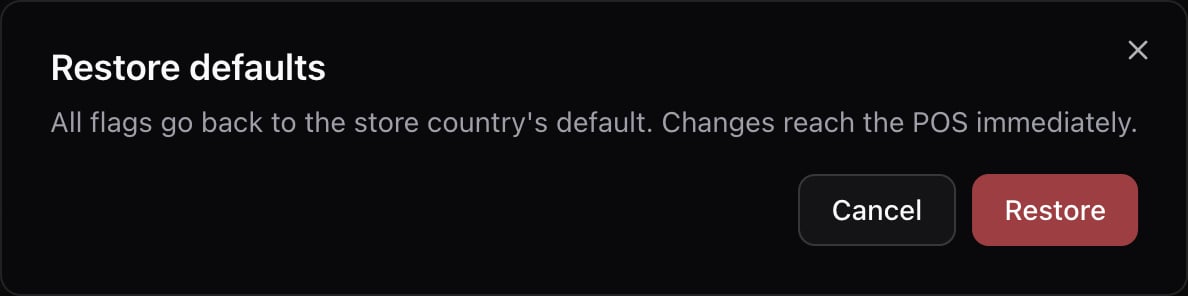
**Restore defaults** returns every option to the default value for the store's country. It asks for confirmation and the changes reach the POS right away.
Tap **Save**. The store's terminals pick up the new configuration without restarting.
If you already saved and the POS shows the change, you're done.
***
## Go back to the country defaults
**Restore defaults** returns every option to the default value for the store's country. It asks for confirmation and the changes reach the POS right away.
 ## Recipes
1. In **Channels**, tap **Takeaway** to turn it off.
2. Tap **Save**.
3. On the POS, that option no longer shows up when starting an order.
1. In **Buzzer**, turn on **Ask for a buzzer at checkout**.
2. If no order can go out without a buzzer, also turn on **Buzzer required**.
3. Tap **Save**.
1. In **Billing**, turn on **Final-consumer limit**.
2. In **Limit amount**, write the amount in the store's currency.
3. Tap **Save**.
1. In **Operation**, raise **Simultaneous order tabs**.
2. Tap **Save**.
## Mistakes that cost money
**Writing the limit amount in cents.** The field is in the store's currency: `50` is USD 50. If you write `5000` thinking in cents, the POS only requires the customer's details from USD 5,000.
**Turning on Buzzer required with no buzzers in the store.** The POS doesn't let you close any sale without a buzzer number. Turn it on only when the store already hands them out.
**Restore defaults without checking.** It returns every option to the country value, including the ones the store had adjusted on purpose.
## Frequently asked questions
Confirm that you tapped **Save** and that the **Unsaved** notice went away. Also check that the store in the header is the terminal's store.
That the option has a value different from the default value for the store's country.
No: the configuration belongs to the store and applies to all of its terminals.
## Recipes
1. In **Channels**, tap **Takeaway** to turn it off.
2. Tap **Save**.
3. On the POS, that option no longer shows up when starting an order.
1. In **Buzzer**, turn on **Ask for a buzzer at checkout**.
2. If no order can go out without a buzzer, also turn on **Buzzer required**.
3. Tap **Save**.
1. In **Billing**, turn on **Final-consumer limit**.
2. In **Limit amount**, write the amount in the store's currency.
3. Tap **Save**.
1. In **Operation**, raise **Simultaneous order tabs**.
2. Tap **Save**.
## Mistakes that cost money
**Writing the limit amount in cents.** The field is in the store's currency: `50` is USD 50. If you write `5000` thinking in cents, the POS only requires the customer's details from USD 5,000.
**Turning on Buzzer required with no buzzers in the store.** The POS doesn't let you close any sale without a buzzer number. Turn it on only when the store already hands them out.
**Restore defaults without checking.** It returns every option to the country value, including the ones the store had adjusted on purpose.
## Frequently asked questions
Confirm that you tapped **Save** and that the **Unsaved** notice went away. Also check that the store in the header is the terminal's store.
That the option has a value different from the default value for the store's country.
No: the configuration belongs to the store and applies to all of its terminals.