> ## Documentation Index
> Fetch the complete documentation index at: https://docs.fire.rest/llms.txt
> Use this file to discover all available pages before exploring further.
# Terminal administration
> How to monitor, suspend, reactivate and revoke POS terminals from the Fire backoffice.
This guide is for **managers and IT** who administer POS devices from the Fire backoffice. It covers monitoring active terminals and administrative actions when a device must be paused, reactivated or decommissioned.
To register a new terminal, see [Linking](/en/manuals/pos/linking).
## Prerequisites
* Access to the Fire backoffice at **[app.fire.rest](https://app.fire.rest)**, with permissions on the store and the **Fire POS Admin** role.
* Correct country, vendor and store selected in the header.
## Available actions
| Action | When to use it | Effect on the POS |
| --------------------------- | -------------------------------------------------- | --------------------------------------------------- |
| **View details** | Audit history and last activity | Read-only |
| **Suspend** | Temporarily pause a terminal (maintenance, review) | Blocks operation; register stays intact |
| **Reactivate** | Re-enable a suspended terminal | Restores operation with the same register and shift |
| **Revoke** | Lost, stolen or retired device | Closes register and shift; requires re-linking |
| **Delete** | Remove the terminal from the operational list | Same effect as revoke |
| **Close register manually** | Force-close an open session | Closes the active cashier's register |
**Revoke** and **Delete** are destructive actions. The terminal stops operating and the device must be **linked again** with a new slot. Use **Suspend** if you only need a reversible pause.
***
## 1. Select the Fire POS channel
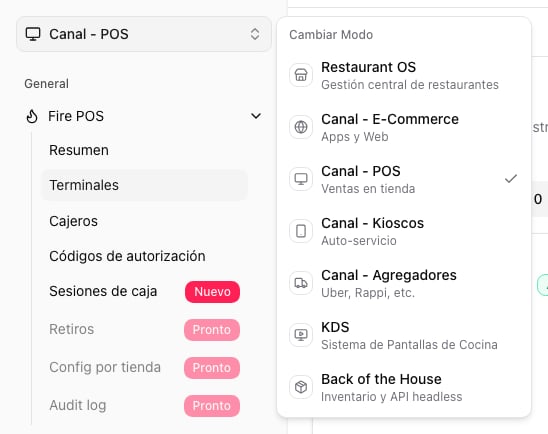
In the top-left corner of the backoffice, open the channel selector and choose **Canal - POS** (POS channel).
 ***
## 2. Open Terminals
In the side menu, open **Fire POS → Terminals**.
***
## 2. Open Terminals
In the side menu, open **Fire POS → Terminals**.
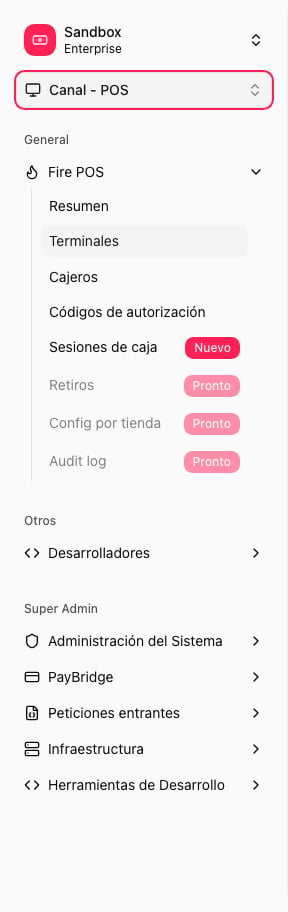 The page lists terminals grouped by tabs:
* **Active** — linked operational terminals.
* **Pending slots** — unused linking codes.
* **Suspended** — terminals paused by an admin.
* **Revoked** — decommissioned terminals.
***
## 3. Review a terminal and its actions
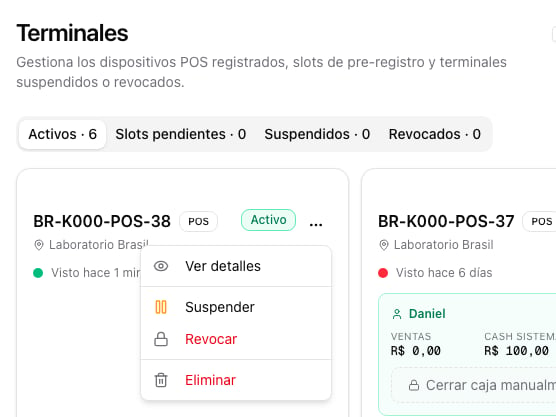
Each card shows the terminal ID, store, status (**Active**, **Suspended**, etc.) and when it was last seen.
If a cashier has an open shift, the card also shows shift sales, system cash and the **Close register manually** option.
Open the **⋮** menu on the card to see administrative actions:
* **View details**
* **Suspend**
* **Revoke**
* **Delete**
The page lists terminals grouped by tabs:
* **Active** — linked operational terminals.
* **Pending slots** — unused linking codes.
* **Suspended** — terminals paused by an admin.
* **Revoked** — decommissioned terminals.
***
## 3. Review a terminal and its actions
Each card shows the terminal ID, store, status (**Active**, **Suspended**, etc.) and when it was last seen.
If a cashier has an open shift, the card also shows shift sales, system cash and the **Close register manually** option.
Open the **⋮** menu on the card to see administrative actions:
* **View details**
* **Suspend**
* **Revoke**
* **Delete**
 ***
## 4. View detail and timeline
Choosing **View details** opens a modal with the terminal's operational information and its **timeline**: registration, suspensions, reactivations and other status changes with date and reason.
***
## 4. View detail and timeline
Choosing **View details** opens a modal with the terminal's operational information and its **timeline**: registration, suspensions, reactivations and other status changes with date and reason.
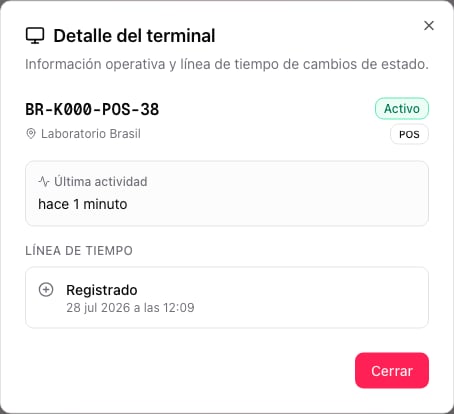 Use this view to audit what happened to a device before suspending or revoking it.
***
## Suspend a terminal
Use **Suspend** when you need to pause a terminal **temporarily** and **reversibly** — for example during maintenance or an operational review.
1. In the terminal **⋮** menu, choose **Suspend**.
2. Enter the suspension reason and confirm.
**What happens on the POS:**
* If the cashier is operating with an open register, the POS shows a warning and asks to **close the register** to continue.
* The register and shift **remain intact** in the system until the cashier closes or an admin acts.
* The terminal cannot keep selling until it is reactivated.
***
## Reactivate a suspended terminal
When the issue is resolved, reactivate the terminal from the list (**Suspended** tab) or from **View details**.
1. Choose **Reactivate**.
2. Confirm the action.
The POS detects the change on the next sync cycle. The cashier can operate again **with the same register and shift**, without re-linking the device.
***
## Revoke or delete a terminal
Use **Revoke** or **Delete** when the device must be decommissioned **permanently**:
* Lost or stolen device.
* Fraud detected.
* Hardware retired from service or replaced.
1. In the **⋮** menu, choose **Revoke** or **Delete**.
2. Select the reason category, write a description if needed and confirm.
**What happens on the POS:**
* Any open register is **force-closed** and the cashier shift ends.
* The device stops operating and shows that the terminal was revoked.
* To use that hardware again, you must create a **new linking slot**. See [Linking](/en/manuals/pos/linking).
Revoking may require an authorization code depending on store policy. If the backoffice asks for one, generate it from **Fire POS → Authorization codes**.
***
## Close register manually
If a cashier forgot to close the register at end of shift, you can force-close it from the terminal card on the **Active** tab.
1. Find the terminal with an open session (shows the active cashier and shift sales).
2. Tap **Close register manually** on the card.
The forced close ends the register session. The cashier must start a new shift on their next login.
***
## Troubleshooting
The POS syncs the change on the next cycle (may take up to a minute). If the cashier is still operating, verify you suspended the correct terminal.
Create a new slot under **Terminals → + Create slot** and link the device again. A revoked terminal cannot be reactivated.
Confirm **Canal - POS** is selected and you have **Fire POS Admin** permissions on the store.
Use this view to audit what happened to a device before suspending or revoking it.
***
## Suspend a terminal
Use **Suspend** when you need to pause a terminal **temporarily** and **reversibly** — for example during maintenance or an operational review.
1. In the terminal **⋮** menu, choose **Suspend**.
2. Enter the suspension reason and confirm.
**What happens on the POS:**
* If the cashier is operating with an open register, the POS shows a warning and asks to **close the register** to continue.
* The register and shift **remain intact** in the system until the cashier closes or an admin acts.
* The terminal cannot keep selling until it is reactivated.
***
## Reactivate a suspended terminal
When the issue is resolved, reactivate the terminal from the list (**Suspended** tab) or from **View details**.
1. Choose **Reactivate**.
2. Confirm the action.
The POS detects the change on the next sync cycle. The cashier can operate again **with the same register and shift**, without re-linking the device.
***
## Revoke or delete a terminal
Use **Revoke** or **Delete** when the device must be decommissioned **permanently**:
* Lost or stolen device.
* Fraud detected.
* Hardware retired from service or replaced.
1. In the **⋮** menu, choose **Revoke** or **Delete**.
2. Select the reason category, write a description if needed and confirm.
**What happens on the POS:**
* Any open register is **force-closed** and the cashier shift ends.
* The device stops operating and shows that the terminal was revoked.
* To use that hardware again, you must create a **new linking slot**. See [Linking](/en/manuals/pos/linking).
Revoking may require an authorization code depending on store policy. If the backoffice asks for one, generate it from **Fire POS → Authorization codes**.
***
## Close register manually
If a cashier forgot to close the register at end of shift, you can force-close it from the terminal card on the **Active** tab.
1. Find the terminal with an open session (shows the active cashier and shift sales).
2. Tap **Close register manually** on the card.
The forced close ends the register session. The cashier must start a new shift on their next login.
***
## Troubleshooting
The POS syncs the change on the next cycle (may take up to a minute). If the cashier is still operating, verify you suspended the correct terminal.
Create a new slot under **Terminals → + Create slot** and link the device again. A revoked terminal cannot be reactivated.
Confirm **Canal - POS** is selected and you have **Fire POS Admin** permissions on the store.