> ## Documentation Index
> Fetch the complete documentation index at: https://docs.fire.rest/llms.txt
> Use this file to discover all available pages before exploring further.
# Printer and terminal settings
> Set up the terminal's printer, language, on-screen keyboard and light mode, reload the catalog and check the POS version.
A terminal without a printer set up still charges, but it does not hand out the receipt or open the drawer, and the cashier ends up opening it with the key, outside any record. The terminal settings are set up once, when the device is installed, and checked again when something stops printing.
**The minimum you need to know**
* Everything here is in **Settings**: tap your name at the top right.
* The printer is set up through the **Fire Agent**, which has to be installed and open on the device.
* The settings are saved on this terminal, not with the cashier.
## Prerequisites
* The terminal linked and a shift started. See [Linking](/en/manuals/pos/linking).
* To print and open the drawer: the Fire Agent installed. See the [Fire Agent installation guide](/en/manuals/fire-agent/installation).
## The Settings panel
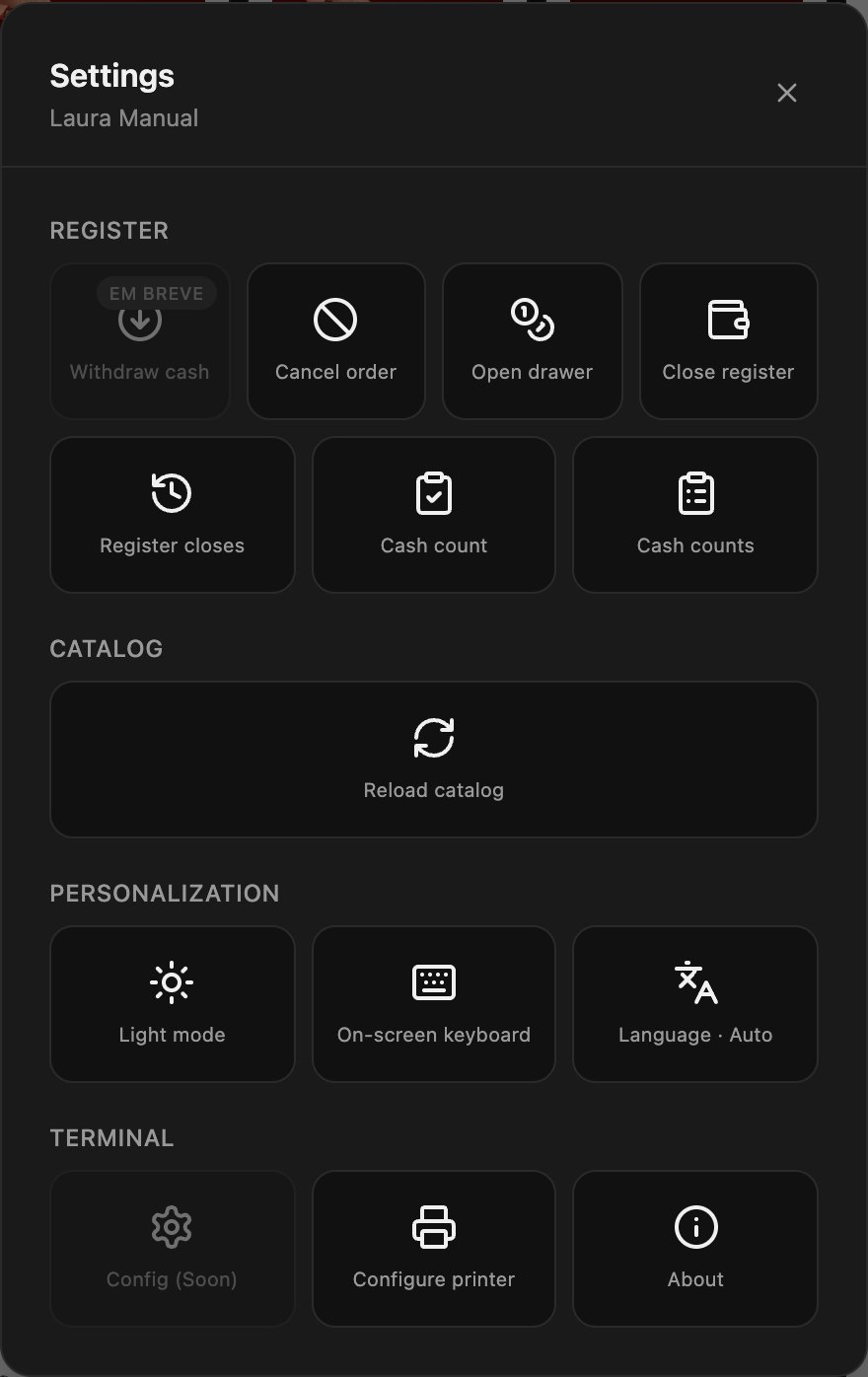
Tap your name at the top right. The panel groups the **Register** actions, the **Catalog**, **Personalization** and the **Terminal**. Options marked **Soon** are not available yet.
 ## Set up the printer
1. In **Settings**, tap **Configure printer**. The POS connects to the Fire Agent and looks for the printers installed on the device.
2. In **Printer**, choose the thermal printer.
3. Tap **Print test** and check that the paper comes out.
4. Tap **Save**.
If the POS does not find the agent, the window says so and offers **Download Fire agent**. Install it or open it and tap **Retry**.
## Set up the printer
1. In **Settings**, tap **Configure printer**. The POS connects to the Fire Agent and looks for the printers installed on the device.
2. In **Printer**, choose the thermal printer.
3. Tap **Print test** and check that the paper comes out.
4. Tap **Save**.
If the POS does not find the agent, the window says so and offers **Download Fire agent**. Install it or open it and tap **Retry**.
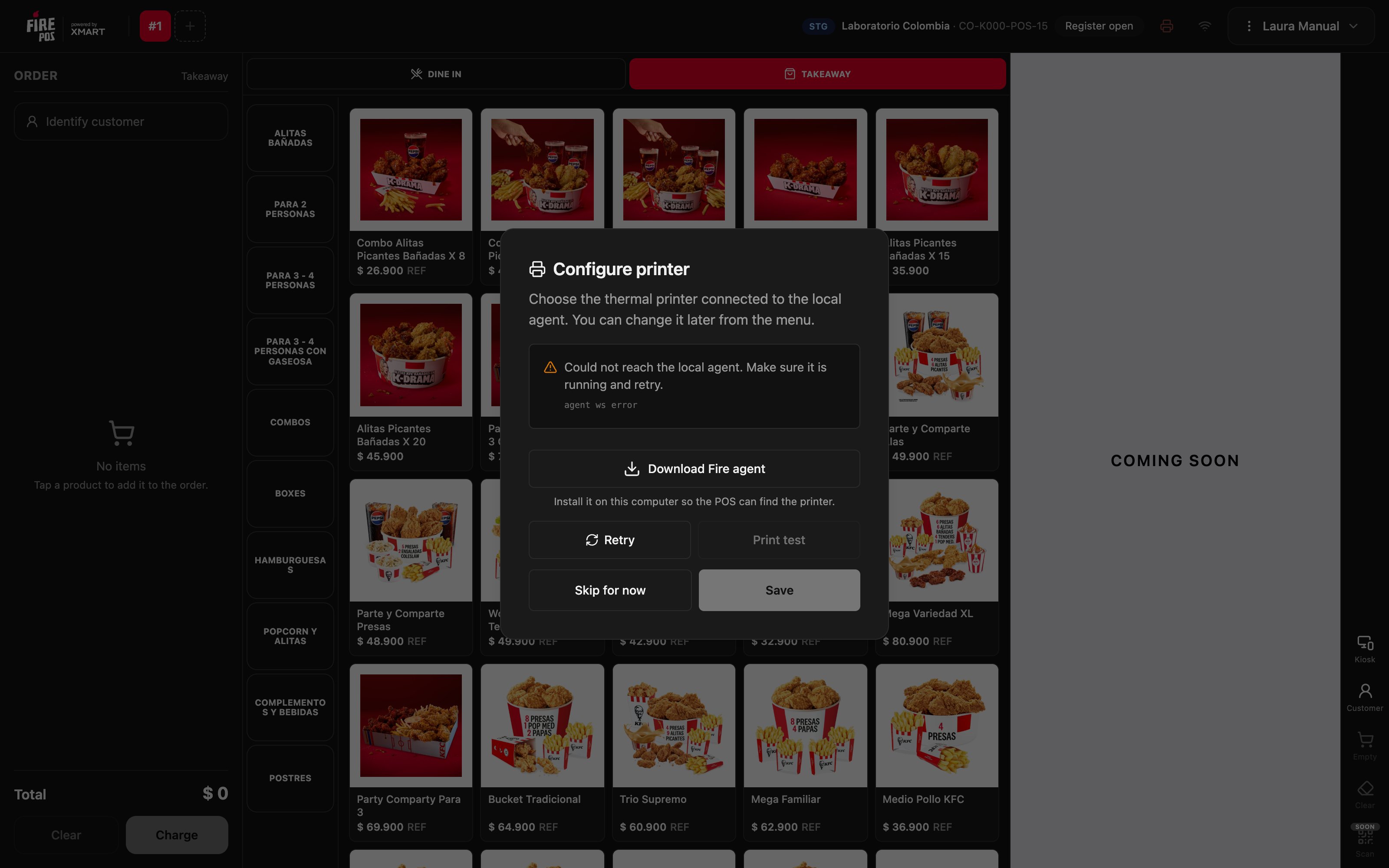 **Skip for now** closes the window without saving and leaves the terminal **with no connection to the agent**: it does not print or open the drawer until you go back to **Configure printer** and save one.
### The printer icon
At the top, next to the register status, the printer icon tells you how it is doing:
| Color | What it means |
| - | - |
| Red, blinking | The POS cannot find the Fire Agent |
| Amber | The agent is there, but no printer has been chosen |
| Gray | The printer is ready |
Tap the icon to open **Configure printer** directly.
If the test print came out and the icon is gray, you are done: receipts print on their own when you charge and the drawer opens when it should.
***
## Language
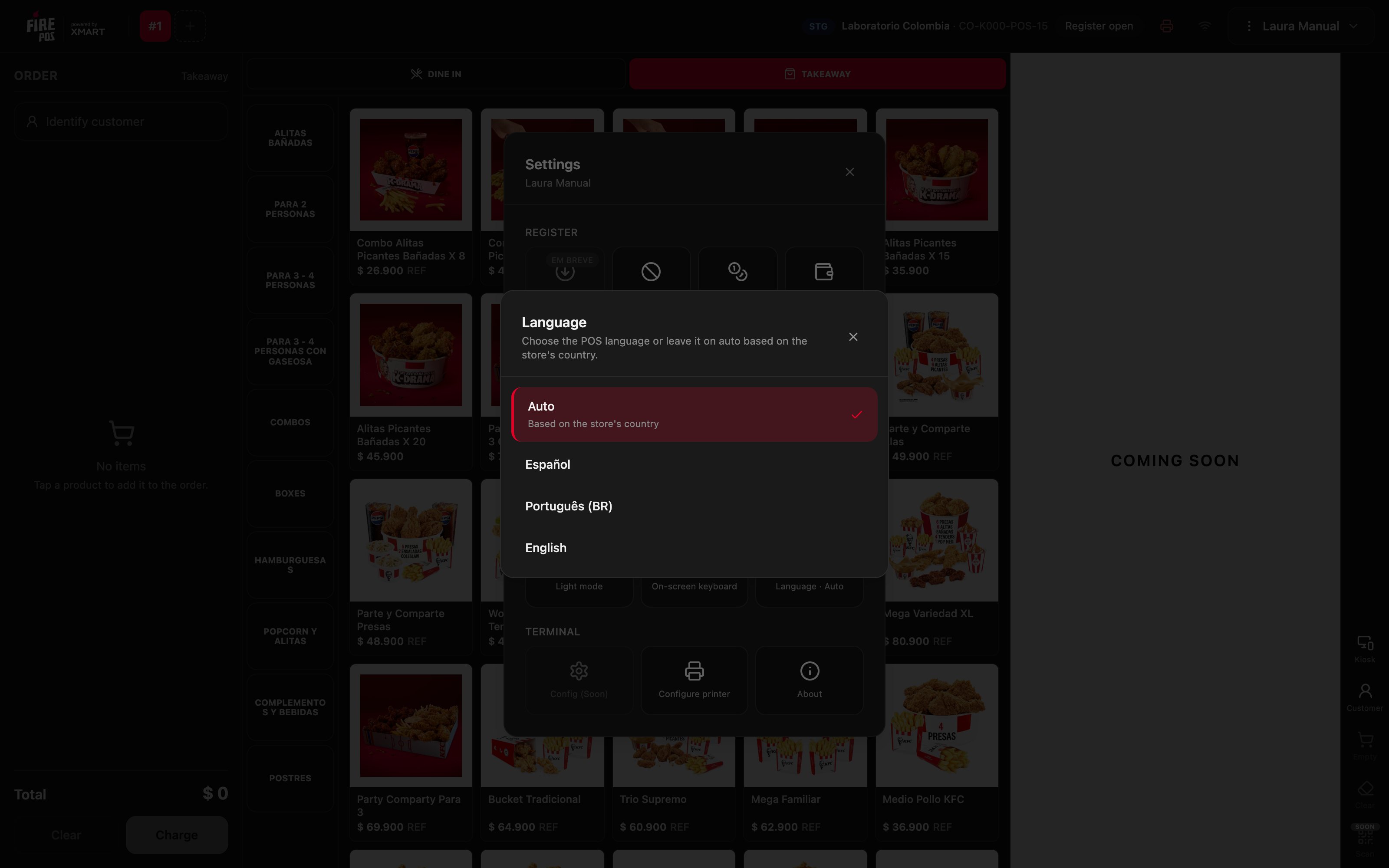
**Language** changes the language of the POS screens. On **Auto**, the POS uses the language of the store's country; you can also set **Español**, **Português (BR)** or **English**.
**Skip for now** closes the window without saving and leaves the terminal **with no connection to the agent**: it does not print or open the drawer until you go back to **Configure printer** and save one.
### The printer icon
At the top, next to the register status, the printer icon tells you how it is doing:
| Color | What it means |
| - | - |
| Red, blinking | The POS cannot find the Fire Agent |
| Amber | The agent is there, but no printer has been chosen |
| Gray | The printer is ready |
Tap the icon to open **Configure printer** directly.
If the test print came out and the icon is gray, you are done: receipts print on their own when you charge and the drawer opens when it should.
***
## Language
**Language** changes the language of the POS screens. On **Auto**, the POS uses the language of the store's country; you can also set **Español**, **Português (BR)** or **English**.
 Receipts and printed reports do not change: they come out in the language of the store's country.
## On-screen keyboard
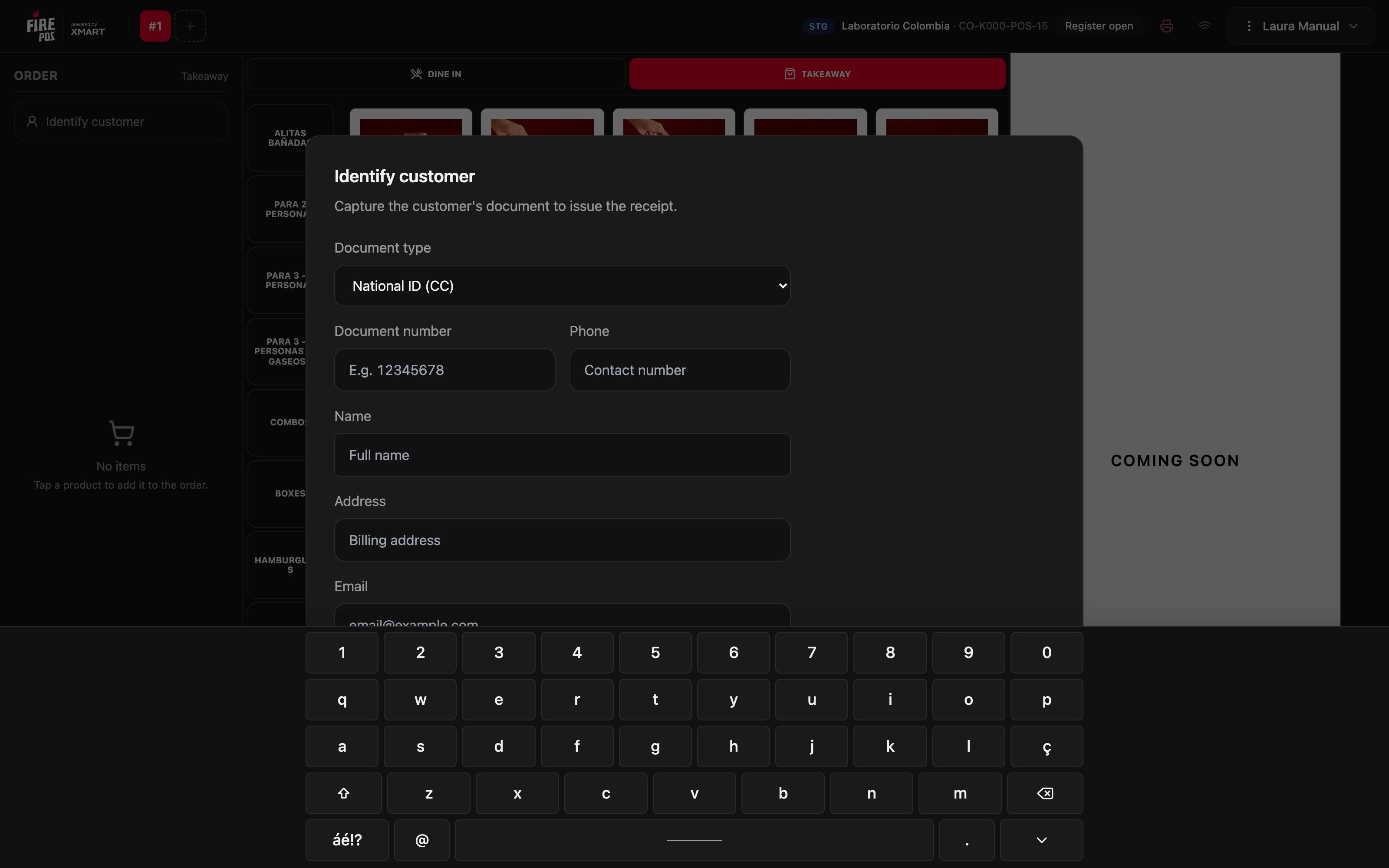
On a touch device without a physical keyboard, tap **On-screen keyboard**. From then on, when you tap a text field the keyboard appears at the bottom. To turn it off, tap **Hide keyboard** in the same place.
Receipts and printed reports do not change: they come out in the language of the store's country.
## On-screen keyboard
On a touch device without a physical keyboard, tap **On-screen keyboard**. From then on, when you tap a text field the keyboard appears at the bottom. To turn it off, tap **Hide keyboard** in the same place.
 Number fields, such as amounts, codes and PIN, use their own numeric keypad and do not need this setting.
## Light mode and dark mode
**Light mode** switches the POS to a light background, and **Dark mode** switches it back. Choose the one that reads better with the store's lighting.
## Reload the catalog
If products or prices changed in the backoffice and they do not show up yet, tap **Reload catalog**. The POS asks for confirmation because it **clears the open orders**.
Number fields, such as amounts, codes and PIN, use their own numeric keypad and do not need this setting.
## Light mode and dark mode
**Light mode** switches the POS to a light background, and **Dark mode** switches it back. Choose the one that reads better with the store's lighting.
## Reload the catalog
If products or prices changed in the backoffice and they do not show up yet, tap **Reload catalog**. The POS asks for confirmation because it **clears the open orders**.
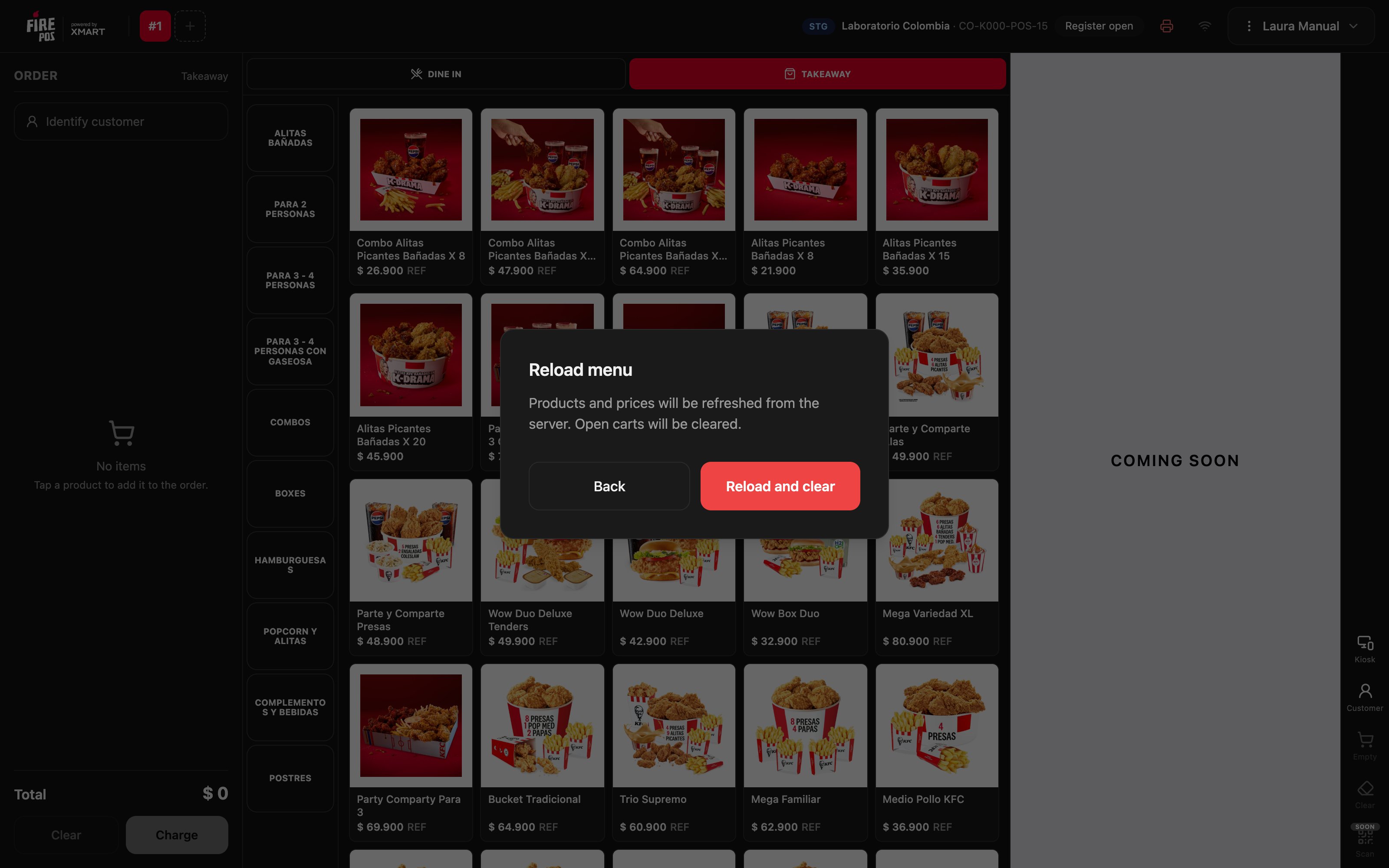 Tap **Reload and clear**, or **Back** to leave without reloading.
## About
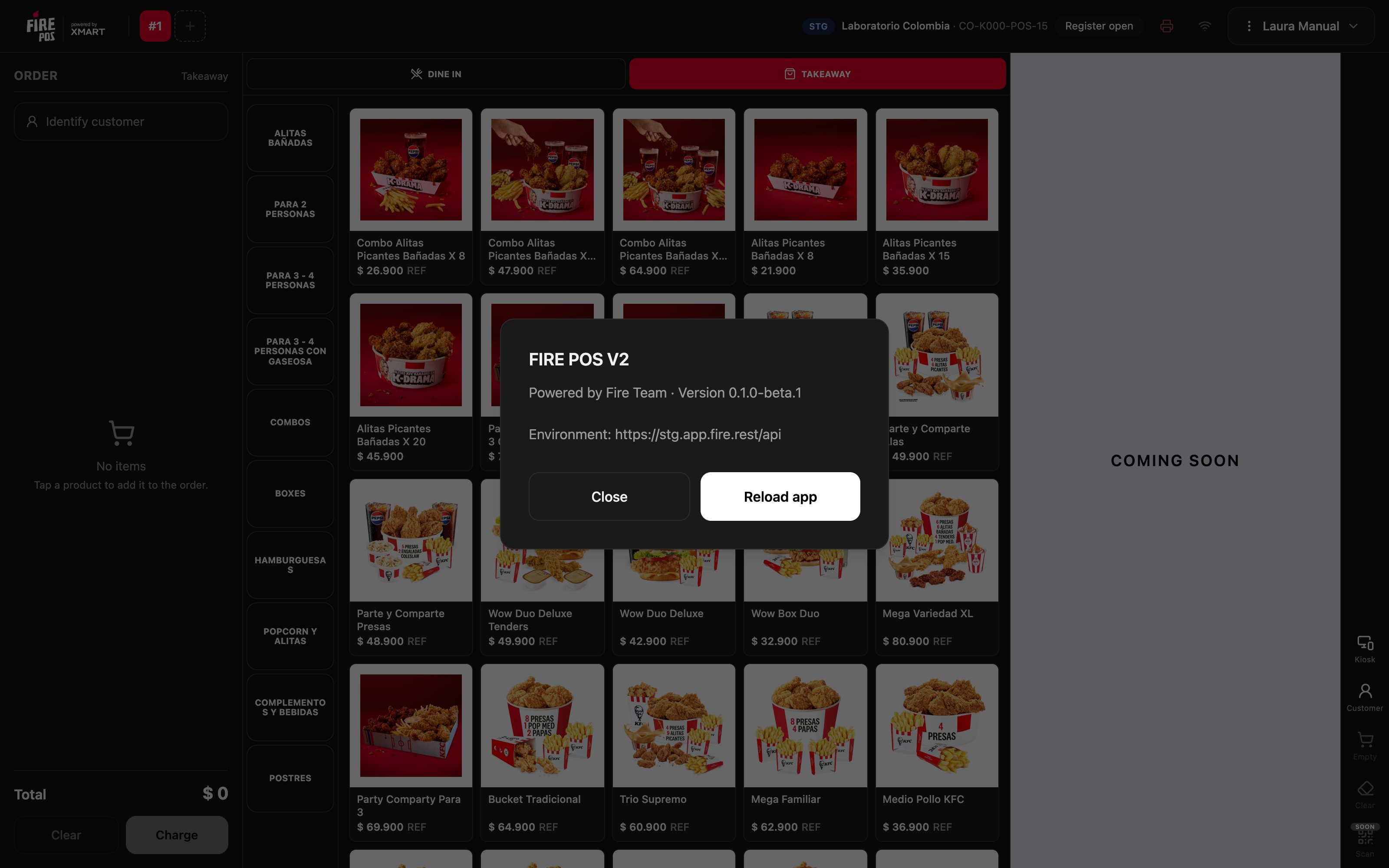
**About** shows the POS version and environment. That is the information support asks for when you report a problem. **Reload app** loads the POS again.
Tap **Reload and clear**, or **Back** to leave without reloading.
## About
**About** shows the POS version and environment. That is the information support asks for when you report a problem. **Reload app** loads the POS again.
 ## Mistakes that cost money
**Reloading the catalog in the middle of an order.** The reload clears the open orders. Charge or finish the orders in progress before tapping **Reload and clear**.
**Tapping Skip for now and forgetting about it.** The POS keeps charging, but it does not print or open the drawer, and it does not ask again. If you skipped the setup, go back to **Configure printer** before opening the register.
**Leaving the terminal without a printer.** Without a printer, the drawer does not open by itself and the cashier opens it with the key: that cash does not show up in any record. Set up the printer when you install the device.
## Frequently asked questions
The Fire Agent is not open or is not installed. Open it, or download it with **Download Fire agent**, and tap **Retry**.
The printer is not installed on the device. Install it in the operating system and tap **Retry**.
That is expected: printouts come out in the language of the store's country, not in the POS language.
Tap **Reload catalog**. If it still does not show up, check that the change is published in the backoffice.
## Mistakes that cost money
**Reloading the catalog in the middle of an order.** The reload clears the open orders. Charge or finish the orders in progress before tapping **Reload and clear**.
**Tapping Skip for now and forgetting about it.** The POS keeps charging, but it does not print or open the drawer, and it does not ask again. If you skipped the setup, go back to **Configure printer** before opening the register.
**Leaving the terminal without a printer.** Without a printer, the drawer does not open by itself and the cashier opens it with the key: that cash does not show up in any record. Set up the printer when you install the device.
## Frequently asked questions
The Fire Agent is not open or is not installed. Open it, or download it with **Download Fire agent**, and tap **Retry**.
The printer is not installed on the device. Install it in the operating system and tap **Retry**.
That is expected: printouts come out in the language of the store's country, not in the POS language.
Tap **Reload catalog**. If it still does not show up, check that the change is published in the backoffice.