

How it works
Sample groups
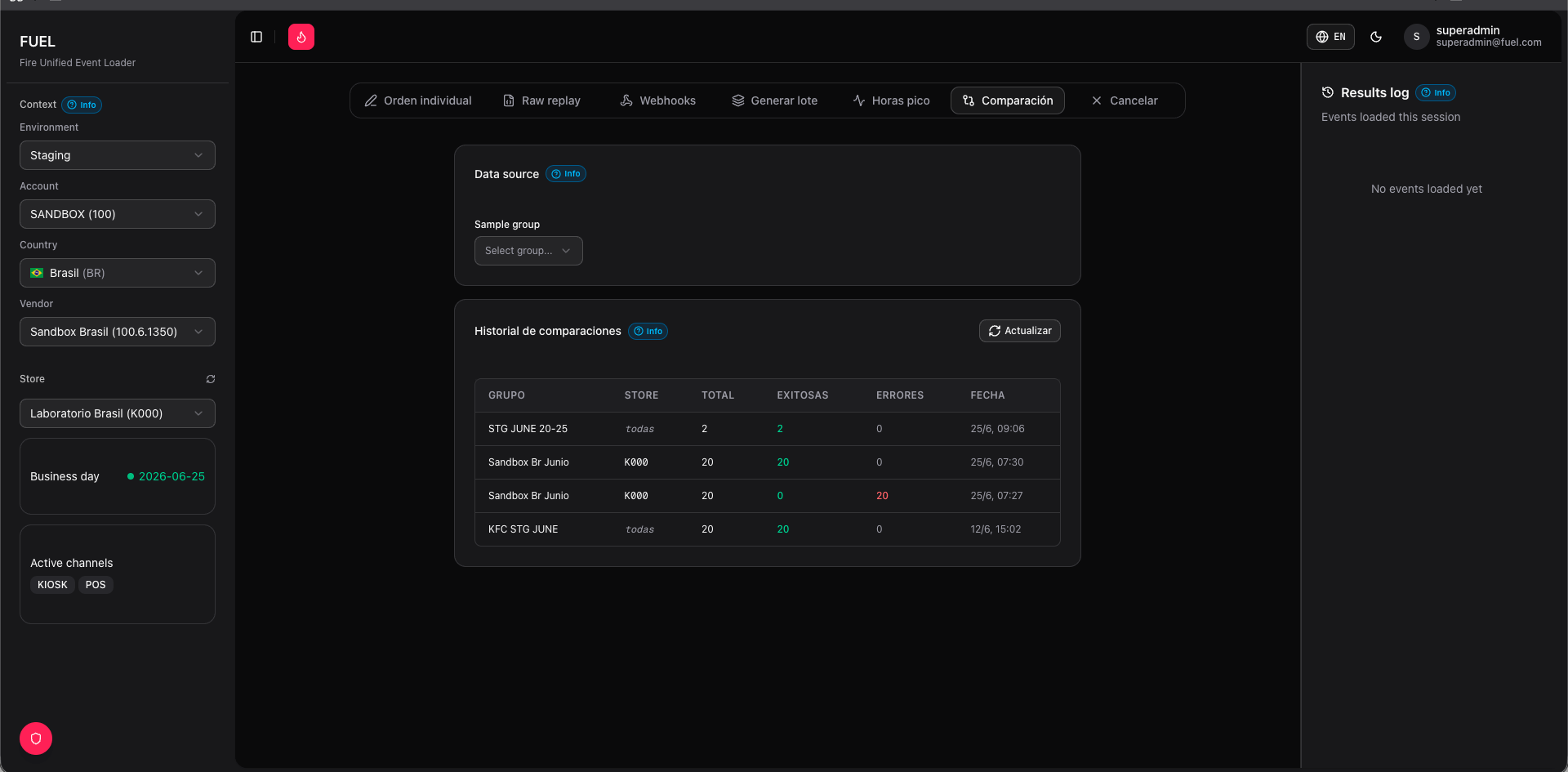
Predefined sets of orders stored in FUEL. Each group is a curated collection that covers the scenarios you want to test — different channels, processors, and product combinations.
Scenarios
Each scenario pairs an environment (base URL + API key) with a configuration. You define two or more scenarios to compare against each other.
Running a comparison
1
Load a sample group
Select a sample group from the Sample group dropdown. Sample groups are managed by your team and contain a fixed set of order payloads. The orders in the group are displayed in the preview table with their channel, delivery method, and payment status.
2
Configure your scenarios
Add at least two scenarios using Add scenario. For each scenario, select the target environment and any configuration overrides (such as a different processor or fulfillment mode). Give each scenario a descriptive label so results are easy to read.
3
Send to all scenarios
Click Run comparison. FUEL sends every order in the sample group to each scenario in parallel and collects the responses.
4
Review results
The results table shows each order as a row and each scenario as a column. Each cell displays the HTTP status and FIRE order ID returned. Mismatches — where one scenario returned a different status than the others — are highlighted so you can investigate immediately.
Reading the results
A successful comparison shows identical HTTP201 responses and consistent order IDs across all scenarios. Common patterns to look for:
- All green, same status — the scenarios behave identically. Safe to promote the new configuration.
- One scenario returns
4xx— the new environment has a configuration issue (missing processor, wrong API key scope, or payload mismatch). - Inconsistent order IDs — expected; each scenario creates its own order in its own environment.
Each order in the sample group is sent with freshly generated IDs per run to avoid idempotency conflicts. You do not need to regenerate IDs manually before running a comparison.
Sample group management
Sample groups are created and maintained in the Admin section. A group typically contains 5–20 orders that represent your critical paths: at least onePOS order, one AGGREGATOR order, one delivery and one pickup, and a mix of approved and rejected payment statuses.
Related tabs
- To build and test a single order before adding it to a sample group, use the Single order tab.
- To replay real production orders instead of synthetic ones, use the Raw replay tab.