

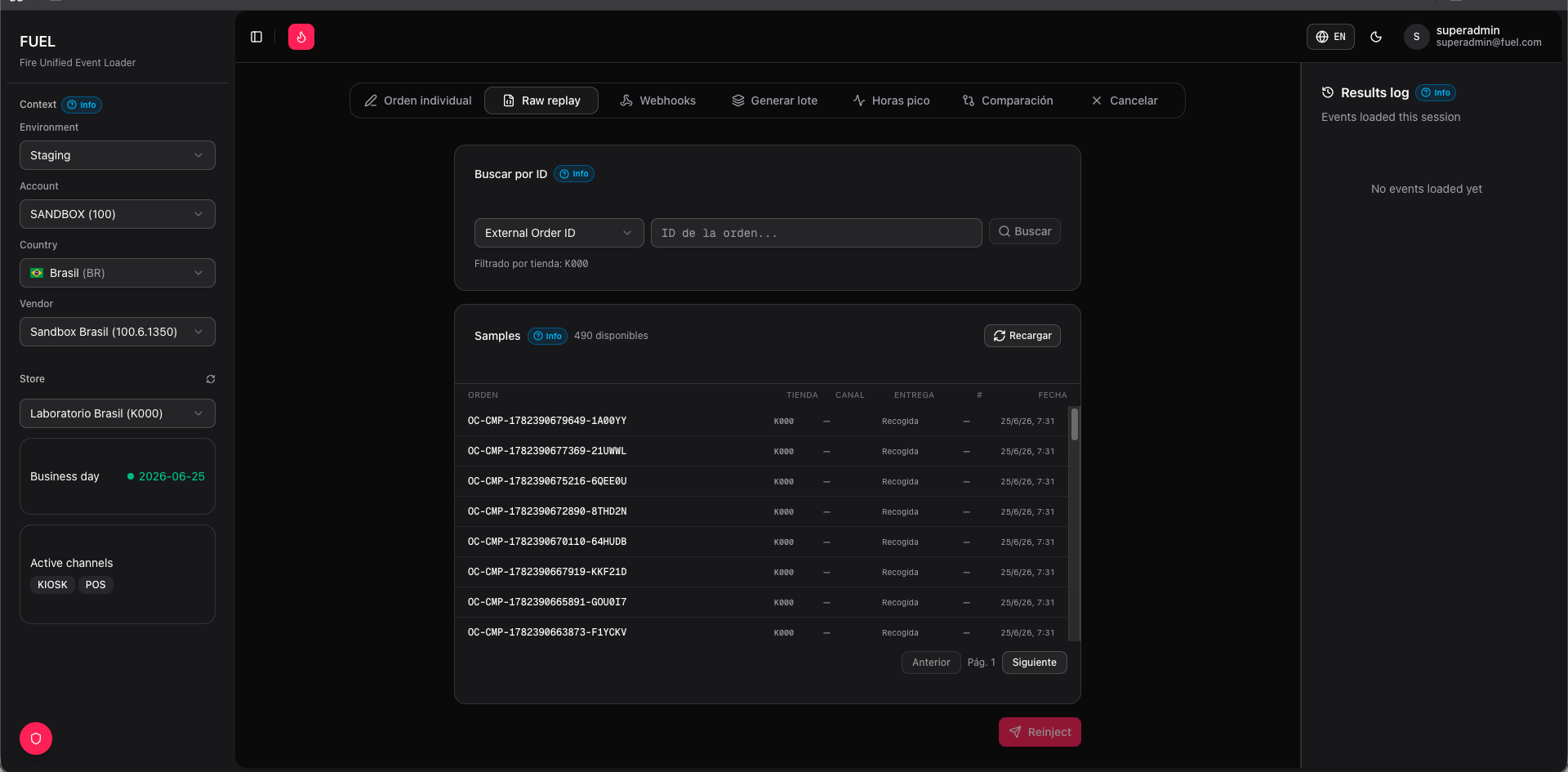
Source modes
Search in FIRE
Query the FIRE platform directly by External Order ID, Order Code, or internal Order ID. FUEL fetches the original payload and loads it into the editor.
Samples
Browse order samples stored in FUEL’s own database. The list is paginated; use filters to narrow by store or date. Samples are saved when you inject orders through FUEL or sync them manually.
Replaying an order
1
Select a source
Switch between Search in FIRE and Samples using the tabs at the top of the panel. Run your search or browse the sample list until you find the order you want.
2
Load the payload
Click the order row. Its full JSON loads into the editor on the right. You can read the original payload before making any changes.
3
Regenerate IDs
Click Regenerate IDs. FUEL replaces
orderId and orderCode with fresh UUIDs. This step is essential — FIRE rejects requests that reuse an external_order_id it has already processed, returning a 409 Conflict.4
Edit if needed
The editor is fully writable. Adjust any field — channel, products, payment status, client data — directly in the JSON before sending.
The operating context (environment, vendor, store) set in the sidebar determines where the order is sent. Make sure you have the correct environment selected before replaying.
5
Replay
Click Replay. FUEL posts the payload to
POST /v1/orders in the selected environment and displays the raw response in the Response card below the editor.Reading the response
The Response card shows the full HTTP response from FIRE: status code, order ID assigned by FIRE, and any error details. A green status means the order was accepted; any4xx or 5xx status includes the error body so you can diagnose the failure immediately.
Related pages
- Single order — build an order from scratch with full field control
- Batch — replay or generate orders at scale