

The minimum you need to know
- Only Approved orders created less than 30 minutes ago can be canceled.
- Entering the cancellation requires a manager’s code from Access → Cancel orders. Each code is good for one cancellation.
- The cancellation issues a credit note and cannot be undone.
- If the order was paid in cash, the drawer opens so you can give the money back.
Prerequisites
- An open register.
- A manager to generate the code. See Authorization codes.
1. Enter the manager’s code
Tap your name at the top right to open Settings and choose Cancel order. Ask the manager for a code from Access → Cancel orders, type the 6 digits and tap Continue.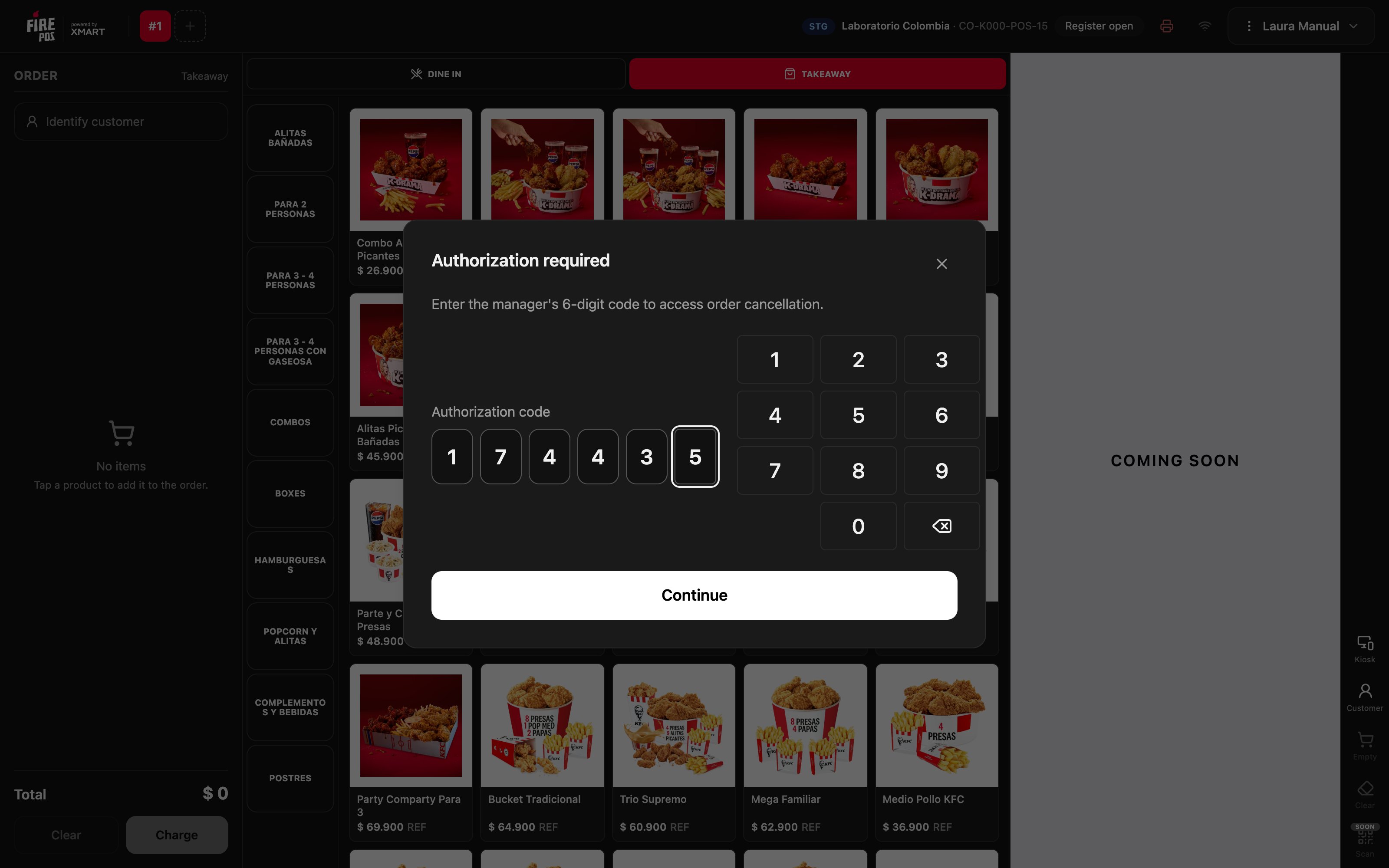
2. Choose the order
The list shows the store’s orders for the day, with the code, time, customer, total and status. Orders older than 30 minutes appear with +30 min and you cannot tap them. To find an order, type or scan its code in the search box. If an order you just charged does not appear, tap Refresh.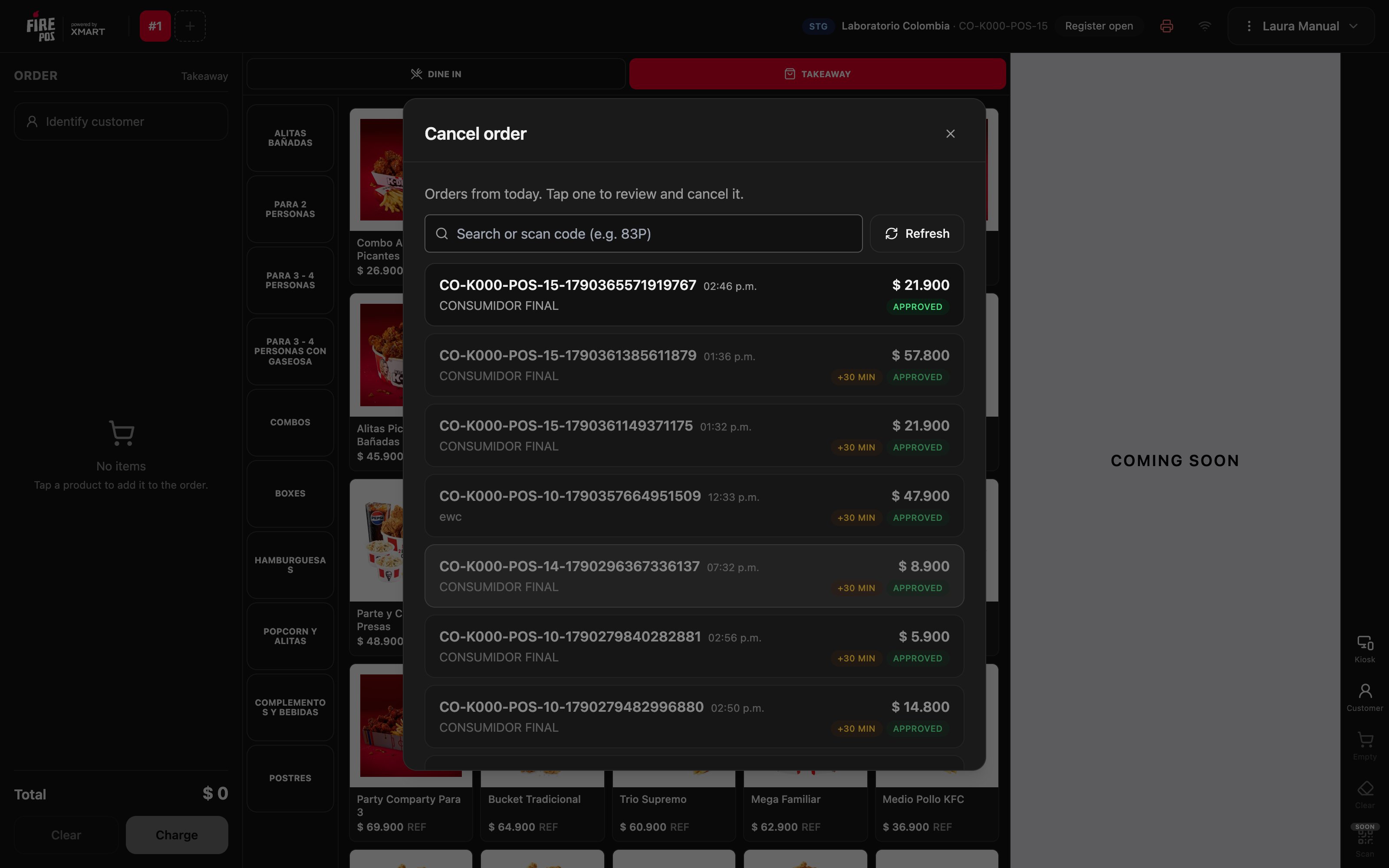
3. Review the order and choose the reason
Tap the order. The window shows the code, customer, payment method and total. Compare them with what the customer tells you before going on.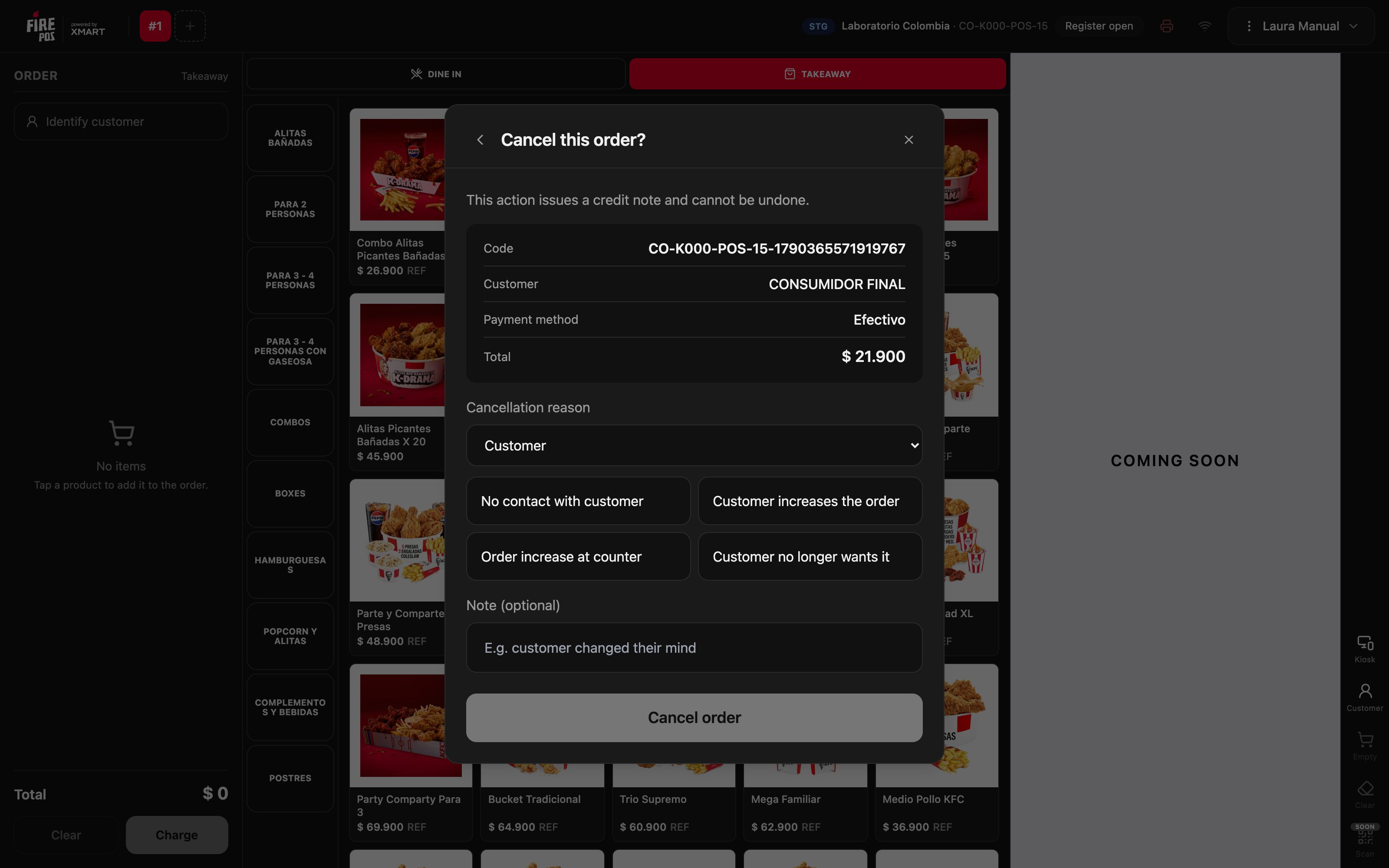
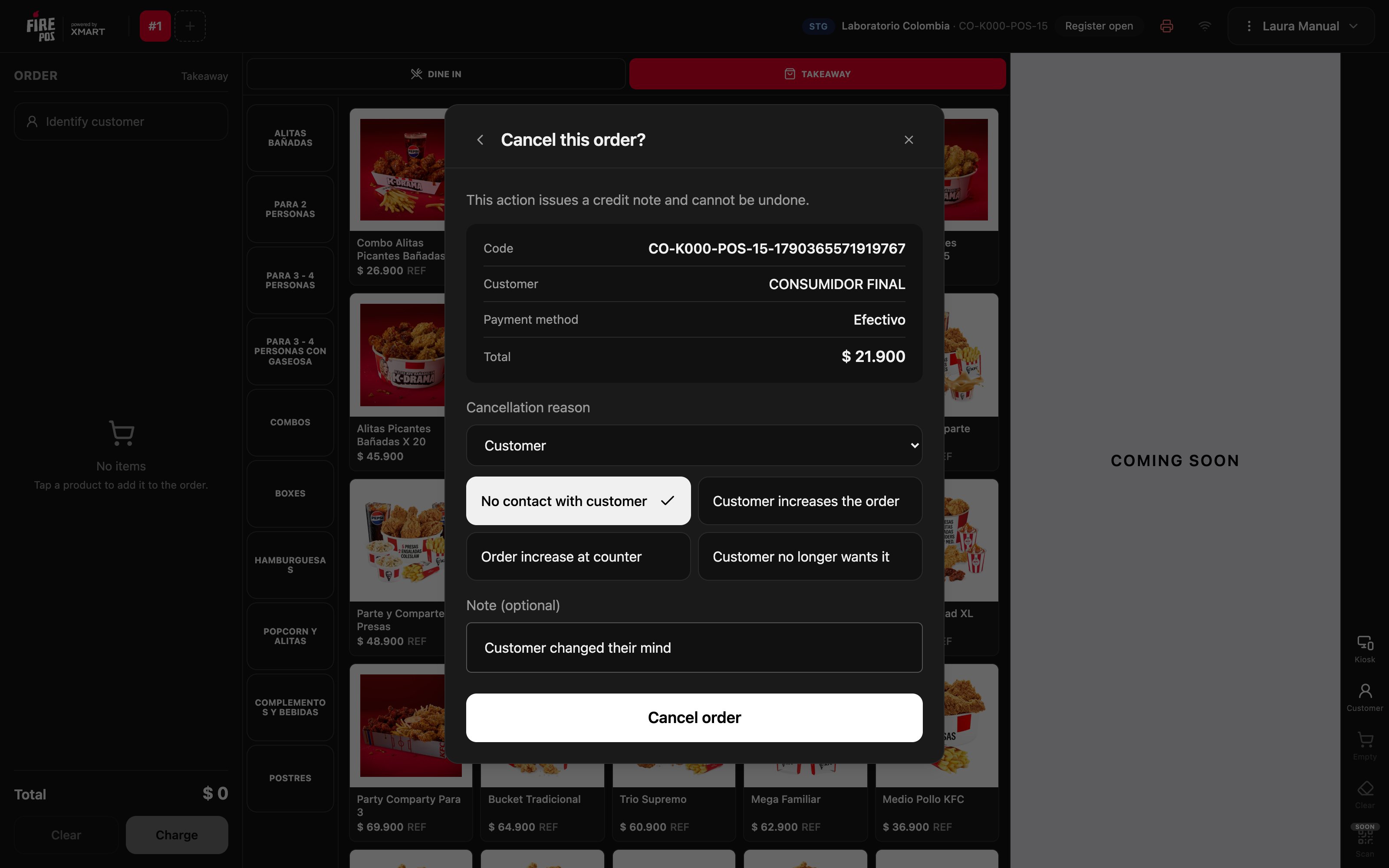
4. Cancel
Tap Cancel order. The POS issues the credit note, prints the cancellation receipt and, if the order was paid in cash, opens the drawer so you can give the money back. The window confirms Order canceled with the Refunded amount.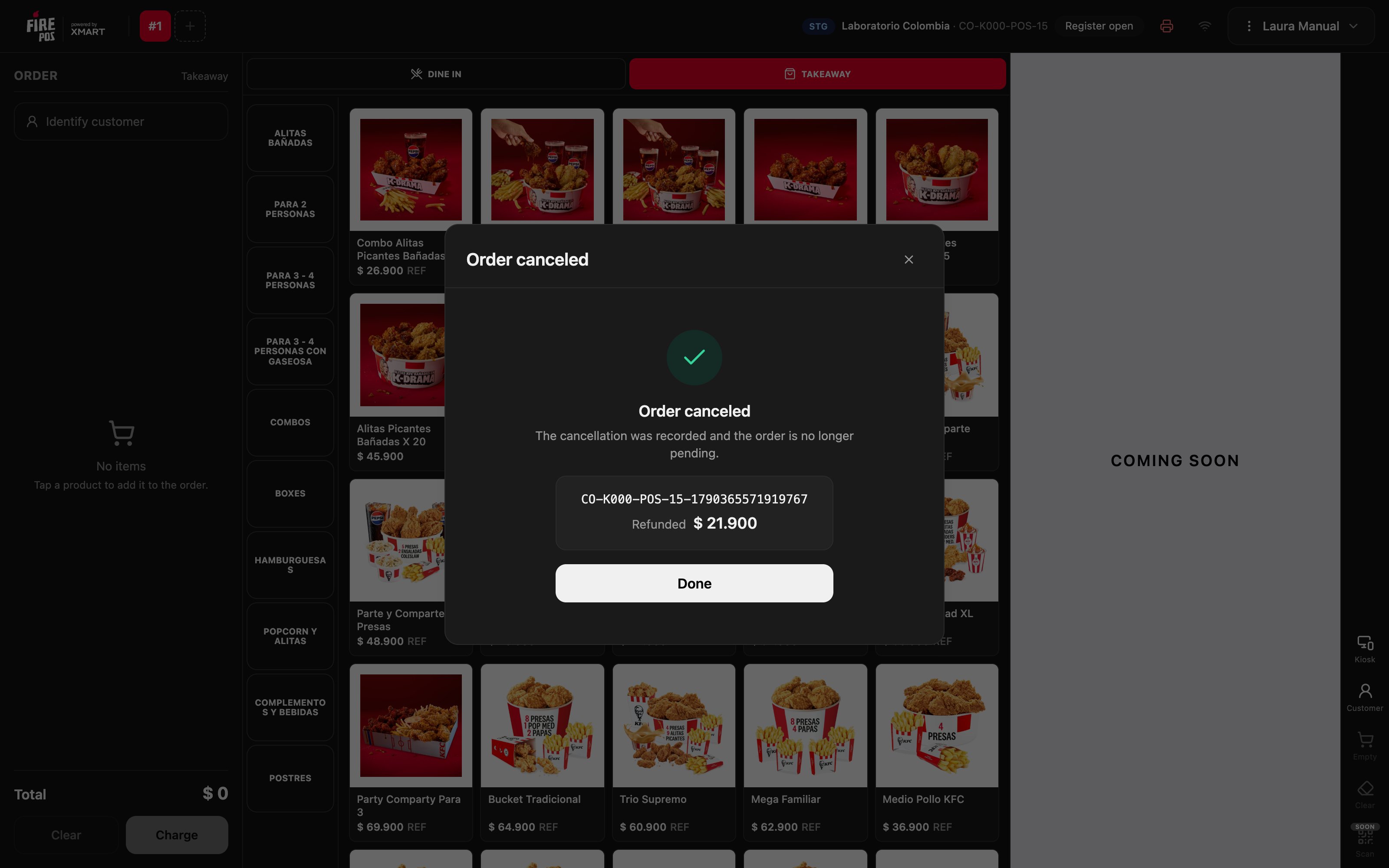
Cancellation reasons
The reasons and their categories are the ones set up for the country’s account, so they change from one country to another. If a reason is missing, ask the Fire team for it. A change to the reasons takes up to 5 minutes to reach the POS.Recipes
The customer changes their mind after paying in cash
The customer changes their mind after paying in cash
- Open Settings → Cancel order and type the code from Access → Cancel orders.
- Find the order by its code.
- Choose the reason and tap Cancel order.
- Give back the cash from the drawer, which opens by itself.
The cashier charged the wrong order
The cashier charged the wrong order
- Cancel the wrongly charged order, with the reason that applies.
- Sell the correct order again. See Sell and charge.
Mistakes that cost money
Frequently asked questions
The order appears with “+30 min” and I cannot tap it
The order appears with “+30 min” and I cannot tap it
More than 30 minutes have passed since it was created. It can no longer be canceled from the POS: tell the manager.
It says “Invalid or expired code”
It says “Invalid or expired code”
The code was already used, expired, or is for another operation. Ask the manager for a new one from Access → Cancel orders.
It says “The business day is closed”
It says “The business day is closed”
The order belongs to a business day that has already been closed. That cancellation is done from the backoffice.
It says “The service did not respond”
It says “The service did not respond”
The order is still not canceled. Wait a few seconds and tap Cancel order again.
Can I cancel just one product from the order?
Can I cancel just one product from the order?
No. The cancellation cancels the whole order. If the customer keeps part of it, cancel the order and sell again what they are taking.