

127.0.0.1 (localhost).
If you changed the port with
FIRE_AGENT_PORT, use that number instead of 9100.Prerequisites
- Fire Agent must be installed and running (icon visible in the system tray). If it is not, see Windows installation.
- A supported browser: Chrome or Edge 105+, Brave, Opera or Firefox 110+. See terminal requirements.
- The agent token (
FIRE_AGENT_TOKEN). On fresh installs the default isfire-agent-dev-token; in production it is the value set during installation.
Test page
The test page lets you connect to the agent and print sample receipts. It is the main tool to confirm that a printer works. The interface has a left sidebar with four sections (Connection, Printers, Print, Log) and a Connect / Disconnect button in the top right.Open the page
Openhttp://localhost:9100/ in the browser. The Fire Agent interface appears.
Connection
This is the section shown when the page opens.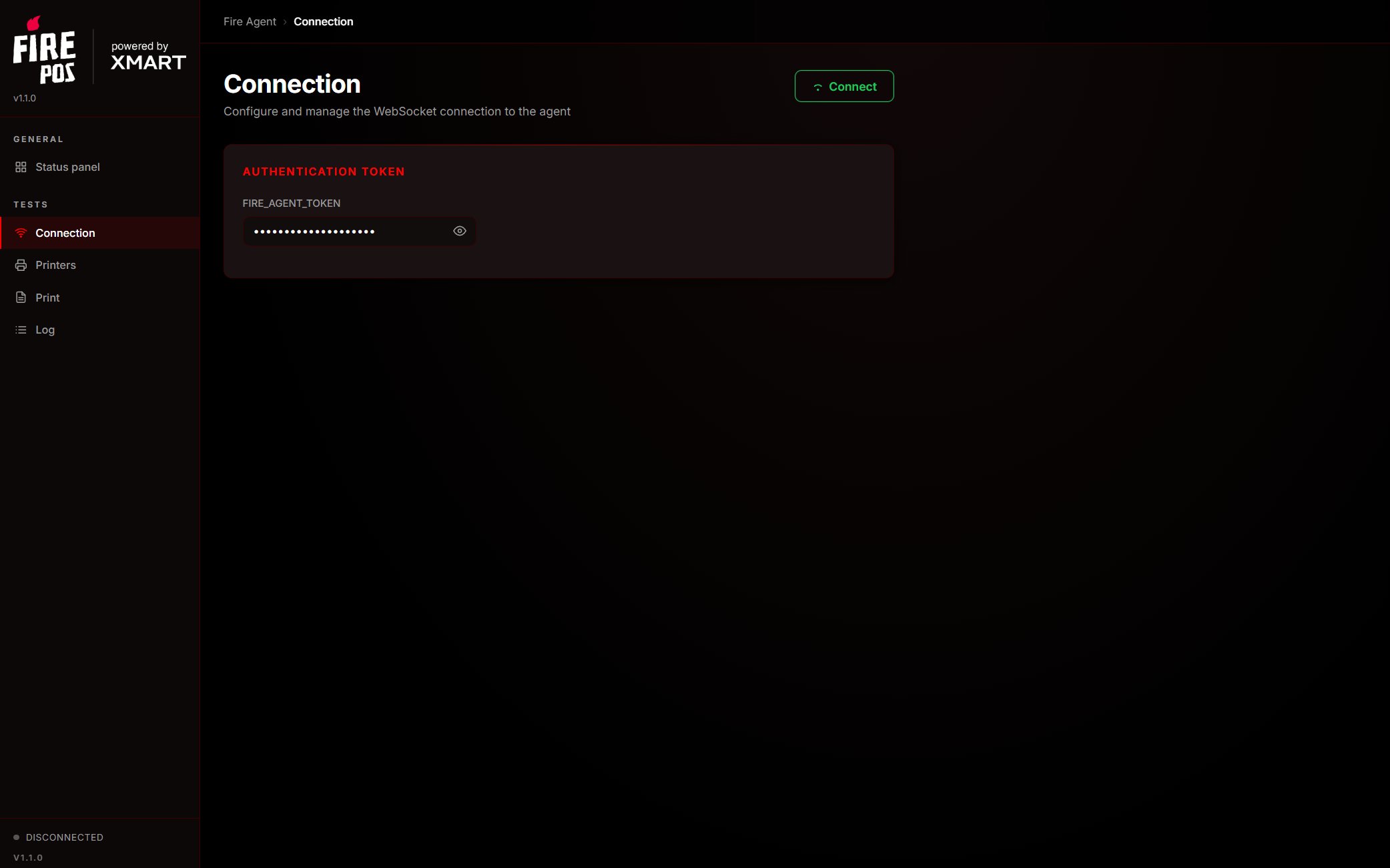
- In the FIRE_AGENT_TOKEN field, enter the agent token. Use the eye icon to show or hide it.
- Click Connect (top right).
- The status indicator changes:
- Connecting… (yellow): establishing the connection.
- Connected (green): connection successful.
- Error (red): could not connect (check that the agent is running).
- On a successful connection, the agent lists the printers automatically and the button changes to Disconnect.
Printers
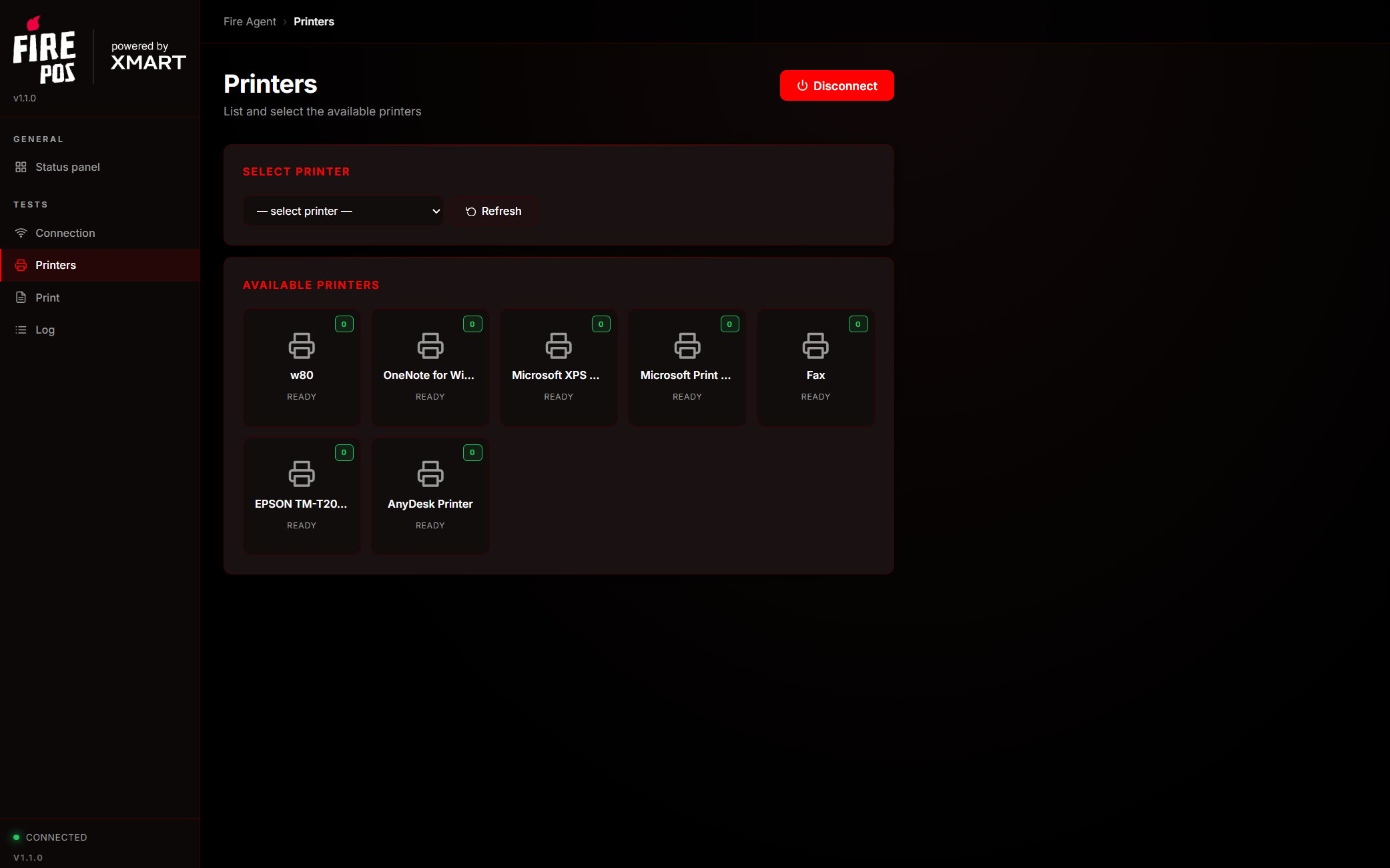
- Click Printers in the sidebar.
- You see the printers detected in Windows. The default one is marked (default).
- Select a printer in the Select printer dropdown. The selection is saved for next time.
- If you connected a new printer, click Refresh to query them again.
If no printer appears, install its driver from Windows settings first, then click Refresh.
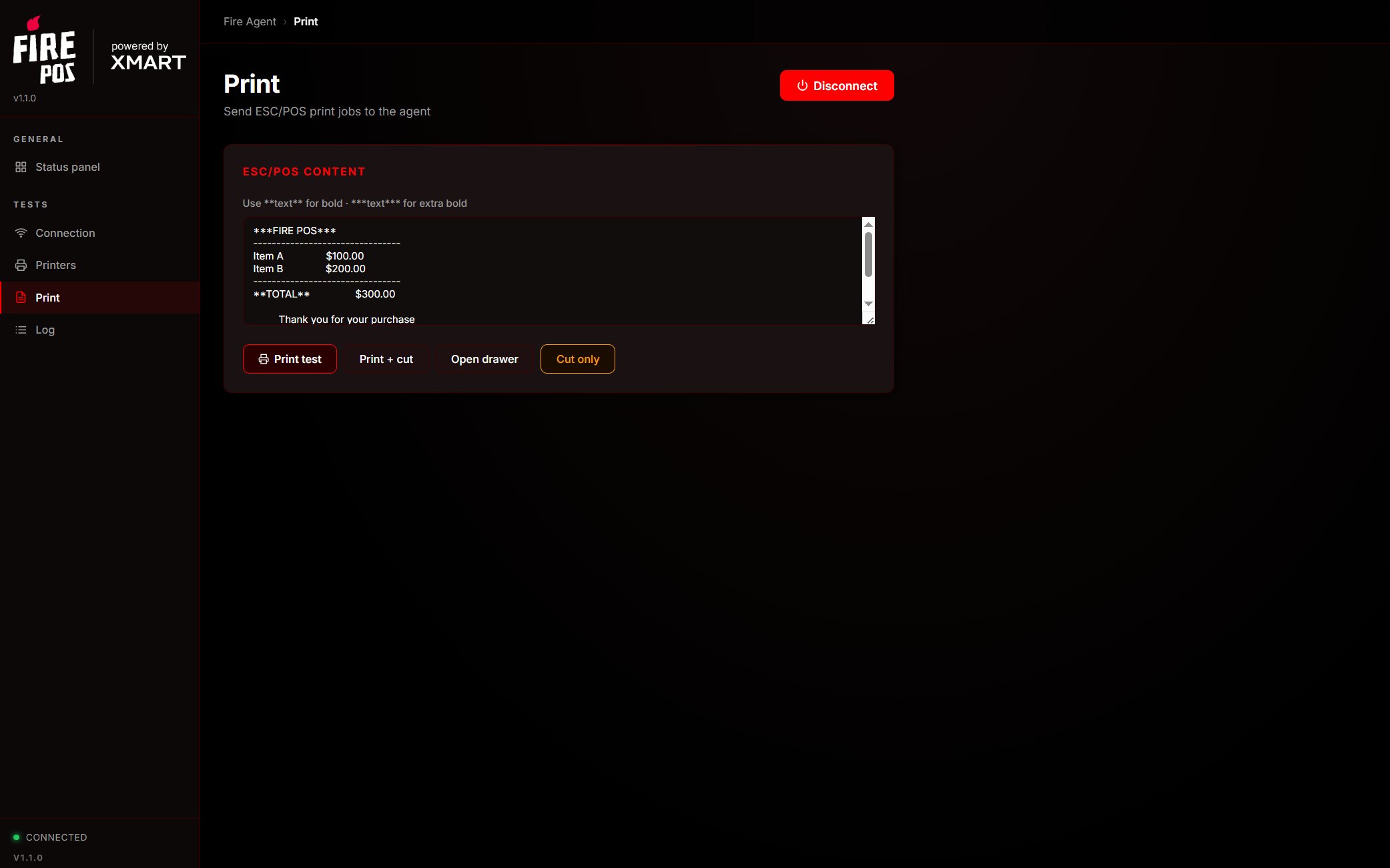
- Make sure you selected a printer in the previous section.
- Edit the receipt content in the ESC/POS content box (it comes with a preloaded example).
- Use one of the four buttons:
The result of each action appears in the Log section.
Log
Shows, with a timestamp, every message exchanged with the agent: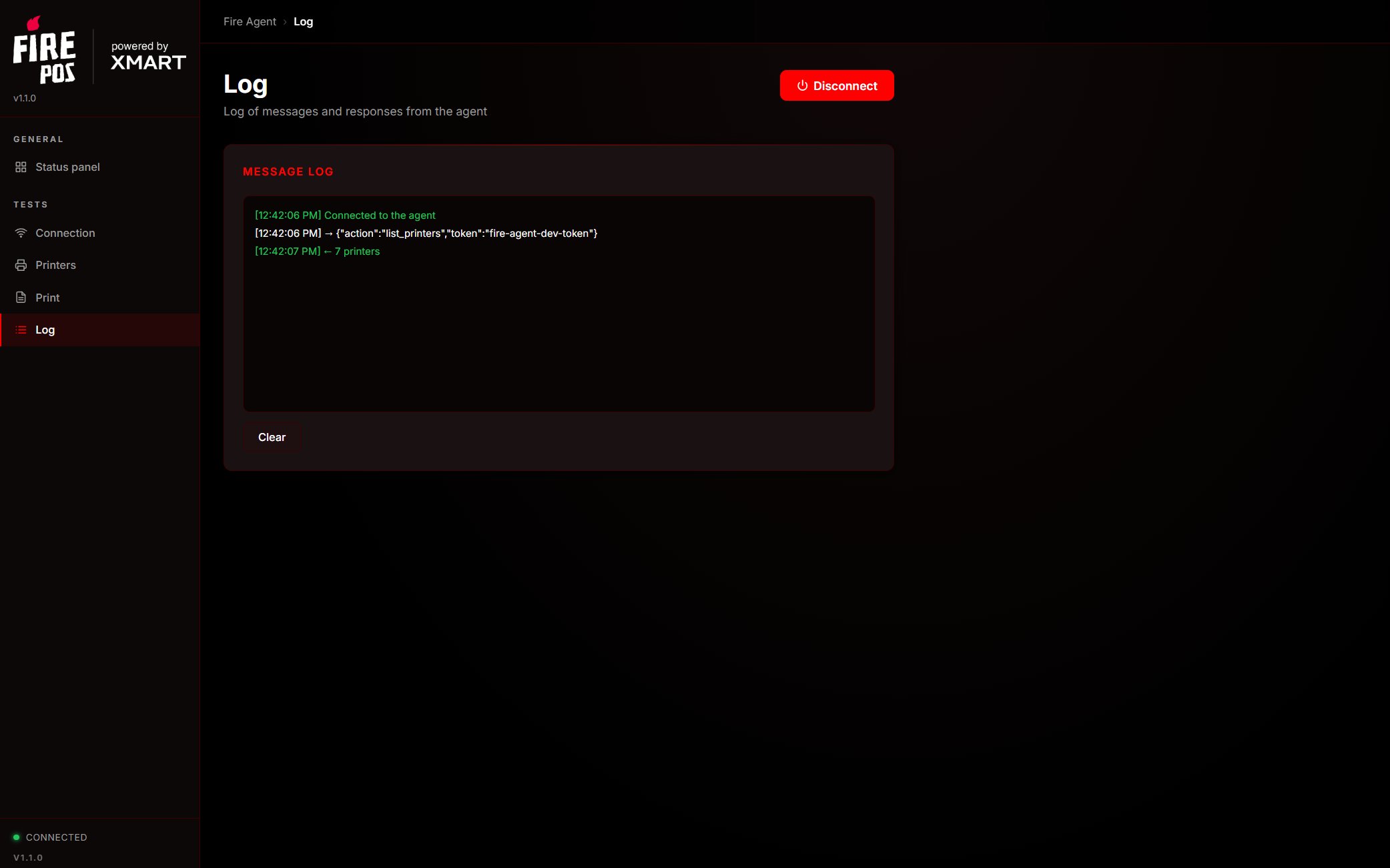
- Yellow: messages sent (→) to the agent.
- Green: successful responses (←
print_ok,printers,pong). - Red: errors (← ERROR: …).
Receipt formatting
Inside the text box you can apply emphasis with markers:
The content is centered automatically and feed lines are added at the end.
Automatic saving
The page remembers its setup in the browser (localStorage):
If the token is already saved, the agent connects on its own when the page opens and lists the printers.
Information panel
The panel is a read-only view (it does not print). It summarizes the agent status and refreshes itself every 30 seconds.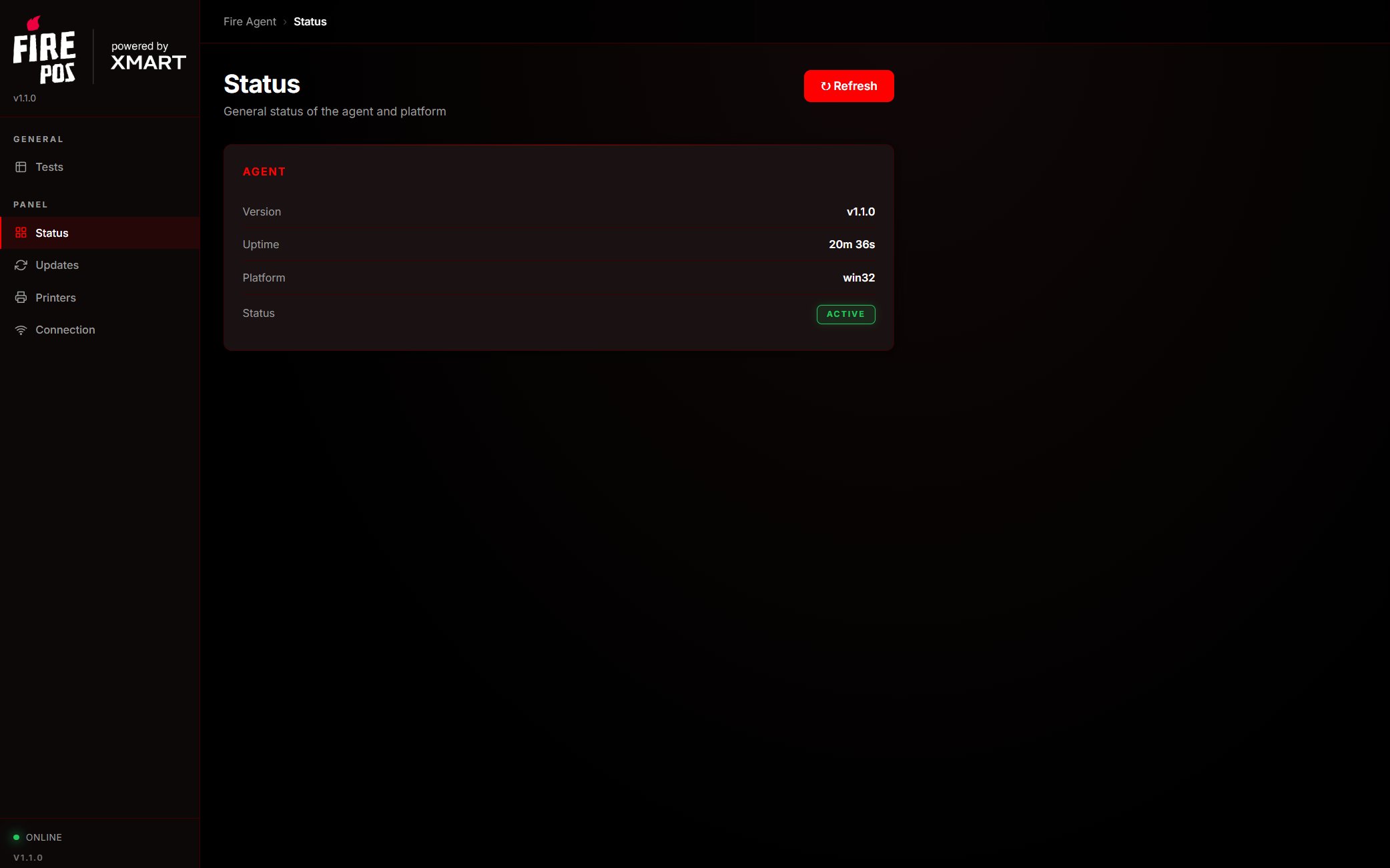
http://localhost:9100/panel (or click the Fire Agent tray icon). The sidebar has four sections:
The ↻ Refresh button forces an immediate refresh of all data.
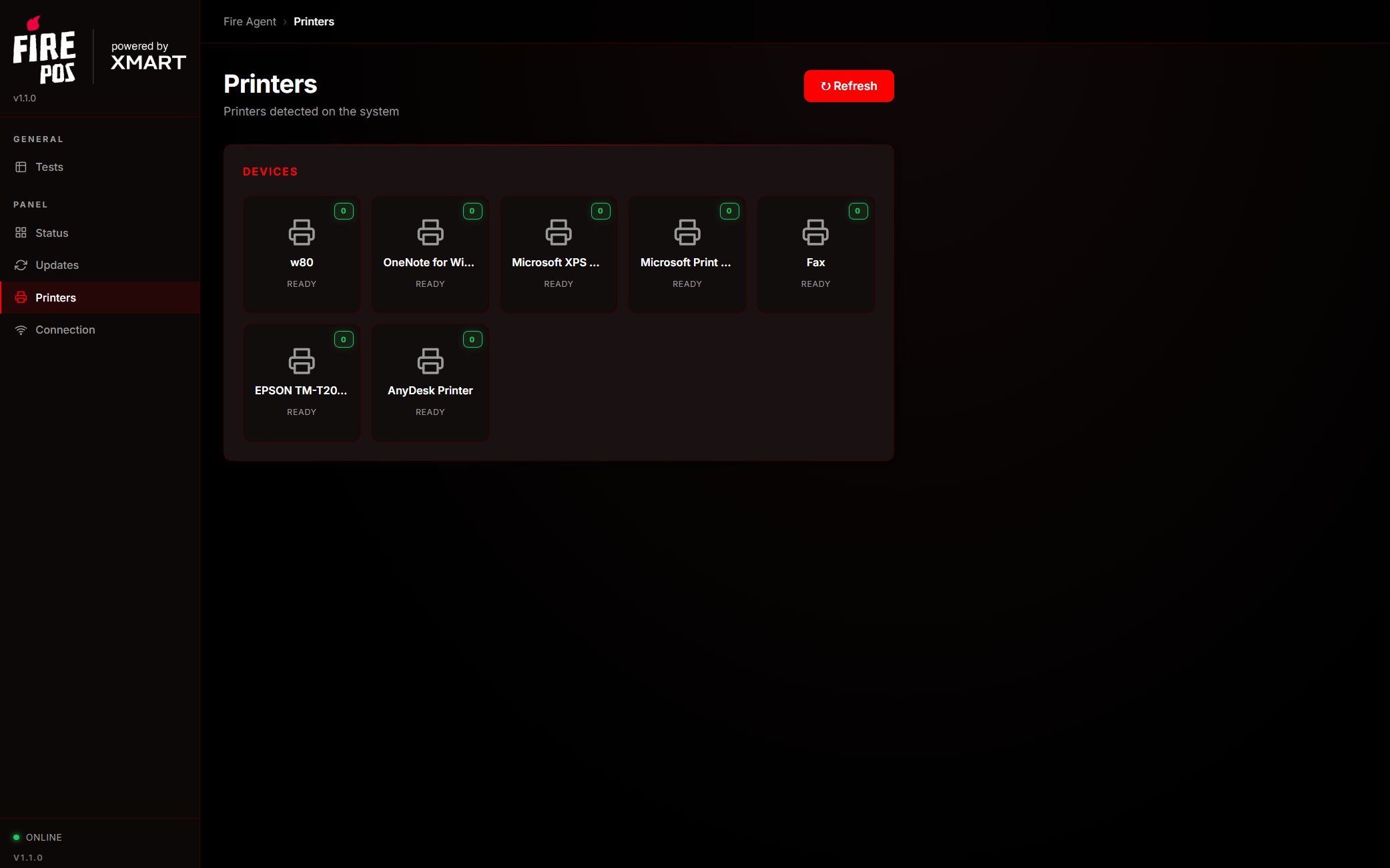
The Printers section shows the detected printers and their status as cards:
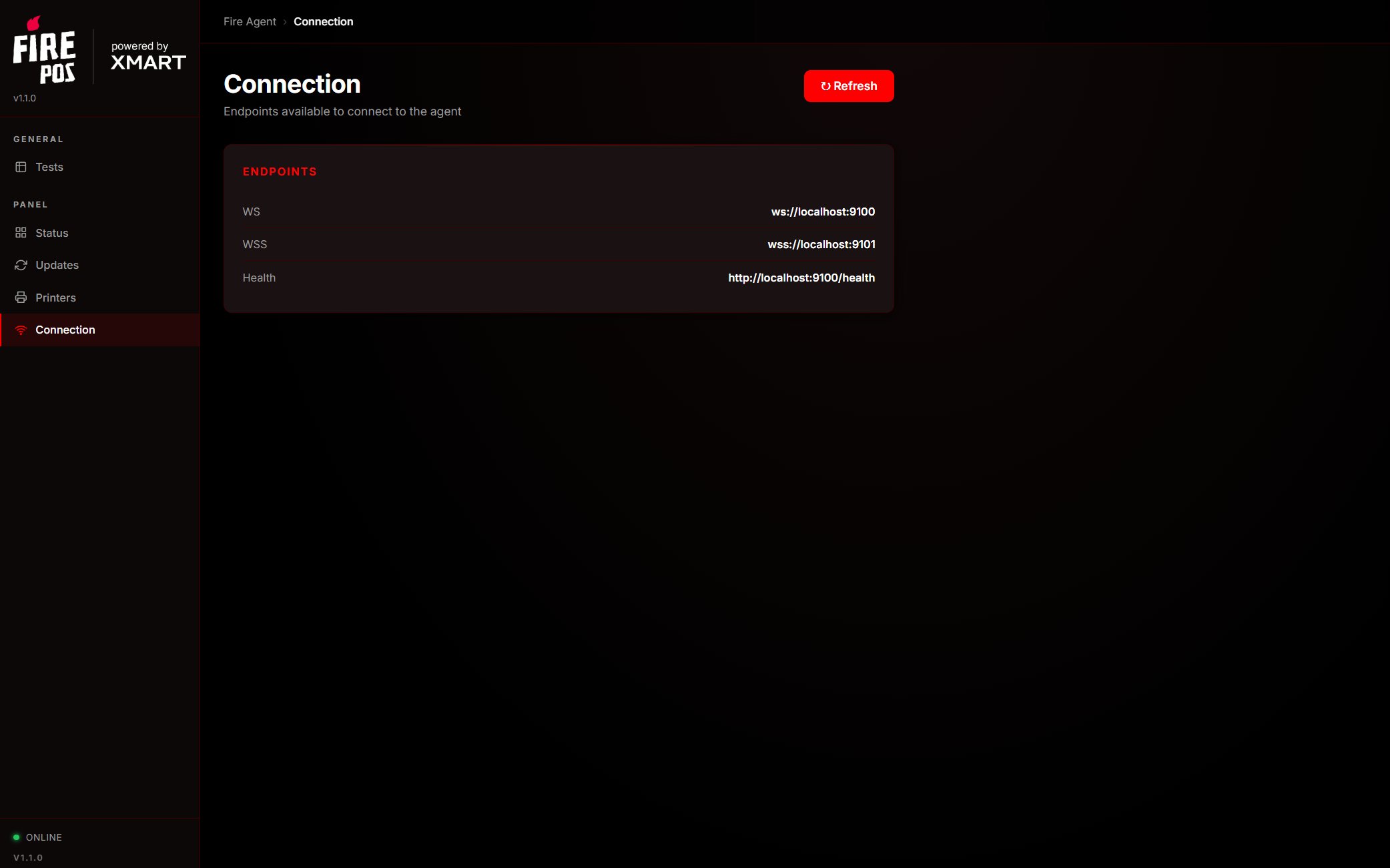
Kitchen print from fire-kds tries the URL for the detected platform first (Windows
wss://localhost:9101 vs Android wss://kds-agent.fire.rest:9101) and falls back to the other if that connect fails. You do not pick the URL on the KDS screen. Tablets: Android installation.The status indicator turns Offline (red) if the agent stops responding.