

The minimum you need to know
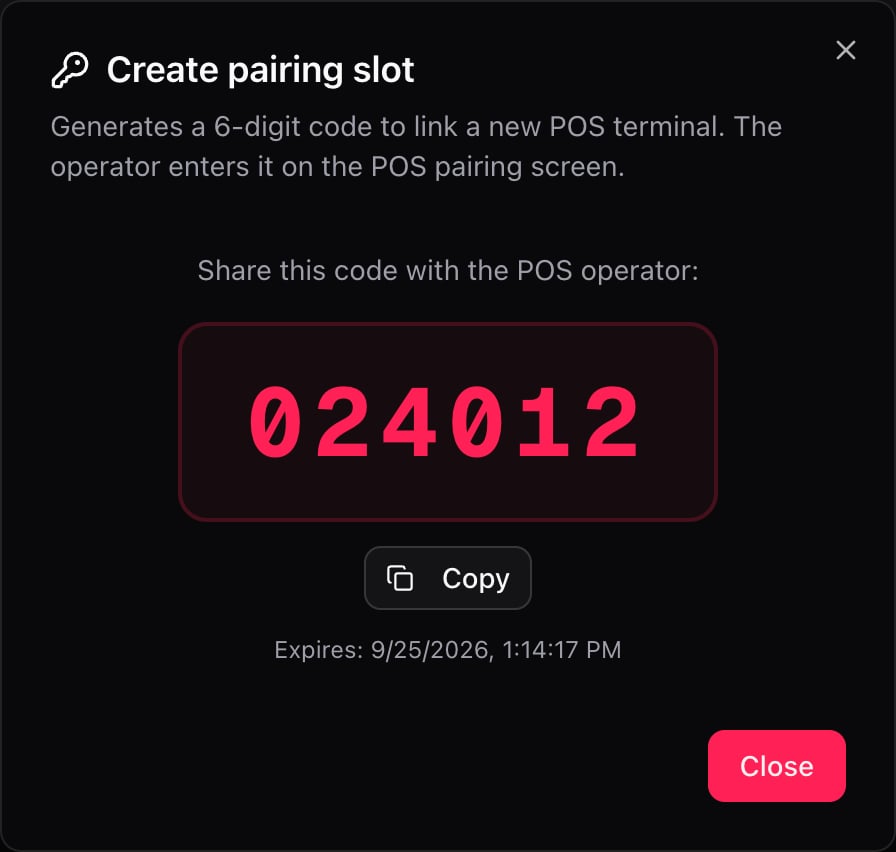
- You generate the code in Fire POS → Terminals → Create slot, and it expires after 30 minutes if nobody uses it.
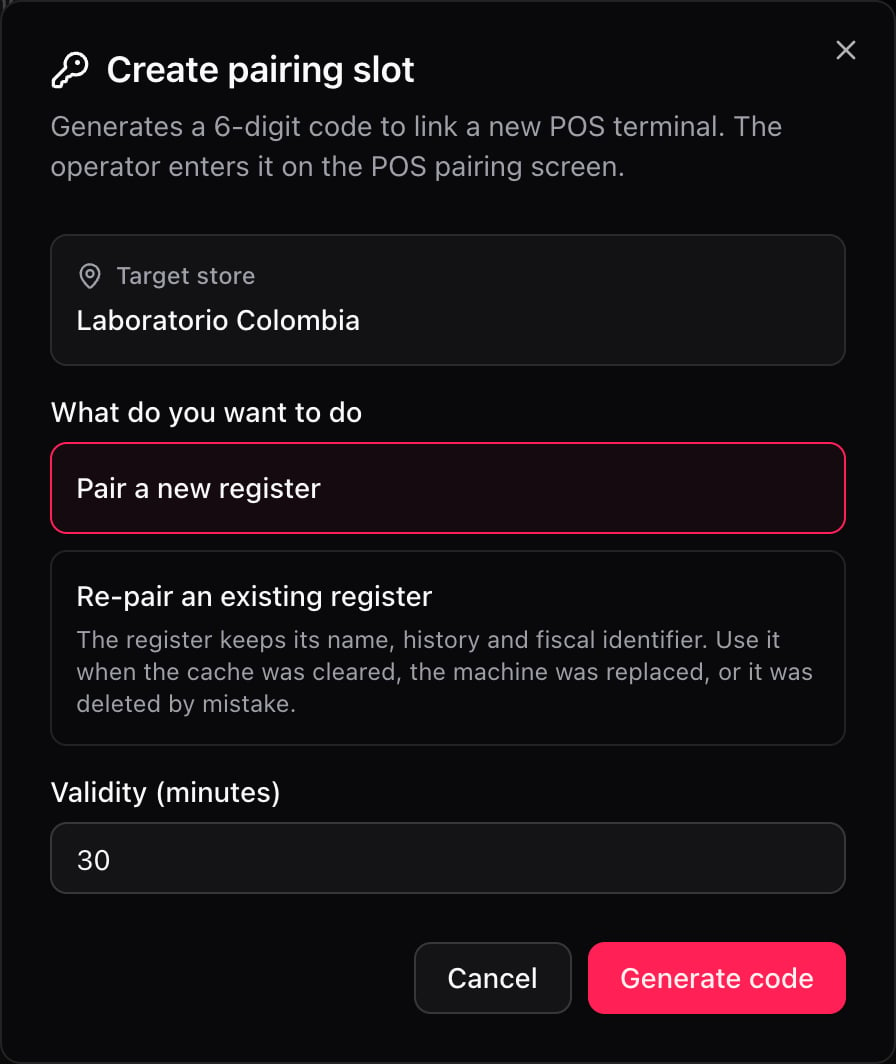
- Pair a new register creates a new terminal. Re-pair an existing register recovers one that already existed.
- The backoffice and the POS must be on the same environment: a production code doesn’t work on staging.
Prerequisites
- Access to the Fire backoffice at app.fire.rest, with permissions on the store.
- The device powered on, with internet and a supported browser. See the terminal requirements.
FIRE POS is not installed. It is a web application that opens in the device’s browser. Optionally, you can install it as a PWA from the browser itself so it opens full screen.This guide uses two applications: the backoffice, where you generate the code, and the POS, where you enter it.
Download Fire Agent (Windows)
Folder with
fireAgentSetup-<version>.zip: download it and unzip it.1. Choose the store
In the backoffice, choose the country and vendor in the selector at the top right, the Channel - POS channel and, in the header, the store where the device will work. The register belongs to that store.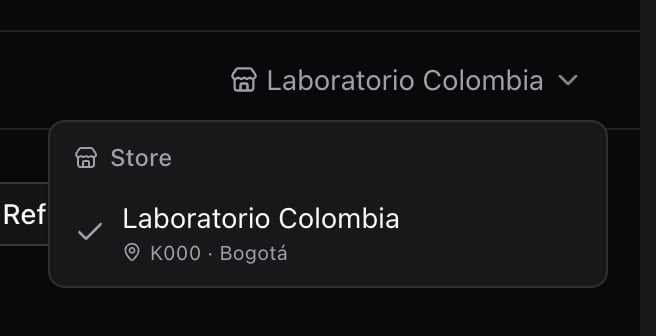
2. Create the slot
Open Fire POS → Terminals and tap Create slot.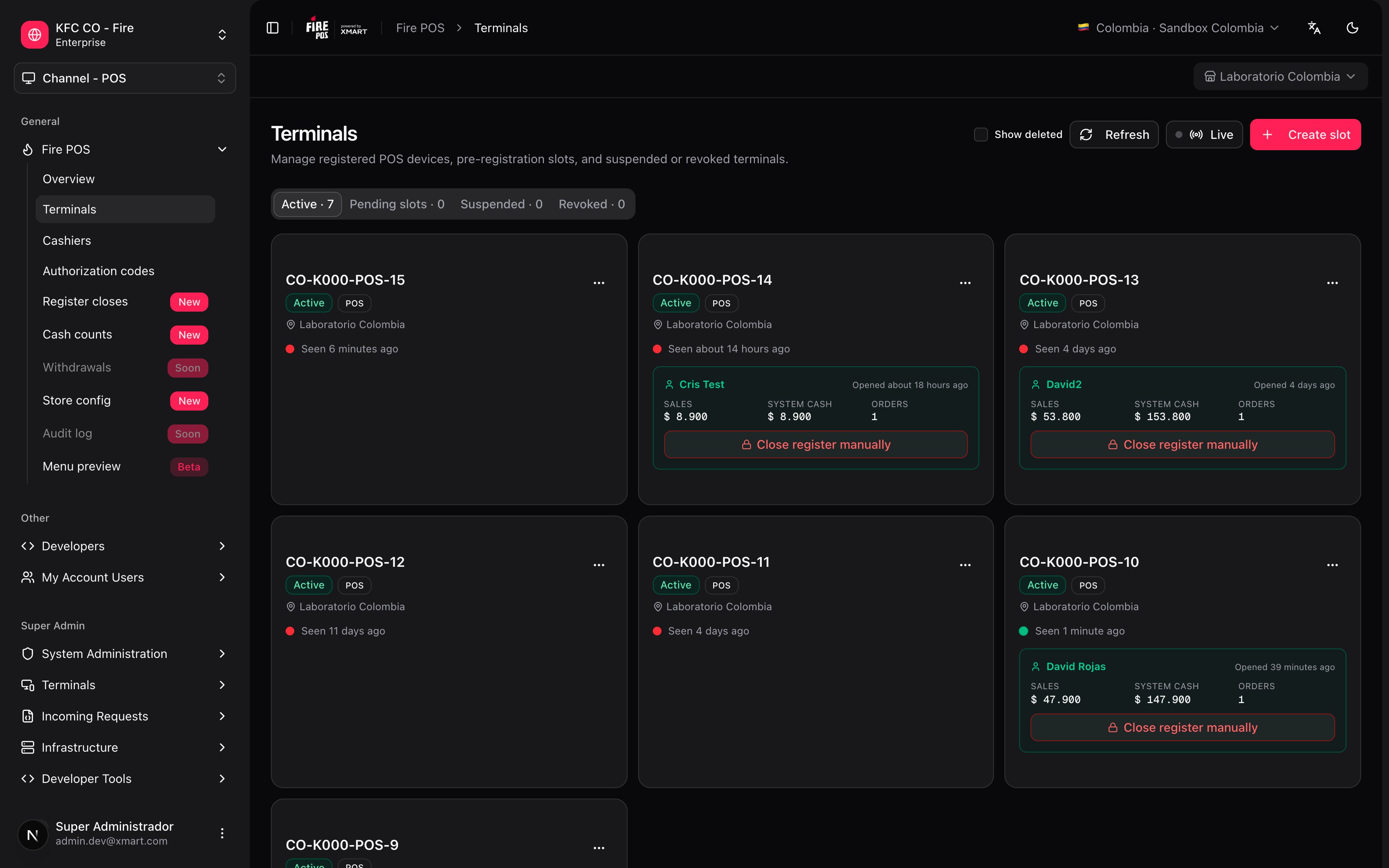
3. Enter the code in the POS
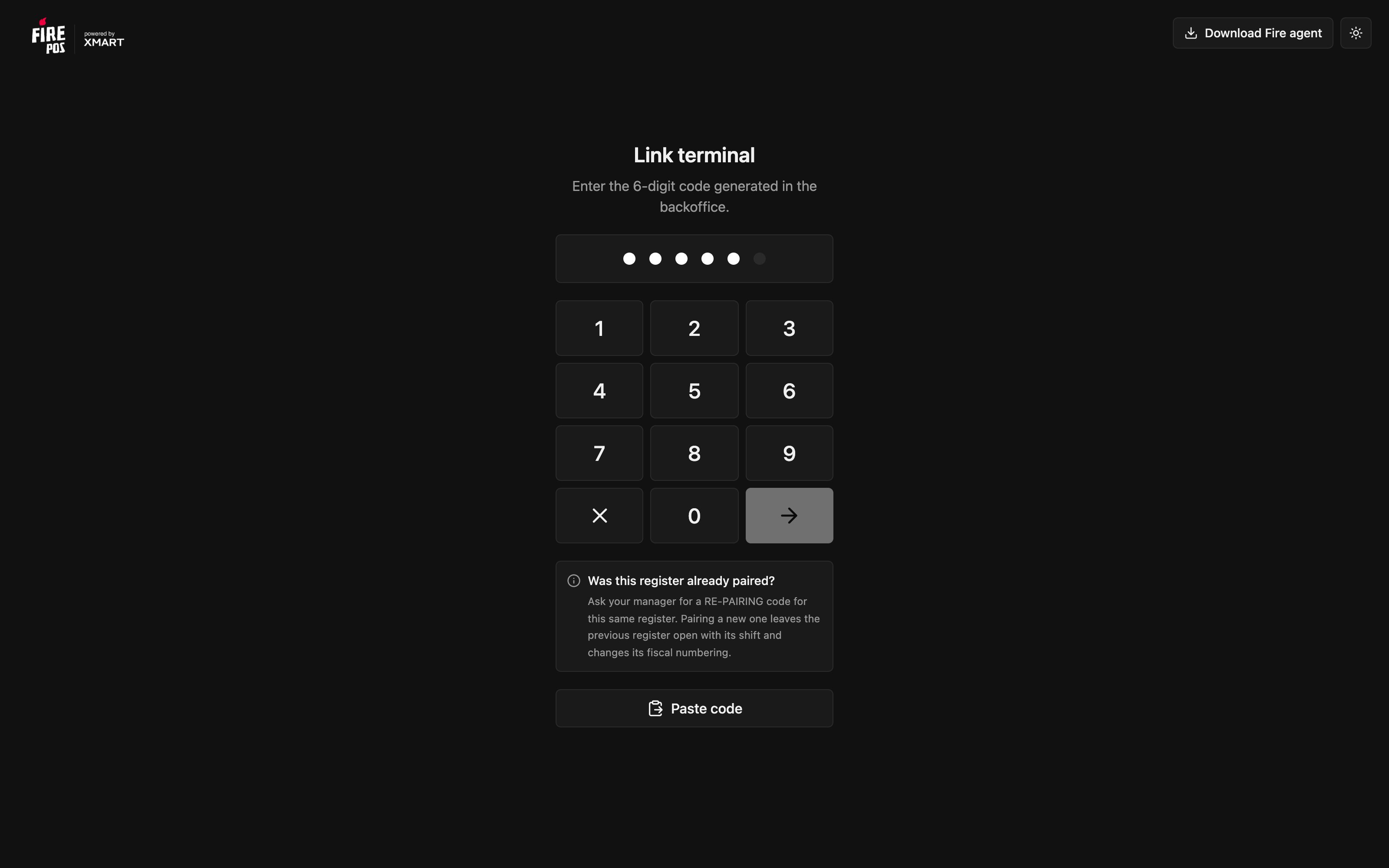
Open the POS in the device’s browser. When it is not linked, it shows Link terminal and a numeric keypad.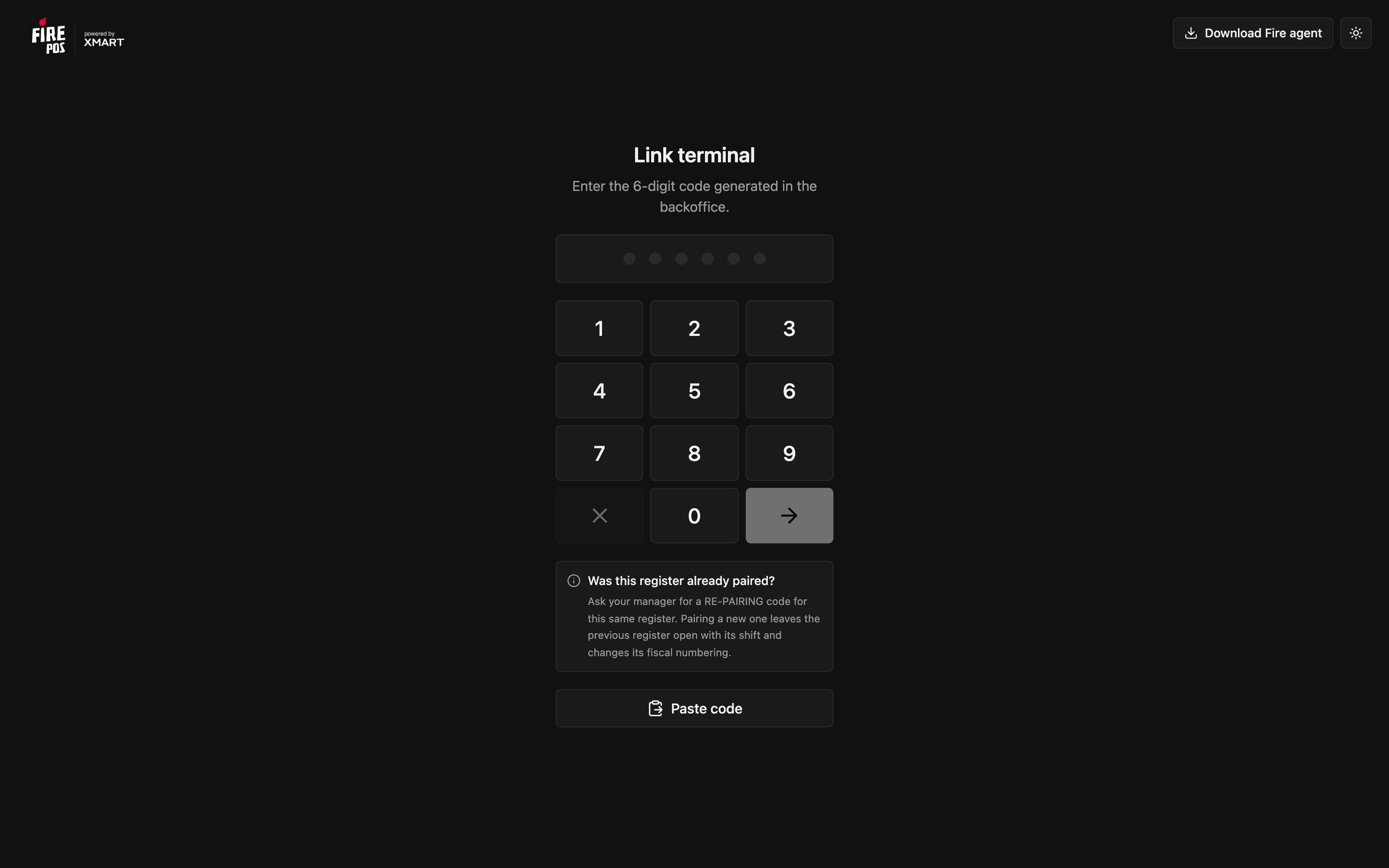
4. Set up the printer
Right after linking, the POS offers to choose the thermal printer. If the Fire Agent is installed, choose the printer, tap Print test and Save. If you haven’t installed it yet, tap Skip for now: you can do it later from the menu.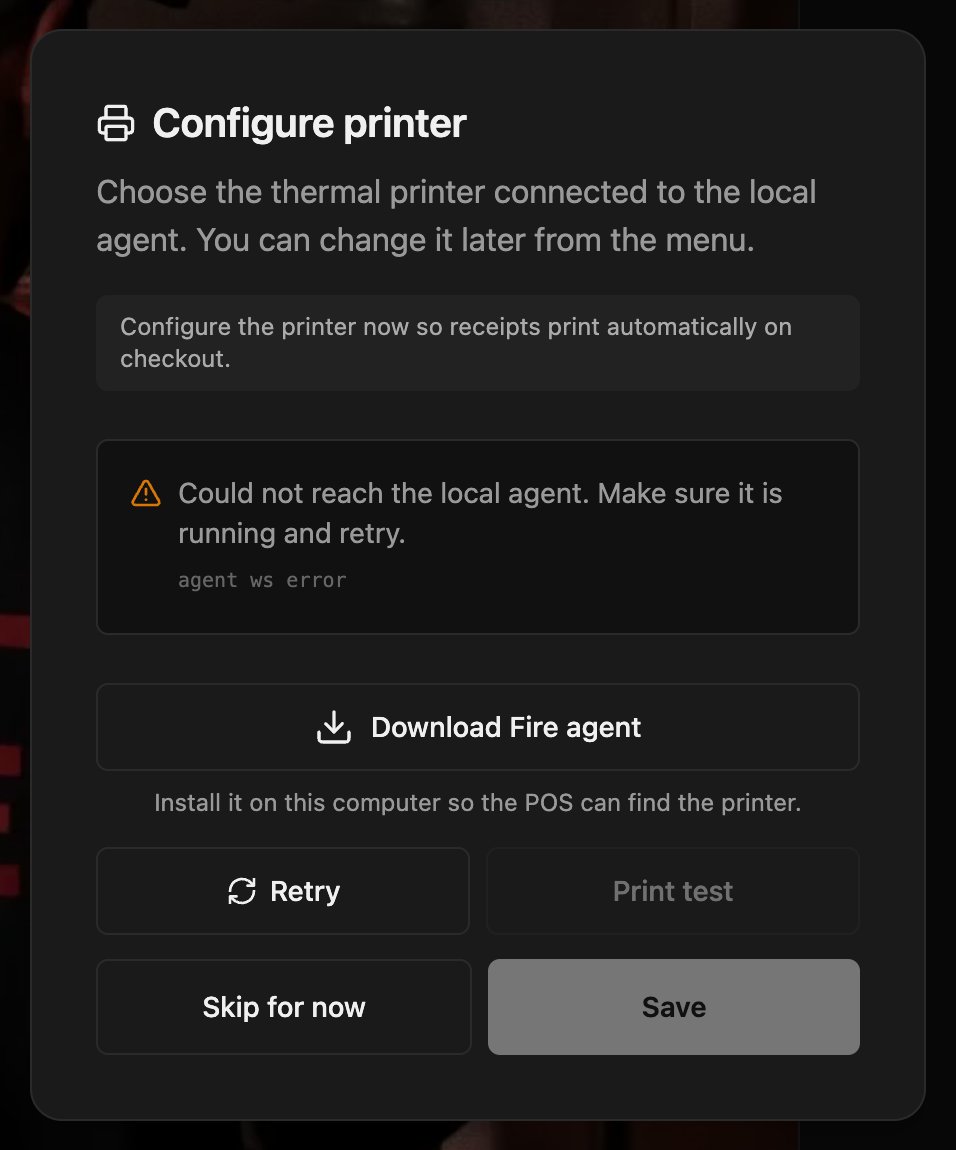
5. Check the register
The POS shows the cashier sign-in, with the register name at the top right.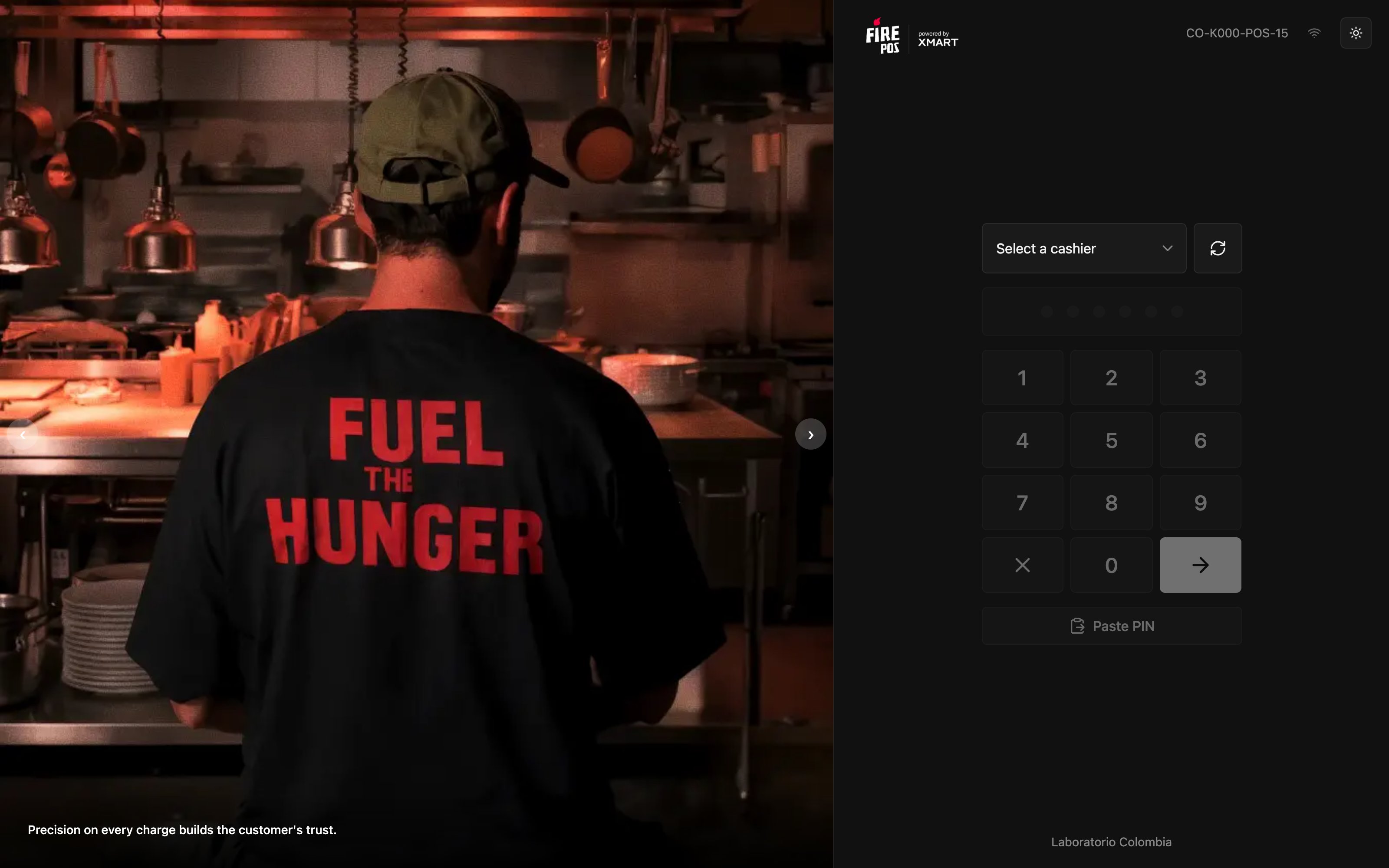
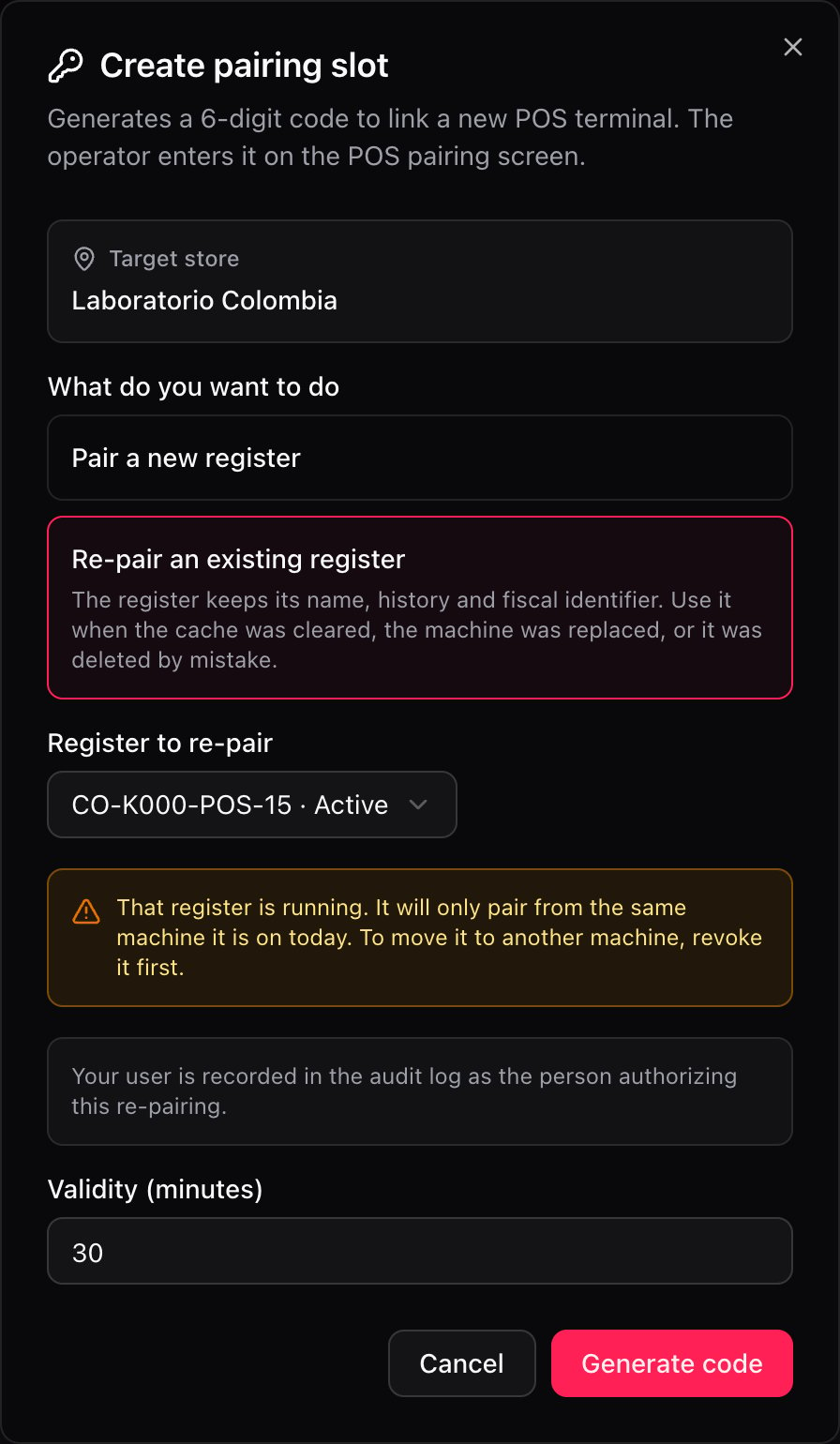
Re-pair an existing register
Use it when the device was already a register and is no longer linked: the browser cache was cleared, the device was replaced, or the register was deleted by mistake. The register keeps its name, its history and its fiscal ID.- In Create slot, choose Re-pair an existing register.
- In Register to re-pair, choose the register.
- Tap Generate code and enter it in the POS, as with a new link.
Mistakes that cost money
Frequently asked questions
The POS says the code is invalid
The POS says the code is invalid
Check that it hasn’t expired (30 minutes by default), that it hasn’t been used, and that the backoffice and the POS are on the same environment. If needed, generate another one.
What is the new register called?
What is the new register called?
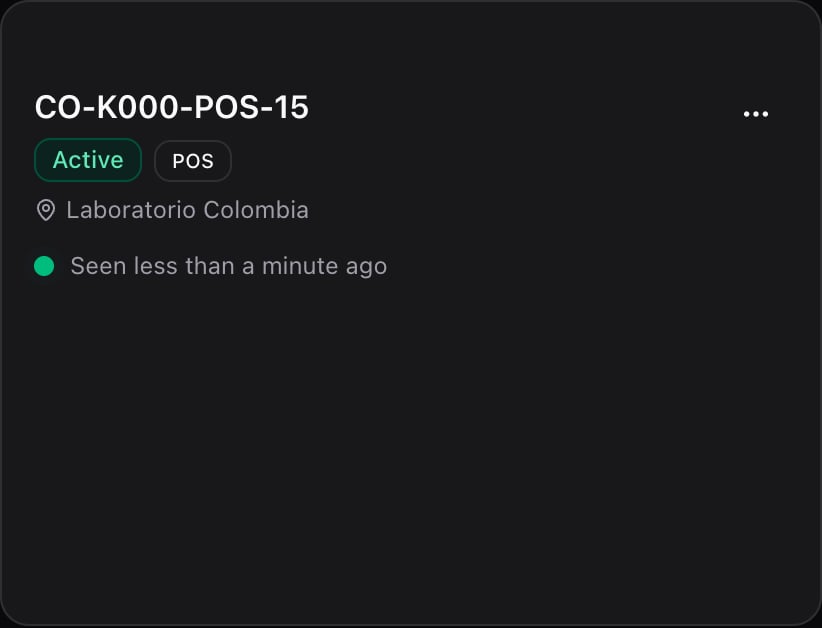
The system sets the name: country, store code, type and number, like CO-K000-POS-15. You don’t choose it.
I cleared the browser cache and the POS asks me to link it again
I cleared the browser cache and the POS asks me to link it again
Re-pair the same register: in Create slot, choose Re-pair an existing register and the register. That way it keeps its history and its numbering.
The POS can't find the printer
The POS can't find the printer
Install and open the Fire Agent on the device, and tap Retry in the printer setup.