

The minimum you need to know
- Cashiers are per store: a cashier can only start a shift on their store’s terminals.
- The PIN has 6 digits and is shown only once, when the cashier is created or when it’s reset.
- Reset PIN changes the PIN right away: the previous one stops working.
Prerequisites
- Access to the Fire backoffice at app.fire.rest, with permissions on the store.
- Channel - POS and the right store selected in the header: the cashier is created in that store.
1. Open Cashiers
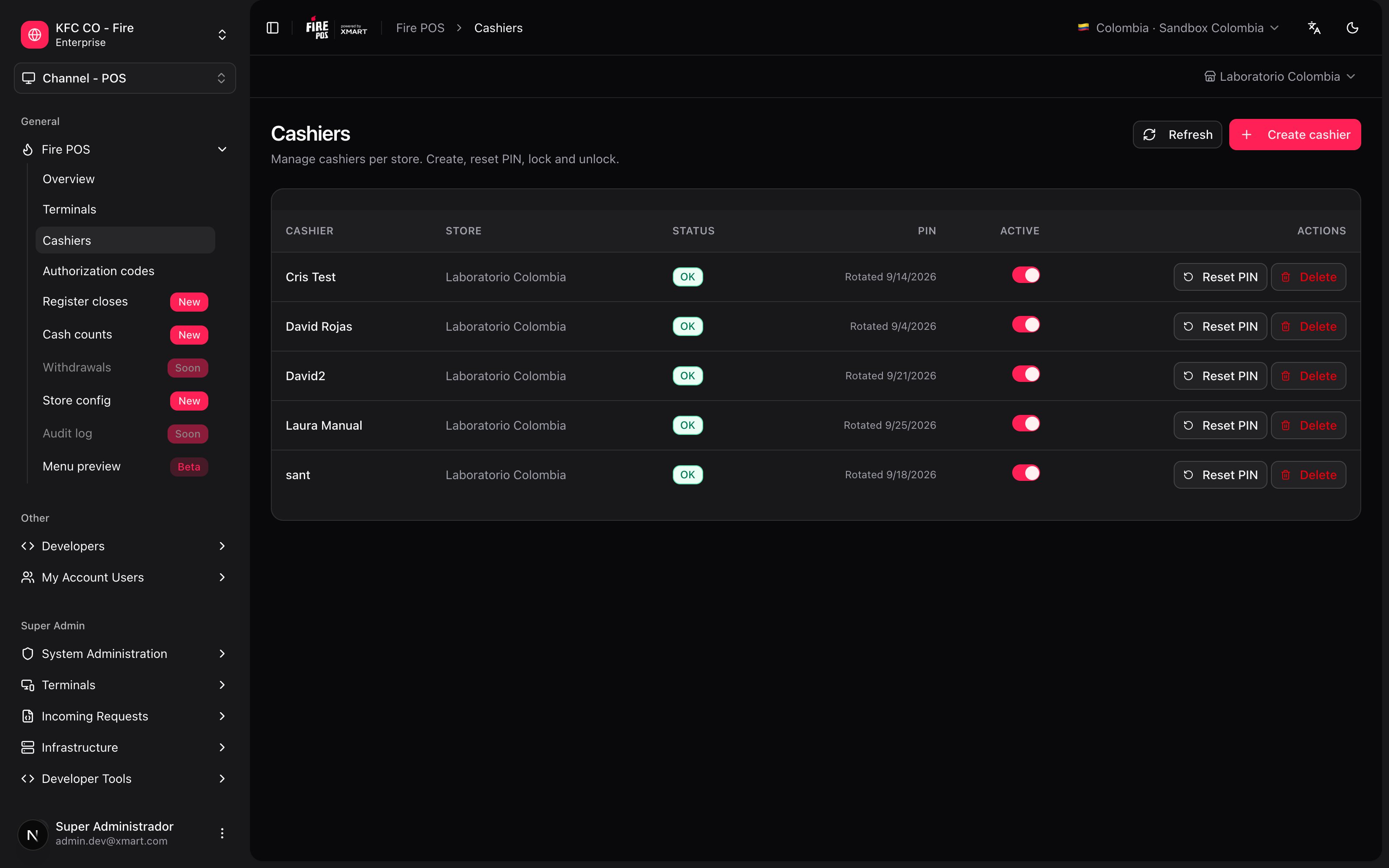
In the side menu, open Fire POS → Cashiers. The list shows the cashiers of the selected store:- Status: OK, Locked, or the number of failed PIN attempts.
- PIN: the date of the last PIN change.
- Active: whether they can start a shift.
- Actions: Reset PIN, Delete and, if they’re locked, Unlock.
2. Create the cashier
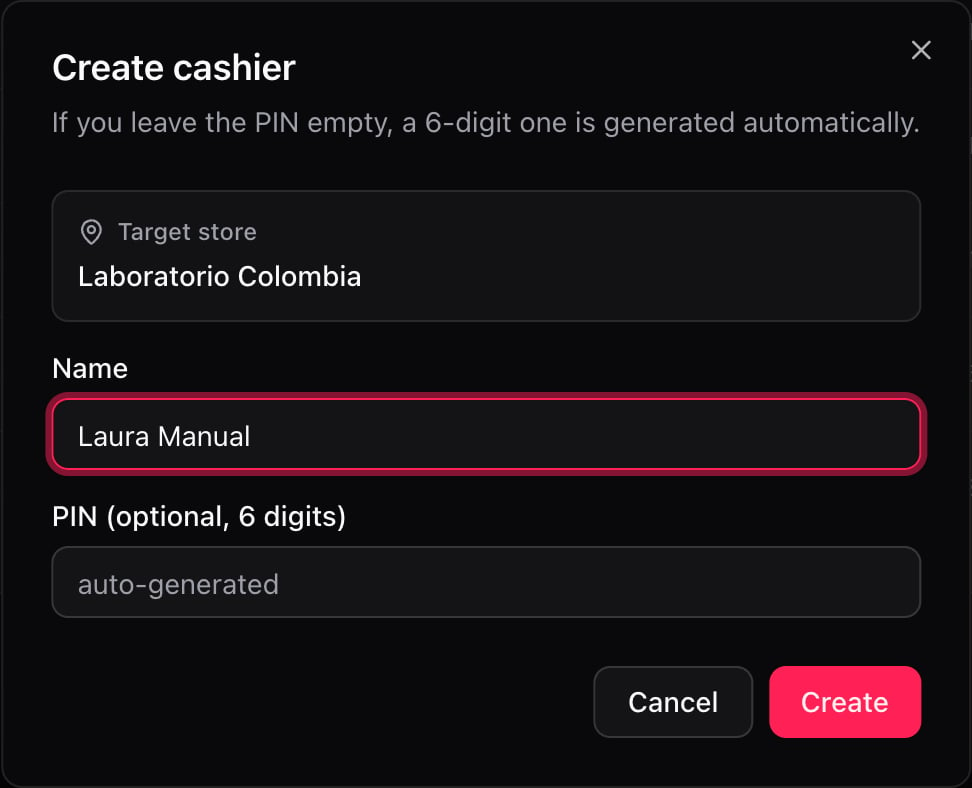
Tap Create cashier. The dialog shows the Target store, which is the one in the header.- Write the Name as you want it to appear on the POS and in the reports.
- Leave the PIN empty so one is generated automatically. It’s the recommended option.
- Tap Create.
3. Write down the PIN
After creating the cashier, their PIN appears. It’s shown only this time: copy it or write it down and give it to the person privately.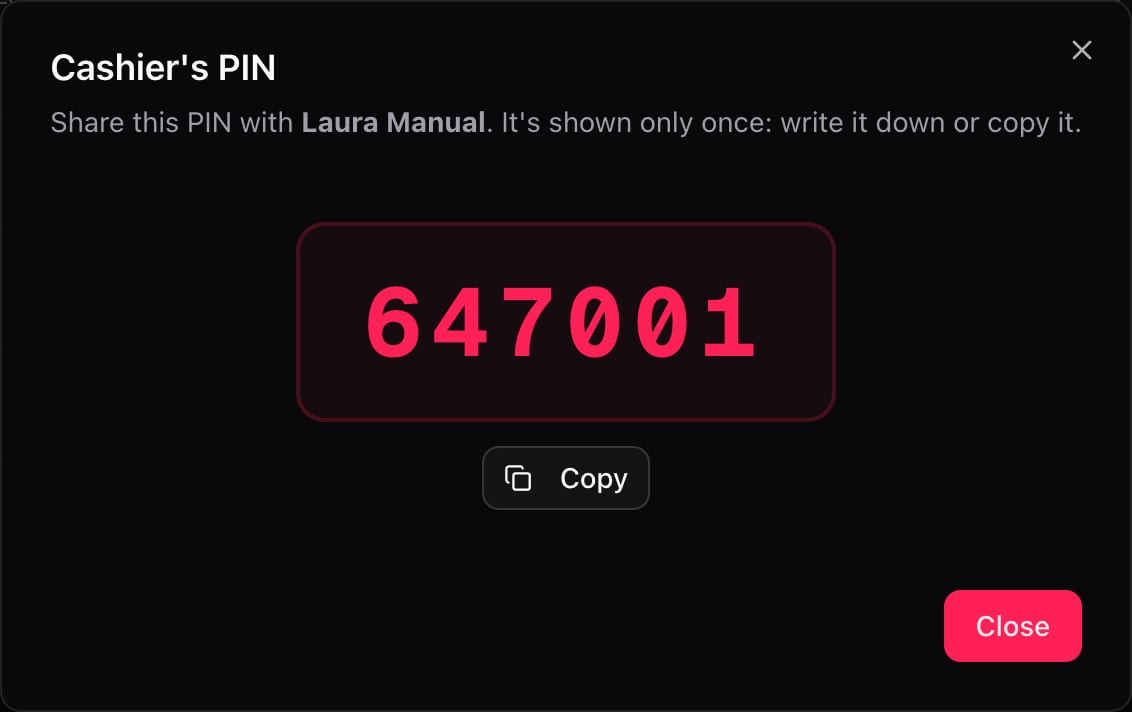
4. Check the cashier in the list
The cashier appears in the list as OK and Active.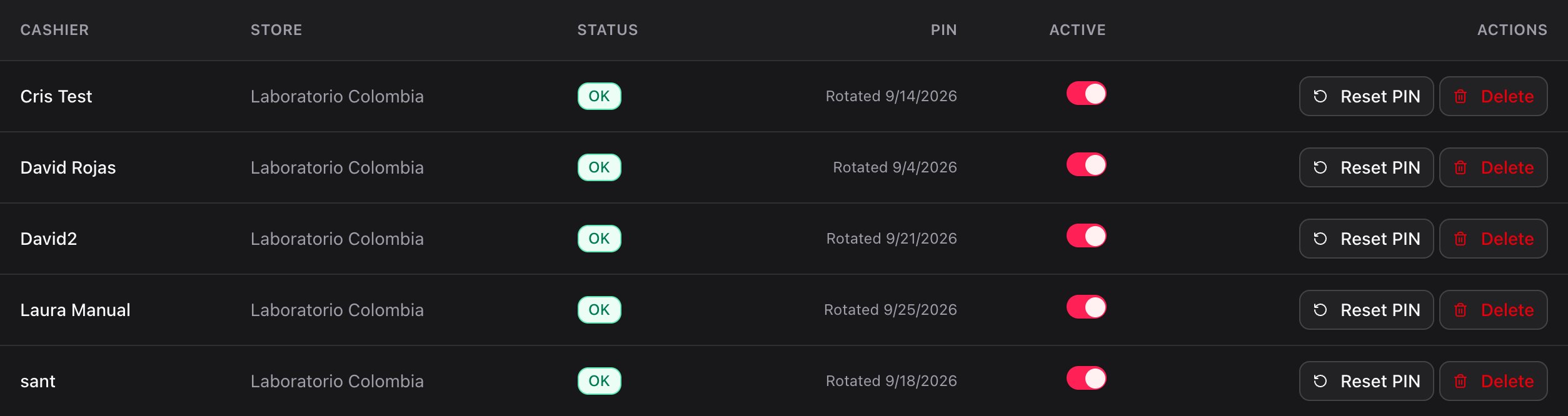
Lock after a wrong PIN
If the cashier enters the wrong PIN 3 times in a row, they’re locked for 5 minutes. The list shows them as Locked. They can wait for the lock to expire, or the manager can tap Unlock on their row.Reset a PIN
When a cashier forgets their PIN, tap Reset PIN on their row. The new PIN appears in the same dialog and, just like when creating it, it’s shown only once.Deactivate or delete a cashier
- Deactivate: turn off the Active switch. The cashier stays in the list but can’t start a shift. You can activate them again.
- Delete: tap Delete, write the reason if you want, and confirm. The cashier leaves the list and can’t start a shift. Their shifts, registers and records are kept for auditing.
Mistakes that cost money
Frequently asked questions
The new cashier doesn't appear on the POS
The new cashier doesn't appear on the POS
On the POS sign-in screen, tap the reload icon in the cashier list or restart the app so the terminal downloads the updated list. Also confirm the cashier was created in the terminal’s store.
The cashier forgot their PIN
The cashier forgot their PIN
Tap Reset PIN on their row and give them the new PIN. The previous one no longer works.
The cashier is locked
The cashier is locked
They’re locked for 5 minutes after 3 wrong PINs. Tap Unlock on their row so they can try again right away.
The cashier works in two stores
The cashier works in two stores
Each cashier belongs to one store. If the person works in two, create a cashier for them in each one.
A cashier can't open a register because another one is open
A cashier can't open a register because another one is open
Their previous register stayed open on some terminal. Close it from Terminal administration with Close register manually.