

Keyboards and input devices
Physical keys (bump, change page, recall) let operators work without touching the screen.Actions available in the backoffice
When you create or edit a layout, each key can trigger actions such as:Configure a keyboard
1
Create the input device
KDS → Input devices → Create (
/kds/admin/devices/new). Type: KDS keyboard. Link it to the correct screen.2
Create the keyboard layout
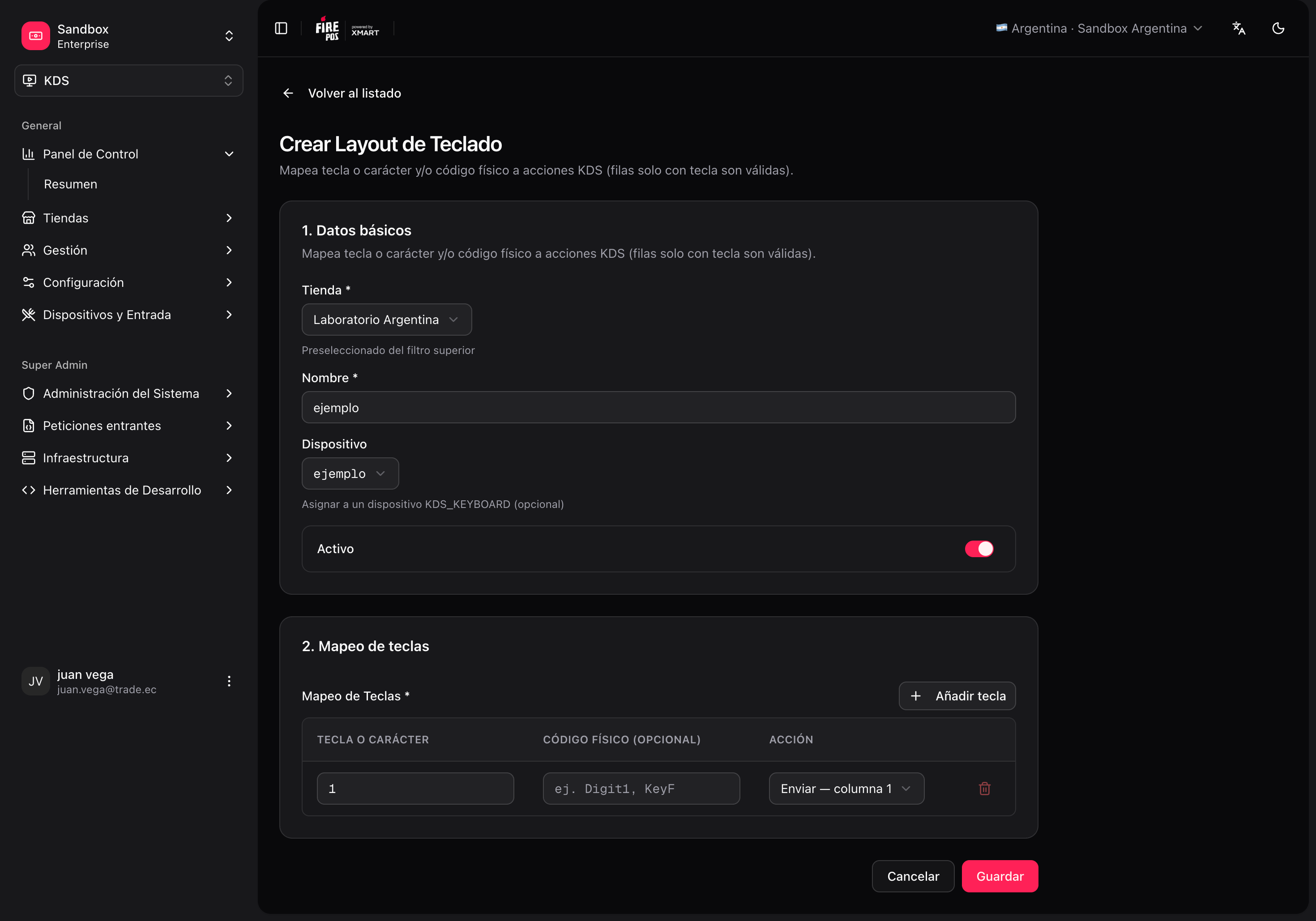
KDS → Keyboard layouts → Create (
/kds/admin/keyboard-layouts/new). Choose the store and device, then map keys to actions.3
Save
/kds/admin/stores/{storeId}/kds-map). If a template includes a keyboard, applying it can create the device {deviceIdentifier}-kbd and layout automatically.
Printing and cancellation
There are three distinct concepts. They are not all configured in the same place.1. Print on bump (store)
What it does: when the operator bumps on the print station, fire-kds can print Comanda, Fiscal invoice, or both — always one station per store, so a multi-station screen does not print twice. Where the rule lives: KDS → All Stores → [store] → Settings → Bump printing (store), or fire-kds → Settings → KDS → Print on bump (admins only). Pick By screen or By station, the documents, drag Print order, Copies, and Fiscal timing (Async (bump first) or Sync (wait for print)).
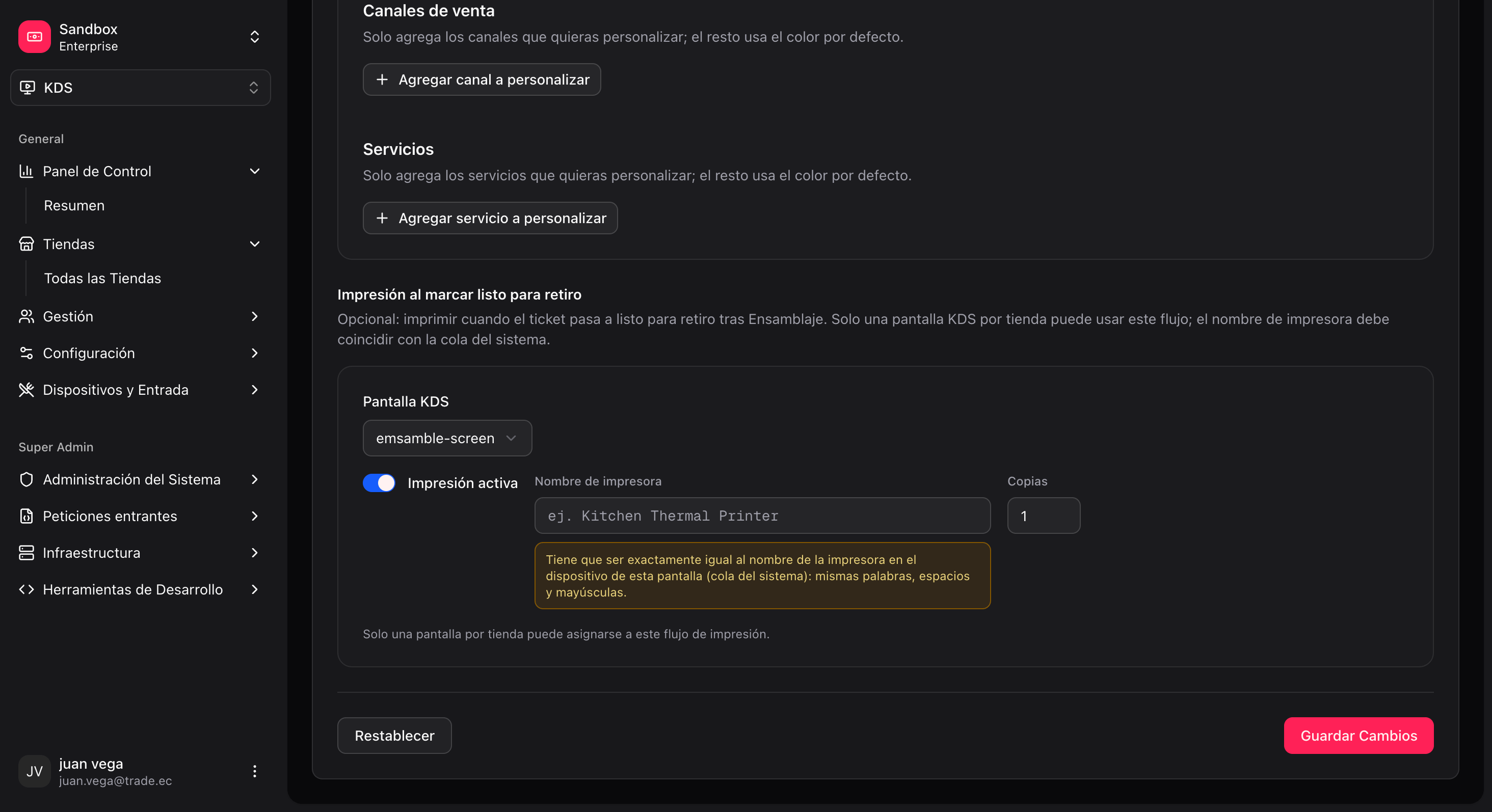
Where the printer is armed: only on the KDS device, Printer for this screen. The backoffice no longer stores the Windows/Android queue name in store settings.
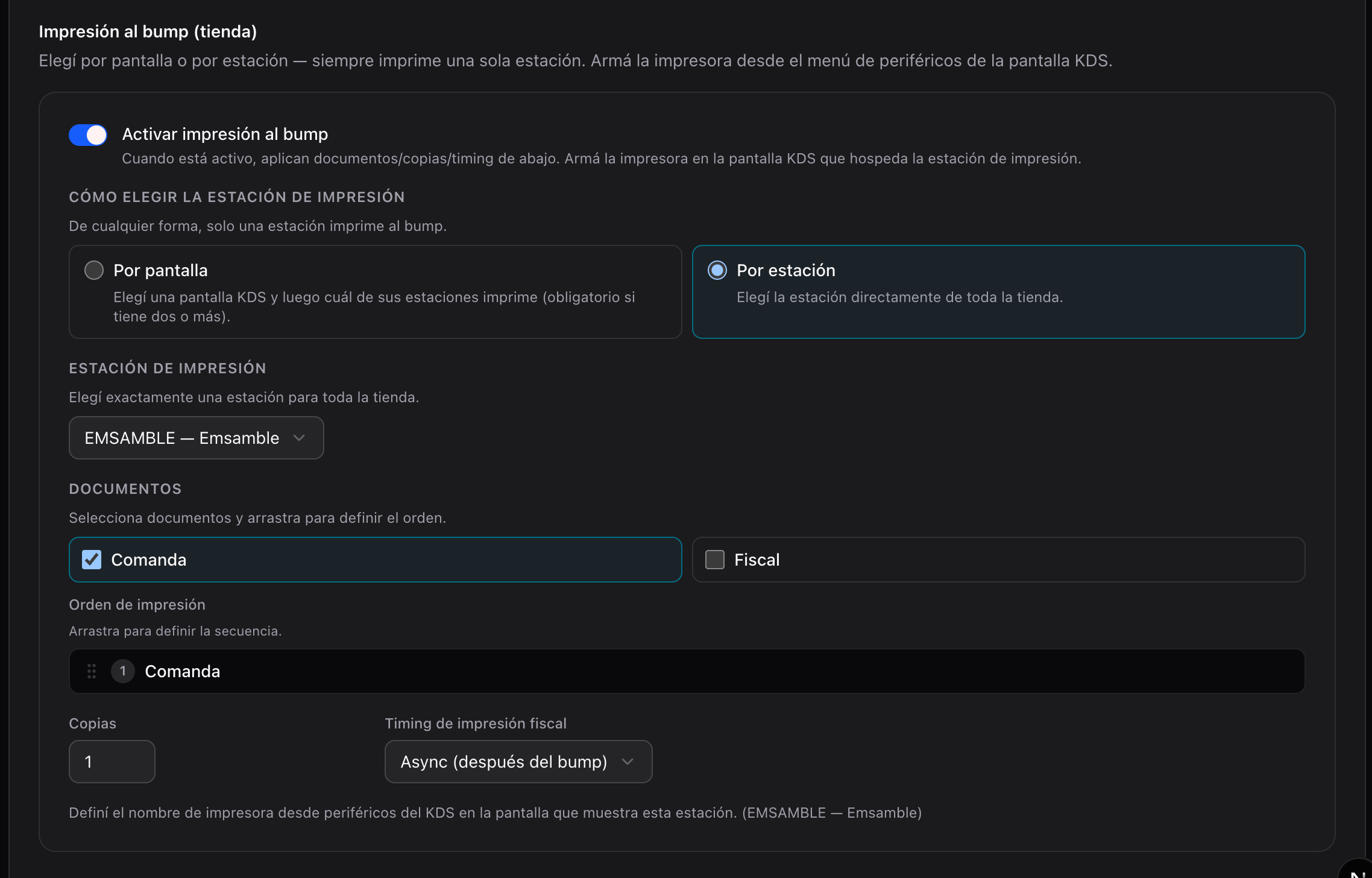
Stores that still run the old ready-pickup / per-screen rule see a legacy banner until you enable the new Print on bump block. Do not assume both policies are off.
- One print station chosen (via screen or station).
- At least one document selected.
- An active KDS screen linked to that station.
- Fire Agent running on that device — Windows or Android. fire-kds tries the platform URL first and falls back to the other.
- Printer name identical to the agent / OS queue.
2. Order cancellation (in the fire-kds app)
What it does: lets the operator cancel an order from the KDS (icon on the ticket → confirmation). Where it is configured: in the fire-kds app, top menu → “Order cancellation…” (a modal on the device). It is not in the backoffice today.
Several screens can have cancellation enabled at once (there is no “only one” limit like ready-pickup printing). It also requires the order to have an external XMART ID for the cancellation adapter, and an operator with a valid store role.
3. Fiscal printing from the keyboard
ThePRINT_PENDING_FISCAL_INVOICES action is assigned in the keyboard layout, not in the ready-pickup printing section. It does not compete with the “one screen” rule (they are different flows) and depends on the country/store fiscal integration in fire-kds.
Validate the configuration: KDS Map
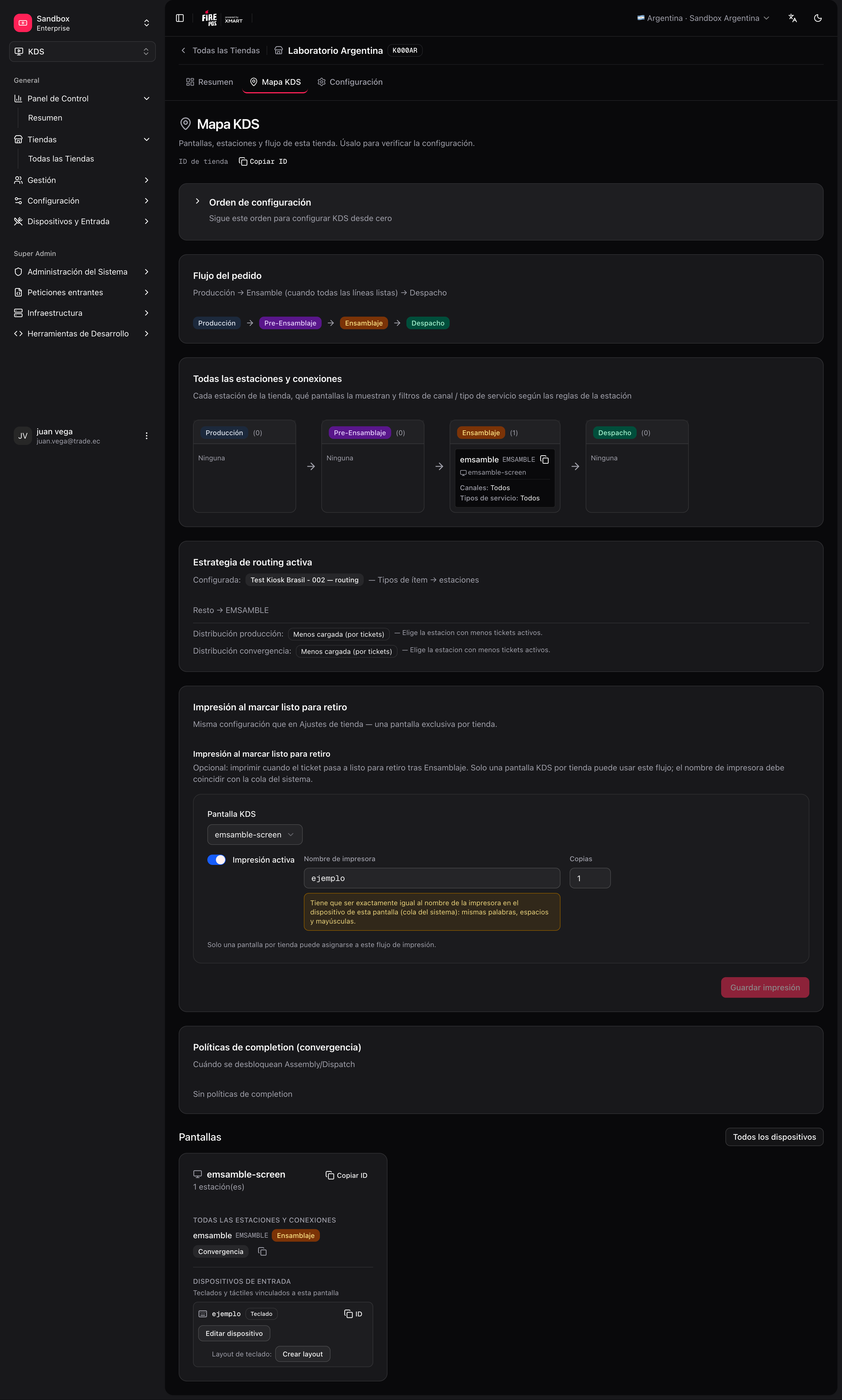
After configuring (by template or manually), open: KDS → All Stores → [your store] → KDS Map (/kds/admin/stores/{storeId}/kds-map).
The map shows:
- Screens and linked stations.
- Stations with no screen (alerts).
- Input devices and keyboard layouts.
- Ready-for-pickup printing card.
- Overall config health.
Go-live checklist
- KDS store created and active.
- Stations with unique codes and coherent stages.
- Screens with the device identifier agreed with the hardware.
- Each screen has assigned stations (correct sort order).
- One active routing strategy.
- Simple kitchen (prod):
ASSEMBLYstation + Production required = No + one screen; test order display and bump-first printing. - Simple kitchen (alternative): one
KITCHENstation + fallback; Production required = Yes; no mappings. - Multi-line kitchen: mappings only to production stations; ASSEMBLY/DISPATCH via convergence, not in mappings.
- (Optional) Keyboard: device + layout per screen that uses it.
- (Optional) Print on bump: one print station, documents selected, printer armed on an active screen.
- (Optional) Cancellation: enabled in fire-kds for the store + screens that need it.
- KDS Map with no critical alerts.
- Test with a real or seeded order: items reach the expected screen/station.
Reference routes (backoffice)
With the KDS Map clean and the checklist done, the store is ready to open fire-kds in the kitchen.