

Important fields
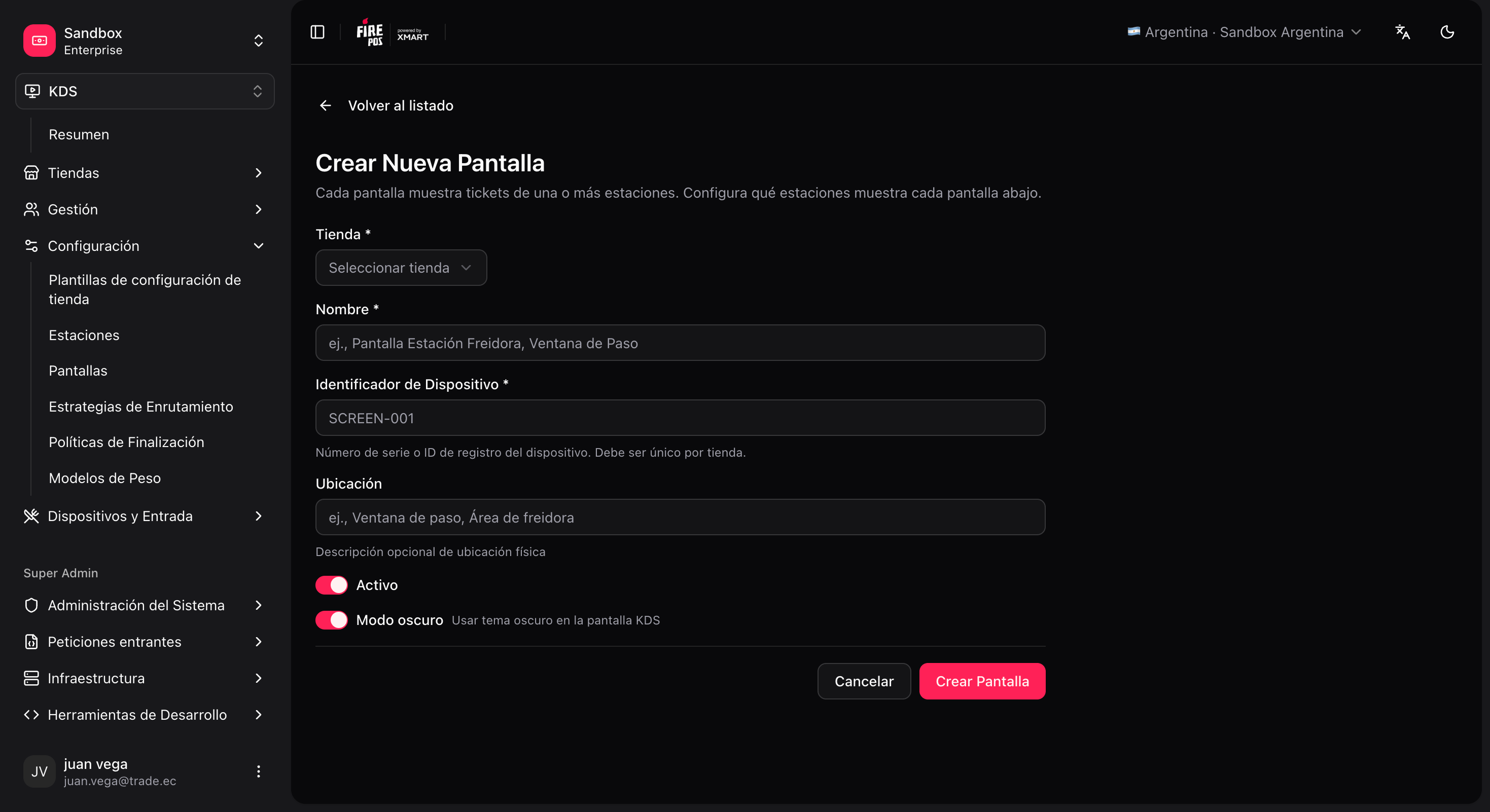
Create a screen
1
Open the screen form
KDS → Screens → Create (
/kds/admin/screens/new).2
Fill store, name and device identifier
For example, device identifier
KDS-GRILL-01.3
Save
The system redirects to Assign stations.
4
Assign stations
- Add the stations this screen should show (e.g.
GRILLandFRY). - Set the sort order (column order in the UI).
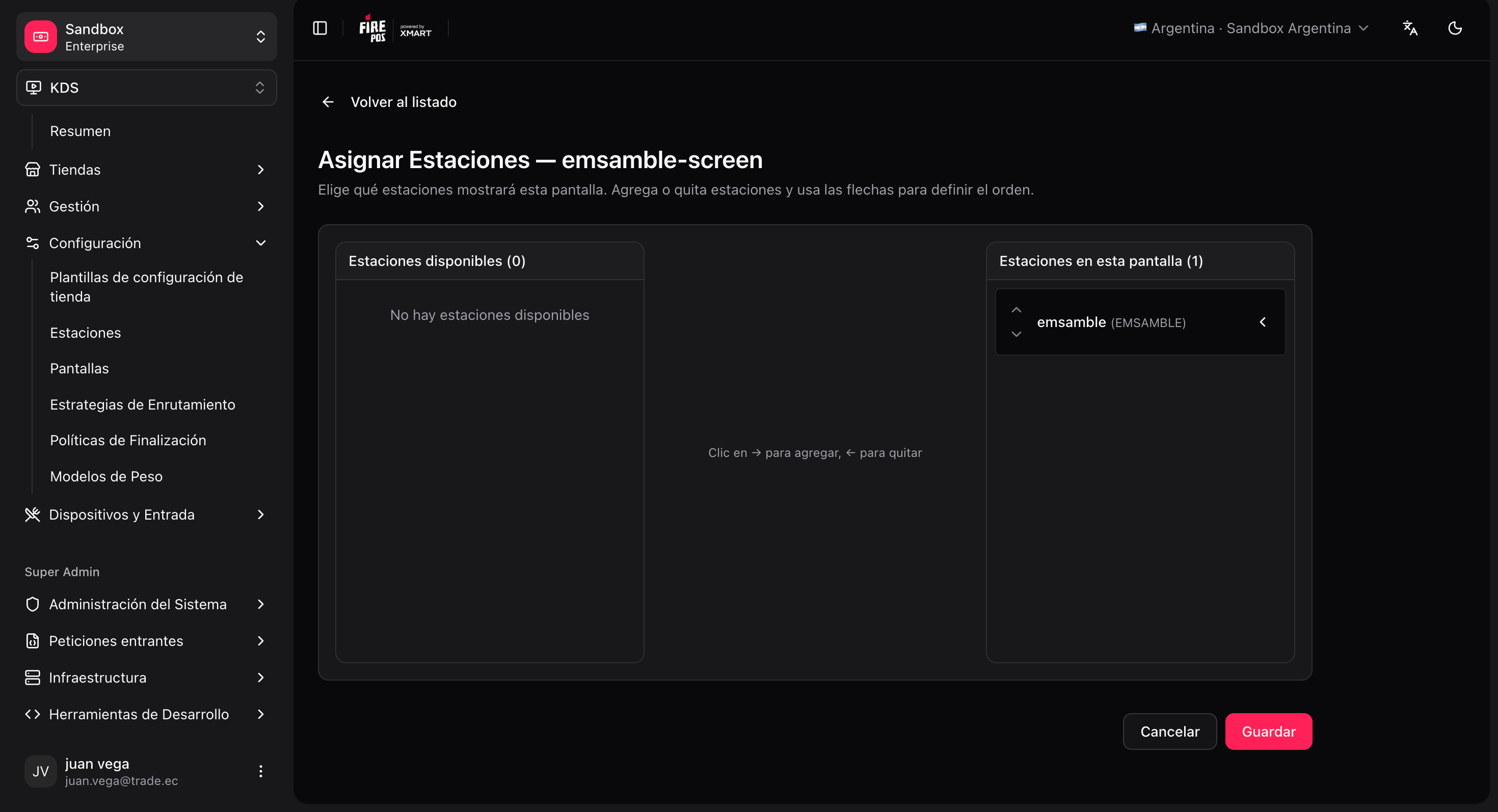
5
Save the assignment
Key relationship: a screen can show several stations, and a station can appear on several screens (e.g. assembly visible on both the expo and the dispatch monitor).