

The minimum you need to know
- Closing the register requires a manager’s code from Access → Close register.
- The count is blind: the expected amount appears only after you tap Declare, and what you declared can no longer be changed.
- If there is a shortage, you need a second code, from Close with shortage, with the reason the manager chooses.
- When the register closes, the cashier’s shift ends and the POS goes back to the sign-in screen.
Prerequisites
- An open register, with the shift of the cashier who opened it.
- A manager to generate the codes. See Authorization codes.
1. Enter the code to close
Tap your name at the top right to open Settings and choose Close register. Ask the manager for a code from Access → Close register, type the 6 digits and tap Continue.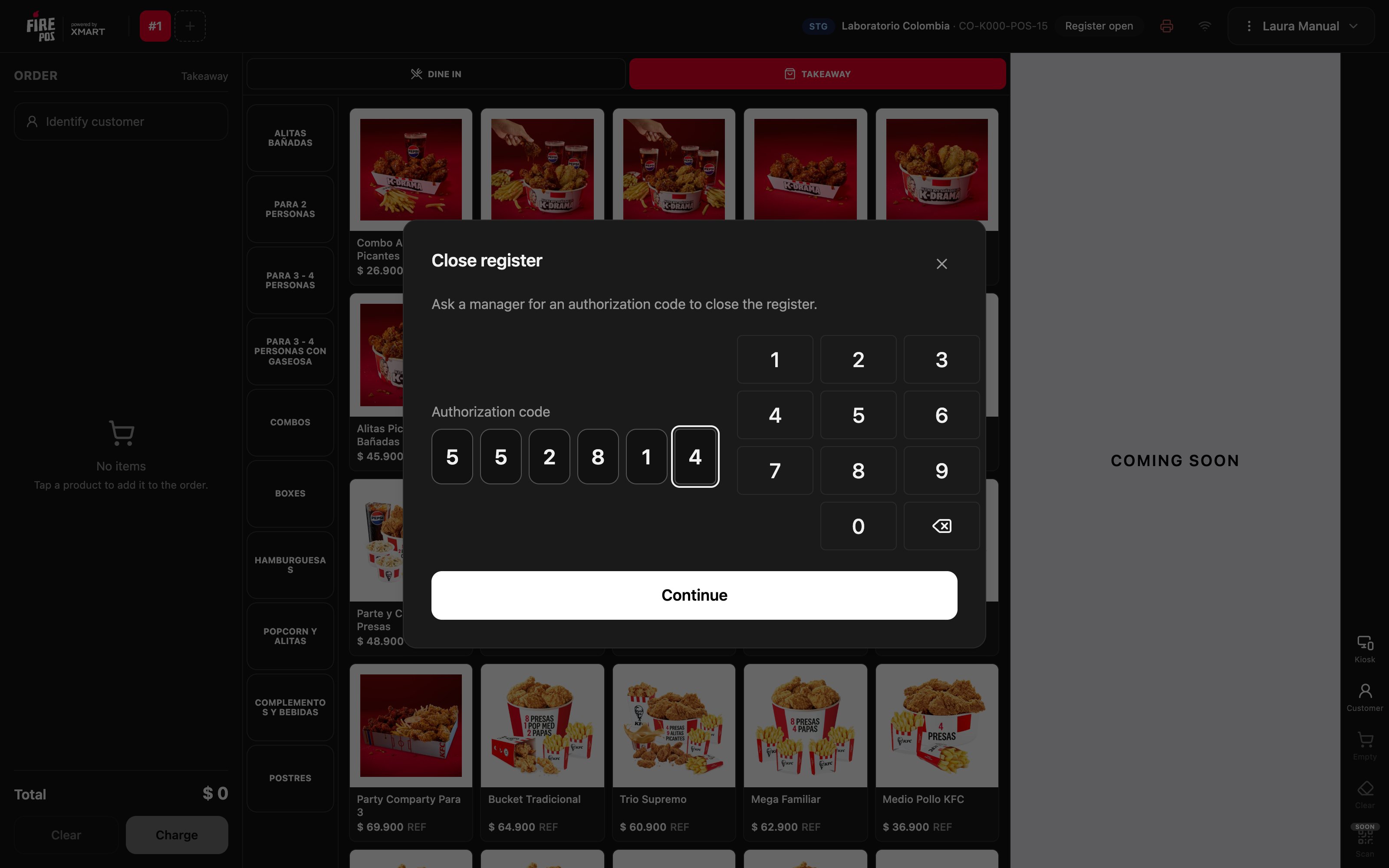
2. Count the cash
Count all the cash in the register: the initial fund you opened with plus what you took in. The screen does not show how much there should be.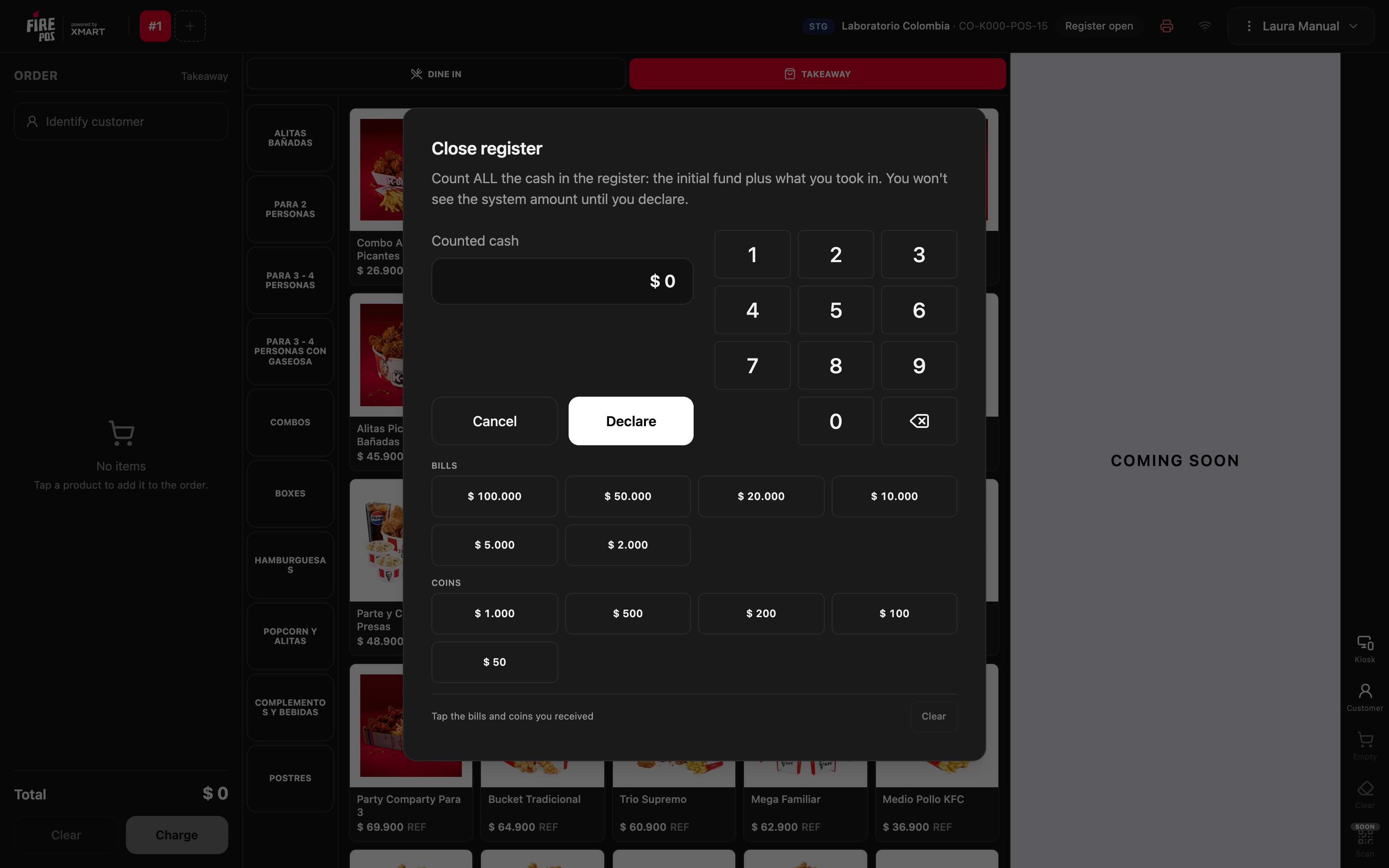
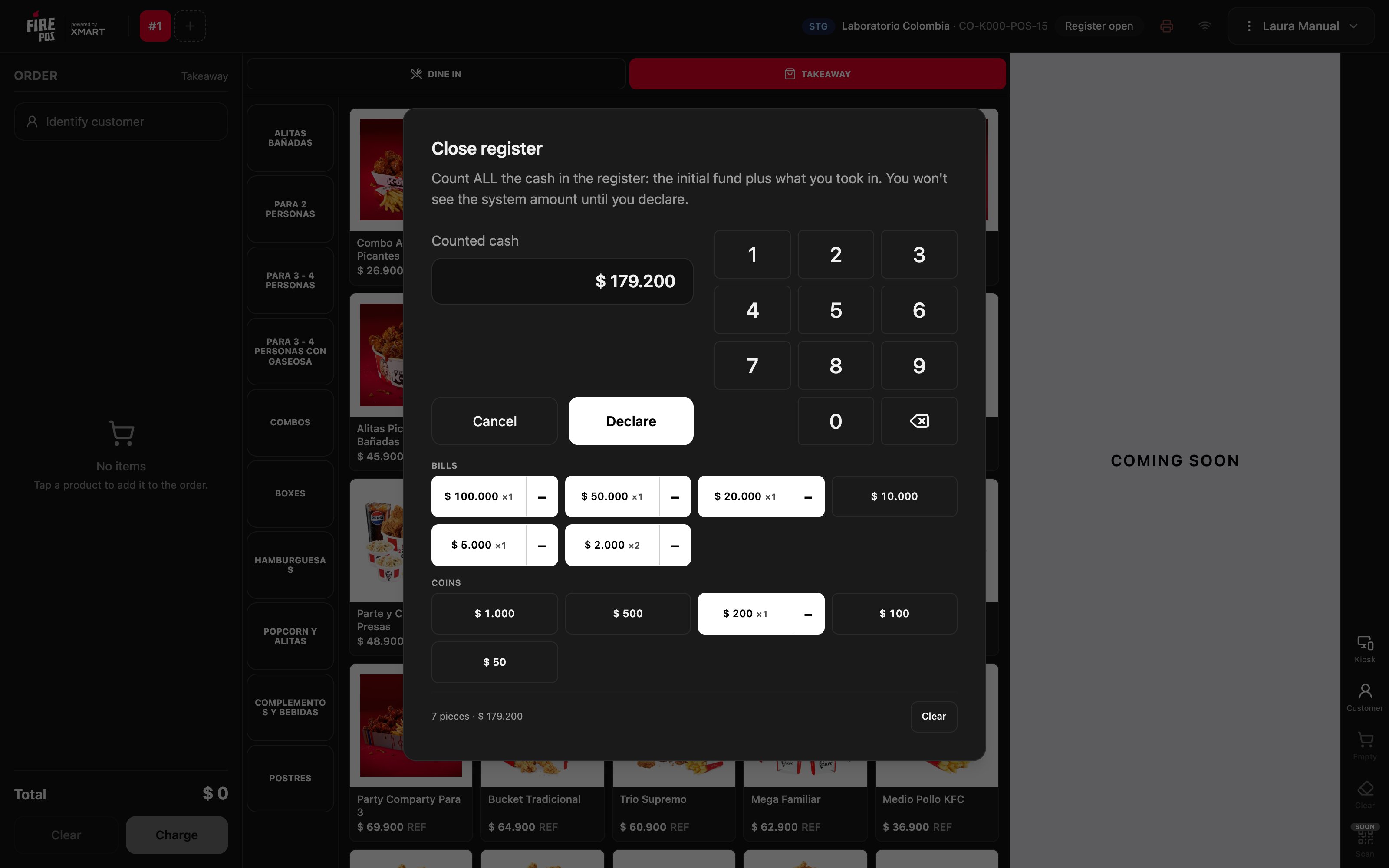
3. Declare
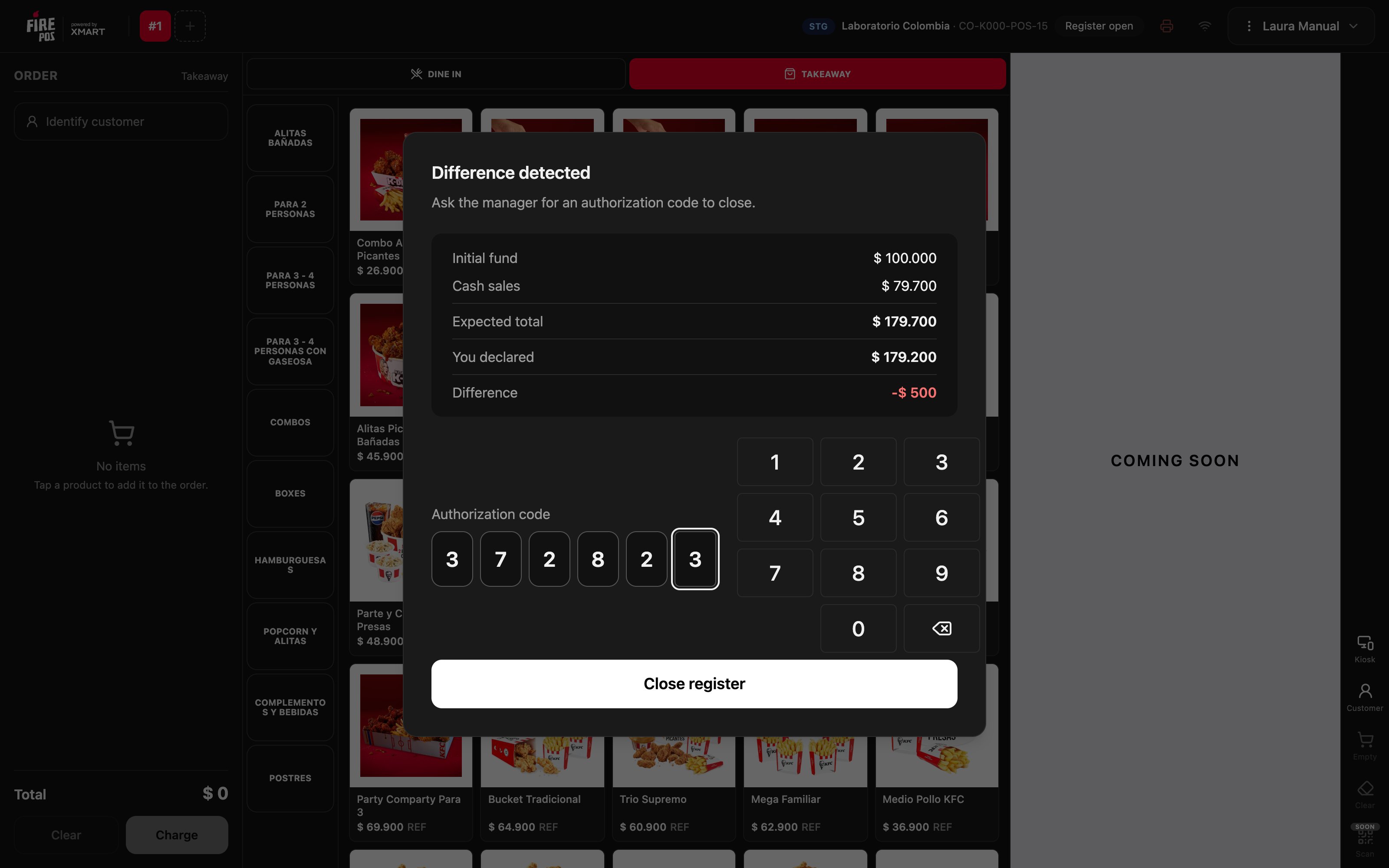
Tap Declare. Only now does the POS show the initial fund, cash sales, the Expected total, what You declared and the Difference. If there were withdrawals during the shift, the Withdrawals also appear, already deducted from the expected amount: see Partial cash withdrawal.4. If there is a shortage, enter the second code
With a shortage, the difference shows in red and the POS asks for another code.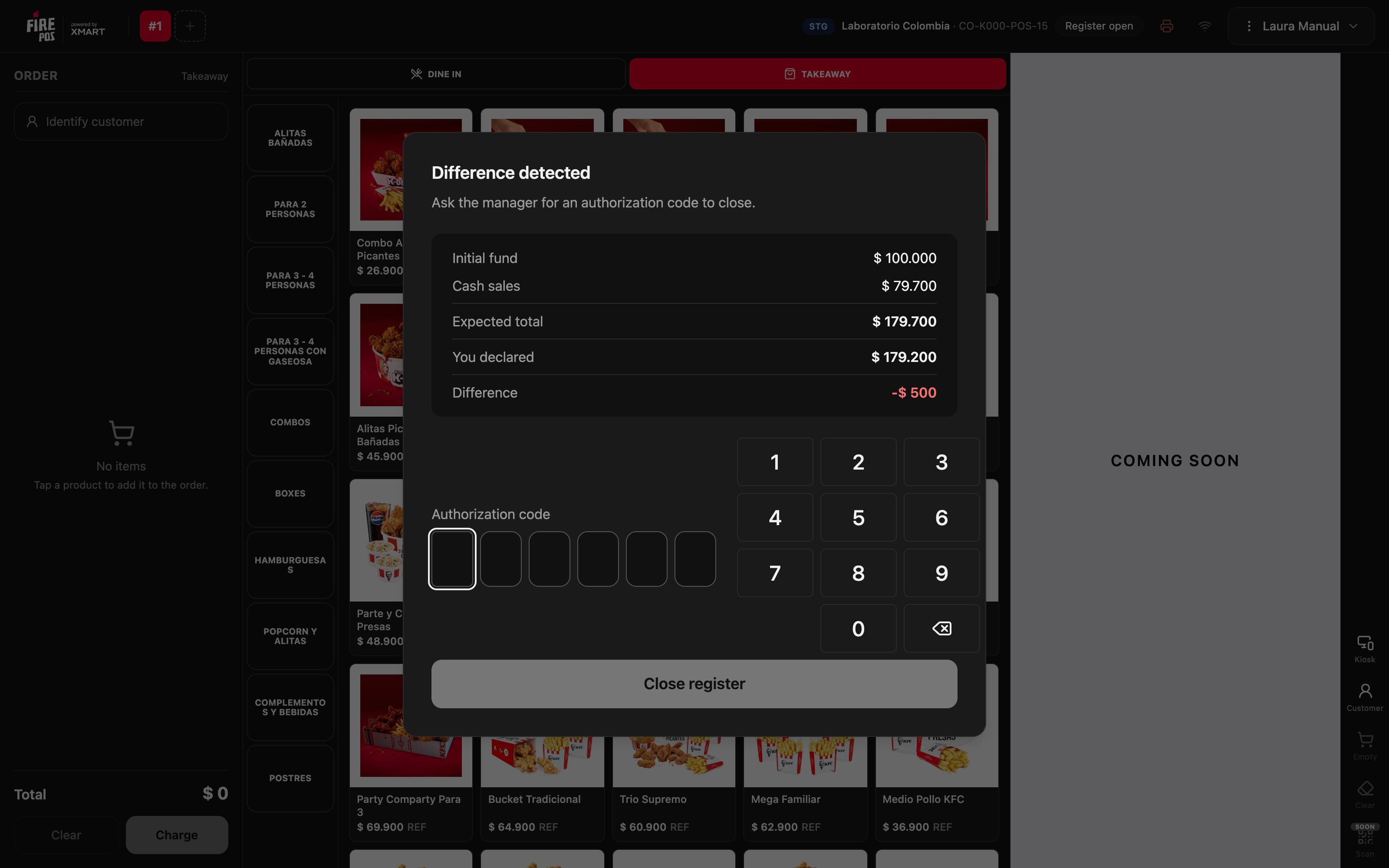
5. The register is closed
The POS prints the close report, ends your shift and goes back to the sign-in screen with the Register closed or Register closed with authorization notice.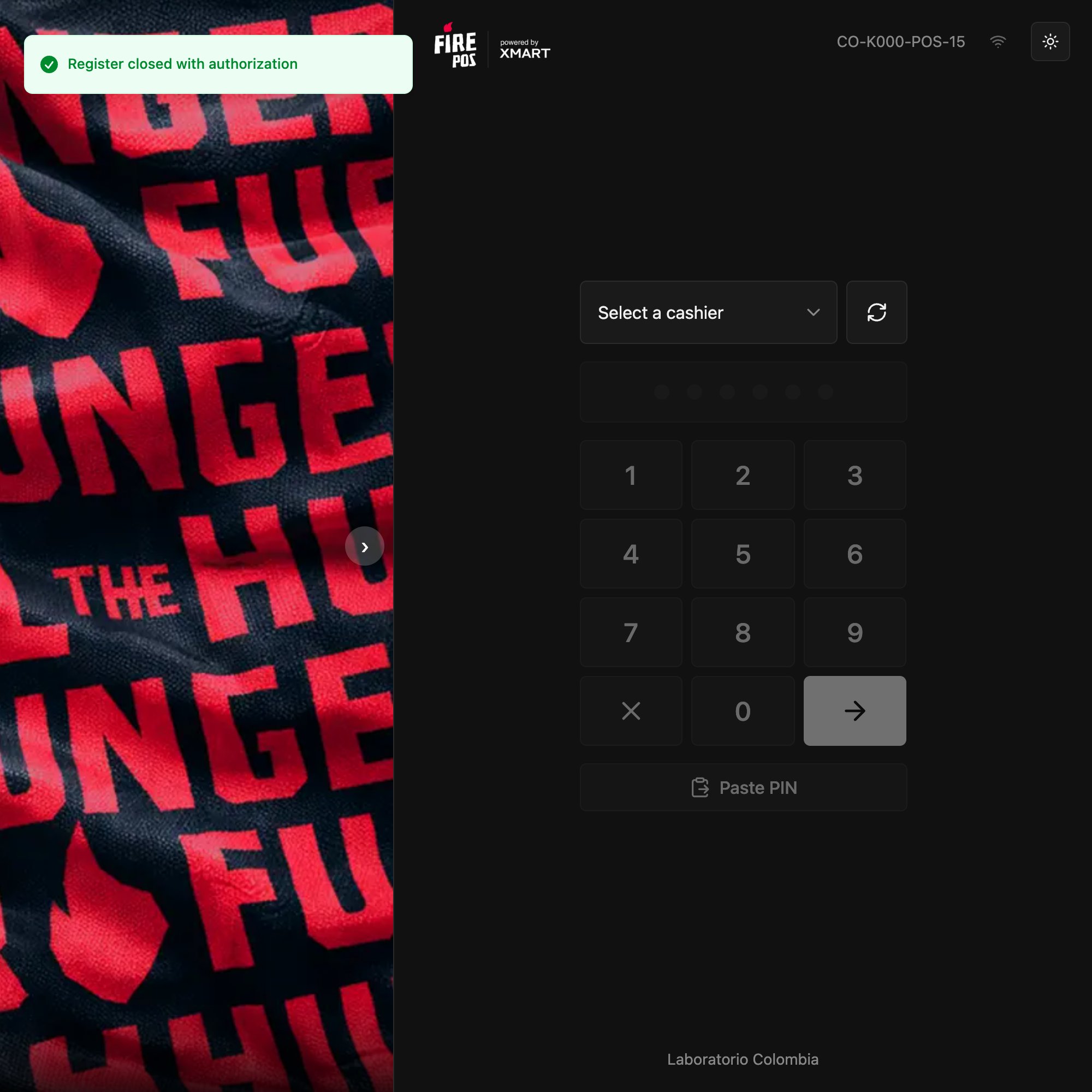
See your closes in the POS
In Settings → Register closes you have your closes on this register, with the expected amount, what was declared and the difference for each one. At the top you choose Today, 7 days or 30 days.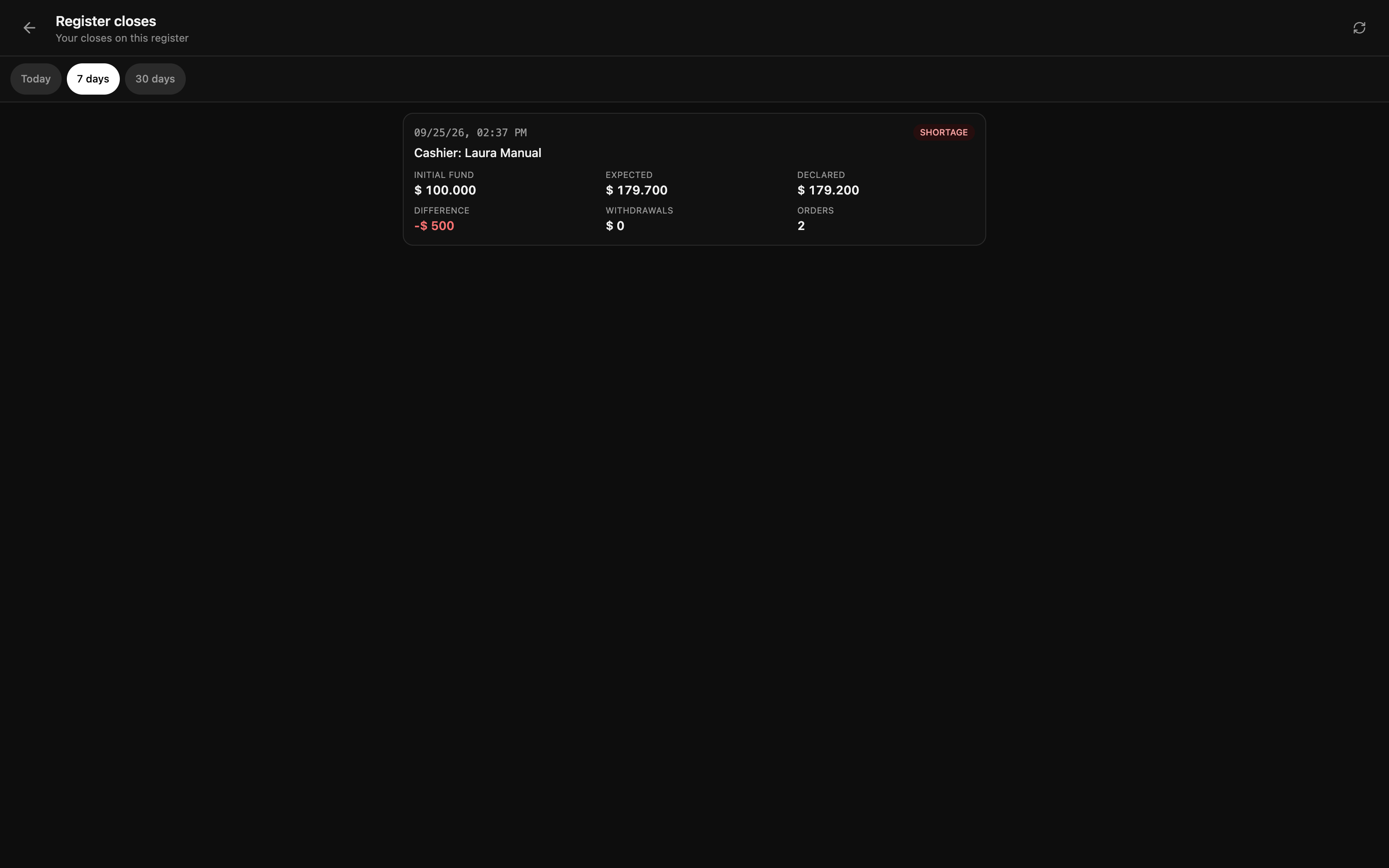
Forced close
If the register is still open when the operating day ends, the POS makes you close it before going on: the window warns that the day is over and has no Cancel. The close is the same, with the manager’s code. If the cashier is not around and the register was left open, the manager can close it from the backoffice. See Terminal administration.Recipes
End-of-shift close with no difference
End-of-shift close with no difference
- Open Settings → Close register and type the code from Access → Close register.
- Count with the bills and coins buttons.
- Tap Declare.
- When you see The register balances, tap Close register.
Close with a shortage
Close with a shortage
- Declare what you counted.
- When you see Difference detected, tell the manager the amount.
- The manager generates a Close with shortage code with the reason.
- Type the code and tap Close register.
Mistakes that cost money
Frequently asked questions
It says “Invalid or already used code”
It says “Invalid or already used code”
The code was already used, expired, or is for another operation. To enter the close you need one from Access → Close register; for the shortage, one from Close with shortage.
I reloaded the page after declaring
I reloaded the page after declaring
The POS goes straight back to the result, with what you already declared. Continue from there.
It says “Register closed, but the report did not print”
It says “Register closed, but the report did not print”
The register is closed. Check the printer; the close is saved in Settings → Register closes and in the backoffice.
It says “Register closed, but the reconciliation failed to sync”
It says “Register closed, but the reconciliation failed to sync”
The register is closed. The POS sends the reconciliation again the next time a close is opened on that terminal. Check the internet connection.
Why does it ask me for a code if the register balances?
Why does it ask me for a code if the register balances?
The Access → Close register code is for entering the close, whether it balances or not. The second code only appears with a shortage.