

Option A — Use a template
Ideal when you already have a proven layout (same chain, same kitchen type).1
Open Setup templates
Go to KDS → Setup templates (
/kds/admin/setup-templates).2
Create a template
Choose an empty template or Seed from store (copy the config of a store that already works).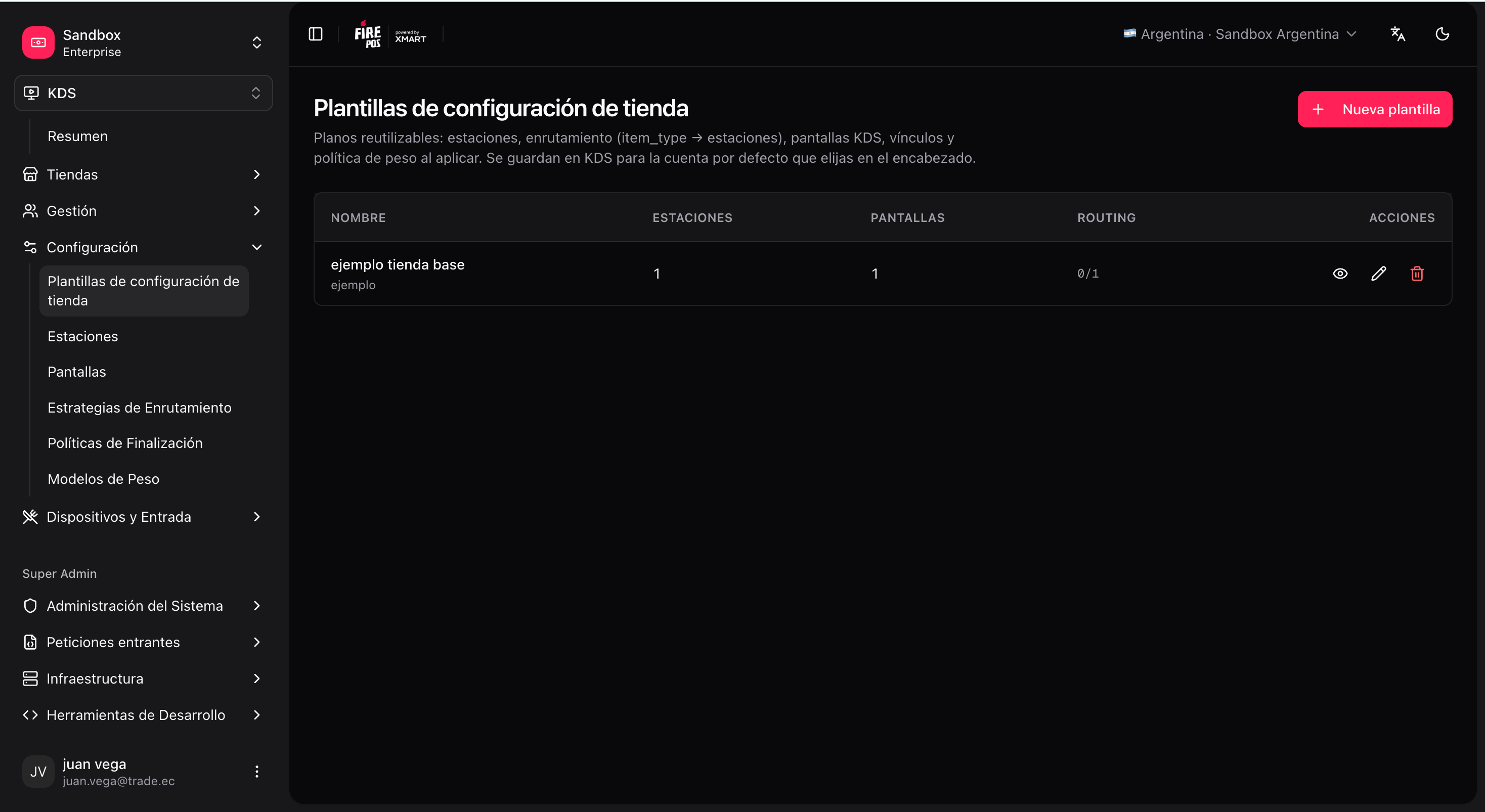
3
Complete the sections in order
In the editor, fill the sections in this logical order:
- Stations
- Screens + screen ↔ station links
- Routing
- (Optional) channel/service badges
- (Optional) ready-pickup printing per screen
- (Optional) keyboard per screen
4
Save the template
Apply a template to a new store (initial wizard)
1
Create the store
KDS → All Stores → Create.
2
Open the initial setup
If the store is empty (no stations, screens, or routing), open
/kds/admin/stores/initial-setup/{storeId}.3
Use a blueprint
Choose Use a blueprint → select the template → review/edit → Apply to store.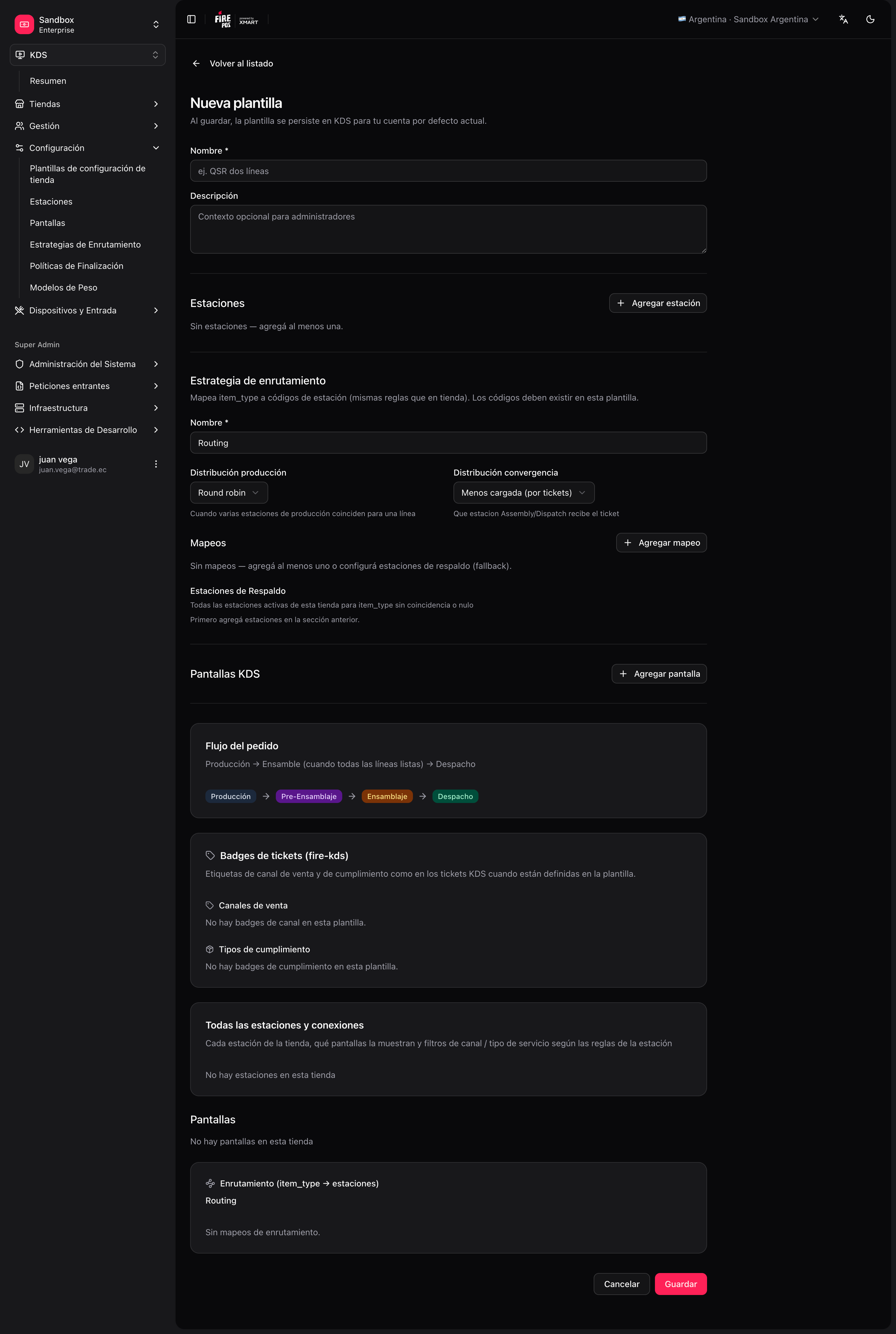
4
Review the progress
The wizard shows progress by phase (stations, screens, links, routing, etc.).
Option B — Configure manually (from scratch)
Recommended order when you do not use a template:
The initial setup wizard also offers Create from scratch: it opens the same editor as templates, but applied directly to the empty store.
Each step has its own page in this section: Stations, Screens, Routing, and Peripherals, printing and validation.