

What you need
Pair a device
1
Generate a code in the backoffice
Go to KDS → All Stores, open the store’s ⋮ menu, and choose Pair device. A 6-digit code appears (it expires after a short time — generate a new one if needed).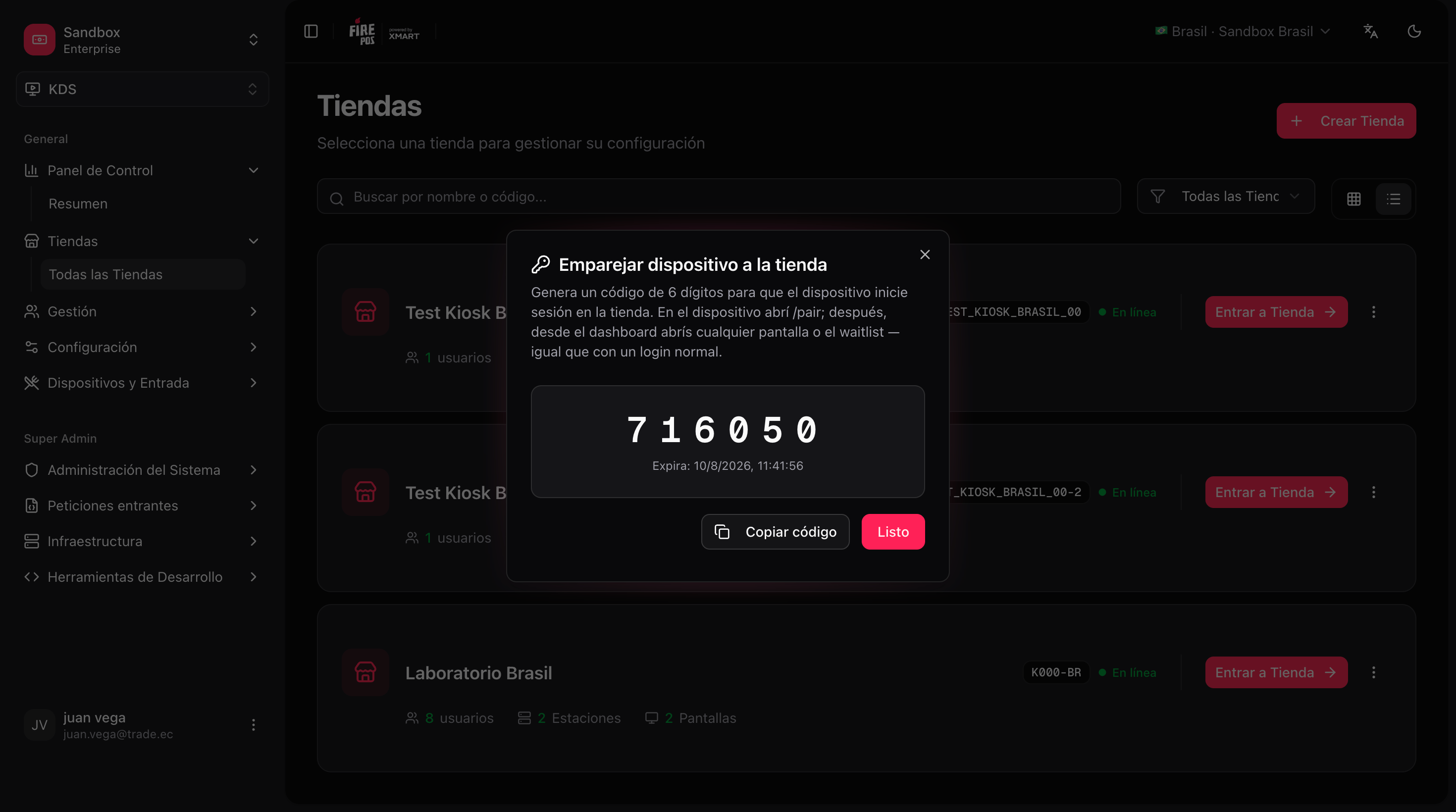
2
Open pairing on the kitchen device
On the TV or tablet, open fire-kds. Unauthenticated devices land on 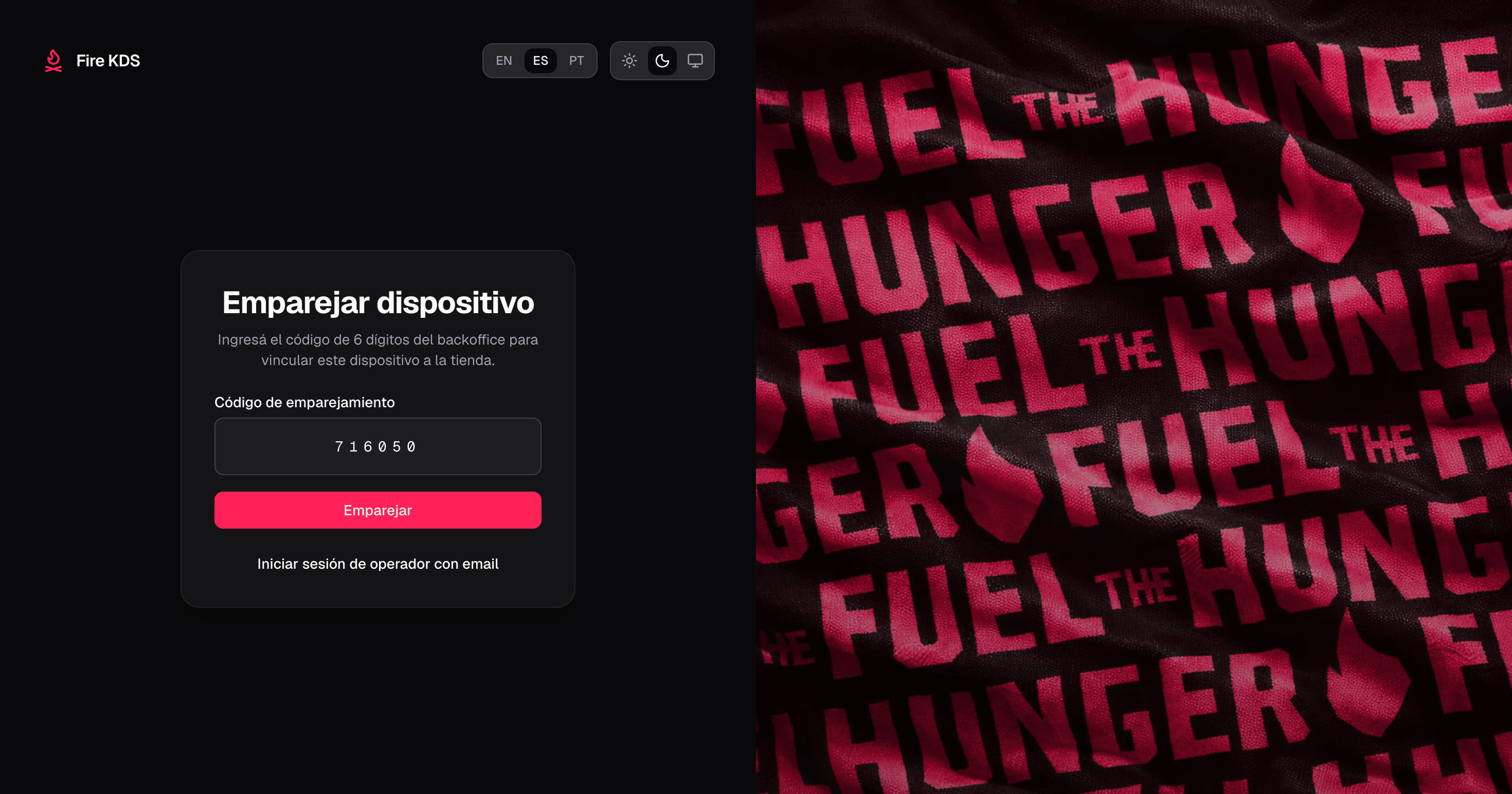
/pair. Enter the 6-digit code and confirm.3
Confirm the device is ready
After a successful pair, the device opens the store dashboard on its own. You do not reload the page or type the code again. From the dashboard you can open the configured KDS screens, the order display, or the operator board.
Manage paired devices
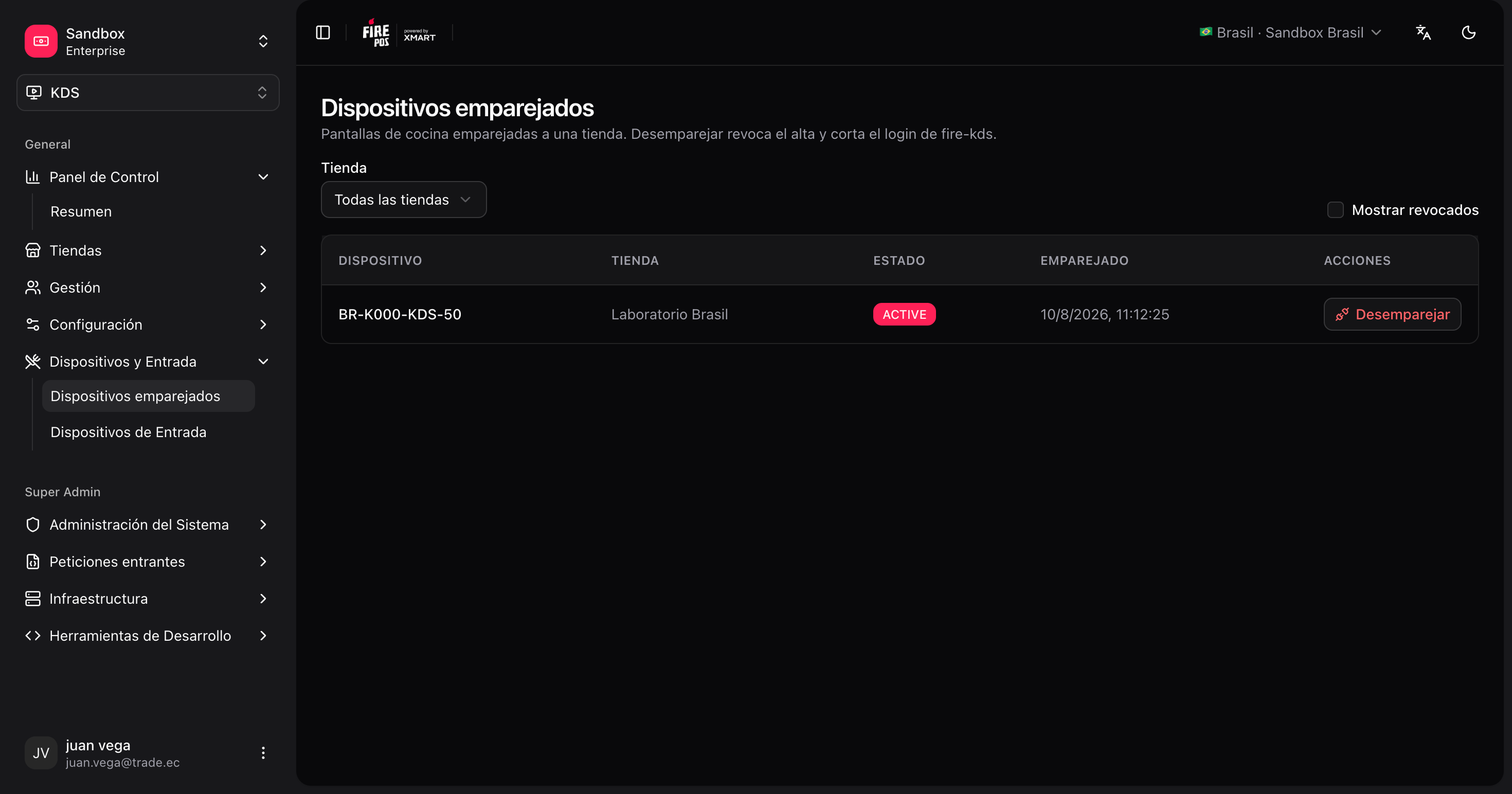
Open KDS → Paired devices (/kds/admin/paired-terminals) to see every kitchen terminal linked to your account: store, terminal name, and status.
From that list you can unpair a device. After unpair, the TV loses its kitchen session and returns to /pair the next time it loads.
Sign out from the device
Signing out from a paired kitchen session revokes the terminal enrollment. The TV goes back to the pairing screen and must be paired again. Signing out from an email/password operator session does not revoke the kitchen device.After pairing
- Open each kitchen screen from the dashboard (or the bookmarked
/kds/{screenId}URL). - Open the order display on the pickup TV if you use one.
- Optionally open the operator board for supervisors.
Your kitchen device is paired to the store and ready to run Fire KDS screens.