

The minimum you need to know
- The Kiosk button is in the right-hand bar and works with the register open.
- The list shows the store’s kiosk orders awaiting payment. In Ecuador, only those from the last 5 minutes.
- Charging opens the drawer. If another register charged the same order, the POS warns you so you do not take the cash.
Prerequisites
- The kiosk linked and with cash payment enabled. See Linking.
- An open register in the POS. See Open the register.
1. The customer chooses cash on the kiosk
On the kiosk, the customer builds the order and chooses cash at payment. The kiosk tells them to pay at the register.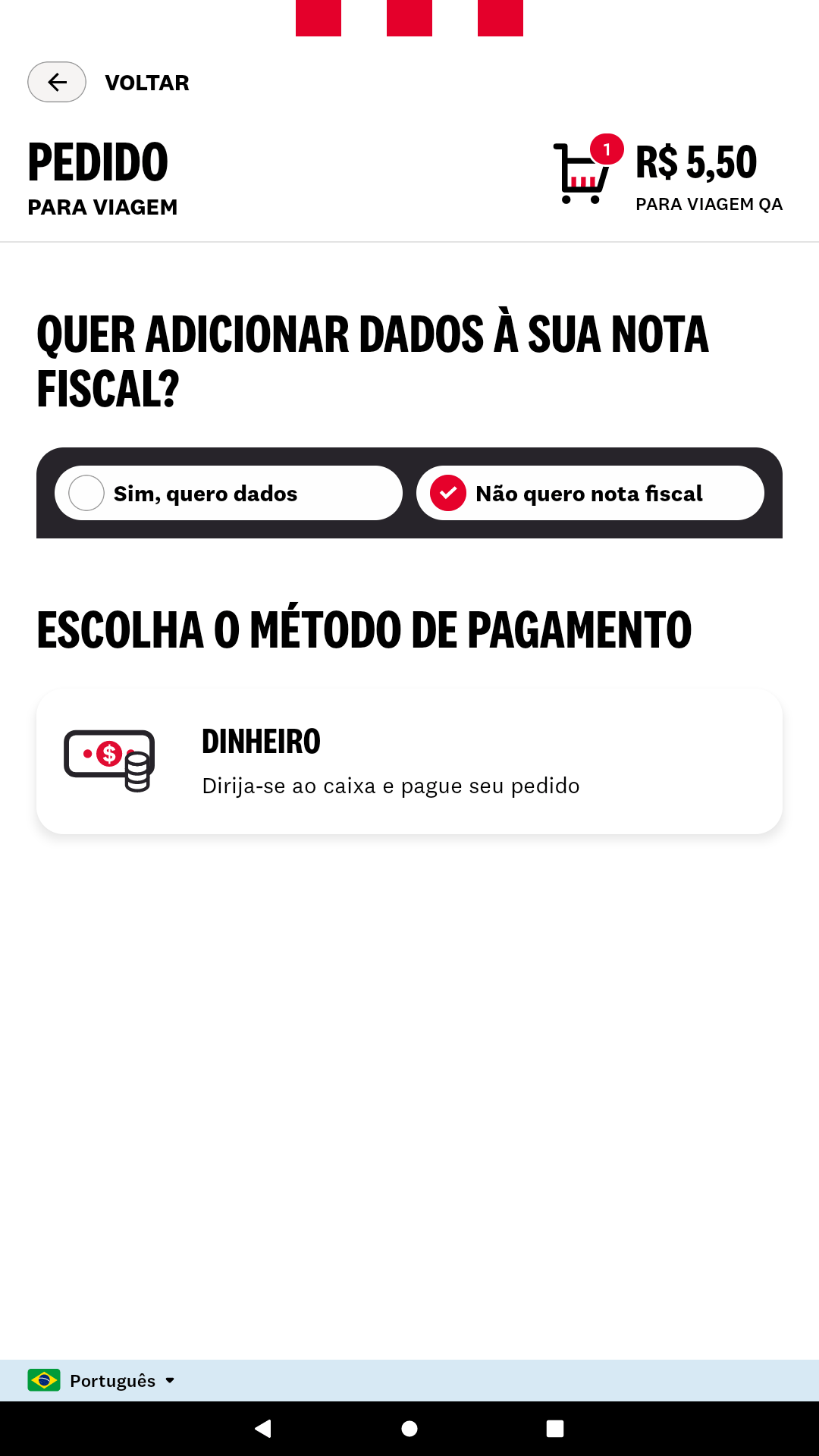
2. Open the kiosk orders
In the POS, tap Kiosk in the right-hand bar.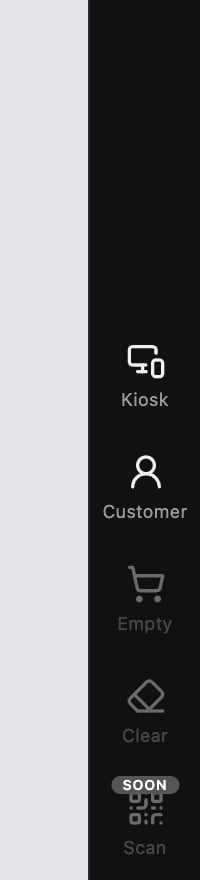
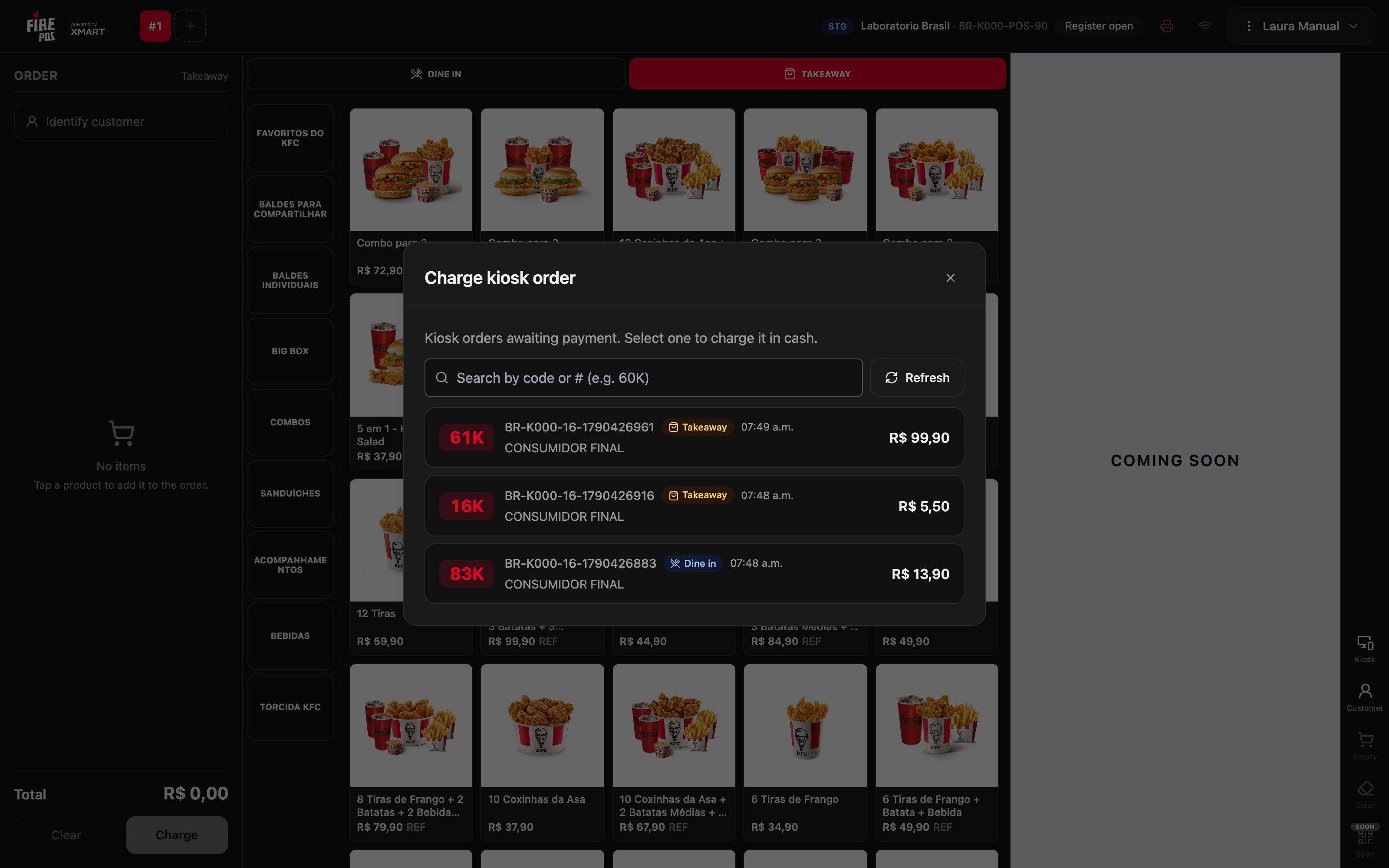
3. Review the order
Tap the order. Confirm payment shows the order’s short number —for example 61K—, the code, the Order detail and the total. Ask the customer about the order before charging.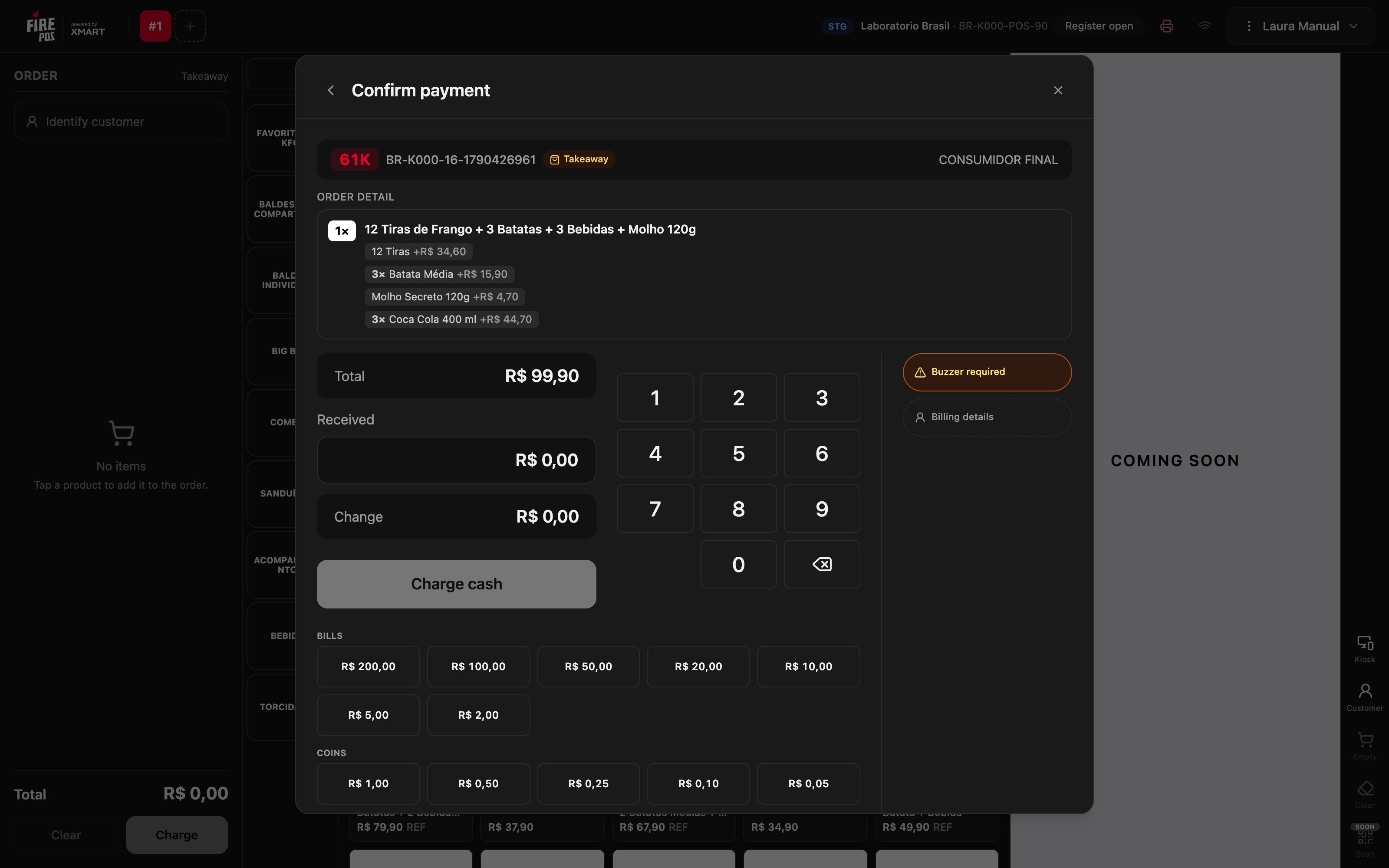
4. Assign the locator
If the store uses buzzers, tap Buzzer, type the number of the buzzer you hand the customer and tap Save. If the button says Buzzer required in amber, Charge cash is not enabled until you enter it.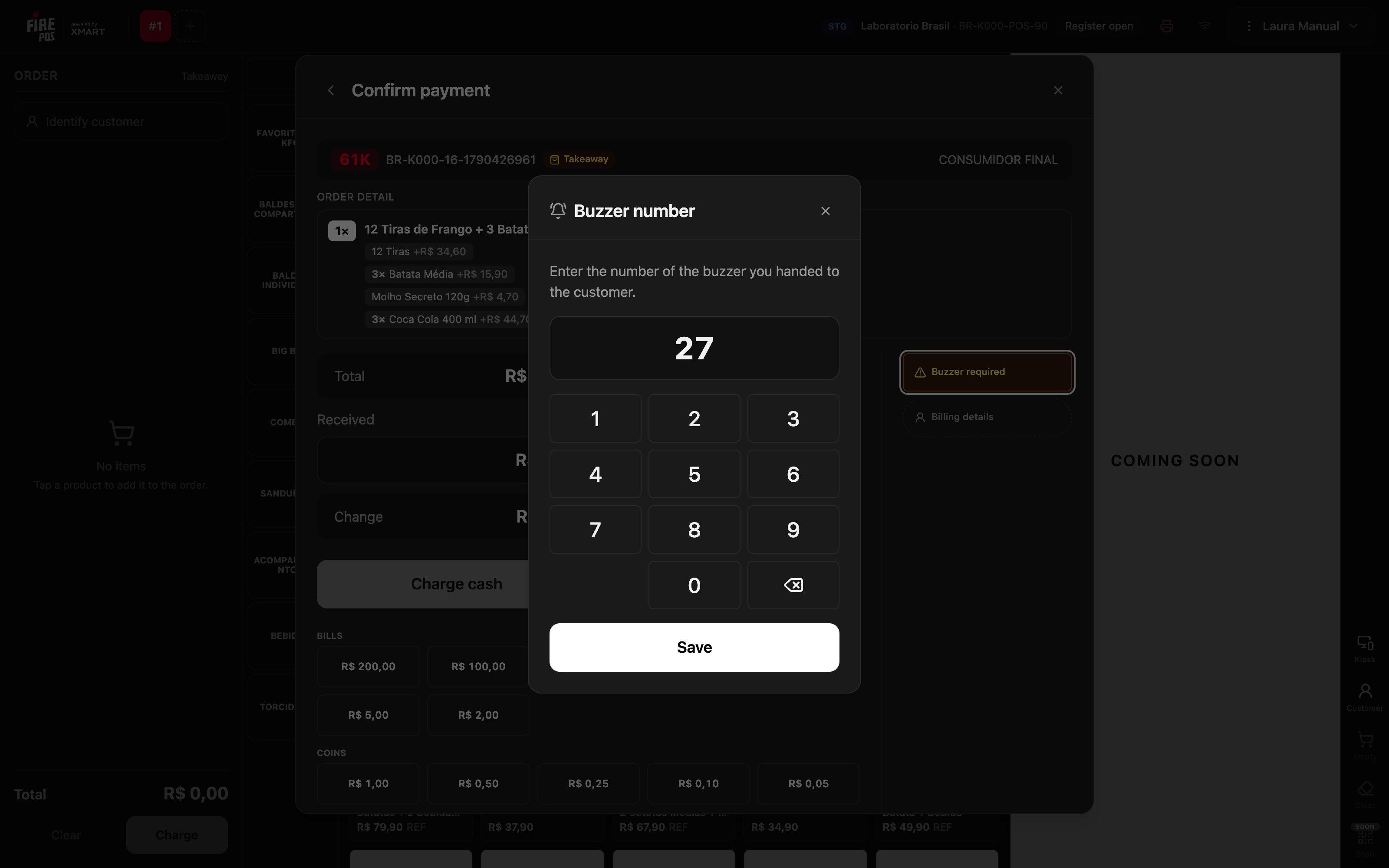
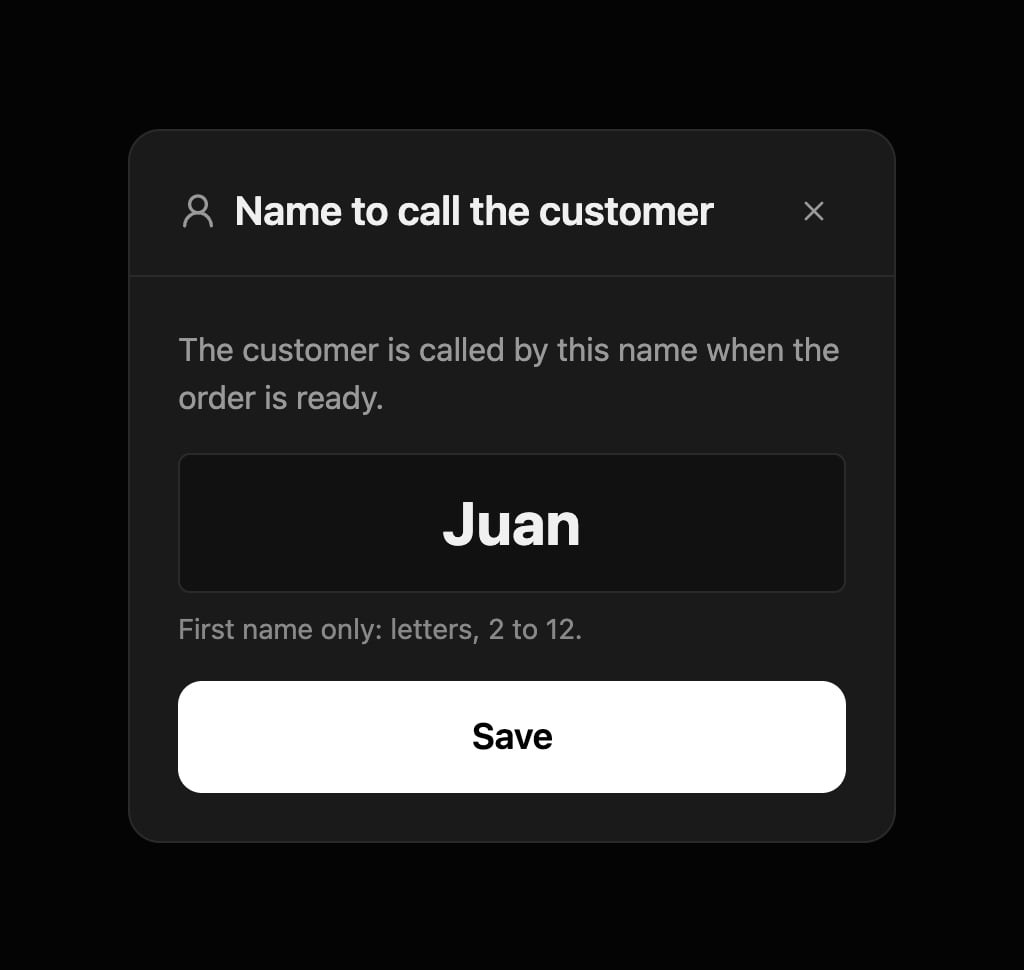
5. Enter the billing details
If the customer wants an invoice in their name, tap Billing details. Choose the document type, type the number and fill in the details. In Brazil, the CPF and the CNPJ are checked against their check digits. Tap Save: the customer’s name and document replace Final consumer on the order. See Customer and billing details.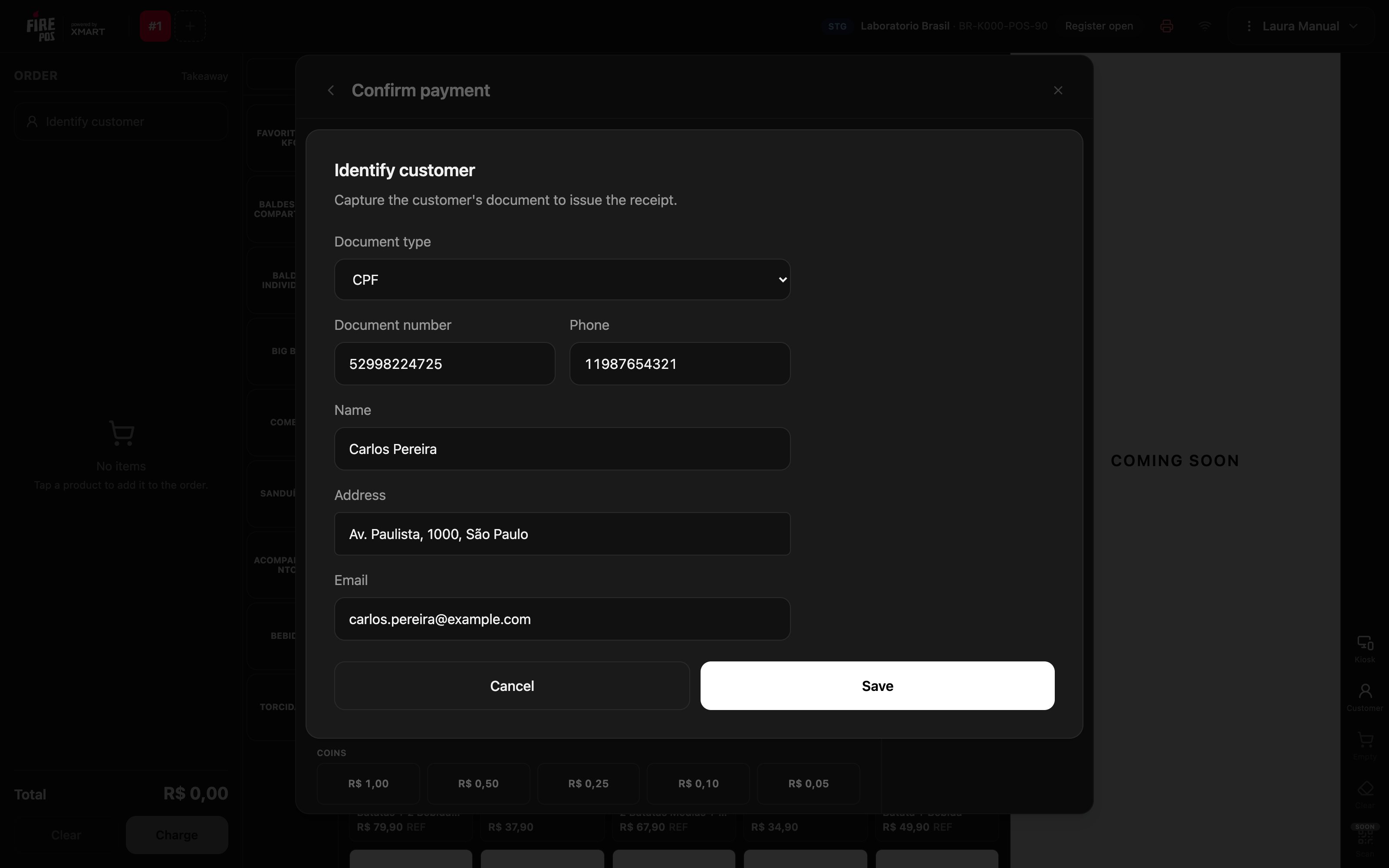
6. Take the cash and charge
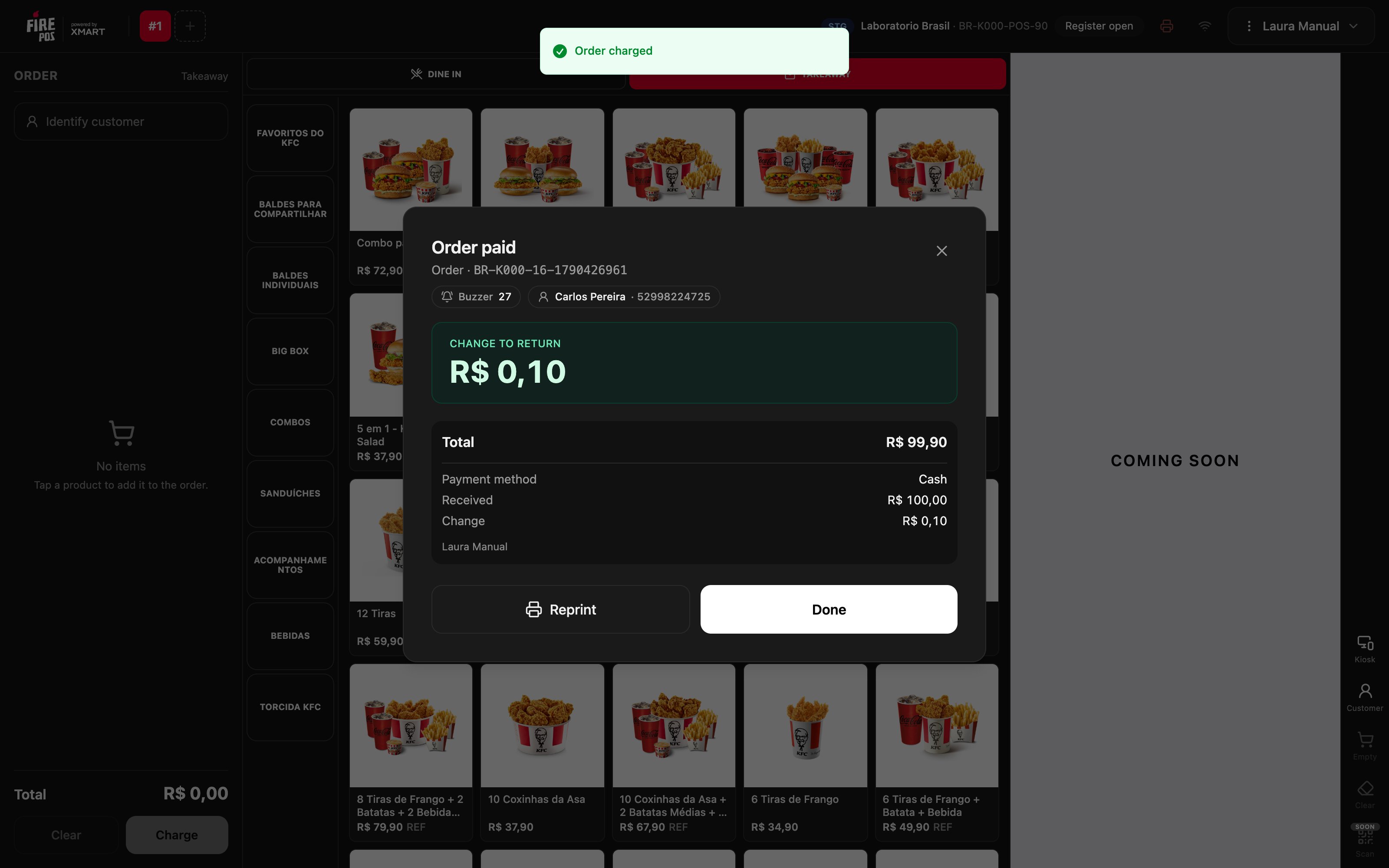
In Received, enter the cash the customer hands you with the bills and coins buttons, or type it with the keypad. The POS works out the Change. The locator and the billing details show as set on the right.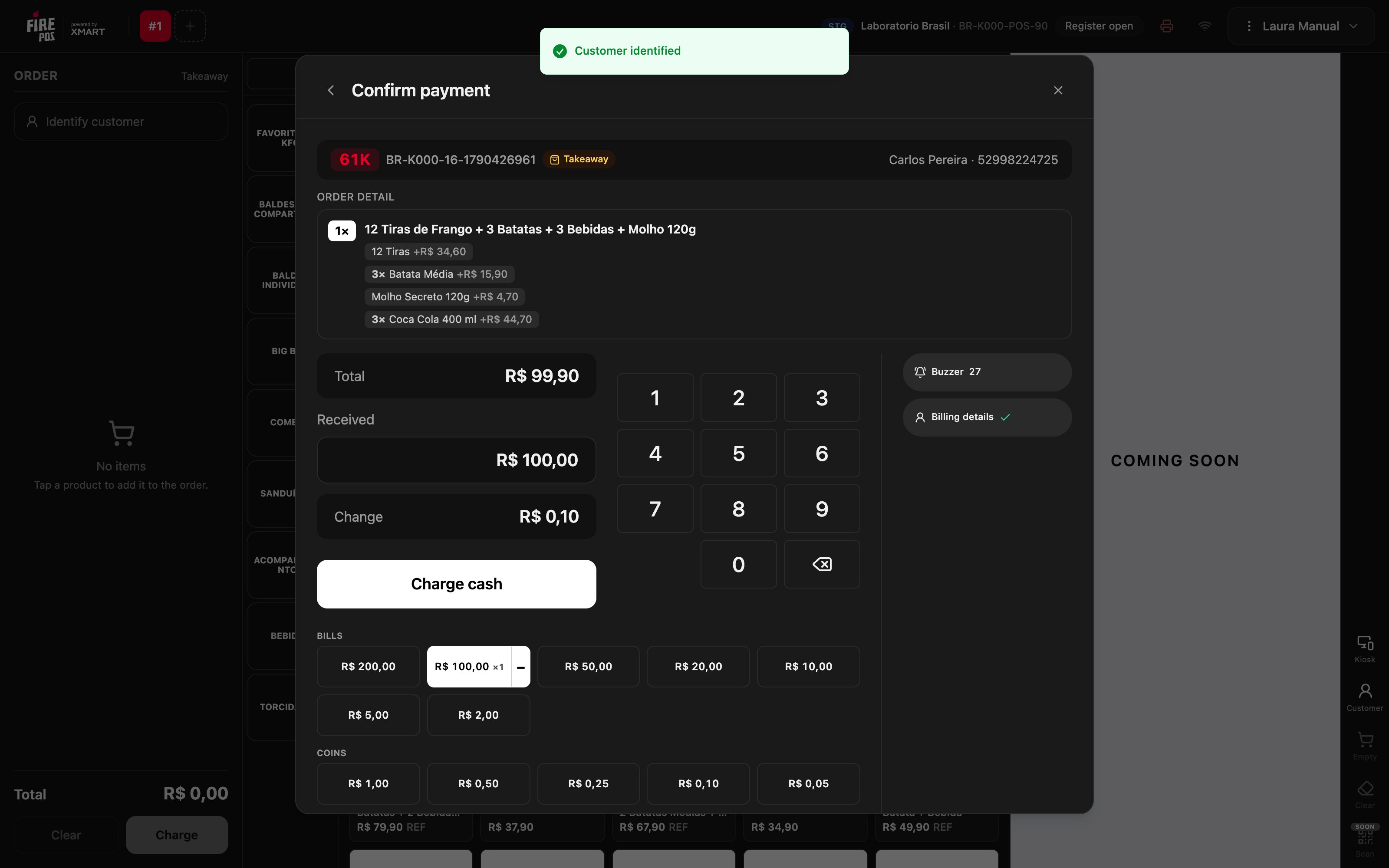
5-minute window in Ecuador
In Ecuador, the list only shows kiosk orders created in the last 5 minutes, and the window says so at the top. In the other countries you see all the day’s pending orders. If the order you chose reaches 5 minutes while you are counting the cash, you can still finish charging it.Mistakes that cost money
Frequently asked questions
The order does not appear in the list
The order does not appear in the list
Tap Refresh. Check that the customer confirmed cash payment on the kiosk. In Ecuador, if more than 5 minutes have passed, the order no longer appears: tell the manager.
It says “Another register already charged this order”
It says “Another register already charged this order”
Another terminal charged it while you had it open. Do not take the cash, or give it back to the customer.
It says “This order is no longer pending”
It says “This order is no longer pending”
Another register charged it or it was canceled before you opened it. Refresh the list and confirm the code with the customer.
It says “Another register changed this order”
It says “Another register changed this order”
The POS loaded the order’s current data. Review it and tap Charge cash again.
“Charge cash” is not enabled
“Charge cash” is not enabled
Check that the amount received covers the total and, if the button says Buzzer required, that you entered the buzzer.
It will not let me change the billing details
It will not let me change the billing details
The order already has an issued invoice, or it has no customer attached. Charge it with the data it has.