/boh/admin/operations/stock-counts) for administration, and the mobile counting app (/count) for the person physically counting.
Inventory areas
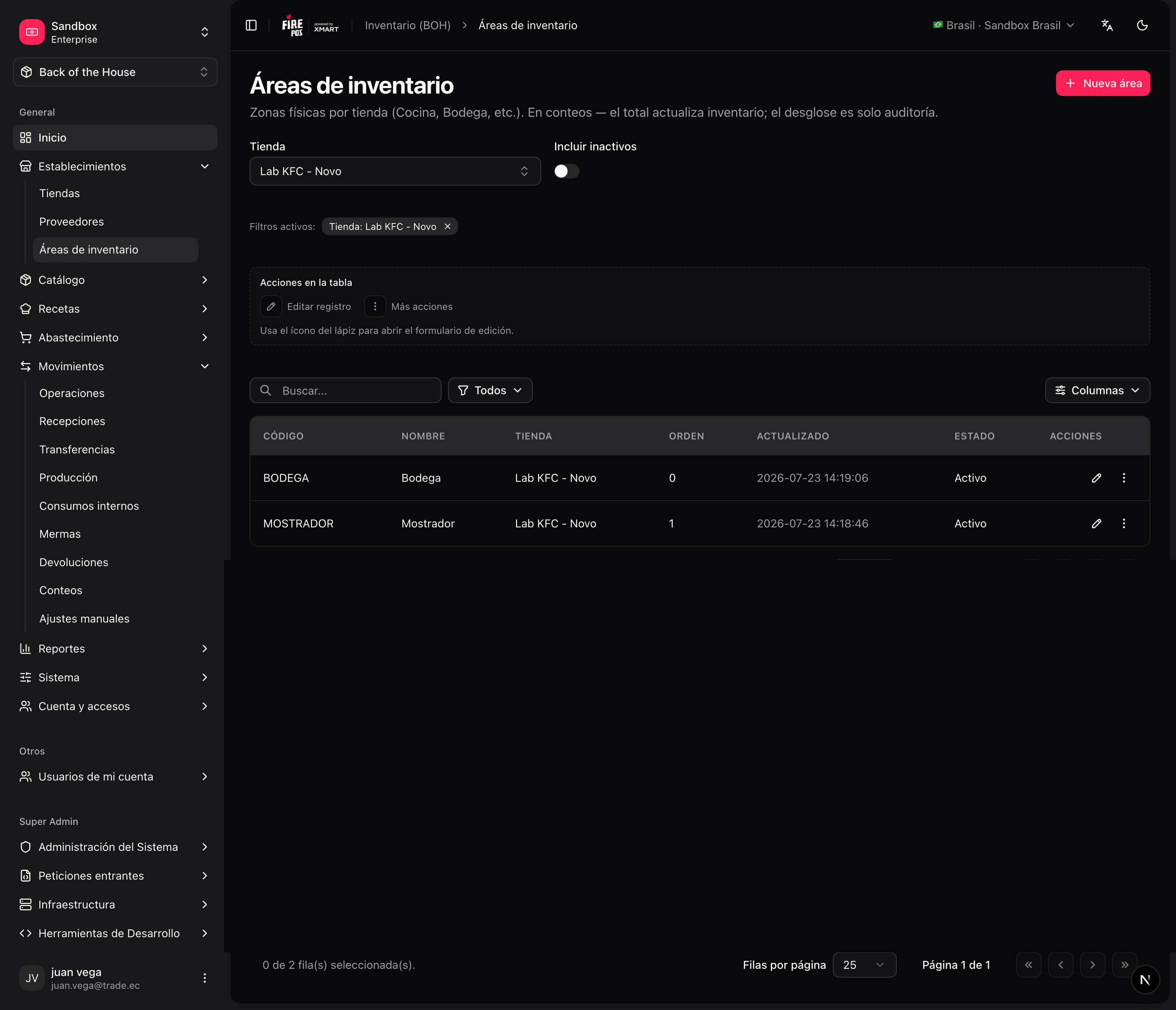
Before counting, split the store into inventory areas: freezer, dry storage, prep line, bar… Areas let several people count in parallel and make partial counts meaningful. Manage them in Establishments → Inventory areas (/boh/admin/operations/inventory-areas), or from the store detail.
Types of count
Create a count
1
Open the count form
Movements → Stock counts → Create (
/boh/admin/operations/stock-counts/new).2
Pick the store, the scope, and the type
3
Count
Enter quantities in the admin screen, or use the mobile app described below.
4
Close the count
From the count detail (
/boh/admin/operations/stock-counts/{id}), review the differences against the theoretical balance and close. BOH posts positive or negative adjustments per item.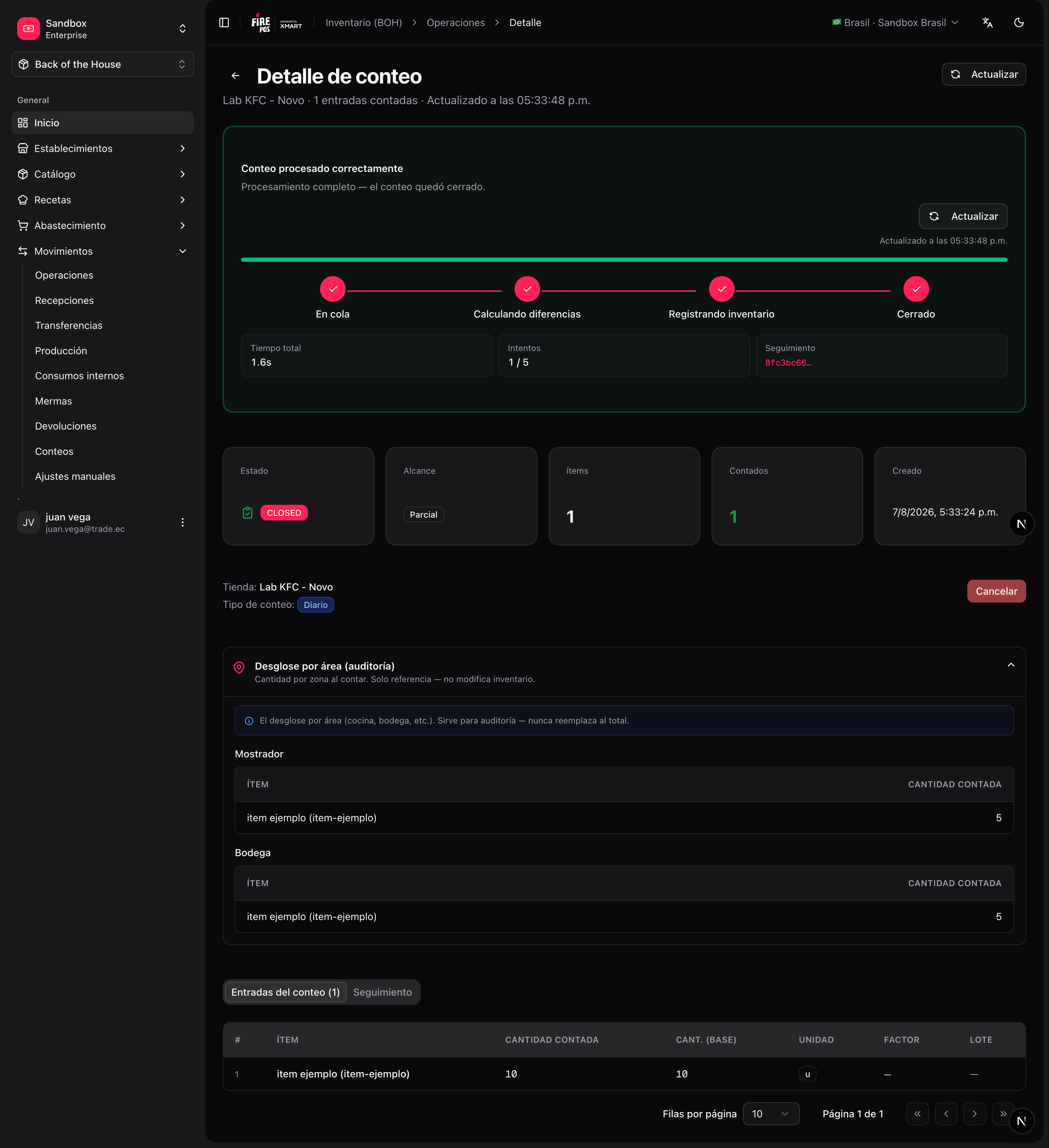
Mobile counting app
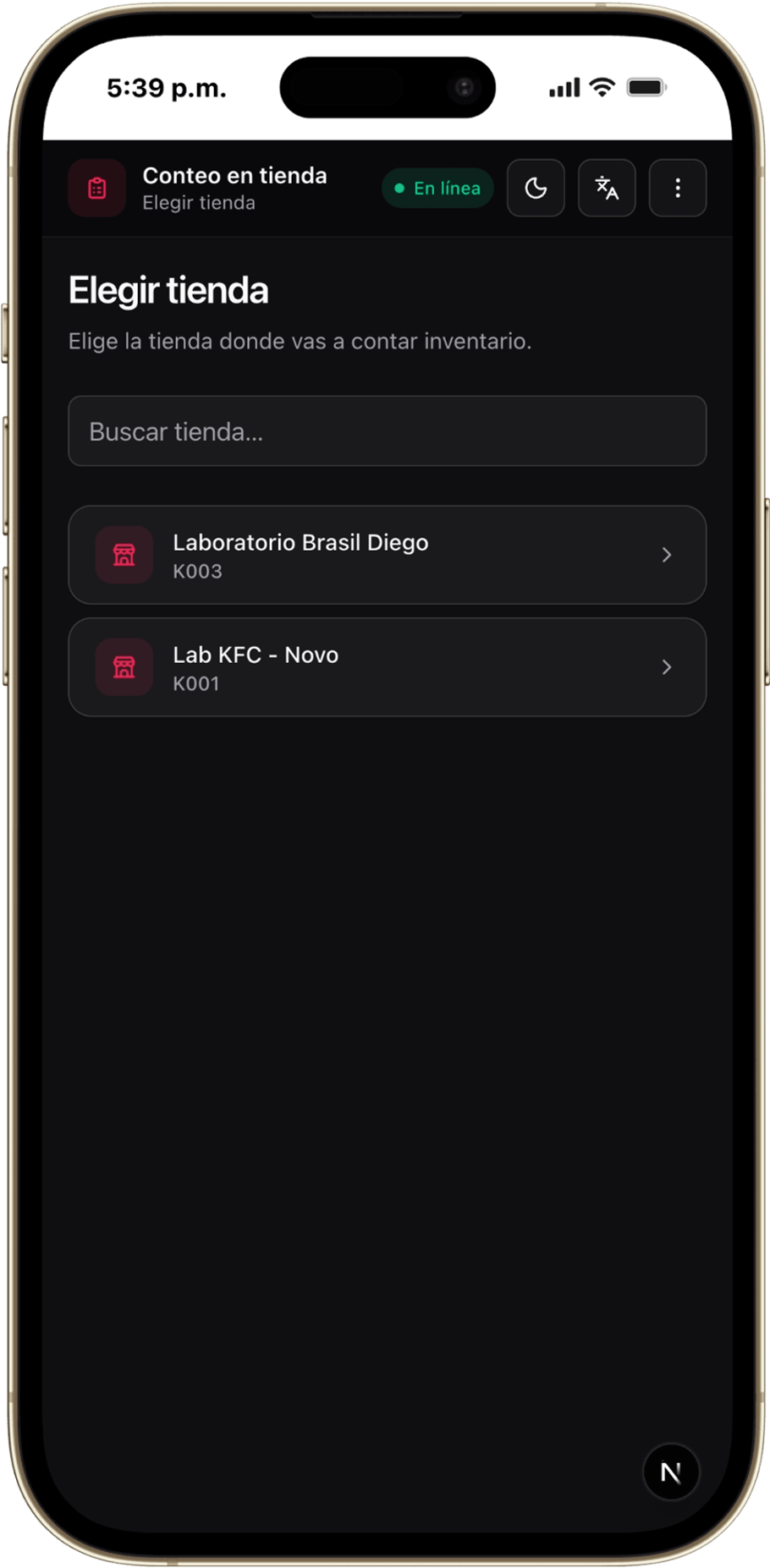
For counting in the field, BOH includes a dedicated mobile-friendly screen at/count — full screen, big touch targets, and it keeps working if the connection drops (entries sync when back online).
1
Open /count and pick the store
The person counting selects the store they are in.
2
Set up the session
Choose the areas or item set to count.
3
Count item by item
Enter quantities in the unit shown; the app totals entries per item.
4
Review and submit
A summary screen shows everything counted before sending. After submitting, the app tracks the processing status of the count.
Collaborative counting sessions
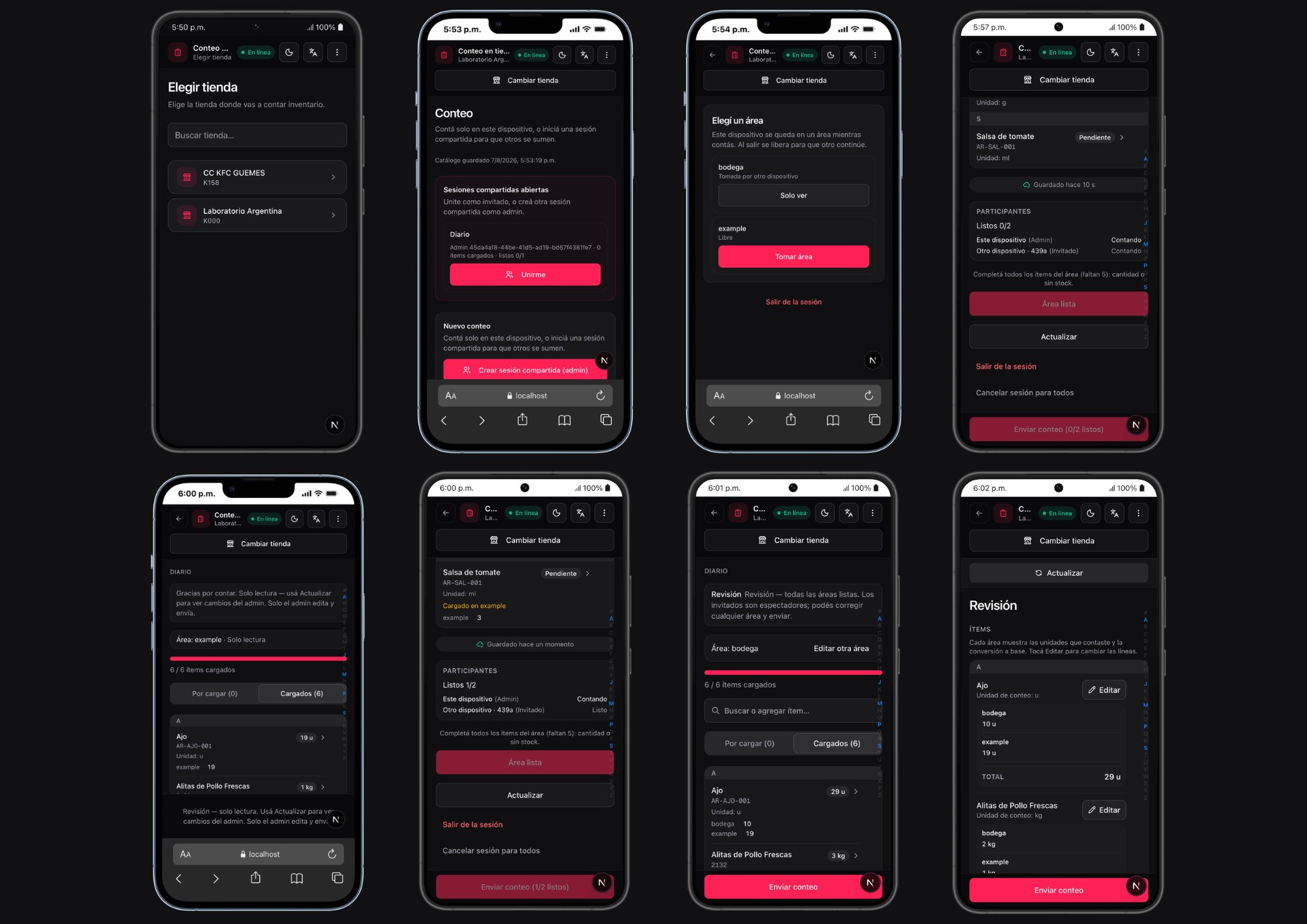
For large counts where several people count different areas simultaneously, BOH supports field-count sessions: a shared draft where each device claims an exclusive inventory area, counts it, and signals when ready. An admin device reviews and finalizes the session — which creates a normal stock count and posts the adjustments. How it works:- One person creates a session from the mobile app (
/count) and becomes the admin of the session. - Other devices join the session. The device that created it is admin; all others are guests.
- Each participant claims an area (freezer, dry storage, prep line…). No two devices can hold the same area at the same time.
- Each device counts its claimed area and marks it Area ready when done.
- Once all claimed areas are marked ready, the session enters review. Only the admin can make corrections at this stage.
- The admin finalizes the session — BOH aggregates all entries and submits the stock count.
Only inventory areas that are claimed and counted in the session are included in the final count. Areas not claimed by any device are not submitted.