

The short version
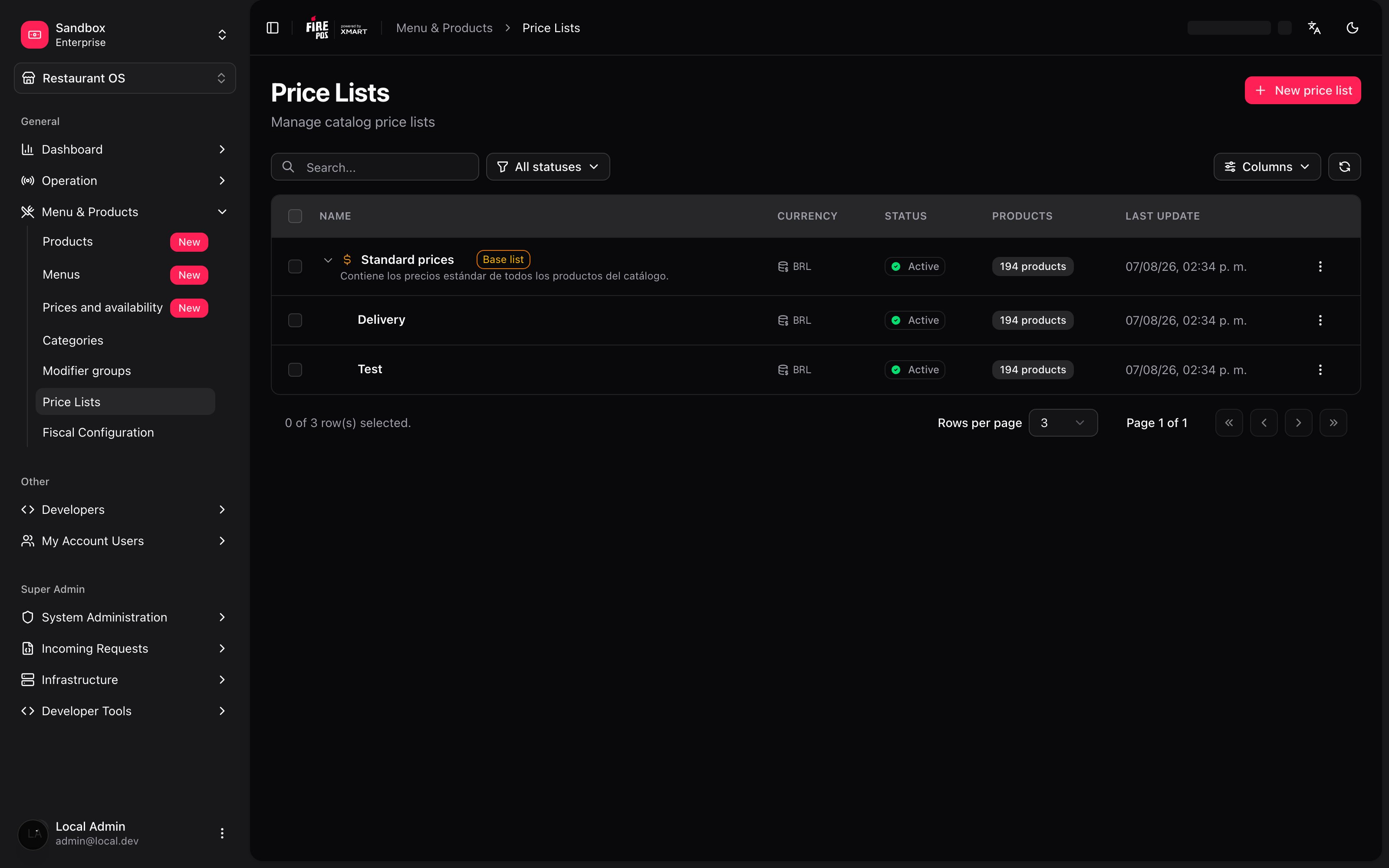
1. You already have a list, even if you never created one. It’s called the base list and it holds the standard price for every product. When you set a price on a product’s page, that price lands there.2. Other lists can follow the base. Connect a list to the base and you change a price once for it to reach all of them. Any product that needs its own price sets one and stops following — just for that product.3. Nothing is saved until you confirm it. Everything you edit stays as a draft, you see it on screen before applying, and you can discard the whole thing.4. Promotions live here too. The Sale price column is the price the customer is charged during a discount. A sale on a product also applies inside every combo where that product has no price of its own.
The simple path
You don’t need to understand price lists to start selling. Set the price on the product page and Prices and availability picks it up into the base list. Done. The base list carries the Base list tag and can’t be deleted or deactivated: it’s the catalog price, the floor everything else hangs from.When the second price shows up
One day delivery costs more, or an airport store carries different costs, or an aggregator takes a commission you need to offset. That’s when you create a second list — and the question that matters is how it’s born.Connected lists: change once, reach everywhere
A connected list shows the Derived from <base list> tag, and each product carries one of two marks:- Formula — that product follows the base list.
- Fixed — that product has its own price and won’t move when the base changes.
P is always that same product’s price in the base list.
The point: you can mix
It isn’t all or nothing. A delivery list can follow the base on 137 products and hold its own price on 93. The ones that follow update themselves; the ones you fixed stay exactly where you put them. To send a product back to following the base, use Reset to =P next to the price.Contextual prices: the same product is worth a different amount inside a combo
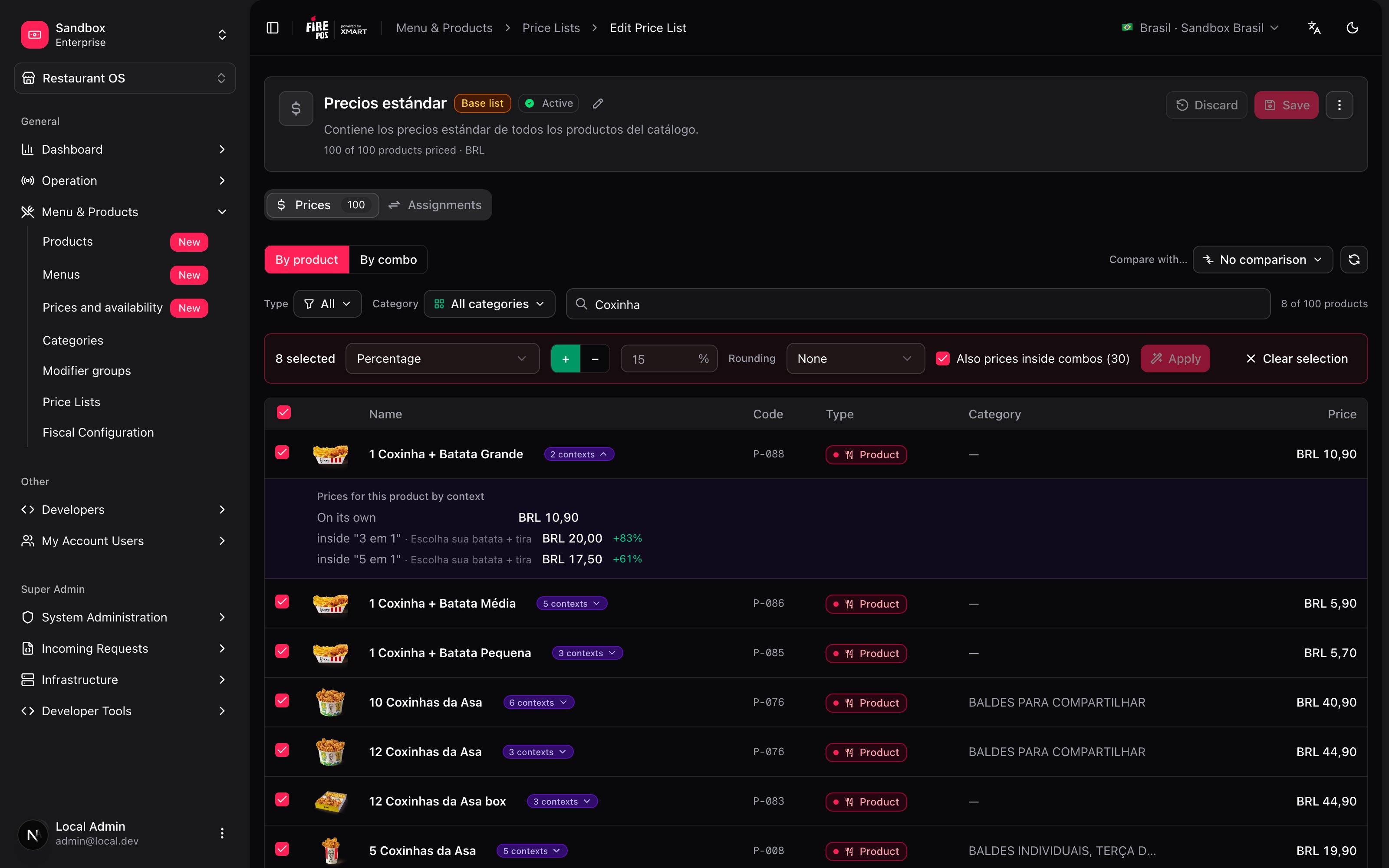
This is the case that surprises people most. A side of fries costs $5.70 on its own. But inside the “1 Tira + Batata Média” combo it costs $7.80, and inside “9 por 49,90” it costs $6.20. Three prices for the same product — and until now they lived buried in each combo’s configuration. In the grid, products with this show an “N contexts” tag. Open it and you see every price together, with the percentage against the standalone price:
Why this matters. In a typical operation, most of the revenue goes through combos. If you raise prices and leave the contextual prices alone, the increase never reaches where the money is.
Sale prices: the discount the customer is charged
The Sale price column holds a lower price that is charged: regular 14.90, sale 12.90. Click Add a sale price on the row, type the amount and save with the rest of your drafts. The cell shows the discount next to it — “13% off”.- It’s an amount, not a percentage. You type the price after the discount.
- It has to be lower than the regular price. Otherwise the cell refuses it: “The sale price must be lower than the regular price”. If you lower the regular price later and an old sale is left at or above it, the sale stays saved but marked “Not sent to the channel: it is not lower than the price”.
- Removing it returns the product to its regular price on the next sync.
On connected lists
A connected list does not inherit the base list’s sales: its sale is its own. That’s on purpose — if the delivery list is=P*1.15, the base’s sale price would make no sense there. Sending a product back with Reset to =P keeps the sale it had in that list.
Sales inside a combo
In the By combo view each option has its own sale, next to its price inside the combo. When you set one, the screen asks Where should the sale price apply?
An option that follows the list price inside a combo shows the product’s own sale, marked “From the product’s own sale price”. A combo’s own discount is never typed: it comes out of its options’ sales.
How far a sale reaches
This is what surprises people most: a sale typed on one product shows up in many more places than the row you edited.A real example: Coca Cola 400 ml at 12.90
On the staging catalog, that single sale reached about 70 products at the next sync: every combo where the Coca has no price of its own. Combos nobody edited started showing a discount badge.
Why it works this way. Inside a combo, an option without a price of its own is the standalone product: same price, same sale. If you want a combo to keep its price no matter what happens to the product, give that option its own price in the combo (Only in this combo).
What the customer sees on a combo
- The big price is the cheapest configuration, with sales: 63.90.
- The struck price is that same configuration without sales: 72.90. The channel calculates the badge from both.
- Each option shows what it adds over the cheapest option of its group. When the Coca goes on sale it becomes the cheapest drink, so the other 400 ml drinks now show +2.00 — although none of them changed price. Two Coca Zero still cost exactly what they did before.
- The discount applies only to what the customer picks. A customer who chooses no option on sale pays the regular price, with nothing struck through.
Suggested price is not a sale
The grid also has a Suggested column: a reference price the channel can show crossed out. To the customer both look the same — a price, a struck price and a percentage — but they’re different things:
If the -10% is a real promotion, make it a sale.
Prices per fulfillment type in the grid
The fulfillment type selector in the toolbar turns the grid into a lens: with All fulfillment types you see and edit the base price; pick Delivery and every cell shows and edits delivery’s price. “You are editing the price for Delivery. A product with no own price here follows the base price.”- A product with its own price for that type carries the own badge. follow the base price removes it and sends the product back to the base.
- A dot next to a type in the selector tells you that some product in this list already has its own price there.
- Bulk actions are off under a lens: “Bulk actions apply to the base price. Switch to “All fulfillment types” to use them.” They’re written against the base price, and applying them to another layer without telling you would be worse.
- Compare with keeps working under a lens.
Changing many prices at once
Select the products —using the type and category filters, or the search— and the bulk edit bar appears.What you can apply
- Percentage — raise or lower by a % over the current price. The sign is explicit:
+or−. - Amount — add or subtract a fixed amount.
- Formula (connected lists only) — apply
=P*1.15to everything selected. - Reset to =P (connected lists only) — send them back to following the base.
The increase reaches combos too
The bar includes an “Also prices inside combos” checkbox, on by default. That’s what makes a+10% actually reach your whole revenue instead of just the standalone price.
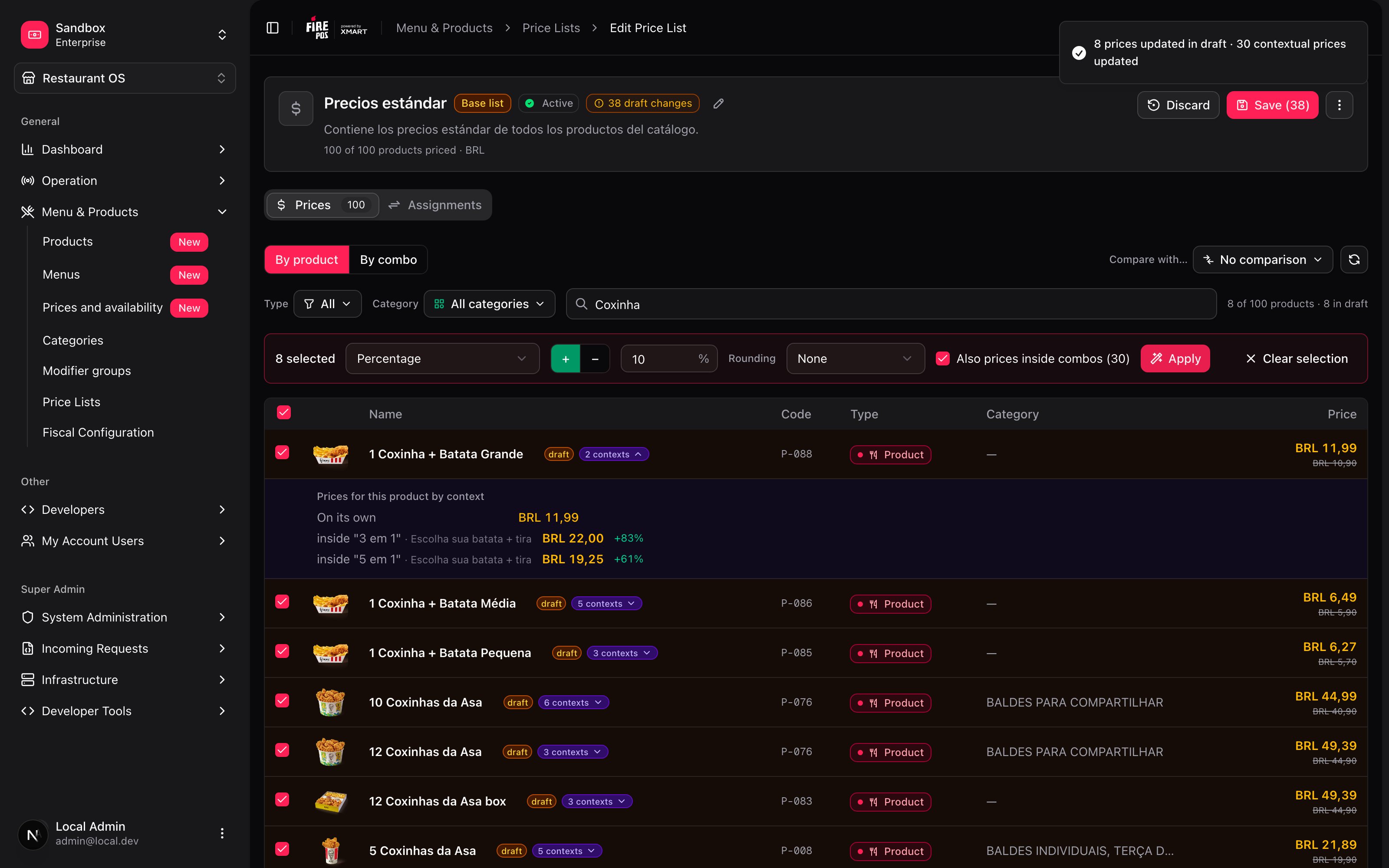
One reassuring detail: an even increase keeps the proportions. If a product was $10.90 on its own and $20.00 inside a combo (+83%), after a +10% it’s $11.99 and $22.00 — still +83%.
Commercial rounding
A+10% leaves prices like $11.99 or $13.42. The second one is ugly to sell. Next to the value there’s a rounding selector:
It applies after the calculation, and only to percentage and amount. Formulas aren’t rounded: they’re live, and rounding them would break the relationship with the base list.
All of this produces drafts. You see the result in the grid, with the previous price struck through, and only then confirm with Save. Or discard the whole thing.
Comparing two lists
The Compare with button overlays another list as a reference. When it’s active it turns orange — it’s a mode, not a filter: it doesn’t hide products, it adds information. Under each price you get the other list’s price and the difference: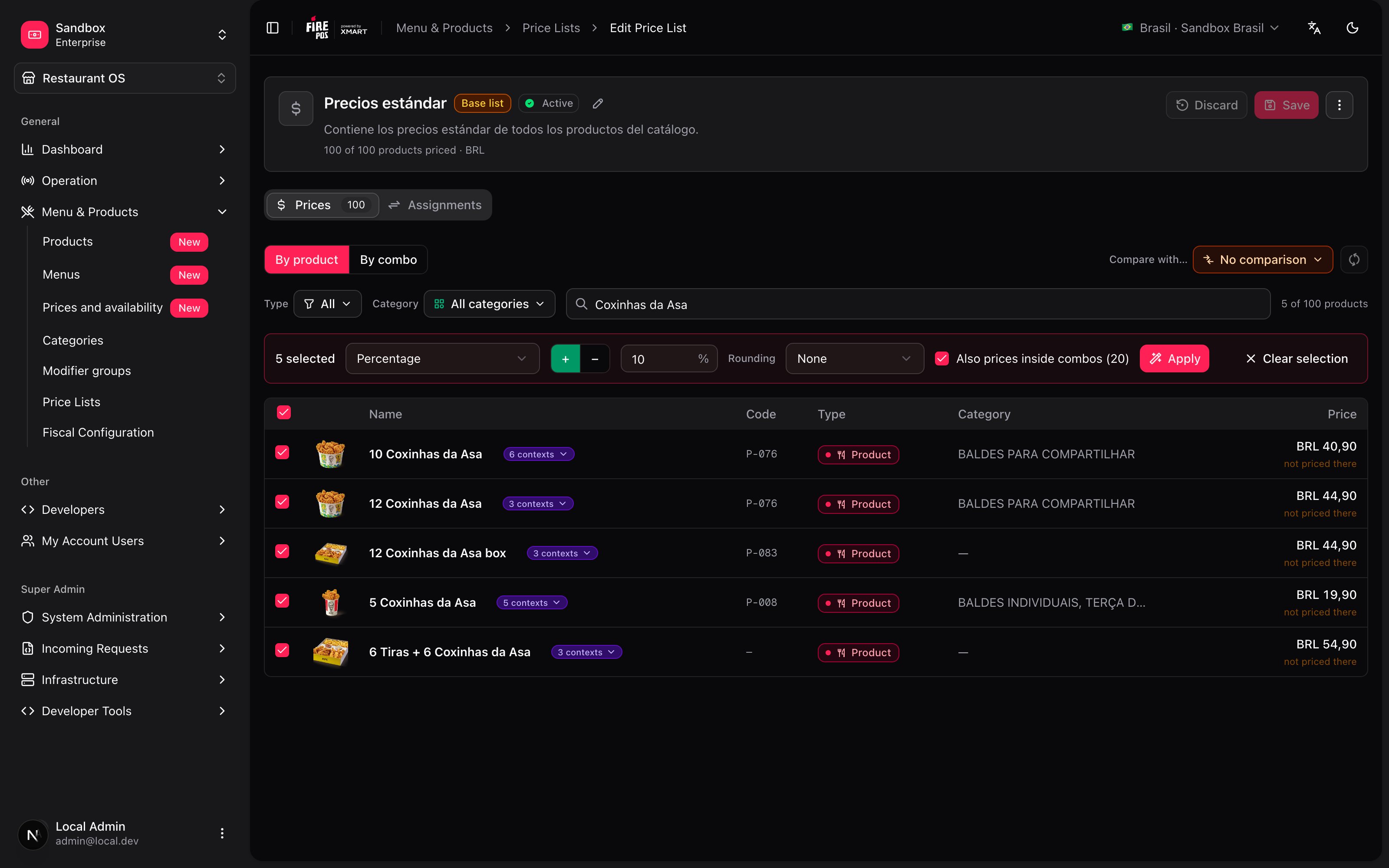
Before saving: who the change reaches
If the list has connected lists, saving opens a summary of the blast radius: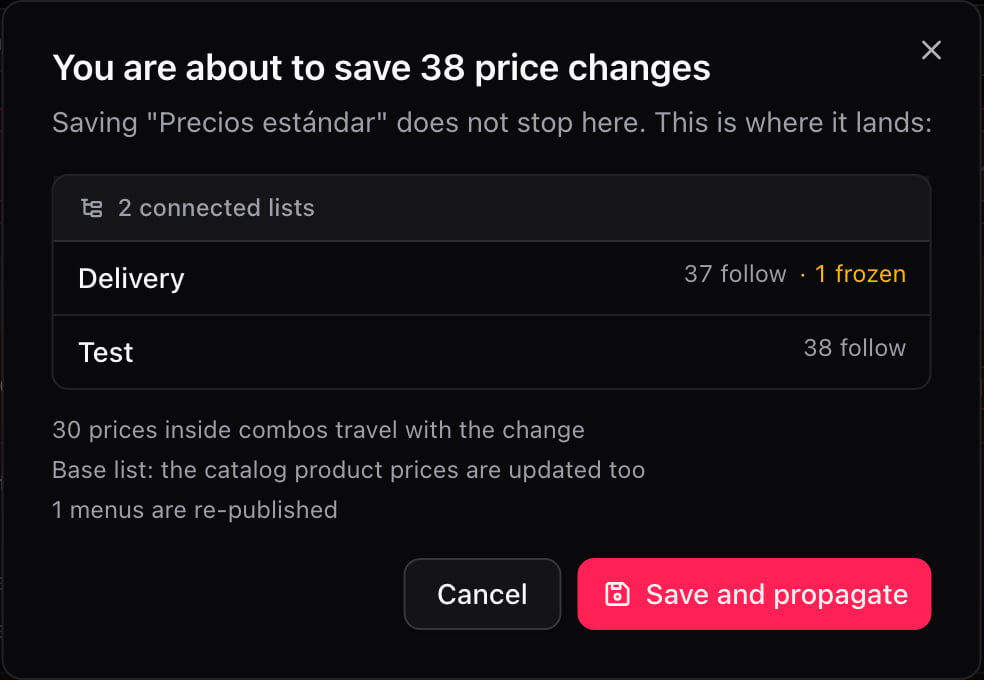
Connecting a list that already exists
Got a loose list that was born as a copy and drifted out of date? You can connect it: ⋮ menu → Connect to a base list. Before confirming, you’re shown exactly what will happen:Recipes: how to handle real-world cases
Raise delivery prices 8% without touching dine-in
Raise delivery prices 8% without touching dine-in
- Open the delivery list (not the base — dine-in stays where it is).
- Select the products with the header checkbox, or filter by category if the increase is partial.
- Pick Percentage, sign
+, value8. - Keep “Also prices inside combos” checked.
- Pick a rounding mode if you don’t want prices like 13.42.
- Review the grid: new prices show up with the old one crossed out.
- Save.
Offset an aggregator's commission
Offset an aggregator's commission
If the aggregator takes 20%, you need to charge more to keep the same margin.
- Create a list connected to the base, named after the aggregator.
- Select all products.
- Apply Formula:
=P*1.25. - Save.
Open an airport store with higher prices
Open an airport store with higher prices
- Create the list connected to the base.
- Select everything and apply Formula
=P*1.15. - The few products that need a different value: edit them one by one with a number. They’re marked Fixed.
- Assign the list — together with the right menu — to that store’s rows in Menu assignment.
Launch a promotional price and roll back when it ends
Launch a promotional price and roll back when it ends
For a product on promotion, the Sale price column is the simplest path: the regular price stays where it is, and the channel shows the discount.
- Open the list assigned to the destinations of the campaign.
- On each product, Add a sale price with the promotional amount.
- Check the How far a sale reaches section: the sale also applies inside the combos where the product has no price of its own.
- Save and sync the rows in Menu assignment.
- When it ends: remove the sales, save and sync again.
If the promotion changes many prices at once and you want to switch it on and off in one move, a separate list connected to the base still works: lower the products with
=P*0.8, assign the list for the campaign and reassign the previous one at the end.Discount a combo without touching the products
Discount a combo without touching the products
- Open the list and switch to the By combo view.
- Find the combo and the option that drives its price — usually the cheapest of a required group.
- Set its sale and choose Only in this combo.
- Save and sync.
Keep a combo out of a product's promotion
Keep a combo out of a product's promotion
You put a soft drink on sale, but one combo should keep its price.
- By combo view, find that combo and the drink.
- Give the drink a price of its own with Only in this combo — the same price it has today.
- Save and sync.
Check that delivery didn't drift from dine-in
Check that delivery didn't drift from dine-in
- Open the delivery list.
- Compare with → Standard prices.
- Scan the grid: matching rows appear dimmed, differing rows show the percentage in color.
A 10% increase, followed end to end
Three lists, one product, one change to the base. Here’s what happens with each:
Delivery updated on its own: nobody touched it. Airport didn’t, because someone gave it its own price at some point — and that’s exactly what the blast radius summary warns you about before saving.
And if the product also sells inside a combo at 20.00, with the combo checkbox on that price becomes 22.00: the proportion (+83%) stays the same.
Mistakes that cost money
Details that save you headaches
Drafts don’t disappear on their own. If you try to reload or leave the screen with unsaved changes, you’re asked: Save and continue / Discard / Stay here. The reload button. If someone else touched a price while you had the screen open, reload and pull the latest without losing your work. The currency comes from the countries your account operates in, not from a generic catalog: if you operate in Brazil and Colombia, you’ll see BRL and COP. Combos don’t appear in the product grid. A combo has no price of its own: its value comes from what you charge for each item inside it. That’s what the By combo view is for — it shows the composition and recalculates the total as you edit.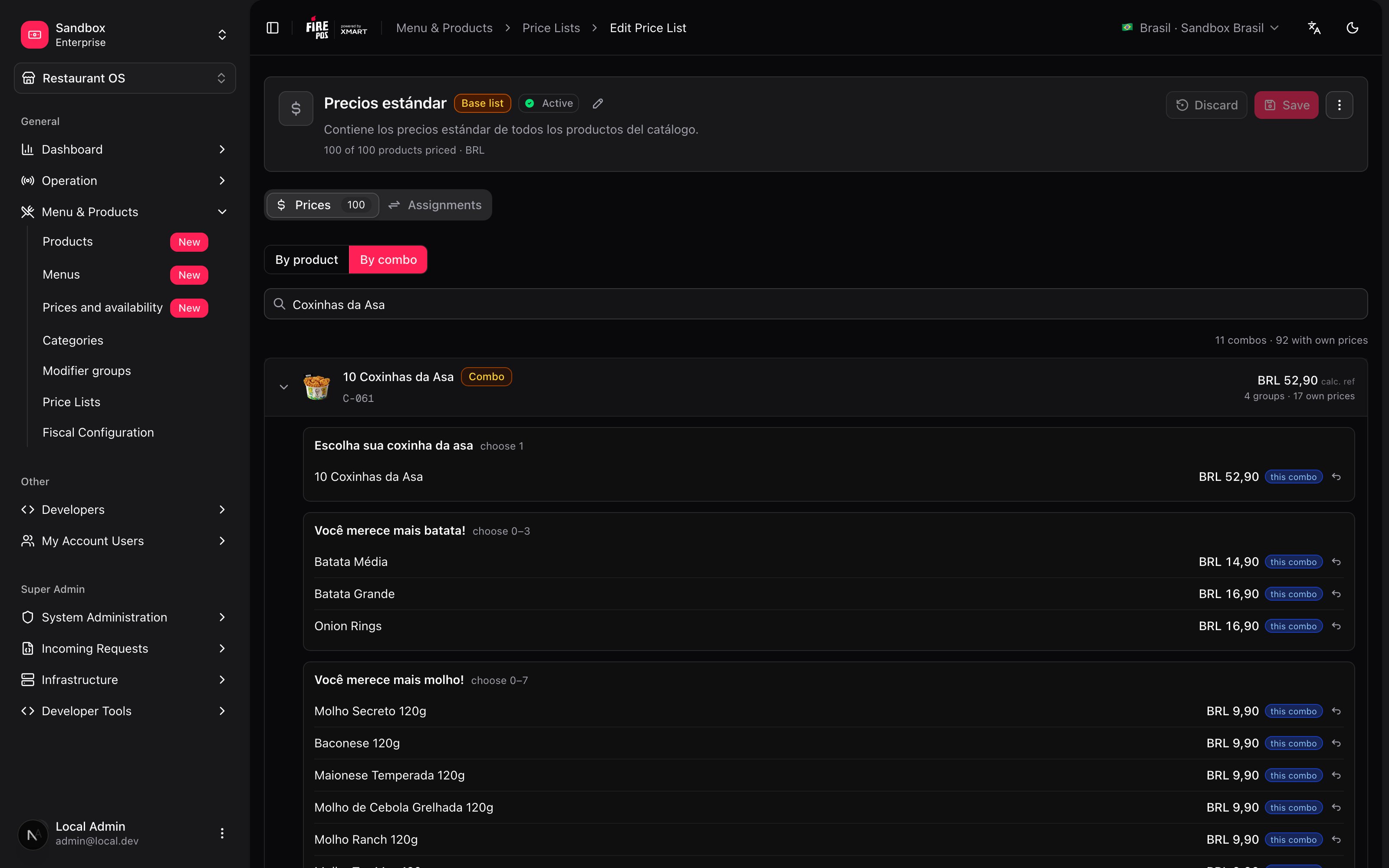
Glossary
Frequently asked questions
I changed a price and one list didn't update
I changed a price and one list didn't update
That product has its own price in that list (the Fixed mark). It’s intentional: someone set it at some point. If you want it to follow the base again, use Reset to =P.The blast radius summary warns you about this before it happens.
I put one product on sale and several combos changed price
I put one product on sale and several combos changed price
That’s how sales work: inside a combo, an option without a price of its own follows the standalone product, sale included. If the product is the cheapest option of a group, the combo’s “from” price drops too. To keep a combo out, give the option its own price in that combo with Only in this combo.
My sale says 'Not sent to the channel'
My sale says 'Not sent to the channel'
The sale is no longer lower than the regular price — usually because the regular price was lowered after the sale was set. Lower the sale or remove it.
The connected list doesn't show the base list's sale
The connected list doesn't show the base list's sale
On purpose: sales aren’t inherited by connected lists. If the promotion applies there too, set the sale in that list.
Can I have a list that depends on another that depends on another?
Can I have a list that depends on another that depends on another?
No. Inheritance is one level only: a list follows a base list, and that base follows nobody. Longer chains become impossible to reason about when something goes wrong.
I deleted a product — is its price still floating around?
I deleted a product — is its price still floating around?
No. Deleting a product clears it from every list automatically.
Why can't I delete the base list?
Why can't I delete the base list?
Because it’s the catalog price: it’s where the price you set on a product page lands, and the starting point every other list derives from. Deleting it would leave products with no price. It can’t be deactivated either.
I raised prices but the combos stayed the same
I raised prices but the combos stayed the same
The “Also prices inside combos” checkbox was unchecked when the change was applied. Apply the adjustment again over those products with the checkbox on.
What’s coming
- Time-based prices (day-parting): a price that changes depending on the time of day.
- Taxes, net price and reference price in the grid — today you work on the final price with taxes included.
- Sales in bulk: today a sale is set product by product; the bulk bar works on regular prices only.