

The minimum you need to know
- Suspend is reversible. Revoke and Delete are not: the device has to be linked again.
- If the terminal has an open register, close it manually with the count before revoking or deleting it. Revoking closes it without counting the cash.
- Close register manually uses the same calculation as the POS and doesn’t ask for authorization codes: whoever closes from the backoffice is already a manager.
Prerequisites
- Access to the Fire backoffice at app.fire.rest, with permissions on the store.
- The right country, vendor and store selected in the header.
Available actions
1. Open Terminals
In the top-left corner of the backoffice, open the channel selector and choose Channel - POS.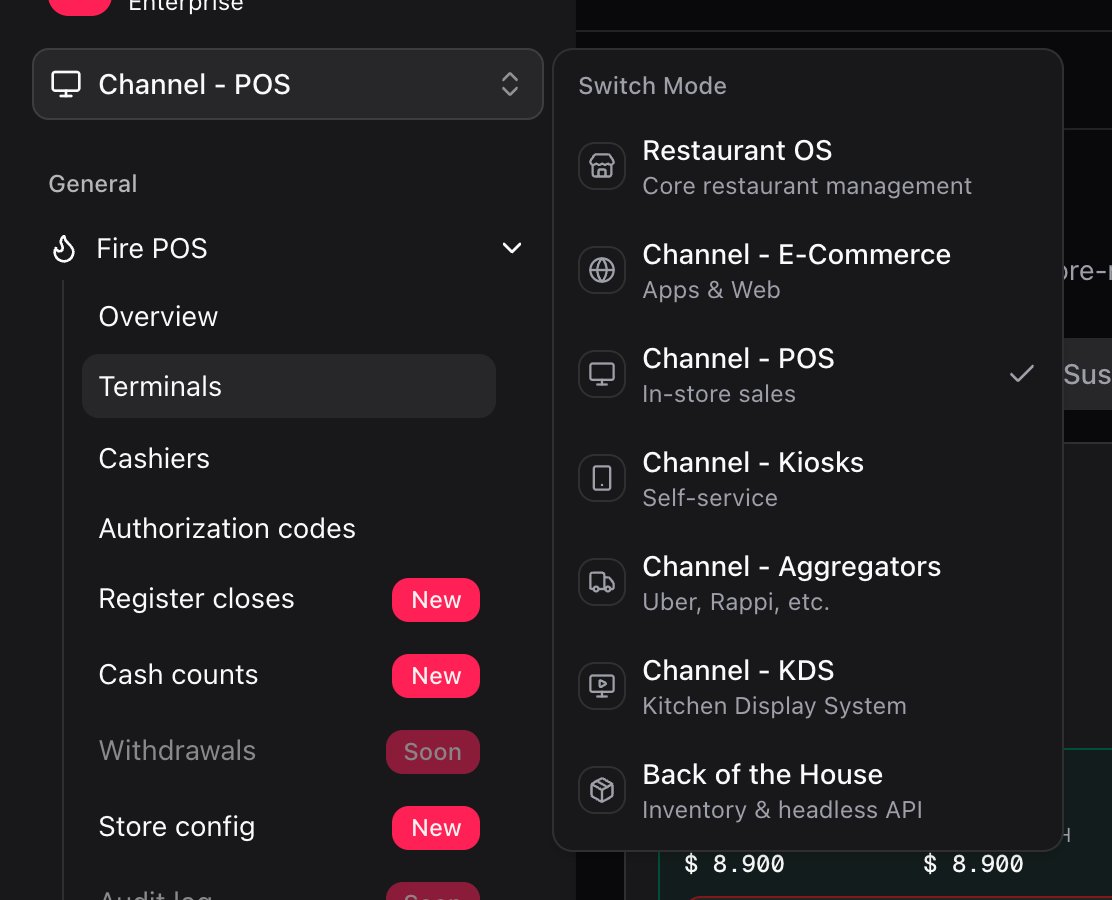
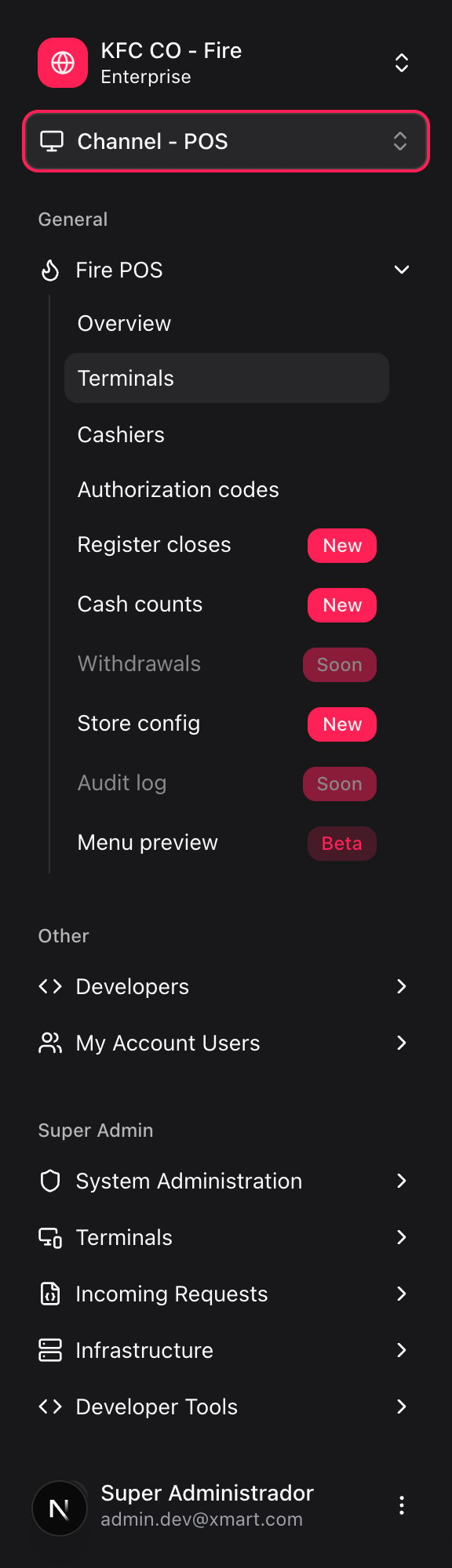
- Active: linked, operating terminals.
- Pending slots: linking codes that haven’t been used yet.
- Suspended: terminals paused by a manager.
- Revoked: retired terminals.
2. Review each terminal’s card
Each card shows the terminal name, its status, the store and how long ago it was last seen. A green dot means the device is online. If a cashier has an open register, the card also shows who it is, since when it’s open, the shift’s sales, the System cash, the orders, and the Close register manually button. Open the card’s ⋯ menu to see the actions: View details, Suspend, Revoke and Delete.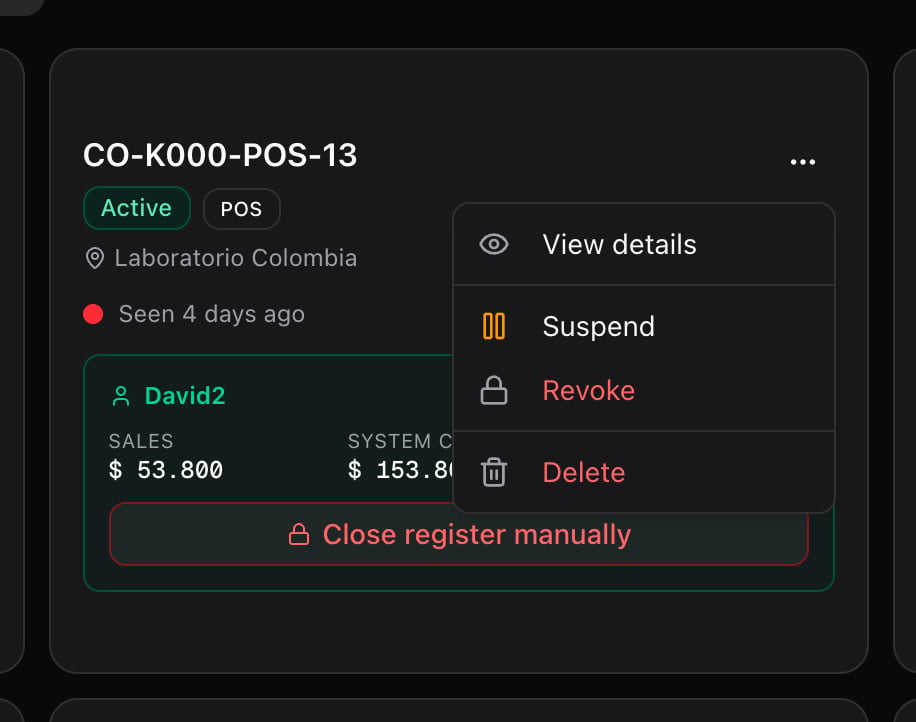
The card’s System cash comes from the register’s record on the POS. When closing, the expected amount comes from Fire, which subtracts cancellations. That’s why the two numbers can differ: the one that counts for the close is the dialog’s.
3. Check the details
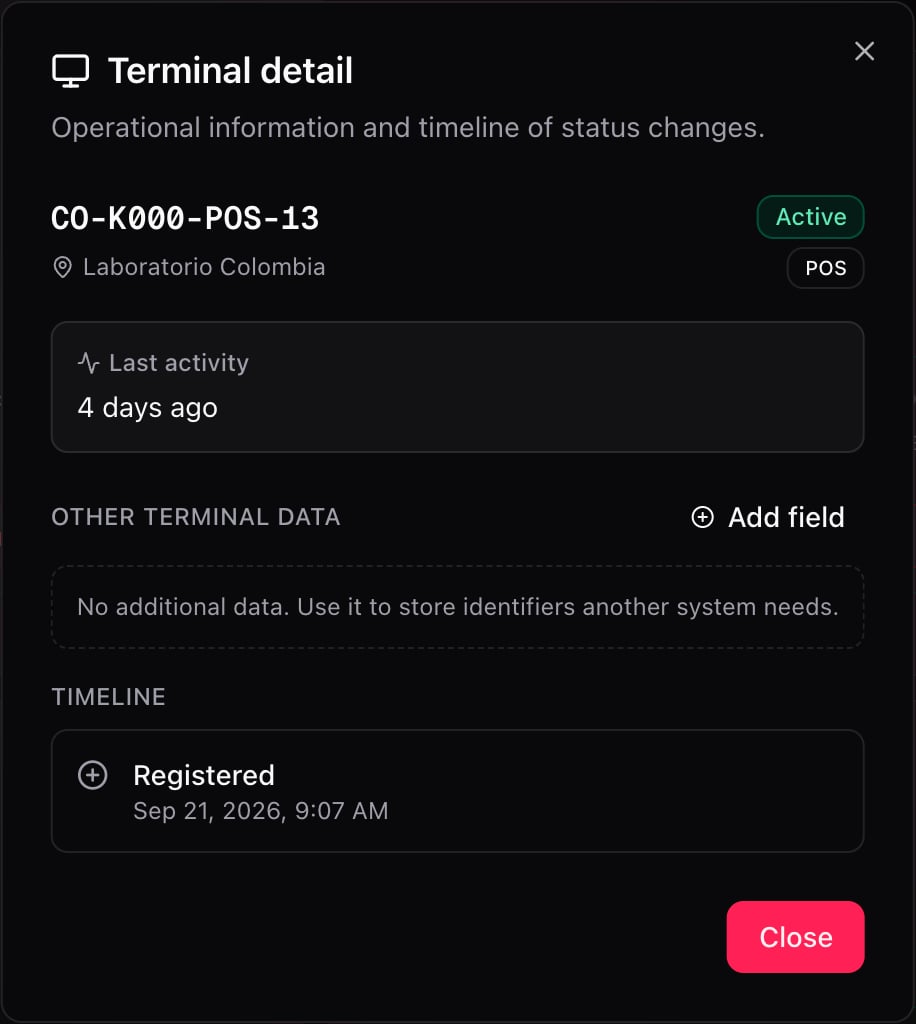
View details opens the terminal’s operational information:- Last activity: the last time the device talked to Fire.
- Other terminal data: identifiers another system needs. In Ecuador, also the register’s fiscal identifier.
- Timeline: registration, suspensions, reactivations and other status changes, with their date.
Close register manually
Use it when the POS can’t close the register: the device was unlinked with the register open, it broke, or the cashier is gone. While the register stays open, that cashier can’t sign in to another register or open a new one. The close does the same as the POS one: it calculates the expected amount with Fire, asks for the reason if cash is missing, ends the cashier’s shift and reconciles the close. The difference is that it doesn’t ask for authorization codes and that it isn’t blind: you see the expected amount before typing what you counted.- Count the cash in the drawer.
- On the terminal’s card, tap Close register manually.
-
Review the calculation: opening float + cash sales (Fire) − withdrawals = expected in drawer.
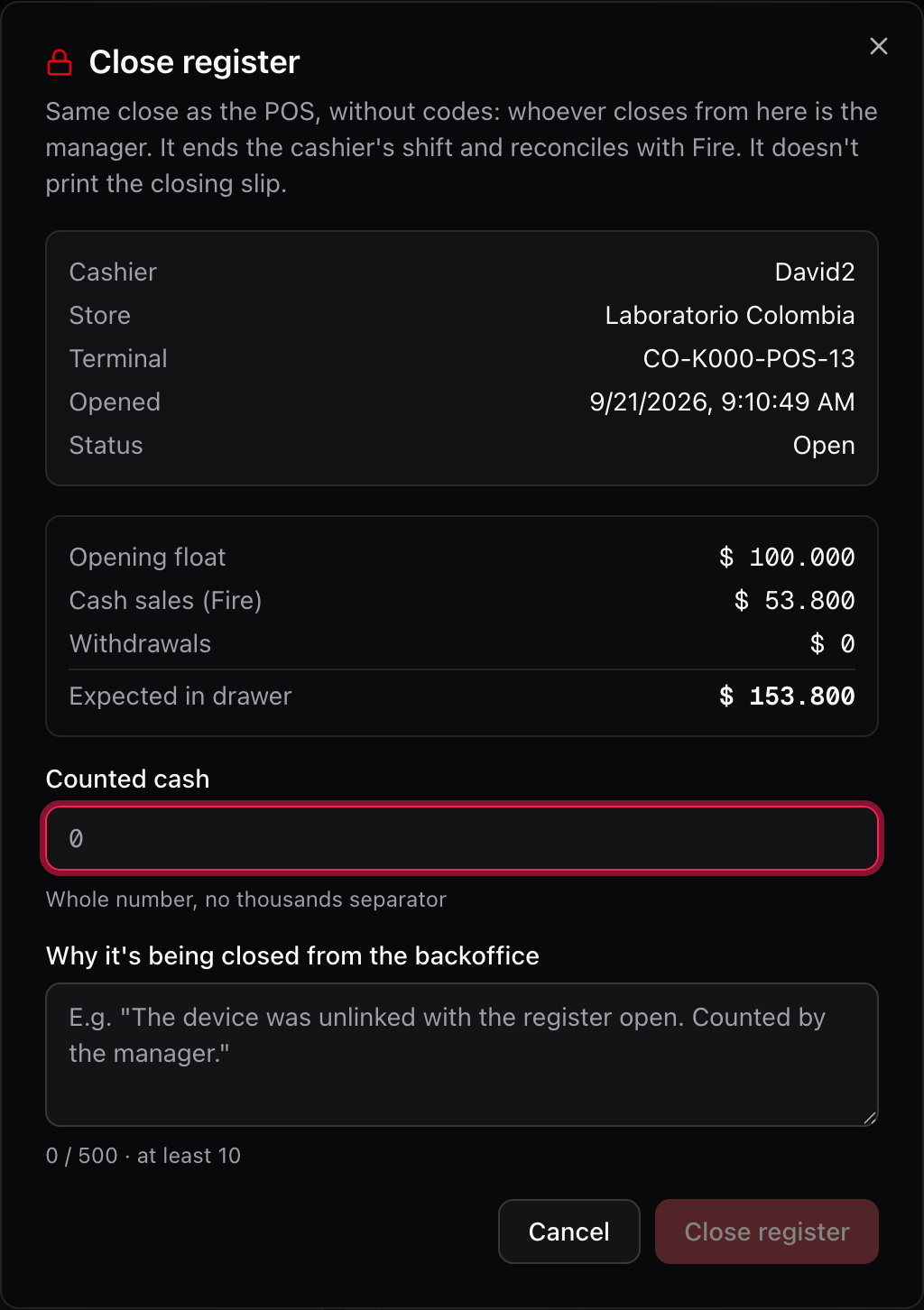
- In Counted cash, type the total as you counted it, without a thousands separator. Colombian and Chilean pesos take whole numbers; other currencies take up to 2 decimals. The formatted amount appears below, so you can confirm what you typed.
-
If the count is lower than expected, choose the Shortage reason. It’s required: on the POS that reason comes with the manager’s code; here you choose it.
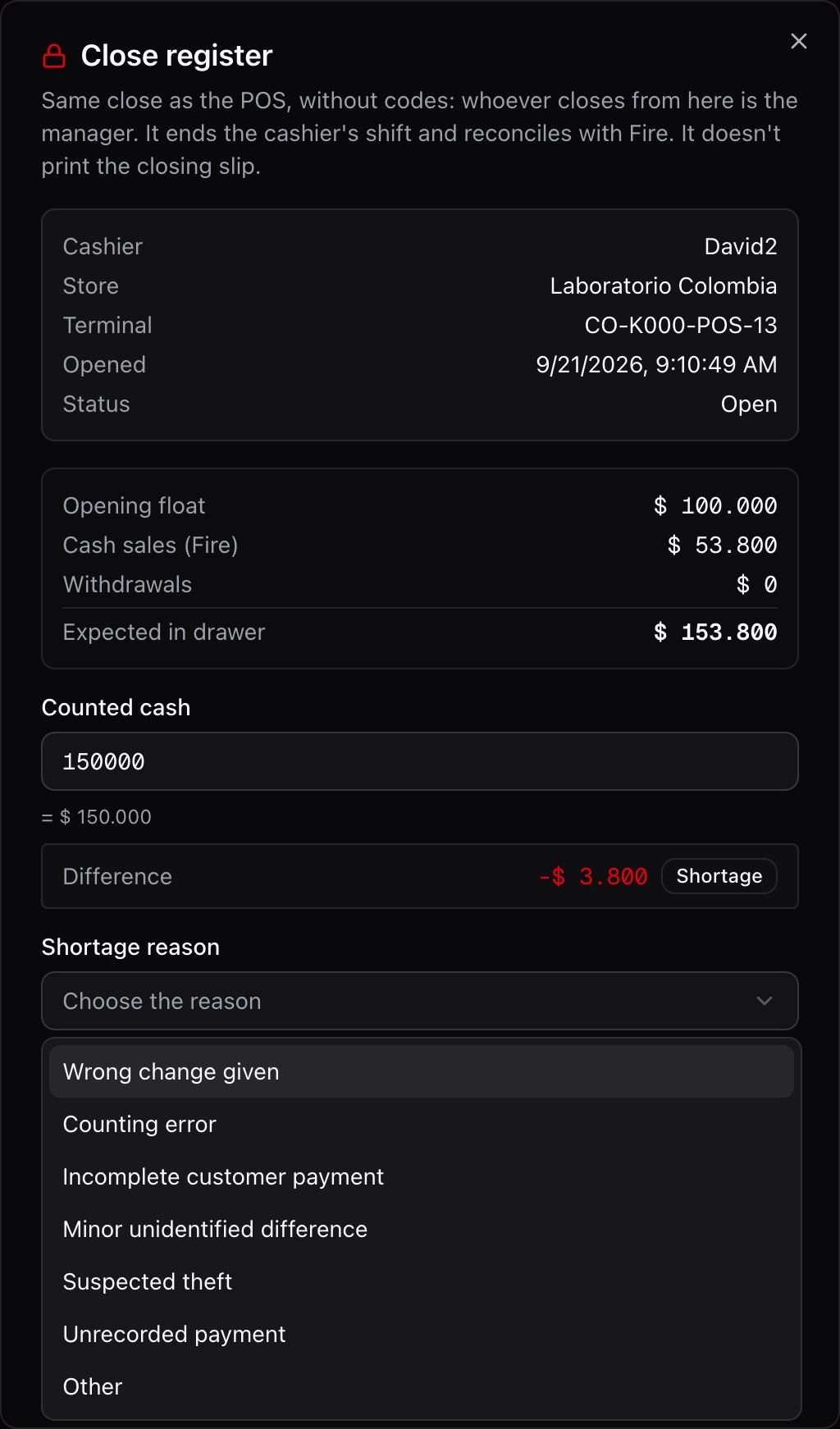
- In Why it’s being closed from the backoffice, explain the situation in at least 10 characters. It stays in the close’s audit trail.
- Tap Close register.
- The register shows as Forced close in Fire POS → Register closes, with your user and the reason you wrote.
- The cashier’s shift ends. If the POS is still on, it goes back to the sign-in screen.
- The close is reconciled with Fire the same way as one made on the POS. If that reconciliation fails, the register stays closed anyway and the notice tells you.
Suspend a terminal
Use Suspend to pause a terminal temporarily and reversibly, for example during maintenance.- In the terminal’s ⋯ menu, choose Suspend.
- Write the reason and confirm.
Reactivate a suspended terminal
Once the problem is solved, open the Suspended tab, choose Reactivate on the terminal and confirm. The POS picks up the change on its next sync. The cashier operates again with the same register and shift, without linking the device again.Revoke or delete a terminal
Use Revoke or Delete when the device is retired for good: it was lost or stolen, fraud was detected, or the hardware was replaced.- If the card shows an open register, close it first with Close register manually.
- In the ⋯ menu, choose Revoke or Delete.
- Write the reason and confirm.
Frequently asked questions
A cashier can't open a register because it says one is already open
A cashier can't open a register because it says one is already open
Their previous register stayed open on another terminal, or on the same one after unlinking it. Find that terminal in Active, tap Close register manually and close it with the count. Then the cashier can start a new shift.
The card shows different cash than the close dialog
The card shows different cash than the close dialog
The card uses the register’s record on the POS; the dialog uses Fire’s expected amount, which subtracts cancellations. The dialog’s is the one that counts for the close.
The terminal keeps operating after suspending it
The terminal keeps operating after suspending it
The POS picks up the change on its next sync, which can take up to a minute. If it keeps operating, confirm you suspended the right terminal.
I need to use a revoked terminal again
I need to use a revoked terminal again
A revoked terminal can’t be reactivated. Create a new slot in Terminals → Create slot and link the device again.
I don't see the Terminals option
I don't see the Terminals option
Confirm you have Channel - POS selected and permissions on the store.