

The bare minimum
- Importing never writes right away: the file is analyzed first, you review the changes and only then apply them.
- Before applying, Fire saves a backup of the current data.
- Importing does not synchronize: the changes reach stores and channels when you synchronize from Menu assignment.
Prerequisites
- Access to the Fire backoffice at app.fire.rest, with permission on the account and the vendor.
- The account, country and vendor chosen in the header. Without them the screen asks you to select them.
- Today you can export and import the Catalog. When other data is added, it will show up in the same selector.
The simple path
Open Operation → Import & export and choose Catalog in Data. At the top there are two tabs, Export and Import, and below them the History of everything that was done.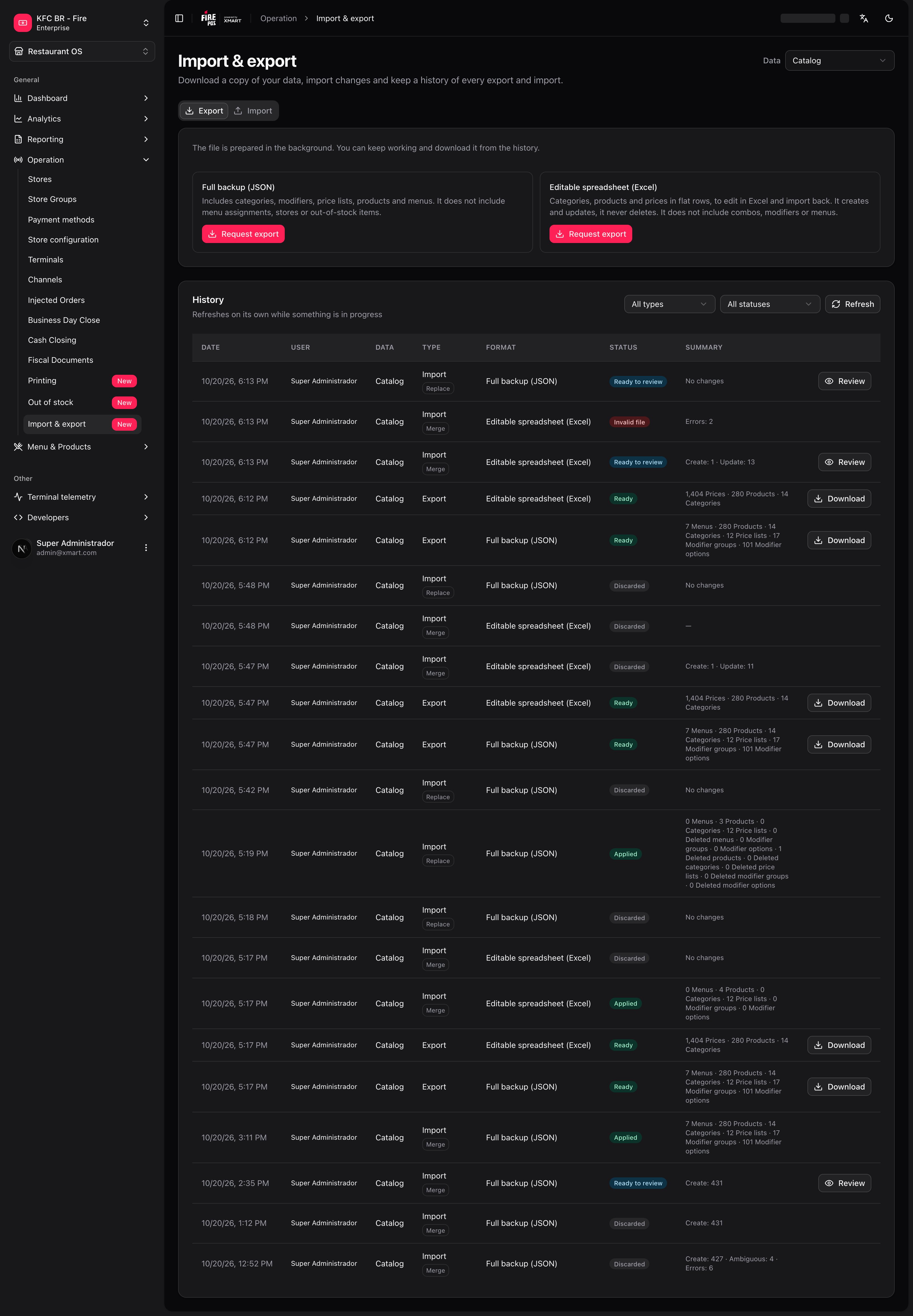
- In Export, choose the format and tap Request export.
- When the History row changes to Ready, tap Download.
- Edit the file.
- In Import, upload the file and tap Analyze file.
- Review What would change and tap Apply.
Export
The file is prepared in the background: you can keep working and download it from the History when it is ready.
The exported file stays available to download for 30 days. After that the History no longer offers Download and you have to request a new export.
Import
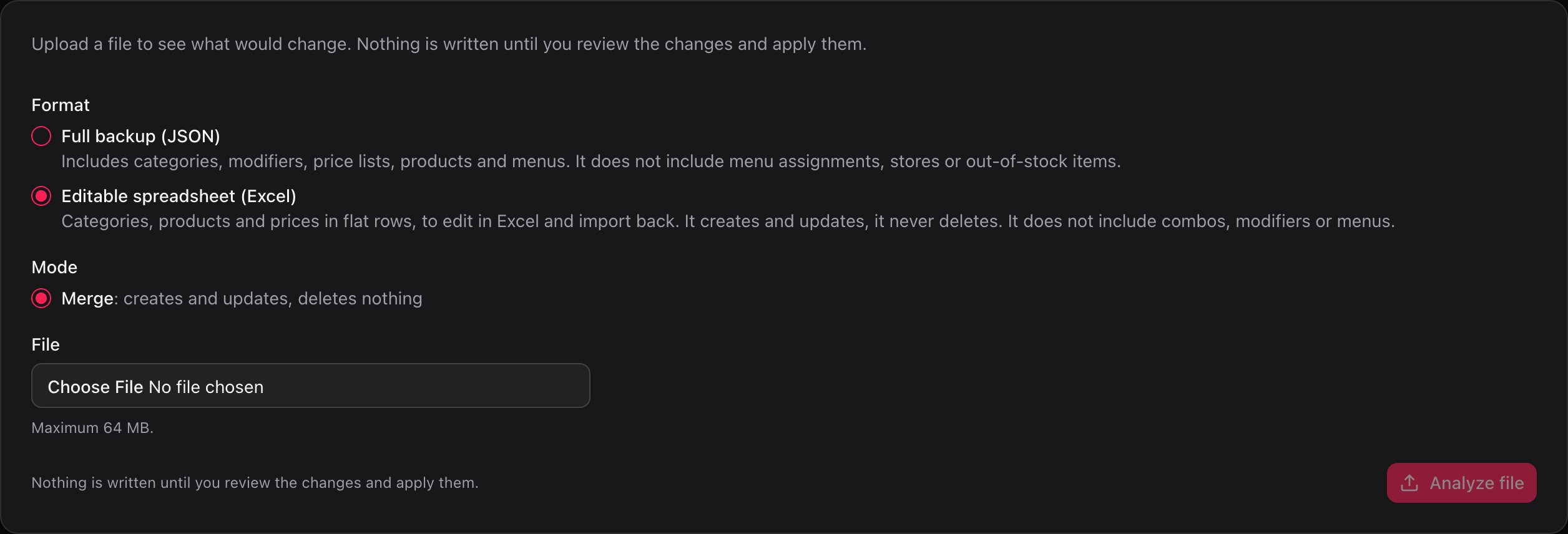
Review before applying
Once the file is uploaded, the import goes through Analyzing and ends up Ready to review. Tap Review in the History to open the detail. Nothing has been written up to here.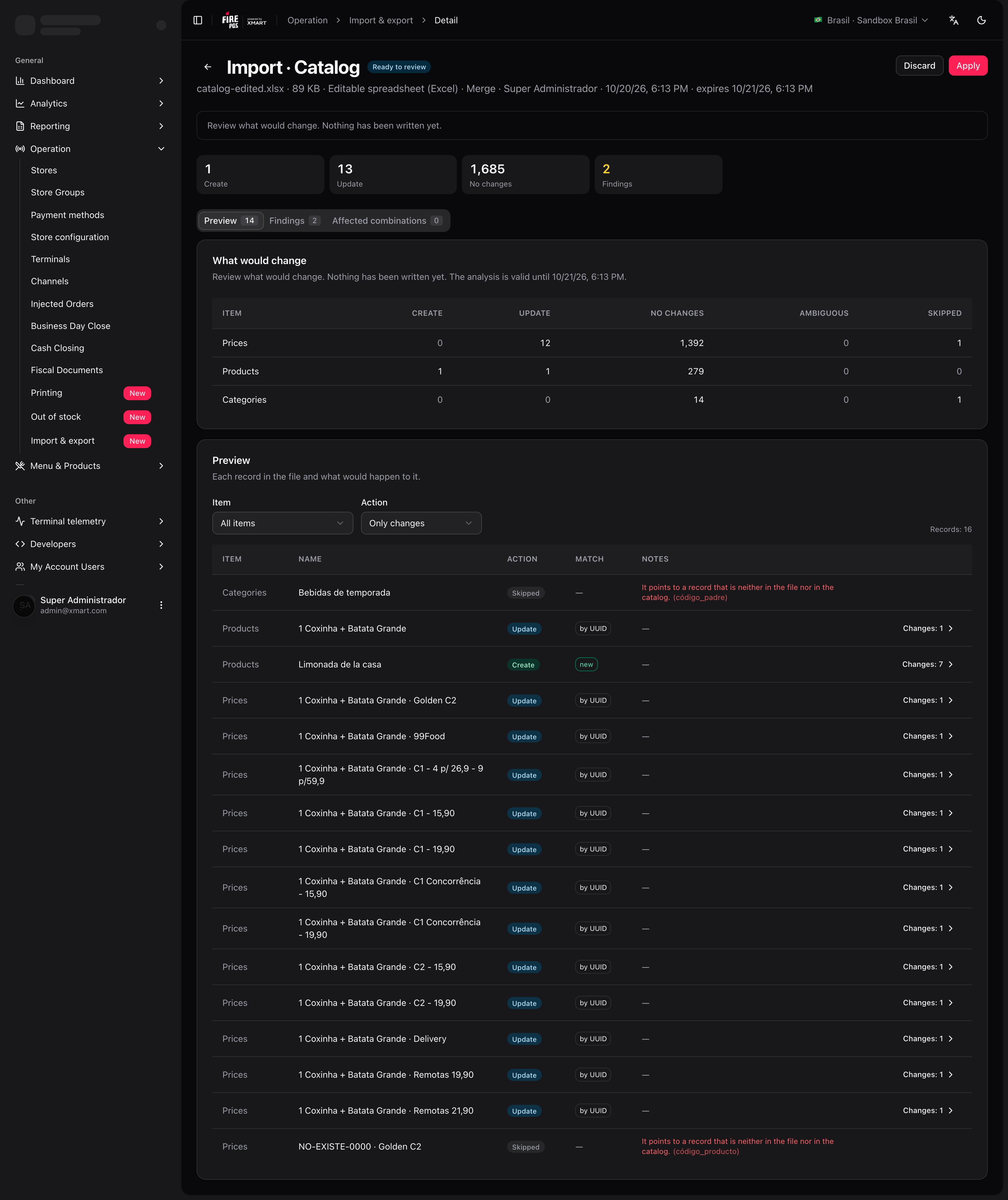
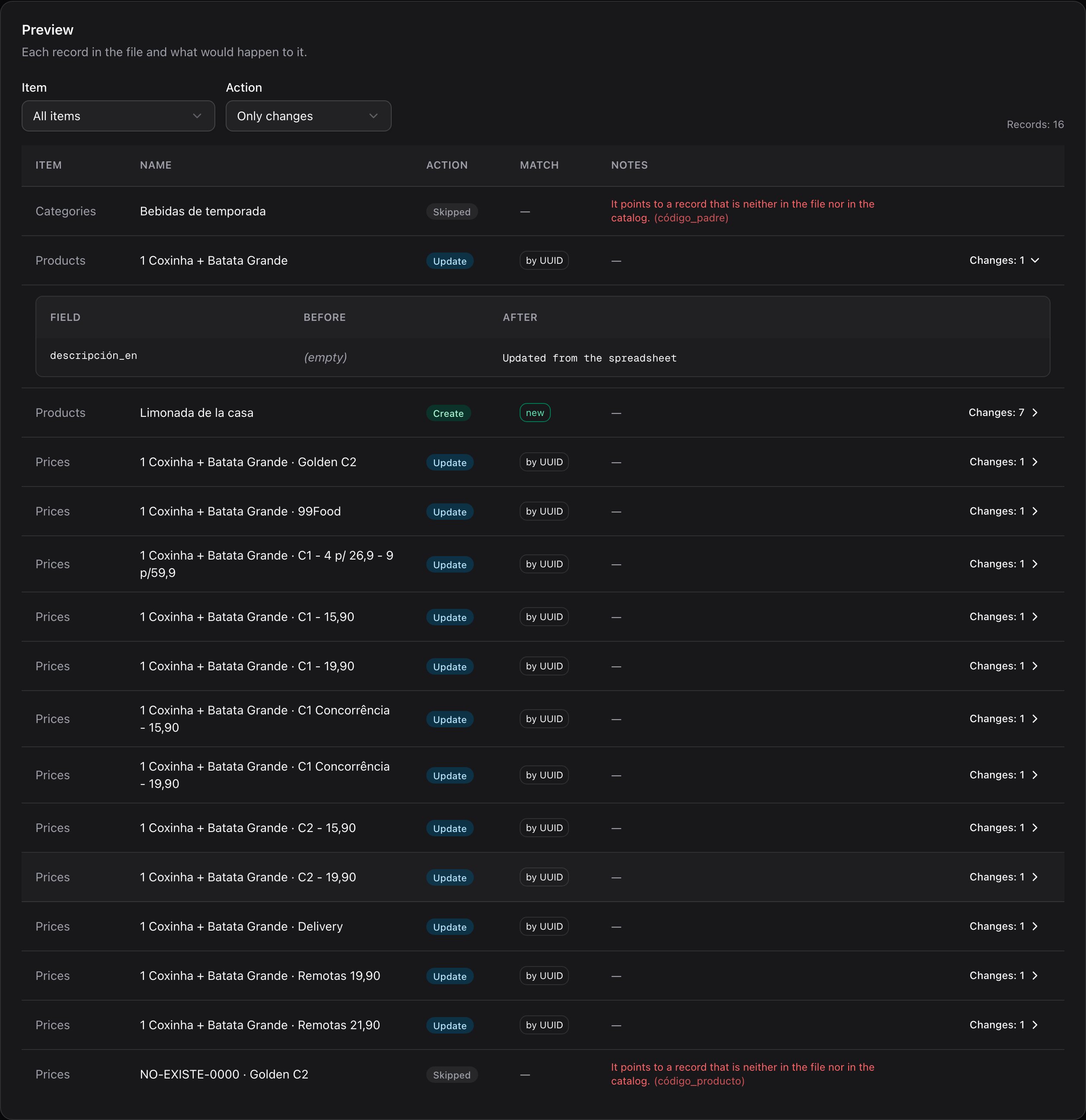
- Preview: each record in the file and what would happen to it (Create, Update, No changes, Delete). Show changes displays the Before and After value of each field.
- Findings: what the analysis found in the file.
- Affected combinations: the store × channel × Fulfillment Type combinations that use a menu or price list that changes.
- Images: the images that will be copied when you apply. It appears when the analysis finds images in the file, for example in a backup.
The findings
Each finding is one of three types: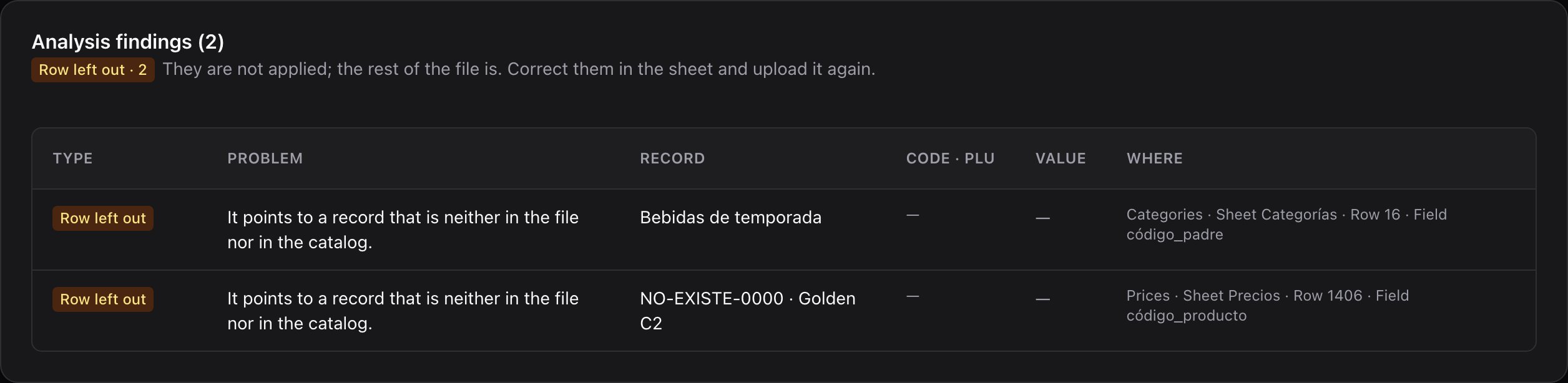
When the file is not valid
If the file does not have the expected format, the import ends up as Invalid file. The detail has no tabs: it only shows The file is not valid and the Analysis findings, with Blocks applying findings that point to the sheet and field of the problem. Nothing was written. Fix the file and tap Upload again.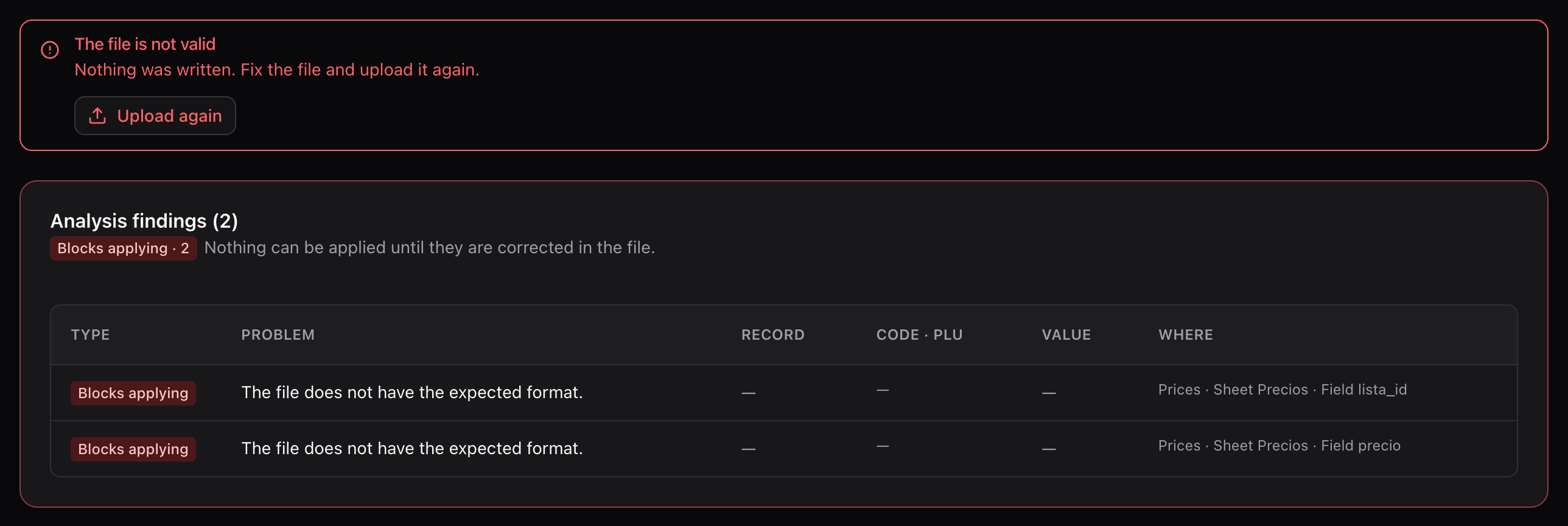
Apply or discard
If the analysis has no errors that block applying, tap Apply, review the summary of how many records will be created and updated, and confirm. In Replace mode the button is called Replace data and asks for more confirmation (below). If something does not convince you, tap Discard: nothing is written, and to import later you will have to upload the file again.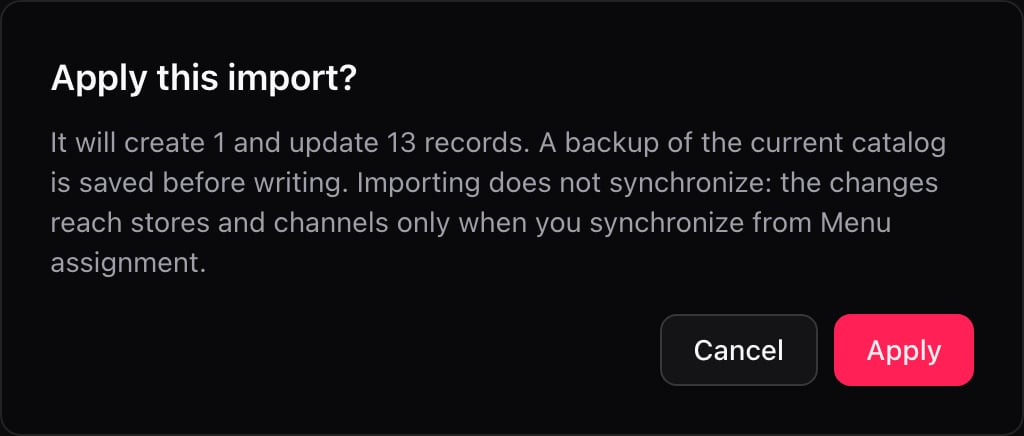
The analysis is valid for 24 hours: the detail shows until when. If that time passes, the import becomes Expired, nothing is written and you have to upload the file again.
After applying
Synchronize what changed
Importing does not synchronize. The Affected combinations tab lists which combinations keep the previous version until you synchronize them. Tap Go to Assignment to do it from Menu assignment.
The images
If the file comes from another environment, the images are copied to this one after applying, in the background: you can leave the page. An image that cannot be copied does not stop the import; the record keeps its reference. If any fail, tap Retry. The tab shows how many are Copied, Pending, Failed and how many are Already in this environment.
Replace and undo (administrators)
A platform administrator can replace the data of a vendor. Before applying they see what will be deleted and have to type the vendor name to confirm.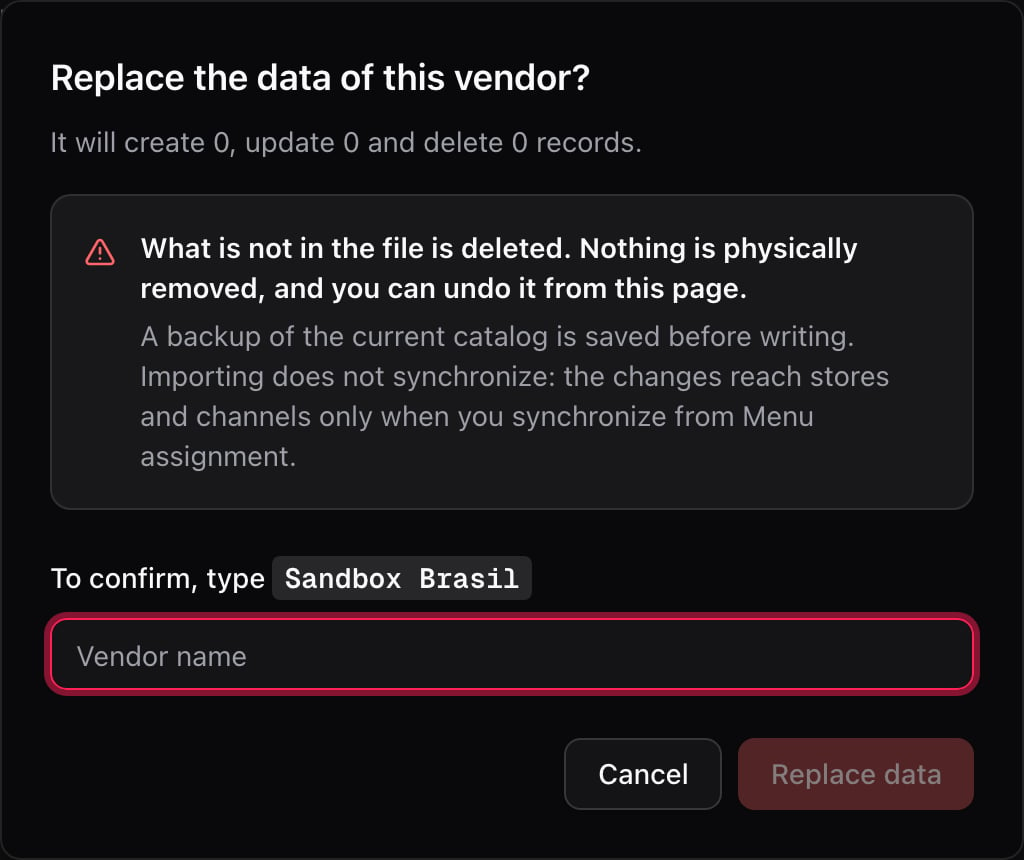
The History
Every export and import is kept in the History with its date, user, format, Status and Summary. It refreshes on its own while something is in progress. Filter by type or by status: In progress, To review, Done or With problems.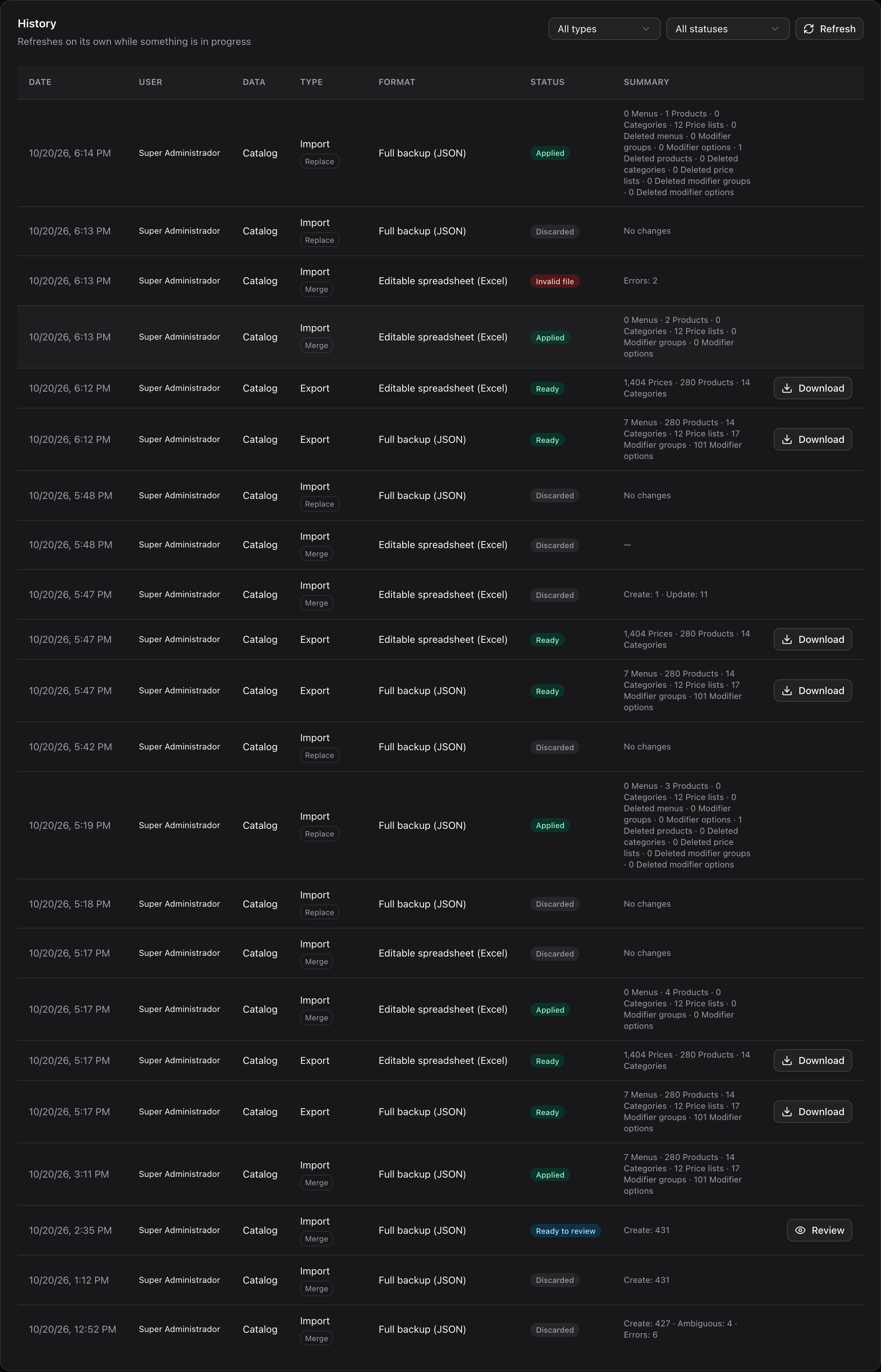
Recipes
Raise the price of many products
Raise the price of many products
- In Export, request the Editable spreadsheet (Excel) and download it from the History when it is Ready.
- Open the file and change the prices you need in the Precios sheet. Do not change the product codes: Fire uses them to find each row.
- In Import, choose Editable spreadsheet (Excel), Merge mode, upload the file and tap Analyze file.
- In the detail, leave the Preview on Only changes and confirm that only the prices you touched change.
- Tap Apply and confirm.
- Synchronize from Menu assignment so the channels receive the prices.
Move the catalog from one environment to another
Move the catalog from one environment to another
- In the source environment, request the Full backup (JSON) and download it.
- In the destination environment, open Import, choose Full backup (JSON), Merge mode, and upload the file.
- Review the Findings: they warn you if the file comes from another country or if an identifier already belongs to another account.
- Tap Apply.
- The images are copied on their own from the source environment: look at the Images tab and retry the ones that fail.
- The backup does not include assignments or stores: assign the menu to each store and synchronize from Menu assignment.
Make one vendor identical to another (administrators)
Make one vendor identical to another (administrators)
- Request the Full backup (JSON) of the vendor you want to copy.
- In the vendor you want to match, open Import, choose Full backup (JSON) and the Replace mode.
- Tap Analyze file and check in the Preview which records appear as Delete.
- Tap Replace data, review how many records are deleted and type the vendor name.
- Review the Affected combinations and synchronize. The ones left without a menu or price list have to be assigned by hand.
I made a mistake when applying
I made a mistake when applying
- In the History, tap the Applied import to open its detail.
- If you want to keep the previous copy, tap Download previous backup.
- Tap Undo and confirm.
- A new import in Replace mode is created with the backup saved before applying. Wait until it is Ready to review.
- Review it and tap Replace data.
- If you had already synchronized the changes, synchronize again from Menu assignment.
A worked example
With Sandbox Brasil, the Editable spreadsheet (Excel) was exported: 1404 prices, 280 products and 14 categories. In the file, 12 prices and the description of 1 product were changed, 1 new product (Limonada de la casa) was added and two rows with data that does not exist were left in: the category Bebidas de temporada, whose parent is not in the catalog, and a price for the codeNO-EXISTE-0000. The analysis gave this:
When you tap Apply, the dialog says “It will create 1 and update 13 records”: the new product, the updated product and the 12 prices. The 2 skipped rows are not applied; the rest of the file is.
Mistakes that cost money
Glossary
Frequently asked questions
I uploaded the file and it says Invalid file
I uploaded the file and it says Invalid file
The file does not have the expected format. Download a new export in the same format, edit it and upload it again. Nothing was written.
It says the data changed since the analysis
It says the data changed since the analysis
Someone modified the catalog between the analysis and the moment of applying. Upload the file again to analyze it against the current data.
It does not let me request another export
It does not let me request another export
There is a maximum of 5 exports or imports in progress at a time. Wait for one to finish.
I don't see the Replace option
I don't see the Replace option
It is reserved for platform administrators.
How long can I download an export?
How long can I download an export?
For 30 days from when it was generated. After that, the History no longer offers Download and you have to request another one.
What’s coming
- Today only the Catalog is exported and imported. Other data will be added on this same screen.
- Importing does not synchronize and does not include menu assignments, stores or out-of-stock items.
- The Editable spreadsheet (Excel) does not delete data or include combos, modifiers or menus.