

The minimum you need to know
1. The type is chosen when you create the product. Product, Combo, Modifier or Packaging. The first three can be swapped later from the record’s header; Packaging is final.2. Turning off “Show in menu” does not disable the product. It stops appearing on the menu, but it keeps working inside combos and as a modifier option.3. Creating the product does not put it on sale. It has to be in a menu, and that menu has to be synced.
The simple path
New product, name and code, save. With that the product exists and enters the Golden Menu. Then, on the Pricing tab, you give it a price. And it can be sold as soon as the menu holding it is synced.The four product types
The New Product button creates a product directly; the caret next to it offers the other three types. The difference matters from day one.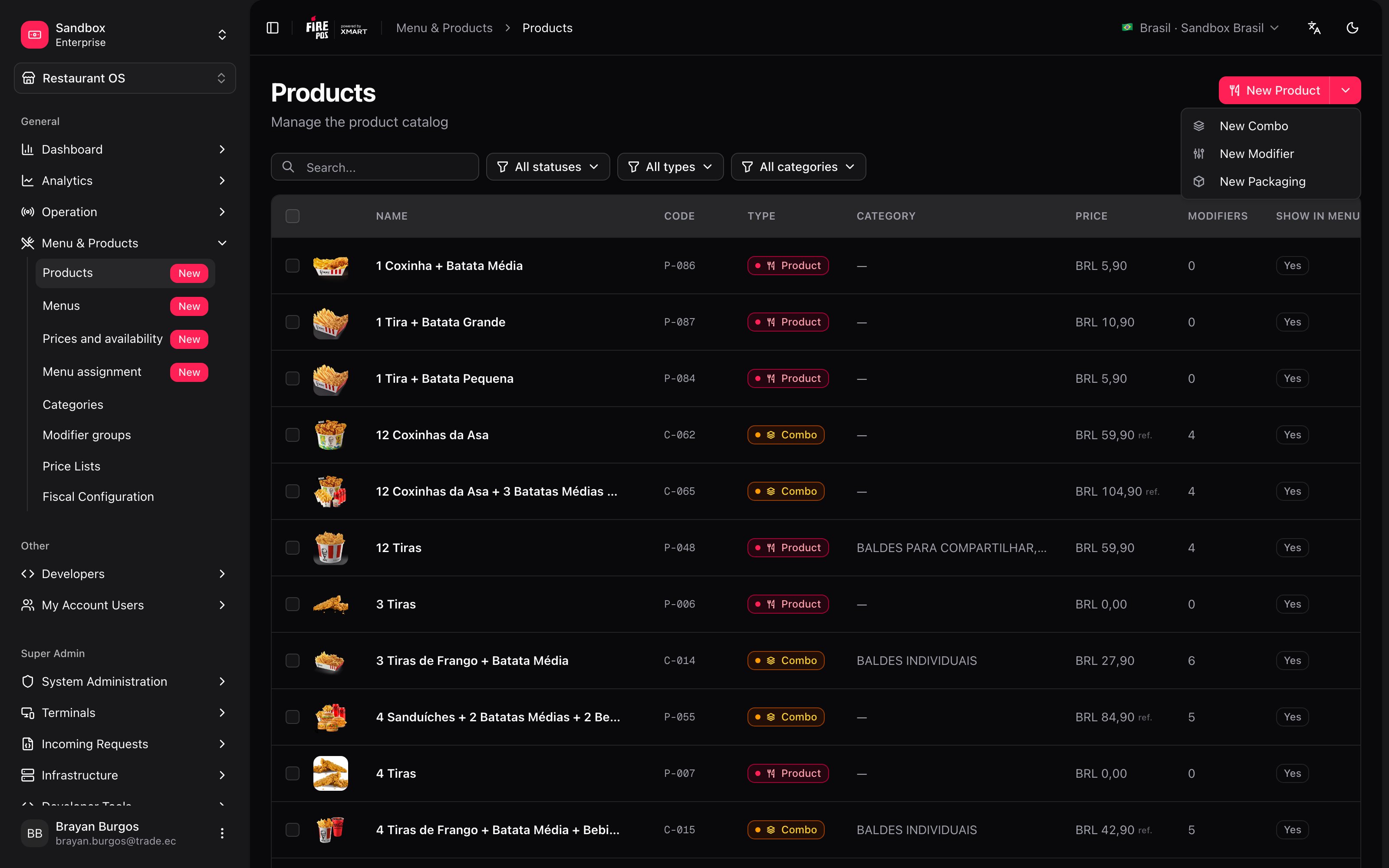
In the record’s header there’s a selector with three pills — Modifier, Product, Combo — to move between them later. Packaging isn’t there: that one is final, and if you get it wrong you have to create the product again.
What the list tells you
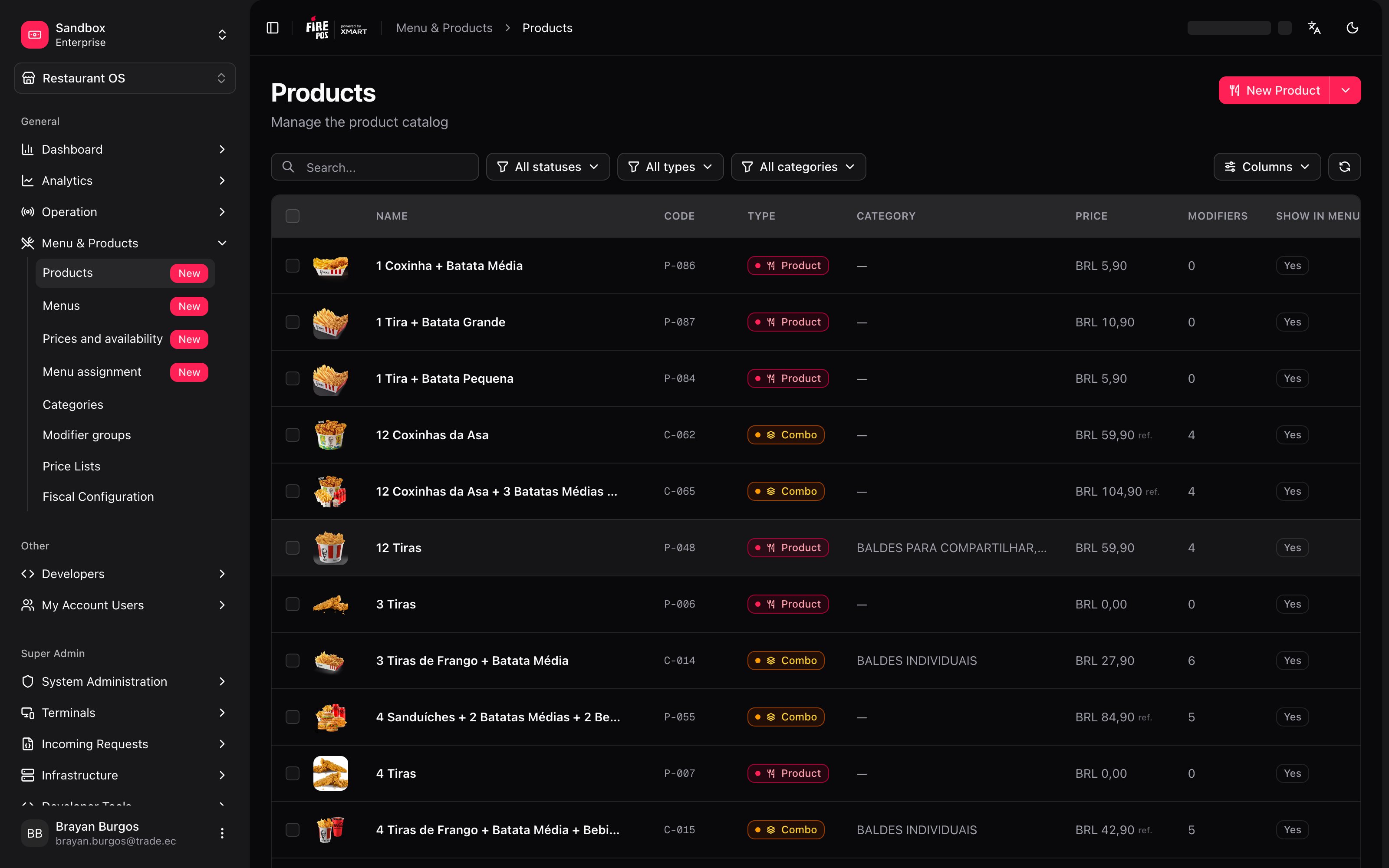
At the top there’s search and three filters: status, type and category.
The product record
The editor is split into tabs, and several are locked until you save for the first time: “Save the product first to access this section”.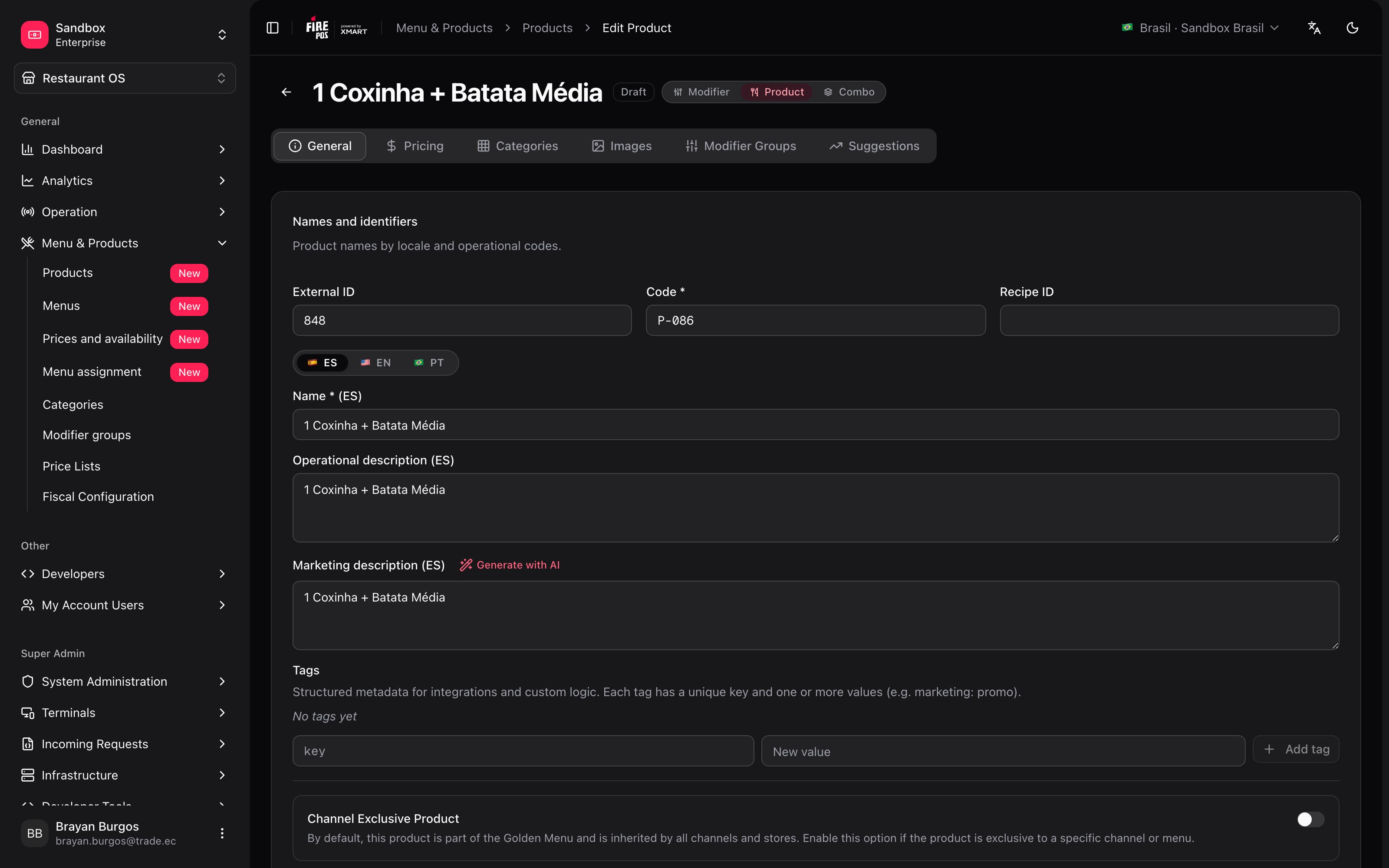
Not every tab is always there
Which ones you see depends on the type, and that says a good deal about what each type is:
Three things that table tells you:
- A combo has no pricing tab. It isn’t an oversight: a combo’s price doesn’t live on the product, it comes from the destination’s price list.
- Composition is the Modifier Groups tab, renamed. A combo is built with the same mechanics of groups and options: each group is a decision — pick your drink — and the minimum says how many are included.
- A Modifier has neither groups nor suggestions. It’s an answer, not a question, and it isn’t sold as its own order line.
The two descriptions
As with categories, there’s an operational description — internal, for your team — and a marketing description, which is the one that gets published and read by the customer. Don’t mix them up. The marketing one has a Generate with AI button: it proposes three versions per language and applies nothing until you choose. The screen says so explicitly.The three switches that decide whether it sells
They look alike and do different things. This is where people get it wrong most often.“Show in menu” being off is what makes modifiers possible. An extra cheese product shouldn’t appear on the menu as a dish, but it does have to be available when somebody customizes a burger. Turning visibility off while leaving the product active is exactly that combination.
The commercial state isn’t editable
On the General tab, next to those switches, there’s a commercial state — Available, Out of stock or Not sellable — that the system calculates by combining all of the above. The screen spells it out: “Automatically calculated by the snapshot engine. Not editable.” It’s the traffic light for what’s really going on with a product without having to check switch by switch.Channel-exclusive product
The same switch that exists on categories. By default the product is part of the Golden Menu and every channel and store inherits it. Turning it on takes it out of the Golden Menu, and it only exists in the menus where somebody adds it by hand.If its category is already exclusive, the product inherits that exclusivity without you marking it. See Categories.
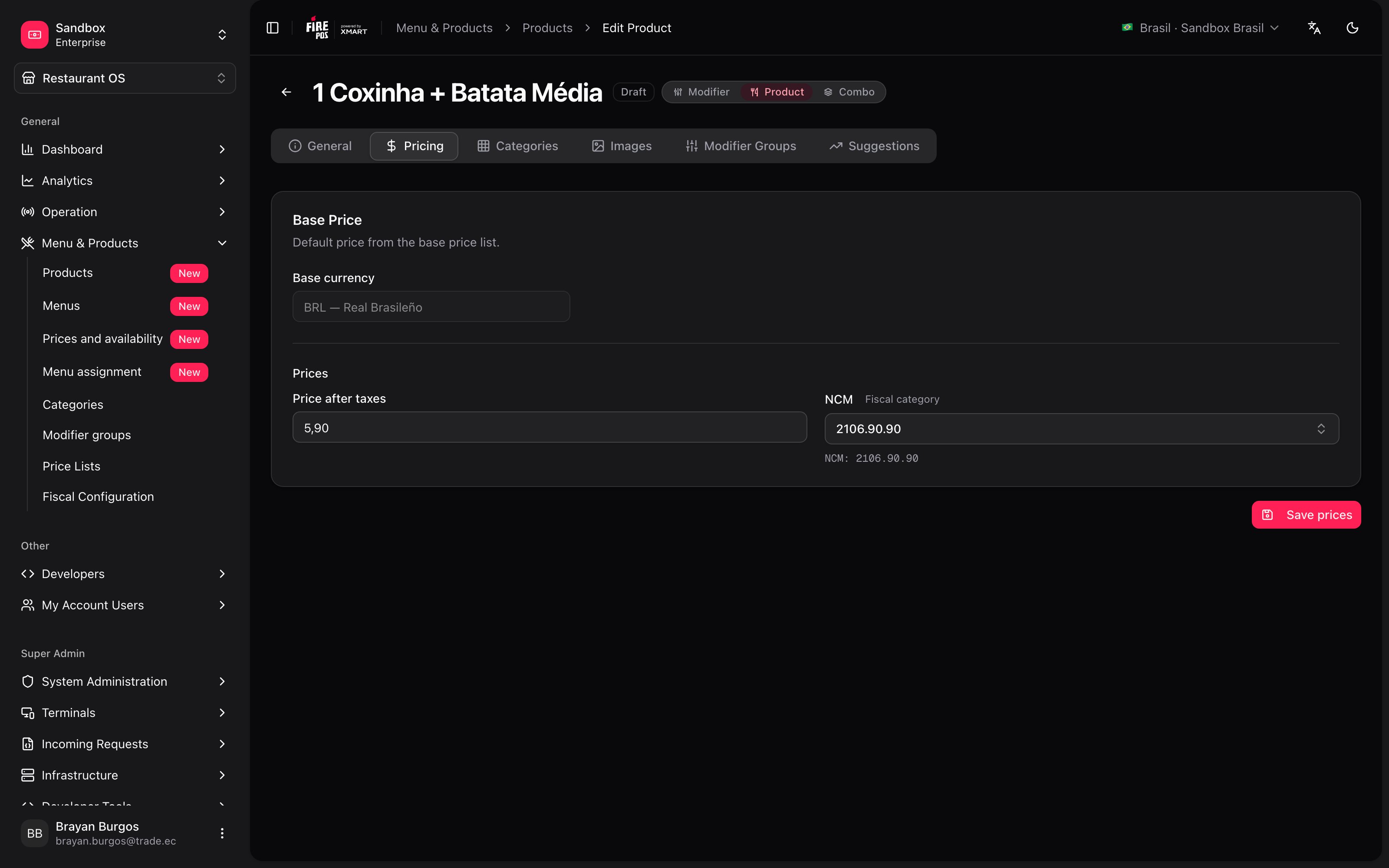
Price
Prices by service type
When it’s enabled — and only on products, not combos — a card appears for giving one service its own price: delivery pricier than dine-in, for example. Services you don’t touch are marked Inherits base price; the ones you do, Customized.This is the catalog price, not the only price that exists. What each store charges on each channel comes from the price list assigned to that destination. What you set here lands in the base list and is the starting point the others hang off. See Price lists.
Modifiers: what gets adjusted per product
On the Modifier Groups tab you add the groups you already defined in Modifier Groups. And here — for this product only — you can depart from the group: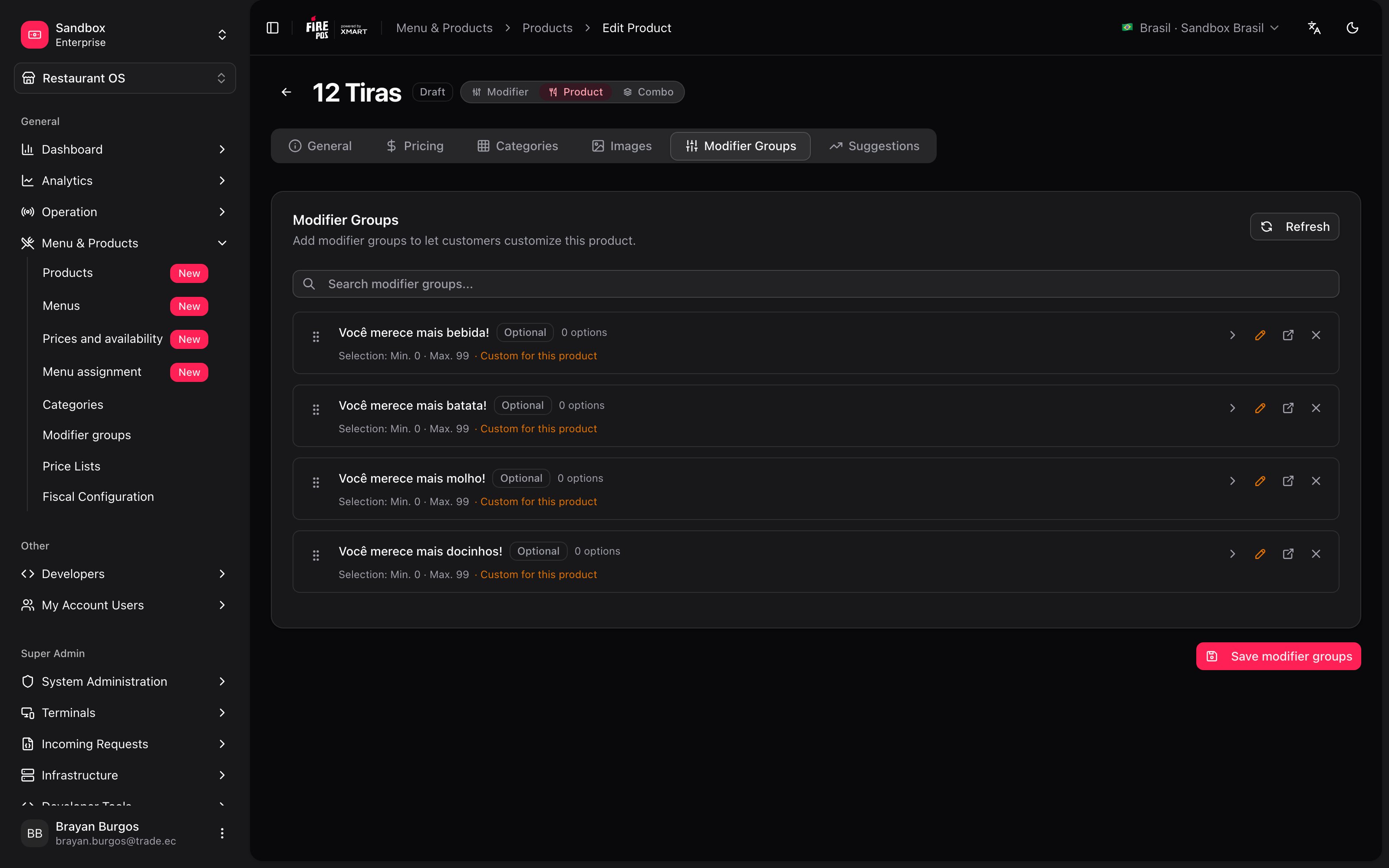
- The title the group is shown with.
- The minimum and the maximum.
- The price of each option inside this product.
Combos: what they hold and what they’re worth
A combo is built on the Composition tab, grouping the products that make it up. It’s the Modifier Groups tab under another name: each group is a decision in the combo — pick your drink, pick your side — and each group’s minimum says how many units are included. A combo has no pricing tab, and that’s on purpose.Suggestions: upselling and cross-selling
Two different things, and the difference is what happens to the order:Images
WebP, JPEG or PNG, up to 5 MB. One image is the primary one, and that’s the one used when there’s no specific one. The interesting part is that images can be tagged per service type: one photo for the kiosk, another for the app. The screen explains it and includes a preview of which image shows for each service. The primary one is the fallback for every service without its own.Recipes: how the real cases get solved
Adding a new dish and putting it on sale
Adding a new dish and putting it on sale
- New product → New Product. Name, code and save.
- Categories tab: assign its category.
- Pricing tab: the base price.
- Images tab: the photo, marked as primary.
- Go to Menu assignment and sync the rows of the menu holding it.
Building a combo
Building a combo
- New product → New Combo.
- Composition tab: group the products that make it up and define how many are picked from each group.
- Look at the Reference price to orient yourself, but set the real price on the price list.
Charging more for delivery than for dine-in
Charging more for delivery than for dine-in
There are two paths and they aren’t interchangeable:
- One specific product: if your account has prices by service type enabled, give delivery its own price on the Pricing tab. It ends up Customized.
- The whole menu: don’t do it product by product. Create a price list linked to the base one with a formula, and assign it to the delivery rows.
Taking a product off sale
Taking a product off sale
It depends how long for:
- Today, because it ran out: Out of stock. It comes back on its own at closing.
- This season: turn off Show in menu. It stays available inside combos.
- For good: set the product inactive, which takes it out of every menu. Deleting is permanent and cannot be undone.
Mistakes that cost money
Glossary
Frequently asked questions
I created the product and it doesn't show in the app
I created the product and it doesn't show in the app
Walk it in order: is it active with Show in menu on? is it in a visible category? is it in the menu assigned to that store and channel? was that row synced after you created it? The last step is the one most often forgotten — see Menu assignment.
Why does the combo show a price with 'ref.'?
Why does the combo show a price with 'ref.'?
Because it isn’t what you charge: it’s the indicative sum of its components, calculated by taking the first items of each group up to its minimum selection. The real price comes from the destination’s price list.
I picked the wrong type, how do I change it?
I picked the wrong type, how do I change it?
With the selector in the record’s header, if it’s between Modifier, Product and Combo. Mind the cost: switching to Combo deletes the prices and switching to Modifier removes the modifier groups.If you got it wrong with Packaging, there’s no selector: you have to create the product again.
The pricing and image tabs are greyed out
The pricing and image tabs are greyed out
You still have to save. Until then the product doesn’t exist: “Save the product first to access this section”.
What’s coming
- Variants: creating child products by size or flavor. It’s planned, but there’s no screen yet.
- Price lists from the record: today the pricing tab works on the base list and the rest is handled in Price lists.