

The minimum you need to know
1. A category lives in the catalog, not in a menu. It’s created once and every menu inherits it. What you change here reaches everywhere.2. A product can be in several categories. That relationship is built from the product record, not from here.3. If you mark it channel-exclusive, it disappears from the Golden Menu — and its products inherit that exclusivity.
The simple path
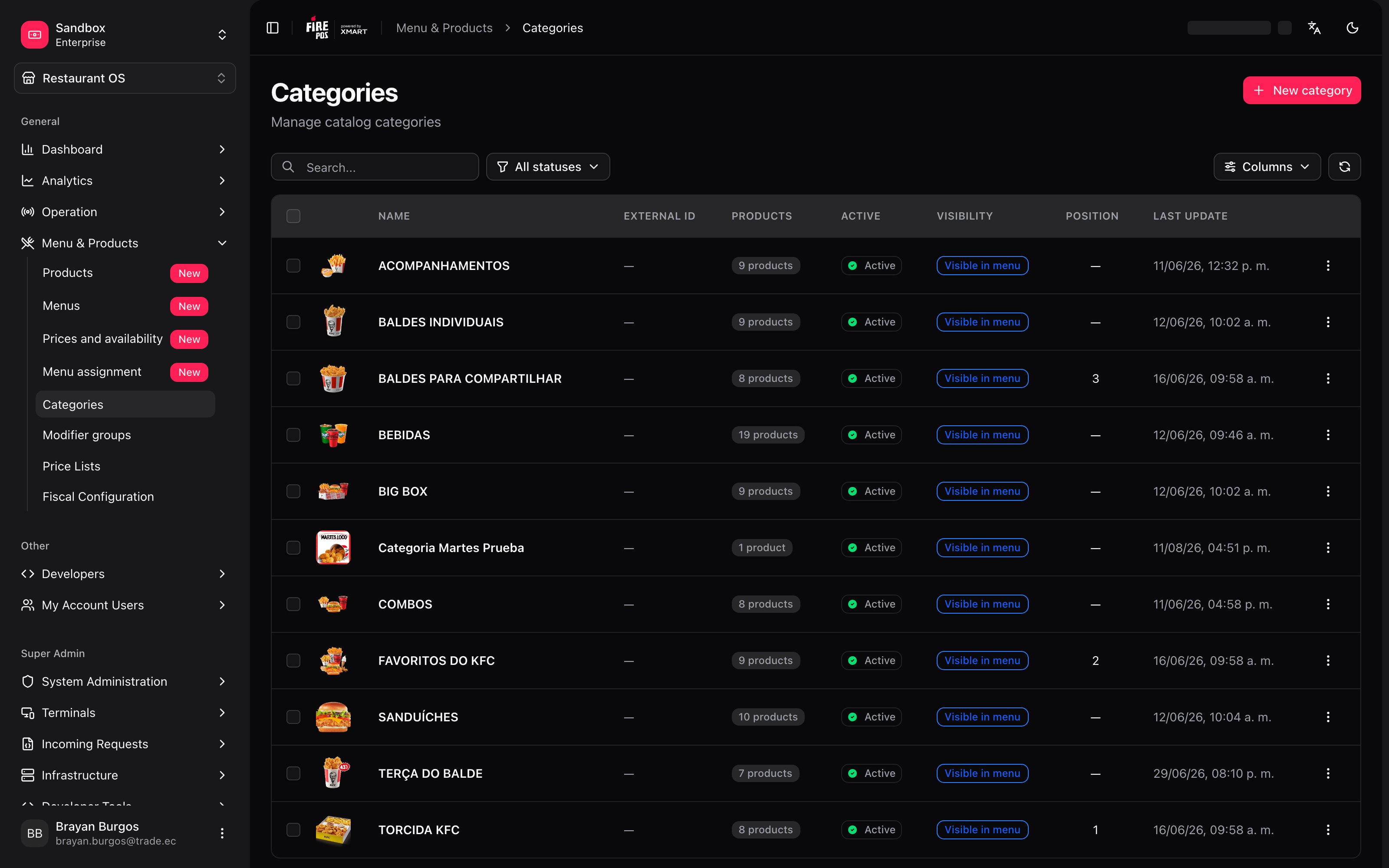
Creating a category is three fields: New category, give it a name, save. With that it exists, it shows up in the Golden Menu, and you can start assigning products to it from each product’s record.What the list tells you
A category’s two texts
When you create one you’ll see there are two descriptions, and they are not the same thing: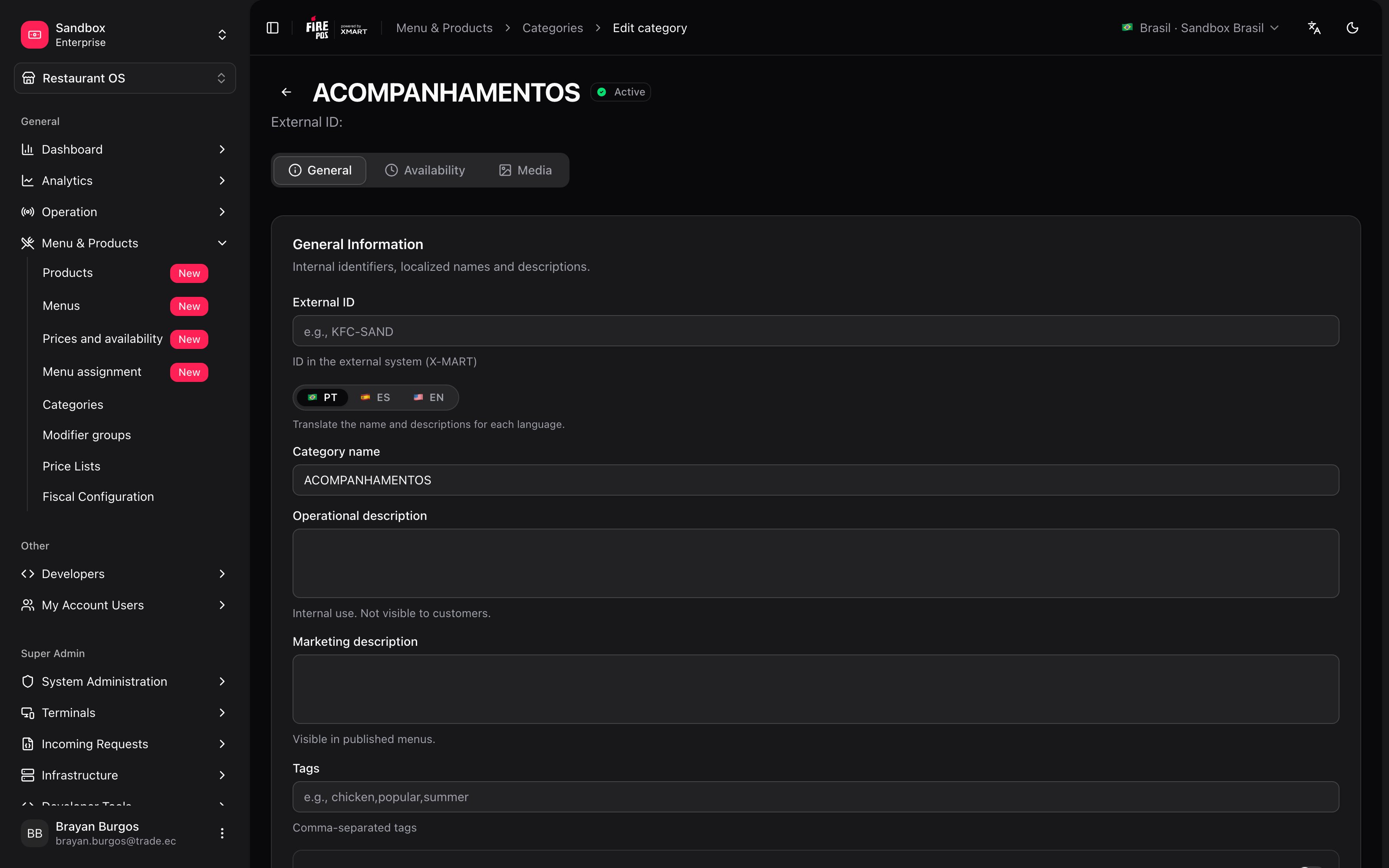
Where it appears, and in what order
Three controls that get confused with each other:- Display in menu — when off, the category does not appear in the customer menu. The products it holds still exist.
- Featured — the mark for the menu’s featured blocks, the ones at the top or in a carousel.
- Position — the global order. Leave it empty and the order is managed automatically.
Position is the order in the catalog, not in one particular menu. Inside a custom menu you can reorder categories by dragging, and that order wins for that menu. What you set here is the starting point everyone inherits.
Channel-exclusive category
This is the switch with the most consequences, and it’s worth understanding before touching it.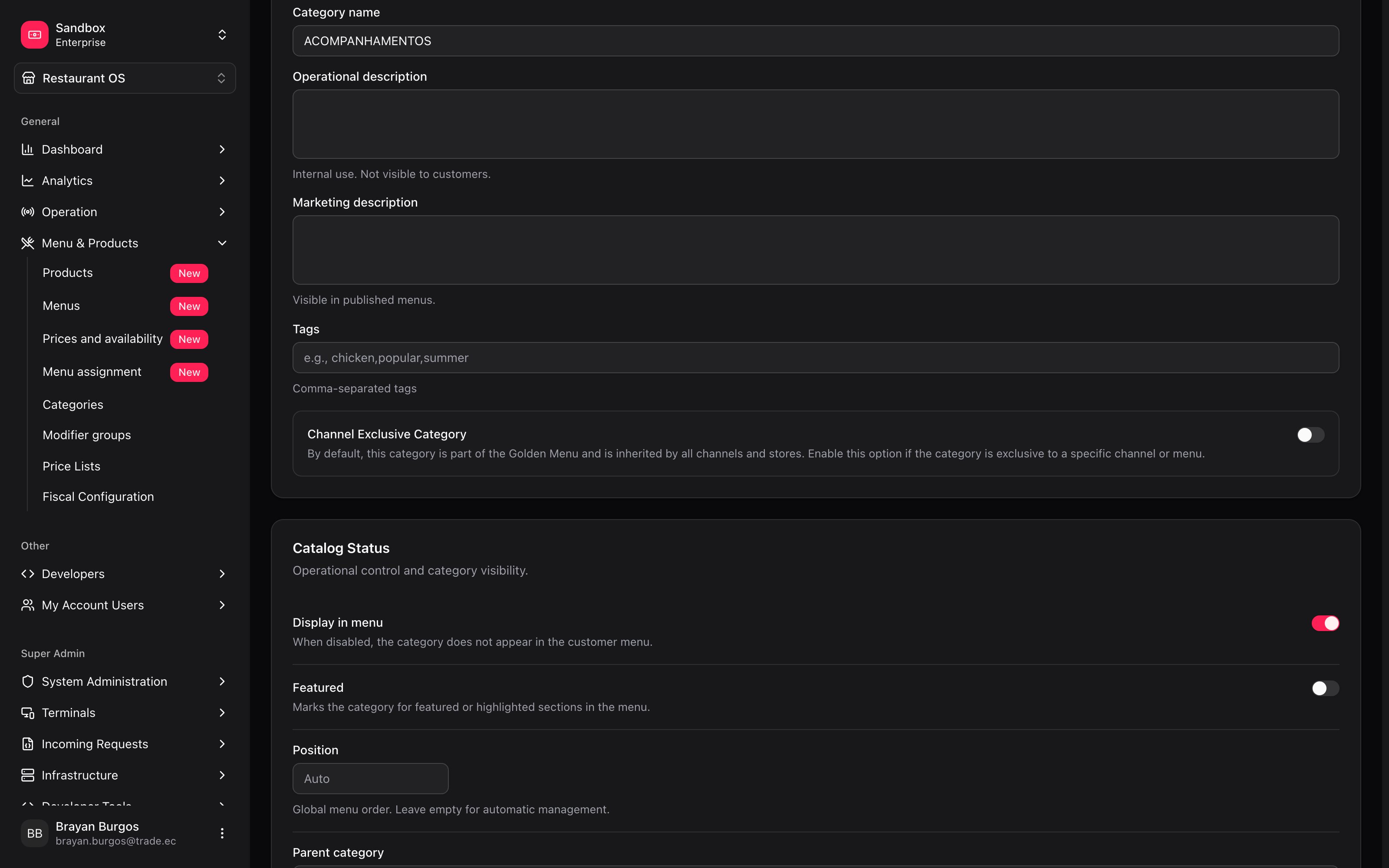
When it’s available
The Availability tab defines the days and hours the category is offered. It’s where “breakfast only until 11” gets solved without building a separate menu.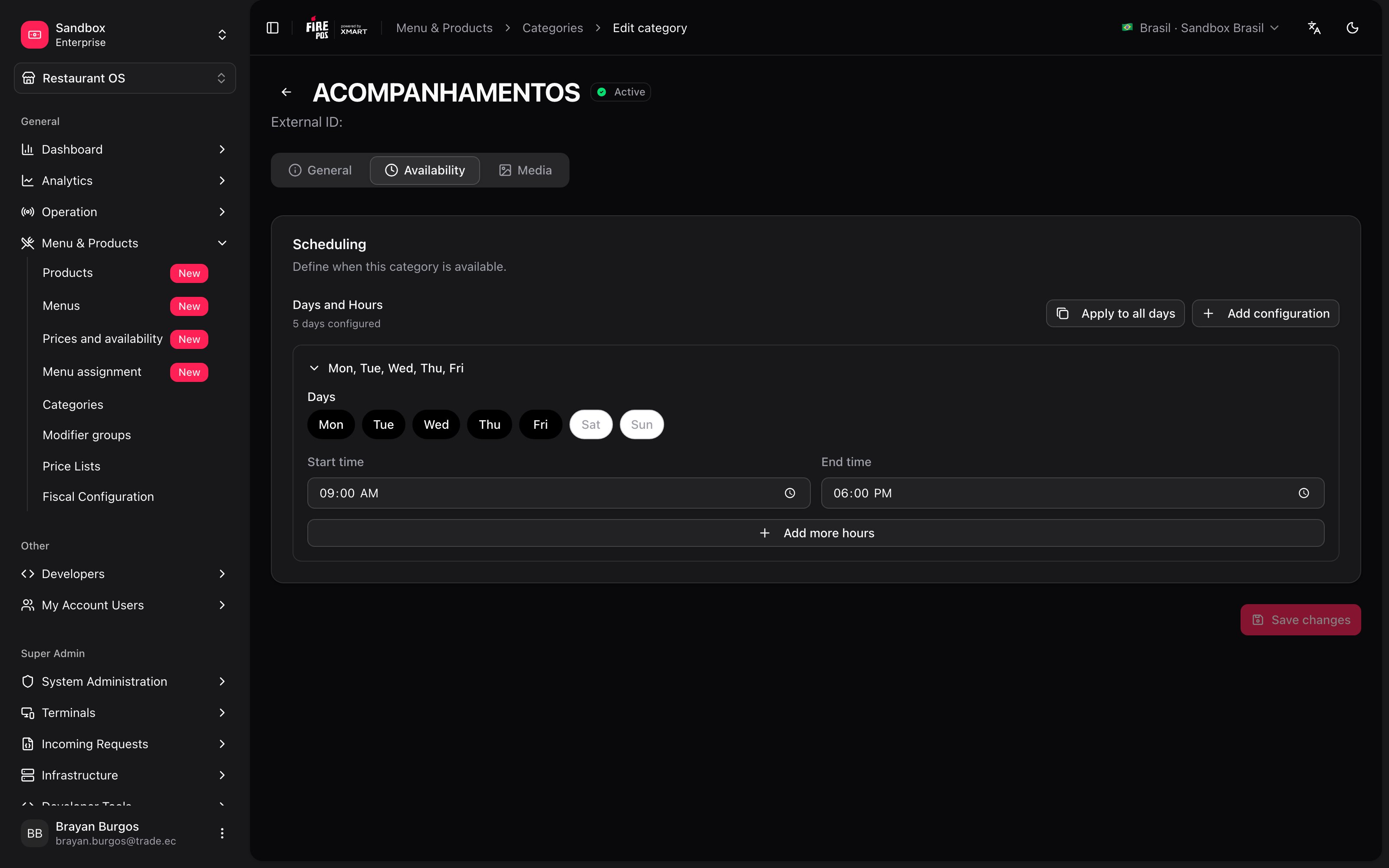
Images
The Media tab accepts WebP, JPEG or PNG, up to 5 MB. One of the images is marked as primary.The Availability and Media tabs are locked until you save. The screen says so: “Save the category first to access this section”. That’s because until then there is no category to hang a schedule or a photo on.
Recipes: how the real cases get solved
A promotion that only runs on one aggregator
A promotion that only runs on one aggregator
- Create the category and turn on Channel Exclusive.
- Assign it the promotion’s products.
- Go to Menus, open that aggregator’s custom menu and add it with Add category.
Changing the order customers see the blocks in
Changing the order customers see the blocks in
If the order has to be the same everywhere, use Position here.If it only changes on one channel, don’t touch this: open that custom menu in Menus and reorder the categories by dragging. That way the other channels never find out.
Mistakes that cost money
Glossary
Frequently asked questions
How do I assign products to a category?
How do I assign products to a category?
From the product record, on its Categories tab — not from here. A product can be in several categories at once. See Products.
I created the category and the schedule and image tabs are greyed out
I created the category and the schedule and image tabs are greyed out
You have to save first. Until then the category doesn’t exist yet and there’s nothing to hang a schedule or a photo on: “Save the category first to access this section”.
I changed the order and one channel still shows it differently
I changed the order and one channel still shows it differently
That menu has its own order. Position is the catalog’s starting point; inside a custom menu, the order somebody left by dragging wins for that menu.
I hid the category and its products still show up
I hid the category and its products still show up
Turning off Display in menu hides the block, but a product that is also in another visible category keeps appearing there. A product can belong to several.
What’s coming
- Assigning products from the category: today the relationship is always built from the product record.