

The minimum you need to know
- Rules and the list are per country: those of the country chosen in the selector at the top right.
- With no saved rules, or with Filter on turned off, the kiosk accepts any name, as before.
- An order is never blocked: after the configured attempts, the kiosk uses a generic name such as PEDIDO 83K and moves on to payment.
Before you start
- Access to the Fire back office with the Channel - Kiosks channel and permission for Settings → Pickup screen names.
- The right country in the selector at the top right. Everything you save applies to that country.
The simple path
- In Channel - Kiosks, open Settings → Pickup screen names.
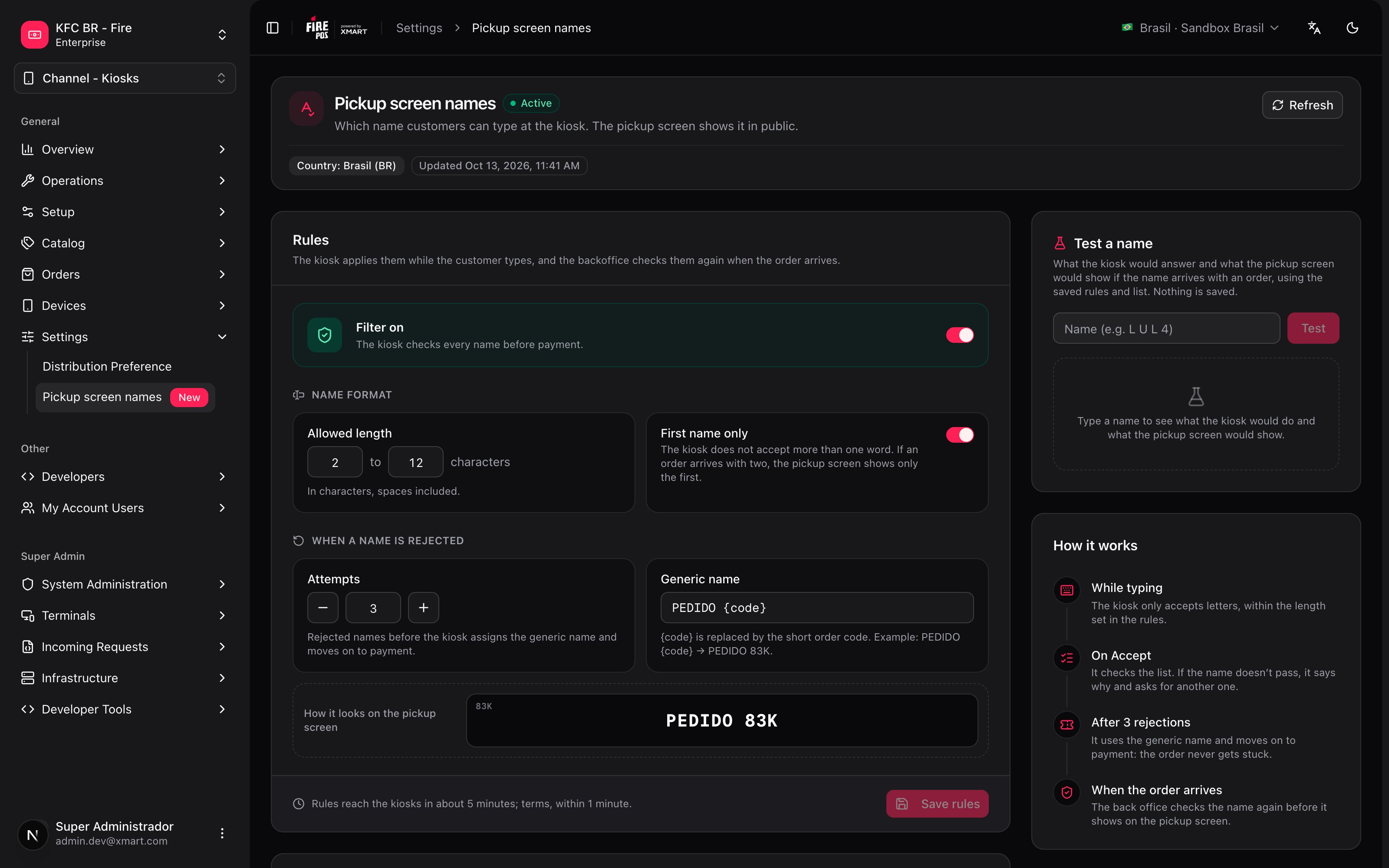
- Turn on Filter on and click Save rules. The default values work for most cases: 2 to 12 characters, first name only, 3 attempts and PEDIDO {code} as the generic name.
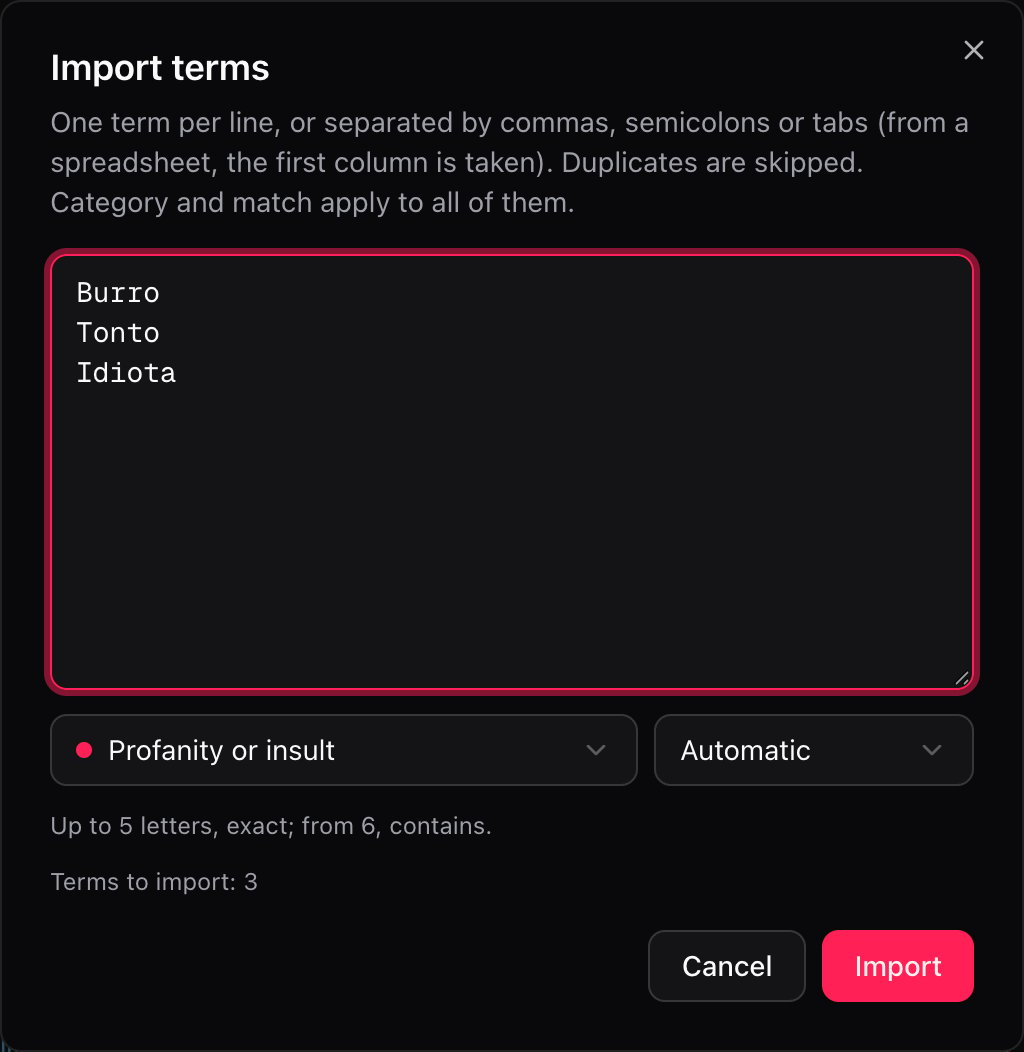
- In Blocked terms, click Import list, paste the terms (one per line) and click Import.
- Type a name from the list in Test a name and click Test to confirm it is rejected.
Name rules
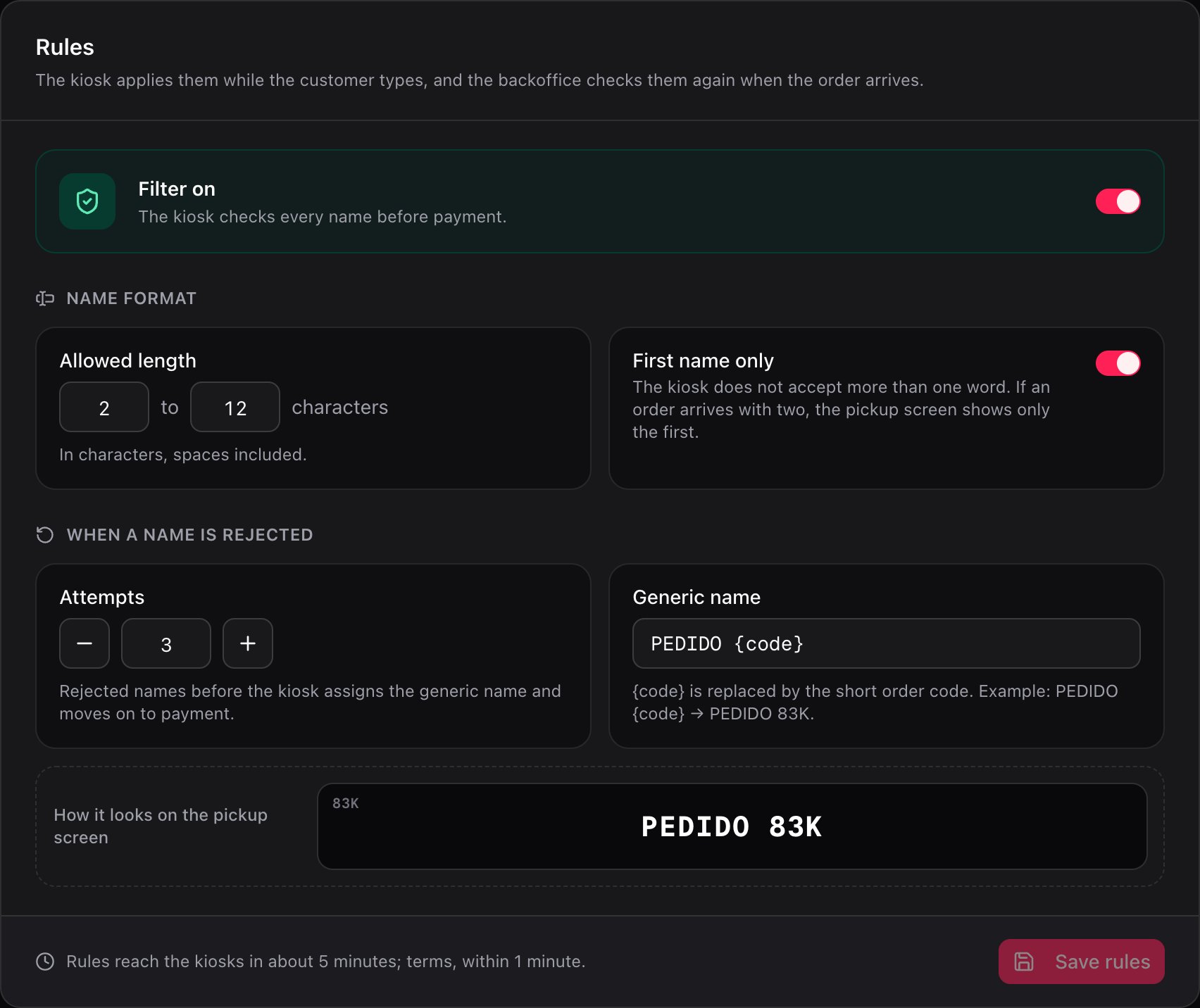
- Filter on: turns the whole filter of the country on or off. When it is off, the kiosk accepts any name.
- Name format
- Allowed length: minimum and maximum characters, spaces included. The kiosk does not let customers type past the maximum.
- First name only: the kiosk does not accept more than one word. If an order arrives with two, the pickup screen shows only the first.
- Only letters are ever accepted, including accents and ç. Numbers, symbols and emojis cannot be typed.
- When a name is rejected
- Attempts: how many rejected names the kiosk accepts in one order before using the generic name (from 1 to 10).
- Generic name: what is shown instead of the name. It must include
{code}, which is replaced by the short order code: PEDIDO {code} shows as PEDIDO 83K. Up to 30 characters. The preview below shows how it looks on the pickup screen.
Rules reach the kiosks in about 5 minutes: each kiosk keeps them for a while so it doesn’t look them up on every order. Terms apply within 1 minute, because they are checked every time the customer accepts a name.
Blocked terms
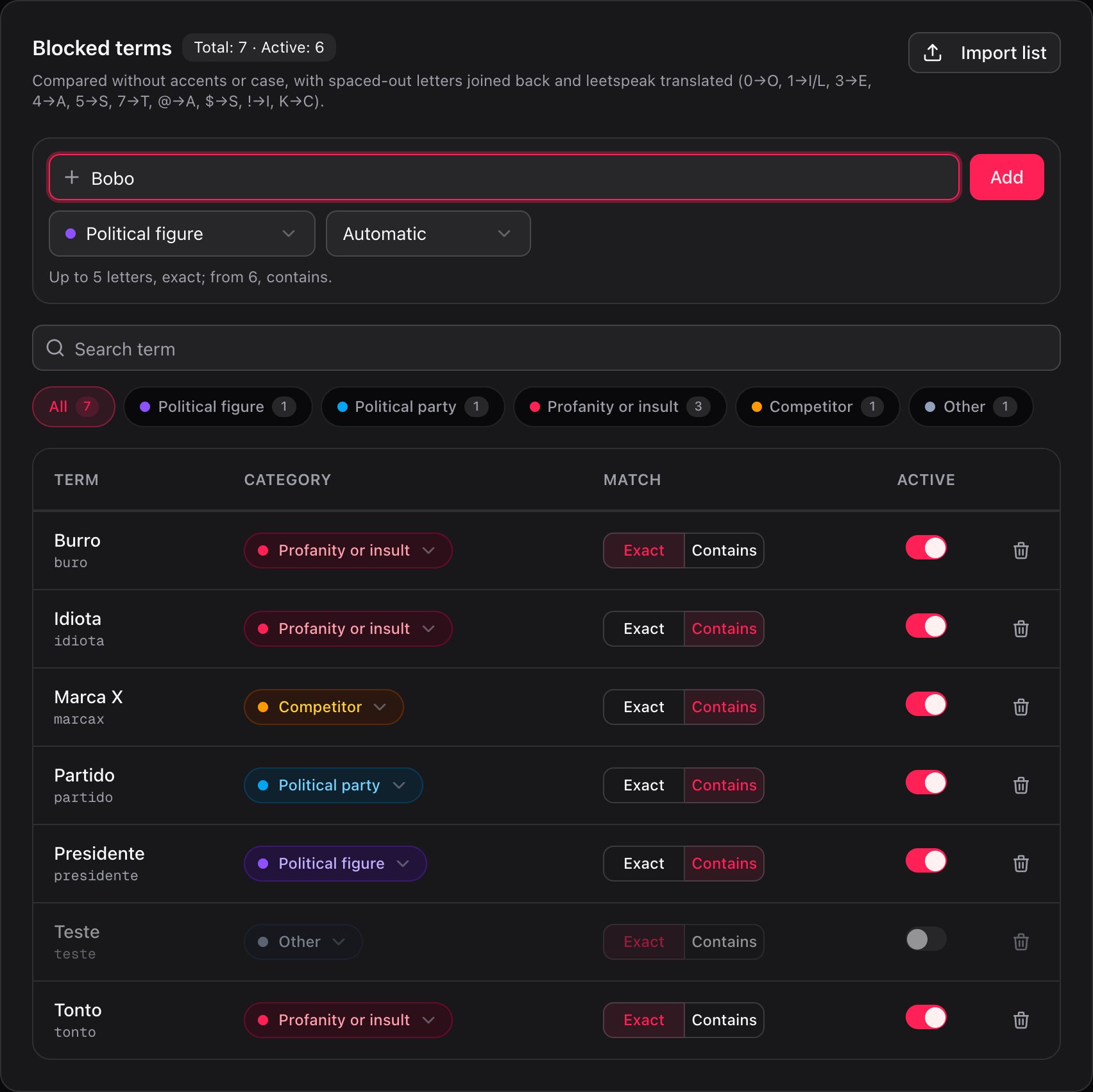
- Category: Political figure, Political party, Profanity or insult, Competitor or Other. It helps you organize and filter the list; they all block the same way.
- Match
- Exact: the name, or one of its words, is the term. From 4 letters it also finds it glued to another word: “Burro” blocks “BurroTonto”, but not “Burrito”.
- Contains: the term appears anywhere in the name.
- Automatic (only when adding): up to 5 letters, exact; from 6, contains.
Import a list
Test a name
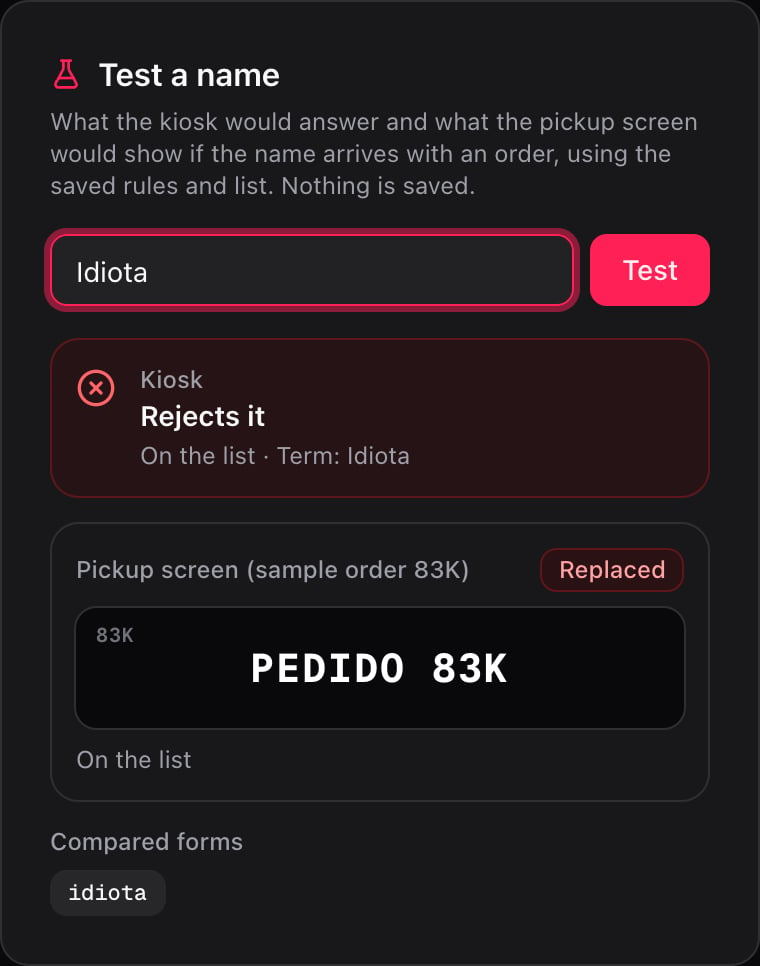
- Kiosk: whether it accepts or rejects it, the reason and which term matched.
- Pickup screen (sample order 83K): what the screen would show if that name arrived with an order: unchanged, trimmed or replaced by the generic name.
- Compared forms: the name already normalized, as it is compared against the list.
What the customer sees at the kiosk
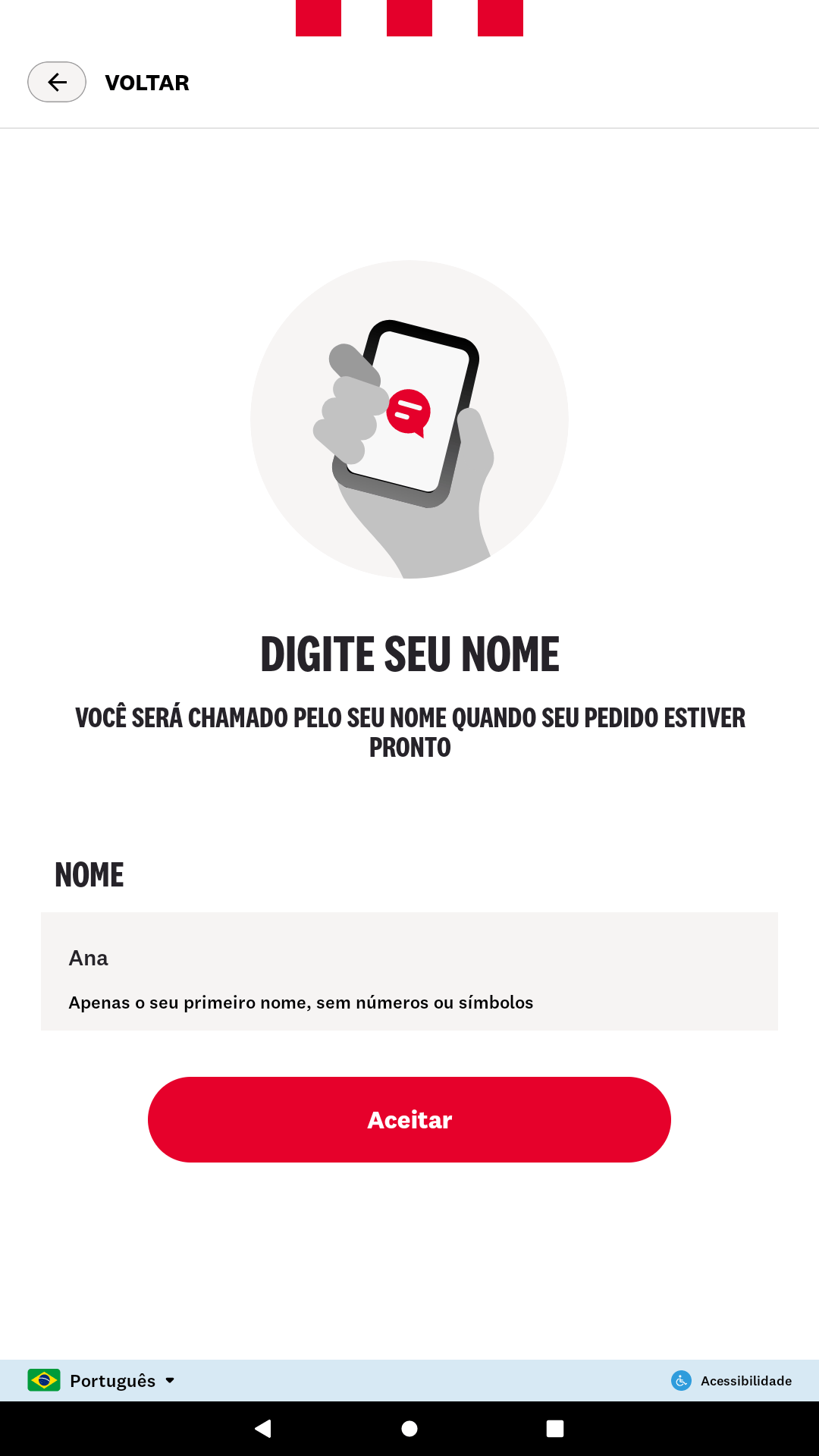
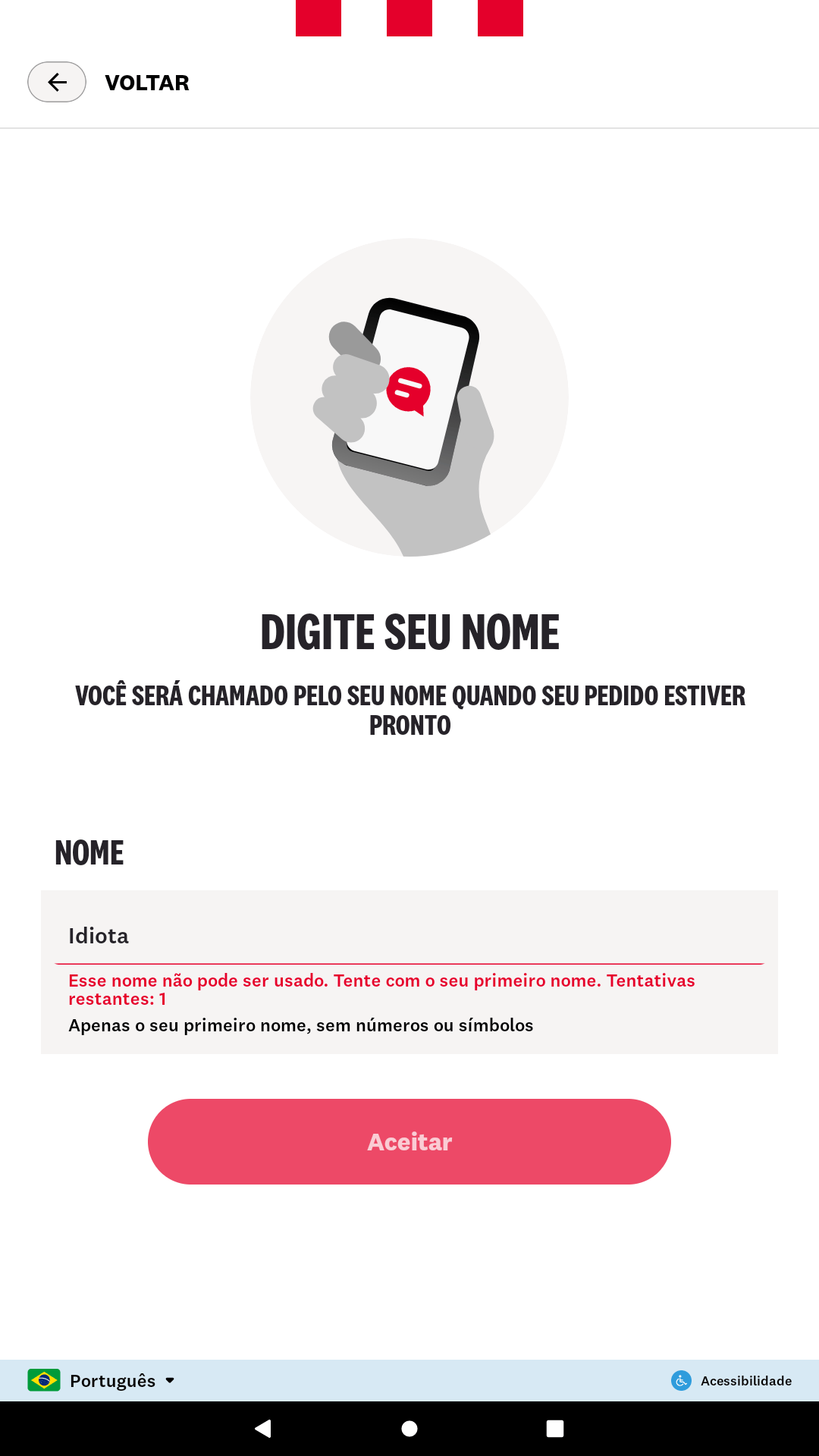
- If the name doesn’t pass, it shows the reason and the Attempts left, and the customer can type another one.
- On the last attempt it shows We will call you by your order number and moves on to payment with the generic name.
- If the back office doesn’t answer within 3 seconds, the kiosk accepts the name so the sale is not stopped. The back office checks it anyway when the order arrives.
When the order arrives
The back office checks the name of every kiosk order again before it reaches the pickup screen, and also when the order is corrected later:- If it contains a blocked term, it is replaced by the generic name with that order’s code.
- If the format doesn’t comply, it is fixed: the first word is kept if First name only is on, numbers and symbols are removed, and it is cut at the maximum length. “Ana Clara” becomes “Ana”.
- Empty names, pager numbers (such as “07”) and the generic name itself are left as they are.
Example: how a name is compared
List with “Idiota” (Contains) and “Burro” (Exact), with First name only on and 2 to 12 characters:
Numbers and symbols cannot be typed at the kiosk, and with First name only a name with spaces cannot be accepted. Rows such as “1d10t4” or “I d i o t a” show what the back office does when the order arrives.
Recipes
Turn on the filter in a country
Turn on the filter in a country
- Choose the country in the selector at the top right.
- Open Settings → Pickup screen names.
- Turn on Filter on and click Save rules.
- Import the list of terms with Import list.
- Confirm with Test a name using a term from the list.
Load the list the client sends
Load the list the client sends
- Copy the column of terms from the spreadsheet.
- Click Import list and paste.
- Choose the category and leave the match on Automatic.
- Check the term count and click Import.
- Repeat per category if you want the list organized.
A real name got blocked
A real name got blocked
- Type that name in Test a name and click Test.
- Check which term matched in the kiosk result.
- Find that term in the list.
- Change it to Exact, or turn it off with Active.
- Test the name again.
Block a competitor's brand
Block a competitor's brand
- Type the brand as it is written, with spaces if it has them.
- Choose the Competitor category.
- Choose Contains if the name is long: that way it also blocks the brand glued to another word.
- Click Add and test it with and without spaces.
Allow first and last name
Allow first and last name
- Turn off First name only.
- Raise the maximum length, for example to 20.
- Click Save rules.
- Keep in mind the pickup screen will show the full text.
Use the generic name from the first rejection
Use the generic name from the first rejection
- Set Attempts to 1.
- Click Save rules.
- From then on, the first rejected name already switches to the generic name.
Costly mistakes
Glossary
Frequently asked questions
Can the filter stop a sale?
Can the filter stop a sale?
No. After the configured attempts, the kiosk uses the generic name and moves on to payment. If the back office doesn’t answer within 3 seconds, the kiosk accepts the name and the back office checks it when the order arrives.
How long does a change take to apply?
How long does a change take to apply?
Terms, 1 minute. Rules (filter on, length, attempts, generic name), about 5 minutes.
Are the rules per store?
Are the rules per store?
No, per country. All the stores in the country use the same rules and the same list.
Do the kiosks need an update to change the list?
Do the kiosks need an update to change the list?
No. The list lives in the back office and the kiosk checks it every time the customer accepts a name.
What about kiosks that don't have the update yet?
What about kiosks that don't have the update yet?
They don’t check the name while the customer types, but the back office checks it when the order arrives: the pickup screen shows the generic name instead of a blocked term.