

The minimum you need to know
1. Options are catalog products. To offer extra cheese there has to be an extra cheese product. You don’t write loose options.2. An option’s price comes from the product, it isn’t typed here. This screen shows it read-only.3. You only set two numbers: the minimum and the maximum. Whether the group is required, and whether it takes one option or several, is not chosen — the screen derives it from those two numbers.
The simple path
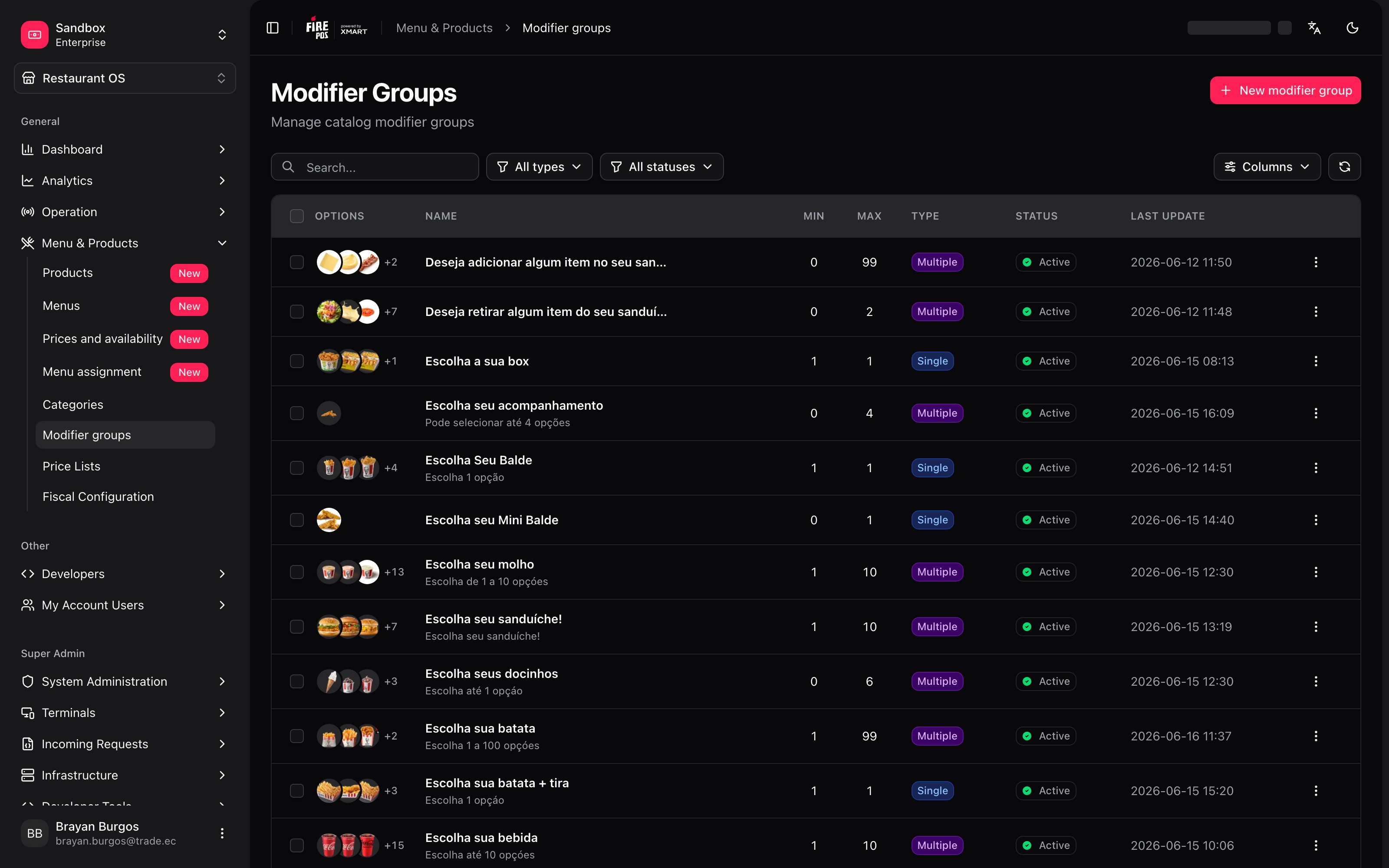
- New modifier group, give it a name — Sauces, Size, Extras.
- Set the minimum and the maximum number of options the customer can pick.
- Save, and on the Options tab find the products that will be the options.
- Go to each product that uses this group and add it from its Modifier Groups tab.
The selection rules
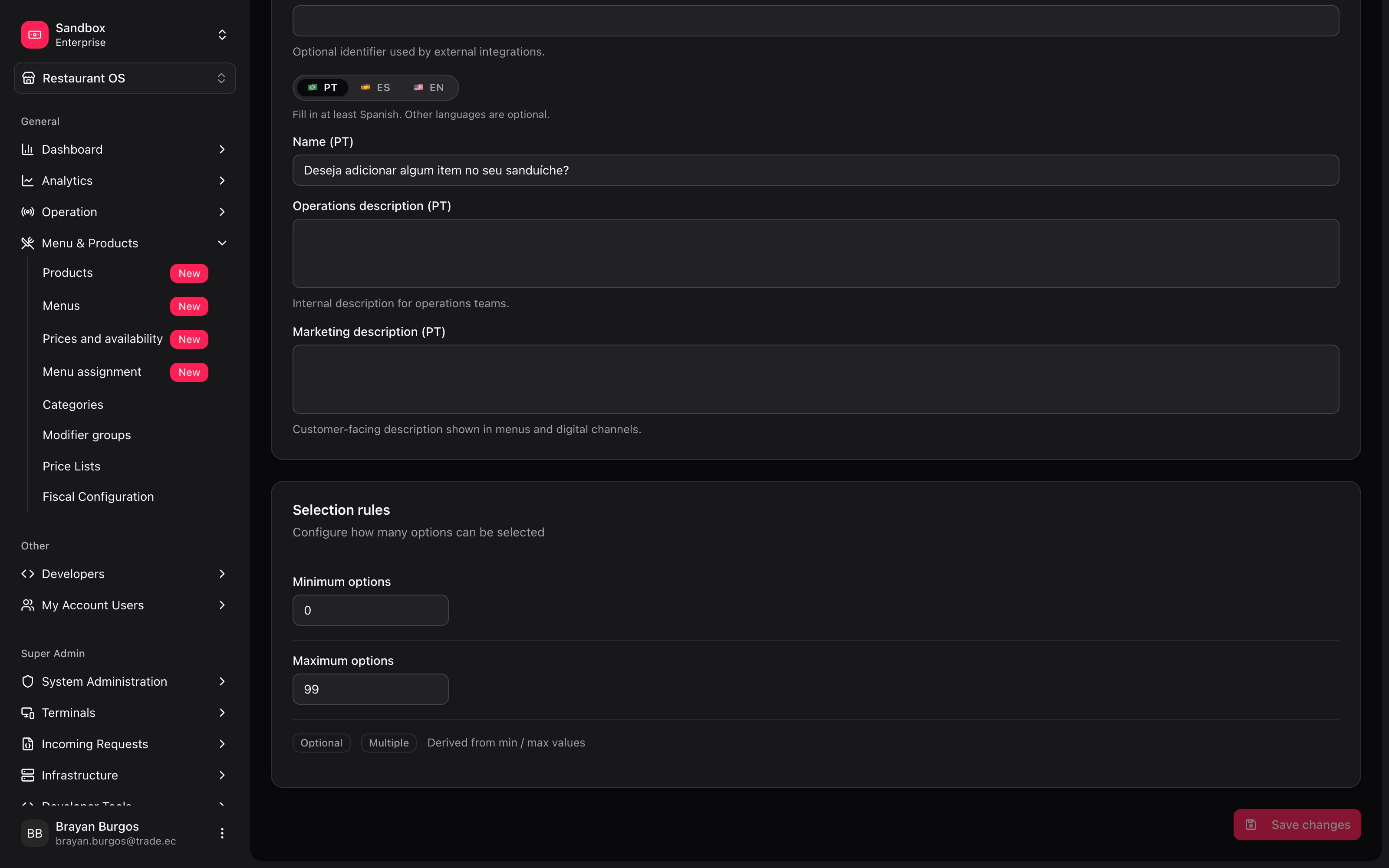
Why it’s derived instead of chosen. A group marked “optional” with a minimum of 1 would be a contradiction, and somebody would discover it when a customer couldn’t finish their order. By deriving it from the numbers, that contradiction cannot exist.
Options are products
Here’s the surprising part: an option is not a loose piece of text. Behind every option there is a catalog product, and the Options tab offers two ways to get there.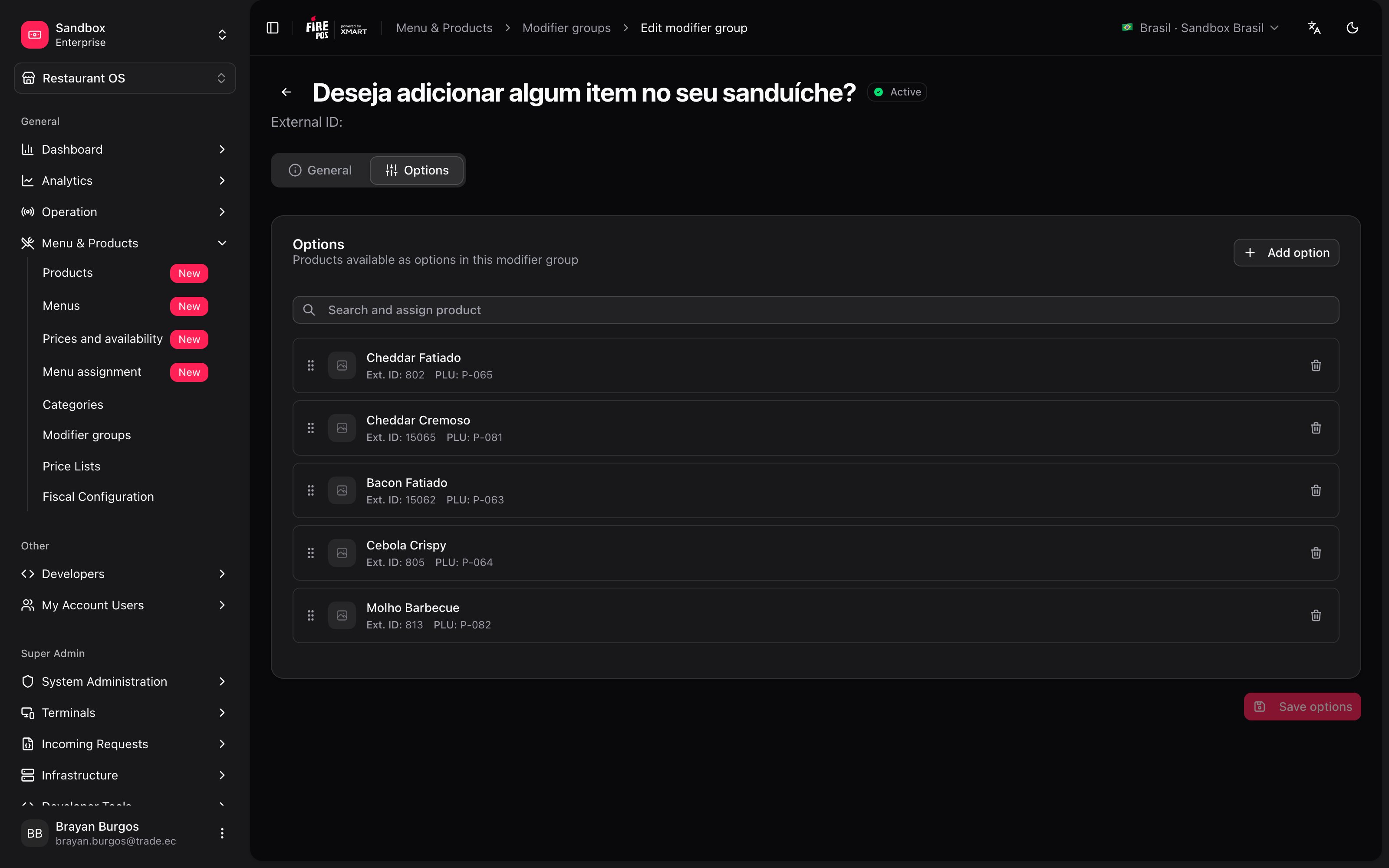
There’s a practical reason: an option has a price, taxes, a PLU code, a kitchen recipe and a name in three languages. All of that already lives in a product, and duplicating it would mean maintaining it twice.
That’s why the Modifier product type exists. In Products you can create a Modifier product — extra cheese, double patty — that exists to be an option, not to be sold on its own. Just turn off its Show in menu: the product doesn’t appear on the menu but stays available inside combos and modifiers.
What gets defined per option
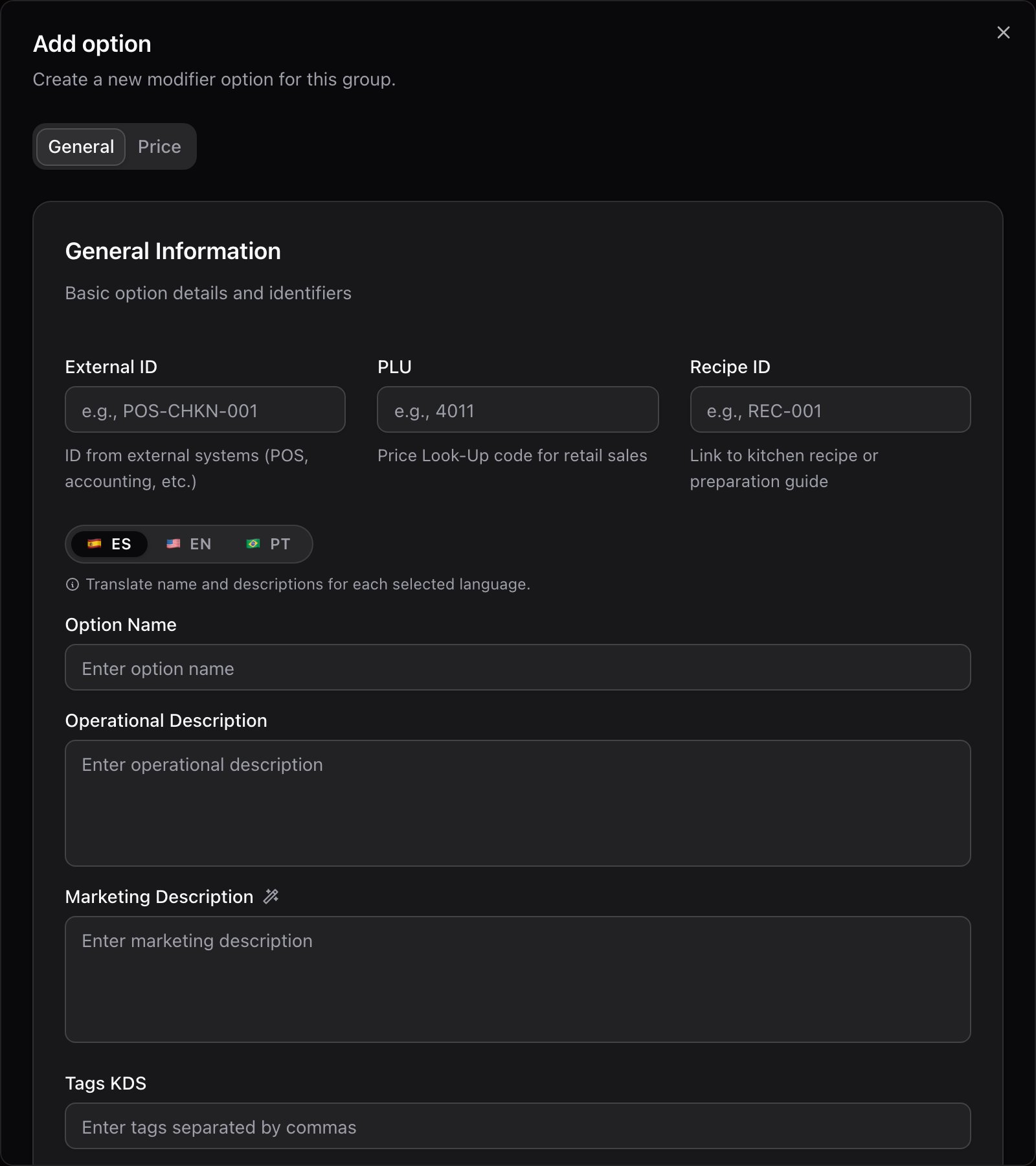
The dialog’s Price tab is read-only: it shows the net, the gross and the suggested price of the product you picked. The screen says so: “Values from the selected product (read from product detail)”.
The same group, different on one product
A group is defined once, but a product can depart from it without breaking the others. That’s done from the product record, not here. From a product’s Modifier Groups tab you can change, for that product only:- the title the group is shown with,
- the minimum and the maximum,
- the price of each option.
It’s the same pattern as the rest of the catalog: define it once at the top and adjust it below only where needed. The Extras group can cost more inside the premium burger without that touching the others.
Recipes: how the real cases get solved
Offering a choice of sauces, at no charge
Offering a choice of sauces, at no charge
- Create the sauce products in Products, type Modifier, with Show in menu off and price 0.
- New modifier group, name it Sauces.
- Minimum 0, maximum 1. The group ends up Optional · Single on its own.
- Options tab: add the sauces and order them by dragging.
- On each product that carries them, Modifier Groups tab → Add group.
Forcing a size choice
Forcing a size choice
- Create the Small, Medium, Large products as Modifier, each with its price.
- Group Size, minimum 1, maximum 1. It ends up Required · Single.
- Mark Medium as Default option so it comes pre-selected.
An extra ran out: taking it off everywhere
An extra ran out: taking it off everywhere
If it’s just for today, don’t touch this: use Out of stock, which brings it back on its own at closing.If it’s permanent, turn off Availability on that option: it’s left out of every menu that uses the group.
Mistakes that cost money
Glossary
Frequently asked questions
I can't find the product I want to use as an option
I can't find the product I want to use as an option
Search and assign product only shows the ones that already exist. If it isn’t there you have two ways out: create it in Products — usually as type Modifier — and search again, or use Add option and enter its details from here.
Where do I change an option's price?
Where do I change an option's price?
On the product behind that option, or on the price list that destination uses. If it only has to change inside one particular product, that’s done from that product’s Modifier Groups tab.
I added the group and the customer doesn't see it
I added the group and the customer doesn't see it
A group doesn’t reach the menu on its own. It has to be assigned to the product (the record’s Modifier Groups tab) and that product has to be in a menu that has been synced in Menu assignment.
I converted a product to Modifier and it lost its groups
I converted a product to Modifier and it lost its groups
That’s expected, and the screen warns you beforehand: “A modifier cannot have modifier groups”. A modifier is an answer, not a question, so it can’t have groups hanging off it.
What’s coming
- Nested groups: today an option cannot open another group of questions in turn.