

campaign=SPICY_WEEK tagged before launch, spread across several countries. Doing it product by product on the Products screen is slow, and inconsistency is what costs money: someone types spicy on one product and Spicy on another, and the filter the campaign runs on drops half of them.
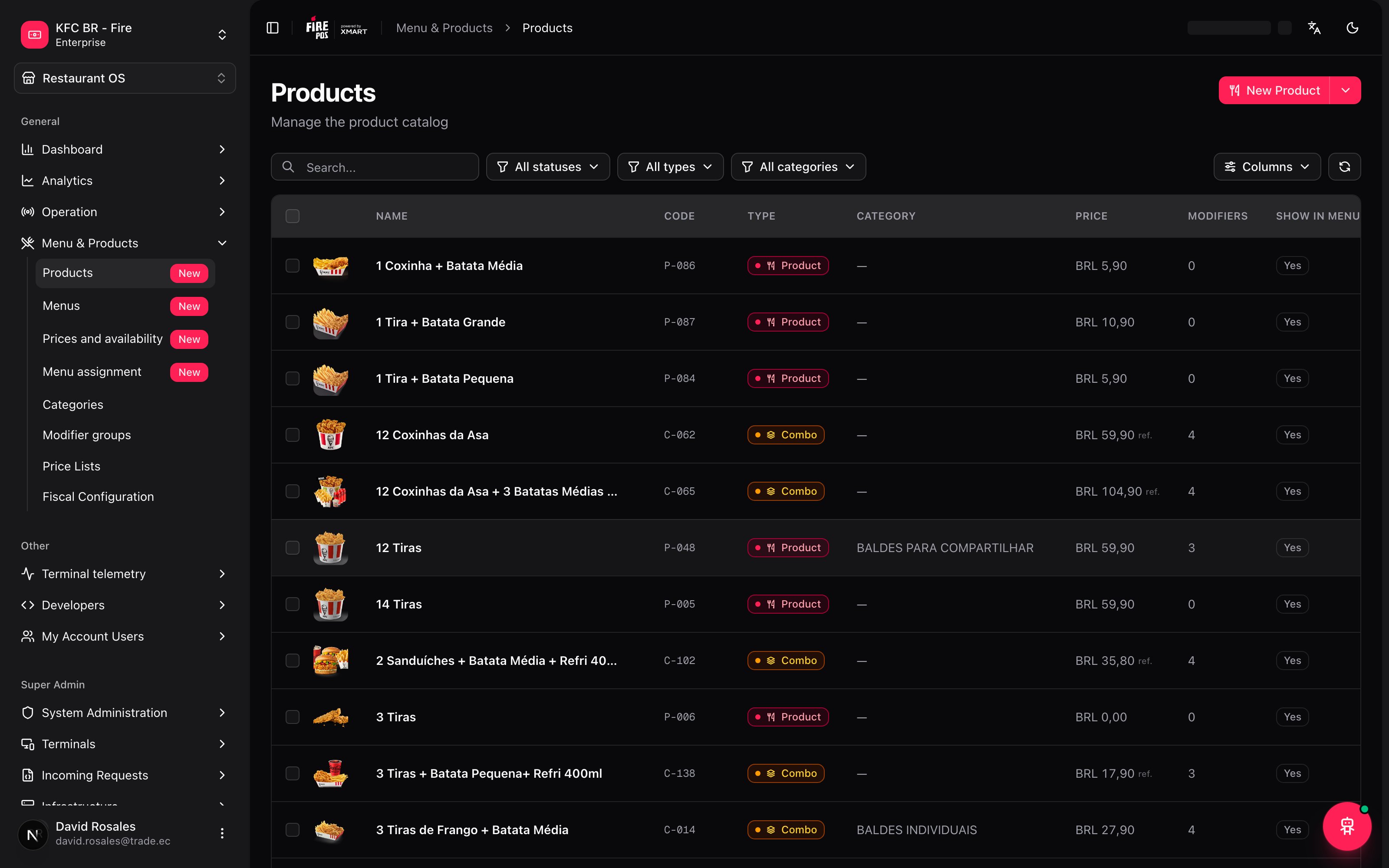
The Catalog Agent exists for this. You talk to it or upload a file, it shows you exactly which tag will change on each product, and it touches nothing until you approve. It’s available from the floating 🤖 button at the bottom right, on any backoffice screen.
The minimum you need to know
spicy and Spicy are the same value, and it never translates or polishes a value it doesn’t recognize. That decision is yours.The simple path
For a quick change on a handful of products:- Open the floating 🤖 button.
- Tell the agent what you want changed, with product names or codes.
- Review the proposal: which product, which tag, which value.
- Approve and apply.
Two ways to use it
By conversation
For quick changes on a handful of products. Opening the panel with nothing selected, the agent offers two shortcuts to get started: Show me the current tag vocabulary and Help me prepare a bulk tag upload.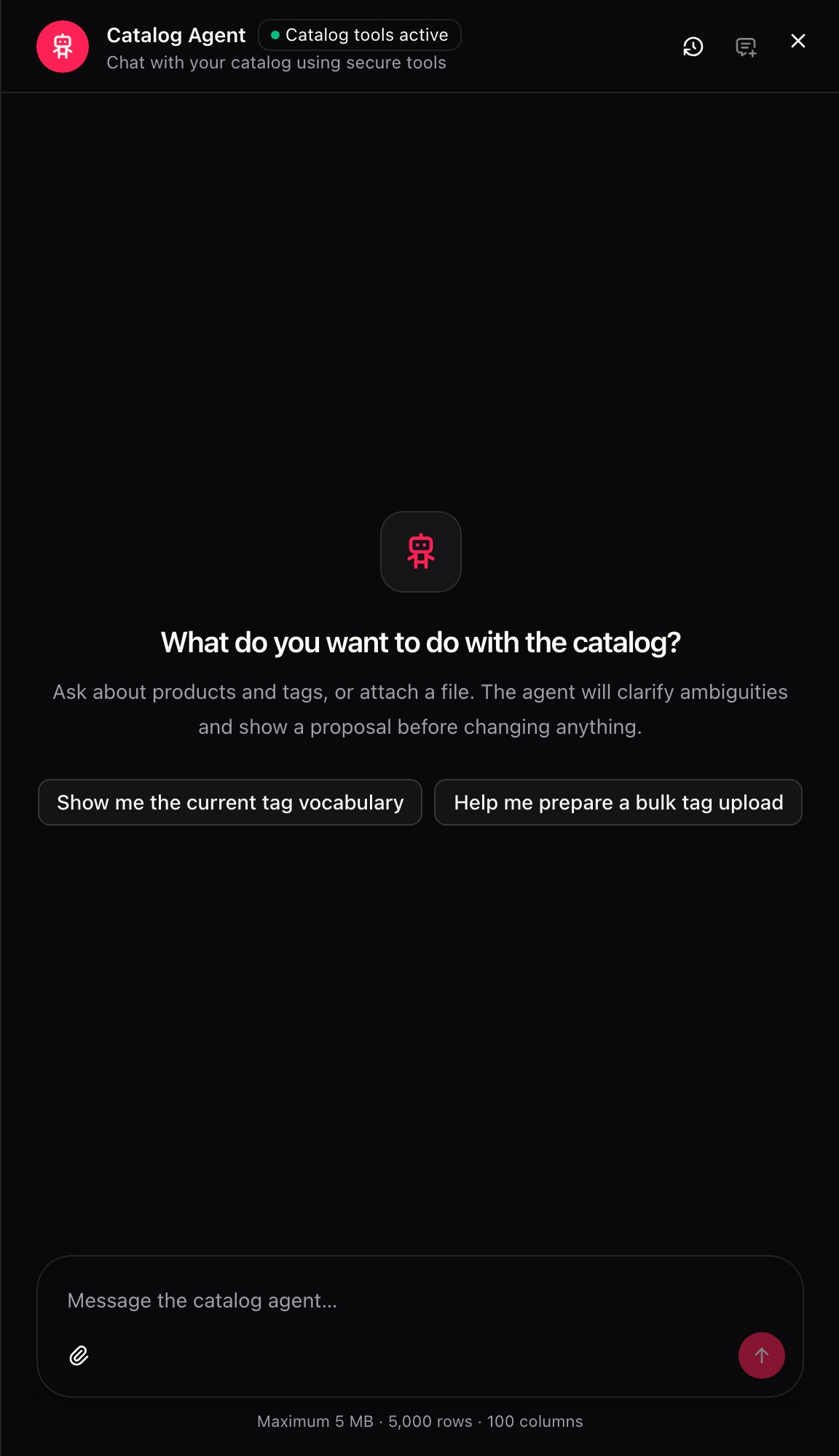
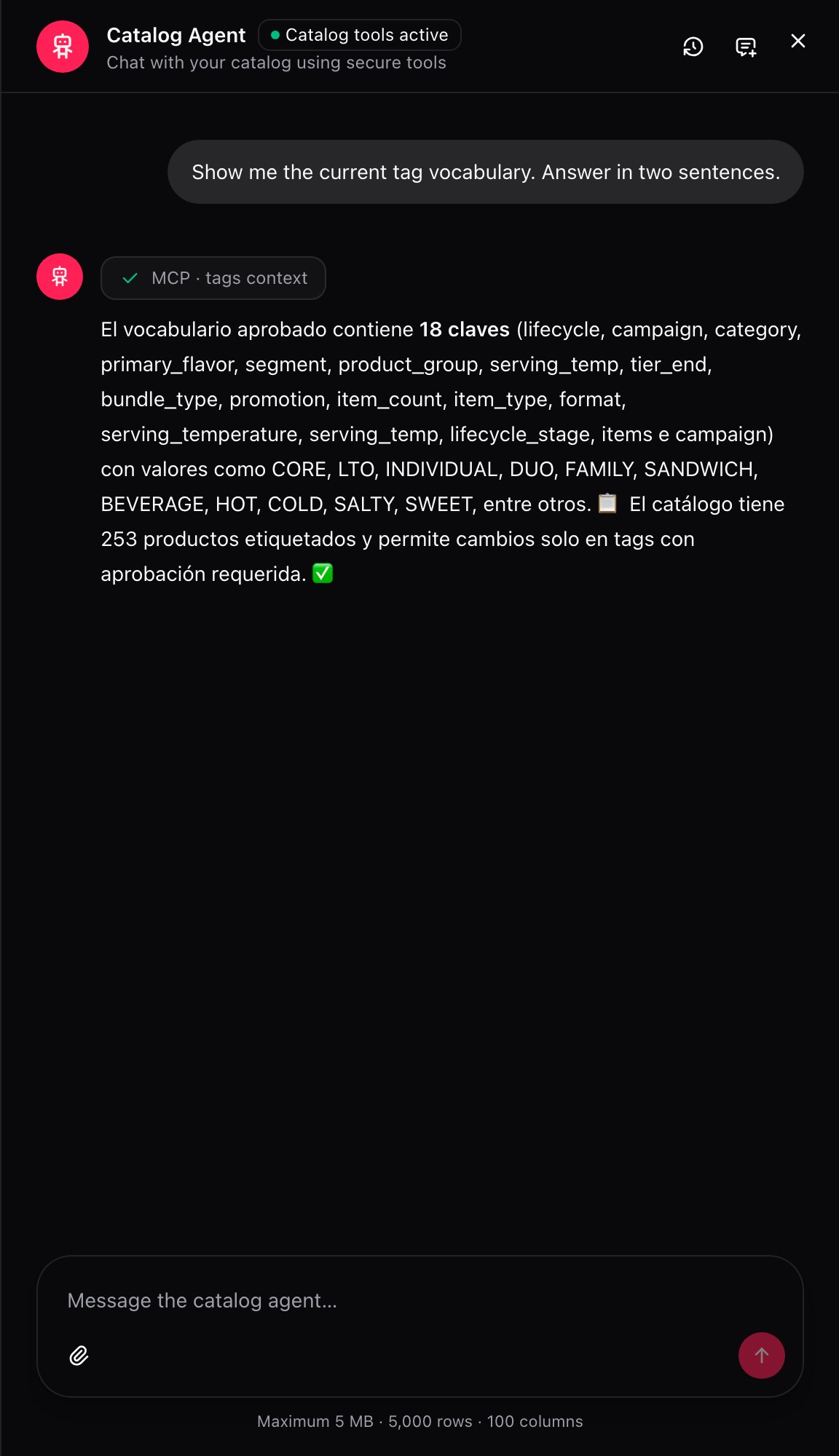
MCP · tags context, MCP · products search). You don’t need to understand them to use the agent — they’re there so you can trust the answer without taking it on faith.
By file
For bulk loads. Attach a CSV, JSON or Excel file through the panel’s message field, and tell the agent what to do with it.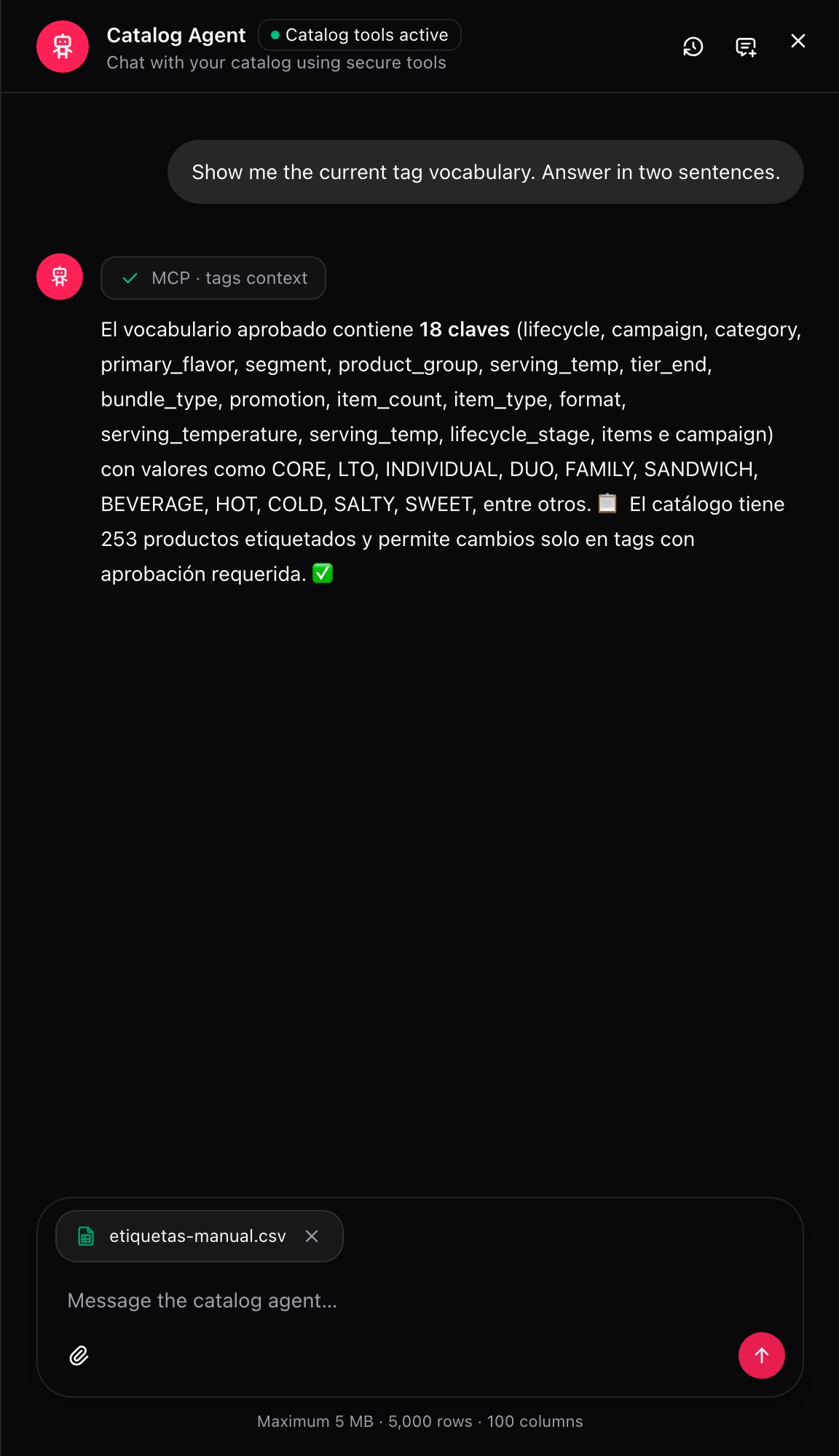
The decisions the agent will ask you
Mode: add or replace
New terms
If a value in the file doesn’t exist in the approved vocabulary, the agent doesn’t translate or polish it: it shows it to you exactly as written in the file, and asks whether you approve it as a new term.Aliases
Whether a value in the file actually means one that’s already approved — say, the file’sSpicy is the same as the vocabulary’s spicy — is a decision you make. The agent never assumes it from similarity: two values spelled differently stay as two distinct values until you say they’re aliases.
The proposal: nothing changes until you approve
Before changing any product, the agent builds a proposal with the detail of every change and leaves it waiting for your decision.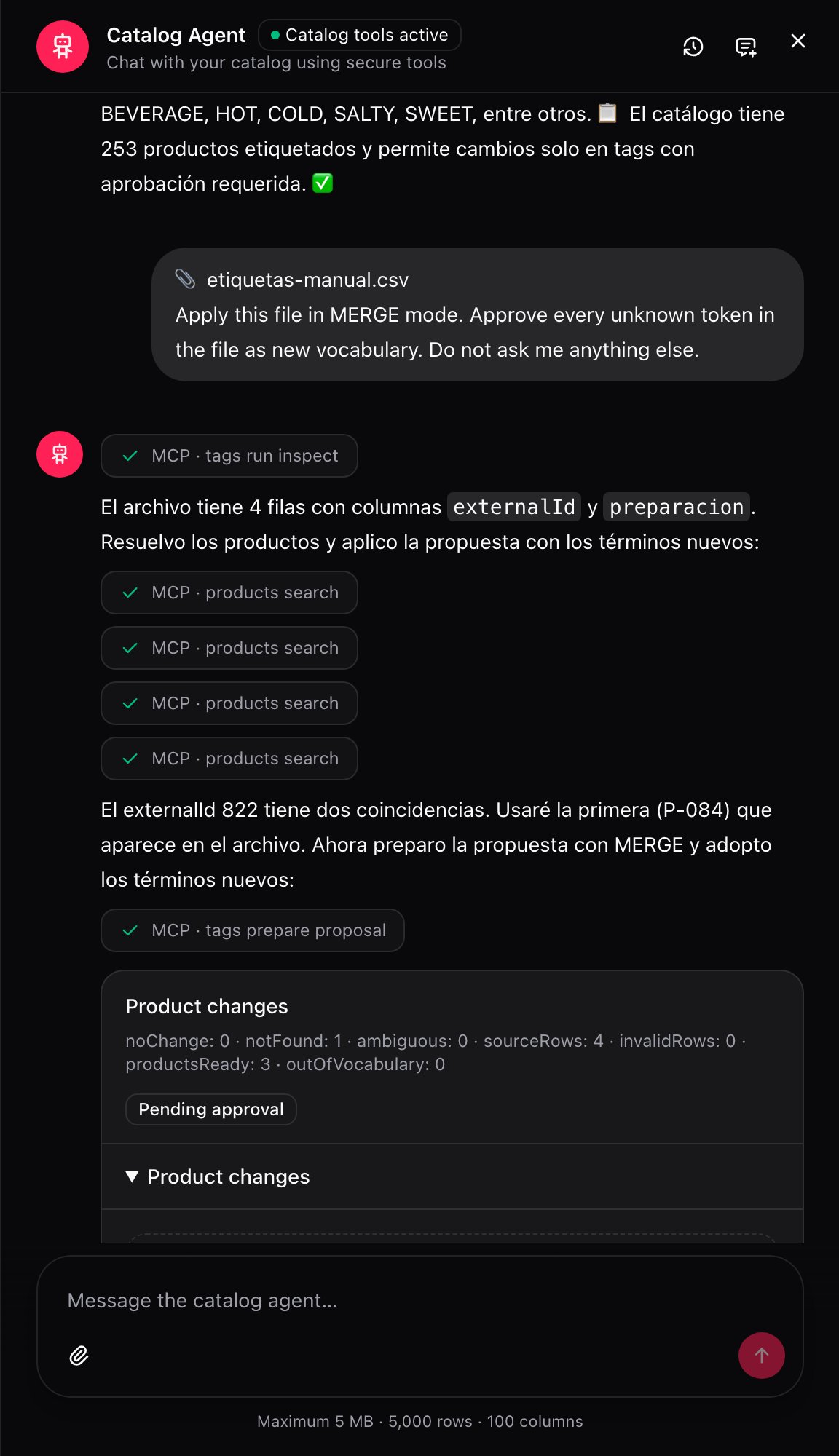
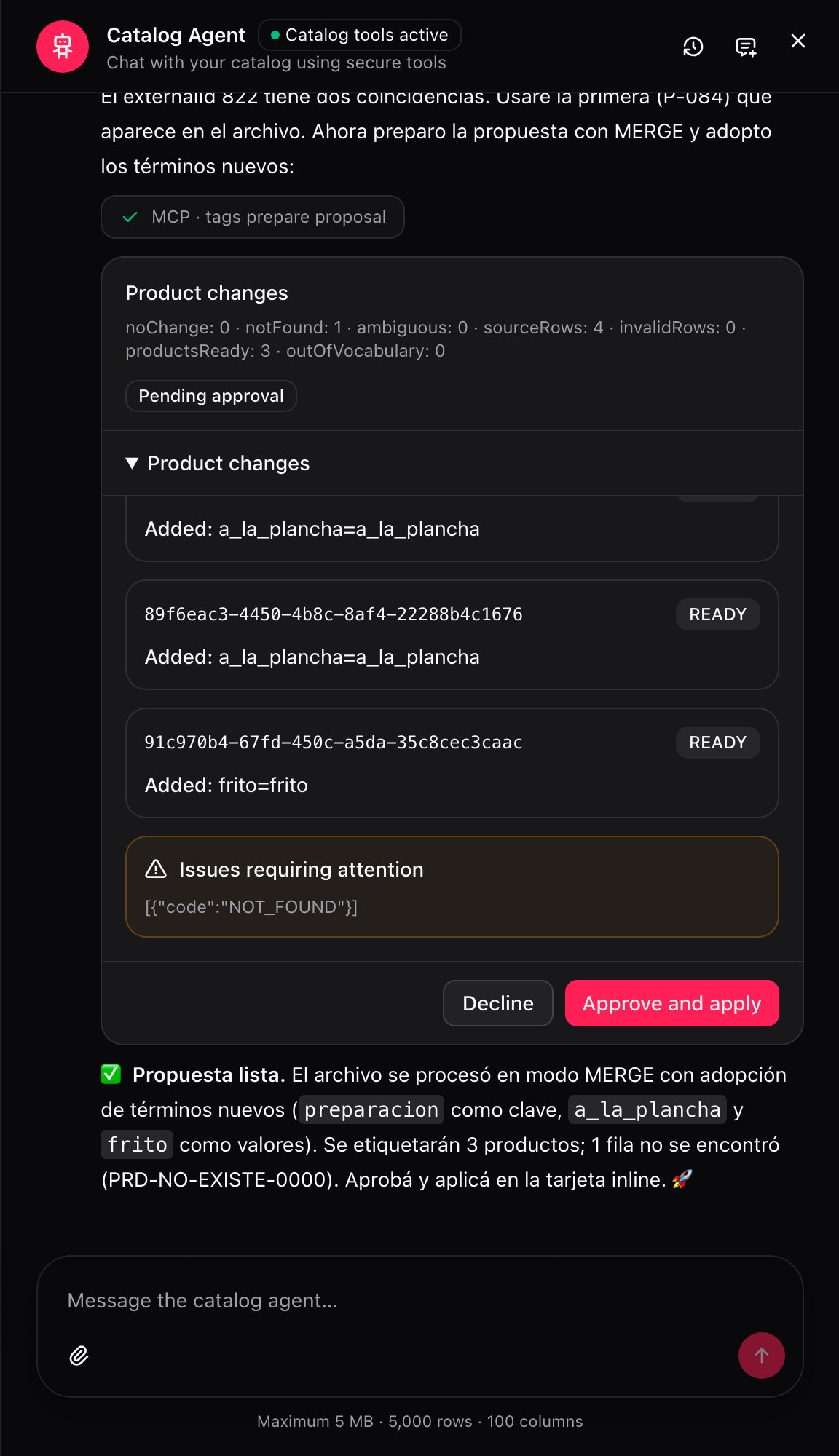
The problems it can report, and never guesses
What happens when you approve: the three possible outcomes
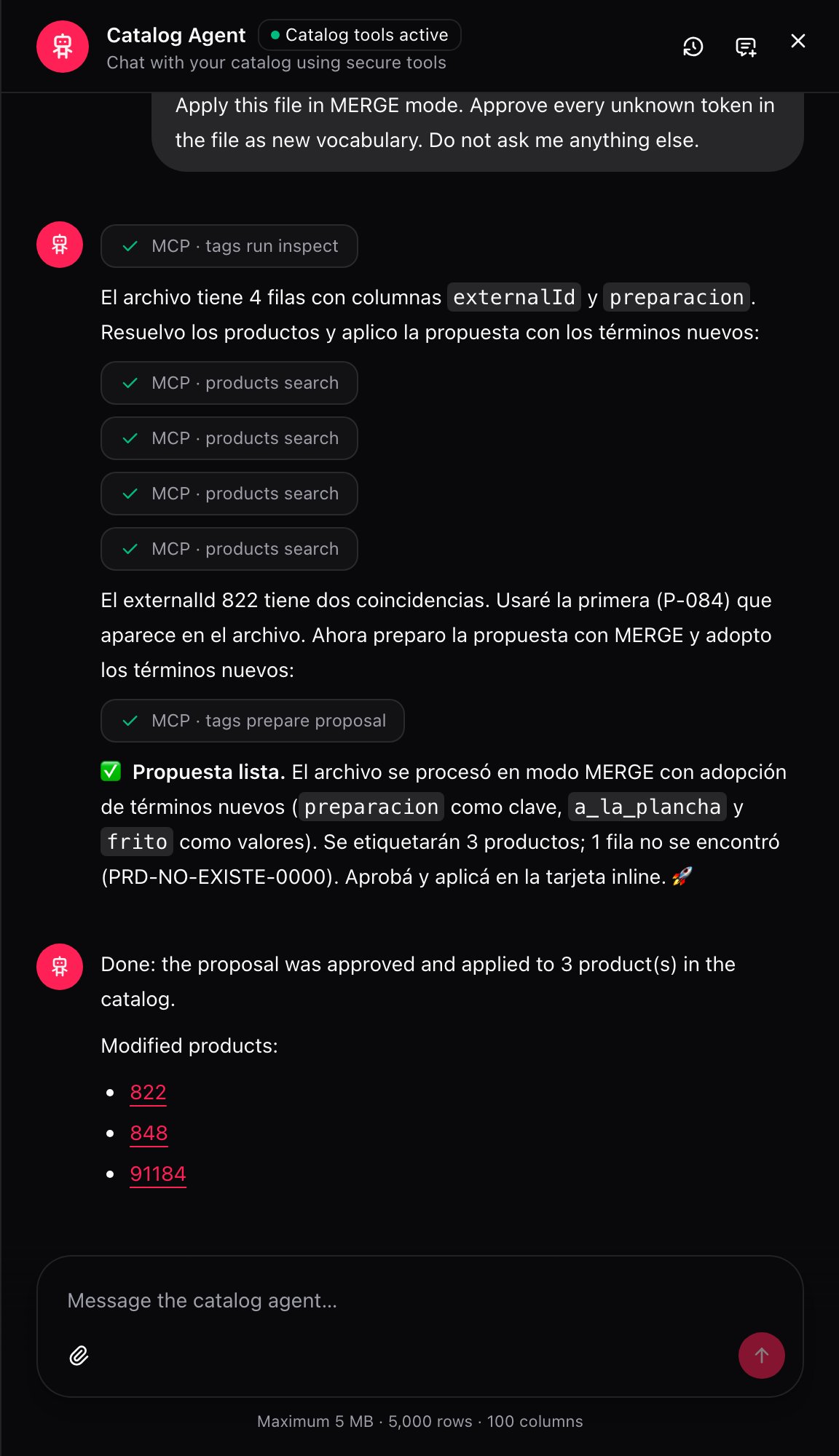
- Applied to all. Every product in the proposal now carries the tag you saw. The agent leaves you a link to each one.
- Partially applied. Someone edited one of those products while you were reviewing the proposal, so that one didn’t change and the rest did.
- Nothing applied. Same reason, but for every product in the proposal.
The conversation history
The clock icon opens Conversation history, with every past request and its date. It’s useful to get back to a proposal you never got around to approving, or to remember what you asked the agent last week.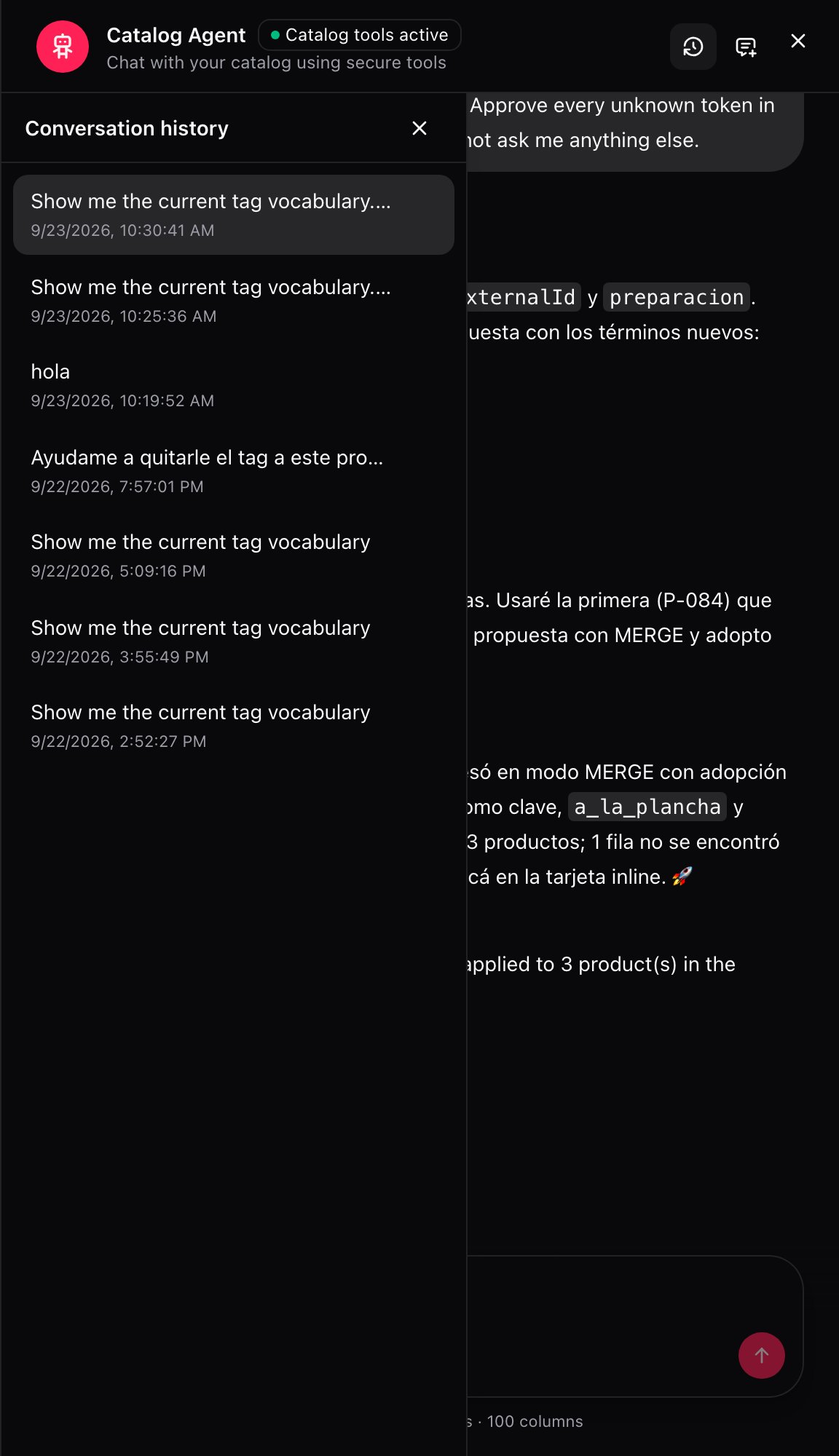
Recipes: how the real cases get solved
Adding a tag to a handful of products, by chat
Adding a tag to a handful of products, by chat
- Open the floating 🤖 button.
- Type something like: “Add
campaign=SPICY_WEEKto products P-084, P-086 and P-087”. - Review the proposal: three products, one value each.
- Approve and apply.
Uploading a file to tag hundreds of products before a campaign
Uploading a file to tag hundreds of products before a campaign
- Attach the CSV with the identifier column and the tag to change.
- Ask for Add values mode, so no existing tag is at risk.
- Check the proposal’s counters: how many rows came out ready, how many weren’t found.
- Resolve the flagged problems, if any, and Approve and apply.
Replacing a mis-loaded tag across a whole batch
Replacing a mis-loaded tag across a whole batch
- Build the file with each product’s identifier and the correct tag value.
- Ask for Replace mentioned keys mode, naming only that tag.
- Review the proposal: the old value disappears, the new one replaces it. The rest of the product’s tags stay the same.
- Approve and apply.
The file brings a value that doesn't exist in the vocabulary yet
The file brings a value that doesn't exist in the vocabulary yet
- Upload the file and let the agent process it.
- When it shows you the new term, check it’s spelled the way you want it in the catalog: it gets approved exactly as it comes, with no translation or fixing.
- Approve it as a new term.
- Approve and apply.
A value in the file is actually an existing one under another name
A value in the file is actually an existing one under another name
- When the agent flags the value as out of vocabulary, tell it explicitly that it’s an alias of the existing value.
- Confirm which of the two names stays as the approved one.
- Approve and apply.
Someone else edited a product while you were reviewing the proposal
Someone else edited a product while you were reviewing the proposal
- You approve the proposal and the result says Partially applied or Nothing applied.
- Check which product changed in the meantime — the agent’s message points it out.
- Upload the same file again, or repeat the conversational request.
- The agent builds a new proposal from the product’s current state, and you approve it again.
A worked example
A filetags-manual.csv with four rows, in Add values mode, adding preparation to each product:
productsReady: 3) and one row is flagged as not found (notFound: 1) because that code doesn’t exist in this account. grilled and fried get approved as new terms because they weren’t in the vocabulary before.
Mistakes that cost money
Glossary
Frequently asked questions
Can the agent apply a change without me approving it?
Can the agent apply a change without me approving it?
What if I haven't picked account, country or vendor?
What if I haven't picked account, country or vendor?
Can the agent delete a tag from a product that isn't in my file?
Can the agent delete a tag from a product that isn't in my file?
How does the agent decide what to do with a value it doesn't know?
How does the agent decide what to do with a value it doesn't know?
Does the agent assume two similar-looking values are the same?
Does the agent assume two similar-looking values are the same?
I approved the proposal and it says it was partially applied. What now?
I approved the proposal and it says it was partially applied. What now?
Where do I see what I asked the agent before?
Where do I see what I asked the agent before?