

The minimum you need to know
- The configuration is per store: it applies to every terminal of the store selected in the header.
- Each option has a default value for the store’s country. Whatever you change is marked as Custom.
- Changes reach the POS without restarting it, as soon as you tap Save.
Prerequisites
- Access to the Fire backoffice at app.fire.rest, with permissions on the store.
- Channel - POS and the store selected in the header.
1. Open Store config
In the side menu, open Fire POS → Store config. The options are grouped in cards.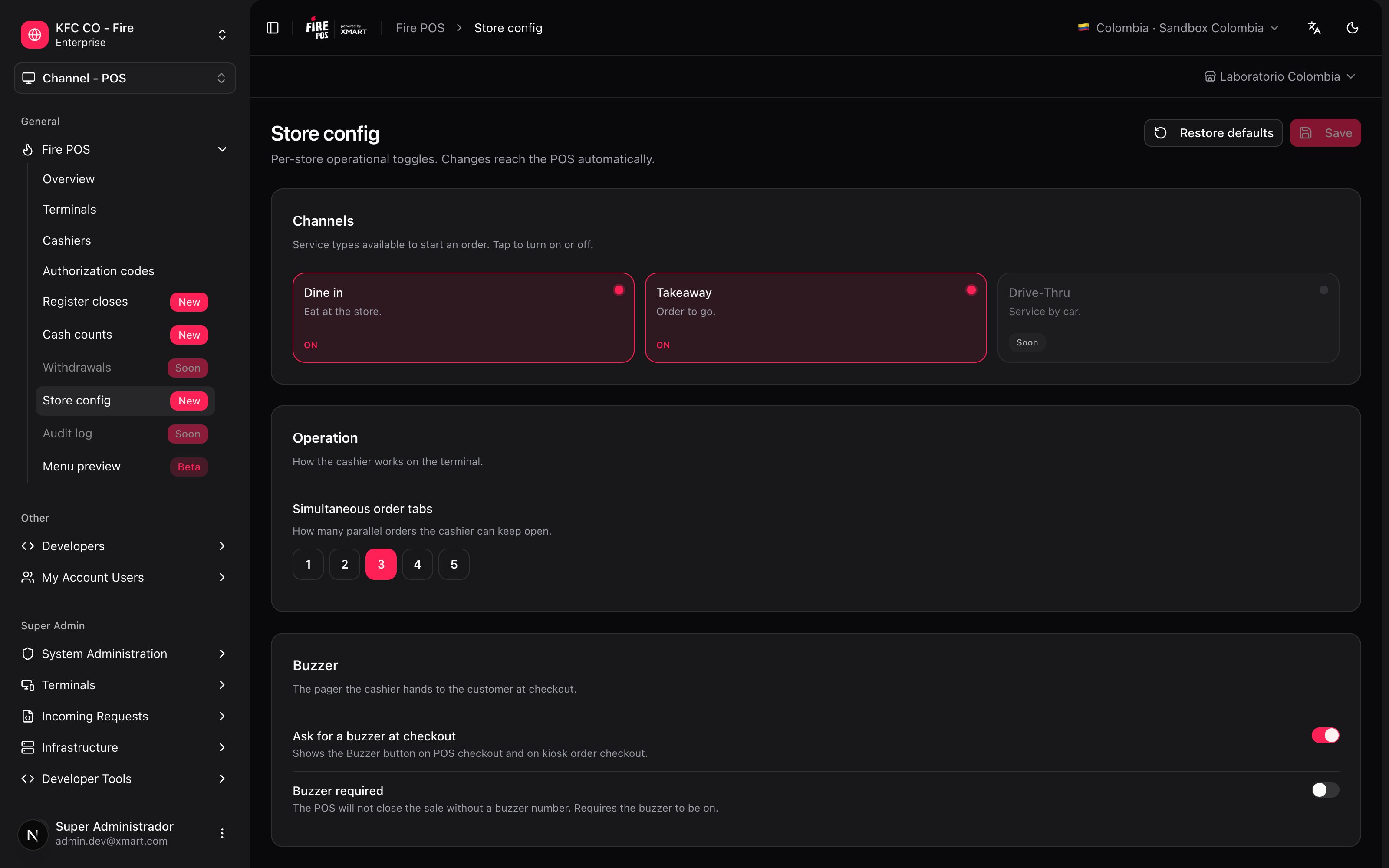
2. Change what you need
Channels
The service types the cashier can start an order with: Dine in and Takeaway. Tap a card to turn it on or off. Drive-Thru can’t be turned on yet.Operation
Simultaneous order tabs: how many orders the cashier can have open at the same time, from 1 to 5. It lets you take a new order while another one waits for payment. The default value is 3.Buzzer
- Ask for a buzzer at checkout: shows the Buzzer button in the POS checkout and in the kiosk orders checkout, to record the number of the pager handed to the customer.
- Buzzer required: the POS doesn’t let you close the sale without a buzzer number. It needs Ask for a buzzer at checkout to be on.
Diagnostics
Order-flow logging sends the backend a log of what the POS does on each order, so support can investigate a problem. Leave it as it is unless support asks you to change it.Billing
- Final-consumer limit: above the amount, the POS doesn’t let you close the sale as final consumer and requires the customer’s document.
- Limit amount: write it the way the business says it (
50is USD 50; in Colombia,200000is COP 200,000). The exact amount is still billed as final consumer: the limit applies from the first cent above it.

3. Save
While there are unsaved changes, Unsaved shows at the top, and each option that differs from the country value is marked as Custom.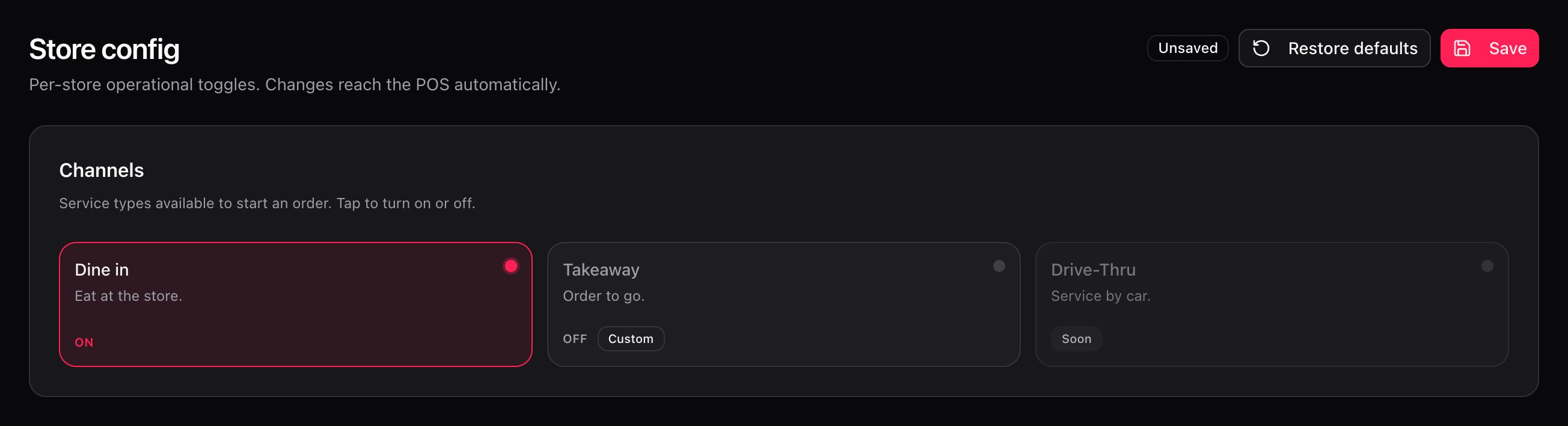
Go back to the country defaults
Restore defaults returns every option to the default value for the store’s country. It asks for confirmation and the changes reach the POS right away.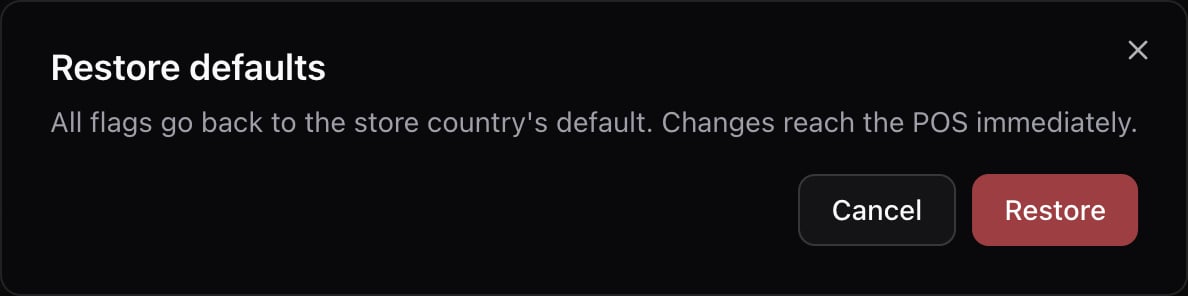
Recipes
The store doesn't do takeaway orders
The store doesn't do takeaway orders
- In Channels, tap Takeaway to turn it off.
- Tap Save.
- On the POS, that option no longer shows up when starting an order.
The store starts handing out buzzers
The store starts handing out buzzers
- In Buzzer, turn on Ask for a buzzer at checkout.
- If no order can go out without a buzzer, also turn on Buzzer required.
- Tap Save.
Require the customer's details from a certain amount
Require the customer's details from a certain amount
- In Billing, turn on Final-consumer limit.
- In Limit amount, write the amount in the store’s currency.
- Tap Save.
A cashier needs to take more orders at once
A cashier needs to take more orders at once
- In Operation, raise Simultaneous order tabs.
- Tap Save.
Mistakes that cost money
Frequently asked questions
I changed an option and the POS didn't pick it up
I changed an option and the POS didn't pick it up
Confirm that you tapped Save and that the Unsaved notice went away. Also check that the store in the header is the terminal’s store.
What does Custom mean?
What does Custom mean?
That the option has a value different from the default value for the store’s country.
Can I have a different configuration on each terminal?
Can I have a different configuration on each terminal?
No: the configuration belongs to the store and applies to all of its terminals.