

The minimum you need to know
- Each row is a register session: from the moment the cashier opens it until it is closed.
- The difference is the declared amount minus the expected amount. Negative is a shortage; positive, an overage.
- System cash is the initial fund + cash sales − withdrawals, using the cash sales recorded in Fire.
Prerequisites
- Access to the Fire backoffice at app.fire.rest, with permissions for the store.
- Channel - POS and the store selected in the header.
1. Open Register closes
In the side menu, open Fire POS → Register closes. The list shows the store’s register sessions, from newest to oldest.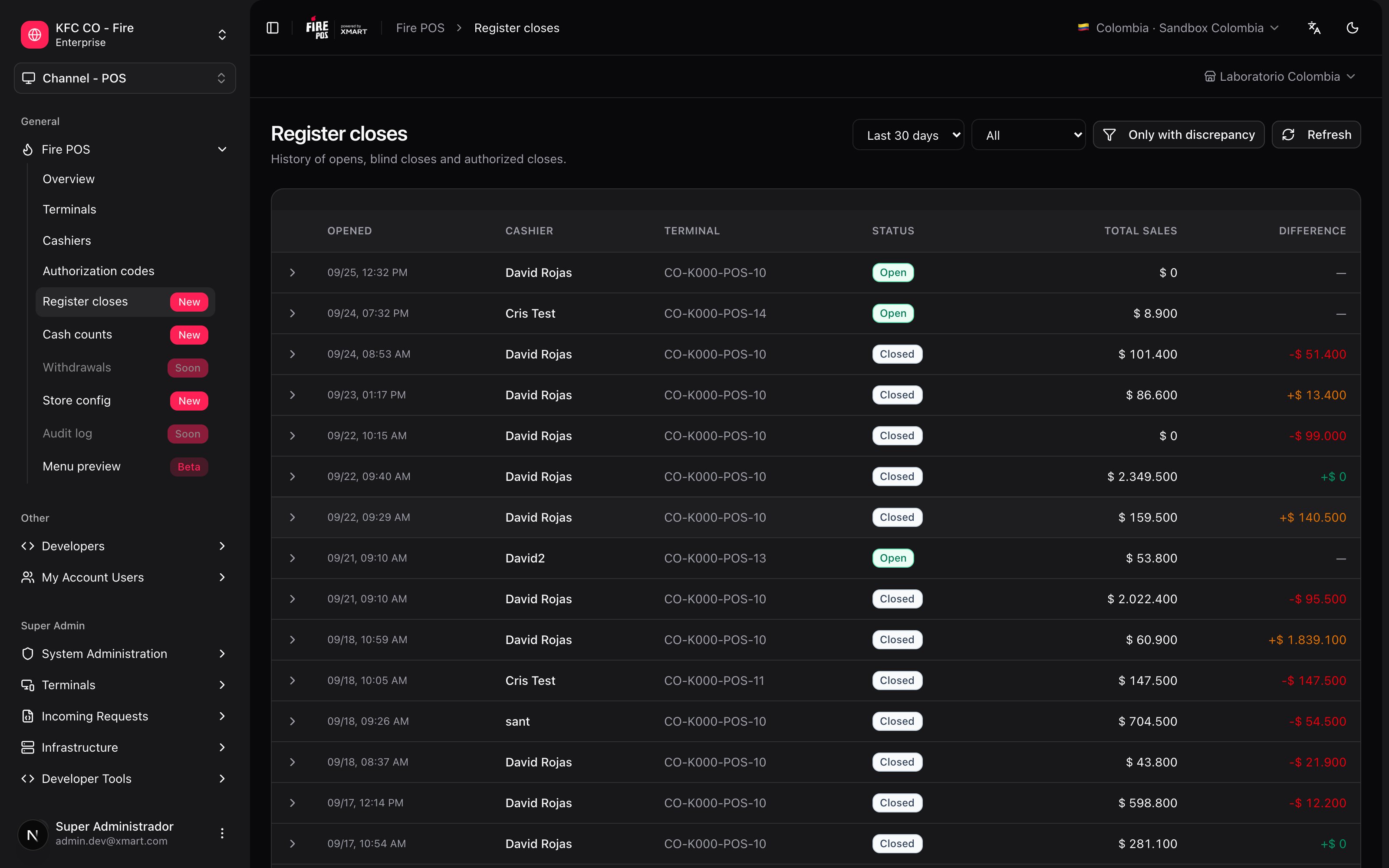
- Period: Today, Last 7 days, Last 30 days or All.
- Status: Open, Closed or Forced close.
- Only with discrepancy: hides the registers that balanced.
2. Open a register’s detail
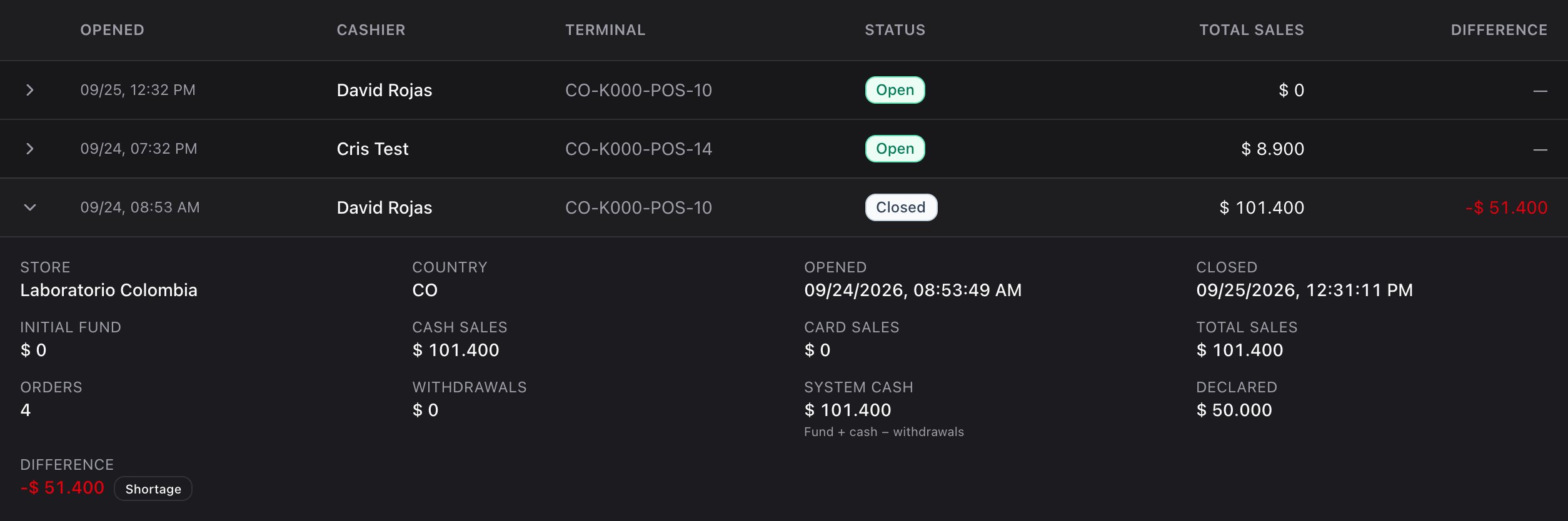
Tap a row to see the detail:- Opened and Closed, with date and time.
- Initial fund, Cash sales, Card sales, Total sales and Orders.
- Withdrawals.
- System cash: initial fund + cash sales − withdrawals.
- Declared: what the cashier counted.
- Difference, labeled Shortage, Overage or OK.
Forced closes
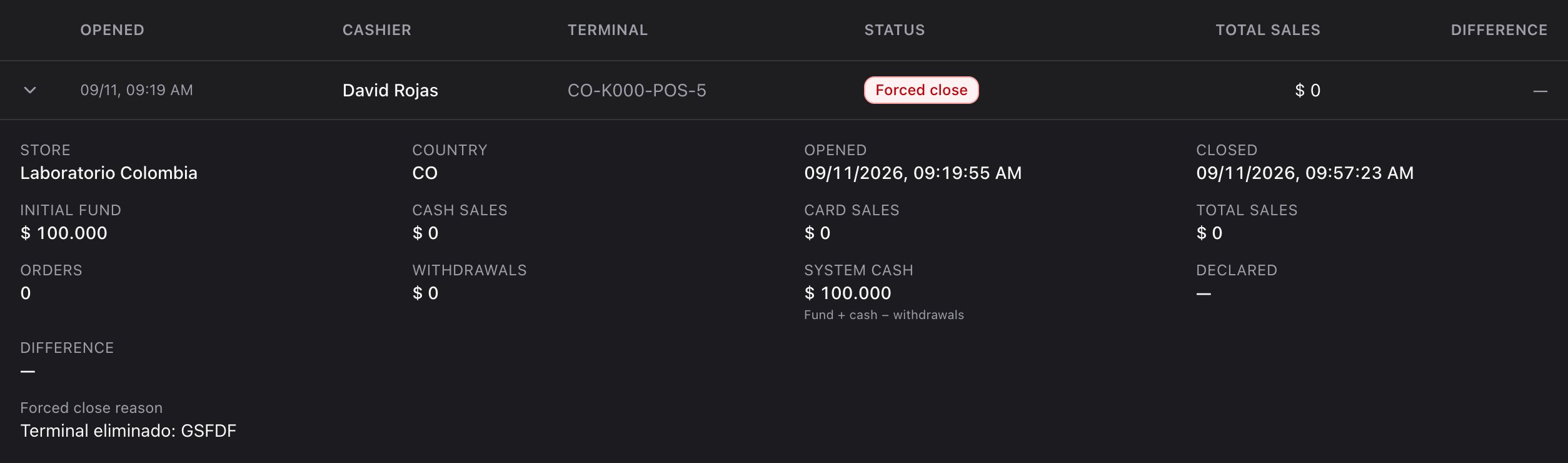
A register shows Forced close when the cashier didn’t close it from the POS. There are two cases, and the detail shows the Forced close reason:- It was closed from the backoffice with Close register manually: it has a declared amount and a difference, like a normal close.
- The terminal was revoked or deleted while the register was open: it has no declared amount or difference, because nobody counted the cash.
Recipes
See this week's shortages
See this week's shortages
- Choose Last 7 days.
- Check Only with discrepancy.
- Review the red rows: each one is a shortage, with the cashier and the terminal.
Find a register left open from another day
Find a register left open from another day
- Choose the Open status.
- Look for an opening from an earlier day.
- Close it from Terminals with Close register manually, using the drawer count.
Review registers closed without a count
Review registers closed without a count
- Choose the Forced close status.
- Open each row: if Declared is empty, the register was closed when the terminal was revoked or deleted, without counting the cash.
Review a cashier's registers
Review a cashier's registers
- Choose the period.
- Find their name in the Cashier column.
- Open each row to see the declared amount and the difference.
Mistakes that cost money
Frequently asked questions
Why didn't the cashier see the shortage in the POS?
Why didn't the cashier see the shortage in the POS?
The POS close is blind: the cashier counts without seeing the expected amount, so they don’t adjust the count. The difference only shows here and on the closing slip.
A forced close has no declared amount
A forced close has no declared amount
The register was closed when the terminal was revoked or deleted, without a count. The forced close reason says what happened.
Where do I see the count by bill and coin?
Where do I see the count by bill and coin?
In the VALORES DECLARADOS section of the closing slip the POS prints, when the cashier counted with the bill pad.
The difference shows +$ 0
The difference shows +$ 0
The register balanced: the declared amount equals the expected amount.