

The minimum you need to know
- The cash count does not close the register or move money: it only records what was counted.
- It is blind: the cashier counts without seeing how much there should be. The expected amount appears after recording.
- It requires a manager’s code from Access → Cash count. Each code is good for one cash count.
Prerequisites
- An open register. See Open the register.
- A manager to generate the code. See Authorization codes.
1. Enter the manager’s code
Tap your name at the top right to open Settings and choose Cash count. Ask the manager for a code from Access → Cash count, type the 6 digits and tap Continue.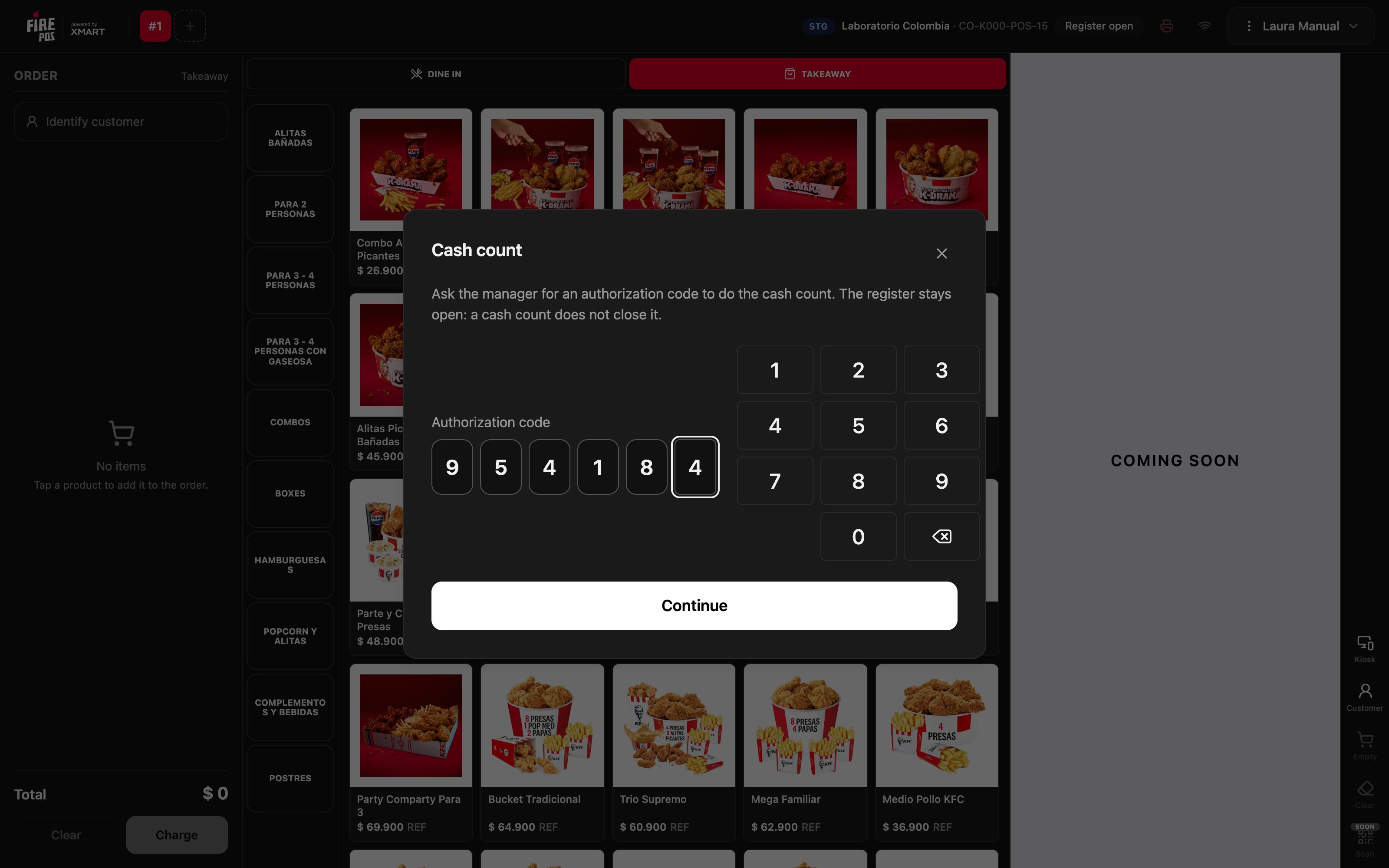
2. Count the cash
Count all the cash in the drawer, including the opening float. The window does not show how much there should be: that way the count does not bend to fit the expected number.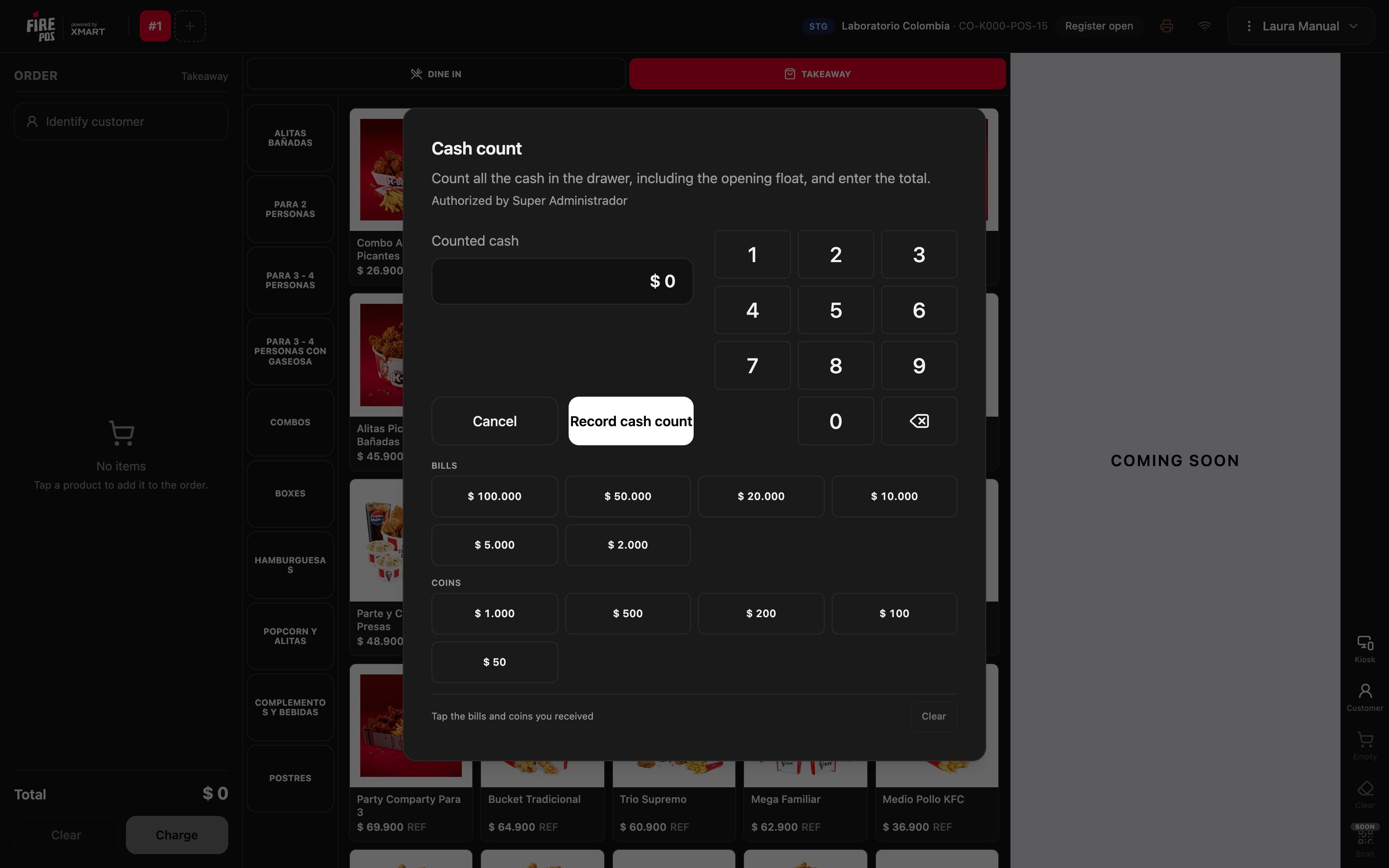
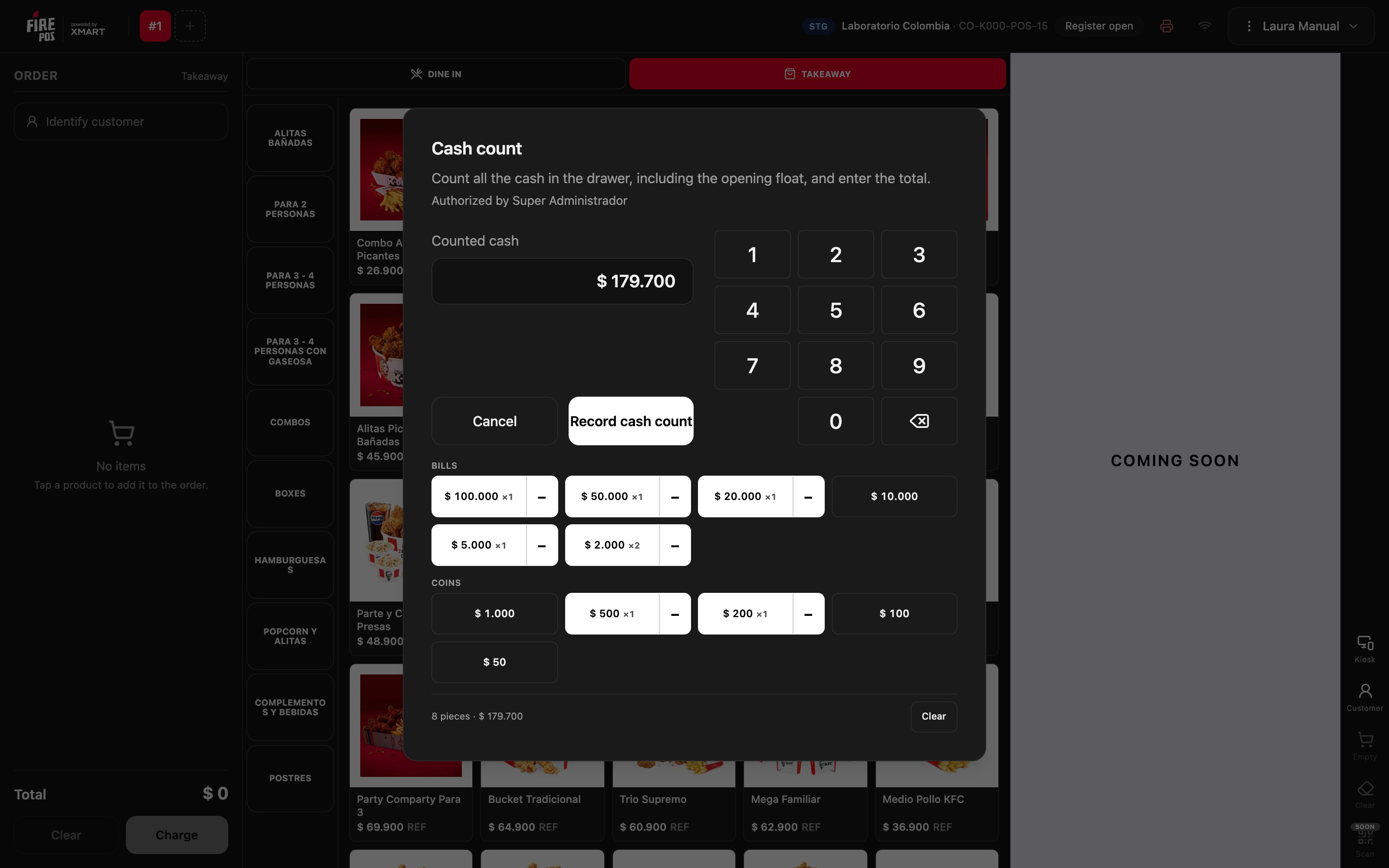
3. Record the cash count
Tap Record cash count. Only now does the POS show the opening float, cash sales, the expected amount, what was counted and the difference, and it prints the receipt. The title says The cash count matches, Cash count with overage or Cash count with shortage.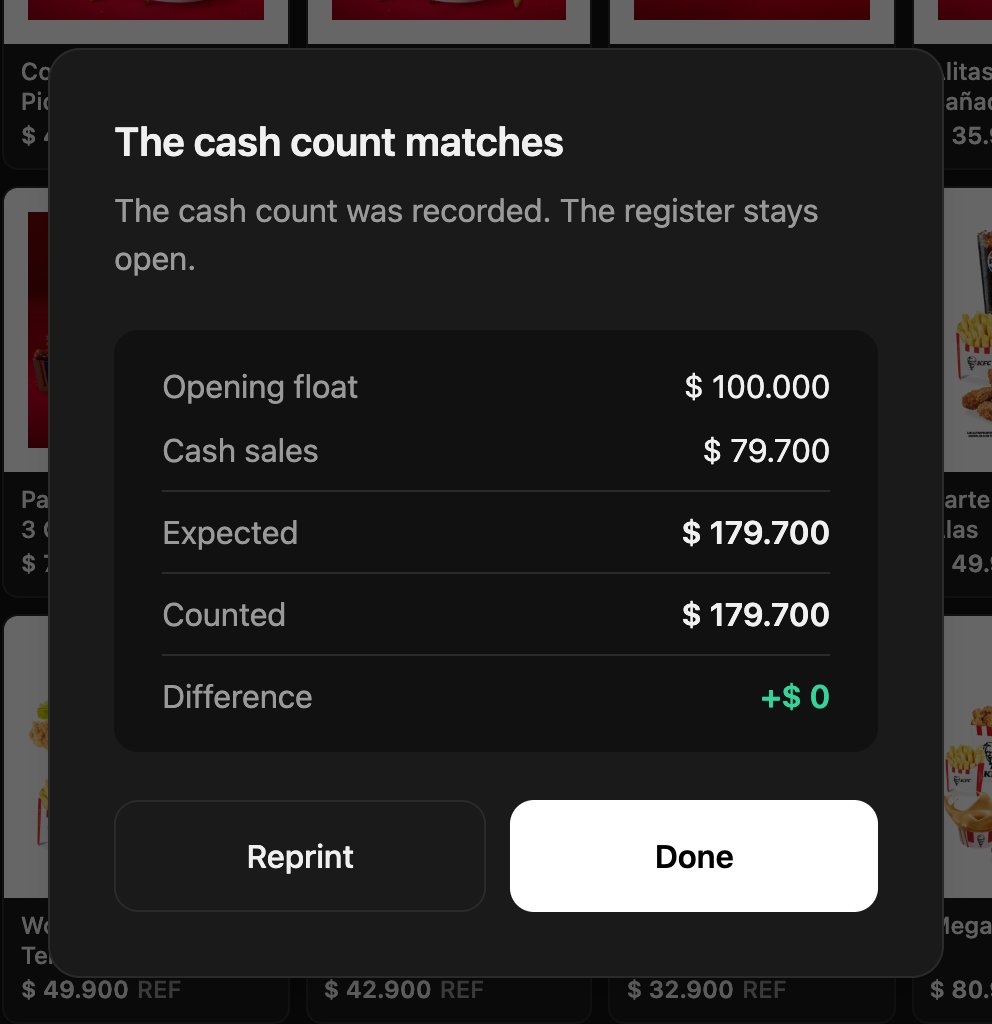
How it is calculated
- Expected = opening float + cash sales − withdrawals.
- Difference = counted − expected.
See your cash counts in the POS
In Settings → Cash counts you have your cash counts on this register, with the expected amount, what was counted and the difference for each one. At the top you choose Today, 7 days or 30 days, and each cash count has its own Reprint button.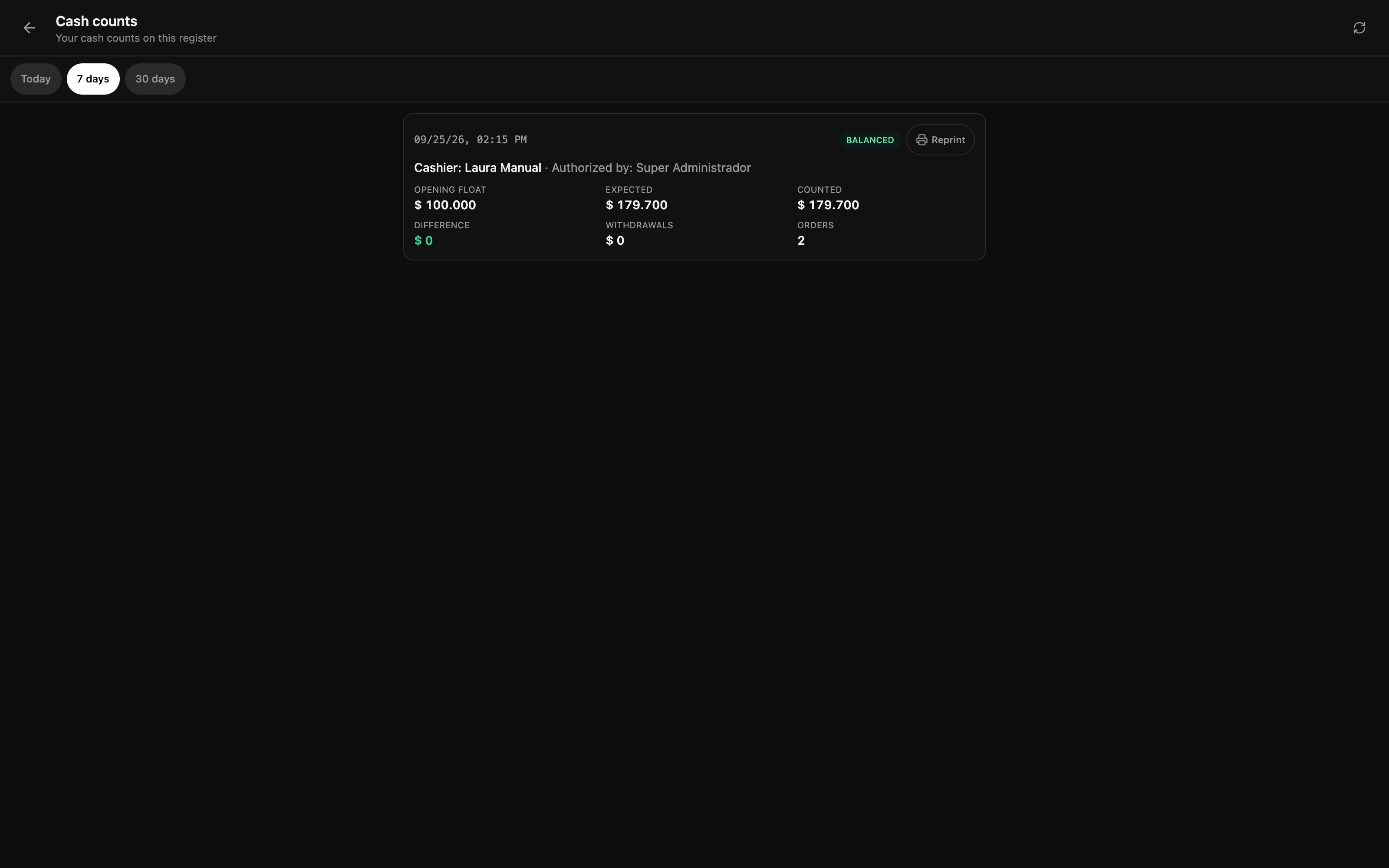
Review cash counts in the backoffice
In the backoffice, Fire POS → Cash counts shows the cash counts of the store selected at the top right: date, cashier, terminal, who authorized it, expected, counted and difference. With Only with difference you keep the overages and shortages.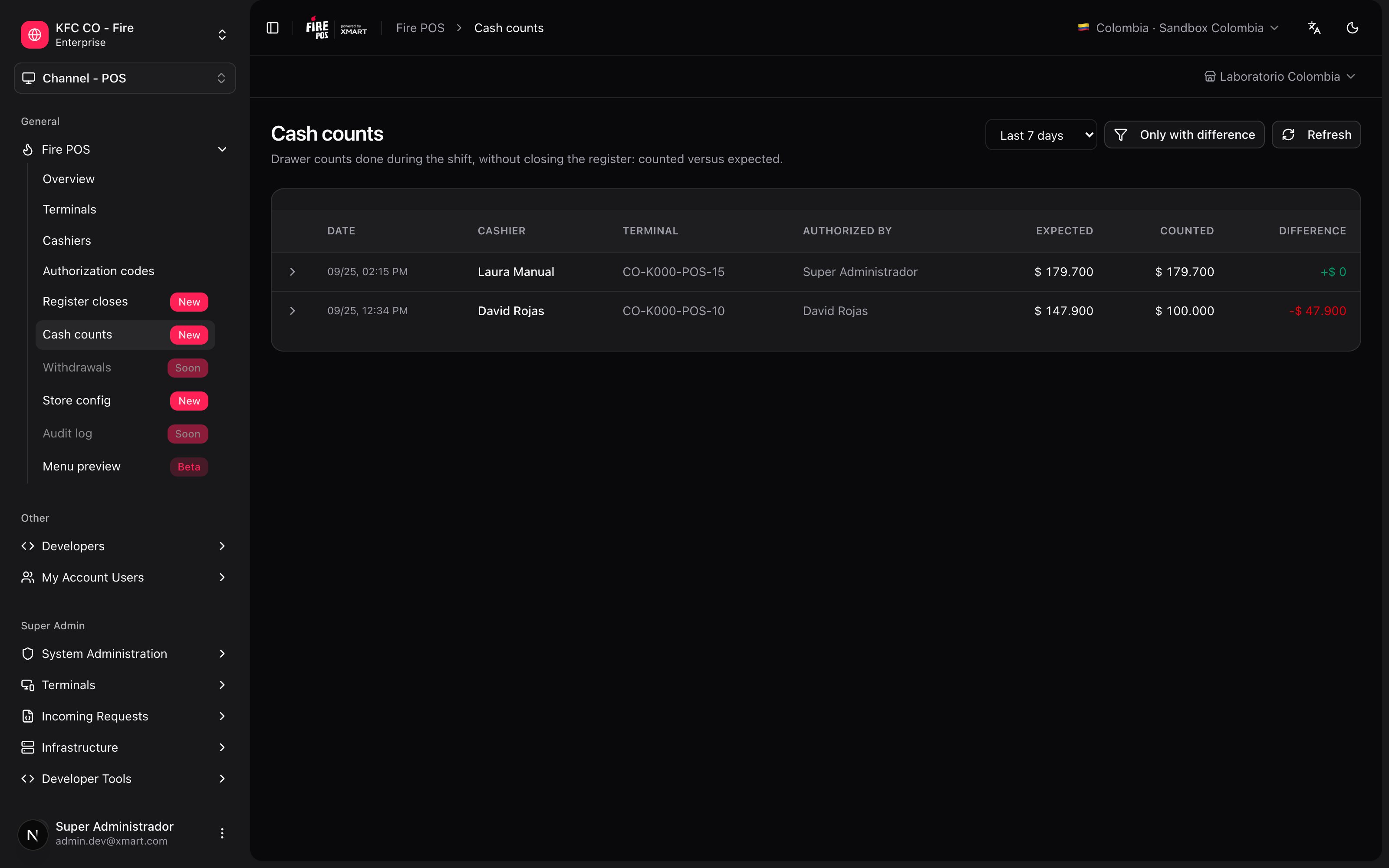
Recipes
Surprise cash count in the middle of the shift
Surprise cash count in the middle of the shift
- Generate a code from Access → Cash count.
- Ask the cashier to open Settings → Cash count and type the code.
- Let them count without telling them how much there should be.
- Look at the result in the POS or in Fire POS → Cash counts.
Review the week's shortages
Review the week's shortages
- In the backoffice, open Fire POS → Cash counts.
- Choose Last 7 days.
- Turn on Only with difference.
- Tap each row to see who counted and who authorized it.
Mistakes that cost money
Frequently asked questions
It says “That code was already used for another cash count”
It says “That code was already used for another cash count”
Each code is good for one cash count. Ask the manager for a new one from Access → Cash count.
It says “This code is not valid for this cash count”
It says “This code is not valid for this cash count”
The code is for another operation, such as opening the drawer or cancelling. Ask the manager for one from Access → Cash count.
It says “The cash count was recorded, but it could not be printed”
It says “The cash count was recorded, but it could not be printed”
The cash count is saved. Check the printer and tap Reprint on the result or in Settings → Cash counts.
Can I do several cash counts in the same shift?
Can I do several cash counts in the same shift?
Yes. Each one asks for its own code and is recorded separately.
Does the cash count change the register close?
Does the cash count change the register close?
No. The close does its own count and compares it against the expected amount for the whole shift. The cash count only leaves a record of that moment.
The count by bill and coin does not appear in the detail
The count by bill and coin does not appear in the detail
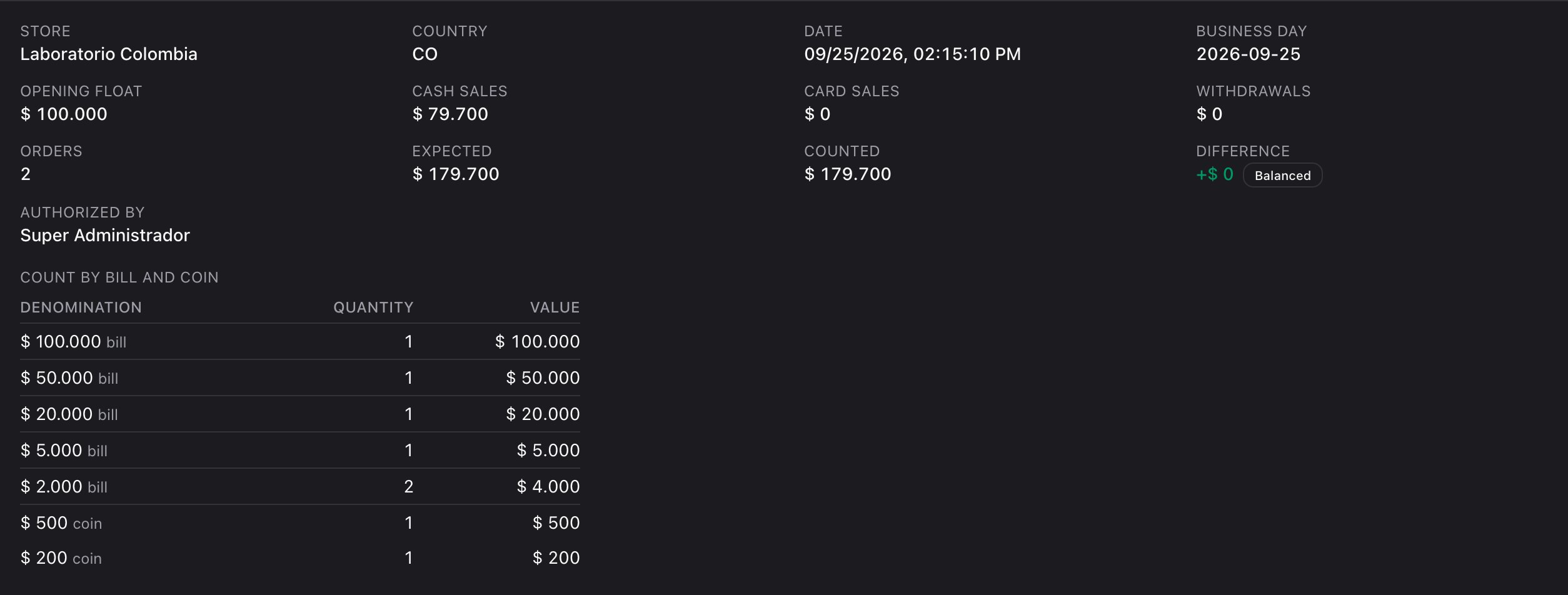
It appears only if the cashier counted with the bills and coins buttons and the total was not changed by hand afterwards.